
 TL;DR:
The "Denuvo tried to delete the token" error is a DRM activation failure linked to virtualized environments, requiring users to close background emulators, verify game files through official platforms, and configure specific Windows hypervisor settings.
● Run msinfo32 to confirm if a hypervisor is active, and temporarily disable Hyper-V, Windows Hypervisor Platform, Virtual Machine Platform, or Memory Integrity to clear software conflicts, though turning off Memory Integrity will reduce system protection.
● Denuvo Anti-Tamper strictly limits users to 5 activations across different systems within a 24-hour period, meaning continuous troubleshooting or major hardware changes can exhaust this allowance and require official game publisher support.
● Wondershare Repairit can rebuild damaged game archives such as ZIP, RAR, ISO, and 7Z files before a clean reinstallation, but it cannot directly fix Denuvo tokens, DRM activation records, or Windows virtualization configurations.
Ask AI for a summary
 ChatGPT
 Perplexity
 Gemini
 Claude
 Grok
Denuvo tried to delete the token may appear alongside a message asking whether a Windows hypervisor is running. However, Denuvo does not publicly confirm that Hyper-V or another Windows virtualization feature directly causes this token-related failure.
Before changing system settings, check whether the Windows hypervisor is active and review features such as Hyper-V, Virtual Machine Platform, and Memory Integrity. The fixes below focus on Windows settings and official publisher support. Repairit addresses a separate issue involving corrupted game archives rather than DRM activation failures.
In this article
-
- Fix 1. Close Virtual Machines, Emulators, and Virtualization Apps
- Fix 2. Check Hyper-V Status
- Fix 3. Review Windows Hypervisor Platform and Virtual Machine Platform
- Fix 4. Check Windows Security Core Isolation and Memory Integrity
- Fix 5. Perform a Clean Boot to Find Software Conflicts
- Fix 6. Run DISM and System File Checker
- Fix 7. Reinstall the Game or Launcher from the Official Source
- Fix 8. Contact the Game Publisher If Activation Still Fails
Part 1. What Does "Denuvo Tried to Delete the Token – Is the Hypervisor Running?" Mean?
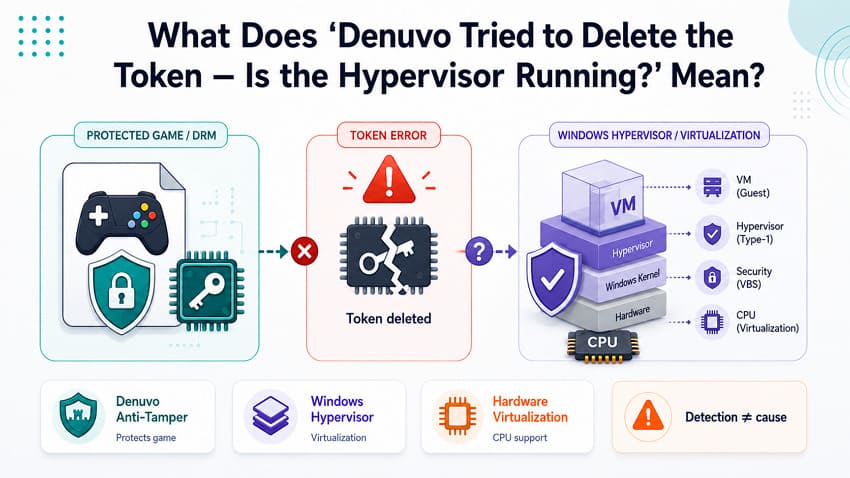
The message Denuvo tried to delete the token indicates a token-related operation failure while the system also checks whether the required hypervisor is running. Public Denuvo documentation does not explain this specific message or establish Windows Hyper-V as the direct cause of the token failure.
What the Denuvo Token Error Means
Denuvo uses activation-related data when running protected games. However, Irdeto does not publicly explain what “delete the token” means in this specific error. Therefore, the message is better understood as a token-related failure rather than evidence that Denuvo routinely deletes and recreates local activation files.
Why the Message Mentions a Hypervisor
Irdeto’s Denuvo Anti-Tamper technology can detect virtualized environments and hypervisor activity as part of its protection mechanisms. These capabilities help identify environments that could be used for analyzing or manipulating protected game code.
However, detecting a hypervisor does not mean that Hyper-V, Virtual Machine Platform, VBS, or Memory Integrity directly causes this particular token error. Check the software environment and active virtualization features before changing any Windows settings.
Denuvo Anti-Tamper vs Windows Hypervisor
Denuvo Anti-Tamper and the Windows hypervisor serve different purposes, although both involve virtualization technologies. The table below explains their roles and how they relate to virtualization:
| Component | What It Does | Relevant Detail |
| Denuvo Anti-Tamper | Protects game code against reverse engineering and modification | Includes virtual machine and hypervisor detection |
| Windows Hypervisor | Provides Microsoft’s virtualization layer | Supports Hyper-V and virtualization-based security features |
| Hardware Virtualization | Provides CPU capabilities such as Intel VT-x or AMD-V | Allows Windows and other software to use hardware-assisted virtualization |
According to Microsoft, VBS uses the Windows hypervisor to create an isolated environment for security features. Therefore, an active hypervisor can be part of a normal Windows configuration and does not necessarily indicate malicious or abnormal software.
Can the Error Affect a Legitimately Purchased Game?
Legitimate games can use Denuvo Anti-Tamper, which includes hypervisor detection. However, the Denuvo tried to delete the token message is not necessarily limited to or expected in standard retail-game installations.
Does the Error Mean Denuvo or Windows Is Broken?
Not necessarily. The error does not mean that Denuvo, Windows, or your virtualization hardware is faulty. Check the software environment and virtualization requirements before changing Windows security or virtualization settings.
Part 2. Why Does the Denuvo Hypervisor Error Appear?
Understanding how to fix Denuvo tried to delete the token: Is the hypervisor running? Starts with checking whether a Windows hypervisor is active. The causes below help identify which virtualization features or system changes may be involved:
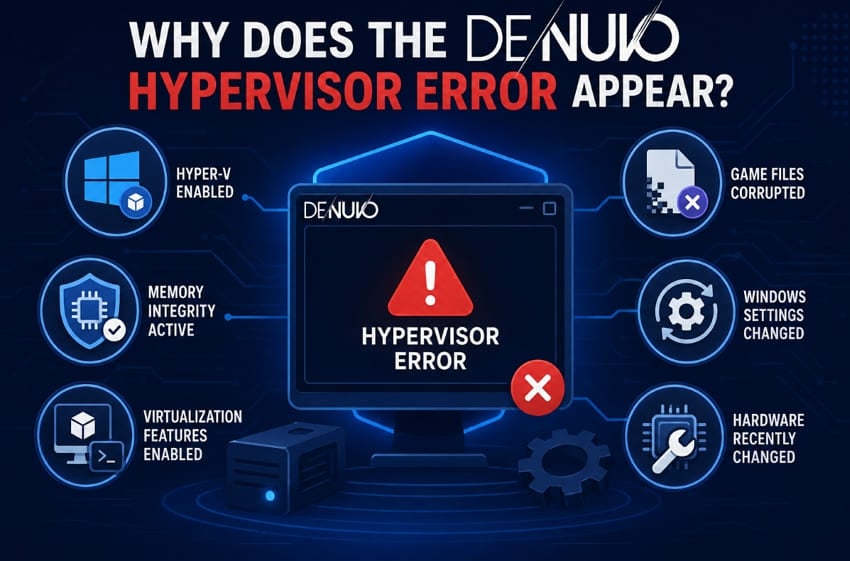
- Hyper-V Enabled: Enabling Hyper-V can load the Windows hypervisor at startup, even when no virtual machine is currently running.
- Memory Integrity Active: Memory Integrity relies on VBS, which uses the Windows hypervisor to create an isolated environment for protected system operations.
- Virtualization Features Enabled: Virtual Machine Platform, Windows Sandbox, and WSL 2 use Windows virtualization technologies. These features can indicate that virtualization components are active.
- Game Files Corrupted: Missing, outdated, or damaged protected game files can cause startup or validation problems that may appear alongside the Denuvo token error.
- Windows Settings Changed: Windows updates or configuration changes can affect virtualization and security settings, potentially changing whether hypervisor-based features are active after a restart.
- Hardware Recently Changed: Major hardware changes can alter the system environment used for game activation, potentially contributing to token or license-validation problems.
Part 3. Check These Things Before Changing Hypervisor Settings
To determine how to fix Denuvo tried to delete the token: Is the hypervisor running? First, check your game and system environment. Review the following areas before changing any Windows settings.
Launch from the Official Platform: Start the game through its required launcher, such as Steam, Epic Games, Ubisoft Connect, or the EA app, rather than opening its executable.
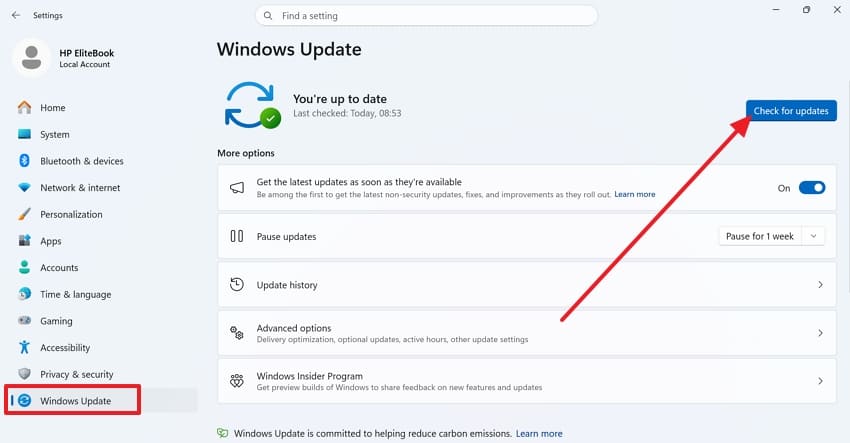
Restart and Check for Updates: Install pending game, launcher, and Windows updates, restart the PC, then launch the game again.
Check for an Active Hypervisor: Microsoft’s virtualization troubleshooting guide recommends opening msinfo32.exe. If “A hypervisor has been detected” appears, the Hyper-V hypervisor is running.
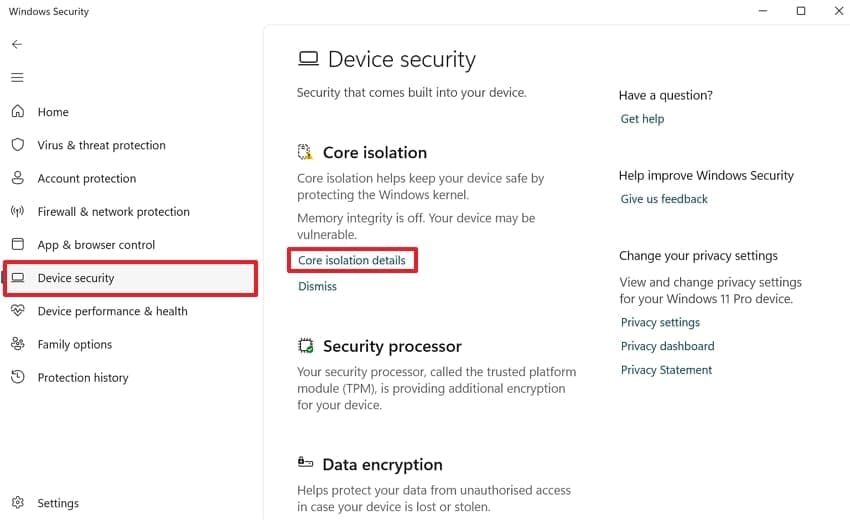
Check Memory Integrity: Open Windows “Security > Device Security > Core Isolation” details and note whether Memory Integrity is on.
Review Recent Changes: Check whether the error began after enabling Hyper-V, WSL, Sandbox, virtualization software, BIOS virtualization, or making hardware changes.
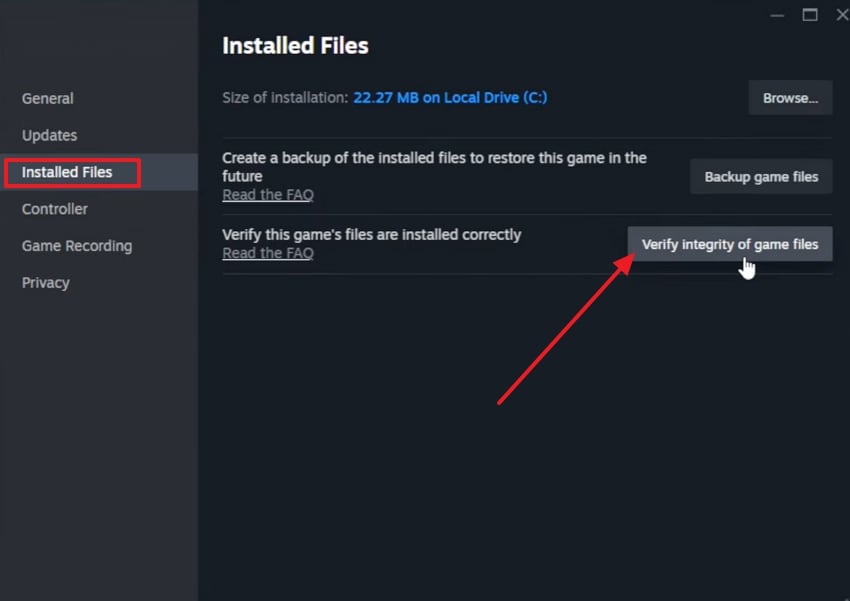
Verify the Game Files: Use the launcher's verification feature before reinstalling. Steam confirms that verification checks installed files and can replace missing, damaged, or incorrect files.
Part 4. How to Fix "Denuvo Tried to Delete the Token – Is the Hypervisor Running?"
These 8 fixes address the Denuvo tried to delete the token error, starting with the simplest options. Follow them in order and stop once the game launches successfully.
Fix 1. Close Virtual Machines, Emulators, and Virtualization Apps
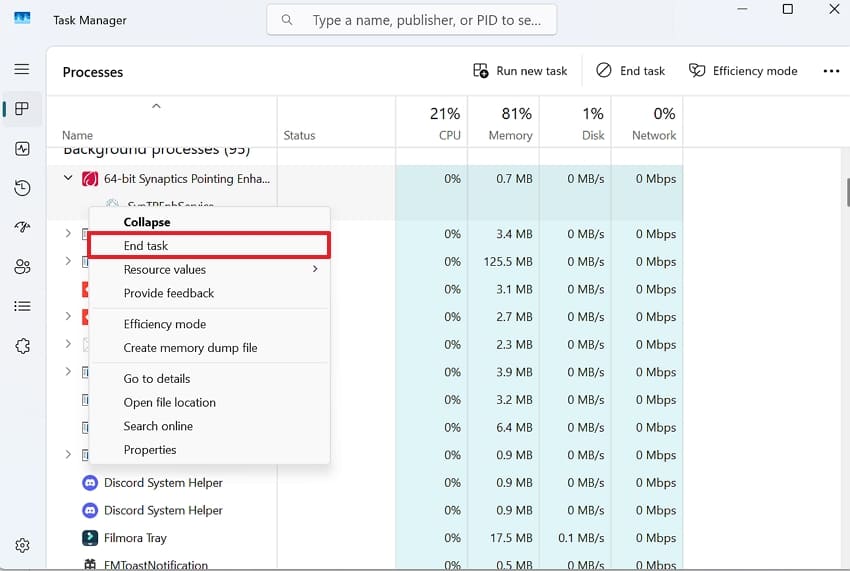
Virtualization software can interact with the Windows hypervisor when running in the background. Task Manager can show virtualization-related activity, but it cannot confirm a hypervisor conflict by itself. Follow these steps to close the applications:
Step 1. First, close “VMware,” “VirtualBox,” or any “Android Emulator” you have installed.
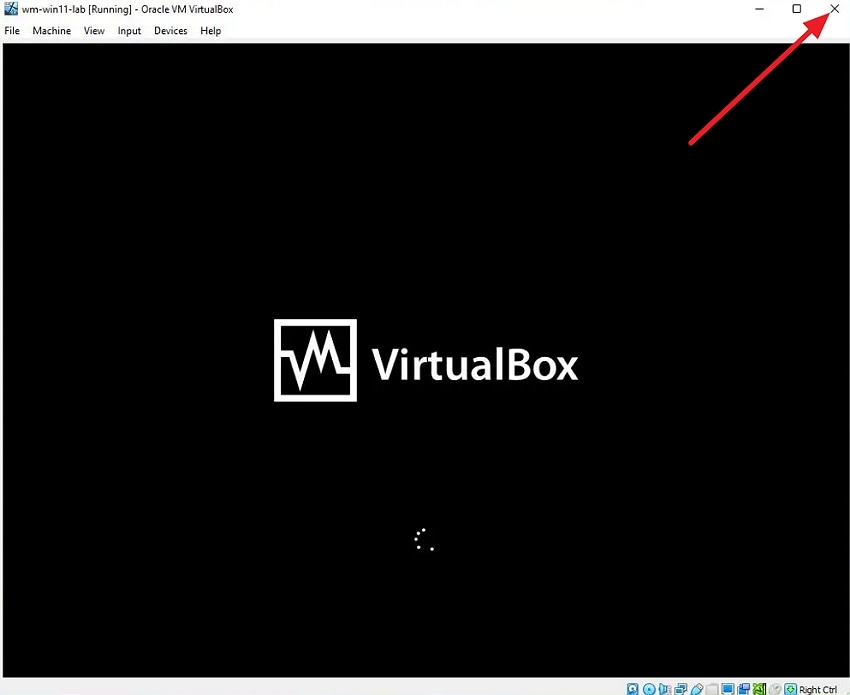
Step 2. Open “Task Manager” > Check for “VirtualBox” processes still running. If yes, right-click > Press “End Task.” Once done, launch the game again before changing any Windows settings.
Fix 2. Check Hyper-V Status
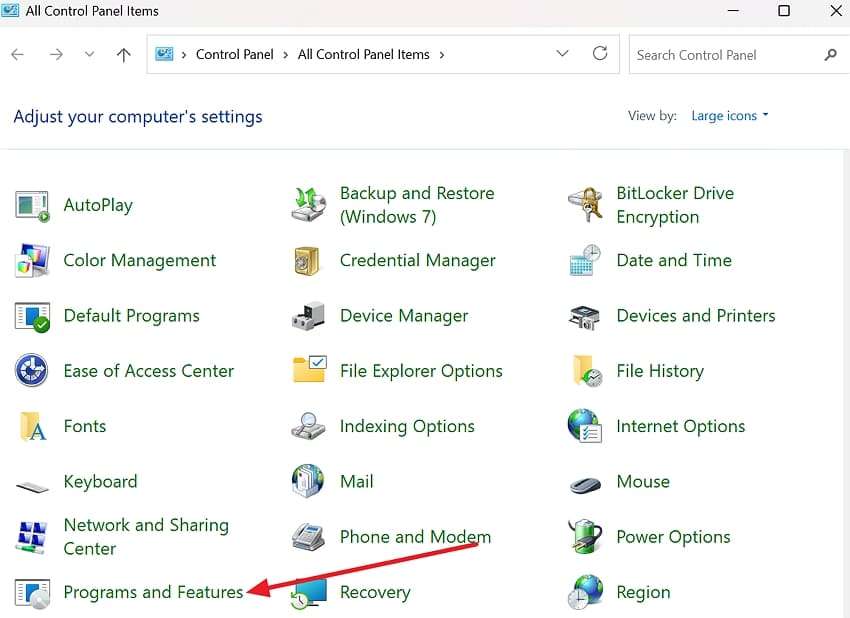
Hyper-V can automatically start a Windows hypervisor whenever your computer boots up. Windows 11 Home lacks Hyper-V, so users should skip to Fix 3. Microsoft confirms that Hyper-V cannot be installed on Windows 11 Home editions officially. To review your current Hyper-V configuration, use the steps below:
Step 1. First, open “Control Panel > Programs and Features.”
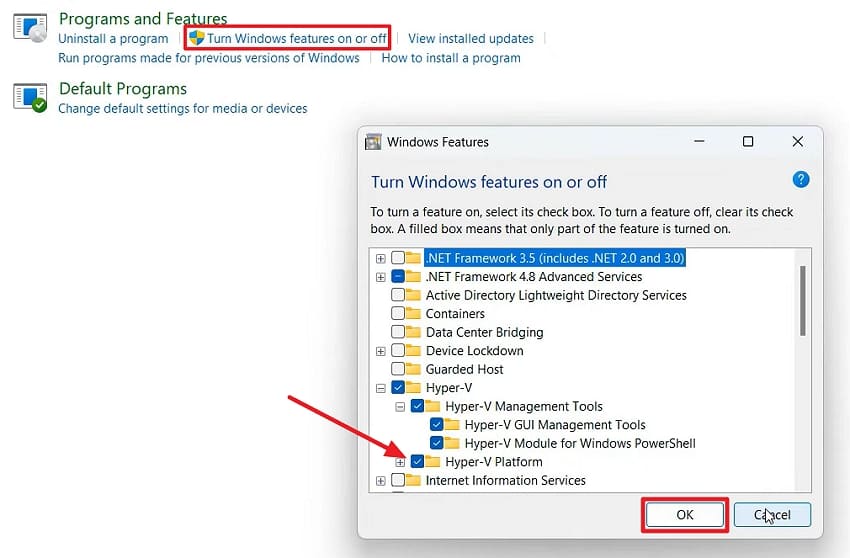
Step 2. Choose “Turn Windows Features On or Off” > Expand “Hyper-V.” Again, expand “Hyper-V Platform” > Clear the “Hyper-V Hypervisor” checkbox > Press “OK.”
Step 5. Restart your PC > Open “CMD” > Run “msinfo32.” Check if Windows still reports that a hypervisor has been detected.
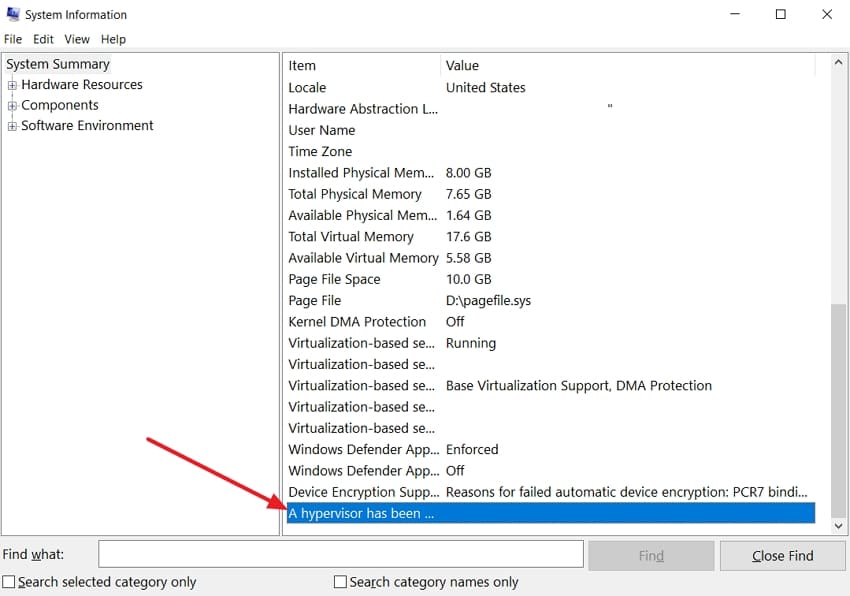
Note: If System Information still reports an active hypervisor, open Command Prompt as administrator > Run bcdedit /set hypervisorlaunchtype off > Restart your PC. To re-enable automatic hypervisor startup, run bcdedit /set hypervisorlaunchtype auto > Restart your PC.
Fix 3. Review Windows Hypervisor Platform and Virtual Machine Platform
These two Windows features can keep the hypervisor active even after Hyper-V is disabled. Learning how to fix Denuvo tried to delete the token: Is the hypervisor running? requires checking both settings. If the error continues after changing Hyper-V, follow these steps:
Instructions. In the “Turn Windows Features On or Off” window, clear “Windows Hypervisor Platform” and “Virtual Machine Platform.” Then, press “Ok” > Restart PC.
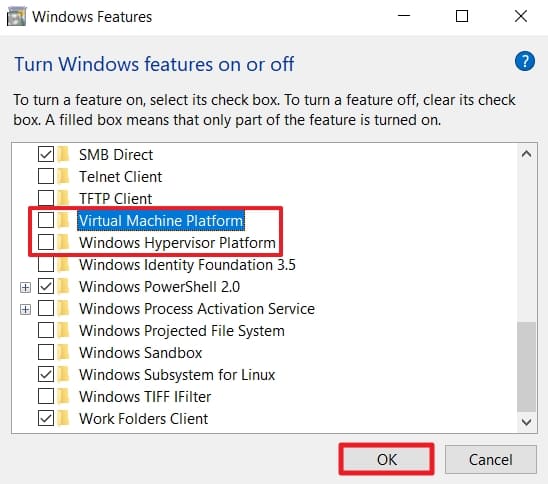
Fix 4. Check Windows Security Core Isolation and Memory Integrity
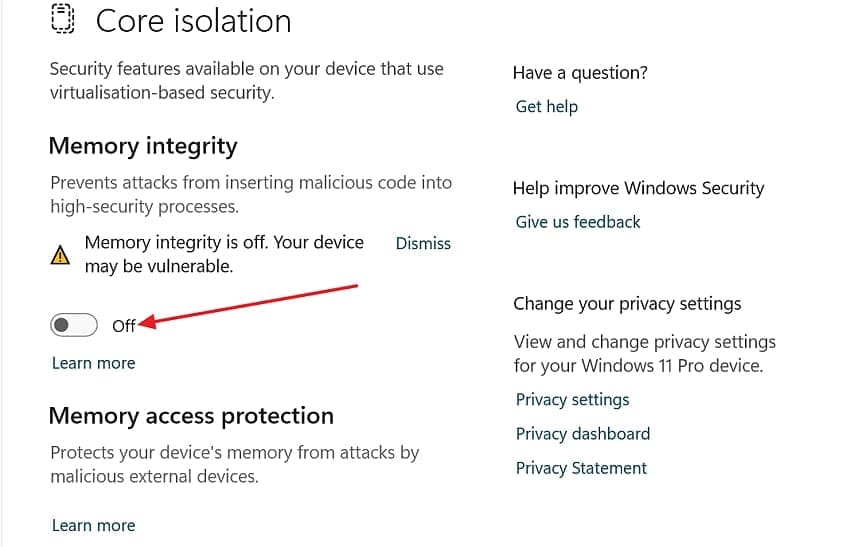
Memory Integrity uses the Windows hypervisor and may sometimes trigger this error. Disabling it temporarily may help, but doing so reduces important system protection. To check this security setting, follow the steps below:
Step 1. From the Start menu, open “Windows Security” > Select “Device Security.” After that, press “Core isolation details” under the Core isolation section.
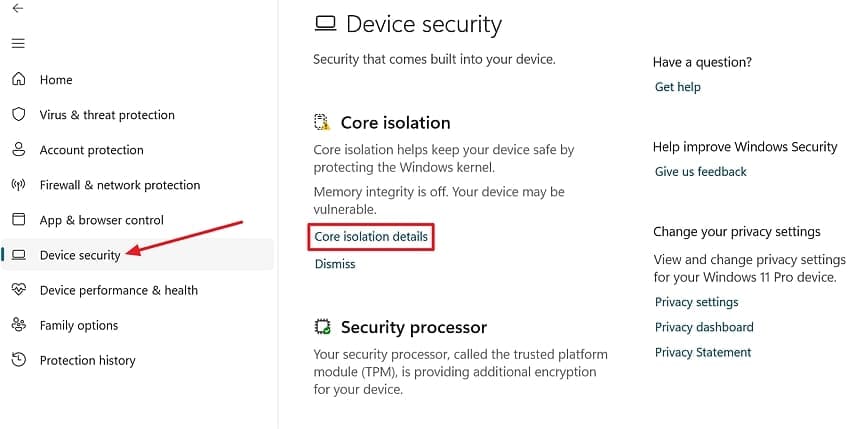
Step 2. Then, turn off “Memory integrity” > Restart PC when prompted.
Fix 5. Perform a Clean Boot to Find Software Conflicts
A clean boot can help identify software conflicts behind the Denuvo tried to delete the token error. Some security programs or developer tools may run virtualization-related services during Windows startup. Follow these steps to identify potential conflicts:
Step 1. Open “System Configuration” > Press “Services” > Check “Hide all Microsoft Services.” Then, press “Disable All.”
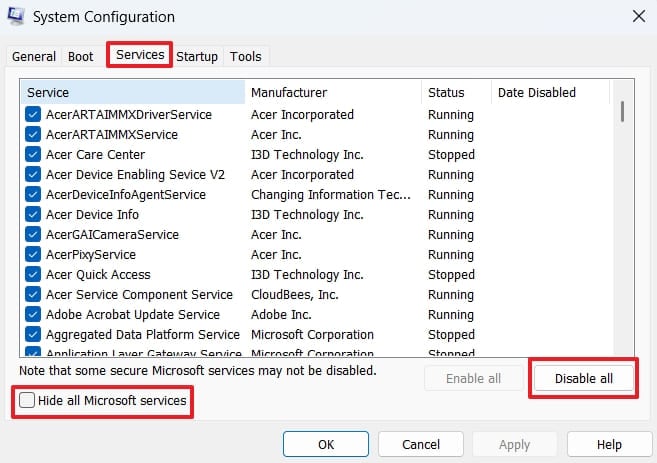
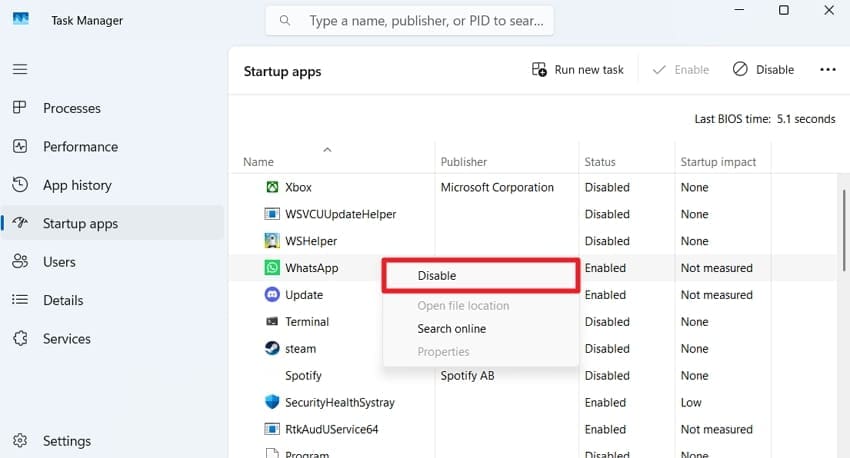
Step 2. Go to the “Startup” tab > Select “Open Task Manager” > Choose each enabled startup item > Right-click them > Press “Disable." Restart the PC and launch the game.
Fix 6. Run DISM and System File Checker
Damaged Windows components can stop games from writing required token data sometimes. DISM repairs the component store before System File Checker replaces damaged system files. To repair these Windows components, look at the steps provided below:
For DISM
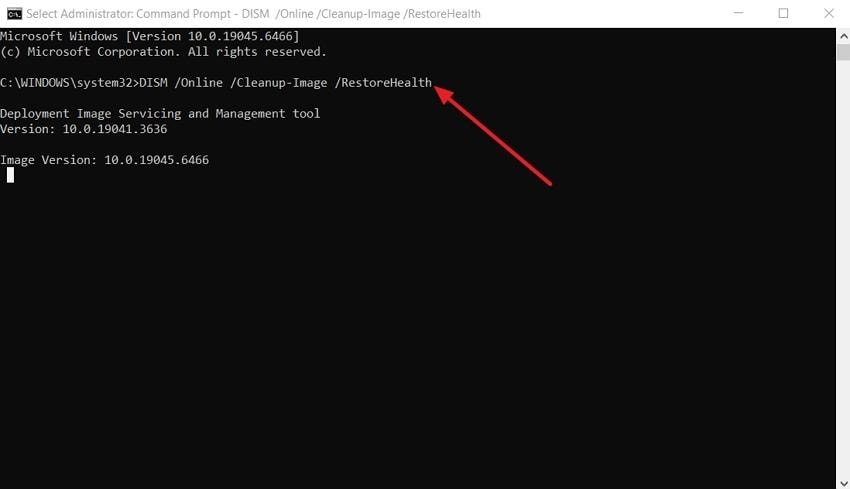
Instructions. First, run CMD as Administrator > Execute “DISM /Online /Cleanup-Image /RestoreHealth” > Press “Enter.”
For SFC Scan
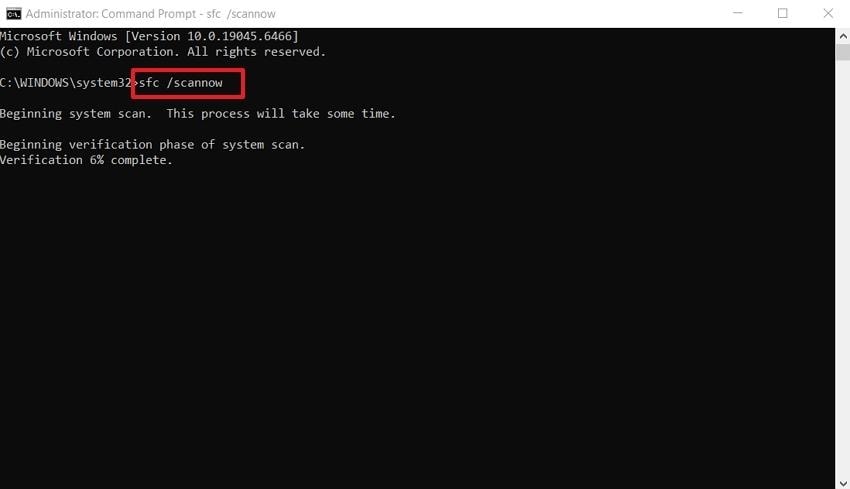
Instructions. Run “sfc /scannow” > Restart PC and launch the game afterward.
Fix 7. Reinstall the Game or Launcher from the Official Source
Reinstalling can replace damaged or incomplete game files that may interfere with normal startup. If you’re wondering how to fix Denuvo tried to delete the token: Is the hypervisor running? Reinstalling may help when file-related problems are involved. Follow these steps to reinstall the game or launcher from an official source:
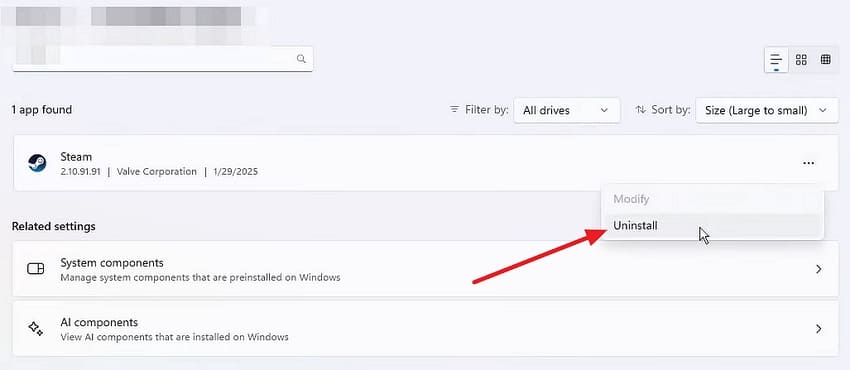
Step 1. Access “Settings > Apps > Installed Apps” > Search for “Launcher name” > Choose “Uninstall.”
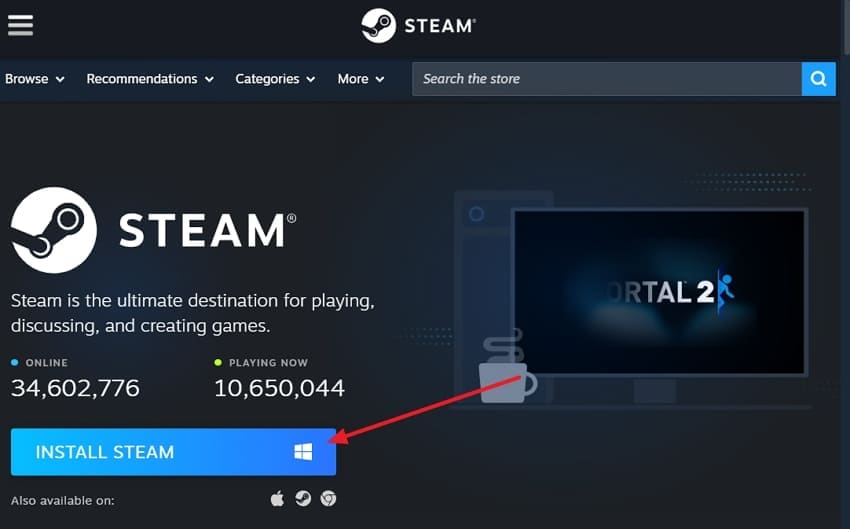
Step 2. Next, visit the official site of that launcher. Download and install it on your PC and launch the game to check whether the error remains. If you don’t use a launcher, repeat the same steps for the game.
Fix 8. Contact the Game Publisher If Activation Still Fails
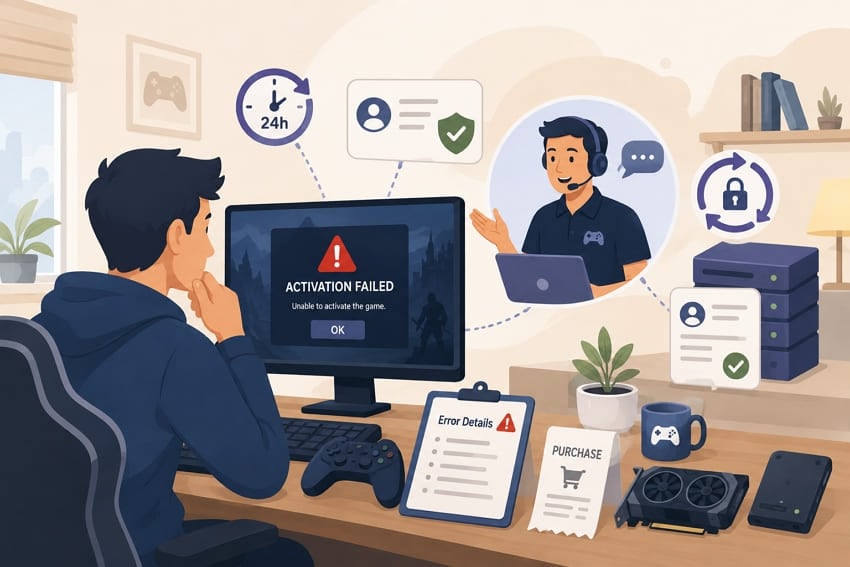
Official publisher support can help when activation problems continue after local troubleshooting. Denuvo Anti-Tamper allows up to 5 activations on different systems within a 24-hour period. Repeated hardware changes or testing may reach this limit. When contacting support, provide your purchase details, exact error message, and information about recent hardware changes.
Part 5. What If the Error Started After a PC or Windows Change?
Recent PC or Windows changes can help identify what caused the Denuvo tried to delete the token error. Match the latest system change with its related fix before trying other solutions. The table below shows which solution matches each recent system change:
| What Changed | Likely Effect | Where to Start |
| A Windows Update Installed | Virtualization or security settings may have changed | Fix 4, then re-check Fix 3 |
| Hyper-V, WSL, or Sandbox Enabled | A hypervisor may now start at boot | Fix 2 and Fix 3 together |
| Memory Integrity Turned On | VBS may activate the Windows hypervisor | Fix 4 |
| BIOS or UEFI Virtualization Changed | Hardware virtualization capabilities may have changed | Review the BIOS setting, then Fix 2 |
| CPU, Motherboard, or Drive Replaced | Hardware changes may require Denuvo reactivation | Fix 8 if activation fails |
| Game Moved to Another PC | The new system may require a new activation | Reinstall through the storefront, then Fix 8 |
Pro Tip. Repair Corrupted Game Archive Files with Wondershare Repairit
Corrupted game or support files can cause problems even after Windows troubleshooting. This is where Repairit helps by repairing supported corrupted archives before reinstallation. It supports damaged ZIP, RAR, ISO, and 7Z archive files while preserving their internal structure.
Repairit also supports multi-volume RAR archives and lets you preview repaired contents before saving them. Its batch repair feature can process multiple archive files together. For the Denuvo tried to delete the token error, Repairit remains a supporting tool rather than a direct DRM or hypervisor fix.
Important Note: Repairit repairs supported corrupted archive files. It cannot repair a Denuvo token, a protected game executable, a DRM activation record, or a Windows hypervisor configuration. Use Parts 3 and 4 for those.
Key Features
- Archive Damage Detection: Identifies corruption in supported archive files and repairs damaged or inaccessible file structures.
- Structure-Preserving Repair: Rebuilds damaged archive structures while preserving the original organization of files and folders.
- Batch Archive Repair: Repairs multiple corrupted archive files in one session, reducing the need to process each file separately.
Guide to Repair a Damaged Game Archive with Repairit
Follow the steps below to repair your damaged game archive with Repairit and restore its contents for proper use again:
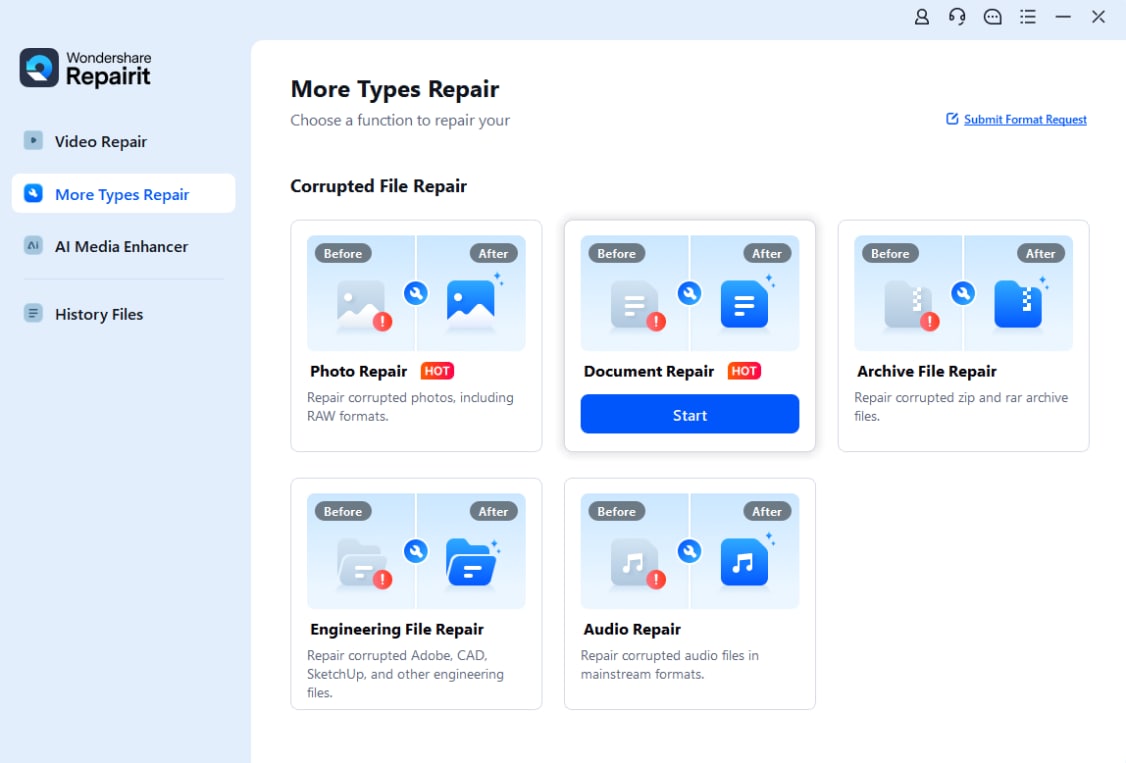
Step 1. Access the Archives File Repair Tool
Once you open Repairit, choose “More Types Repair > Archive File Repair.” After that, add damaged archived files.
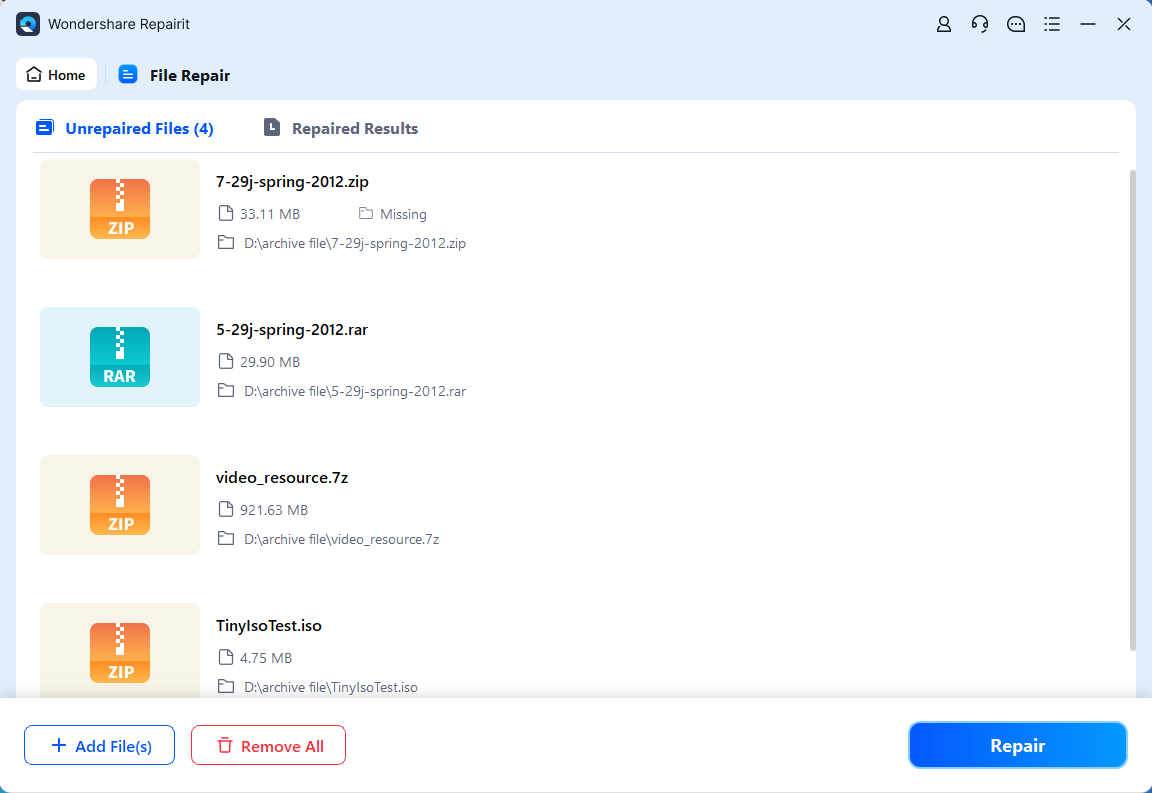
Step 2. Start the Repair Process
After you see your archive files under the “Unrepaired Files” section, press “Repair” to begin the process.
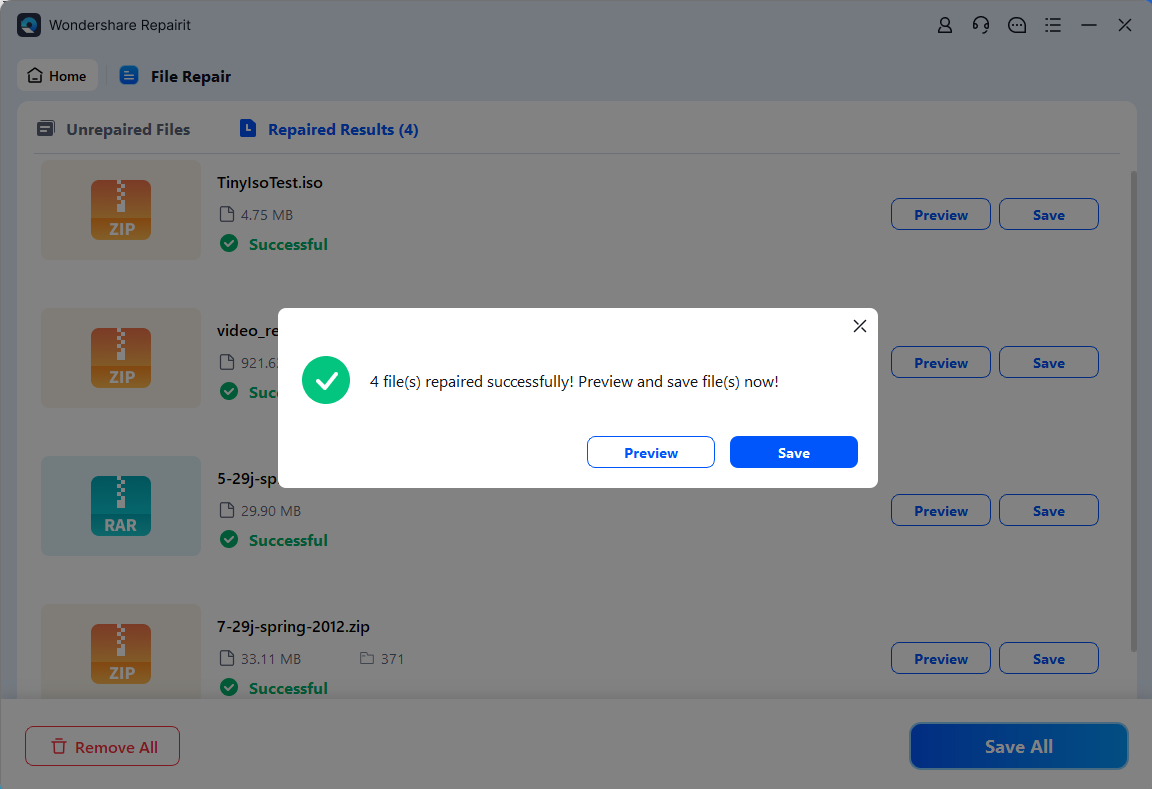
Step 3. Preview and Save the Repaired Archive Files
Preview the repaired archive files to confirm their contents, then click “Save” to export them to your preferred location.
Part 6. How to Prevent the Denuvo Hypervisor Error from Returning
Learning how to fix Denuvo tried to delete the token: Is the hypervisor running? involves reducing the chances of the error returning as well. Keeping your game, Windows settings, and system configuration stable can help prevent similar issues. Below are 6 simple habits for maintaining a stable gaming environment:
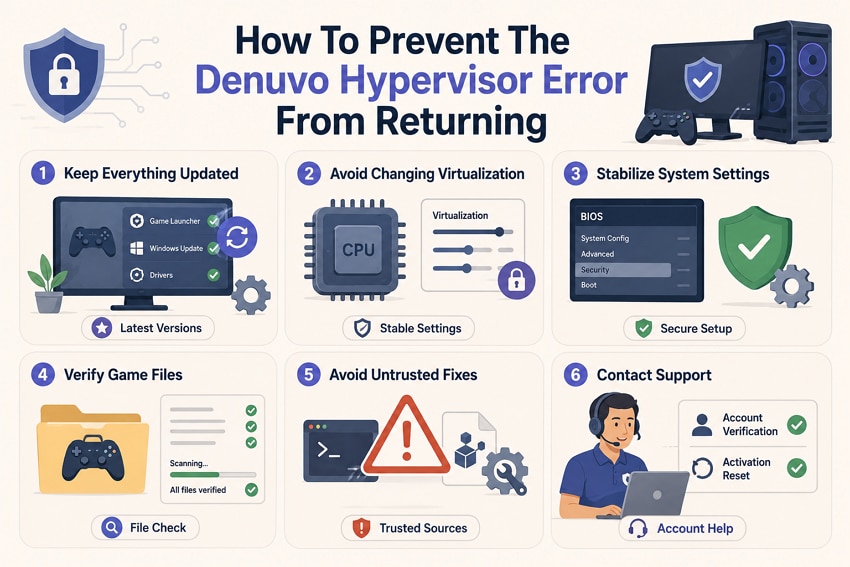
- Keep the Game, Launcher, Windows, and Drivers Updated: Install available updates to maintain compatibility and address known game, launcher, or system issues.
- Avoid Repeatedly Toggling Hyper-V or Virtualization Settings: Keep virtualization settings consistent unless troubleshooting requires a change, but note their original configuration.
- Track BIOS and Windows Security Setting Changes: Record changes to virtualization or security features so you can identify which setting may have affected the system.
- Verify Game Files After Interrupted Updates or Storage Errors: Use the storefront’s verification feature to identify and replace missing, damaged, or incomplete game files.
- Avoid Unverified Denuvo Fixes, Token Tools, and Registry Scripts: Unofficial fixes may contain malware or make system changes that create additional problems.
- Use Official Publisher Support for Persistent Activation Problems: Contact the game publisher or official support channel when activation problems continue after standard troubleshooting.
Conclusion
To conclude, the Denuvo tried to delete the token error may appear alongside a hypervisor-related message, but it does not necessarily confirm a virtualization conflict. Check msinfo32 and review Hyper-V, Virtual Machine Platform, and Memory Integrity settings. Re-enable any security features disabled during troubleshooting. For persistent activation problems, contact official publisher support. If corrupted archives complicate troubleshooting, Repairit can restore supported damaged files before reinstallation.
FAQ
-
Does Denuvo Anti-Tamper support Windows 11?
Yes, Denuvo Anti-Tamper can run on supported Windows 11 systems. However, this specific error does not necessarily mean Windows 11 or its hypervisor settings are causing the problem. -
Can upgrading PC hardware trigger Denuvo reactivation?
Yes, major hardware changes can alter the system configuration recognized during Denuvo activation. Irdeto states that Denuvo Anti-Tamper allows up to 5 activations on different systems within 24 hours. -
Does Denuvo Require an Always-On Internet Connection?
No, Irdeto states that Denuvo Anti-Tamper does not require a persistent internet connection after activation. However, some system changes or game updates may require online activation again. -
Can Repairit fix Denuvo Activation or Token errors?
Repairit repairs supported corrupted archives and documents, but it cannot fix DRM activation or token errors. It also cannot modify Windows hypervisor or virtualization settings.