
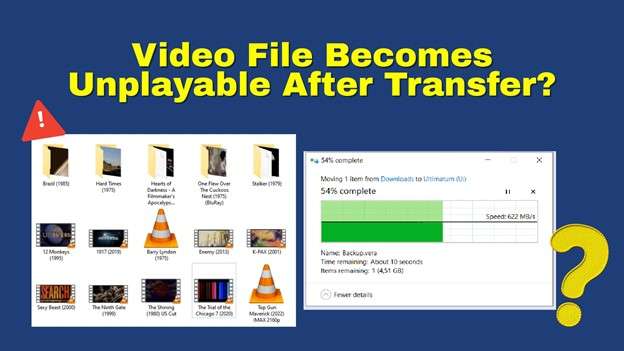
Why does a video become unplayable after transfer, even when the file size looks correct, and the transfer seems complete? This is a common issue that usually points to problems during the copying process rather than the video itself.
When files are transferred between devices, such as from a camera, USB drive, or computer, small interruptions or system issues can affect how the data is written. As a result, the video may appear normal but fail to open or play.
In this guide, we'll break down the most common causes of transferred video corruption, explain what happens behind the scenes, and show how you can avoid these issues in the future.
In this article
What Happens When a Video Becomes Unplayable?
A video file isn't just raw footage; it's a carefully structured container that organizes multiple types of data. Inside, you'll typically find:
- Video stream -- the actual moving images, encoded in a specific format.
- Audio stream -- the soundtrack, dialogue, or background noise, synchronized with the video.
- Metadata -- descriptive information such as duration, resolution, frame rate, codec details, and sometimes even thumbnails or chapter markers.
When you transfer a video from one device to another, your system rewrites this structure on the destination drive. If the process is interrupted, whether by a sudden power loss, a faulty cable, or insufficient storage space, the file may not be copied in full. Missing fragments or corrupted headers can break the delicate balance between video, audio, and metadata.
Even seemingly minor issues can have major consequences. For example:
- A missing header prevents the player from recognizing the file type.
- Damaged metadata can cause the video to appear with the wrong duration or fail to load altogether.
- Incomplete streams may result in silent playback, frozen frames, or total refusal to open.
Because video players rely on precise instructions to decode and synchronize streams, a single corrupted element can render the entire file unplayable. In other words, video corruption isn't always about visible glitches; it often stems from structural damage that blocks the player from even starting playback.
Signs of Transferred Video Corruption
When a video is damaged during transfer, you may notice:
- The file won't open in any media player
- Playback shows a black or blank screen
- "Unsupported format" or error messages
- Video freezes or crashes
- Audio is missing or out of sync
- File size looks correct, but doesn't play
These signs usually indicate structural corruption rather than simple playback issues.
Common Causes of Video Becoming Unplayable After Transfer
When a video refuses to play after being moved to another device, the issue often lies in how the file was transferred. Understanding these causes helps you prevent similar problems in the future.
Cause 1: Interrupted File Transfer
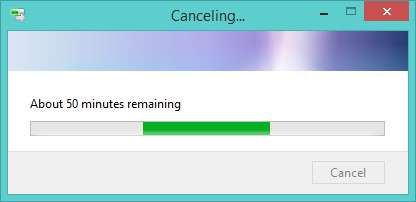
If the transfer process stops midway, due to disconnection, system error, or accidental cancellation, the video file may be incomplete. Missing data prevents the player from decoding the file correctly, and even a small gap in the stream can make the entire video unplayable.
Cause 2: Unsafe Device Removal
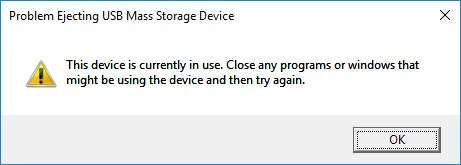
Removing a storage device before the transfer is fully complete can interrupt the writing process. When data isn't finalized, the file structure remains incomplete, leading to corruption that prevents playback. Safely ejecting external drives ensures all data is properly written before removal.
Cause 3: Faulty USB Ports or Cables
Unstable or damaged connections can cause sudden interruptions during file transfer. A loose cable or malfunctioning port may disconnect momentarily, resulting in missing or corrupted segments of the video. Even brief disruptions can damage large files, making them unreadable.
Cause 4: Storage Device Errors
Problems within the storage device, such as bad sectors or file system errors, can distort how data is written and read. When a video is saved to a faulty drive, parts of its structure may become corrupted. Regular disk checks and maintenance help prevent these issues from escalating.
Cause 5: File System Incompatibility
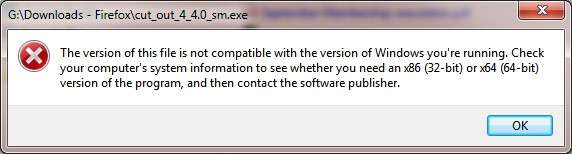
Different devices use different file systems, and transferring files between incompatible formats can cause problems. For example, moving a video from an NTFS-formatted drive to a FAT32 system may result in incomplete or unreadable data. Ensuring compatibility before transfer helps maintain file integrity.
Cause 6: Large File Transfer Limitations
Large video files take longer to transfer and are more vulnerable to interruptions. Slow or unstable devices increase the risk of incomplete data writing. Using faster connections or splitting large files into smaller parts can reduce the likelihood of corruption.
Cause 7: Power Interruptions
Sudden power loss during transfer can instantly halt the writing process. When the system shuts down unexpectedly, the file remains partially written and unusable. Stable power conditions are essential to ensure safe and complete transfers.
How to Tell If It's Corruption vs Compatibility
Not all playback issues are caused by corruption.
Likely Corruption:
- File fails on multiple devices
- File won't open at all
- Playback stops abruptly
Likely Compatibility Issue:
- File plays on one device but not another
- Missing codec error
- Works in some media players

-
Repair damaged videos with all levels of corruption, such as video not playing, video no sound, out-of-sync video or audio, playback errors, header corruption, flickering video, missing video codec, etc.
-
Repair full HD, 4K, and 8K videos and support 20+ popular formats, including MOV, MP4, M2TS, MDT, RSV, WMV, MPEG, DAT, etc.
-
Repair damaged or corrupted videos caused by video compression, system crash, video format change, etc.
-
Repair critically damaged or corrupted RAW/Log/HDR videos from professional cameras such as Blackmagic Design, RED Digital, and ARRI, etc.
-
Repairit has a quick and advanced scanning mode. You can use either depending on the level of corruption the video file has undergone.
-
No limit to the number and size of the repairable videos.
-
Repaired videos are more compatible with professional editing software such as DaVinci, Composer, Final Cut Pro, and Premiere Pro.
-
Support Windows 11/10/8/7/Vista, Windows Server 2003/2008/2012/2016/2019/2022, and macOS 10.12~macOS 15.
How to Prevent Video Corruption During Transfer
Video corruption often happens because the transfer process is interrupted or the file isn't written correctly. By following safe practices, you can greatly reduce the risk of ending up with unplayable videos:
- Always wait for transfers to fully complete -- Don't open or move files until the progress bar or notification confirms success.
- Safely eject storage devices -- Use the operating system's "Eject" or "Safely Remove" option to ensure all data is finalized before unplugging.
- Use reliable cables and ports -- Damaged or unstable connections can cause incomplete transfers, so check your hardware regularly.
- Avoid interrupting transfers -- Let the process finish without closing applications, shutting down the system, or disconnecting devices.
- Transfer files in stable environments -- Ensure steady power supply and avoid transferring during system instability or low battery conditions.
- Keep backup copies of important videos -- Store duplicates on separate drives or cloud storage so you have a fallback if corruption occurs.
Conclusion
If your video becomes unplayable after transfer, it's most often caused by interruptions, unstable connections, or storage device issues.
Understanding these causes helps you prevent future problems and ensures your video files remain intact during transfer.
FAQs
-
Why does my video become unplayable after transfer?
A video often becomes unplayable after transfer because the copying process was interrupted or the file structure was corrupted, leaving essential data missing. -
Can unplayable videos be fixed?
Yes, many unplayable videos can be repaired using specialized tools or recovery methods, depending on the extent of the corruption. -
Are large video files more at risk?
Yes, large video files are more vulnerable because they take longer to transfer and are more prone to interruptions or errors during the process. -
Is it always corruption?
No. Sometimes, the issue is caused by compatibility problems between file systems or media players rather than actual corruption.




