
It can be complicated when your video won't open after the laptop died in the middle of a file transfer, leaving you with a file that can't be played. This often happens when a file transfer is interrupted by battery drain, which can stop the video from saving or transferring properly and cause missing data or file corruption.
The good news is that a sudden shutdown does not always mean the video is permanently lost, and in many cases, it can still be repaired or recovered with the right steps.
In this article
What Happens During a Failed Transfer
When a laptop shuts down during a file transfer, the copying process stops before the video is fully saved. This can leave the file incomplete or corrupted, making it impossible to open or play.
- Corrupted File Header - Important file details like format, duration, and resolution were not fully saved.
- Incomplete Metadata - Missing video information can make the file appear unsupported or unreadable.
- File System Errors - A sudden shutdown can disrupt how files are saved, causing missing files, access errors, or 0-byte videos.
- Interrupted Transfer - If your video won't open after the laptop died, the file was likely only partially copied.
- Unsaved Cached Data - When a file transfer was interrupted by battery drain, temporary data stored in memory may not have been written to the drive.
How File Corruption Appears
A failed transfer often leaves a ghost file that exists but won't open or play.
Common Signs of an Interrupted Transfer
- Won't play - Media players show errors like unsupported format.
- No thumbnail - The video appears as a blank or generic icon.
- Wrong duration - Shows size but 00:00 or no playback time.
- Freezes on open - The player hangs or crashes when opening it.
- File errors - Messages like unreadable or in use appear due to incomplete transfer
Simple Ways to Fix a Corrupted Video File
Before using advanced repair tools, try these simple fixes. In many cases, the video data is still there and just needs to be re-read or properly recognized by the system.
Fix 1. Re-transfer the File
If the original file is still available, copy it again. A fresh transfer ensures the video is saved completely without the interruption that caused the damage.
Step 1. Remove the damaged or unplayable drive to avoid file name conflicts.
Step 2. Connect your laptop to a power source and perform a fresh copy-paste (don't cut) to ensure the original remains safe until the transfer is verified.
Fix 2. Use VLC Media Player Repair
VLC Media Player can sometimes fix broken video indexes automatically, especially for MP4 or AVI files with damaged headers.
Step 1. Open VLC, navigate to Tools, then Preferences, and select Input / Codecs.
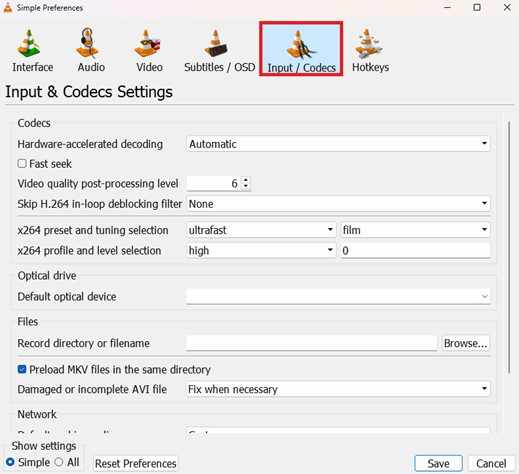
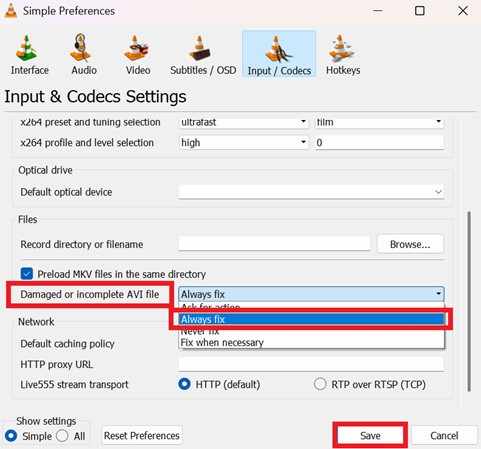
Step 2. Locate Damaged or incomplete AVI file and change the setting to Always fix, then try to open your video.
Fix 3. Rename or Change the File Extension
If the file type was misread after the crash, changing the extension (for example, from .mp4 to .mov or vice versa) may help the system recognize it correctly.
Step 1. Enable File name extensions in your folder view options and right-click the video to select Rename.
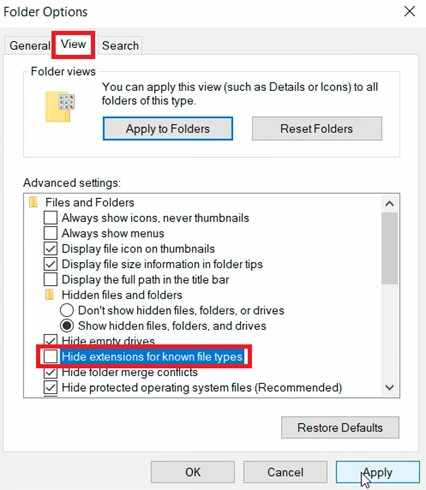
Step 2. Change the suffix (e.g., from .mp4 to .mkv or .mov) and confirm the prompt to see if an alternative player can bypass the broken header.
Fix 4. Run Disk Repair Tool
If the file transfer was interrupted by battery drain, the storage drive may also have errors. You can run CHKDSK (Check Disk) to fix file system issues and recover damaged file records.
Step 1. Open Command Prompt as Administrator and type chkdsk D: /f (change D to your drive letter).

Step 2. Allow it to scan and repair the file system, then restart your laptop and try accessing the file again.
Advance Fix to Restore Severely Corrupted Videos
If basic fixes don't work, the video is likely more seriously damaged. This usually means parts of the video data (frames and audio) were broken or scattered during the failed transfer. In this case, you may need a professional repair tool to rebuild the file.
It CAN:
- Rebuild missing file headers and end markers
- Resync audio and video that became out of sync
- Recover hidden or lost data fragments
If you confirm the video is corrupted, a repair tool can safely restore its functionality. One example is Repairit Video Repair, which works with common file types like MP4, MOV, MKV, and AVI.
Step-by-Step (Optional)
Step 1. Upload the corrupted video file.

Step 2. Start the Repair process.

Step 3. Preview and save the restored file to a new location.

How to Prevent Transfer Failure
The best way to avoid a video won't open after the laptop died is to prevent sudden shutdowns during file transfers.
- Turn on low-battery warnings - Set alerts around 20% so you can plug in your charger before starting large transfers.
- Use copy instead of cut - Always copy files first so the original stays safe until the transfer is confirmed successful.
- Use a charger for large transfers - For big video files, avoid relying on battery power alone to prevent shutdowns.
- Use backup power protection - A UPS (Uninterruptible Power Supply) helps prevent data loss during sudden power interruptions.
- Keep external drives stable - Avoid unplugging or moving devices during transfer, as this can also cause corruption similar to a file transfer interrupted by battery drain.
Conclusion
When a video won't open after the laptop died, it usually means the file was not properly saved or closed during transfer. Because the file transfer was interrupted by battery drain, important file information (like the structure or map of the video) may be missing, making it unreadable. In many cases, you can still recover it using tools like VLC, system repair utilities, or advanced video repair software to rebuild the damaged parts and restore playback.
FAQs
-
Why does my video show a file size but won't play?
The video data is still there, but the file structure (header) is missing or damaged, so the player can't read it properly. -
Can a 0-byte video file be repaired?
No. A 0-byte file means no actual video data was saved, so recovery is not possible. -
Is it safe to change the file extension to fix a video?
Yes. It won't damage the file, but it may help the system recognize it differently. Always keep a backup before changing anything. -
Does VLC Media Player permanently fix corrupted files?
VLC Media Player can help repair playback issues, but to save a fixed version permanently, you need to convert and save the file after repair. -
How do I know if my hard drive is damaged or just the file?
If only one video is affected, it's likely file corruption. If many files are missing or you hear unusual drive noises, the storage device may be failing.




