
It can be worrying to find your external drive files corrupted after power loss, especially after a sudden blackout. This usually happens when the drive is interrupted while saving data, causing its file system to become damaged. Your files are often still there, but your computer can't read them properly. This guide will show you simple steps to repair external drive corrupted files, fix common file system errors, and help you recover your important data safely.
In this article
How Power Loss Causes Drive Corruption
A sudden power loss can interrupt communication between your computer and external drive, preventing it from saving important file data properly. Your files are usually still there, but they may become unreadable.
Common causes of corruption:
- Power loss during updates or file saving
- Unsaved data lost from temporary memory (write cache)
- Power surges after electricity returns
- Interrupted file copying or moving
- Failed large file transfers that break folders or directories
Signs of File System Corruption
After a power failure, problems with your external drive may not show right away. Often, the drive is still detected, but Windows can't properly read the data inside. These signs help you know something is wrong.
Common signs of corruption:
- Drive shows as RAW - The system no longer recognizes its file format like NTFS or exFAT.
- Error messages - You may see a file is corrupted or unreadable or location is not available.
- Empty folders - Files seem missing, but storage space is still used.
- Strange file names - Files may appear with random symbols or incorrect details.
- Copy errors - Files fail to copy due to CRC or data errors.
- System freezing - The drive may cause slowdowns or freezes when accessed
Basic Fixes to Repair Your External Drive
Before using advanced recovery tools, try built-in Windows features first. These simple fixes can often repair file system errors caused by sudden power loss without affecting your data.
Fix 1. Run Check Disk (chkdsk)
Use the chkdsk tool to scan and fix common file system errors and broken directory links on the drive.
Step 1. Open the Command Prompt as an Administrator and type chkdsk X: /f (replace "X" with your specific drive letter).

Step 2. Press Enter and allow it to scan; it will automatically repair the file system.
Fix 2. Use Error Checking (GUI)
Right-click the drive in File Explorer, then use Error Checking to automatically scan and repair basic issues.
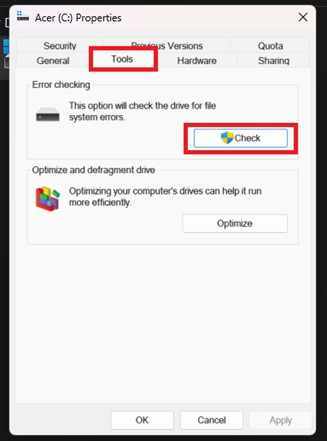
Step 1. Right-click the affected drive in File Explorer, select Properties, and navigate to the Tools tab.
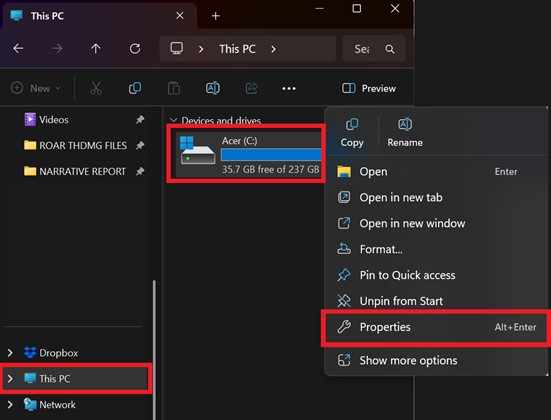
Step 2. Click the Check button under the Error Checking section and select Scan drive to identify and resolve logical inconsistencies.
Fix 3. Reinstall USB drivers
Update or reinstall USB drivers to fix connection issues between your computer and the external drive.
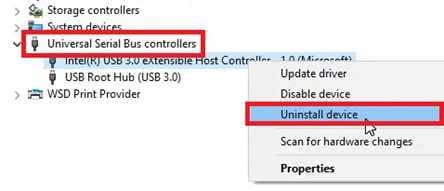
Step 1. Right-click the Start button, open Device Manager, and expand the Universal Serial Bus controllers section.
Step 2. Right-click your External Drive, select Uninstall device, and then restart your PC to force Windows to reinstall a clean driver.
Fix 4. Change drive letter
Assign a new drive letter in Disk Management if the system is having trouble recognizing the drive.
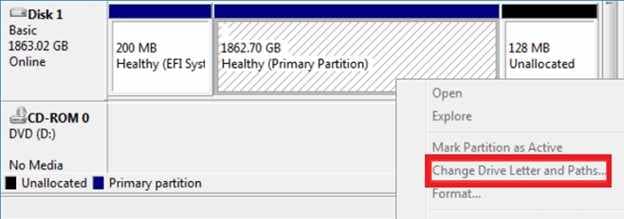
Step 1. Open Disk Management, right-click the volume of your external drive, and choose Change Drive Letter and Paths.
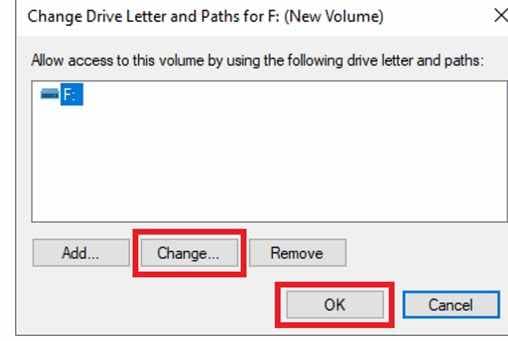
Step 2. Click Change, select a new letter from the dropdown menu, and hit OK to refresh the mounting path in the registry.
Fix 5. Run DISM tool
Use the DISM tool to repair Windows system files that may affect how external drives are detected.
Step 1. Launch the Command Prompt (Admin) and input DISM /Online /Cleanup-Image /RestoreHealth.
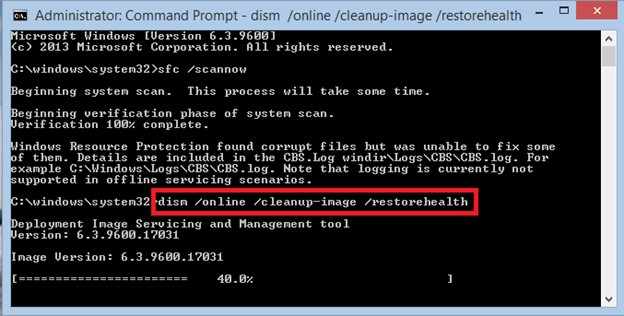
Step 2. Wait for the process, then safely reconnect your drive to see if the system now interprets the file structure correctly.
Advance Fix to Restore Severely File Corrupted
If basic fixes like chkdsk don't work, the corruption may be deeper and affect how the files themselves are built. In this case, you may need specialized recovery tools to restore your data.
It CAN:
- Restore broken file headers so the system can recognize them
- Open files showing errors like format not supported or file is corrupted
- Batch fix several corrupted files to save time
If you confirm the external drive file is corrupted, a repair tool can safely restore its functionality. One example is the Repairit File Repair, which works with common file types like PDF, Word, Excel, and PowerPoint.
Step-by-Step (Optional)
Step 1. Upload the corrupted file.

Step 2. Start the Repair process.

Step 3. Preview and save the restored file to a new location.

How to Prevent Future Data Corruption
Fixing a corrupted drive is helpful, but preventing the problem is even better. With the right habits and tools, you can reduce the risk of data loss from sudden power failures.
- Use a UPS (backup power) - Keeps your device running for a few minutes during outages so you can safely save and shut down.
- Enable Quick Removal mode - Helps reduce write-caching so data is saved directly to the drive more safely.
- Always eject safely - Use Safely Remove Hardware before unplugging to avoid unfinished file processes.
- Use a surge protector - Protects your drive from power spikes when electricity returns.
- Follow the 3-2-1 backup rule - Keep 3 copies of your files, on 2 different storage types, with 1 stored off-site or in the cloud.
Conclusion
Dealing with external drive files corrupted after power loss can be frustrating, but it doesn't usually mean your data is gone. Most of the time, the problem can be fixed by detecting the issue early and using built-in tools like chkdsk. For more serious cases, recovery software can help you repair external drive corrupted files and bring back your important data.
To avoid this in the future, using a UPS and safely ejecting your drive are simple but effective ways to protect your files.
FAQs
-
Why does my drive show as RAW after a power outage?
This happens when the file system is interrupted during a sudden shutdown, so Windows can no longer recognize the drive format. -
Is it safe to use chkdsk on a corrupted external drive?
Yes, it is generally safe for fixing file system errors. However, if the drive makes unusual noises or seems physically damaged, avoid using it. -
Can a power surge damage my external hard drive?
Yes. A sudden surge after power returns can damage internal parts of the drive, causing it to fail completely. -
Why are my folders empty but storage is still used?
This usually means the file index is damaged. The data is still there, but the system can't locate it properly. -
How does a UPS help prevent corruption?
A UPS provides backup power during outages, giving you time to save your work and safely turn off your drive before damage occurs.




