
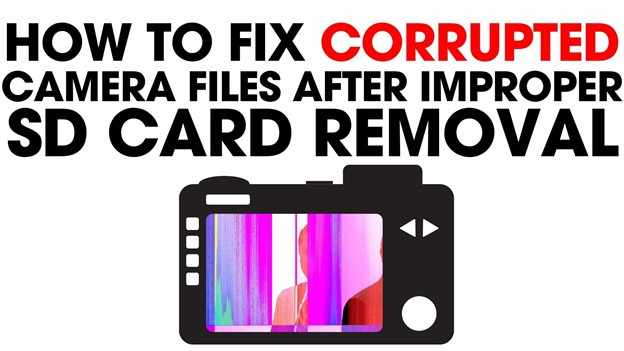
Pulling your SD card while the camera is still saving data can cause serious problems, but corrupted camera files after improper SD card removal are not always lost forever. This usually happens because the connection between the camera and the SD card is suddenly interrupted, which can damage the file structure. As a result, the file may not open even though the actual video or photo data is still stored on the card.
To repair camera files after SD card removal errors, you need a step-by-step method that fixes the damaged file system or rebuilds missing file information without changing or deleting the original data. This guide will walk you through safe and effective ways to restore your files and recover your media.
In this article
Why SD Card Files Are Corrupted After Improper Removal
Removing an SD card while a device is still reading or writing data can interrupt the process, leaving files incomplete and unreadable.
Common Causes of File Corruption
- Interrupted saving - File isn't fully written before removal.
- File system errors - Issues with FAT or exFAT can make files disappear or appear empty.
- Power loss - Sudden shutdown during saving can corrupt data.
- Unsafe transfer removal - Disconnecting too early leaves incomplete files.
- Interrupted large transfers - Big files (e.g., 4K videos) are more prone to corruption.
Signs Your Files Are Corrupted
- Playback errors - "Unsupported format" or cannot open file.
- Missing or strange file names - Files appear corrupted or renamed.
- Freezing playback - Video stops or stutters midway.
- Read/copy errors - System reports issues like CRC errors.
Why This Happens
The SD card stores both data and a "map" (file system). If removed improperly, the data may still exist, but the system can't locate or read it correctly.
What are the Symptoms of Data Corruption on SD Cards
When an SD card is removed while still in use, the actual photo or video data is often still present, but the file structure (metadata) that tells the device how to read it may become damaged.
Common Signs of Corrupted Files
- File won't open - Errors like "unsupported format" or "invalid file."
- Video glitches - Pixelation, freezing, or distorted playback.
- 0 KB file size - File exists but contains no readable data.
- Slow or frozen access -System struggles when opening or copying the file.
- Camera errors - Messages like "Card error" or "Reformat required."
Simple Explanation: Logical vs. Physical Damage
- Your computer and camera can react differently to corrupted files.
- A computer error (like CRC error) means the data does not match what the system expects.
- A camera error may simply say the card cannot be read at all.
Part 3. What Are The Basic Fixes and Safe Recovery Methods
Before trying advanced recovery tools or formatting your SD card, it's best to start with built-in fixes. These basic methods help repair small file system errors and make your corrupted files readable again without changing the actual photos or videos.
Fix 1. Use the CHKDSK Tool (Windows)
Windows has a built-in tool called CHKDSK that can scan your SD card and fix minor file system problems. It helps repair the card's directory so your files may become accessible again.
Step 1. Connect your SD card to your PC, identify its assigned drive letter (e.g., G:), and open the Command Prompt as an Administrator.
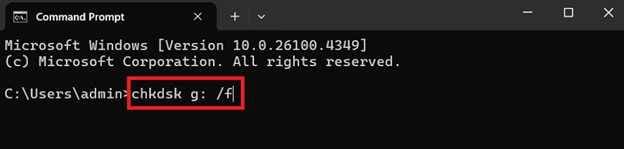
Step 2. Type chkdsk G: /f (replacing "G" with your specific drive letter) and press Enter; the /f parameter instructs the system to fix any detected file system discrepancies automatically.
Fix 2. Let the Camera Rebuild Its File System
Some cameras (especially DSLR and mirrorless models) can automatically try to fix the SD card when they detect an issue. This feature helps restore missing file information created by an improper removal.
Step 1. Power off your camera, re-insert the compromised SD card, and turn the device back on to see if a "Management File Is Inconsistent" or "Repairing Database" prompt appears.
Step 2. Select OK or Yes to allow the camera to reconstruct the metadata, this is often the most successful way to recover proprietary video formats like XAVC S or .R3D.
Fix 3. Assign a New Drive Letter
Sometimes the computer has trouble recognizing the SD card correctly after it is removed too early. Changing or reassigning the drive letter can help the system properly detect and display the files again.
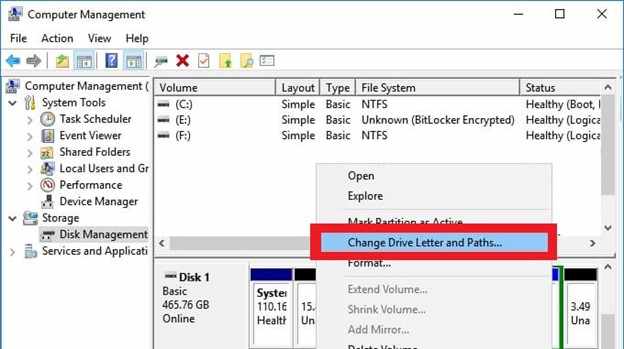
Step 1. Right-click the Start button and select Disk Management, then locate your SD card in the visual list of drives.
Step 2. Right-click the SD card partition, select Change Drive Letter and Paths, and assign a new, unused letter to force the OS to refresh the file system link.
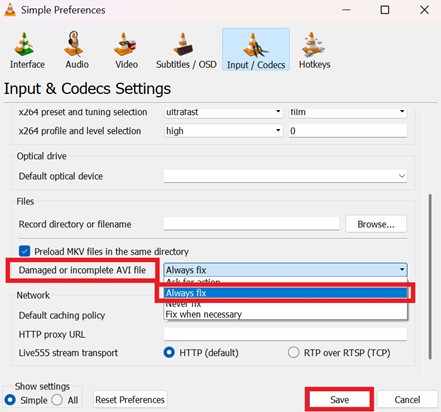
Fix 4. Try VLC Media Player Repair
If your video files show up but won't play, VLC Media Player can sometimes open and fix broken video headers. It can also create a playable copy of the file, even if the original is slightly damaged
Step 1. Open VLC, go to Tools and Preferences, and select the Input / Codecs tab.
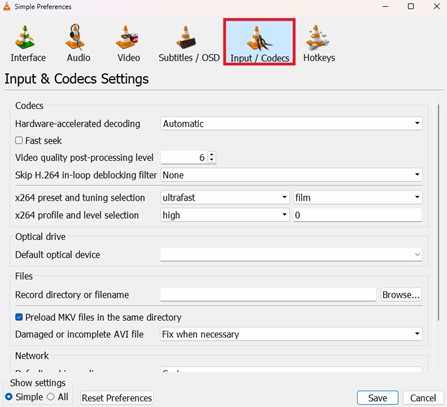
Step 2. Locate the Damaged or incomplete AVI file dropdown, set it to Always Fix, and then attempt to open your corrupted file to trigger the internal repair.
Part 4. Advance Fix to Restore Severely Corrupted Files
If you confirm the file is corrupted, a repair tool can safely restore its functionality. One example is the Repairit Video Repair Tool, which works with common file types like MOV, MP4, M2TS, and professional RAW formats.
Step-by-Step (Optional)
Step 1. Upload the corrupted video file.

Step 2. Start the Repair process.

Step 3. Preview and save the restored file to a new location.

Part 5. Fixing File Corruption Caused During SD Card Transfer
File corruption often happens during file transfer from an SD card to a computer. This is usually because the system uses a write-back cache, meaning it may show the transfer as finished even while data is still being saved in the background. Removing the card too early can result in incomplete or broken files.
Why it happens
- Incomplete transfer (Move function) - Files may be deleted from the SD card before copying is fully done.
- Connection issues - Faulty USB ports or card readers can interrupt the transfer.
- Background programs - Antivirus or indexing tools may interfere while files are being copied.
Simple Ways to Fix Transfer-Related Issues
- Undo immediately - Use Ctrl+Z (Windows) or Cmd+Z (Mac) if the action just happened.
- Check removal settings (Windows) - Ensure proper device handling to reduce caching issues.
- Run repair tools - Use Disk Repair (Mac) or CHKDSK to fix file system errors.
- Create a disk image (advanced) - Make a full backup of the SD card before recovery attempts.
- Clean contacts - Gently clean SD card metal contacts to improve connection stability.
Part 6. How to Prevent File Corruption and Keep Safe of Your SD Card
Even though recovery tools can help fix corrupted files, the best solution is still prevention. Most SD card problems happen because data is interrupted while being saved or transferred. By following a proper workflow, you can make sure your files are fully saved before removing the card.
- Wait for activity to stop: Remove the SD card only when the camera light stops blinking.
- Always eject safely: Use Eject or Safely Remove Hardware to finish background saving.
- Format after backup: Use the camera's format option to keep the file system clean.
- Avoid low battery: Power loss during saving can cause corruption.
- Use a reliable card reader: Stable hardware reduces transfer errors.
⚠️Note: If corruption happens, stop using the SD card immediately. Avoid saving new files, as this may overwrite recoverable data and reduce chances of recovery.
Conclusion
Successfully handling corrupted camera files after improper SD card removal requires both careful action and the right tools. In many cases, the files are still recoverable as long as they haven't been overwritten. Problems may range from simple file system errors to deeper file damage that needs repair software. Following a proper recovery process to repair camera files after SD card removal can help you restore your photos and videos and also prevent future issues.
FAQs
-
Can I repair corrupted camera files after improper SD card removal without software?
Yes. Sometimes simply putting the SD card back into the camera can trigger a repair or rebuild option. On a computer, basic tools like CHKDSK can also fix simple file system errors. -
Why does my video freeze halfway after an improper removal?
This usually happens when part of the video was saved, but the rest was interrupted. The file becomes out of sync, and a repair tool is often needed to fix playback issues. -
Is a "0 KB" file still recoverable?
In some cases, yes. A 0 KB file usually means the file structure is broken, but the actual data may still be on the SD card. Avoid using the card further to prevent overwriting it. -
Will formatting my SD card fix the corruption?
Formatting can fix the SD card for future use, but it will erase existing files. Always try to repair camera files after SD card removal before formatting. -
How do I know if the SD card is physically damaged?
If the SD card is not detected by any device or reader, it may be physically damaged. If it is detected but files won't open, the problem is usually logical corruption, which can often be fixed with software.




