
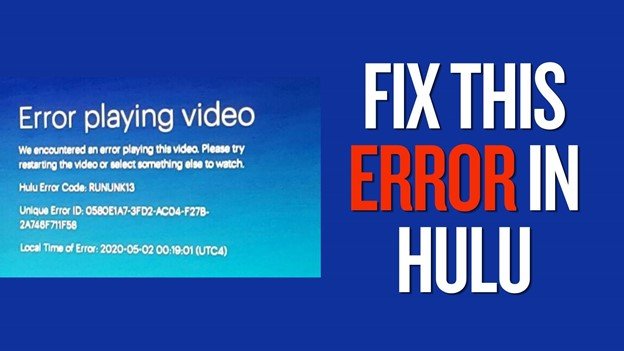
Users may see a message like "error playing video" in Hulu. This is one of the most frustrating streaming problems because it interrupts playback without always providing a clear explanation.
This issue can occur across a wide range of devices, including web browsers, mobile apps, smart TVs, and streaming sticks. Because Hulu relies on multiple systems working together---such as internet connectivity, DRM authorization, app performance, and video decoding---even a small disruption in one component can stop playback entirely.
In many cases, the error is temporary and can be resolved quickly. However, when it persists, it usually indicates deeper problems such as corrupted cache data, outdated software, or network instability. This guide breaks down each possible cause in detail and provides structured solutions to restore normal playback.
In this article
Part 1. What Happens When An Error Occured in Hulu?
The "error playing video" message in Hulu indicates that the platform failed to process your playback request. This does not necessarily mean that the video itself is unavailable; rather, it means that one or more components required for streaming did not function correctly.
Streaming a video on Hulu involves several layers:
- Requesting the video from Hulu's servers
- Verifying user access through DRM systems
- Loading scripts and playback components
- Buffering and decoding video data
- Rendering the video on your device
If any step in this chain fails, Hulu cannot complete playback, resulting in an error message.
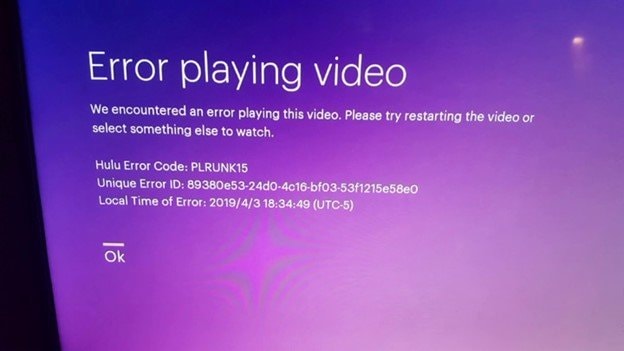
For example, if your browser cannot load required scripts, the video player may not initialize. If DRM verification fails, the system may block playback entirely. Similarly, if your connection drops during buffering, the stream may stop and trigger an error.
Because of this layered system, the same error message can appear for different underlying problems, which is why troubleshooting needs to be done step by step.
Part 2. What Is RUNUNK13 Error?
RUNUNK13 is one of the most frequently encountered variations, especially when streaming through a web browser. Although it looks like a specific error code, it is actually a generic failure indicator used when Hulu cannot load a required resource.
This error typically occurs when:
- A required video chunk fails to load
- Cached data conflicts with updated content
- Browser scripts fail to execute properly
- Network interruptions occur during playback
The "RUNUNK" portion stands for "runtime unknown," meaning the system cannot precisely identify the issue. The number (such as 13) represents an internal reference rather than a unique error type.
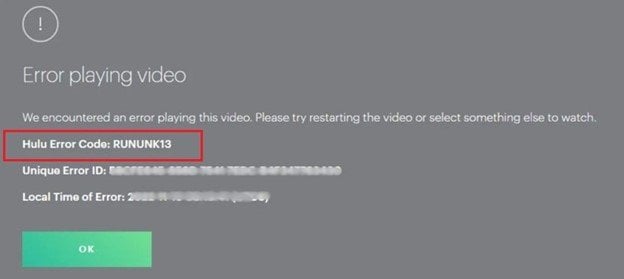
In practical terms, RUNUNK13 usually points to browser-related problems, particularly cache corruption or outdated files. This is why clearing cache or refreshing the session often resolves it quickly.
Part 3. Why Hulu Error Playing Video Happens
This error can stem from several technical issues, and understanding them helps narrow down the correct fix.
- Corrupted Cache and Cookies - Cache files store temporary data to speed up loading times, but over time, they can become outdated or corrupted. When Hulu updates its platform, old cached files may conflict with new data, preventing videos from loading correctly.
- Internet Connection Issues - Streaming requires a stable connection with consistent speed. Even brief interruptions can disrupt video buffering, causing playback to fail or stop unexpectedly.
- Browser or App Compatibility Problems - Outdated browsers or apps may not support Hulu's latest streaming technologies. This can lead to errors when loading video players or decoding content.
- DRM or Licensing Conflicts - Hulu uses DRM (Digital Rights Management) to control content access. If the system cannot verify permissions, playback is blocked to protect licensed content.
- Extensions or Ad Blockers - Browser extensions, especially ad blockers, can interfere with scripts required for video playback. This may prevent the video player from loading completely.
- Device or App Glitches - Temporary system errors, background processes, or memory issues can disrupt Hulu's ability to stream content properly.
- Rare Case: Corrupted Playback Data - In some cases, cached video segments or downloaded files may be corrupted, leading to playback issues even if everything else is functioning normally.
Part 4. Quick Fixes You Should Try First
These fixes address temporary issues and should always be attempted before more advanced troubleshooting.
Fix 1. Refresh the Page or Restart the App
Refreshing reloads all scripts and reconnects to Hulu's servers, which can resolve temporary session errors.
Step 1. Click Refresh on your browser or close the Hulu app completely.

Step 2. Reopen Hulu and attempt to play the video again.
Fix 2. Restart Your Device
Restarting clears temporary system glitches and resets network connections.
Step 1. Turn off your device using the Power option.
Step 2. Turn it back on and launch Hulu again.
Fix 3. Clear Browser Cache
Clearing cache removes outdated files that may conflict with Hulu's current version, allowing the platform to load fresh data.
Step 1. Open browser settings and click Delete Browsing Data.
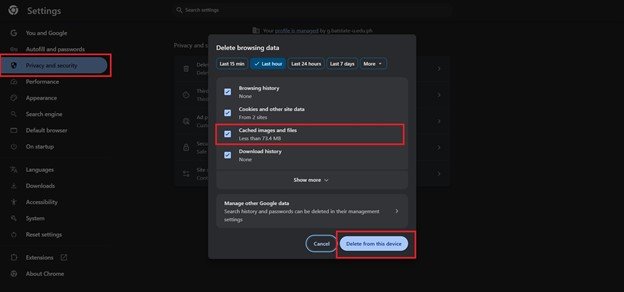
Step 2. Select cache and cookies, then click Clear Data and restart the browser.
Fix 4. Disable Extensions or Ad Blockers
Disabling extensions prevents script blocking that can interfere with playback.
Step 1. Open your browser extensions and click Disable on unnecessary add-ons.
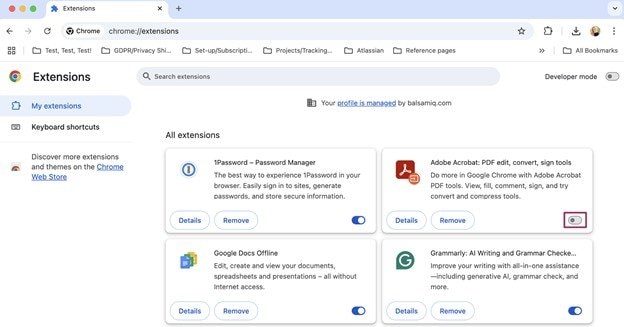
Step 2. Refresh Hulu and test the video again.
Fix 5. Reinstall Hulu App
Step 1. Remove the app by selecting Uninstall from your device settings.
Step 2. Reinstall Hulu, log in, and test playback again.
Part 5. When to Use a Professional Repair Tool
If basic troubleshooting doesn't resolve the issue, it may be a sign that the problem goes deeper, especially when dealing with corrupted or damaged files. This is where using a professional repair tool becomes a more reliable option.
- When the File Won't Open at All - If your file refuses to open or shows errors every time you try, it likely has structural damage that manual fixes can't handle.
- When You Notice Playback or Performance Issues - Problems like lagging, stuttering, black screens, missing audio, or out-of-sync playback often indicate partial corruption that needs deeper repair.
- When the File Was Interrupted During Transfer or Recording - Files that were not properly saved---due to sudden shutdowns, transfer interruptions, or system crashes, are more prone to corruption and usually require specialized repair.
- When Multiple Fixes Have Already Failed - If you've already tried several troubleshooting methods with no success, continuing to experiment may risk further damage. At this point, using a dedicated repair solution is a safer approach.
- When You Need to Recover Important Data - For important files (work, school, or personal content), relying on a tool designed for high recovery success is more practical than trial-and-error fixes.
Professional repair tools are designed to handle complex file issues more efficiently, often using advanced detection and reconstruction methods that go beyond standard troubleshooting.
Part 6. Rare Case: When Video Data Causes Playback Issues
Although uncommon, some playback errors occur only with specific videos. This suggests that the issue lies in the video data rather than the device or connection.
This may happen due to:
- Corrupted cached video segments
- Incomplete downloads
- Damaged media files
In such cases, repairing the video file may restore proper playback. Repairit Video Repair can rebuild damaged video structures, restore metadata, and fix playback issues such as black screens or missing audio.
Step 1. Upload the video file by clicking Add in the repair tool.

Step 2. Click Repair to start the process.

Step 3. Preview and save the restored file.

⚠️ This solution applies only to downloaded or offline videos, not live Hulu streams.
Conclusion
The "error playing video" in Hulu, including RUNUNK13, is usually caused by cache conflicts, browser issues, or unstable network connections. While the error may seem complex, most cases can be resolved with simple fixes such as refreshing the page, clearing cache, or updating the app.
For persistent issues, checking network settings, disabling extensions, or reinstalling Hulu can help restore normal playback. In rare cases where specific videos fail, file-related problems may be the cause.
FAQs
-
What does "error playing video" in Hulu mean?
It means Hulu cannot load or stream the requested content due to issues with your device, browser, or network. This usually happens when one part of the playback process fails. -
What is RUNUNK13 on Hulu?
RUNUNK13 is a generic playback error that typically occurs when Hulu fails to load required video data. It is often caused by corrupted cache or browser-related problems. -
How do I fix error playing video Hulu?
You can fix it by refreshing the page, clearing cache, and updating your browser or app. Restarting your device and checking your internet connection also helps resolve most cases. -
Can internet issues cause Hulu playback errors?
Yes, unstable or slow internet connections can interrupt video streaming. Even short disruptions can trigger playback errors or buffering issues. -
Can corrupted video files cause Hulu errors?
In rare cases, corrupted video data can cause playback issues, especially with downloaded content. This does not usually affect live streaming but can impact offline files.




