Quick Answer: If videos on a CFexpress card will not play, first check whether the card itself is readable. Stop recording or formatting, test a compatible Type A or Type B reader, and copy accessible footage to another drive. If the files transfer successfully but refuse to play, test their codec and file integrity before attempting repair. Wondershare Repairit Video Repair may help with damaged, supported video files such as MP4, MOV, and MXF; it cannot restore an unreadable card or reconstruct footage that was never recorded.
A CFexpress card can record demanding high-bitrate camera footage, yet a clip may later appear as a blank thumbnail, freeze during playback, or fail to open in editing software. The right fix depends on where the problem starts: the card, the file transfer, the video codec, or the video file itself. This guide walks through safe checks for Sony, Canon, Nikon, and other compatible camera workflows without risking your only copy of the footage.
In this article
Part 1. Why CFexpress Card Videos Won't Play
CFexpress is a high-performance removable storage standard based on PCIe and NVMe. It comes in different physical form factors, including Type A and Type B. These are not interchangeable in ordinary card readers, and neither should be confused with legacy CompactFlash or CFast cards. The camera and reader must support the exact card type.
Common Signs of Unplayable CFexpress Footage
- The camera reports Unable to Display, Cannot Play Back, or another playback error.
- MP4, MOV, or MXF files appear in a folder but open with a black screen or no duration.
- A clip plays for several seconds before freezing, skipping, or losing sound.
- A file opens in the camera but not in a desktop editor or default player.
- Card transfer fails, disconnects, or leaves a partial video file behind.
What Causes These CFexpress Video Problems?
Codec mismatch: Modern cameras may record high-bit-depth HEVC, H.264, or professional codecs that a particular app or computer cannot decode. An unsupported codec does not, by itself, mean the video is corrupted.
Incomplete finalization: A drained battery, camera crash, or interrupted recording may prevent a video container's index or metadata from being completed. Some recordings remain unplayable even when they occupy substantial storage space.
Interrupted copy: A loose reader connection, unstable cable, or an interrupted transfer can create a truncated copy while the source clip on the card is still usable.
Card or reader trouble: A wrong reader, damaged contact, file-system issue, or unstable card can prevent reliable access to otherwise intact footage. A Sony camera unable to display error, for example, needs diagnosis before treating the file as damaged.
Part 2. Is the CFexpress Card Unreadable or Is the Video Corrupted?
Before trying video repair, separate card access from file playback. Repairing a video cannot fix a reader that never detects the storage device.
| What you observe | Likely area to check | Safest next action |
|---|---|---|
| CFexpress card does not appear on the computer | Wrong Type A/B reader, port, cable, card hardware | Stop using the card; test compatible hardware without formatting |
| Card appears as RAW or asks to format | File system or storage access issue | Decline formatting; preserve the card for data recovery |
| Clips are missing or deleted | Data loss rather than video playback | Avoid further writes; consider recovery before repair |
| Video plays in the camera but not on a PC | Codec/player compatibility, incomplete transfer | Try a compatible decoder and copy the original again |
| File copies fully but fails in several players | Possible damaged metadata or video data | Work on a copy; evaluate file repair for a supported format |
| File is 0 bytes or clearly truncated | Missing data or incomplete capture | Recheck the source or pursue recovery; repair may be impossible |
If the CFexpress Card Is Not Recognized
Verify the card's Type A or Type B marking and use a reader that explicitly supports that form factor. Check the USB port and cable, then test on another computer if available. Do not initialize, format, or run write-based repair utilities on the original media before preserving important footage. Although traditional CF and CFexpress are distinct standards, a CF card not reading problem follows a related storage-access decision path: diagnose the reader and protect recoverable data before attempting disruptive changes.
If the Card Is Readable but Its Videos Won't Play
Copy the original camera files to a separate healthy drive, preferably retaining camera folder structure and any sidecar files. Compare source and destination file sizes. Never overwrite the only recorded clip. If repeated reading triggers disconnections or strange noises from the reader, stop retrying repeatedly and seek qualified assistance for valuable footage.
Part 3. How to Fix CFexpress Videos That Won't Play
Start with non-destructive fixes. The sequence below helps isolate codec problems from transfer damage before you decide whether a video repair tool is appropriate.
Method 1. Play the Camera Video in a Compatible Player
- Check the extension and the camera's recorded codec in its settings or file information.
- Open a copied file in a player or editor known to support that codec and bit depth.
- If the camera can play the clip but your computer cannot, update your decoding software or use a supported professional editing application. Do not rename an .MXF file to .MP4 as a workaround.
For example, a camera-recorded HEVC 10-bit clip may need suitable software and hardware decoding. Missing decoder support is a playback compatibility issue, not proof of corrupted CFexpress footage.
Method 2. Recopy the CFexpress Camera Files Safely
- Use a compatible, stable reader with a reliable cable connected directly to the computer.
- Copy the original clip to local SSD or another healthy drive. Do not move or delete the source.
- Check that the file size is consistent with the original and test the newly copied version.
- If available, compare file hashes or verify a complete camera-folder backup before clearing cards.
If the fresh copy works, the earlier failure was probably a transfer problem. A video repair operation is unnecessary.
Method 3. Check for Interrupted Camera Recordings
If a camera shut down during capture, first check its documented in-camera media recovery procedure, if one is available for the model. Avoid recording anything new to the affected CFexpress card. Preserve temporary and unusual camera-generated files rather than deleting them. Some Sony cameras may leave an RSV file after an interrupted recording; this is a separate workflow from a normal MP4 or MOV clip and should not be fixed by merely changing its extension.
Method 4. Test Whether the Video File Itself Is Corrupted
Try a known-good clip recorded on the same camera with the same settings. If that clip plays and the affected copy fails in several compatible players, the file may have incomplete indexing, damaged metadata, or missing segments. If the video is 0 bytes, badly truncated, or the card will not yield an intact copy, prioritize source recovery rather than promising software repair. Similar file-level checks also apply to corrupted video files from an SD card.
Part 4. How to Repair Corrupted CFexpress Camera Footage With Repairit
Once you have a safely copied file, Wondershare Repairit Video Repair can be considered for supported video formats that fail because the file itself is damaged. The current official format list includes MP4, MOV, MXF, MTS, M2TS, MKV, and several professional formats; CFexpress is the storage medium, not a video format. Repairit does not repair the physical card, recover deleted files from an unreadable device, or guarantee reconstruction of footage never written to storage.
When Repairit May Help
- MP4 or MOV camera footage copied from CFexpress that no longer opens in compatible players.
- Supported professional MXF or similar files with damaged playback structure.
- Files affected by interrupted recording or transfer when enough video data still exists for repair.
If the clip is severely damaged, Repairit's Advanced Repair option can use a healthy sample from the same camera in the same format. Use it as part of the repair workflow rather than treating it as a separate general troubleshooting method.
Guide: Repair Unplayable Camera Videos With Wondershare Repairit
Step 1. Add the Corrupted Camera Video. Open Repairit Video Repair and select Add (or the add-video area). Import the supported MP4, MOV, or other damaged video file copied from your CFexpress card to local storage.

Step 2. Start Video Repair. Review the imported file and select Repair. If standard repair is insufficient and the app offers Advanced Repair for this file, provide a known-good sample created by the same camera in the same format and follow the on-screen prompts.

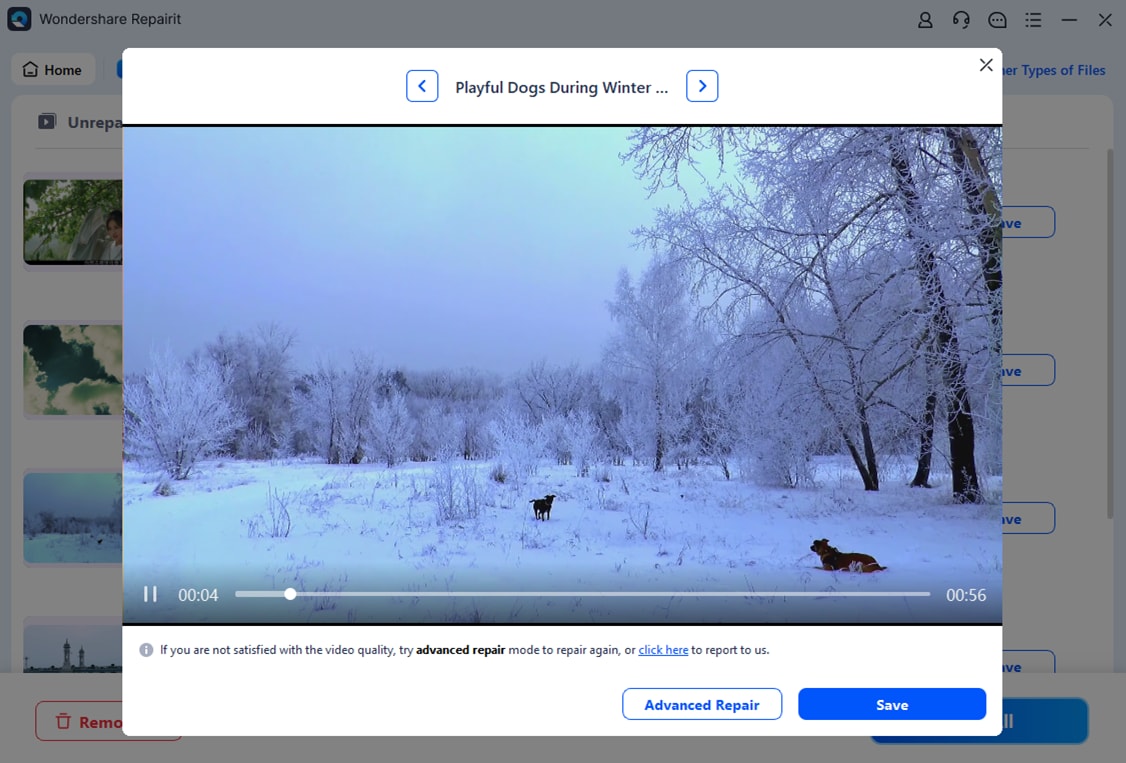
Step 3. Preview and Save the Repaired Video. Preview the output, checking playback beyond the opening seconds, audio sync, and representative scenes. Save it to a different destination drive. Do not delete the original or the original card contents until the repaired file has been verified.
Part 5. How to Prevent CFexpress Recording and Transfer Errors
- Match your card to your camera. Confirm CFexpress Type A or B support and follow the camera maker's required recording-speed guidance.
- Keep reliable power available. Avoid battery depletion or accidental shutdown during long, high-bitrate recordings.
- Finish media writing before removing a card. Stop recording, wait for activity indicators to clear, power down as instructed, and eject computer-mounted cards safely.
- Use dependable readers and cables. Avoid repeated disconnections and do not force a card into the wrong type of reader.
- Maintain two verified copies. Back up complete camera-folder structures, spot-check footage, and only then format cards in the camera for future use.
- Retire suspect media. If failures recur across compatible readers or devices, do not trust the card for new work before professional evaluation or replacement.
Conclusion: Get CFexpress Camera Footage Playing Again
When CFexpress card videos won't play, diagnose the storage device and file separately. A compatible reader, stable transfer, and correct codec support often solve the issue without repairing anything. If a complete, locally saved MP4, MOV, or other supported camera file is genuinely corrupted, Wondershare Repairit Video Repair offers a file-level repair workflow. If the card is unreadable or files are missing, protect the original media and address data access first.
Frequently Asked Questions
-
1. Why can my camera play a CFexpress video but my computer cannot?
The desktop player may lack support for the camera's codec, bit depth, or professional recording format. First test a compatible player or editor and make a verified copy of the file. This does not automatically indicate corruption. -
2. Can I repair a CFexpress card without losing videos?
Start by protecting the footage, not by formatting or modifying the card. Check reader compatibility and copy anything accessible to another drive. Data recovery may be necessary when files are missing or the card cannot be read; file-level video repair is a different operation. -
3. Are CFexpress Type A and Type B interchangeable?
No. They have different physical form factors, and cameras and readers must support the specific type. Using an incompatible reader can make a healthy card appear inaccessible. -
4. Can Repairit fix corrupted 4K or 8K footage from a CFexpress card?
Repairit supports many mainstream and professional video formats, including MP4, MOV, and MXF. Whether a particular 4K or 8K file can be repaired depends on its supported format, the damaged structure, and how much of the original data remains. The CFexpress card itself is not repaired by the application. -
5. What should I do if an interrupted Sony recording creates an RSV file?
Preserve the RSV file and any related camera files. Do not simply rename it to MP4. Use a workflow specifically intended for the camera's interrupted-recording format, and keep the original card untouched until the data has been secured.