
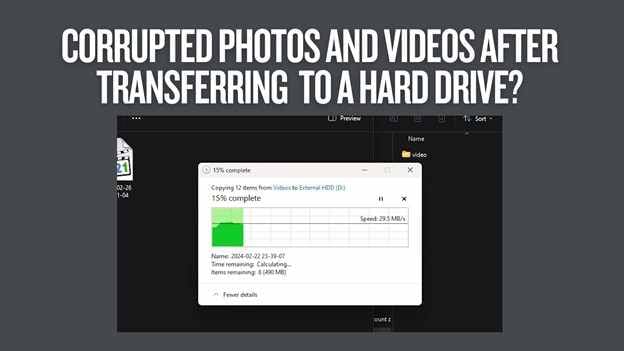
You transfer your photos or videos to a hard drive, everything seems fine, and then the files won't open or play properly. This situation is more common than it seems, especially when dealing with large media files.
When files become corrupted after transfer to a hard drive, the issue is usually related to how the data was written during the copying process rather than the file itself.
In this article
Why Files Get Corrupted After Transfer to a Hard Drive
Photos and videos rely on structured data to store visual content, audio, and metadata. During transfer, this structure is recreated on the hard drive.
If something interrupts or affects this process, the file may become partially written or damaged.
Common Causes:
- Interrupted transfer process: If a file transfer is paused, canceled, or disrupted (e.g., system freeze, app crash), the file may only be partially written. This often results in unplayable or incomplete media files.
- Unsafe removal of the hard drive: Disconnecting a drive without properly ejecting it can interrupt background write operations. Even if the file looks fully copied, hidden processes may still be finalizing the data.
- Bad sectors on the hard drive: Hard drives can develop bad sectors over time---areas that can no longer reliably store data. If a file is written to these sectors, parts of it may become corrupted or unreadable.
- File system errors: Issues within the drive's file system (such as corrupted allocation tables or indexing errors) can prevent files from being written or accessed correctly.
- Faulty cables or ports: Damaged USB cables or unstable ports can cause intermittent disconnections during transfer, leading to incomplete or corrupted files.
- Power interruptions: Sudden power loss. especially during large file transfers, can halt the writing process instantly, leaving files in a broken state.
Hard Drive-Specific Causes:
- Physical wear and bad sectors: Traditional hard drives (HDDs) are mechanical devices. Over time, wear and tear can lead to read/write errors, increasing the risk of corruption during transfers.
- Slower write speeds for large files: Large videos (especially HD, 4K, or RAW formats) require sustained write performance. If the drive slows down or struggles to keep up, the transfer process becomes more vulnerable to interruption or failure.
- Power instability (especially external drives): External hard drives rely on USB power or external adapters. Inconsistent power delivery can interrupt write operations, particularly when transferring large files or using older ports.
Signs Your Files Were Damaged During Transfer
Below are the most common signs that your photos or videos were damaged during transfer:
- Photos won't open or show errors: Image files may fail to open in standard viewers, display error messages, or appear as unsupported formats. In some cases, they may open partially but show visual distortions.
- Videos won't play or freeze: Videos may refuse to play, get stuck on a loading screen, or freeze during playback. This often indicates missing or damaged frame data.
- Black or blank previews: Thumbnails may appear as black screens or blank placeholders, suggesting the preview data or file header is corrupted.
- Files appear normal, but don't work: The file may have the correct name, size, and format, but fails when opened. This is a common sign of incomplete data transfer.
- Partial playback or missing content: Videos may play only partway before stopping, or photos may load incompletely. This typically means only a portion of the file was successfully written.
Basic Fixes to Try First
Before applying advanced fixes, try the basic ones first:
Fix 1: Re-transfer the Files
If the original transfer failed, copying the file again can restore it properly.
Step 1. Locate the original files on your source device.
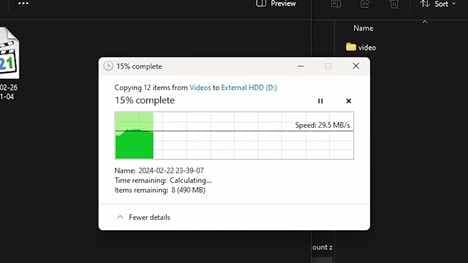
Step 2. Copy them again to the hard drive and wait until the transfer completes.
Why this works: Incomplete transfers are one of the most common causes of file corruption.
Fix 2: Try Opening Files on Another Device
Testing the file elsewhere helps determine if the issue is system-related.
Step 1. Copy the file to another computer or device.
Step 2. Try opening it using different apps or media players.
Why this works: This helps isolate whether the problem is the file or your current system.
Fix 3: Move Files to Local Storage
Opening files directly from the hard drive can sometimes cause issues.
Step 1. Copy the file from the hard drive to your computer.
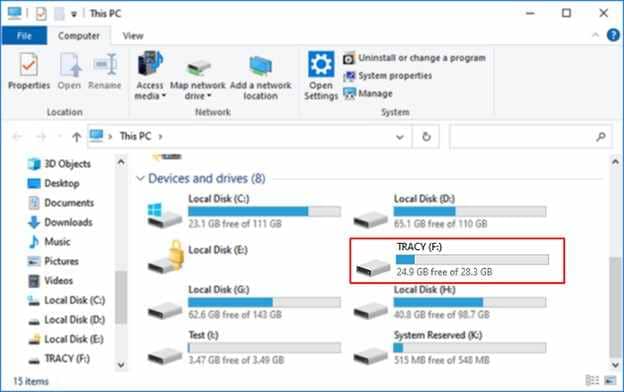
Step 2. Open it from your internal storage.
Why this works: This checks if the hard drive is causing access problems.
Fix 4: Check the Hard Drive for Errors
Drive-level issues can affect how files are read and written.
Step 1. Right-click the hard drive and open "Properties."
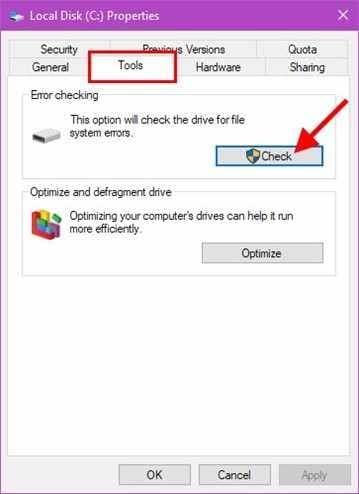
Step 2. Run the error-checking tool under the "Tools" tab.
Why this works: Fixing file system errors can restore access to damaged files.
Fix 5: Use a Different Viewer or Player
Some apps handle partially corrupted files better than others.
Step 1. Open the file using another photo viewer or media player.
Step 2. Check if the file loads or partially plays.
Why this works: Some software can bypass minor corruption and still display content.
Advanced Fix: Repair Corrupted Photos or Videos Using a Repair Tool
If the files still don't open, they may have structural damage that requires repair.
Signs You Need Repair:
- Files fail on all devices
- Players crash or show errors
- Files won't load at all
What Repair Can Do:
- Rebuild damaged file structure
- Restore playback or viewing
- Fix black screens or missing content
How to Use a Repair Tool
If the video or photo is confirmed to be corrupted, Repairit Video Repair can safely restore its functionality.
Step-by-Step (Optional)
Step 1. Add the corrupted photo or video.

Step 2. Start the Repair process.

Step 3. Preview, then save the file.

Tips to Prevent it From Happening in the Future
By following a few careful practices, you can significantly reduce the risk of ending up with damaged photos or videos after moving them to a hard drive.
- Always complete transfers fully - Avoid closing the transfer window or shutting down your computer too early. Wait for confirmation that the process has fully completed before taking any further action.
- Safely eject drives - Before disconnecting an external hard drive, always use the system's "Eject" or "Safely Remove" option.
- Avoid interrupting transfers - Try not to pause, cancel, or multitask heavily while transferring large files.
- Use reliable cables and ports - Use high-quality, undamaged cables and connect to stable ports (preferably directly on your computer rather than through hubs).
- Regularly check your hard drive health - Periodically running disk checks or health monitoring tools can help detect problems early before they impact your files.
- Keep backups of important files - Maintaining backups, whether on another drive or cloud storage, ensures that you have a safe copy if corruption occurs.
Conclusion
When photos or videos are corrupted after transfer to a hard drive, the issue is usually caused by interruptions, drive errors, or unstable connections.
Start with basic fixes like re-transferring the files and checking the drive. If the issue persists, repair methods can often restore your files and make them usable again.
FAQs
-
Can MOV files be repaired after transfer?
Yes, especially if the corruption happened during transfer and the data is still present. -
Why are MOV files sensitive to corruption?
Because they rely on structured metadata that must be fully written to work properly. -
Will renaming the file fix corruption?
Only if the issue is incorrect labeling, not structural damage. -
Can partially transferred MOV files be fixed?
Only the transferred portion can be recovered; missing data cannot be restored.




