
Losing your footage because of a sudden power outage can be discouraging, especially when important videos become unplayable. This usually happens because the recording was interrupted before the file could save properly, leaving important video data incomplete.
The good news is that you can still repair incomplete video files caused by power failure with the right tools and methods. Whether it's a work project or a personal video, knowing how to fix an incomplete video after power failure can help you recover your files and avoid losing valuable footage.
In this article
Why Video Files Fail After Power Disruptions
When a power failure interrupts a recording or transfer, the video file often becomes incomplete because it doesn't finish saving its final data or header. This leaves the file unreadable even if it still takes up space.
Common Causes
- Sudden shutdown during recording or saving
- Battery running out while filming
- Power surge affecting storage devices
During Transfers
- Interrupted saving process prevents full data writing
- External drive disconnect causes file errors, leading to an incomplete video after power failure
How to Identify the Signs of Video Corruption
An incomplete video file is usually easy to spot because it fails to load properly due to missing internal data needed to play it. This is not just a minor glitch, it means the file structure was never fully saved.
Main Signs of Damage
- No duration shown - The file may show 00:00:00 even if it has a large file size
- Blank or generic thumbnail - No preview image appears
- Playback errors - The file won't open or shows unsupported or cannot play messages
Common Behavior Issues
- Cannot skip or scrub - If it plays at all, moving through the video may freeze or crash the player
- System lag or freeze - Opening the file may slow down or hang File Explorer or Finder
- Incorrect file data - The file may show a normal size, but tools reveal missing video and audio content, which is common in an incomplete video after power failure
Basic Ways to Fix Corrupted Videos
Before using advanced recovery tools, try simple fixes that may repair minor file issues. These methods often work by rebuilding or bypassing the missing video header so the file can play again.
Fix 1. Use VLC Media Player
VLC has a built-in repair feature that can sometimes fix or bypass missing file index data, allowing the video to play even if it is slightly corrupted.
Step 1. Open VLC Media Player, then go to Tools, Preferences and click the Input / Codecs tab.
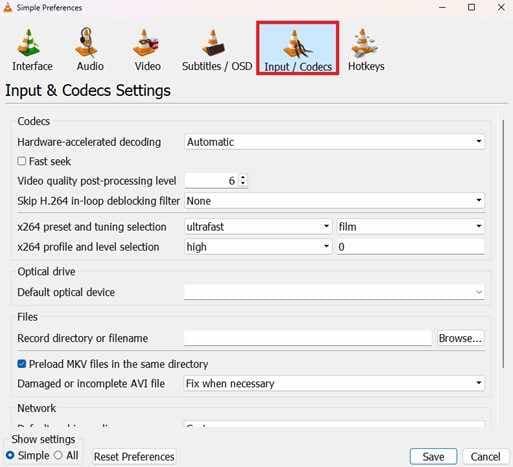
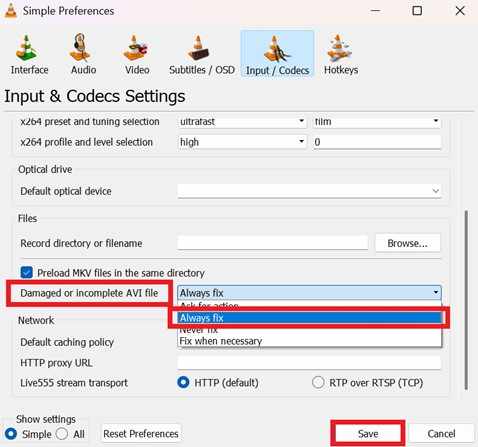
Step 2. Find the option Damaged or incomplete AVI file, set it to Always fix, save the settings, and try opening your video again.
Fix 2. Use FFmpeg (Rebuild the File)
FFmpeg is a free tool that can copy the video and audio into a new file format. This helps rebuild the missing structure so the video becomes playable again.
Step 1. Open Command Prompt and enter: ffmpeg -i corrupted_video.mp4 -c copy fixed_video.mp4

Step 2. Press Enter. FFmpeg will try to rebuild the video by copying the working data into a new file and removing any corrupted parts.
Fix 3. Rename the File
Sometimes the file format is not recognized correctly after a crash. Changing the file extension (for example, MP4 or MOV) may help the system open it using a different method.
Step 1. Make a backup copy of the file, then right-click it and change the file extension (for example, from .mp4 to .mkv or .ts).
Step 2. Confirm the warning prompt, then try opening the file using a media player like VLC or MPC-HC.
Fix 4. Run Disk Check (chkdsk)
If the issue was caused by a system crash, not just the video file itself, running a disk check can repair storage errors that may be affecting the incomplete video after power failure.
Step 1. Open Command Prompt as Administrator, then type chkdsk X: /f (replace X with your drive letter).

Step 2. Let the scan finish. It will check and fix disk errors, including damaged or lost file connections that may help recover your video data.
Advance Fix to Restore Severely Video Corrupted
If basic fixes don't work, the video is likely more seriously damaged, often because key data like the moov atom or file structure is missing or broken. In this case, professional repair tools are needed. These tools can rebuild the video's structure by using a healthy sample video recorded with the same device or settings.
It CAN:
- Restores missing video metadata so the file can be recognized and played
- Aligns sound and visuals that may have become out of sync after a power loss
- Scans raw data to retrieve usable video frames
- Can fix several corrupted videos at once if multiple files were affected
If you confirm the video is corrupted, a repair tool can safely restore its functionality. One example is Repairit Video Repair, which works with common file types like MP4, MOV, MKV, and even professional formats like MXF.
Step-by-Step (Optional)
Step 1. Upload the corrupted video file.

Step 2. Start the Repair process.

Step 3. Preview and save the restored file to a new location.

How to Prevent Video Corruption
To avoid an incomplete video after power failure, it's best to take preventive steps.
- Use a UPS - Keep your device running during sudden blackouts so you can save safely.
- Choose safer formats - MKV can preserve playable video even if recording stops suddenly.
- Enable auto-save - Regular saving reduces data loss during crashes.
- Maintain batteries - Weak batteries can cause unexpected shutdowns.
- Use stable storage - Internal SSDs are more reliable than external drives during recording.
Conclusion
Recovering your video is often possible if you act quickly. A sudden power outage can cause an incomplete video after power failure, but you can usually fix it using basic troubleshooting or advanced repair tools. Understanding why video files get corrupted and using preventive steps like a UPS or safer file formats can help you repair incomplete video files caused by power failure and protect your future recordings.
FAQs
-
Why won't my video play after a power outage?
The video is likely missing important data (like the header or "moov atom") that helps media players read the file. -
Can VLC fix corrupted videos?
Yes, VLC can repair minor issues by bypassing missing data and attempting to play the remaining video. -
Will repairing reduce video quality?
No, tools like FFmpeg or repair software usually fix only the file structure, not the actual video quality. -
What format helps prevent corruption?
MKV is more reliable because it saves data in a way that is less likely to become completely unplayable after a crash. -
Can a 0-byte video be recovered?
No, if a file is truly 0 bytes, no video data exists. But if it has size, it can often still be recovered.




