
Moving high-quality videos like 4K or raw footage can be risky because large video files corrupted during transfer may result in broken files, missing data, or videos that won't open. This can waste time and even lead to the loss of important content.
To understand the issue, it helps to know that the transfer process depends on stable devices, cables, drives, and connections. If any part becomes unstable, the file can get damaged during movement.
There are several file transfer corruption causes, such as unstable internet, faulty USB cables, sudden unplugging, full or damaged storage drives, and other interruptions. Even small errors can affect large video files because they involve transferring large amounts of data.
In this article
Why Large Video Files Get Corrupted
When a video won't play after transferring, it usually means something went wrong during the move between storage devices. This is common with large files like 4K or 8K videos because they rely on many connected data parts, and even a small interruption can damage the file.
Main causes of file corruption
- Storage wear or damage - Old or failing drives may lose parts of data during copying.
- Unsafe removal or unfinished transfer - Unplugging a device too early can leave the file incomplete.
- Power issues - Weak power or overloaded USB ports can interrupt the transfer.
- Antivirus interference - Security scans during copying can disrupt the file process.
What are the Signs of Corrupted Video Files
When a large video file is corrupted, it may fail partially or completely depending on which data was affected during transfer or saving.
Visual Signs of Corrupted Video
- Pixelation or blocky frames - Missing data causes blurry or square-like sections.
- Color distortion - Unusual colors like green or pink appear due to damaged video data.
- Freezing video - Image stops while audio continues.
- Audio/video sync issues - Sound and visuals drift out of alignment.
System Signs of File Damage
- Missing details - Incorrect or missing duration, size, or resolution.
- Copy errors (CRC) - System detects data mismatch during transfer.
- Won't open - Media or editing apps cannot read the file.
- System lag - File causes freezing or "not responding" errors.
⚠️Note: Some players like VLC Media Player may still play slightly damaged videos, but this doesn't guarantee the file is fully safe or usable for editing.
How to Fix and Recover Corrupted Large Video File Transfers
While serious data loss is often hard to recover, many corruption problems are actually caused by small errors or interruptions during transfer. Before assuming your video is gone, it's best to stabilize your setup and try a few basic fixes to check and protect your data.
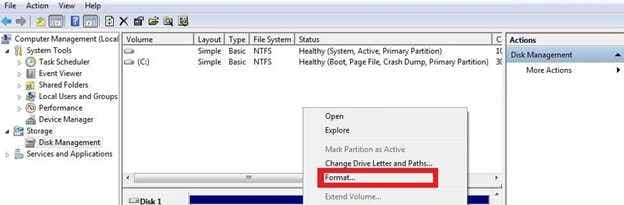
Fix 1. Reformat the destination drive
If the same drive keeps causing errors, it may have system problems. Reformatting clears issues and gives it a fresh setup for large files.
Step 1. Backup any existing data on the target drive and open your system's Disk Management or Disk Utility tool.
Step 2. Format the drive using the exFAT or NTFS file system, specifically setting the "Allocation Unit Size" to a higher value (like 64KB) to better accommodate large video streams.
Fix 2. Avoid USB hubs or docks
USB hubs may not provide stable power for large transfers, which can cause disconnection issues.
Step 1. Disconnect the storage device from any peripheral docks, monitors, or unpowered hubs.
Step 2. Plug the drive directly into the primary USB or Thunderbolt port located on the computer's motherboard or chassis to ensure maximum power delivery.
Fix 3. Run a disk repair scan
Sometimes the drive's file system has errors, not the video itself. A repair scan can fix these issues and mark damaged areas so they are not used again.
Step 1. Connect the drive and run the chkdsk /f command in the Command Prompt (Windows) or select First Aid in Disk Utility (macOS).

Step 2. Allow the system to repair any directory errors or cross-linked files before attempting to move the large video file again.
Advance Fix to Restore Severely Corrupted Files
If you confirm the video is corrupted, a repair tool can safely restore its functionality.
One example is the Repairit Video Repair, which works with common file types like MP4, MOV, MKV, and AVI.
Step-by-Step (Optional)
Step 1. Upload the corrupted video file.

Step 2. Start the Repair process.

Step 3. Preview and save the restored file to a new location.

Why do Network Transfers Fail Due to Latency and Packet Loss
Many modern video files don't get corrupted because of hardware issues alone. Most problems happen during online transfers like Google Drive, Dropbox, LAN, or FTP. Large video files are more vulnerable because even small network issues can affect a lot of data.
Why network transfers fail
Video files are not sent as one whole file. They are split into small parts called "packets". The file only works if all packets arrive correctly and in order.
- Network instability - Slow or busy internet can cause packets to arrive late or out of order, leading to corruption.
- Connection drops - If the connection stops and there is no resume option, the file may become incomplete.
- Security or router limits - Firewalls or routers may block or slow large transfers, causing missing data.
Simple fixes for better transfers
- Use TCP instead of UDP - TCP checks every packet and resends missing ones, making transfers more reliable.
- Use SFTP or resume-enabled tools - Tools like FileZilla or Cyberduck allow transfers to continue after interruptions instead of starting over.
- Adjust MTU settings - Lower MTU slightly to make data packets more stable and reduce transfer errors.
- Use Ethernet instead of Wi-Fi - Wired connections are more stable and less affected by interference, making large file transfers safer.
Best Practices to Prevent Corruption
Preventing video corruption is easier than fixing it later. A stable transfer process helps keep files safe from camera to storage or editing.
Setting Up a Safe Transfer Process
- Copy first, then delete - Always copy files and verify them before removing the original.
- Check file integrity - Use checksum tools to confirm files were not altered during transfer.
- Use reliable file systems - NTFS and APFS are more stable for large video files than older formats like FAT32.
- Keep free space - Leave 15--20% storage free to prevent write errors.
- Ensure stable power - Keep devices plugged in and avoid overheating during large transfers.
Conclusion
Managing large video files is not just about having fast devices. It also requires careful handling to protect the file from getting damaged. Most video corruption during transfer happens because of avoidable problems like unstable connections, full storage, overheating, or outdated file systems.
To reduce risk, it's better to follow a proper transfer process instead of just dragging and dropping files. Using verified copies, stable file systems like NTFS or APFS, and tools that check file accuracy (like checksums) can help keep your videos safe and complete.
FAQs
-
Why does my video play in VLC but not in Premiere Pro?
VLC can still play damaged videos by skipping errors. Premiere Pro needs a perfect file, so it won't open files with missing or broken data. -
Can I recover a video that was interrupted during transfer?
No, you can't recover missing parts that were never copied. But repair tools may help make the incomplete file playable. -
Does compressing a video prevent corruption?
No. Compression only makes the file smaller, which reduces transfer time. It does not fix or prevent transfer errors. -
Is cloud storage or external drive safer?
A wired external drive is usually more stable. Cloud transfers can be affected by internet issues. -
Why won't my 10GB file fit on a 16GB flash drive?
The flash drive may be using FAT32 format, which only allows files up to 4GB.




