
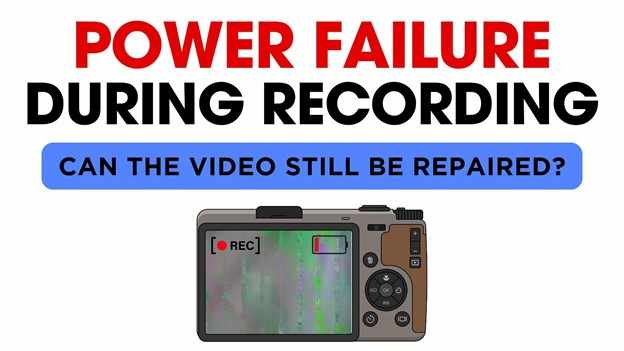
Unexpected blackouts or a dead battery while recording can be challenging because the video may not play afterward. When a power failure happens during recording, you might wonder if the file is lost or if you can still repair video after power failure recording using recovery tools.
This usually happens because the device didn't properly finish or save the file, so it becomes unreadable. However, in many cases, the actual video data is still there and can often be recovered with the right method or software.
In this article
How Power Failure Can Corrupt Video Files
When a power failure during recording happens, the video may not play because the device didn't finish saving it properly. Important data that helps open the file is missing, even though the actual video is still stored.
Common Causes of Recording Interruptions
- Battery runs out suddenly - The device turns off before it can safely save the recording.
- Power instability - Sudden outages or voltage changes force the device to shut down.
- Storage gets disconnected - A loose SD card or drive connection interrupts saving.
- System or firmware crash - The device freezes and stops recording unexpectedly.
Transfer-Specific Problems
- Data overload during recording - High-quality video may exceed the device's writing speed, causing incomplete saving.
- Cable or external drive disconnect - If recording directly to external storage, a sudden disconnect acts like a power cut and stops the file from being properly closed.
Signs of a Broken Video File
When a power failure interrupts recording, the video file doesn't disappear, it becomes incomplete or broken. It may still be on your device, but it lacks the information needed to play correctly.
Common signs of damage
- The file has a normal size but shows no duration or details
- Error messages appear when trying to open it (like unsupported or invalid format)
- The video opens but freezes or becomes glitchy after a few seconds
- Strange visuals appear, such as green screens or pixelated frames
- The device slows down or crashes when you click the file or try to preview it
Basic Ways to Try Fixing the Video
Before using advanced repair tools, you can try a few simple methods to recover a video damaged by a power failure during recording. These focus on rebuilding or bypassing the missing file structure.
Fix 1. Use a media player to repair
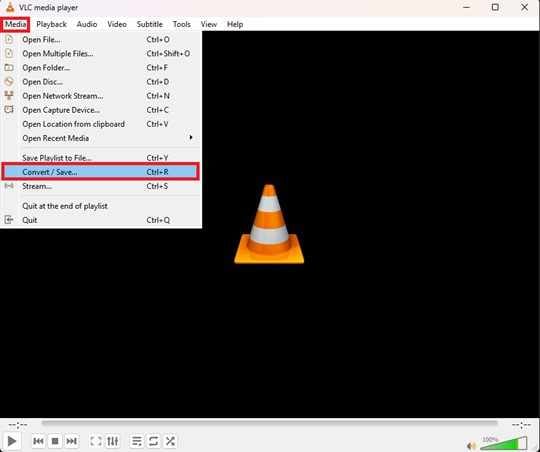
Programs like VLC can sometimes fix the file by rebuilding its structure while playing or converting it.
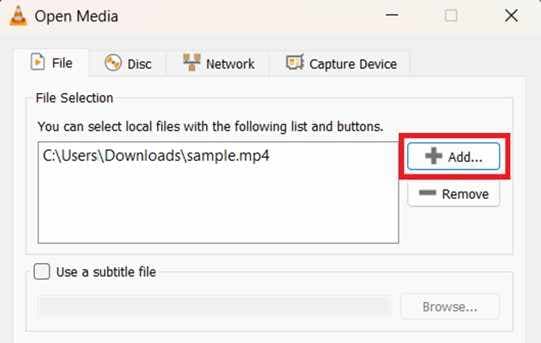
Step 1. Open the player's Convert/Save feature and add the damaged file.
Step 2. Select a matching output profile (e.g., MP4/MOV) and run the conversion to force the software to generate a new, valid header.
Fix 2. Use built-in system tools
Your computer may have repair tools that can scan and fix file errors if the video data is still intact.
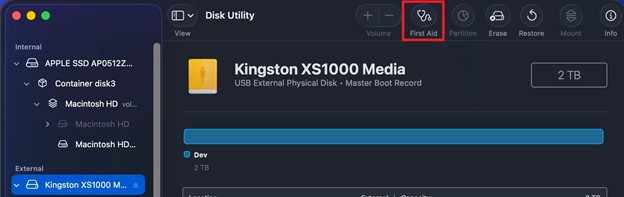
Step 1. Access the Command Prompt (Windows) or Terminal (macOS) to run a check-disk command on the source drive.
Step 2. Use the chkdsk or first aid function to repair file system errors that might be preventing the OS from reading the unclosed file.
Fix 3. Try uploading online
Some online video services can handle damaged files and recover playable copies as they upload.
Step 1. Upload privately the corrupted file to a platform like YouTube or Vimeo to see if their cloud transcoders can bypass the local playback error.
Step 2. If the processing is successful, download the newly rendered version from the platform's studio dashboard.
Advance Fix to Restore Severely Corrupted Video Files
If basic fixes don't work, you can use advanced repair tools. These programs go deeper than normal players and try to rebuild the video by analyzing its broken structure. They can often reconstruct missing parts of the file using patterns from healthy videos with the same settings.
It CAN:
- Close and repair videos that weren't properly saved
- Rebuild missing file data so the video can open
- Realign sound and image if they are out of sync
- Put broken video pieces back together from storage
- Fix several corrupted videos from the same power failure
If you confirm the video is corrupted, a repair tool can safely restore its functionality. One example is Repairit Video Repair, which works with common file types like MP4, MOV, MKV, and AVI.
Step-by-Step (Optional)
Step 1. Upload the corrupted video file.

Step 2. Start the Repair process.

Step 3. Preview and save the restored file to a new location.

How to Prevent Future Recording Loss
Even though repair tools can help, it's better to prevent damage in the first place. Good setup and proper equipment can reduce the risk of losing videos during a power failure during recording.
Simple ways to protect your recordings
- Use a UPS (backup power) - Keeps your device running long enough to safely save and stop recording during a blackout
- Turn on auto-save or split recording - Saves video in small parts so only a short segment is lost if power cuts off
- Check your batteries regularly - Weak batteries can shut down suddenly during heavy recording
- Use fast, high-quality memory cards - Better cards handle sudden stops more safely and reduce file damage
- Secure your cables - Make sure power and storage connections don't get unplugged accidentally
Conclusion
A power failure during recording can be frustrating, but it doesn't always mean your video is lost. In many cases, the file is still on your device, it just isn't properly structured. Learning how to repair video after power failure recording can help you recover footage using simple tools or more advanced repair software. Even if the file has missing headers or damaged data, recovery is often possible with the right method and tools.
FAQs
-
Can all videos be fixed after a power failure?
Not always. If the video data is still intact, recovery is usually possible. But if the data itself is overwritten or badly damaged, it may not be repairable. -
Why is there no sound after repair?
Audio and video are stored separately. If the audio part is more damaged, it may not recover properly. -
Is some video format more reliable?
Yes. Formats like MKV are often more stable because they handle interruptions better than formats like MP4 or MOV. -
Will repairing reduce video quality?
Usually no. Most repair tools rebuild the file without changing its quality, unless conversion is required. -
How do I know if my SD card is failing?
Frequent errors, crashes, or empty 0KB files can be signs of a faulty or slow SD card that needs replacement.




