
Pulling an SD card too early is a common mistake many creators make, but it often leads to a frustrating "File Error" message. If you're dealing with GoPro files corrupted after SD card removal, you're not alone. This usually happens because the camera didn't get enough time to properly save and close the file.
The same thing can happen with other devices; camera files corrupted after SD card removal is a common issue across different cameras.
The good news is that your data is often still there, but it can't be opened because the file wasn't saved correctly. Before you format your SD card and lose everything, there are simple and proven ways to repair these files and recover your footage.
In this article
Why Your GoPro Files Get Corrupted
Seeing a "File Error" or "Unsupported Format" after recording can be frustrating. This usually happens when the SD card is removed while the camera or computer is still saving the file. Without properly finishing the process, the file becomes incomplete and unreadable.
Common Causes of File Corruption
- The file didn't fully save - Every video needs a proper start and end to work correctly. If the recording or saving process is cut off, those important parts are missing. As a result, the file may exist, but it won't open or play.
- The camera is still saving in the background - After you stop recording, the camera continues processing and transferring the video to the SD card. This is especially true for high-quality videos like 4K. Removing the card too soon can leave the file incomplete or partially saved.
- The SD card's system gets disrupted - Your SD card uses a built-in system to organize and locate files. If the card is removed suddenly, this system can get damaged, making files unreadable or causing the entire card to appear corrupted.
- The computer hasn't fully finished writing data - Even if a transfer shows as complete, your computer might still be finalizing the file in the background. Removing the SD card without using "Eject" or "Safely Remove" can interrupt this and damage the file.
- Possible electrical interruption - Taking out the SD card while it's still in use can sometimes cause a small electrical issue. While not always serious, it can still affect how the file or card functions.
How The Damage Shows
When a file becomes corrupted, your device can't properly read the data stored on it. The file may still show up, but it won't work correctly. Here are common signs in simple terms:
Common Signs of Corrupted Files
- Ghost file (0KB or 1KB size) - The file name appears, but it has almost no size. This means the video data was not properly saved or finished.
- Won't open or error messages - When you try to play it, you may see errors like "unsupported file," "file missing," or "can't open," even though the file is visible.
- Bad playback (glitches) - The video may open but look broken, with frozen frames, pixelated blocks, lagging, or sound not matching the video.
- Freezing or crashing - The app may hang or crash while trying to play the file because it can't find where the video properly ends.
- No preview or missing details - The file may not show a thumbnail, or details like length, quality, or size may be missing.
- Camera warning messages - When you put the SD card back in the camera, it may say there's an error or ask you to repair or format the card.
Simple Ways to Fix Corrupted Files
Before trying advanced recovery tools, start with these simple and safe methods. Sometimes, your camera or computer can fix the file on its own if the main data is still intact.
Method 1. Clean the SD Card
Dust or dirt on the SD card or its slot can block proper connection.
Step 1. Push and remove the card, and gently blow off any dust.
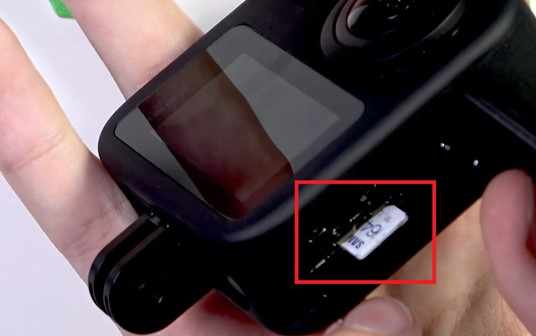
Step 2. Wipe the metal contacts with a clean microfiber cloth.
Method 2. Update the Firmware
Updates can fix bugs and improve SD card compatibility.
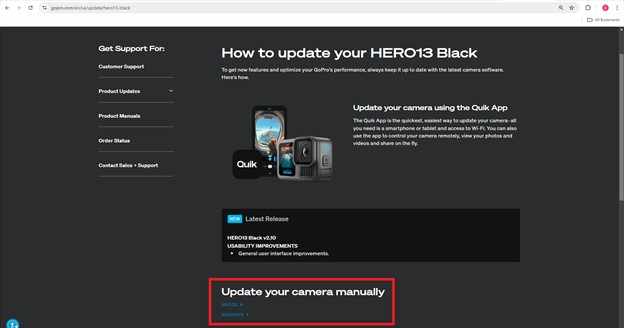
Step 1. Check if your GoPro needs a firmware update.
Step 2. You can update it through the GoPro Quik app or the official website.
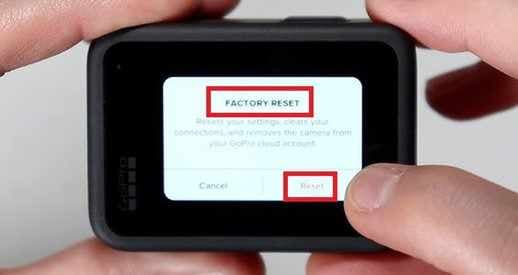
Method 3. Resetting the GoPro Camera
If the issue continues, reset your GoPro. This restores default settings and can fix errors caused by glitches or wrong settings.
Step 1. Swipe down and select Preferences then Reset.
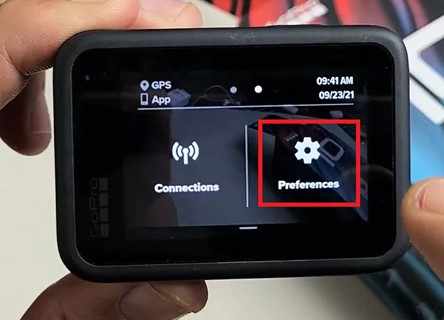
Step 2. Select Factory Reset, then confirm Reset.
Method 4. Use the Camera's Built-in Repair
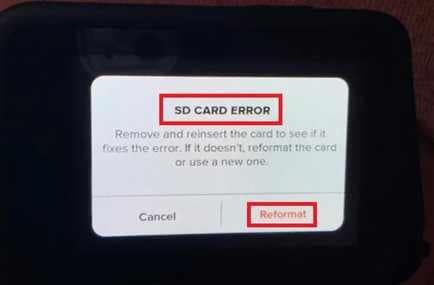
Most modern cameras, especially GoPros, can automatically detect and fix damaged files when you turn them on again. The camera looks for unfinished files and tries to complete them so they can be used.
Step 1. Reinsert the SD card into the original camera and power the device on.
Step 2. Wait for a File Repair or SD Card Error prompt to appear on the LCD screen, then press the Reformat to authorize the internal rebuild.
Method 5. Use Command Prompt (CHKDSK)
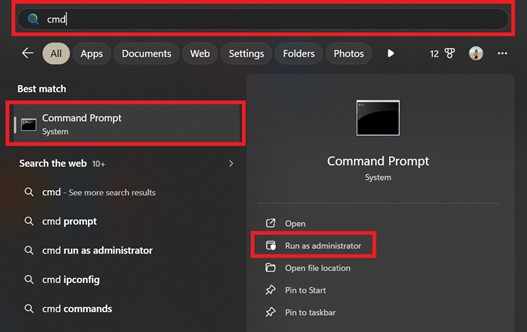
If the problem is with the SD card's file system, Windows has a built-in tool to fix it. This scans the card for errors and tries to recover any readable data.
Step 1. Connect your SD card to a PC, type cmd in the Start menu, and run as Administrator.
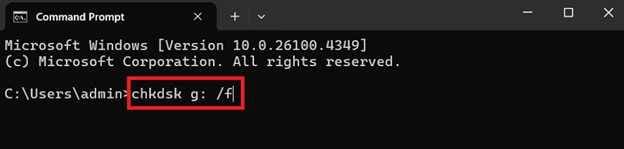
Step 2. Enter the command chkdsk X: /f (replacing "X" with your actual SD card drive letter) and hit Enter to initiate the repair process.
Advanced Fix to Restore Severely Corrupted Files
If basic fixes and system tools don't work, it usually means the video file is seriously damaged. This often happens when the file structure (the part that tells devices how to read the video) is broken. In this case, simple fixes are not enough, and a video repair tool may be needed to rebuild the file so it can play again. One example is the Repairit Video Repair, which works with common file types like MP4, MOV, and MKV. It is useful because it offers an advanced repair option that can use a sample file from the same device to better match the original video structure.
It CAN:
- Fix missing or damaged file parts
- Solve playback problems
- Fix audio and video not matching
- Work with high-quality videos
- Use a sample video to help repair
It CANNOT:
- Recover data that was never saved
- Fix overwritten files
- Repair physical damage
- Improve video quality
- Unlock protected files
Step-by-Step (Optional)
Step 1. Upload the corrupted file.

Step 2. Start the Repair process.

Step 3. Preview and save the restored file to a new location.

Easy Ways to Prevent File Damage
Even though recovery tools can help fix damaged files, it's much better to prevent corruption in the first place. Most file issues happen during saving, transferring, or handling the SD card. A few simple habits can greatly reduce the risk of losing your footage.
- Wait before turning off your camera - After you stop recording, your camera still needs a few seconds to fully save the video. Turning it off too quickly can interrupt this process and corrupt the file. To be safe, wait about 10 seconds before powering off or removing the SD card.
- Always "Eject" your SD card properly - Even if a file transfer looks finished, your computer may still be writing data in the background. Removing the card too soon can damage your files. Always click "Eject" or "Safely Remove" before unplugging it.
- Format the SD card using your camera - Formatting the card in your camera ensures it uses the correct setup for recording. Doing it on a computer can sometimes cause compatibility issues, so it's best to use your camera's Format option.
- Check your battery level - If your device shuts down while recording or transferring files, your video may not save properly. Try to avoid using your camera or computer when the battery is low (around 15--20%).
- Format your card regularly - After backing up your files, do a full format instead of just deleting clips. This helps clear hidden errors and keeps your SD card working smoothly.
- Use a good-quality SD card - Slow or low-quality cards can cause recording problems. Choose trusted brands like SanDisk, Lexar, or Samsung, and make sure the speed matches your camera's needs.
Conclusion
Recovering GoPro files corrupted after SD card removal is not always a lost cause. In many cases, you can fix the issue by first using the camera's built-in repair feature, then trying professional repair tools like Repairit if needed. Most unplayable videos can still be restored with the right method.
Whether it's a GoPro or other camera files corrupted after SD card removal, the most important step is to stop using the SD card right away and work on a copy of the file instead of the original. This helps prevent further damage. With proper troubleshooting and safe handling habits, you can protect your footage and avoid the same issue in the future.
FAQs
-
Why does my GoPro show "Repairing File" when I turn it on?
This appears when the camera detects that a video wasn't saved properly, often because the SD card was removed too early or the device lost power while recording. -
Can I recover a corrupted file that shows 0KB?
Files showing 0KB are harder to fix because they may contain no saved data. However, in some cases, advanced recovery software can still find missing fragments on the SD card. -
Can formatting my SD card solve the issue?
Formatting can fix errors on the SD card itself, but it will erase all files. Always try to recover or repair your videos first before formatting. -
Can removing an SD card damage it permanently?
Usually, no, but sudden removal can cause file errors that make the card unreadable. If that happens, you may need to repair or reformat it using disk tools. -
How long should I wait before removing the SD card after recording?
For high-quality videos like 4K or 5.3K, wait about 5--10 seconds after recording stops to make sure the camera has fully saved the file.




