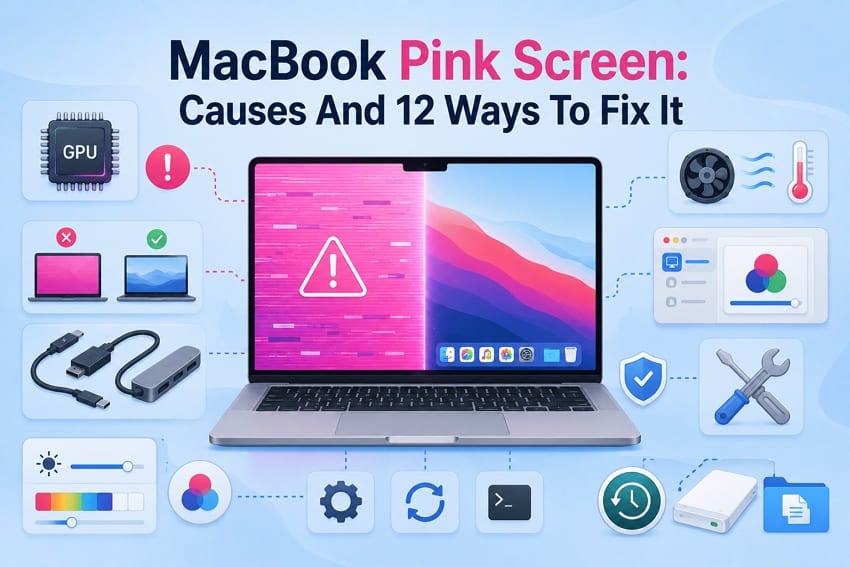
A pink MacBook screen can reflect display settings, software, connection, or hardware problems. The Mac Pro pink screen issue can come from settings, cables, or hardware failures. Finding the missing color path helps identify the exact cause behind the problem.
Follow these 12 fixes, starting with simple checks before advanced repairs. Moreover, a forced shutdown during this issue can damage videos that were being processed. So, Repairit helps recover corrupted video files after crashes, shutdowns, or interrupted saves.
In this article
Part 1. What Does a Pink Screen on a MacBook Mean?
The pink color reveals clues, but the searched term does not explain everything. A set of 3 checks separates real faults from settings and guides fixes.
Is the MacBook Pink Screen a "Pink Screen of Death"?
Apple does not officially recognize the Pink Screen of Death as an error. macOS does not normally show colored screens for reporting system failures. The MacBook Pro pink screen of death describes any pink display, crashing or not.
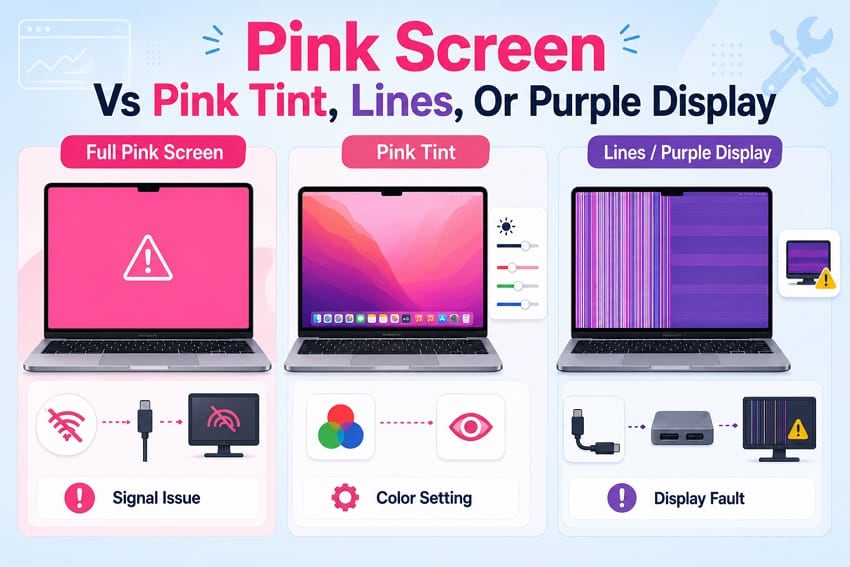
Pink Screen vs. Pink Tint, Lines, or Purple Display
A pink tint changes colors while macOS continues working without problems. Full pink screens often point toward signal loss rather than color settings. Lines or purple blocks suggest possible panel or connection problems instead.
When a Pink Screen Indicates Hardware Failure
Pink during the Apple logo can appear while macOS startup is loading. The same warning applies when pink appears in Recovery or login windows. A clean reinstall still showing pink points toward the display, cable, or logic board.
Part 2. Which MacBook Pink Screen Problem Are You Experiencing?
Identifying which symptom matches your Mac Pro pink screen problem is the next step. Different patterns point toward specific display layers and require different troubleshooting approaches. The table below matches common symptoms with likely causes and recommended first actions:
| What You See | Most Likely Cause | First Move |
| Pink Before macOS Loads | Display panel, display cable, GPU, firmware, or logic board | Check whether the Apple logo or startup screen also appears pink. |
| Pink After Login, Sleep, or Wake | Color profile, display settings, software conflicts, or utilities | Open Displays settings and check Night Shift, True Tone, HDR, and color profile settings. |
| Pink Lines, Flickering, Freezing, or Restarts | GPU, display panel, display cable, thermal issues, or logic board | Run Apple Diagnostics and check for hardware issues. |
| External Monitor Only Shows Pink Colors | Cable, adapter, dock, port, or monitor | Replace the cable, bypass the dock or adapter, and test another port or monitor. |
| Built-In Display Stays Pink | Display panel, display cable, GPU, or logic board | Connect an external display and compare whether the issue appears on both screens. |
| Pink Appears After a macOS Update | Color profile, software compatibility, or software regression | Boot into Safe Mode and check whether the issue persists before reviewing recent updates. |
Part 3. Why Is Your MacBook Screen Pink?
Several causes can create the MacBook Pro pink screen of death, from settings to hardware issues. Now, let's explore the 6 causes and identify what triggers your display problem.
1. macOS Update, App, or Display Software Conflicts
A macOS update can change display settings or create compatibility issues with profiles. Third-party display utilities may conflict with newer frameworks and affect screen colors. Video and screen-recording tools often cause issues by directly using display processes.
2. Incorrect Color Profile, Night Shift, True Tone, or HDR Settings
macOS uses several color adjustments that can affect how the display appears. Night Shift warms colors, True Tone adapts lighting, and ICC profiles control output. Wrong profiles or combined settings can make the screen appear unusually pink.
3. Faulty Cable, Adapter, Port, Dock, or External Monitor
External display connections can create color problems when signals become interrupted. Damaged cables, adapters, or ports may affect color information reaching the monitor. Cheap USB-C hubs and chained docks commonly create these external display issues.
4. Damaged Display Panel, Backlight, or Flex Cable
The display flex cable bends with lid movement and can eventually wear out. Pink changes during screen movement often indicate cable or panel connection issues. Panel or backlight faults may create uneven pink areas across the display.
5. GPU, Unified Memory, Logic Board, or Overheating Problems
GPU or memory faults can create visual artifacts during demanding tasks. Apple silicon combines CPU, GPU, and memory within one unified package design. These failures often require logic board service instead of component replacement.
6. Physical Damage, Liquid Exposure, or Internal Connection Failure
Drops, pressure, and liquid can damage display connections beyond software fixes. Internal connector corrosion may appear later after liquid reaches sensitive components. These physical faults require inspection because settings changes cannot solve them.
Part 4. How to Fix a Pink Screen on MacBook
Start with the easiest solutions first, then try advanced steps if needed. Use these fixes to solve the Mac Pro pink screen issue and restore normal colors.
Fix 1. Restart the Mac and Disconnect External Devices
A restart refreshes the display system and clears temporary graphics-related issues. Disconnecting external devices removes possible causes like docks, hubs, or monitors. Here is how to restart and disconnect devices:
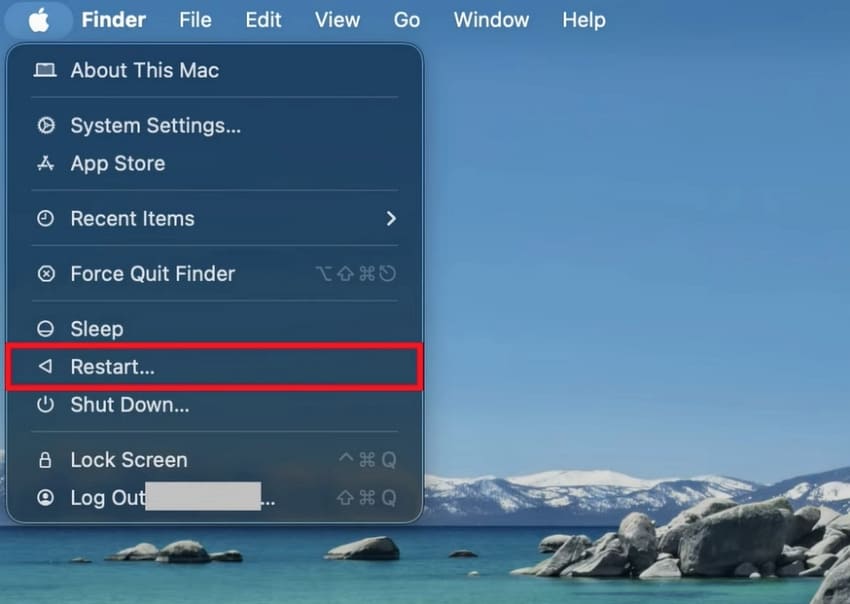
Instructions. First, press Apple Logo > Restart. Disconnect all devices except the charger if needed. Once it restarts, check whether it shows the pink screen again.
Fix 2. Check the Color Profile, Night Shift, True Tone, and HDR Settings
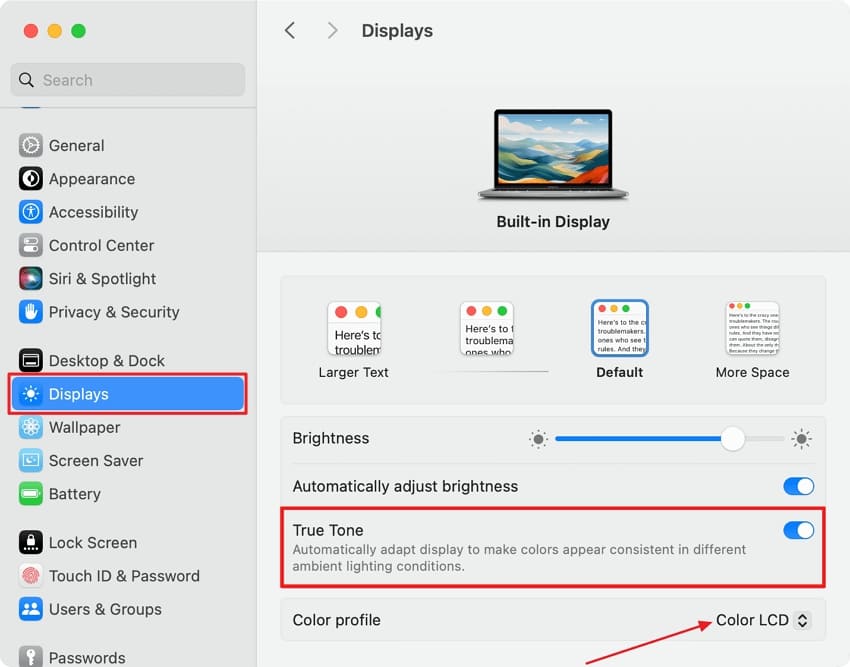
Color settings can create pink tones without indicating a hardware problem. Check the four display settings to identify possible color-related conflicts causing the MacBook Pro pink screen of death. Use the instructions below to check these settings:
Step 1. At the top left corner, click Apple Logo > System Settings.
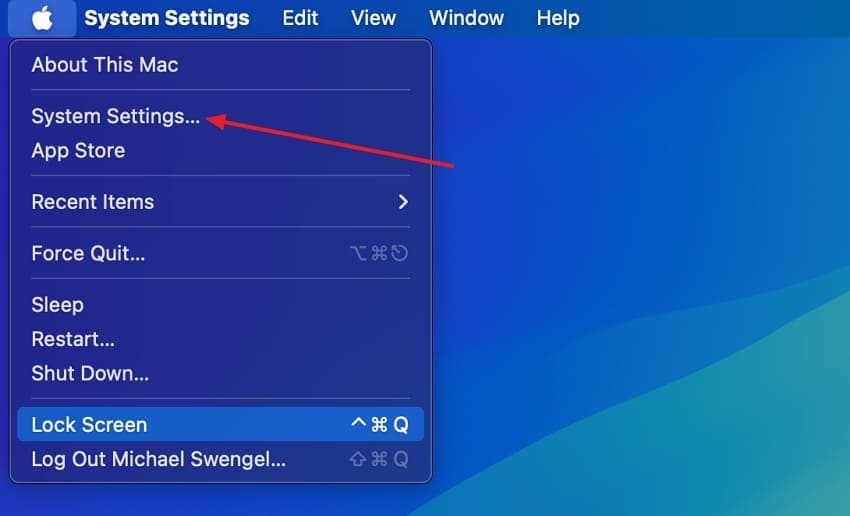
Step 2. Next, press Displays > switch Color Profile to Color LCD > turn off True Tone > check the Night Shift schedule.
Fix 3. Test the External Monitor, Cable, Adapter, Dock, and Port
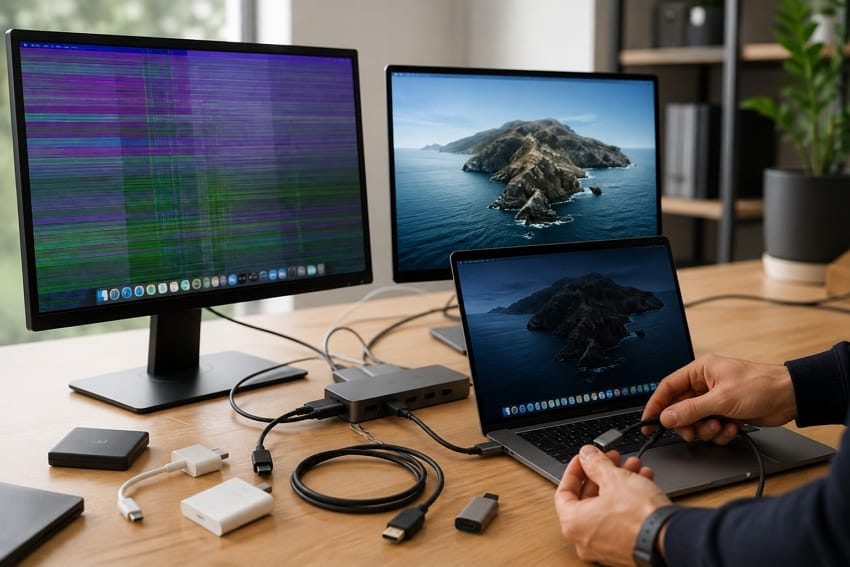
External connections can cause color problems by interrupting the signal between Mac and monitor. Test each cable, adapter, dock, and port separately to find the faulty component. Connect directly using a certified cable and check the monitor with another computer.
Fix 4. Update macOS and Recently Affected Apps
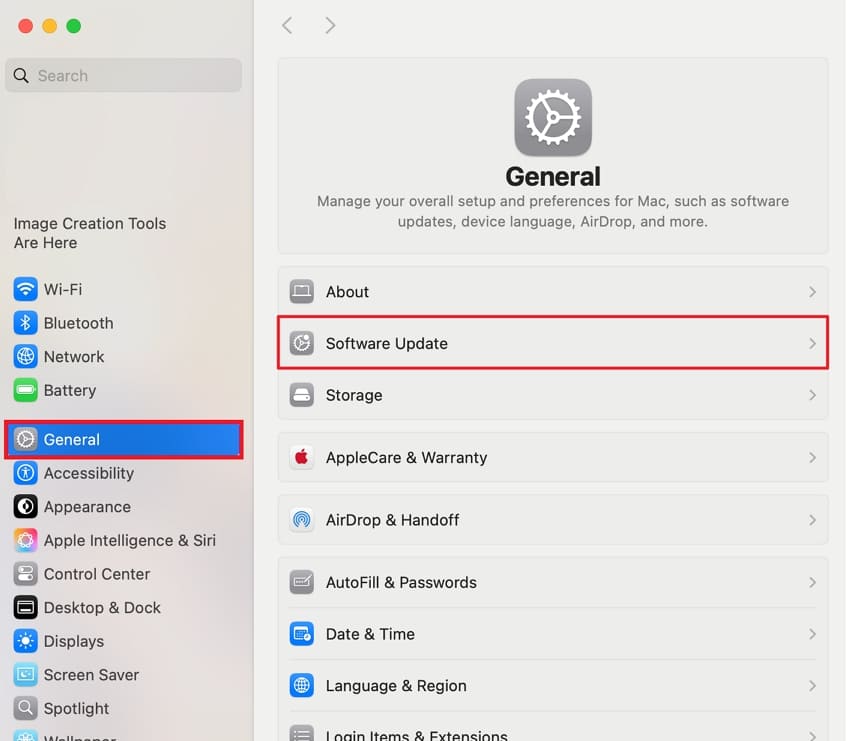
Updating macOS and apps can fix the Mac Pro pink screen issue. New updates often repair color problems caused by recent system or apps. To check settings, see steps below:
Step 1. Once you open System Settings, press General > Software Update.
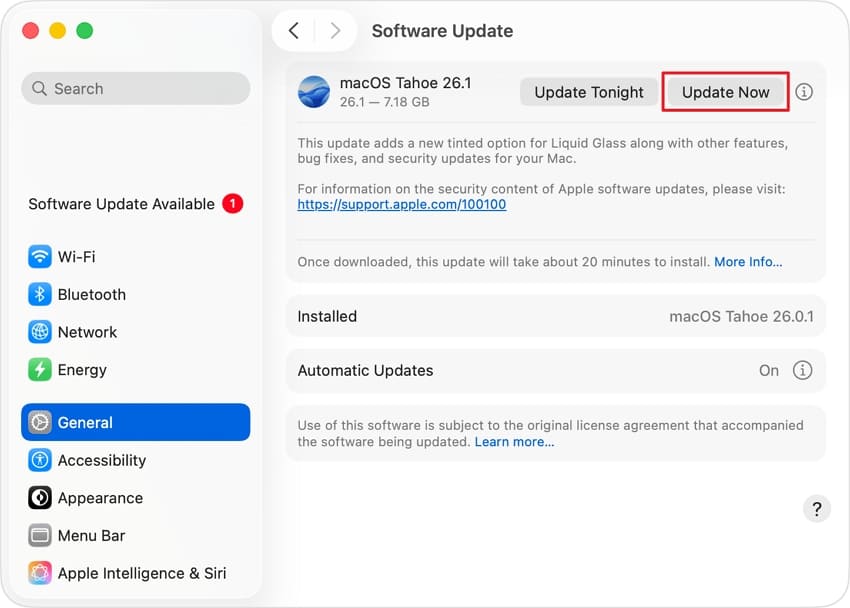
Step 2. Then, click Update Now if any updates are available. Next, update recently affected apps from the App Store or using their Update feature to fix possible display conflicts.
Fix 5. Boot the Mac into Safe Mode
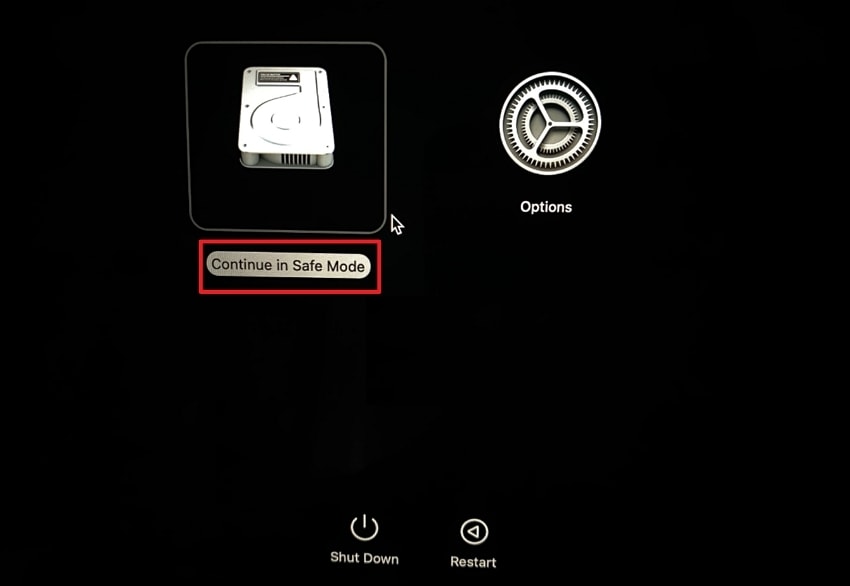
Safe Mode loads only essential system items and helps find software causing display problems. Apple confirms Safe Mode helps identify issues from software loading during startup. Let's see how you can boot into Safe Mode:
Instructions. On Apple Silicon, shut down the Mac > hold the Power button until startup options appear. Next, select the startup disk > hold Shift > click Continue in Safe Mode. On Intel Macs, turn on or restart, hold Shift until login > select Safe Boot in the menu bar.
Fix 6. Remove Third-Party Display Utilities and Login Items
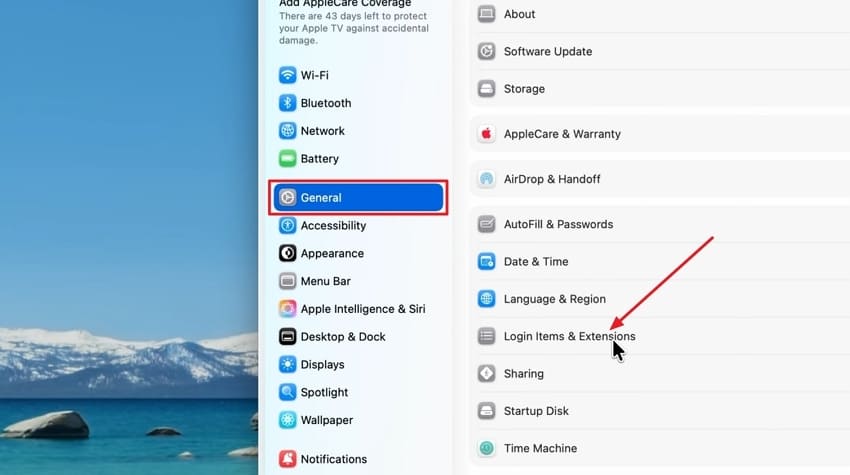
Third-party display utilities can cause the MacBook Pro pink screen of death through conflicts. Removing monitor tools and login items helps identify software causing display issues. If you need help, see the simple steps below:
Step 1. Open System Settings > General > Login Items & Extensions.
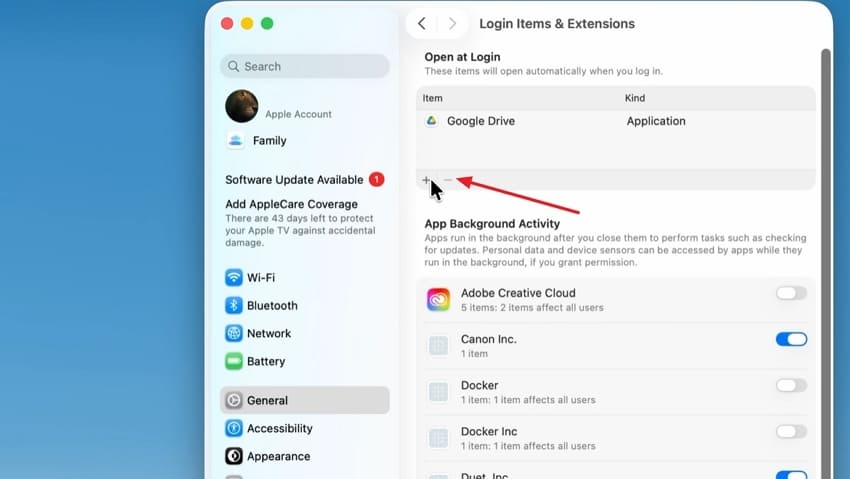
Step 2. Select recently added login items, click Minus, and remove apps from Applications if needed. Restart your Mac normally.
Fix 7. Reset NVRAM or SMC on an Intel-Based Mac
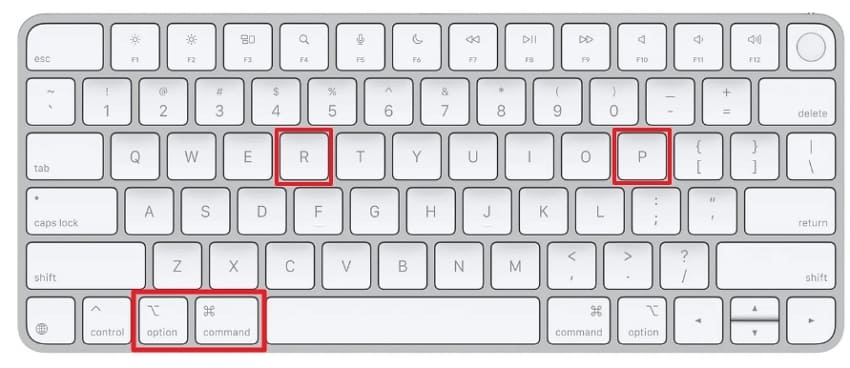
According to Apple, resetting NVRAM can help resolve startup-related settings issues on Intel Macs. NVRAM stores certain settings, including display information, which may affect startup behavior. For Intel Macs, follow Apple's reset process below:
For NVRAM
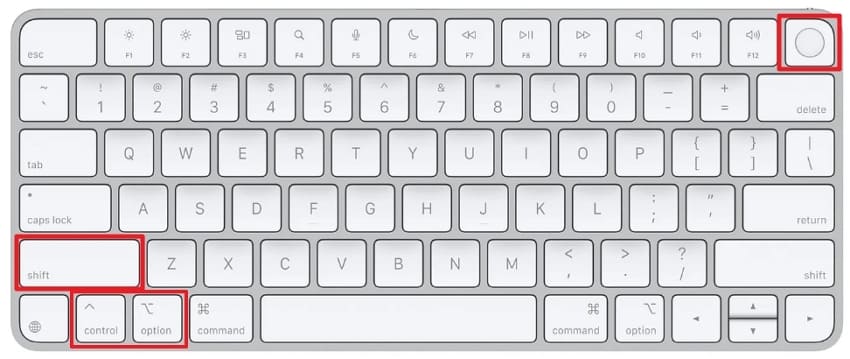
Instructions. Restart and immediately hold Option + Command + P + R. Keep the keys held during startup, then release them and check whether the pink screen remains.
For SMC
Instructions. Shut down the Mac > hold Control + Option (Alt) + Right Shift for 7 seconds > while holding them, press and hold the Power button for another 7 seconds > release all keys, wait a few seconds, then turn on the Mac.
Fix 8. Run First Aid Using Disk Utility
Disk Utility First Aid checks file system errors causing the Mac Pro pink screen issue. Run First Aid from Recovery Mode for accurate repairs using the steps below:
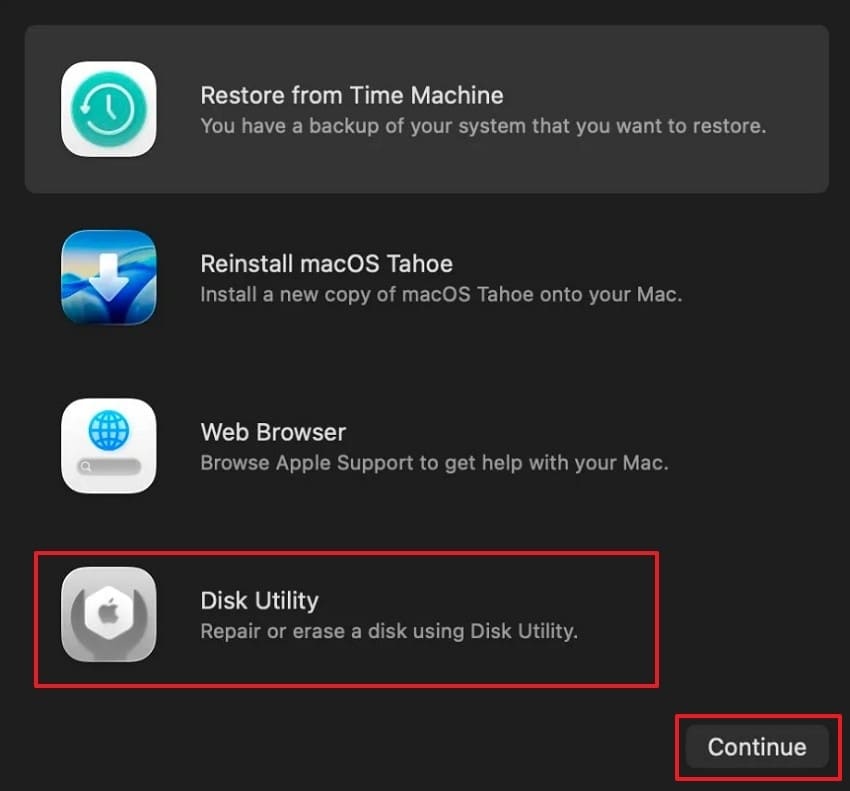
Step 1. Enter macOS Recovery. On Apple silicon Macs, hold the Power button until startup options appear, then select Options > Continue. On Intel Macs, restart and hold Command + R until the Apple logo appears. Next, select Disk Utility and click Continue.
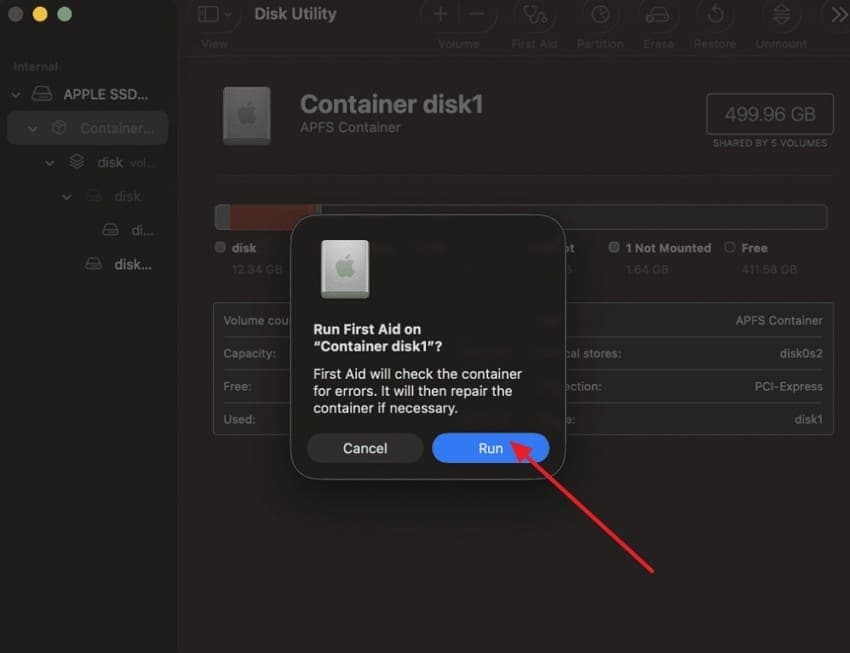
Step 2. Choose the volume > press First Aid > Run. After First Aid completes, restart and check whether the pink screen is fixed.
Fix 9. Run Apple Diagnostics
Apple Diagnostics helps identify faulty hardware components causing display problems. Apple says Diagnostics can determine which hardware component might be at fault. Disconnect accessories, shut down, and start Apple Diagnostics using the steps below:
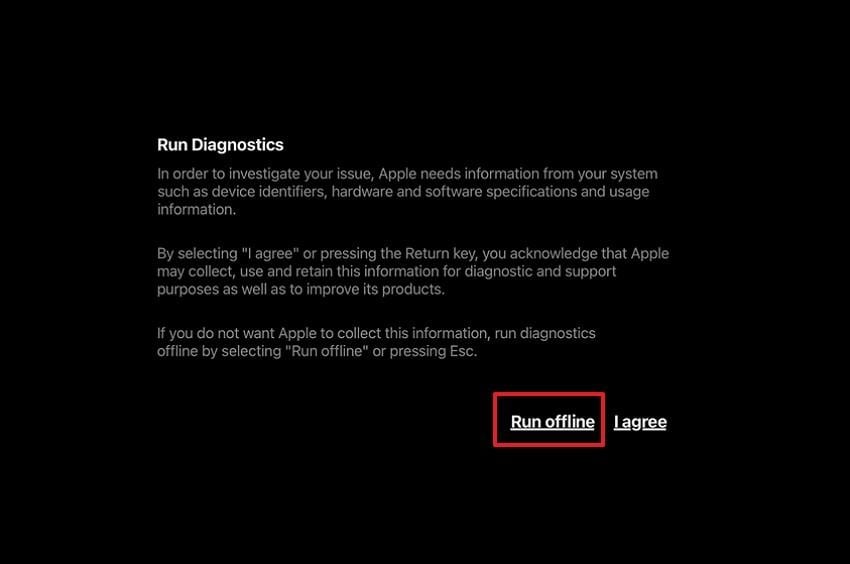
Instructions. On Apple Silicon, press and hold the Power button until startup options appear > press Command + D. On Intel Macs, turn on the Mac and immediately hold D during startup. If prompted, choose Run Offline.
Fix 10. Restore the Mac from a Time Machine Backup
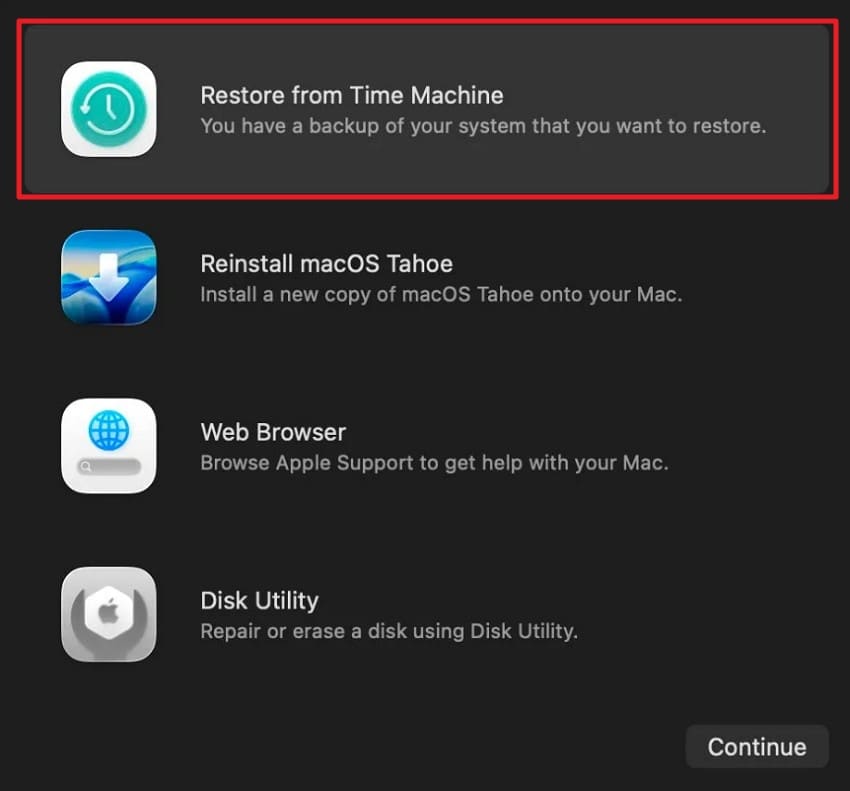
Restoring a Time Machine backup returns your Mac to a previous working state. It removes recent changes that may trigger the MacBook Pro pink screen of death. Continue with the restoration steps below:
Step 1. Restart your Mac and enter macOS Recovery (see Fix 8 for the steps). Then, choose Restore from Time Machine Backup and click Continue.
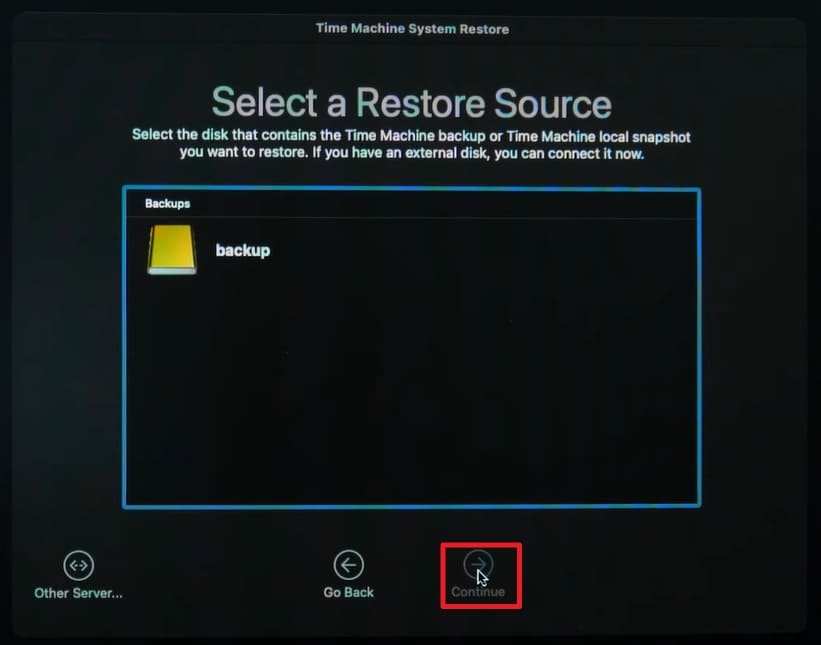
Step 2. Choose the Backup source > Select a backup from before the issue started > Follow on-screen instructions before restarting.
Fix 11. Reinstall macOS From Recovery
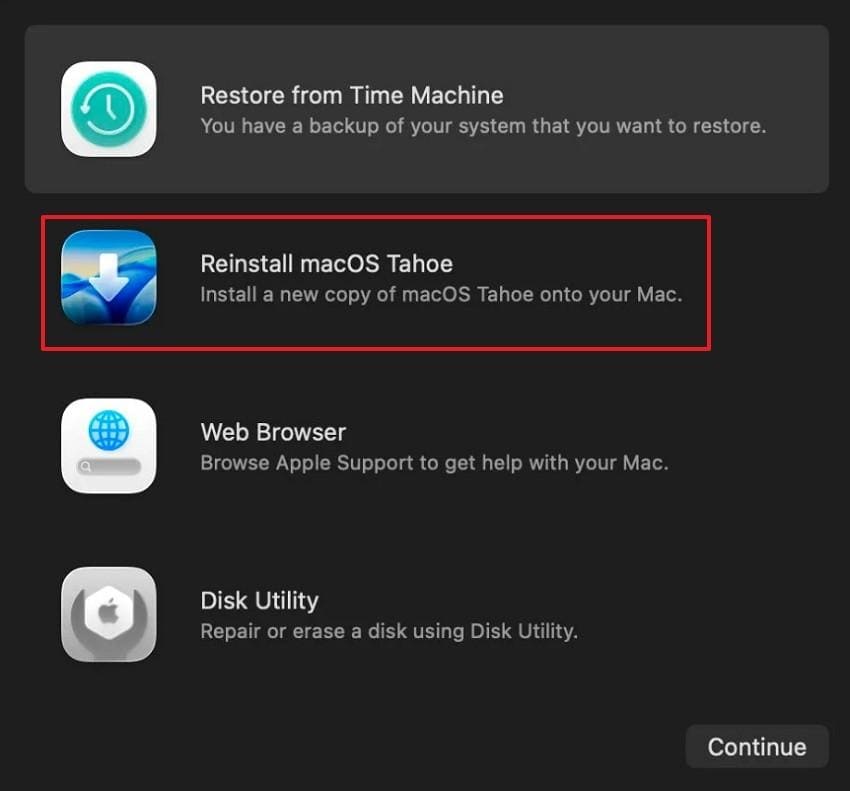
A fresh macOS installation replaces damaged system files while preserving your documents and apps. Let's see how you reinstall macOS safely:
Instructions. In macOS Recovery, choose Reinstall macOS > follow the prompts. Do not select Erase in Disk Utility unless you intend to completely wipe your Mac.
Fix 12. Contact Apple Support for Display or Logic Board Repair
Persistent pink screens after reinstalling macOS indicate possible hardware failures. Bring the Apple Diagnostics code from Fix 9 to help technicians quickly identify issues. Display and logic board repairs need professional service; flex cables worsen over time.
Pro Tip. Repair Videos Corrupted After a Mac Pink Screen Crash with Repairit

Repairit - Video Repair Tool
Repair videos corrupted by crashes, forced shutdowns, or interrupted exports.
-
Crash-damaged video repair. Fix unplayable or incomplete videos after forced shutdowns or app crashes.
-
Popular video formats. Repair MP4, MOV, AVI, MTS, M2TS, 3GP, and other supported formats.
-
Preview before saving. Check repaired videos before exporting copies.
A crash during the Mac Pro pink screen issue can leave videos corrupted or unreadable. This is where Repairit provides solutions for every type of video damage. It repairs damaged footage from cameras, drones, phones, dashcams, and storage devices.
This video repair tool supports MP4, MOV, AVI, MTS, M2TS, and 3GP formats. Repairit fixes playback errors, corrupted files, missing data, and incomplete recordings. It can also restore high-resolution videos with advanced repair capabilities for better results.
Key Features
- MOV and Professional Video Support: Repairs damaged MOV files and helps recover videos created by advanced cameras and editing workflows.
- Interrupted Export Repair: Fixes corrupted video files that become unplayable after incomplete saves or interrupted processes.
- Crash-Damaged File Repair: Restores videos affected by application crashes, forced shutdowns, or incomplete file writing.
Guide to Repair Video Files After a Forced Shutdown Using Repairit
Follow the simple steps below to repair video files after a forced shutdown with Repairit:
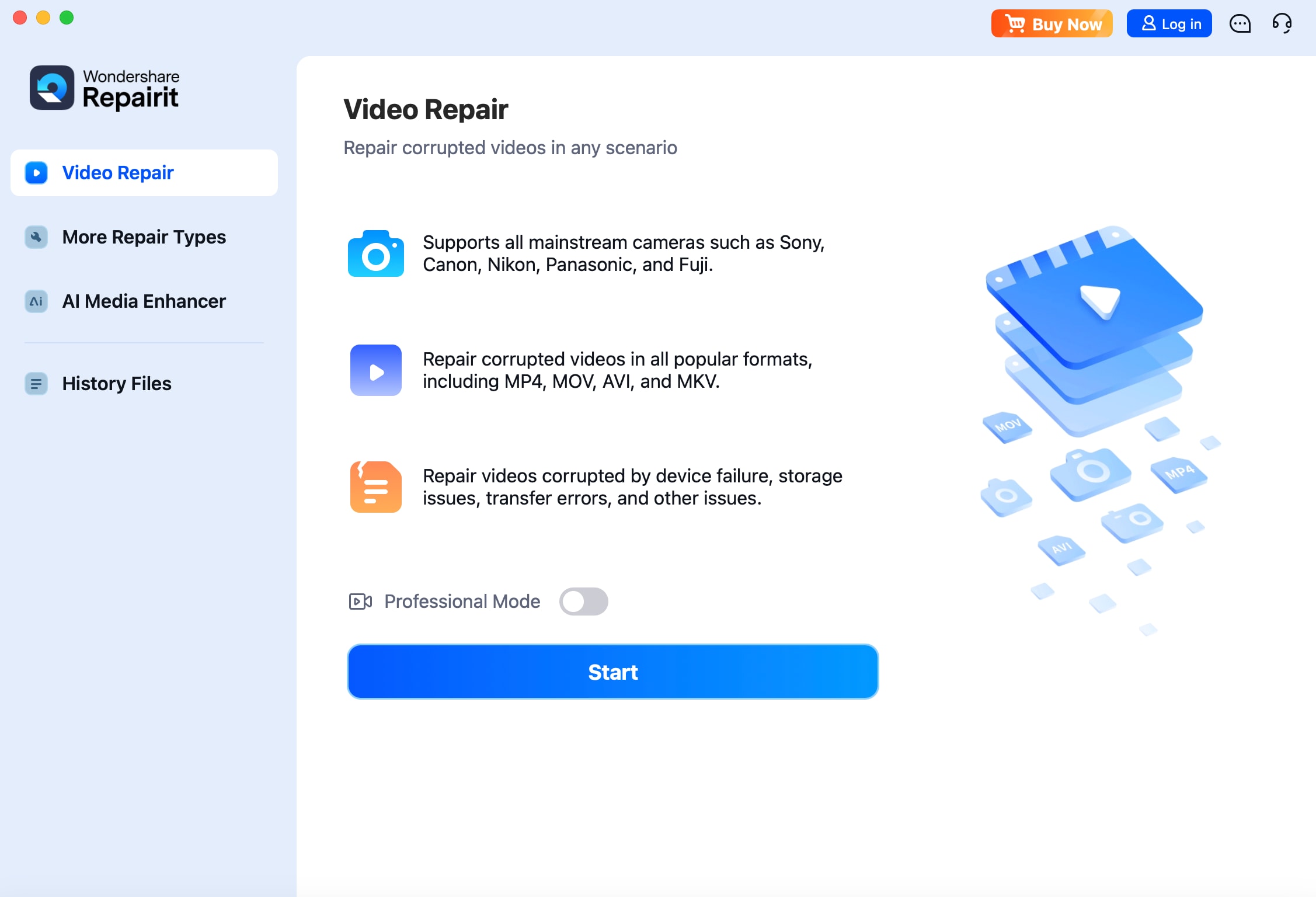
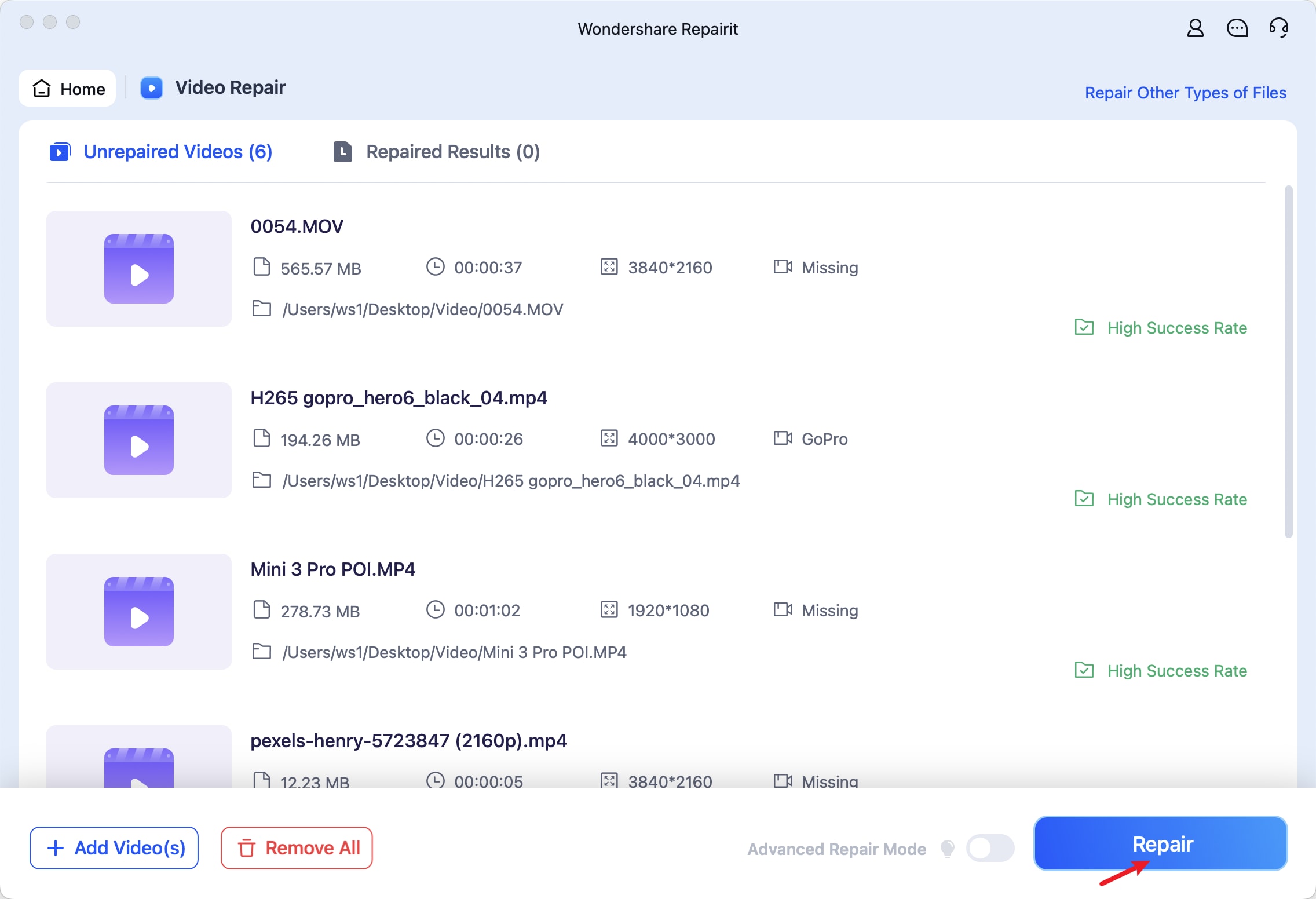
Step 1. Add Corrupted Video Files
Once you open Repairit on your Mac, press Video Repair > Start.
Step 2. Start the Video Repair Process
After that, choose +Add Videos to import the videos. Press Repair to start the process.
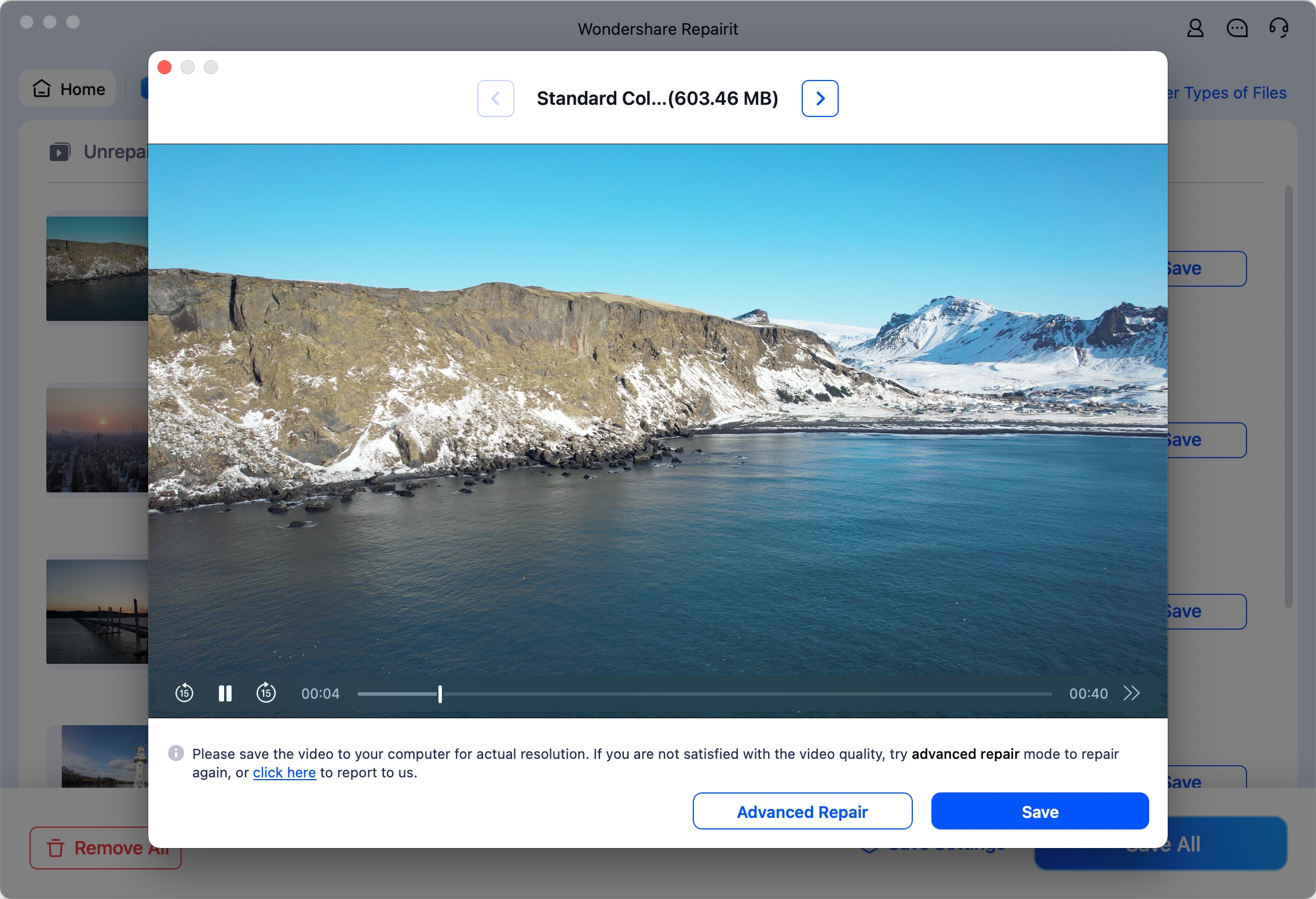
Step 3. Export the Repaired Videos
Once the videos are repaired, preview them and click Save to save them. If needed, opt for Advanced Repair to repair with a sample video.
Part 5. How to Prevent MacBook Pink Screen Problems
Preventing another MacBook Pro pink screen of death requires avoiding causes that trigger repeat issues. The prevention tips shared below help protect your MacBook display long-term:
- Keep macOS and Installed Apps Updated: Install macOS and app updates regularly to fix display-related bugs and improve compatibility.
- Avoid Unverified Display Utilities and Color Profiles: Use trusted display utilities and avoid unverified color profiles that may cause display conflicts.
- Use Compatible Monitors, Cables, and Docks: Use certified cables, compatible docks, and supported monitors for your display resolution and refresh rate.
- Keep the MacBook Cool and Maintain Ventilation: Ensure proper airflow and avoid using your MacBook on soft surfaces that can restrict ventilation.
- Protect the Display from Pressure, Drops, and Liquid: Avoid pressure on the closed lid and protect your MacBook from drops and liquid exposure.
- Create Time Machine Backups Before Major Updates: Back up your Mac with Time Machine before major updates so you can restore your data if needed.
Conclusion
To summarize, the Mac Pro pink screen becomes easier to fix after finding the cause. Follow the troubleshooting order from settings, peripherals, startup software, and system checks. Persistent pink screens after macOS reinstall require diagnostics and professional hardware support. If you lose videos during crashes, Repairit restores damaged files reliably.
Frequently Asked Questions
-
Why did my MacBook screen suddenly turn pink?
A color setting or profile change explains most sudden cases, followed by a loose or failing cable on external displays. Sudden onset without any recent change points more toward hardware. -
Can a macOS update cause a pink screen?
Yes, usually through a color profile change or a third-party display extension that no longer matches the system. Updating those apps resolves it more often than rolling macOS back. -
How do I know if the display or logic board is faulty?
Connect your Mac to an external monitor and compare the displayed colors. Pink only on the built-in panel suggests display or cable problems instead. -
Will reinstalling macOS fix a MacBook pink screen?
A reinstall helps when software causes the pink screen problem on Mac. If pink remains afterward, hardware issues become the more likely cause.