
A Roku black screen with sound usually indicates a display or video signal problem rather than a complete device failure. Common triggers include HDMI connection faults, incorrect resolution or display settings, software glitches, or corrupted video files.
If your Roku device has sound but no picture, you may notice audio playing normally while the screen remains completely black. This issue can occur on Roku streaming players, Roku TVs, and models from TCL.
This guide provides step-by-step solutions, starting from basic troubleshooting to more advanced methods, ensuring you can restore your Roku’s picture while keeping audio intact.
Table of Contents
Part 1. What Roku Black Screen With Sound Means
A Roku black screen with sound occurs when the device powers on and audio plays correctly, but the TV or monitor shows no image.
Technically, this happens because the Roku’s video signal is not reaching the display properly. This may result from:
- Display signal failure – The TV or receiver fails to receive or decode video.
- Resolution mismatch – Roku may output a resolution that the display cannot handle.
- Software glitches – Temporary bugs in Roku OS can block video output.
- Hardware issues – Faulty HDMI ports, cables, or TV backlights can interfere with video display.
- Corrupted media files – Video files with damaged data may produce sound without a picture.
Unlike full system crashes, this problem usually does not affect audio playback and can be resolved without replacing the device.
Part 2. Common Situations When This Issue Occurs
It is important to identify when the black screen occurs so you can pinpoint the root cause.
- At startup: The TV powers on, audio plays, but the picture remains black. This may suggest HDMI handshake issues, TV signal detection problems, or internal Roku startup glitches.
- When launching apps: Certain streaming apps like Netflix, Hulu, or YouTube may trigger black screen errors if the app’s resolution or format conflicts with the display.
- During playback: If audio plays but video does not, the media file itself may be corrupted, especially for downloaded videos or USB content.
- After updates: System or firmware updates can sometimes reset display settings or introduce temporary software bugs that prevent video from showing.
- When switching inputs or HDMI ports: Moving the Roku to a different HDMI input may cause a black screen if the new port or TV settings do not correctly recognize the device.
When switching inputs or HDMI ports: Moving the Roku to a different HDMI input may cause a black screen if the new port or TV settings do not correctly recognize the device.
Recognizing these patterns helps you apply the correct solution first, reducing trial-and-error troubleshooting.
Part 3. Quick Checks Before Applying Solutions
Before going into detailed fixes, perform these quick checks to confirm the source of the problem.
- Check if Roku is responsive: Press the Home button. If you hear menu sounds, the Roku device is functioning, and the issue is limited to video output.
- Verify TV input: Make sure the TV is set to the correct HDMI input. Sometimes multiple devices share HDMI ports, and the display may be showing the wrong source.
- Inspect cables: Loose or damaged HDMI cables often block video while still allowing audio. Reconnect cables firmly, or try a different HDMI cable.
- Power cycle the TV and Roku: Temporarily unplugging both devices clears cached errors and resets signal communication.
These quick checks often resolve the problem immediately or narrow down the cause before more advanced fixes.
Part 4. Main Solutions to Restore Roku Picture
If the quick checks don’t work, follow these step-by-step solutions, starting from simple to more technical.
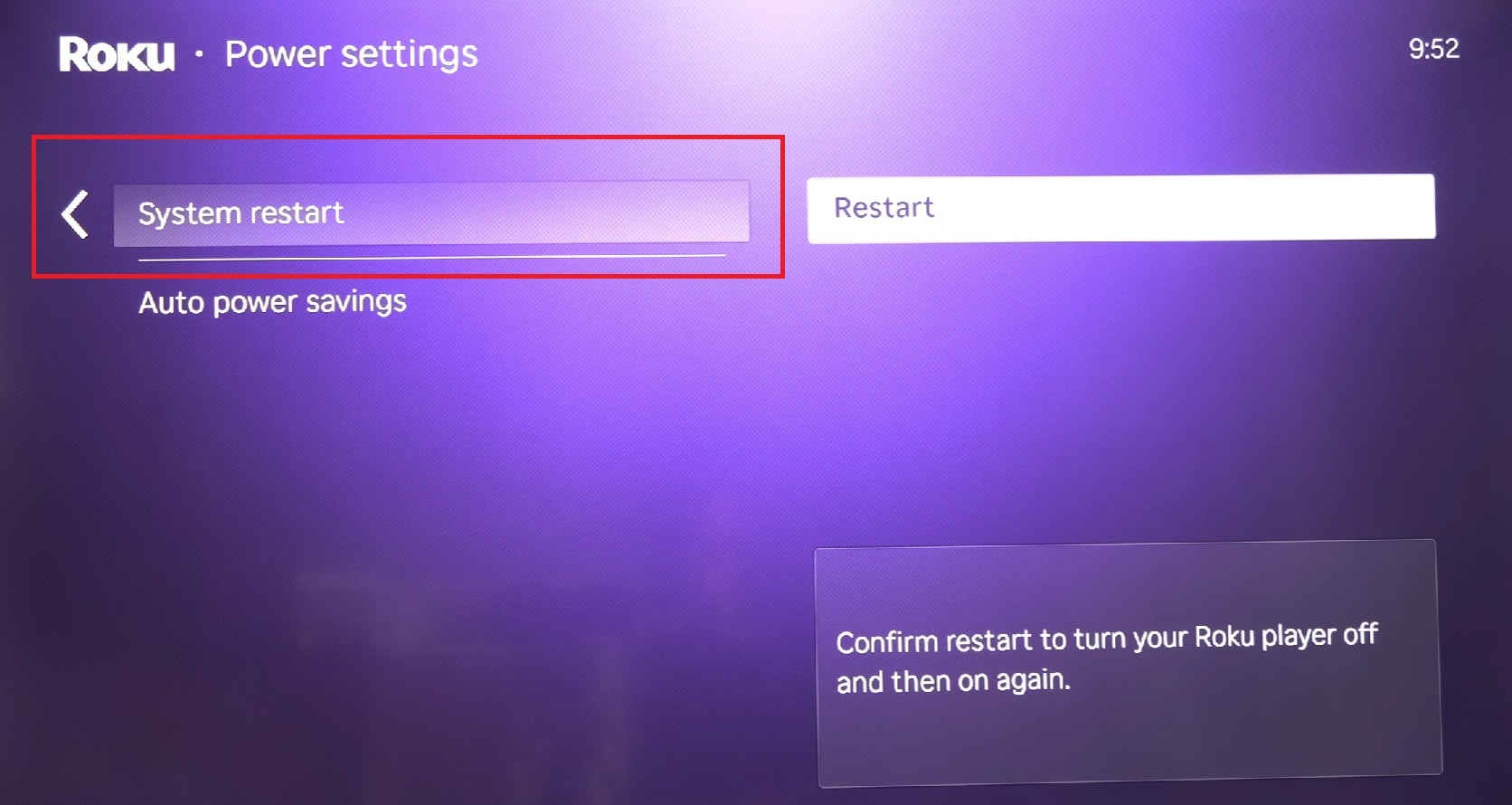
Solution 1. Restart Roku Completely
Temporary system glitches are one of the most common causes of the Roku black screen with sound problem. Restarting refreshes the system memory and reloads the video output process, which can restore the picture.
Step 1. Press the Home button. Navigate to Settings. Go to System. Choose System Restart.
Step 2. Confirm restart and allow the device to reboot fully.
Solution 2. Check and Secure HDMI Connection
The HDMI cable carries video and audio signals from the Roku device to your TV. If the connection becomes loose or unstable, video may fail while audio continues working normally.
Step 1. Power off the TV and the Roku. Disconnect the HDMI cable.
Step 2. Reconnect securely or try another HDMI cable. Power on the TV and select the correct HDMI input.
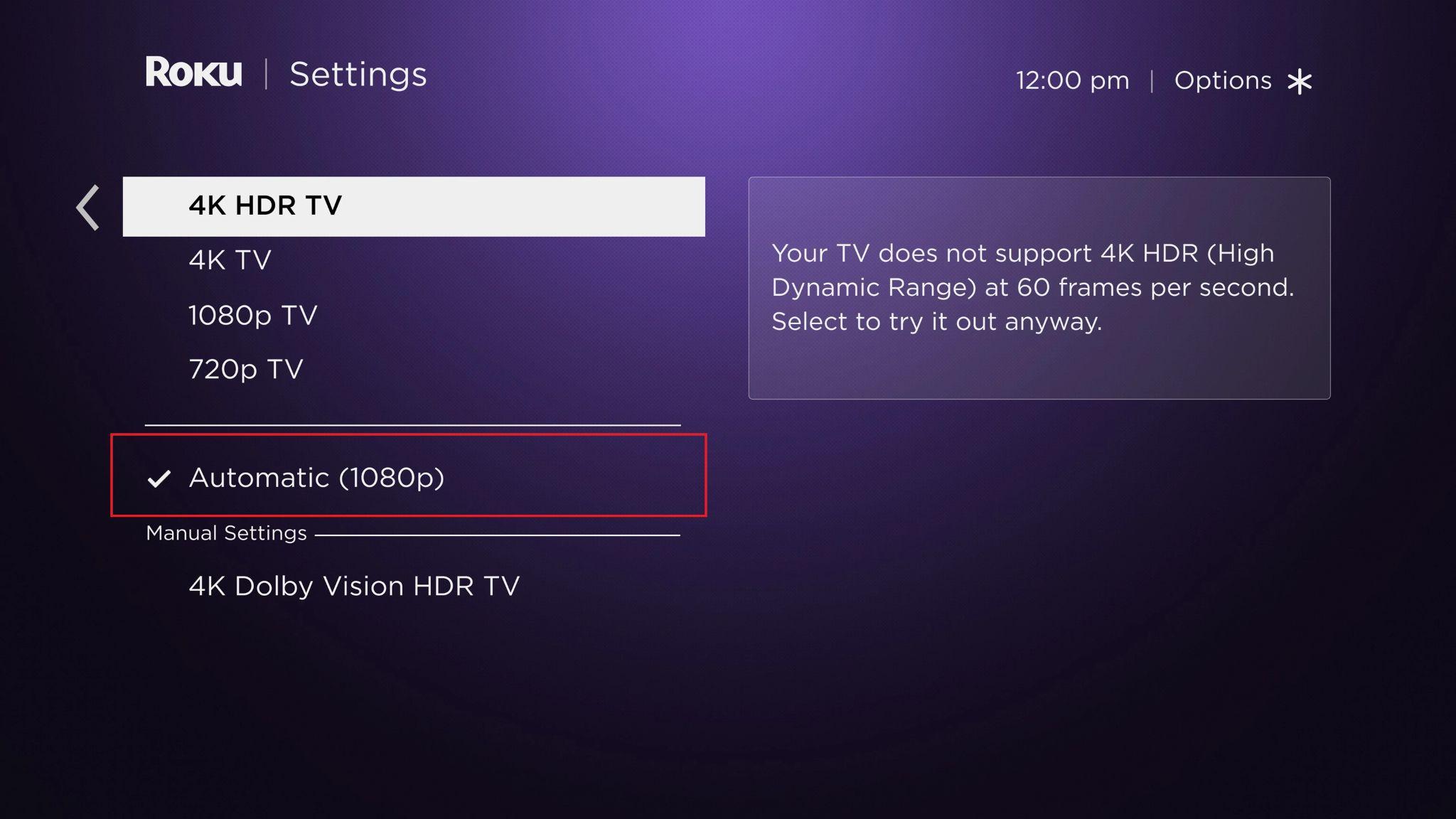
Solution 3. Adjust Display Resolution
Incorrect resolution settings can cause compatibility issues between the Roku device and your TV. When the resolution is unsupported, the TV may not display video even though sound still plays.
Step 1. Press Home. Go to Settings. Select Display Type.
Step 2. Select “Automatic” or manually choose a resolution compatible with your TV.
Solution 4. Power Cycle Entire Setup
Power cycling clears temporary errors inside the TV hardware and refreshes the HDMI connection. This can resolve display issues that prevent the video from appearing.
Step 1. Turn off the TV and the Roku.
Step 2. Unplug from power for at least 60 seconds. Plug back in and turn on.
Solution 5. Try a Different HDMI Port
Port failure can block the video signal while allowing audio. A simple switch often restores video without additional configuration.
Step 1. Connect the HDMI cable to another port on the TV.
Step 2. Switch the TV input to match the new port.
Part 5. System-Level Fixes if Screen Remains Black
If the main solutions don’t resolve the issue, apply system-level fixes. These deeper measures target core system functions to restore proper display output.
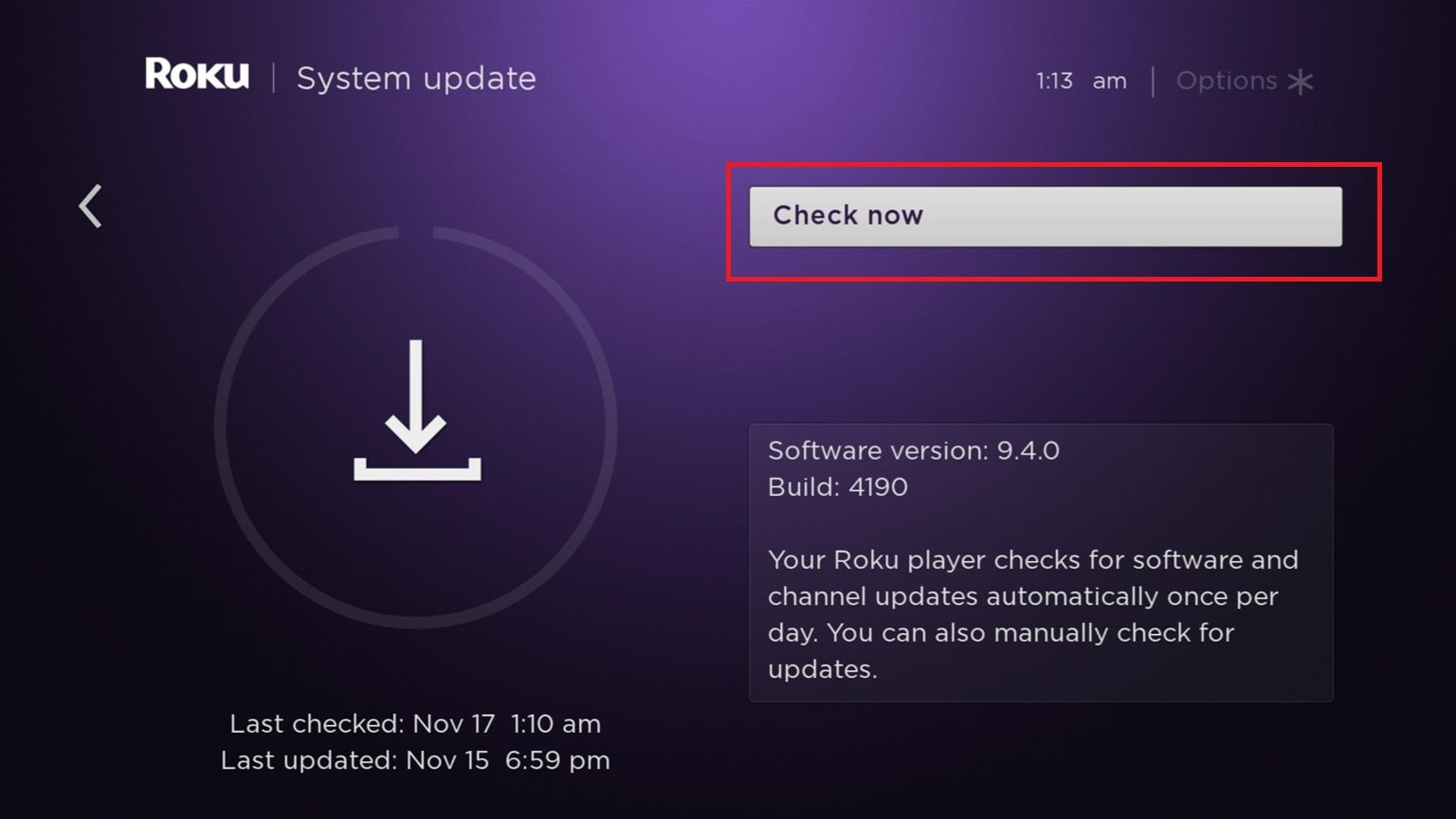
Fix 1. Update Roku Software
Outdated software may contain bugs that affect video output performance. Updating ensures your Roku device has the latest fixes and compatibility improvements.
Step 1. Go to Settings. Under System, select System Update.
Step 2. Select Check Now and install updates.
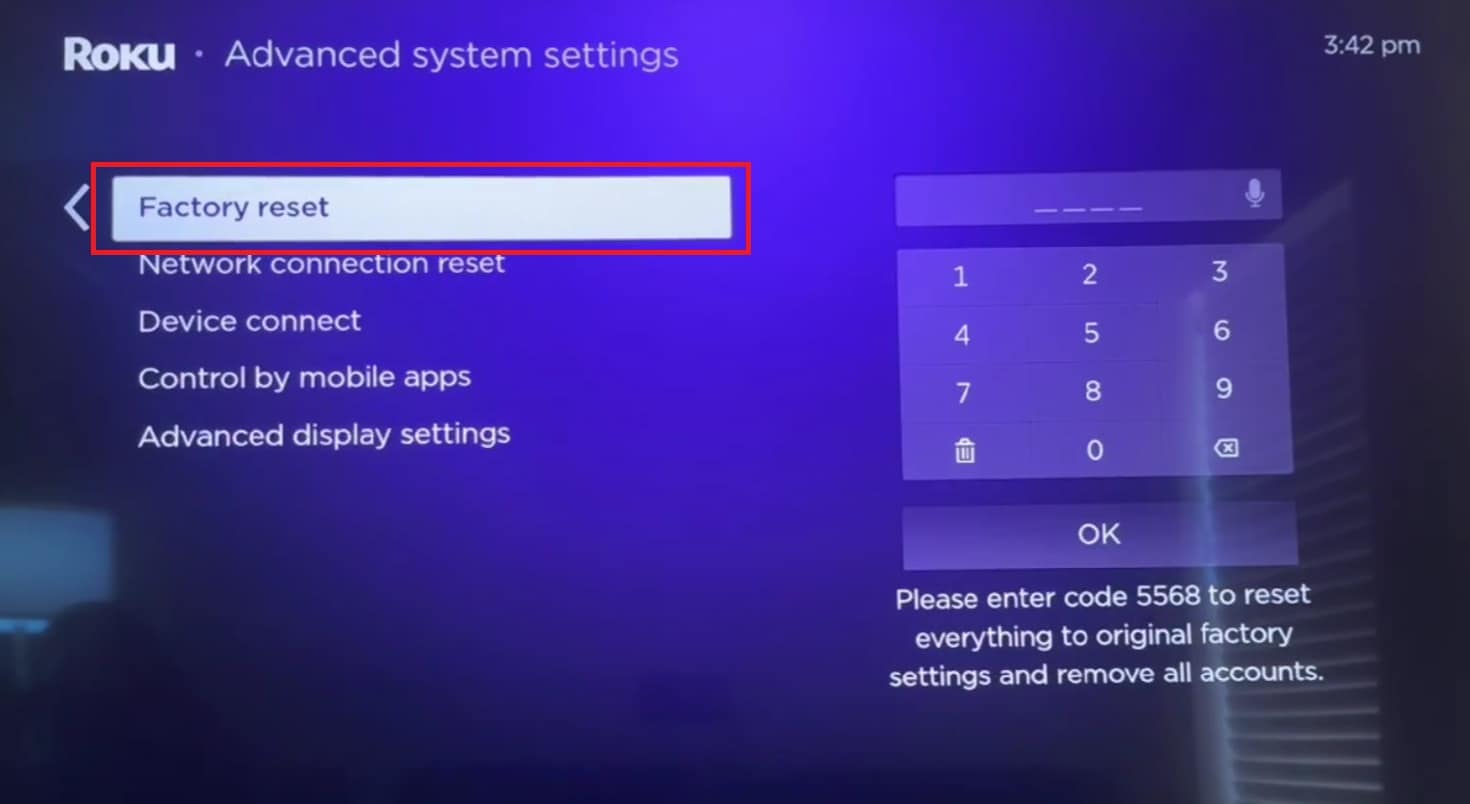
Fix 2. Factory Reset Roku
Use only if other solutions fail, as this removes apps and settings.
Step 1. Go to Settings. Find and scroll down to Advanced System Settings. Select Factory Reset.
Step 2. Follow prompts to restore default settings.
Risk Note: Back up account info; this resets app logins and personalization.
You can’t miss:
How to Fix Roku TV Not Playing Video in 6 Ways?
Prime Video Not Working on Roku: Here's How to Fix It Fast
How to Fix Netflix Not Working on Roku Streaming Devices?
Part 6. Hardware-Related Causes You Should Not Ignore
If software fixes and settings adjustments do not restore the picture, the issue may be related to hardware components. Hardware failures can interrupt video transmission while still allowing audio to pass through, making the problem less obvious at first.
- Failing TV Backlight - The backlight is responsible for illuminating the screen so images can be visible. When it starts to fail, the TV may still receive and play video, but the screen appears completely black because the image is not illuminated.
- Damaged HDMI Port - HDMI ports can wear out over time due to frequent plugging and unplugging or physical strain. A damaged port may partially function and transmit audio signals but fail to deliver the full video signal properly.
- Faulty HDMI Cable - HDMI cables contain separate channels for audio and video, and damage to the video channel can result in sound without picture. Internal wire breaks, bending, or low-quality cables can cause unstable or missing video output.
- Power Supply Problems - An unstable or insufficient power supply can affect the TV’s display components more than its audio system. This may cause the screen to remain black while the audio continues working normally.
- Internal Hardware Wear in Roku Device - Older Roku devices may experience internal component degradation that affects video processing capabilities. This can result in partial functionality where sound works, but video output becomes inconsistent or stops completely.
Part 7. Special Case: Fixing Corrupted Videos That Show Black Screen
If a black screen occurs only on certain videos, the problem may be file corruption rather than device or TV settings. Repairit Video Repair can rebuild damaged video structures, restoring proper playback while keeping audio intact. It works seamlessly across popular formats and devices, from smartphones and cameras to drones and professional editing systems. This solution is ideal when:
Certain downloaded or transferred videos show sound but no picture
Streaming apps work fine, but specific offline files fail
Video files become unplayable after incomplete transfers, sudden interruptions, or storage errors
It CAN:
- Fix black screen video files
- Restore video playback for Roku-compatible formats
- Reconstruct damaged video structures
It CANNOT:
- Repair hardware issues
- Fix system-level Roku glitches
- Resolve HDMI or TV port failures
Step 1. Add the corrupted video file.

Step 2. Start the repair process.

Step 3. Preview and save the restored video.

⚠️ Disclaimer: Follow these steps only if the black screen happens on specific video files, as it cannot fix Roku hardware, TV settings, or connection-related problems.
Conclusion
The Roku black screen with sound issues is usually caused by display configuration errors, HDMI connection problems, software glitches, or, in some cases, corrupted video files. Identifying where the problem originates helps ensure the correct fix is applied without unnecessary resets or hardware replacement.
Most issues can be resolved by checking connections, adjusting display settings, or restarting and updating the device. If the problem happens only with certain videos, repairing the damaged file may restore normal playback. Applying these solutions carefully can help restore both picture and sound and keep your Roku working properly.
FAQs
-
Why does my Roku have sound but no picture?
This usually happens due to HDMI connection problems, incorrect display settings, or software glitches. The video signal fails to display, even though the audio continues working. -
How do I fix the Roku TV black screen with sound quickly?
Restarting the Roku device and checking the HDMI cable are the fastest solutions. These steps resolve most temporary system or connection issues. -
Can an HDMI cable cause a Roku black screen with sound?
Yes, a faulty or loose HDMI cable can interrupt the video signal. Replacing the cable often restores normal display. -
Why does my TCL Roku TV turn on but show no picture?
This can happen due to display resolution conflicts, firmware issues, or hardware communication errors. Restarting and adjusting display settings usually fixes the problem. -
Do I need to factory reset Roku to fix the black screen issue?
Factory reset should only be used as a last resort if other fixes fail. Most cases can be resolved using simpler troubleshooting steps.




