
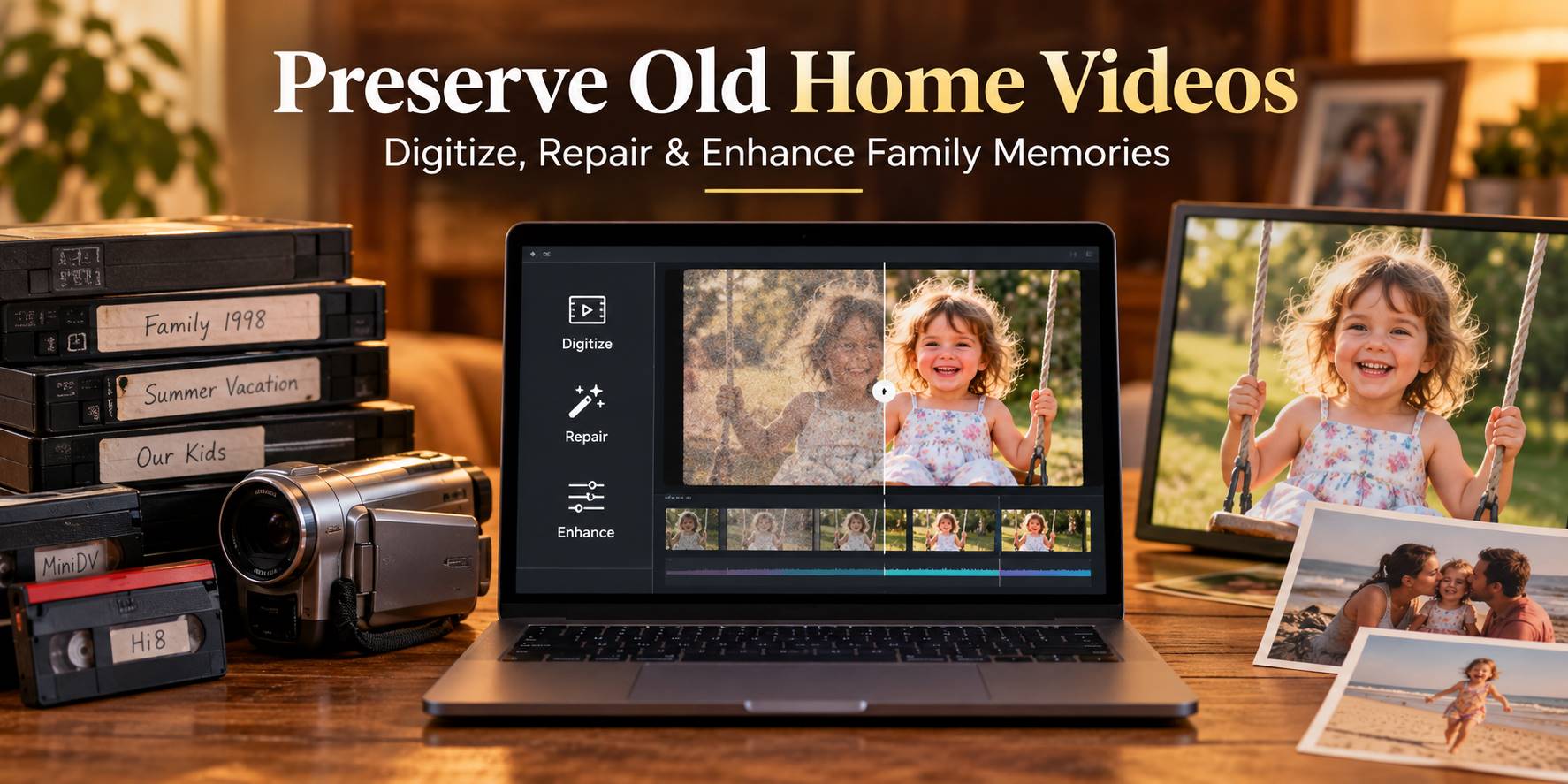
Old home videos often contain moments that no one thought to record twice: a first birthday, a family reunion, a grandparent's voice, or an ordinary afternoon at home. VHS tapes, Hi8 recordings, and MiniDV cassettes can become harder to play as tapes age and compatible equipment disappears. Preserving those recordings starts with creating a reliable digital copy, not immediately applying AI filters.
Quick Answer: To preserve old home videos, identify the original tape format, digitize it with compatible equipment or a trusted conversion service, inspect the resulting files, repair genuinely corrupted video files if necessary, and enhance a separate viewing copy when the picture is blurry. Keep an untouched digital master, preserve the original tape where practical, and maintain at least two backup copies in different locations.
In this article
Part 1. World Day for Audiovisual Heritage: Why Old Home Videos Matter
Every October 27, UNESCO marks the World Day for Audiovisual Heritage, recognizing why recorded images and sounds deserve care and continued access. The 2026 theme, "Your Window to the World," highlights how audiovisual records connect people with experiences, cultures, and lives beyond their own. A family's old video tapes hold a smaller but equally personal kind of history: voices, expressions, places, and everyday traditions that photographs cannot fully capture.
UNESCO's preservation message applies beyond institutional film archives. A box of old VHS videos in a closet is also a fragile audiovisual collection. Magnetic tape may deteriorate; a working VCR or camcorder can become difficult to find; and unlabelled cassettes can lose their context when the people who filmed them are no longer available to explain what they show.
The most useful way to celebrate the day is to preserve something real. Choose one family tape, identify the right playback equipment, create a digital copy, and record its date and people while you still can. Digital transfer makes the footage easier to share, but long-term preservation also requires checking, backing up, and periodically migrating the files.
Which old home video formats need attention?
| Original medium | What you need to digitize it | Main concern |
|---|---|---|
| VHS / VHS-C | Compatible VCR or adapter where appropriate, plus a capture device or service | Aging tape and disappearing working players |
| Video8 / Hi8 | Compatible camcorder or deck with suitable analog video output | Format-specific playback hardware |
| MiniDV | Compatible DV camcorder/deck and an appropriate digital transfer interface | DV transfer hardware and software compatibility |
| Already digitized AVI / MOV / MP4 | Computer and compatible playback tools | File damage, obsolete codecs, and inadequate backups |
These formats are not interchangeable. A VHS capture workflow, for example, may not be appropriate for MiniDV, where retaining the original digital DV stream can be preferable to re-recording an analog output.
Part 2. How to Digitize Old Home Videos From VHS, Hi8, and MiniDV
Digitizing old home videos means playing or transferring the original recording into a file that a modern computer can store and copy. The transfer method matters more than the editing software at this stage: if the original signal is lost, skipping, or poorly captured, later AI processing cannot reconstruct every missing moment.
Step 1. Identify and inspect the original tape
Read the cassette label and check its shape, case, and markings. Note whether it is VHS, VHS-C, Hi8, Video8, or MiniDV. Write down any handwritten event names and estimated recording dates. Inspect the tape exterior without opening the cassette or touching the magnetic surface.
Important: If a tape shows mold, damage, unusual odor, or binds in the mechanism, do not repeatedly play or rewind it in an ordinary machine. A qualified media-preservation service is safer than risking further damage to both the tape and player.
Step 2. Choose between DIY capture and a professional transfer service
| Approach | Best for | Considerations |
|---|---|---|
| DIY with VCR/camcorder and capture hardware | Small collections when working equipment is available | Requires compatible outputs, monitoring, and real-time playback |
| Digital DV transfer for MiniDV | MiniDV tapes and compatible DV devices | May require legacy interfaces/adapters and specialized software |
| Professional digitization service | Large, fragile, valuable, or difficult-to-play collections | Ask about capture format, source handling, master files, and file delivery |
For analog tape, connect the correct video and audio outputs from a functioning player to compatible capture hardware, and record with the capture application. For MiniDV, investigate native digital transfer first when the original equipment and interface permit it. If working players are unavailable, a reputable transfer service is often the most practical option.
Step 3. Capture the complete recording and retain a high-quality master
- Cleanly connect and test the playback equipment before starting a full capture.
- Record a short sample with both picture and sound, then check its aspect ratio, audio synchronization, and motion.
- Capture the full tape while monitoring for dropped frames, audio gaps, or playback interruptions.
- Save a high-quality master file using the capture format supported by your workflow. Create smaller MP4 copies separately for easy sharing.
- Give the master a meaningful filename such as
1998-family-reunion-vhs-master.avi, rather than replacing it with a generic export name.
For archival work, avoid repeatedly compressing the only surviving digital copy. A compact, compatible MP4 is convenient for family viewing, but it should not automatically replace your best available transfer master.
Step 4. Check the converted video before packing away the tape
Play the beginning, middle, and end of every file. Check that dialogue matches the picture, that the complete recording was captured, and that scenes are not unexpectedly cut off. Confirm that the file can be opened from its saved location after the capture application closes. Make a backup before attempting any repairs or enhancements.
Part 3. How to Repair Corrupted Old Home Video Files
A digital file captured from an old tape can fail to play because of a missing codec, an incomplete transfer, a damaged container, or storage corruption. These are different problems, and not every video that looks distorted needs file repair. Tracking noise and color flicker embedded in the original VHS recording are image-quality issues; they are not necessarily signs of a broken MP4 or AVI file.
First, identify the cause of the playback problem
| Symptom | Likely next step | Is file repair the first choice? |
|---|---|---|
| File plays in one application but not another | Check codecs, player support, and container compatibility | No |
| Every captured file has the same wavy lines or tape noise | Inspect the tape, capture signal, and original recording quality | No |
| Capture stopped early and the file is missing the ending | Check the original tape and recapture when possible | Not usually |
| One supported video file is unplayable across multiple players | Check a backup, then investigate structural file damage | Possibly |
| File is zero bytes or has no recoverable media data | Find a source, alternate transfer, or backup copy | No repair guarantee |
If an old recording is still on tape and the capture itself failed, a new transfer from the source is often safer than processing an incomplete output file. For files that were successfully created but later became corrupted, a repair tool may help when the format and damage type are supported.
How to repair a damaged family video with Wondershare Repairit
Repairit Video Repair is designed for supported corrupted video files, including common formats such as MP4, MOV, and AVI. It works on an existing digital file—not directly on VHS, Hi8, or MiniDV tapes—and the outcome depends on the extent of the damage. Make a working copy before starting.
Step 1. Import the corrupted digital video
Install and open Wondershare Repairit, enter Video Repair, and add the damaged video file from a copy on your computer. Verify that you selected the converted file rather than a healthy master.

Step 2. Start video repair
Review the imported file and click Repair. Allow the process to finish without modifying the source or working copy. Where supported, more seriously damaged files may require an additional advanced repair workflow.

Step 3. Preview and save the repaired copy
Preview both the picture and sound. Check important family moments before saving the result to a separate folder. Keep the original transfer even if the repaired file plays successfully.
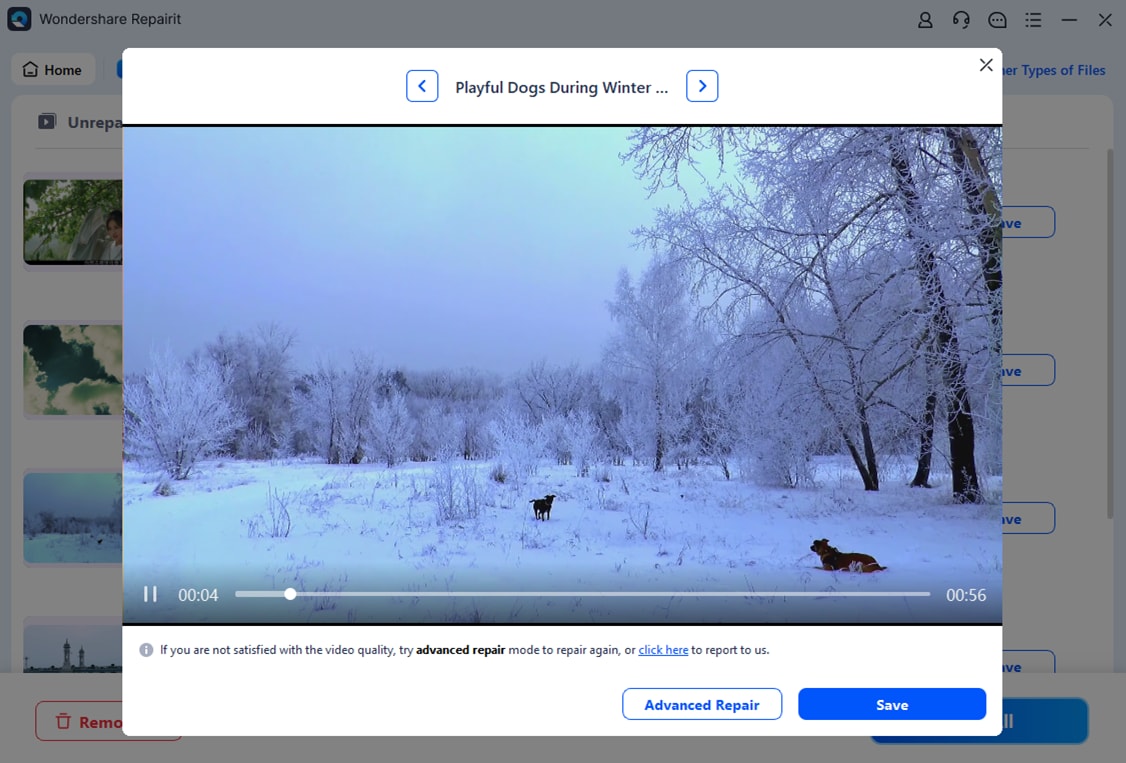
When a digitized video still cannot be opened after repair, compare it with an untouched capture and confirm that the original transfer contains usable footage. File-repair software cannot replace information that was never captured from the tape.
Part 4. How to Enhance Old Home Videos With AI
A successfully digitized home video may be perfectly playable yet still look soft, noisy, or small on a modern screen. VHS-era footage often contains limited detail and analog artifacts. Repairit AI Video Enhancer can help improve the viewing copy's perceived sharpness and overall clarity for supported video formats. Enhancement is different from repairing a corrupted file, and it cannot reconstruct a historically exact version of detail missing from the recording.
Which problems can AI enhancement help with?
| Footage condition | Reasonable enhancement goal | Limitation |
|---|---|---|
| Soft or low-resolution family footage | Improve apparent detail and viewing size | New detail may be inferred, not authentic |
| Visible grain and digital noise | Reduce distracting noise while retaining faces | Excessive smoothing can remove natural texture |
| Low contrast or uneven illumination | Improve visibility and tonal balance | Severely clipped highlights/shadows may remain lost |
| Tracking errors, torn frames, or missing segments | Assess the capture quality or use specialist restoration | AI enhancement does not solve every analog defect |
How to enhance digitized old home videos with Repairit
Use a playable digital copy, not an original master. Preview the result critically—especially older relatives' faces, clothing texture, and fine background details—before deciding whether to keep the enhanced version.
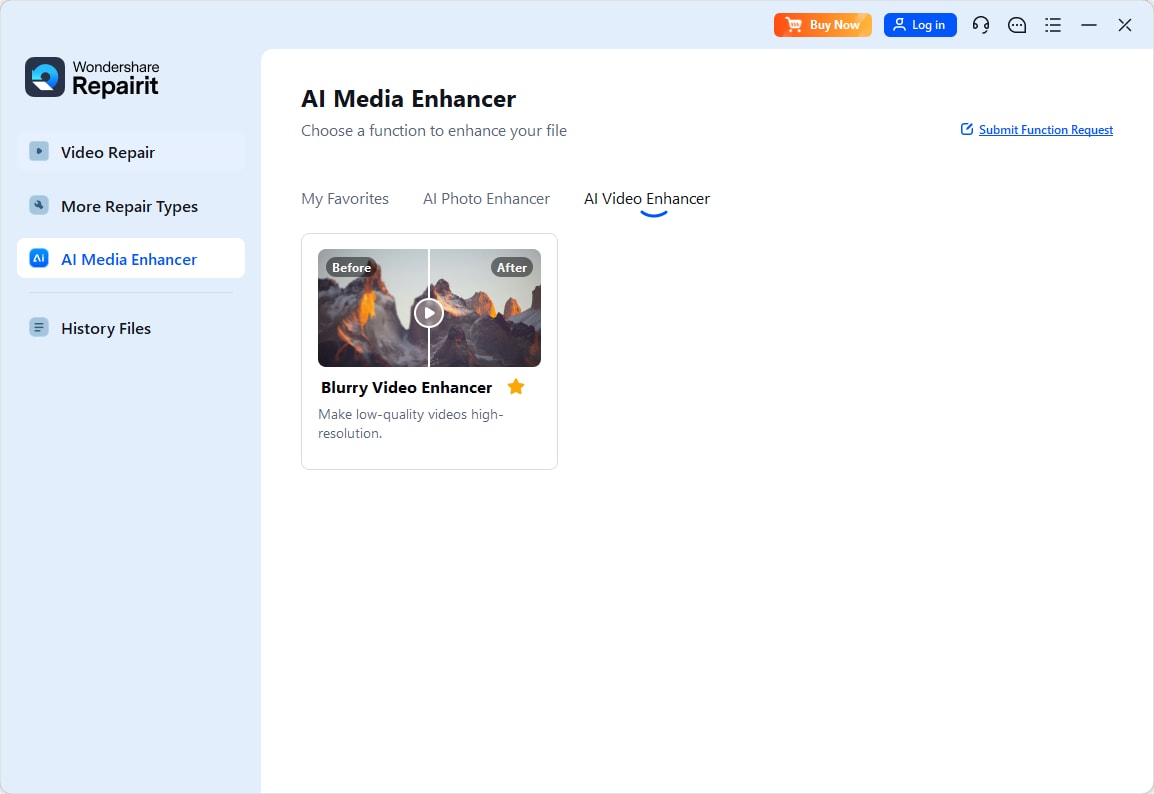
Step 1. Add a playable home video to AI Video Enhancer
Open Repairit and select AI Video Enhancer. Add an already digitized, playable video in a supported format. Make sure it is the working copy you want to improve.
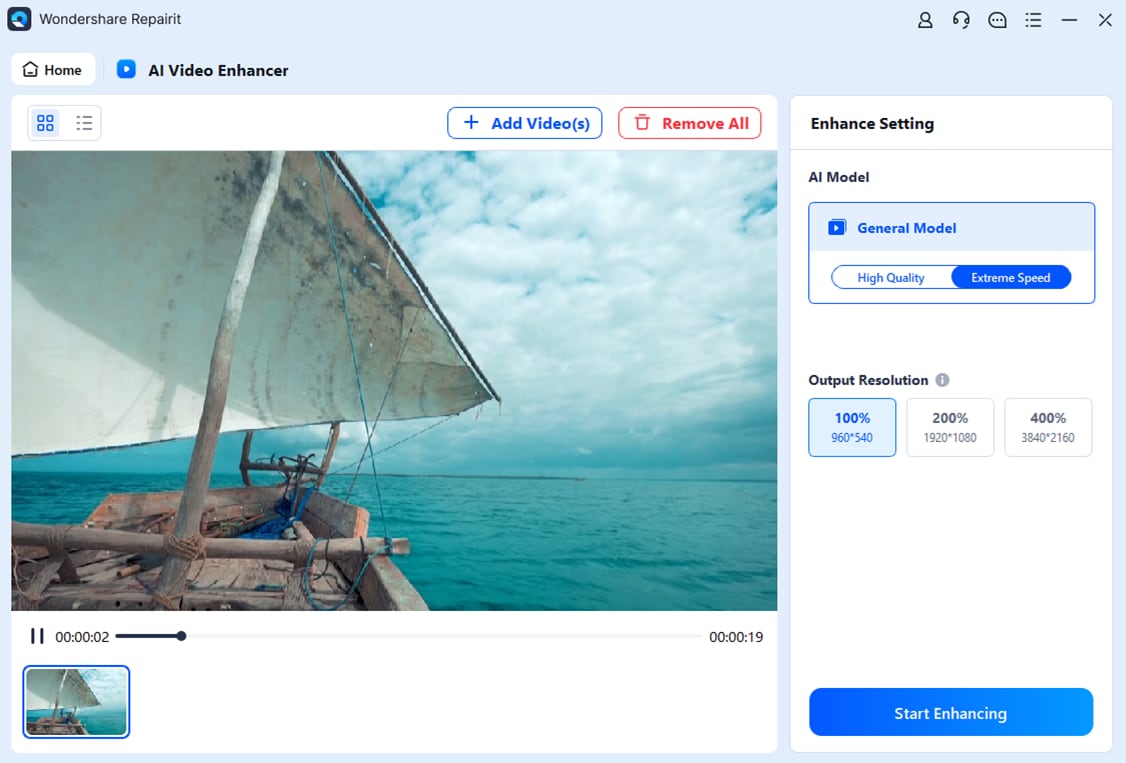
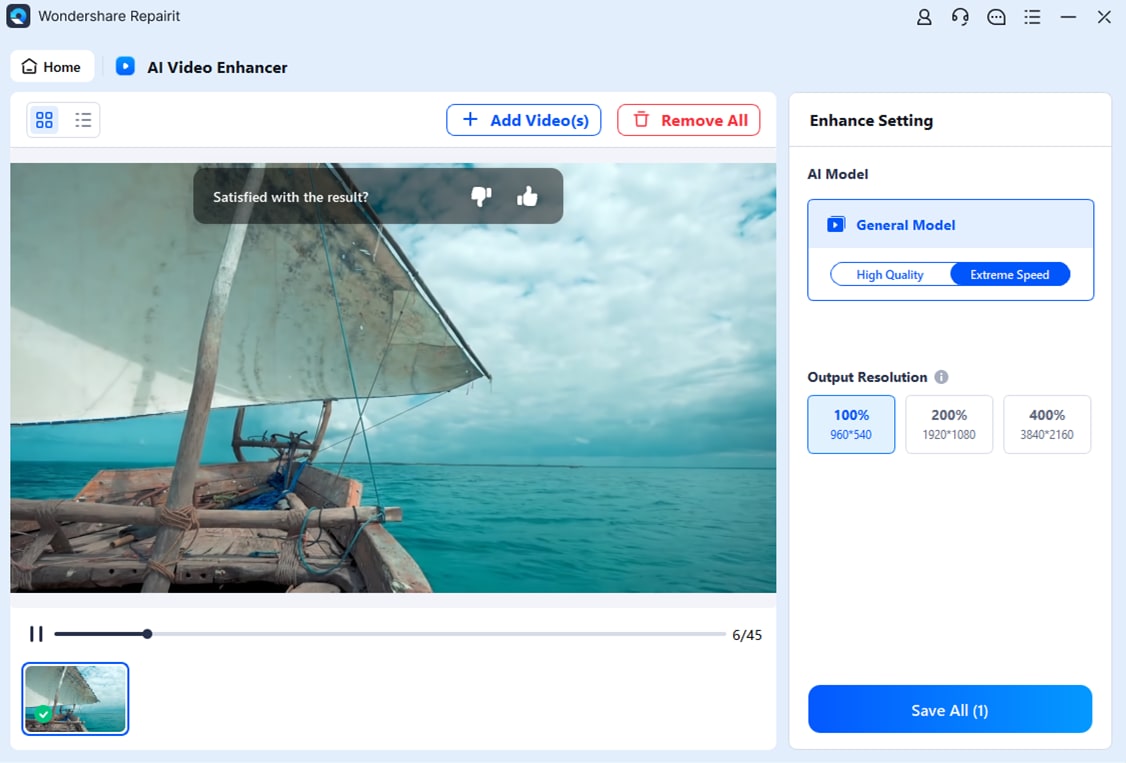
Step 2. Select an enhancement setting and process the video
Choose an available output resolution setting and click Start Enhancing. A higher output resolution does not guarantee that new details accurately represent the original event.
Step 3. Compare and save the enhanced viewing copy
Review the preview for unnatural skin, invented facial detail, or smeared movement. Save the enhanced file with a distinct name such as 1998-family-reunion-enhanced.mp4, keeping the master untouched.
For shorter clips, techniques that make a video clearer may improve the viewing experience without changing the original family recording. Always label enhanced exports separately from the original historical recording.
Part 5. How to Archive and Preserve Family Videos for the Future
Digital transfer protects old memories only if the resulting files remain readable. A file stored on a single laptop is not an archive. Your goal is to maintain a reliable original, a convenient viewing copy, and enough information for family members to understand what they are watching years later.
Keep the best available master and a separate sharing copy
Store the most faithful digital transfer you can reasonably make, even when it uses more space than a compressed MP4. Export an MP4 viewing copy for phones, family sharing, and everyday playback. Do not overwrite the master with an enhanced, cropped, or filtered version.
Use multiple backups in different locations
A practical starting point is the 3-2-1 principle: keep three copies of important files, use more than one storage medium or storage method, and maintain at least one copy away from your primary location. For example, store a master on your main computer, another copy on an external drive, and a third in reputable cloud storage or a separate physical location. Test restoration instead of assuming sync equals backup.
Record names, dates, places, and the original format
Write a short metadata note for each tape or video. Record the event, approximate year, people appearing, source tape format, digitization date, and whether the file is a master, repaired version, or enhanced viewing copy. Avoid vague filenames like final-video-new2.mp4.
| File | Purpose | Example name |
|---|---|---|
| Digital master | Preserve the best transfer | 1998-family-reunion-vhs-master.avi |
| Sharing copy | Easy viewing on modern devices | 1998-family-reunion-share.mp4 |
| Repaired version | Playback recovery of a damaged digital file | 1998-family-reunion-repaired.mp4 |
| Enhanced version | Optional improved viewing experience | 1998-family-reunion-enhanced.mp4 |
Check and refresh your archive periodically
- Open a selection of files on your current devices at regular intervals.
- Check storage-drive health and replace failing media before it becomes unreadable.
- Verify backups periodically; for larger collections, use file checksums to detect accidental changes.
- Move files to updated storage systems and accessible formats when necessary, retaining the original digital master.
- Keep original physical tapes safely stored when practical, particularly if a future, higher-quality transfer may be possible.
The most meaningful archive is one the next generation can actually find, open, and understand. Consider creating a simple index or family folder structure so recordings do not disappear into an anonymous drive.
Conclusion
The World Day for Audiovisual Heritage is a timely reminder that old home videos are worth saving before the tapes and players become harder to use. Begin with the safest possible digitization process, check every file, and preserve an untouched master. Repair supported digital files only when they are truly corrupted, use AI enhancement for optional viewing copies, and maintain redundant backups so family stories remain accessible for years to come.
Frequently Asked Questions
-
1. What is the best way to preserve old home videos?
Digitize the original VHS, Hi8, MiniDV, or other tape using compatible equipment or a reputable service, keep a high-quality master, and maintain multiple backups. Make separate viewing and enhanced copies rather than altering the master. -
2. Can I convert old VHS tapes to digital video without a VCR?
You still need equipment capable of playing that VHS recording. If you do not have a working VCR, use a trusted transfer service that has compatible playback and capture equipment. Software alone cannot read a physical tape. -
3. Why won't my old home video play after digitization?
The cause may be codec incompatibility, incomplete capture, a damaged file, or storage trouble. Test the video in another compatible player and compare with an untouched transfer before deciding whether file repair is appropriate. -
4. Can Repairit restore damaged VHS tapes directly?
No. Repairit Video Repair works with supported digital video files, not the physical magnetic tape. Digitize the tape first; if the resulting video file is independently corrupted, file repair may be appropriate. -
5. Can AI make old VHS videos look like modern HD footage?
AI may improve perceived sharpness, reduce some noise, or upscale a digitized video, but it cannot guarantee historically accurate detail or recover every missing frame. Keep an unaltered master and review any enhanced export carefully. -
6. Should I throw away my old videotapes after converting them?
Not automatically. When space and condition permit, keeping the original tapes allows a future transfer with improved equipment. Store them appropriately and consult a preservation professional for fragile or valuable recordings. -
7. What does World Day for Audiovisual Heritage celebrate?
UNESCO observes it each October 27 to raise awareness about the preservation and accessibility of audiovisual records. The 2026 theme is "Your Window to the World." Family recordings are one practical way to appreciate why recorded memories matter. -
8. Which file format should I use for archiving old family videos?
Keep the best-quality capture master in a well-documented format supported by your workflow, and produce a widely compatible MP4 copy for sharing. There is no single ideal format for every tape, capture setup, and preservation need.




