
GoPro MISSION 1 PRO ILS 8K video can be captured at up to 60 fps in 16:9 or up to 30 fps in 4:3 Open Gate. The files are MP4 with HEVC compression, so storage performance, compatible playback software and editing proxies can matter as much as camera settings. This guide follows a clip from recording to backup, editing, troubleshooting and—only when necessary—repair of a damaged file.
In this article
Part 1: MISSION 1 PRO ILS 8K Modes and Formats Explained
The GoPro MISSION 1 PRO ILS can capture standard 16:9 8K video at up to 60 fps and 4:3 8K Open Gate at up to 30 fps. Open Gate captures additional vertical image area for later reframing; it is not an 8K60 mode.
| Capture mode | Frame shape / max published rate | Best use |
| Standard 8K | 16:9 / 60 fps | Detailed widescreen footage and flexible downsampling |
| 8K Open Gate | 4:3 / 30 fps | Reframing for horizontal and vertical deliveries |
| 4K high frame rate | 16:9 / 240 fps | Deliberate slow-motion footage |
| 4K Open Gate | 4:3 / 120 fps | Cropping flexibility with higher frame rates |
GoPro lists .MP4 as the file format and H.265/HEVC as the compression standard. A supported MP4 container can still fail in an application that cannot decode its video stream. The official MISSION 1 PRO ILS specifications document available modes.
Part 2: Prepare the Camera and microSD Card for 8K
High-resolution capture needs a reliable card and enough free capacity. Use a supported brand-name A2 V30-or-better microSD card up to the capacity currently specified by GoPro. Verify firmware, power and media health before a shoot; never format a card that still holds your only copy of a clip.
| Bitrate assumption | Approx. data per minute | Approx. data per hour |
| 100 Mbps | 0.75 GB | 45 GB |
| 200 Mbps | 1.50 GB | 90 GB |
| 240 Mbps maximum standard rate | 1.80 GB | 108 GB |
This is arithmetic based on decimal units (8 bits per byte), not a measured average file size. Available recording time will differ with selected settings, formatting overhead, card capacity and camera behavior.
- Check current GoPro microSD compatibility guidance and camera firmware.
- Confirm free space and the intended 8K mode.
- Capture and review a short test clip before any long take.
- Do not pull the card or cut power while recording or writing data.
Part 3: Transfer and Play 8K Footage without Losing the Original
- Stop recording normally and wait for card activity to finish.
- Copy the full original MP4 to a clearly named folder using a reliable reader and cable.
- Verify the copy’s size and, when practical, checksum against the source before deleting anything.
- Make a second backup before editing or transcoding.
- Open the copy in an HEVC-capable player and inspect several points in the clip.
If playback fails on one computer but the camera and another compatible system play it, look at codec, GPU or software support first. A black screen on one player is not proof the file is damaged. Do not repeatedly test unstable cards with new recordings when irreplaceable material remains on them.
Part 4: Edit MISSION 1 PRO ILS 8K Video in Premiere Pro or DaVinci Resolve
Check the project and decode pipeline
Confirm your editor version, license or codec components, GPU hardware and operating system can decode the actual HEVC format recorded. Import a known-good test clip before large batch imports. If one editor shows only audio, check whether the video stream exists and can be decoded elsewhere.
Create proxies for smoother editing
- Keep the original 8K files in a read-only source folder or protected backup.
- Generate lower-resolution editing proxies in a codec supported by the chosen editor.
- Link proxies to originals and edit against the lighter files.
- Reconnect original media for quality-controlled finishing and export.
Grade GP-Log2 footage
Identify the recording profile rather than applying a random LUT. Use the manufacturer-appropriate transform or a tested color-management pipeline, then adjust exposure, contrast and saturation. Preserve the original log masters.
Reframe Open Gate clips
For 4:3 Open Gate, build separate timeline compositions for 16:9 and 9:16, inspect stabilization cropping and verify headroom. The extra capture area allows reframing but does not guarantee every shot can be cropped without losing the subject.
Export and validate
Select delivery resolution and codec for the platform, export a short section first, and watch the result on the intended playback device. For most audiences, downsampling 8K to 4K is a practical option when a native 8K deliverable is unnecessary.

Part 5: Troubleshoot 8K Playback, Import and Recording Problems
| Problem | First diagnosis | Next action |
| Video lags but opens | Hardware decode / media throughput | Try proxy workflow, updated player or compatible machine |
| Black screen or audio only in editor | Video stream recognition / HEVC support | Inspect in another compatible player and media-info tool |
| Camera stopped recording | Card speed / power / heat / firmware | Preserve existing card data; check capture conditions |
| File size looks unusually small | Incomplete transfer or recording | Compare with original and verify the copy |
| MP4 fails across compatible systems | Possible damage to MP4 structure or media | Protect original, diagnose and consider video repair |
A video problem is not always a repair problem. Codec issues call for codec or application changes; a fragmented transfer calls for a fresh copy; truly missing or overwritten footage cannot be recreated by repairing an MP4 file.
Part 6: How to Repair a Genuinely Corrupted GoPro MP4
If your GoPro MISSION 1 PRO ILS video cannot play in multiple compatible players, displays a black screen, or becomes inaccessible after an interrupted recording, the MP4 file may be corrupted. Before attempting repair, check whether the problem is caused by HEVC decoding, incompatible editing software, or actual file damage.
When the file itself is damaged, Repairit Gopro Video Repair can help repair supported corrupted MP4 videos. Preserve the original footage and work with a duplicate. Compatibility and repair results depend on the specific video format, recording mode, and extent of damage.
Step 1. Import the Corrupted GoPro Video
Download and launch Wondershare Repairit on your computer. Select Video Repair and click "Add" to import your corrupted GoPro MP4 file. You can also drag the video into the import area.

Step 2. Start Repairing the Damaged MP4
After importing the video, Repairit displays available file information, such as the file name, size, resolution, and recording device. Check that you have selected the correct MP4, then click "Repair" to start the repair process.
Wait until Repairit finishes processing the file. The time required can vary depending on the file size and damage.

Step 3. Preview the Repaired GoPro Video
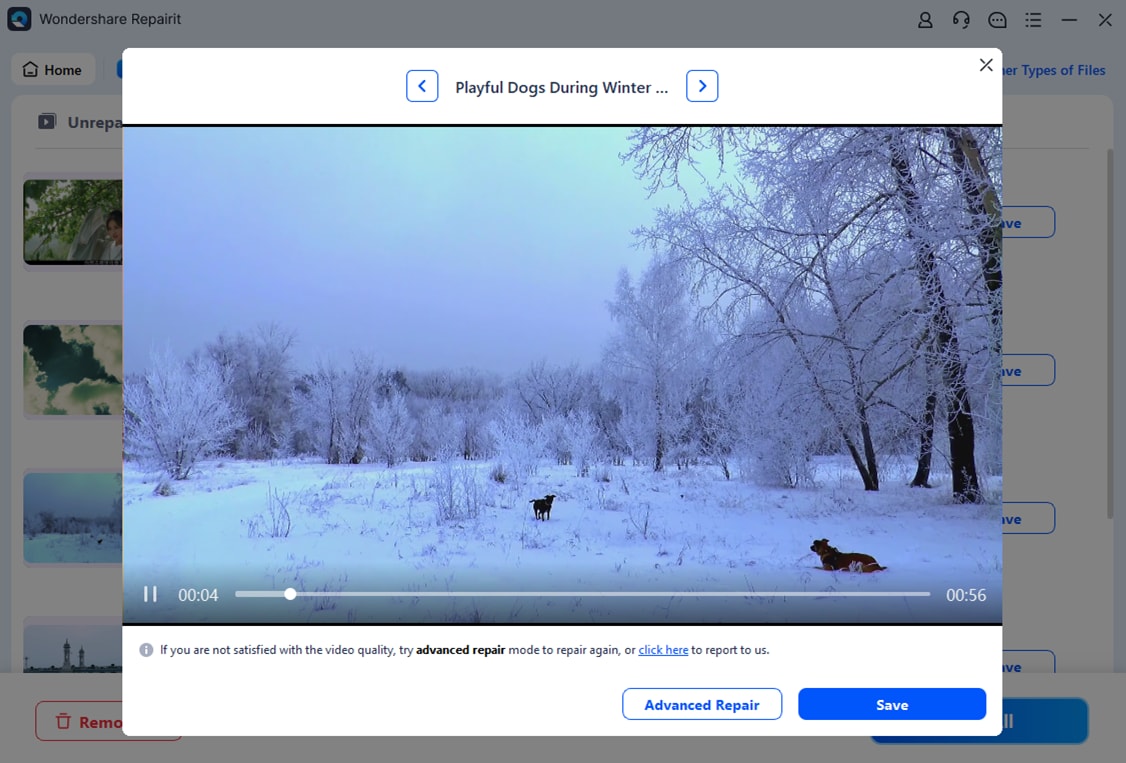
Once the repair is complete, click "Preview" to inspect the repaired video. Check whether the picture and sound are available, the duration is correct, and playback works at different points in the recording.
For long 8K recordings, examine several sections rather than only the beginning. A successful preview of a short section does not necessarily confirm that every frame has been restored.
Step 4. Try Advanced Repair if Necessary
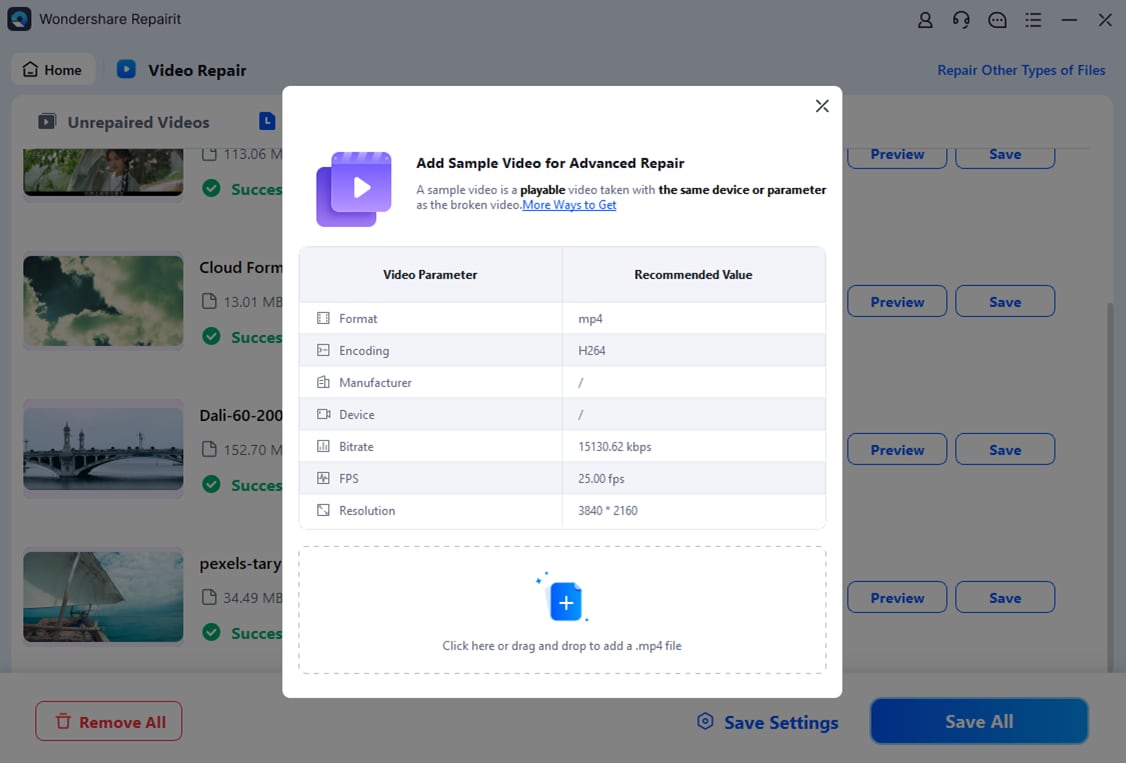
If the standard repair process cannot adequately restore the footage, check whether Advanced Repair is available for your file.
Advanced Repair can use a healthy sample video recorded by the same camera with matching or closely comparable recording settings. For GoPro MISSION 1 PRO ILS footage, choose a sample that matches the damaged file's resolution, frame rate, codec, and recording mode as closely as possible.
Import the sample video when prompted and follow the on-screen instructions. A matching sample may improve the repair process, but it does not guarantee recovery of severely damaged or missing video data.
Step 5. Save and Verify the Repaired Video
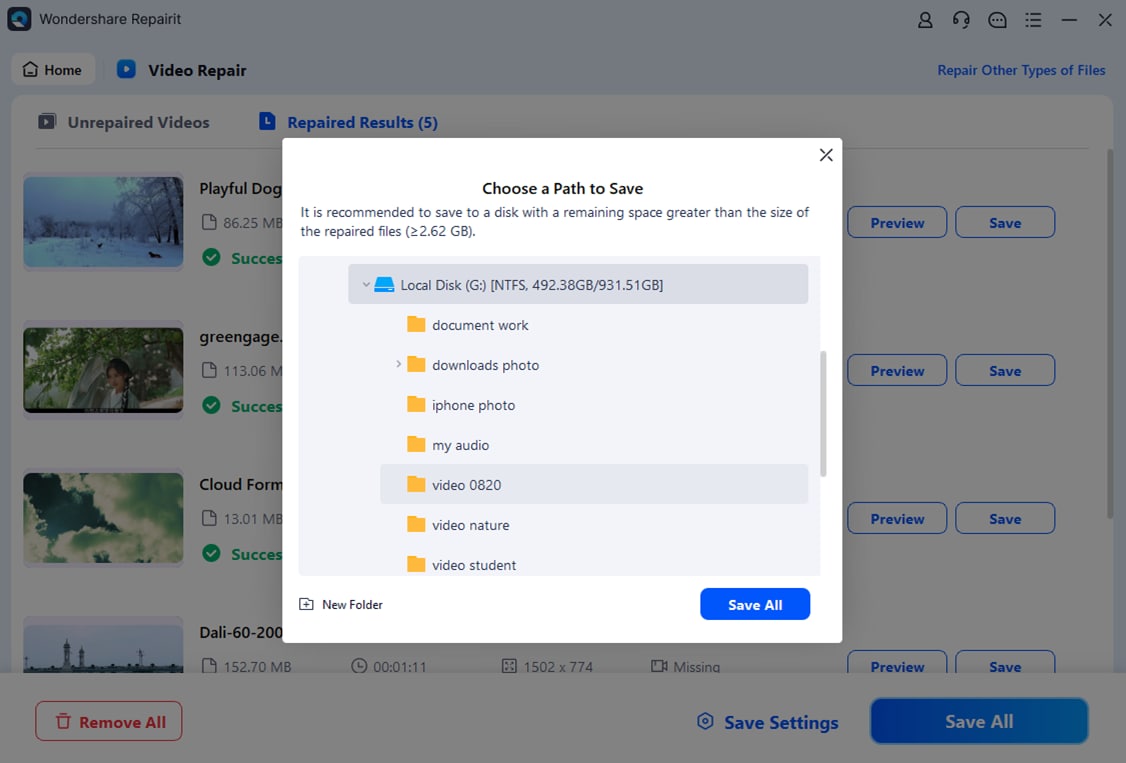
When you are satisfied with the preview, click "Save" and choose a new destination folder. Do not overwrite the original damaged MP4 or save the repaired file directly to the affected microSD card.
Open the saved video in a compatible media player and check its picture, sound, duration, and playback stability. If necessary, test whether the repaired file can be imported into your editing software.
Part 7: Prevent Problems in Future 8K Projects
- Use media recommended for the camera and check firmware before travel or important jobs.
- Keep a tested backup and verify transfers before formatting the source card.
- Use descriptive folder names and retain original camera files.
- Test the exact frame rate, color profile and editor combination before recording large batches.
- When recording fails, stop writing to the affected card until its contents are safely assessed.
For capture-side choices like focus, exposure, GP-Log2 and HyperSmooth, GoPro MISSION 1 PRO ILS shooting settings provide scene-specific recommendations. The GoPro MISSION 1 PRO ILS features and specifications explains why ILS lens operation differs from the fixed-lens MISSION 1 PRO.
Conclusion
A dependable MISSION 1 PRO ILS 8K workflow starts with the right recording mode and compatible card, continues through verified backups and an HEVC-capable editor, and ends with output checks. Diagnose compatibility before corruption. When a supported MP4 is genuinely damaged, a repair workflow may help, but preserve the original throughout.
FAQ
-
Can the MISSION 1 PRO ILS shoot 8K60 in Open Gate?
No. The published standard 16:9 8K mode supports up to 60 fps; 4:3 8K Open Gate supports up to 30 fps. -
What format are GoPro MISSION 1 PRO ILS 8K videos?
GoPro specifies MP4 files compressed with H.265/HEVC. The MP4 extension does not guarantee decoding support in every editor or player. -
How much storage does 8K60 use?
At an illustrative 240 Mbps, the arithmetic is about 1.8 GB per minute or 108 GB per hour. Actual consumption depends on the selected mode and bitrate. -
Why does an MP4 import with audio only?
The editor may fail to decode the HEVC video track, or the file may be incomplete or damaged. Check the file in other compatible applications before deciding it requires repair. -
Can Repairit fix every damaged GoPro 8K file?
No repair tool can guarantee every case. Format variant, severity of damage and whether usable media data remains affect results; verify the supported workflow with the actual file. -
Can repairing MP4 files recover deleted GoPro videos?
No. Repairing an existing damaged file and recovering a deleted file are separate workflows. Avoid writing more data to a card when footage has been deleted.