
We have all done this when we're in a hurry, so you remove an SD card too early, as the transfer says it's done. But removing it too early can actually put your files at risk. Even if it looks finished, your device might still be saving data in the background or organizing the files.
If you skip the "Eject" option and remove the card right away, it can lead to unsafe SD card removal corruption. This may damage your files or even make the whole SD card unreadable, turning your photos or documents into corrupted files that won't open.
In this article
What Will Happen When You Remove An SD Card Too Early
Removing an SD card too early doesn't usually damage the card itself; it affects how your data is saved and organized. The problem comes from the difference between what your screen shows and what your device is still doing in the background.
Why corruption happens
Most devices use something called write caching. This means your device may say a transfer is "done" even though it's still finishing the process in the background. If you remove the SD card during this time, the system may not finish saving the file properly. As a result, the file structure (like a map that tells your device where files are stored) can become incomplete or broken.
Common reasons this happens
- Your device might still be processing files, like creating previews or thumbnails.
- Slow file saving
- Apps still using the card
- In rare cases, quickly removing the card can cause a small electrical issue.
Situations where it's more likely
- Right after taking photos/videos
- During file transfers
Signs your SD card may be damaged
- Files show up but have 0 KB size
- Your device takes longer than usual to detect the card
- You see a message asking you to format the card
- Files become read-only and can't be edited or deleted
How To Spot SD Card Damage and File Corruption Signs
When the connection between your device and the SD card is suddenly broken, the problem may not show right away. Unsafe SD card removal can cause anything from small file issues to the card not working properly at all. Knowing the signs early helps you understand if your files can still be recovered.
Common signs of SD card problems
- Card shows as "RAW" - Your computer can't read the file system because its file structure was interrupted.
- Error messages appear - You may see messages saying files are corrupted or the disk can't be accessed.
- Broken photos or videos - Images may look half-loaded, or videos may freeze or not play properly.
- Missing files - Some files may disappear after you reconnect the card.
- Read-only mode - The card may lock itself to prevent further damage.
Simple Solutions To Fix a Corrupted SD Card
If you've experienced unsafe SD card removal corruption, don't panic; your files are often still recoverable. In many cases, the issue is not physical damage but a problem with how the data is organized. You can try a few simple fixes before assuming the SD card is broken.
Fix 1: Use Windows Error Checking (chkdsk)
Windows has a built-in tool called chkdsk that scans and repairs file system errors. It can help restore missing links and fix damaged file structures caused by removing the SD card too early.
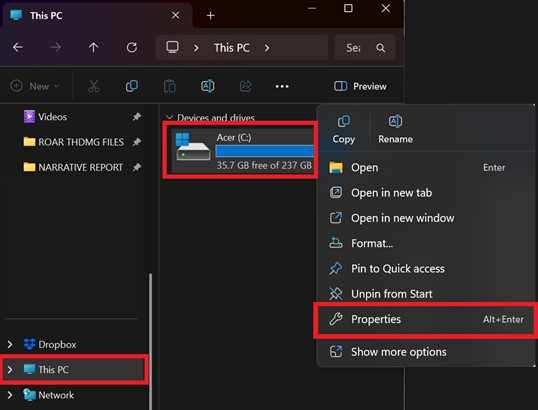
Step 1. Insert the card into your PC, open This PC, right-click the SD drive icon, and select Properties.
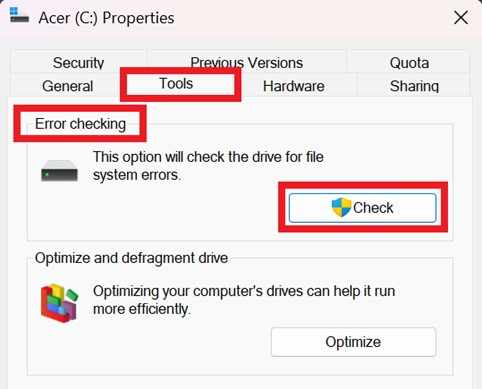
Step 2. Navigate to the Tools tab and click the Check button under the "Error checking" section to initiate a scan and repair.
Fix 2: Use the Command Prompt repair
If the normal tools don't work, you can use Command Prompt for a deeper scan and repair. This helps fix more serious file system issues.
Step 1. Type "cmd" in your Windows search bar, run it as Administrator, and type chkdsk X: /f (replacing "X" with your actual SD card drive letter).
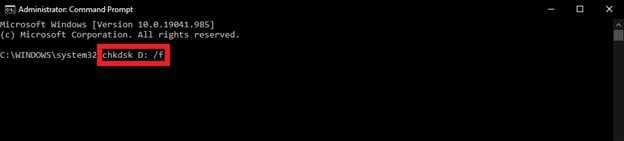
Step 2. Hit Enter and allow the utility to verify the File Allocation Table; if prompted to "convert folders to files," select Yes to recover fragmented data.
Fix 3: Assign a new drive letter
Sometimes the card is still fine, but your computer fails to detect it correctly. Changing or reassigning the drive letter can help your system recognize it again.
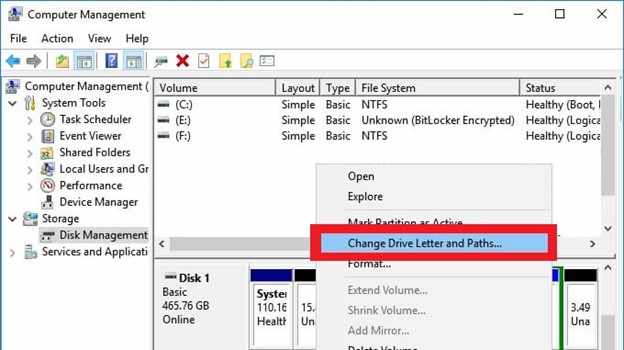
Step 1. Right-click the Start button and open Disk Management, then locate your SD card in the visual list.
Step 2. Right-click the card's partition, select Change Drive Letter and Paths, and assign a completely different letter (e.g., changing E: to M:).
Fix 4: Reinstall the SD card driver
If the SD card doesn't show up at all, the driver may have glitched. Reinstalling or updating it can restore proper connection.
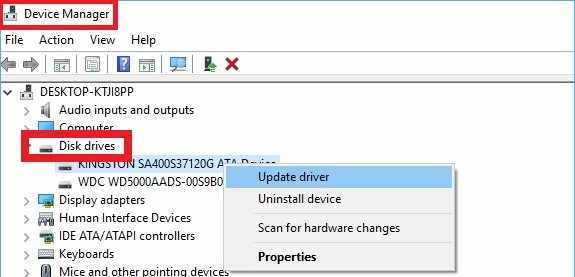
Step 1. Open Device Manager, expand the "Disk drives" section, and right-click your SD card reader/entry.
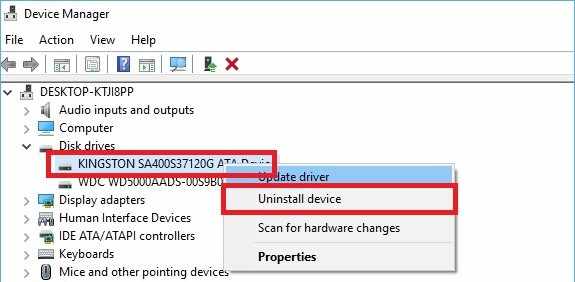
Step 2. Select Uninstall device, unplug the card reader, restart your computer, and plug it back in to force a clean driver handshake.
Advanced Fix to Restore Severely Corrupted Video Files
If you confirm that your video file is corrupted and cannot be played, using a professional repair tool is one of the most effective solutions. Repairit Video Repair is designed to fix damaged videos such as MP4, MOV, and MKV without altering the original content, helping you restore unplayable or broken footage safely.
Step-by-Step (Optional)
Step 1. Launch Repairit and upload the corrupted video files so the tool can analyze and prepare them for repair.

Step 2. Click the Repair button to let Repairit scan the videos and automatically fix playback errors or corruption issues.

Step 3. Preview the repaired videos to check the quality, then save them to a secure location on your device.

What Happens When a Transfer Fails and Causes SD Card Corruption
SD cards are most vulnerable to corruption during file transfers. If the connection is interrupted---like removing the card too early, files may be left incomplete or damaged.
Simple Fixes for Transfer-Related Video Problems
- Restart file manager - Refresh File Explorer or Finder to update files correctly.
- Remove temporary files - Clear leftover files from failed transfers.
- Check original file - Re-copy from the source if it's still intact; reformat if needed.
- Use direct connection - Avoid USB hubs for more stable transfers.
- Run repair scan - Use CHKDSK (chkdsk /r) to fix file system and sector errors.
How To Prevent SD Card Failure and Keep Your Files Safe Long-term
Preventing SD card corruption is easier than fixing it; just ensure all processes are fully complete before removal.
- Wait after ejecting - Give a few seconds before removing the card.
- Keep free space - Leave ~10% storage available to avoid errors.
- Format regularly - Use your device's format option after backups.
- Check battery level - Avoid transfers when power is low.
- Use a reliable reader - Stable connections reduce transfer issues.
The most important rule: Always use Eject or Safely Remove Hardware to ensure all data is properly saved before removing the SD card.
Conclusion
In summary, removing an SD card too early can interrupt the saving process and cause your files to become damaged or unreadable. Even if everything looks finished, your device may still be writing data in the background. This can lead to unsafe SD card removal corruption, which may affect important photos, videos, or documents.
To avoid this, always use the "Eject" option before removing your card. If problems happen, basic tools like CHKDSK or recovery software can often help restore your files. In most cases, a few extra seconds of waiting can prevent serious data loss.
FAQs
-
Does removing an SD card without ejecting always cause corruption?
Not always, but it increases the risk. If the card is still saving data in the background, removing it can cause file errors. -
Can I fix a RAW SD card without losing photos?
Yes, sometimes. Tools like CHKDSK or data recovery software may restore access to your files before you format the card. -
Why does my computer show "Scanning and Repairing"?
This means the system detected that the SD card was removed improperly and is trying to fix file system errors. -
Is it safe to remove an SD card when the camera is off?
Usually, yes, as long as the activity light is no longer blinking, meaning all writing processes are finished. -
Can a corrupted SD card damage my device?
No, it usually only affects the files on the card, not your phone or camera hardware.




