
Whenever the 232600 error appears with the message "this video file cannot be played," it can hinder access to important digital content. The video could be part of a professional presentation or an online training session, but playback failures disrupted the workflow. Often triggered by technical inconsistencies, such as system conflicts, the issue is both unexpected and confusing.
Finally, you’re left looking for clear, effective solutions not only to restore video functionality but also to prevent recurring interruptions. For such viewers, the following guide outlines the best, proven solutions, along with step-by-step instructions for better guidance.
Table of Contents
-
- Fix 1: Repair the Corrupted Video File Before Playback
- Fix 2: Restart the Browser or Media Player Application
- Fix 3: Clear Browser Cache & Cookies to Remove Playback Conflicts
- Fix 4: Disable Browser Extensions or Ad Blockers Temporarily
- Fix 5: Turn Off Hardware Acceleration in Video Playback Settings
- Fix 6: Try a Different Browser or Media Player
- Fix 7: Use a VPN to Bypass Regional or Network Restrictions
- Fix 8: Reset Browser or System Video Playback Settings
Part 1. Understanding Error Code 232600 and What It Means
Error code 232600 usually appears with a display "this video file cannot be played," indicating that the player cannot read the video stream. Many times, this code generally means the video stream or manifest could not be loaded. In simple words, the playlist file that tells the player how to load the video segments is broken or unreadable.
You can also say that the player is trying to load your video, but the file format or server response is not understandable. This happens because the video file itself is corrupted or saved in an unsupported format. Besides, if your video is encoded in a format the player does not recognize, or if the streaming server is misconfigured.
Part 2. 5 Reasons Behind the Video Playback 232600 Error
Instead, you step into how to fix error code 232600: "This video file cannot be played," first identify why this error occurs:
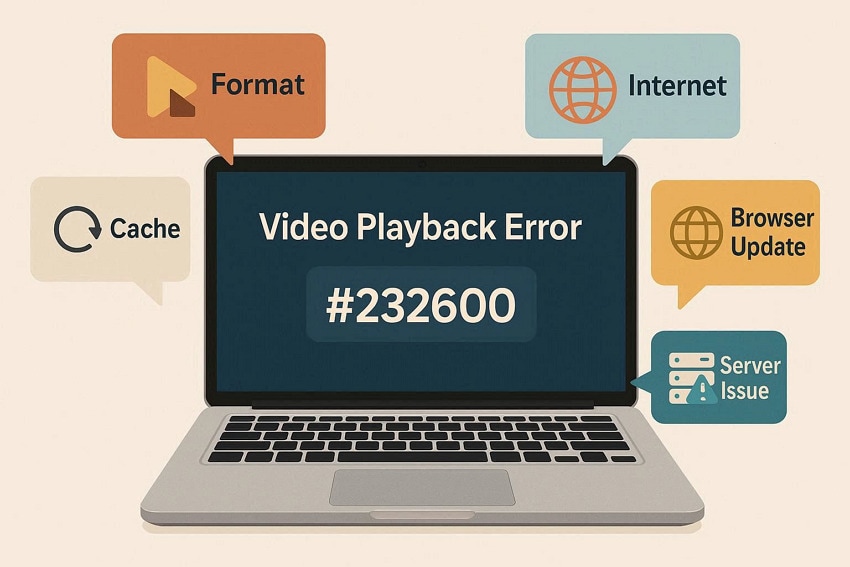
- Corrupted or Damaged Video File: If the video file is corrupted or incomplete, the player cannot decode it and displays error code 232600. This happens when the file was poorly encoded, interrupted during recording, or saved to a failing drive.
- Broken or Invalid HLS Manifest: In streaming setups, if the .m3u8 playlist file is invalid or badly formatted, the error will eventually occur. When the manifest is invalid, the player cannot determine which video segments to load, so playback never starts.
- Due to Player or Browser Problems: Bugs or incompatibility in the website’s player can prevent the video from loading correctly, resulting in 232600. Moreover, conflicting extensions, hardware acceleration issues, or old cookies can all interfere with video playback.
- Server‑Side Streaming or Hosting Issues: Occasionally, the problem is on the website’s side, such as misconfigured streaming services, wrong URLs, or missing video segments. In all such cases, every user might see error 232600 because the server is not delivering a valid stream to the player.
- Unsupported File Format or Codec: Error code 232600 frequently appears when the video is in a format or codec that the web player does not support. If the required codec is missing or obsolete, the player cannot understand the stream and fails with this error.
Part 3. How to Fix Error Code 232600 "This Video File Cannot Be Played"
Once the possible triggers are clear, move towards the solutions that focus on correcting 232600 and ensuring smooth video performance. From this perspective, all the methods below provide a structured approach to restoring normal video access:
Fix 1: Repair the Corrupted Video File Before Playback
Before you consider uploading a video to a web player, use Repairit and get your content repaired beforehand. Impressively, it supports numerous corruption scenarios, including storage failures, editing errors, and format and encoding issues. The program delivers exceptional results as an all-in-one video repair tool that elevates your repair experience. Users can achieve a 99.5% success rate, enabling video playback on nearly all devices.
With its Quick Repair mode, you can easily address common issues such as videos that won’t open, freeze, or lose audio. Not only that, but this software also runs on Windows and macOS, and is available online, with no compatibility issues across devices.
Key Features

-
Advanced Video Repair: This mode repairs severely damaged videos using sample files while preserving the original resolution and encoding.
-
Multiple Format Support: It supports a wide range of video file formats, from mainstream to device-specific and professional-grade formats.
-
Professional Repair Mode: You can repair HDR/LOG footage and advanced video codecs, along with 4k+ videos, with this mode.
Simple Tutorial to Repair Corrupted Videos via Repairit
To understand how to fix error code 232600: "This video file cannot be played," follow the guidelines and repair your video:
Step 1. Insert Your Corrupted Videos
After launching, access the "Video Repair" tab and press the "Start" button to add your broken video files.

Step 2. Start the Repair of Corrupted Videos
After this, click the "Repair" button to begin the video repair process for all added damaged videos.

Step 3. Review and Save the Repaired Videos
Soon, when the video repair action completes, press the "Preview" button to analyze and download the final version.

Repair Video File Cannot Be Played Error
 Security Verified. Over 7,302,189 people have downloaded it.
Fix 2: Restart the Browser or Media Player Application
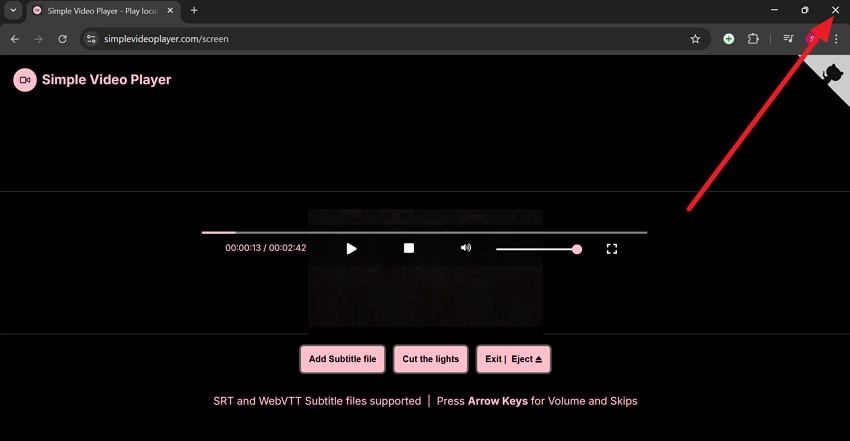
A complete restart closes all the temporary processes and cached sessions that might interfere with video playback. This method is quick and provides a fresh environment for application, eliminating glitches that are otherwise difficult to identify. Follow the guidelines and restart your web player to address the 232600-error code:
Instructions: Click the "X" icon in your browser, wait 2-3 minutes and try playing the video again.
Fix 3: Clear Browser Cache & Cookies to Remove Playback Conflicts
Cached files and cookies can accumulate errors or become corrupted, interfering with video playback and activating 232600. Therefore, clearing them removes these conflicts, allowing the browser to load fresh data directly from the server. For better browser performance without any unnecessary errors, follow the guided tutorial:
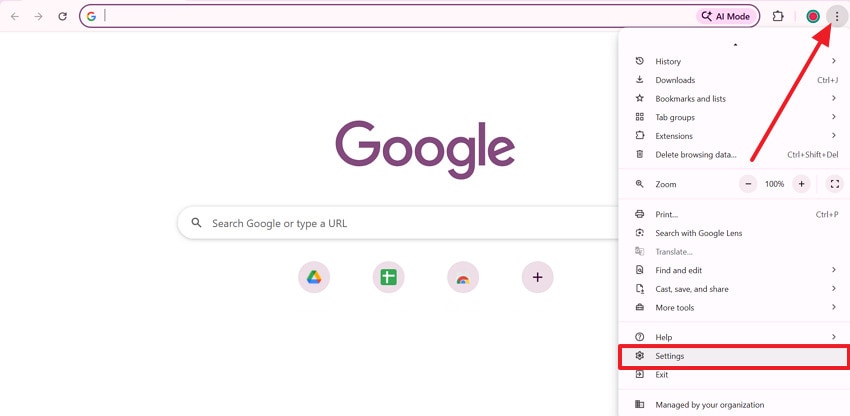
Step 1. Open your browser, press the "Three Dots" icon, and choose the "Settings" option from the menu.
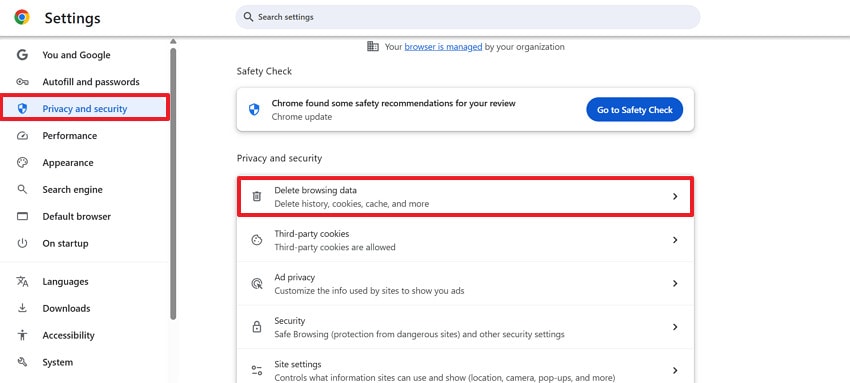
Step 2. Next, access the "Privacy and Security" option and select the "Delete Browsing Data" option.
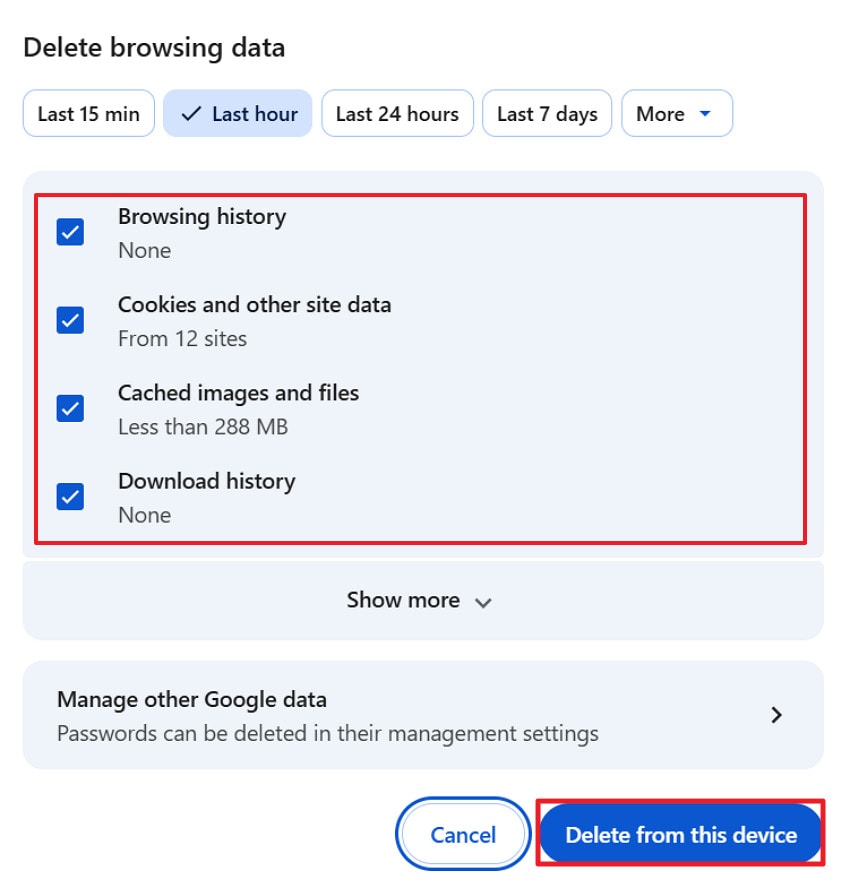
Step 3. Choose the time range, then tick mark all cached data and press the "Delete from this device" button.
Fix 4: Disable Browser Extensions or Ad Blockers Temporarily
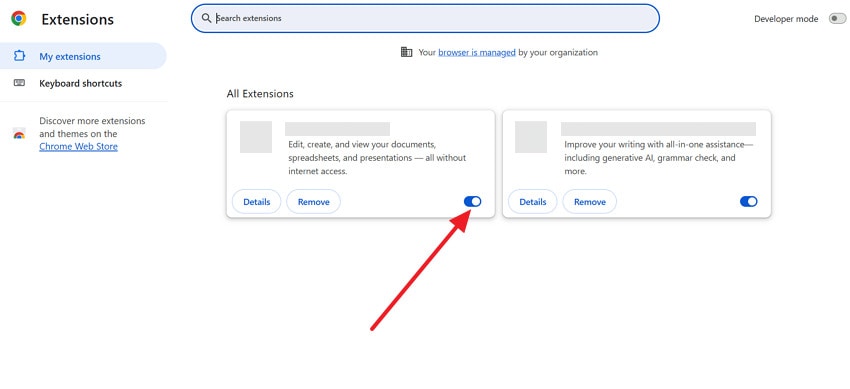
Some browser extensions, especially ad blockers and security add-ons, can block video scripts or prevent streaming. To this end, disabling these extensions removes barriers that might trigger 232600, ensuring the video can play without interference. Thus, to identify which extension is causing the conflict, explore the tutorial and disable browser extensions:
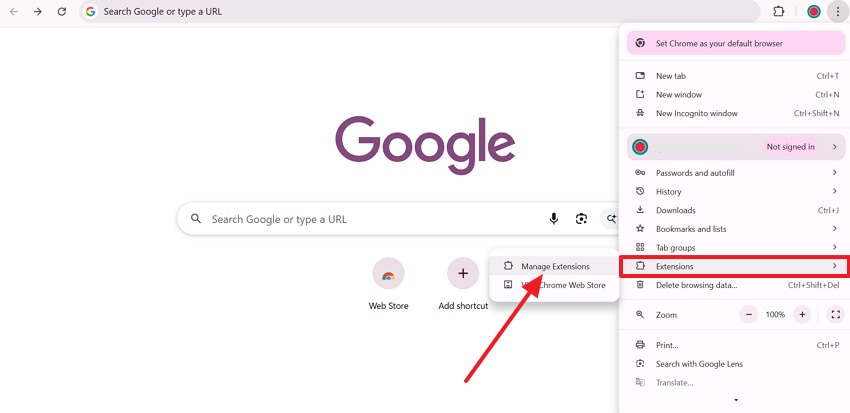
Step 1. First, press the "Three Dots" icon, then expand the "Extensions" option and click the "Manage Extensions" option.
Step 2. Here, toggle off unnecessary browser extensions one by one to identify the troublemaker for smooth video streaming.
Fix 5: Turn Off Hardware Acceleration in Video Playback Settings
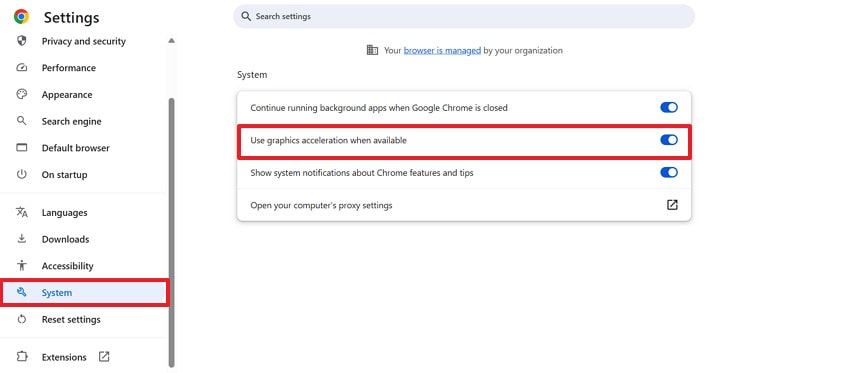
Hardware acceleration offloads video decoding to your GPU for smoother playback. On some systems or configurations, it can conflict with video rendering, leading to playback errors such as 232600. Upon disabling, it forces the browser or media player to rely on software decoding, resolving the conflicts overall. For how to fix error code 232600: "This video file cannot be played," simply follow the tutorial and turn off hardware accelerations:
Instructions: Enter your browser Settings, access the "System" option, and turn off the "Use Graphics Acceleration When Available" option. Move forward, press the "Relaunch" option, then restart your browser and the video.
Fix 6: Try a Different Browser or Media Player
Not all browsers or media players support every video codec, format, or streaming protocol. When your current application or browser is incompatible with the video file, it can activate 232600. Here, considering a different browser or media player allows you to bypass these compatibility issues. Simply install a new media player or use Firefox or Brave if you frequently use Chrome for video streaming.
Fix 7: Use a VPN to Bypass Regional or Network Restrictions
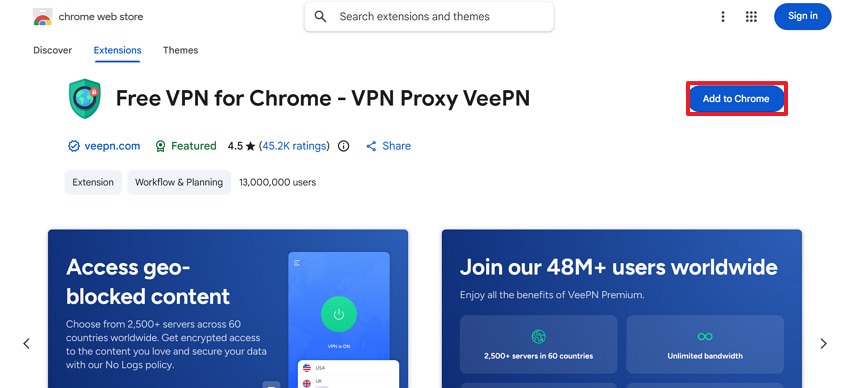
Videos can be restricted based on geographic location or network policies, such as school or office firewalls. While these restrictions can prevent the video from loading, make use of a VPN instead. This way, you can connect through a server in a region where the video is accessible, effectively bypassing these restrictions. For this, search for a reputable VPN extension and add it to your Chrome, like this:
Fix 8: Reset Browser or System Video Playback Settings
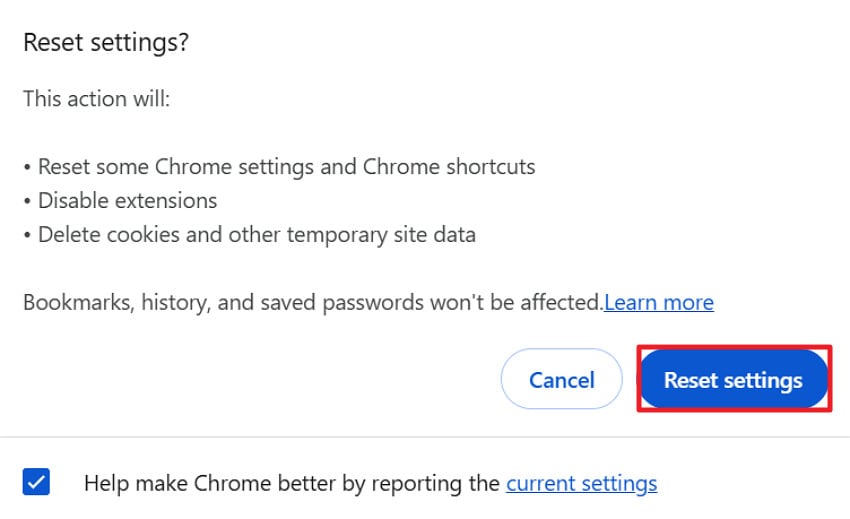
At times, browser or system settings for video playback might be misconfigured due to custom tweaks or extensions. A reliable workaround for these persistent misconfigurations is to reset the default browser settings. To understand how to fix error code 232600: "This video file cannot be played," follow the manual and ensure tested configurations:
Step 1. From browser Settings, choose the "Reset Settings" option and click the "Reset Settings to their Original Default" option.
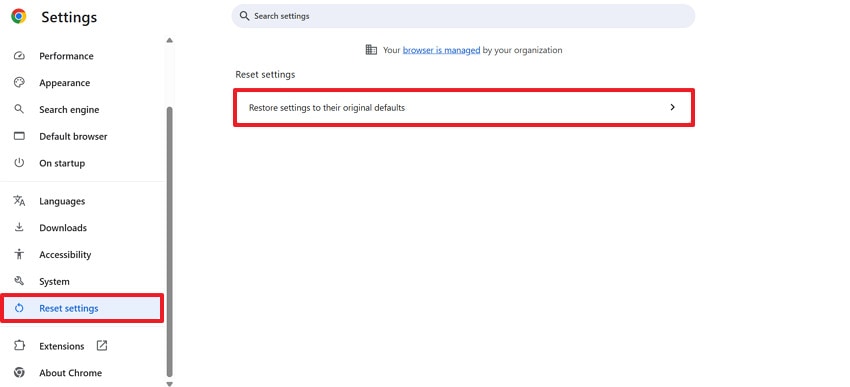
Step 2. In the Reset Settings confirmation window, press the "Reset Settings" button to perform the action.
Part 4. Prevent Video Streaming Issues with These Easy Tips
Practice these small yet effective habits to minimize technical conflicts, including error 232600 while streaming in the future:

Keep Your Internet Stable: Use a wired Ethernet connection when possible; it is more stable than Wi‑Fi and reduces buffering. Avoid heavy downloads, cloud backups, or other streams on the same network while you are watching video.
Use Updated Media Players and Browsers: Keep your browser, streaming apps, and media players updated so they include the latest video codecs. Moreover, restart your browser or app regularly instead of keeping it open for days, which can cause glitches.
Manage Cache and Extensions: Clear browser cache and cookies from time to time, so old data does not conflict with new video players. Plus, limit the number of extensions, especially avoid stacking multiple ad‑blockers or script blockers, as they can break embedded players.
Match Quality to Your Connection: If streams stutter, manually lower video quality (for example, from 4K to 1080p or 720p) to match your real internet speed. On mobile data or weak Wi‑Fi, prefer the "Auto" or "Adaptive" quality modes, which reduce resolution rather than stopping playback.
Maintain Your Device Systems: Close unused apps and browser tabs so your device has enough RAM and CPU to decode video smoothly. Keep your operating system and graphics drivers up to date, and only enable hardware acceleration if it improves playback on your device.
Conclusion
In summary, you now know that error code 232600 is usually caused by manageable issues, such as browser conflicts. By applying the fixes discussed, including clearing the cache or adjusting playback settings, most of you can restore smooth playback. However, when the error is caused by video file corruption, Repairit ensures a reliable, long-term fix for corrupted content.
Frequently Asked Questions
-
1. Can error code 232600 appear on mobile devices?
Indeed, the 232600 can occur on both desktop and mobile devices, especially when using outdated apps and unsupported browsers. Precisely, mobile users face this error due to an unstable cellular data connection, background app restrictions, or limited device resources. -
2. Does device storage affect error code 232600?
Yes, insufficient device storage can interfere with video buffering and temporary file creation, leading to 232600. Low storage may also prevent apps or browsers from caching essential playback data, increasing the likelihood of repeated video playback failures. For how to fix error code 232600: "This video file cannot be played," freeing up storage space helps reduce the chances of the error. -
3. When should I contact the platform’s support team?
If none of the troubleshooting steps fix the error code 232600, the issue may be server-related. Contact the content provider or platform support and provide details such as the video link, device, browser, and the error code.




