
For any ARC Raider player, a recurring ARC Raiders ARMR0002 error can significantly stop their gaming sessions. Not only this, but they’re left alone without any connection with their teammates or participating in important missions. In this context, the only workaround is to identify the actual cause and solve it promptly. For anyone seeking a consistent, stable multiplayer experience in ARC Raider, follow the guide below.
From a complete definition to 10 tested fixes for this matchmaking error, we’ll guide you step-by-step in the article below. Finally, you’ll be able to address this issue yourself or determine whether you need to contact support.
Table of Contents
-
- Way 1: Restart the Game to Refresh Active Network Sessions
- Way 2: Check Official Server Status for Outages or Maintenance
- Way 3: Verify and Repair Game Files Through the Game Launcher
- Way 4: Switch to a Wired Ethernet Connection for Stable Connectivity
- Way 5: Change DNS Settings to Improve Server Resolution Speed
- Way 6: Reinstall the Easy Anti-Cheat Service to Fix Connection Blocks
- Way 7: Temporarily Disable Firewall or Antivirus Network Filtering
Part 1. What the ARMR0002 Error Means in ARC Raiders
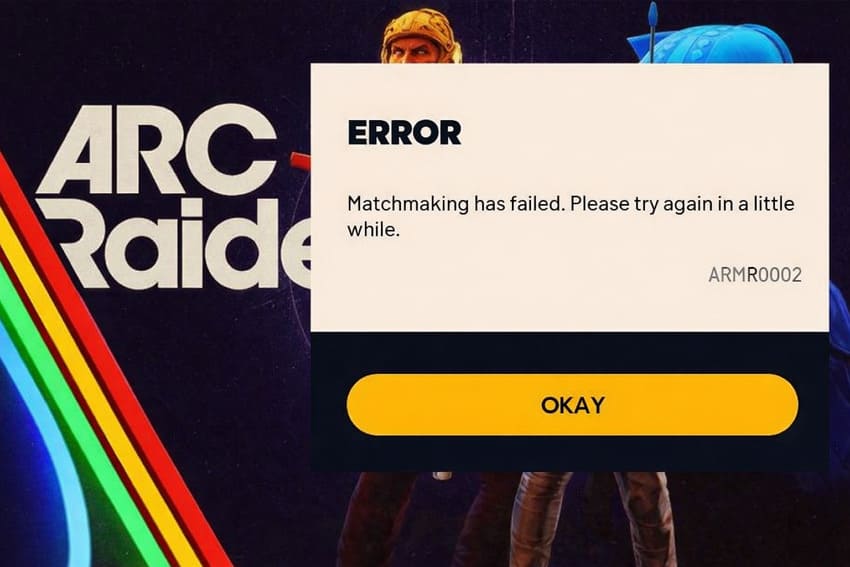
The ARC Raiders ARMR0002 error indicates the game cannot connect to the matchmaking servers. Simply treat it as your game client attempting to communicate with the ARC Raiders servers, but the connection fails. This might happen because the servers are busy, under maintenance, or your internet/NAT settings aren’t stable. Regardless of your reason, the result is that the game cannot place you into an online raid or lobby.
Part 2. Why ARMR0002 Keeps You from Joining Raids or Friends
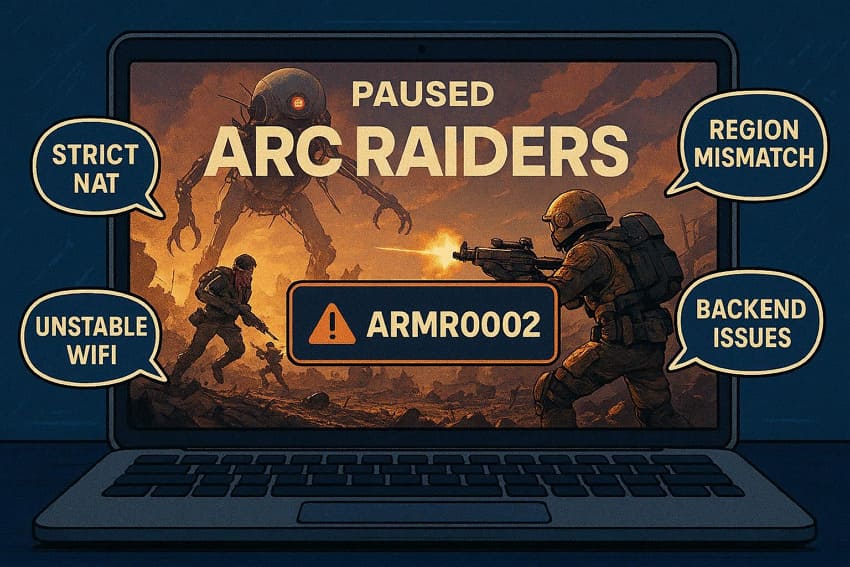
Many players find themselves stuck, unable to join raids, because of the following reasons for ARC Raiders ARMR0002:
- Strict NAT, Firewall, or Router Settings: Closed/strict NAT, blocked ports, and aggressive firewall rules can prevent your game client from connecting to matchmaking servers. Subsequently, invites and raid queues fail behind the scenes, and you see ARMR0002 instead of your friends' lobby.
- Corrupted or Desynchronized Game Session: Sometimes the client session becomes stuck or desynchronized after crashes, quick restarts, or interrupted queues. When the client and server disagree on your current state, new matchmaking attempts are rejected, displaying ARMR0002.
- Region, Version, or Event Mismatch: The error may occur if your game version does not fully match the server version. Eventually, the game might let you sit in menus but refuse to start specific raids or join cross-platform squads.
- Unstable or Weak Internet Connection: Wi-Fi drops between your device and the ARC Raiders servers can cause the matchmaking handshake to fail. With an overly unstable connection, the system refuses to start a raid or squad session to prevent constant disconnects when you load in.
Server Load and Backend Issues: A Common Source
ARMR0002 often appears because ARC Raiders’ own servers are struggling, not because you did anything wrong. When too many players try to join at once, or when the backend is being patched, the matchmaking system cannot join lobbies. Being a common source of error, it blocks raid and party joins, showing “Matchmaking has failed.” Finally, you’re returned to the menu until server load drops or the developer stabilizes their services.
Part 3. 7 Proven Fixes for ARC Raiders ARMR0002 Matchmaking Error
When you address the problem methodically, you not only resolve the current error but also minimize the risk of it recurring. Provided below are 7 tested fixes for the ARC Raiders ARMR0002 matchmaking error, each explained with practical steps:
Way 1: Restart the Game to Refresh Active Network Sessions
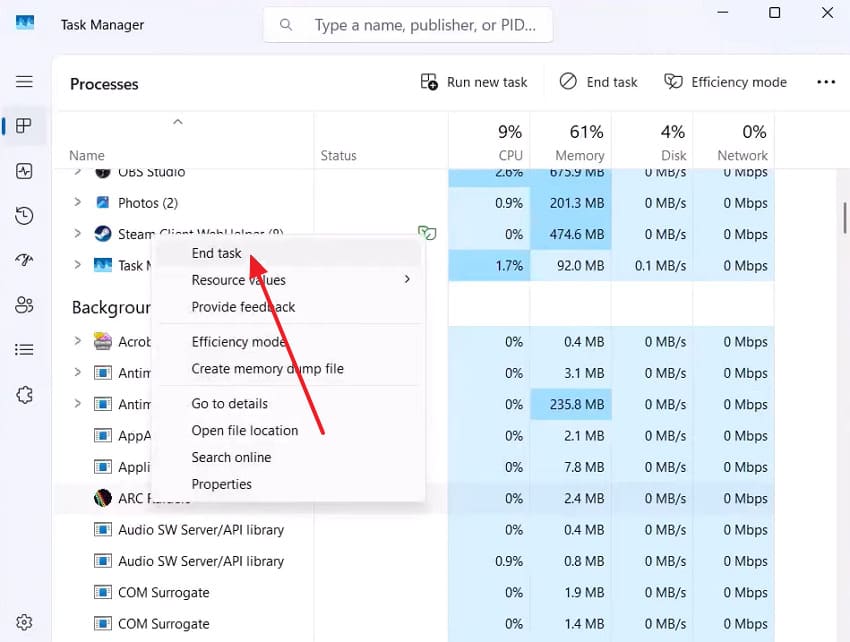
A complete restart refreshes all active network sessions, clears minor temporary conflicts, and allows the game to reconnect. This resolves connectivity issues and is the fastest way to regain access to raids and team sessions. Follow the instructions and restart your game to restore stable gameplay without network interruptions:
Instructions. Open Task Manager, locate the ARC Raider, and right-click it once found. After this, choose the "End Task” option to close it, then relaunch the game.
Way 2: Check Official Server Status for Outages or Maintenance
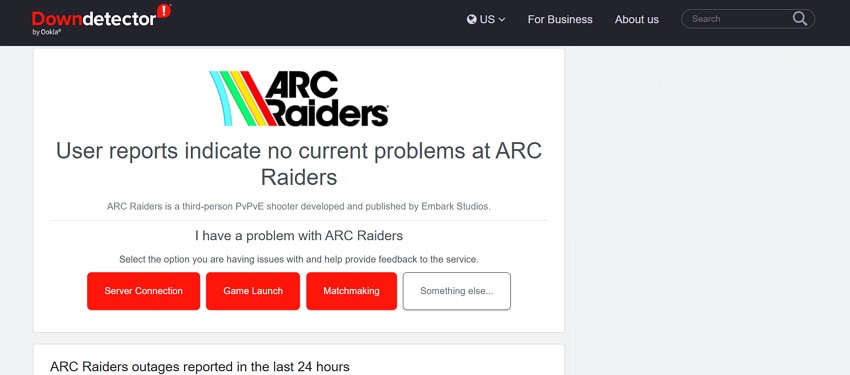
An ARC Raiders ARMR0002 error may occur if the game servers are undergoing maintenance or experiencing a temporary outage. For this, visit Downdetector and determine whether the problem is on your side or caused by the server. Plus, check the ARC Raiders’ official Discord or news posts for updates on maintenance or connectivity issues.
Way 3: Verify and Repair Game Files Through the Game Launcher
Corrupted or missing game files can also prevent proper matchmaking and may continuously display ARC Raiders ARMR0002. Here, game file verification by your game launcher ensures that all essential files are intact, replacing damaged ones automatically. Simply, follow the provided guidelines and retrieve the game’s functionality, verifying its files precisely:
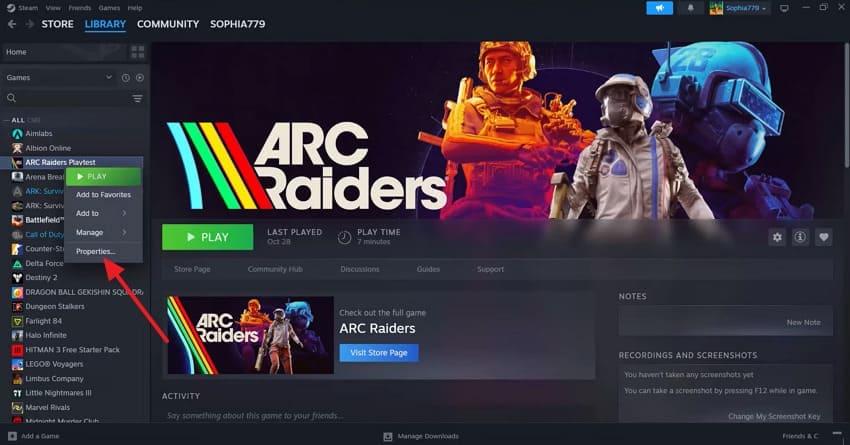
Step 1. Access Steam, open the Library section, then navigate to the ARC Raiders game and right-click it. Here, select the “Properties” option and reveal the game properties.
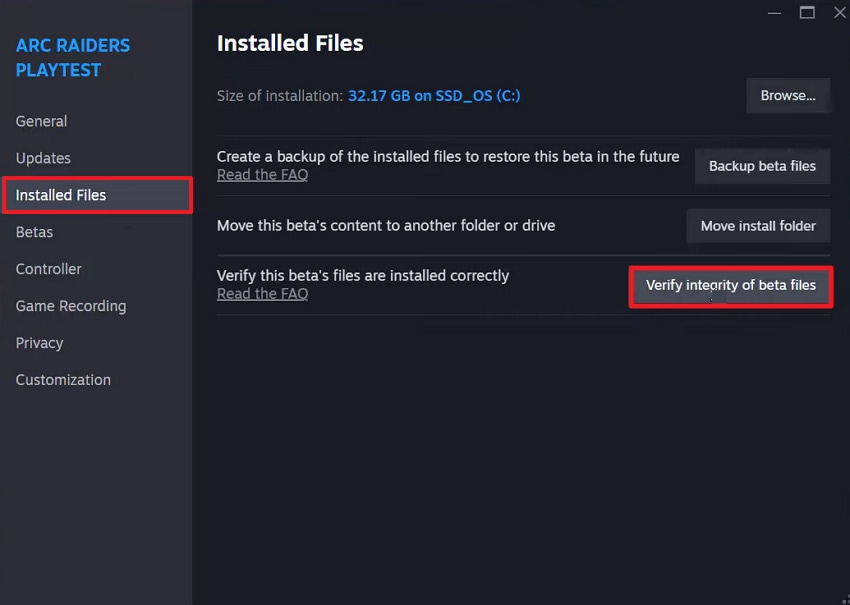
Step 2. Next, access the “Installed Files” and press the "Verify Integrity of Game Files” option. Now, wait for the process to complete and reassess the game to check for the error.
Way 4: Switch to a Wired Ethernet Connection for Stable Connectivity
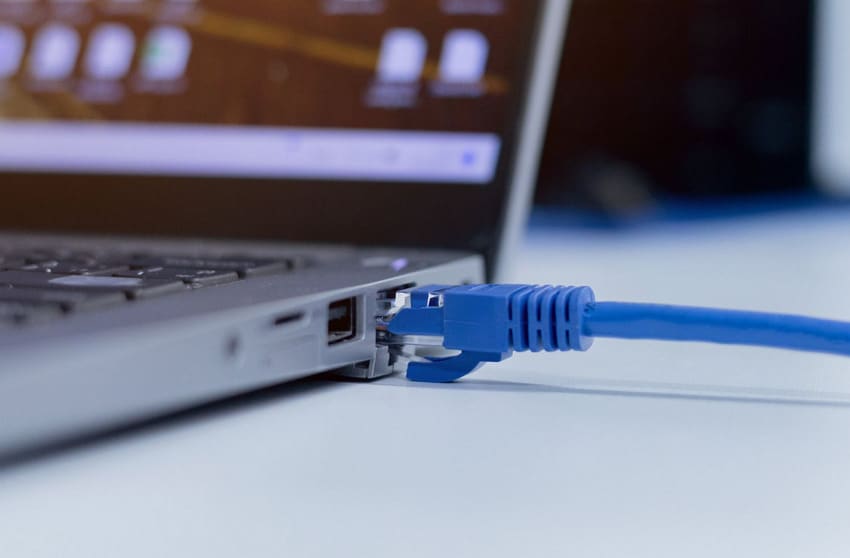
Wi-Fi connections are more susceptible to interference and signal drops, which can cause errors such as ARC Raiders ARMR0002. For this, switch to a wired Ethernet connection, as it provides a direct and consistent network link. To do so, connect your PC or console directly to the router using an Ethernet cable.
Way 5: Change DNS Settings to Improve Server Resolution Speed
When misconfigured DNS servers disrupt communications, switching to a faster DNS server helps your system resolve server addresses. Optimized DNS settings improve server connectivity, reduce matchmaking delays, and provide a responsive online gaming experience. To proceed, explore the guided tutorial and change your DNS settings for better server resolution speed:
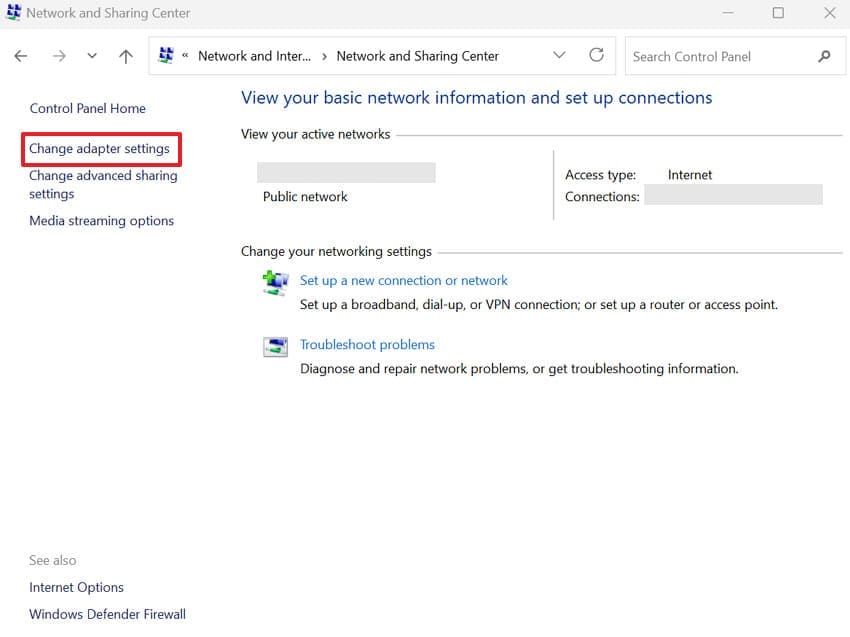
Step 1. Enter Control Panel, press the "Network and Internet” option, then click the “Network and Sharing Center” option. After this, access the “Change Adapter Settings” option and right-click your connection for properties.
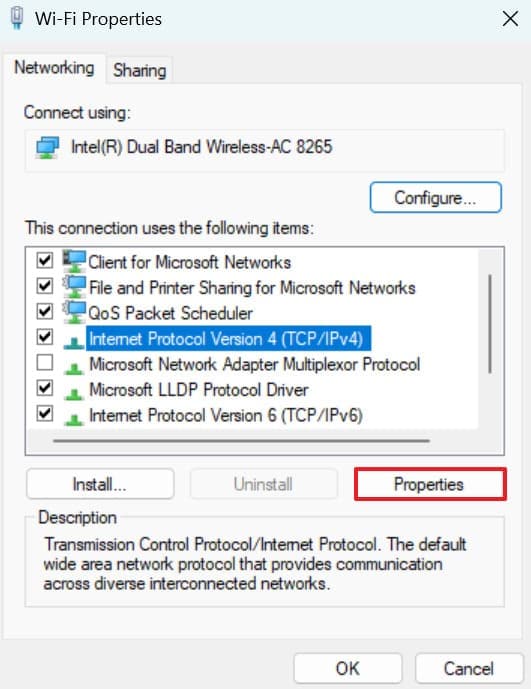
Step 2. Select your active connection, then click the “Properties” button to change DNS settings.
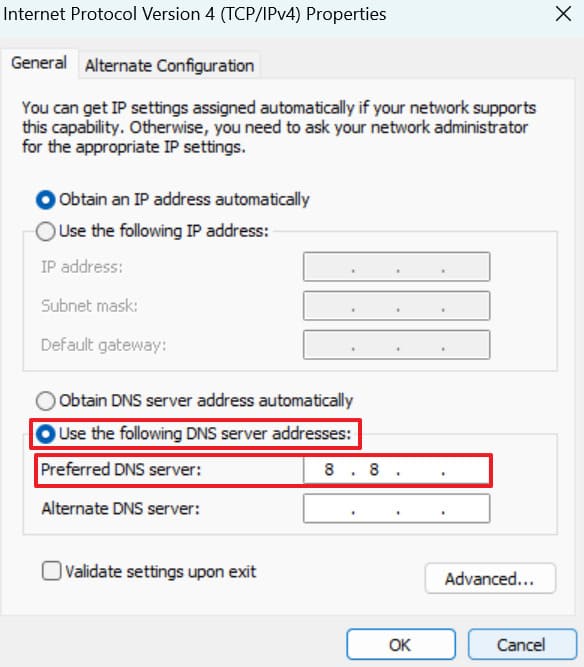
Step 3. Now, check “Use the following DNS Server Addresses” and enter “8.8.8.8” as your preferred DNS.
Way 6: Reinstall the Easy Anti-Cheat Service to Fix Connection Blocks
Easy Anti-Cheat is important in securing online gameplay, but if files become corrupted, it might block matchmaking. When you reinstall the service, it guarantees proper authentication between your system and the game servers. To fix the Easy Anti-Cheat issue, restore server trust, and prevent false connection blocks by following the guided tutorial below:
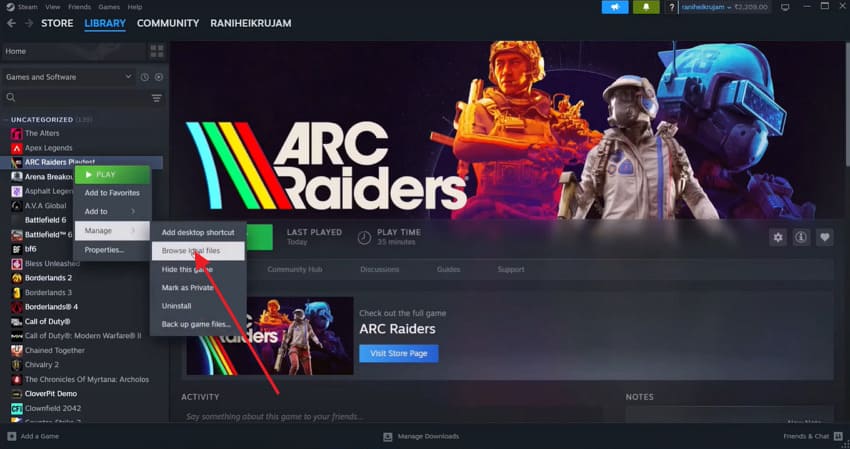
Step 1. Enter Steam, locate ARC Raiders, and right-click it to expand the menu for Manage. From the sub-menu, choose the “Browse Local Files” option and access your game files.
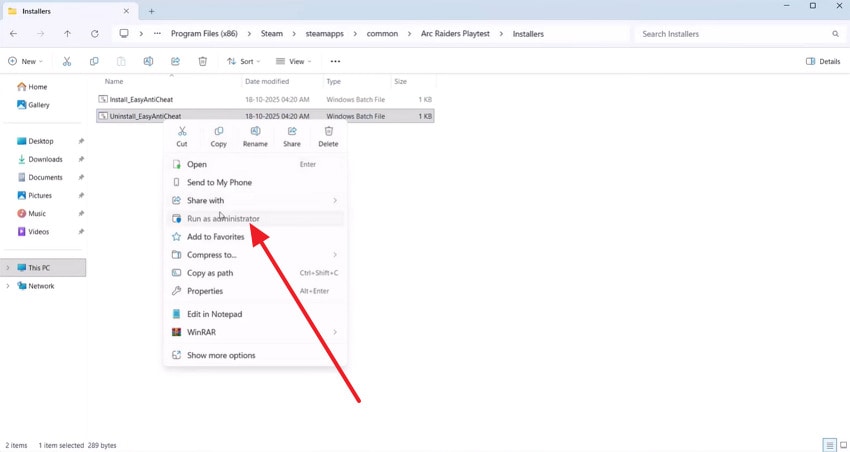
Step 2. Once navigated to File Explorer, access the Installers folder, right-click “Uninstall EasyAntiCheat” and select “Run as Administrator.” Afterward, your Easy Anti-Cheat services will be uninstalled automatically, requiring a game relaunch for reinstallation.
Way 7: Temporarily Disable Firewall or Antivirus Network Filtering
Firewalls and antivirus programs can mistakenly block ARC Raiders’ network traffic, preventing the game from communicating with matchmaking servers. To resolve the ARC Raiders ARMR0002 error, disable these protections and check whether security software is interfering. For more clarity, follow the tutorial and ensure uninterrupted server access without compromising system safety:
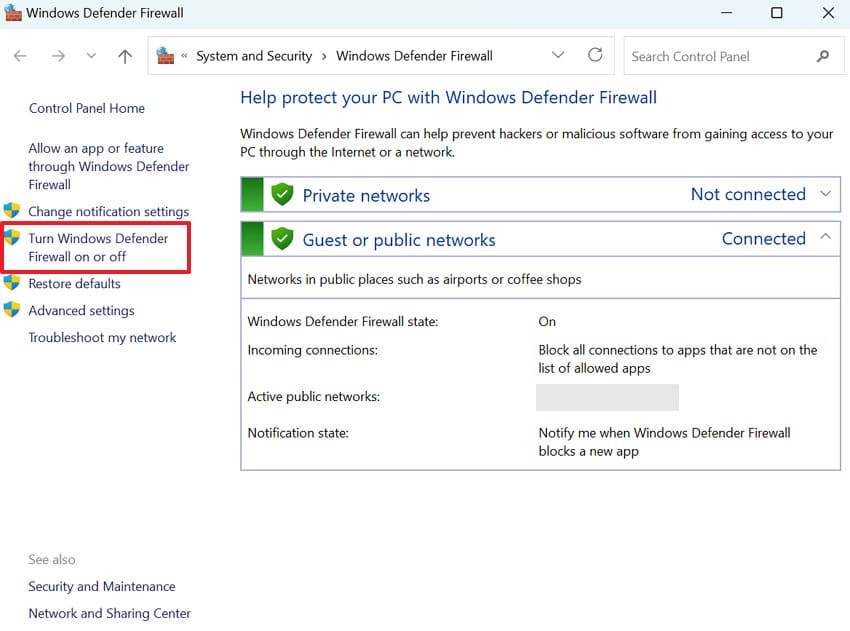
Step 1. First, open Windows Defender Firewall, then press the “Turn Windows Defender Firewall On and Off” option.
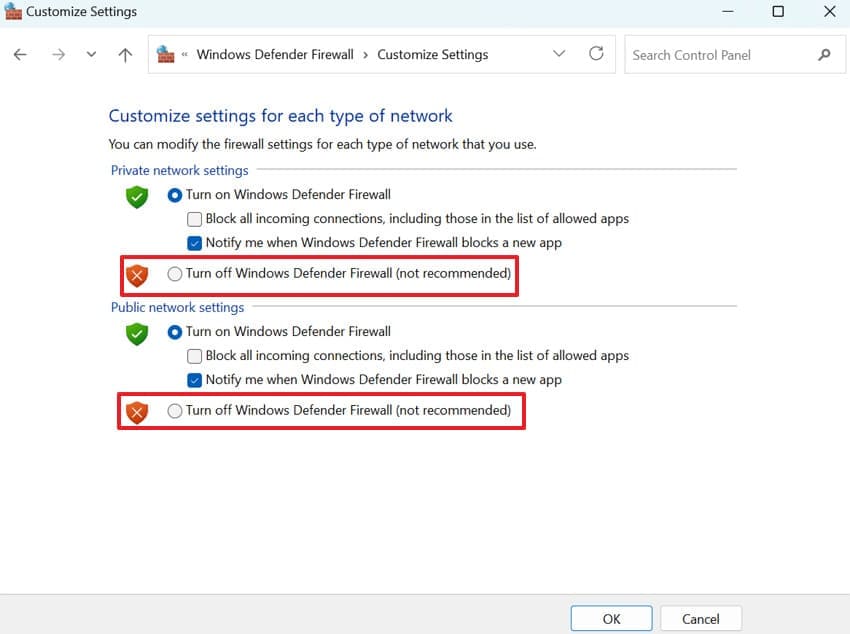
Step 2. Now, choose the “Turn Off Windows Defender Firewall” option for both Public/Private network settings.
Part 4. When to Contact Support or Report the Problem
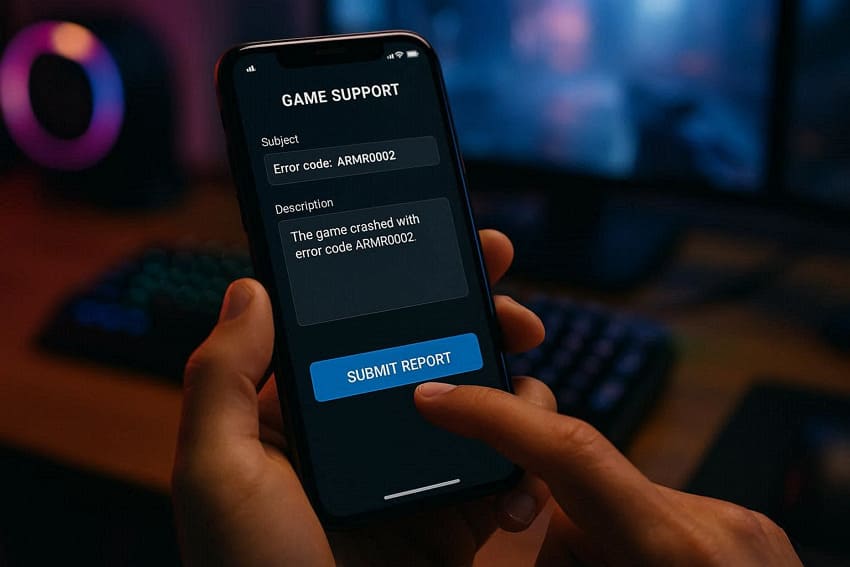
Contact ARC Raiders support or report ARMR0002 if you have already tried common fixes and the error persists. It is also worth reaching out if you are affected, while friends in the same region can queue normally. Plus, when you see ARMR0002 together with other strange behavior, like missing progress or repeated disconnects from raids. In all such cases, first gather details such as error screenshots and then contact support.
Pro Tip. How Repairit Helps Resolve Corrupted Files Triggering ARMR0002
Although ARC Raiders ARMR0002 is mainly a network/matchmaking error, a corrupted local asset can sometimes contribute. In such scenarios, Repairit ensures your system is not tripped up by unreadable media, thereby reducing one potential source of error. The program excels at addressing a range of corruption scenarios, including power shutdowns and interrupted downloads. Impressively, it uses AI to examine damaged files, reconstruct missing data, and improve file quality.
The program follows a simple 3-step repair process: add, repair, preview, and save, with an interface for all users. Most importantly, Repairit can handle many video-related game formats and repair recordings from all devices.
Key Features

-
Game File Integrity Repair: Repairs corrupted ARC Raiders files that block matchmaking and restores missing components for stable gameplay.
-
Session Data Reconstruction: Rebuilds damaged configuration and cache files to fix ARMR0002 connection failures for a smoother experience.
-
Launcher File Verification Support: Works with verified game directories to correct broken assets and prevent repeated matchmaking errors.
Simple Guide to Repair Corrupted ARC Raiders Game Files via Repairit
Below are detailed guidelines to repair corrupted game files, a crucial step for resolving issues like ARC Raiders ARMR0002:
Step 1. Add Your Corrupted Game Files
Initially, access the “More Types Repair” section and press the “Start” button for the Document Repair.

Step 2. Insert All Corrupted ARC Raiders Files
After this, press the “+Add” button to insert all the corrupted ARC Raiders game files for instant repair.

Step 3. Fix and Export ARC Raiders Files
Once done, click the “Repair” button to start a comprehensive repair process for the added files. Soon, when the process comes to an end, preview the repaired versions and save them.

Repair Corrupted ARC Raiders Game Files
 Security Verified. Over 7,302,189 people have downloaded it.
Conclusion
In conclusion, a sudden ARC Raiders ARMR0002 error can interrupt gameplay and limit access to the game’s cooperative features. However, it doesn’t have to remain a problem; you can resolve it using the workarounds outlined in the guide above. Besides, if corrupted game files are causing the issue, it is recommended to use Repairit to repair the game files.
Frequently Asked Questions
-
1. Is ARC Raiders ARMR0002 a PC-only issue?
The ARC Raiders ARMR0002 error is more commonly reported on PCs due to complex network settings or system configurations. Still, it isn’t strictly limited to PC; players on other platforms may encounter it if there are server-side issues. In such cases, the issue is usually resolved once server stability improves or connectivity conditions are optimized. -
2. How can I prevent ARC Raiders ARMR0002 from happening again?
To minimize future occurrences, keep the game up to date, maintain a stable internet connection, and avoid peak gaming hours. Additionally, perform frequent game file verifications and ensure that Easy Anti-Cheat and security settings are properly configured. -
3. Does using a VPN affect ARC Raiders matchmaking?
A VPN can sometimes cause ARC Raiders ARMR0002, as it may route traffic through distant servers or trigger security restrictions. To resolve this, disable the VPN or switch to a closer server location to help restore proper matchmaking.




