

Facebook videos are a major source of entertainment, information, and social engagement. But on Android, it’s common to run into issues like freezing, stuttering, choppy playback, or constant buffering, especially on long videos, Reels, or high-resolution clips. When that happens, the experience goes downhill fast.
Quick Answer: Why are Facebook Videos Lagging on Android?
Facebook video lagging on Android usually happens for one of four reasons: unstable internet, limited device resources (storage/RAM/CPU), app or OS glitches, or a damaged video file (typically a video you saved/downloaded and now won’t play smoothly). Most cases are fixed with simple steps like clearing cache, updating the app, and reducing playback quality.
How to Choose the Right Fix
Before jumping into repairs, identify the cause:
- If the video buffers or pauses and your connection icon fluctuates → focus on Wi-Fi/mobile data stability.
- If Facebook feels slow and your phone is hot or nearly full → focus on storage, RAM, and background apps.
- If lag started after an update (or you haven’t updated in a while) → focus on updating Facebook + Android.
- If a downloaded/saved video always freezes at the same moment (or has no sound/black screen) → the file may be corrupted → consider Wondershare Repairit.
This article explains the common causes of Facebook video lagging on Android, quick fixes you can try immediately, how to repair corrupted videos using Wondershare Repairit, and tips to prevent lagging issues in the future.
Table of Contents
Part 1: Common Causes of Facebook Video Lagging on Android
Facebook video lagging occurs when videos freeze, stutter, buffer slowly, or play out of sync on Android devices.
Common Causes of Facebook Video Lag
There are several reasons why Facebook video lags on Android devices. Below are the most common causes:
- Poor internet connection or low bandwidth: Slow or unstable Wi-Fi/mobile data can cause buffering and interrupted playback. Even brief drops in speed can make Facebook videos pause—especially live streams, Reels, and HD videos.
- Low device storage or RAM issues: Android devices need enough free storage and memory to run apps smoothly. A nearly full phone or heavy multitasking can cause frame drops, freezing, and delayed loading.
- Outdated Android OS or Facebook app: Older app/OS versions can introduce compatibility problems and bugs. Updates often include performance improvements and fixes for media playback, so staying current helps reduce lag.
- Corrupted or partially downloaded videos: Sometimes the issue is the file itself—especially if you downloaded a video and it now freezes at the same spot, plays without sound, or won’t load fully. In those cases, a video repair tool can help make the file playable again.
- Background Apps Consuming Resources: Apps running in the background can use CPU, RAM, and bandwidth, leaving fewer resources for video playback. Closing unnecessary apps often improves performance immediately.
- Battery Saver, Data Saver, or VPN Interference: Battery/Data Saver modes can limit background activity and data usage, affecting video playback. VPNs may also slow traffic by routing it through distant servers. Temporarily turning these off while watching videos can reduce lag.
Part 2: Quick Fixes for Facebook Video Lag on Android
If Facebook videos are lagging on Android, start with the quick fixes below. They target the most common causes: minor app glitches, limited resources, or unstable connections.
Restart the Facebook App or Android Device
Sometimes the easiest fix is the best one. This refreshes your system and often fixes minor glitches that are causing videos to stutter.
Step 1: Open the Recent Apps menu on your Android phone. Swipe Facebook off the screen to close it completely.
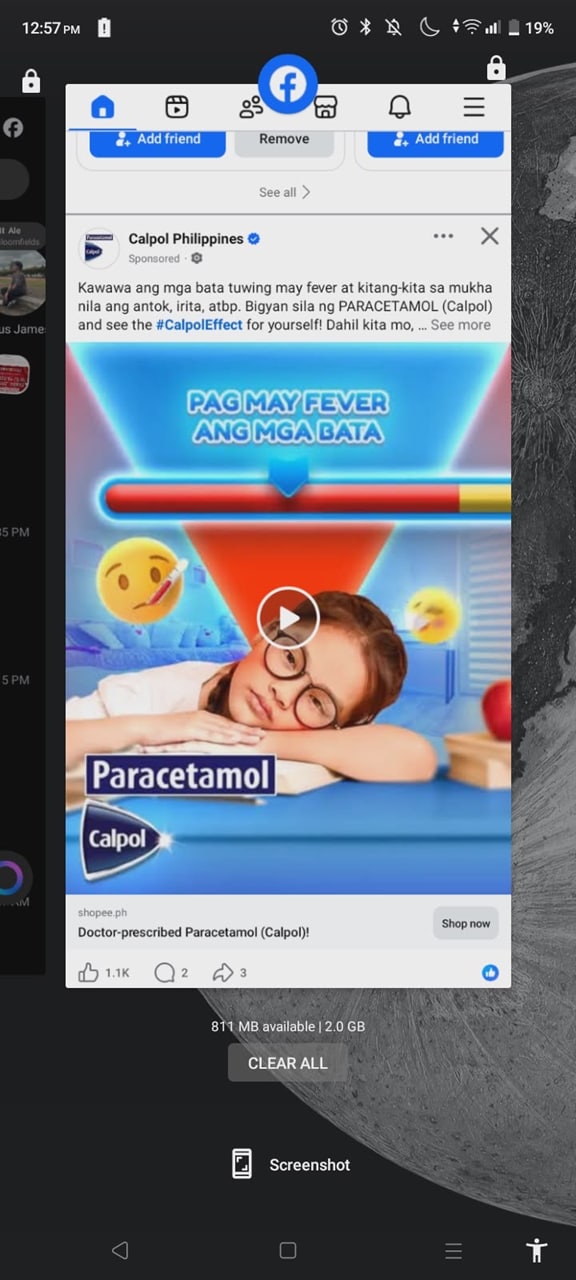
Step 2: Reopen the Facebook app and play a video to check if the issue is resolved.

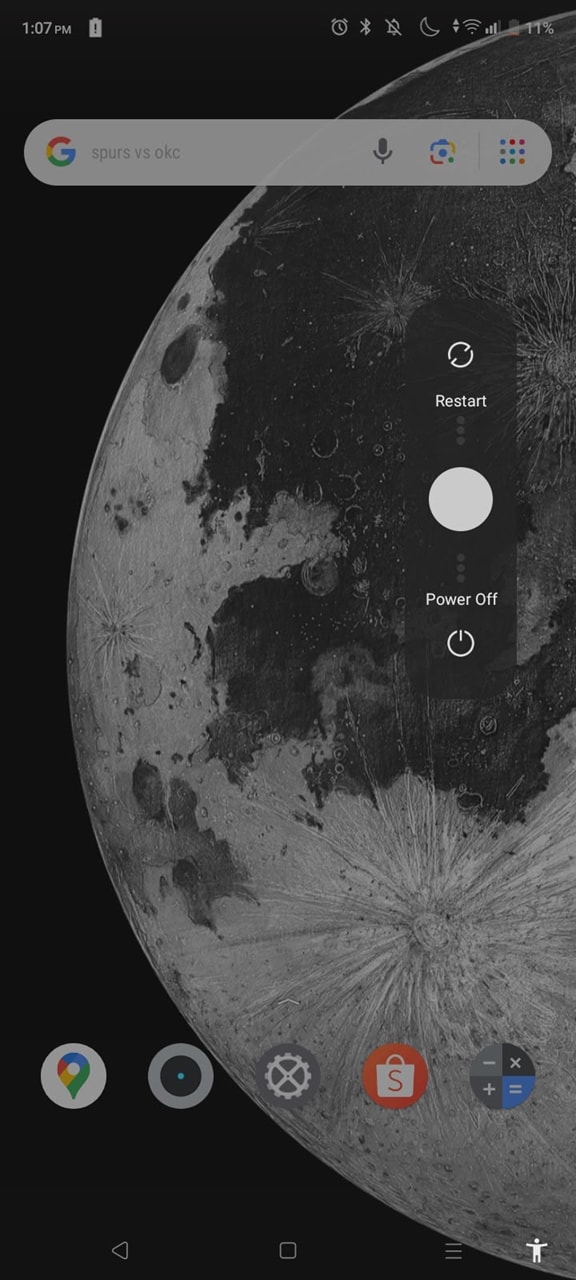
Step 3: If the problem continues, press and hold the Power button. Tap Restart, then open Facebook again after your phone turns back on.
Clear App Cache and Data
Over time, Facebook stores temporary files that can slow things down. Clearing the app’s cache or data removes these files and can make videos play more smoothly.
Step 1: Open Settings on your Android device.
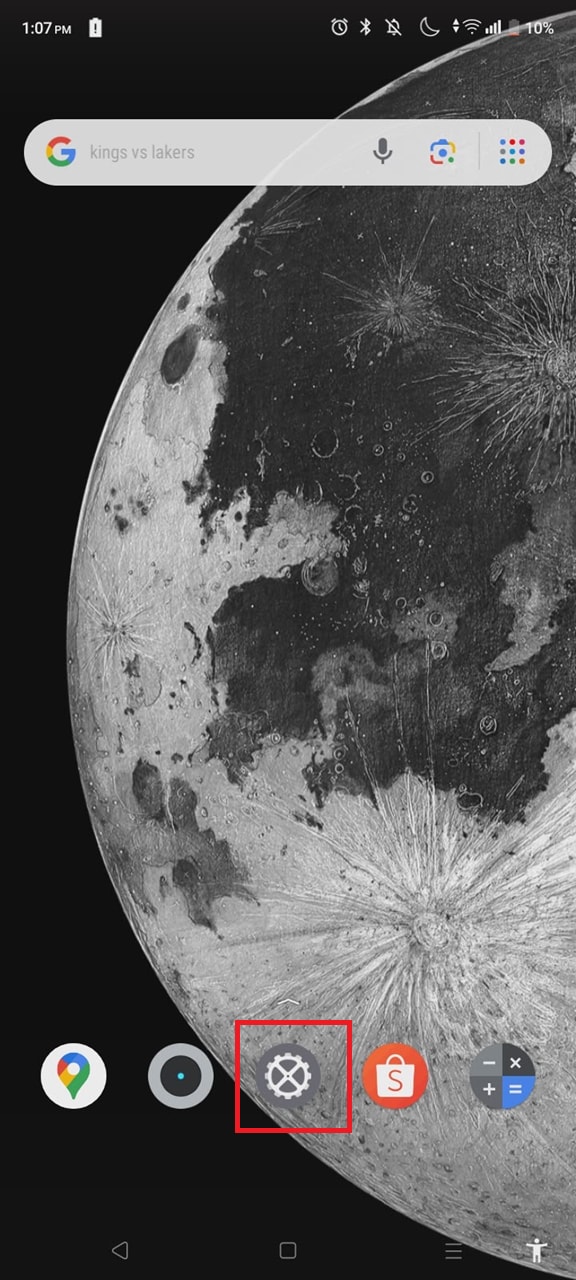
Step 2: Scroll down. Tap Apps or Apps & Notifications.
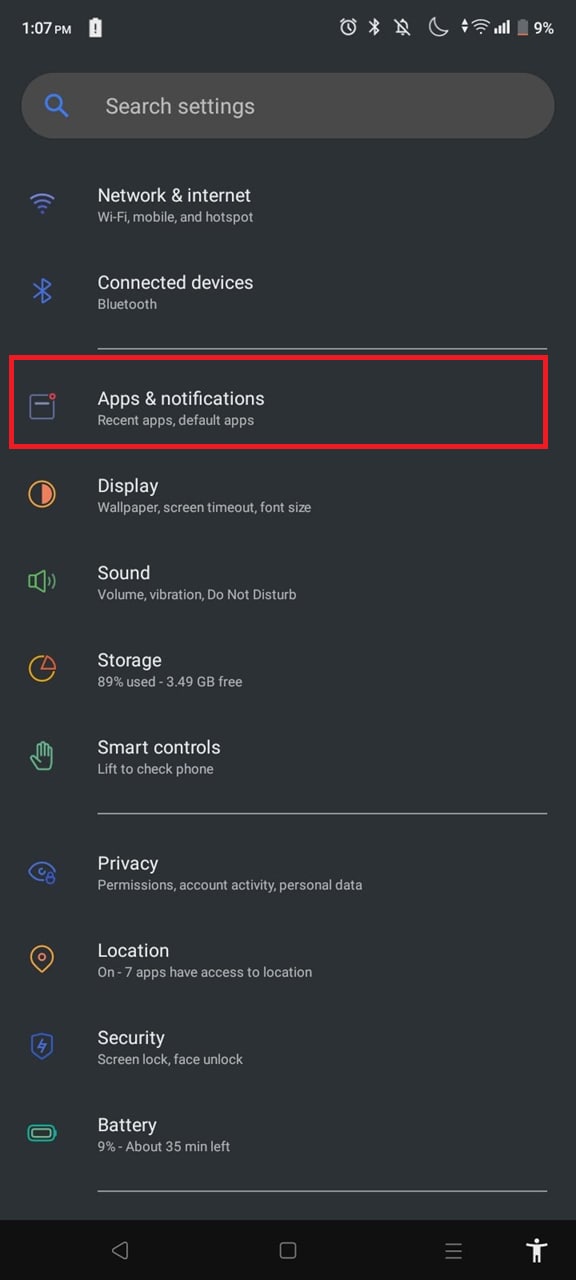
Step 3: Select Facebook. Then, tap Storage.
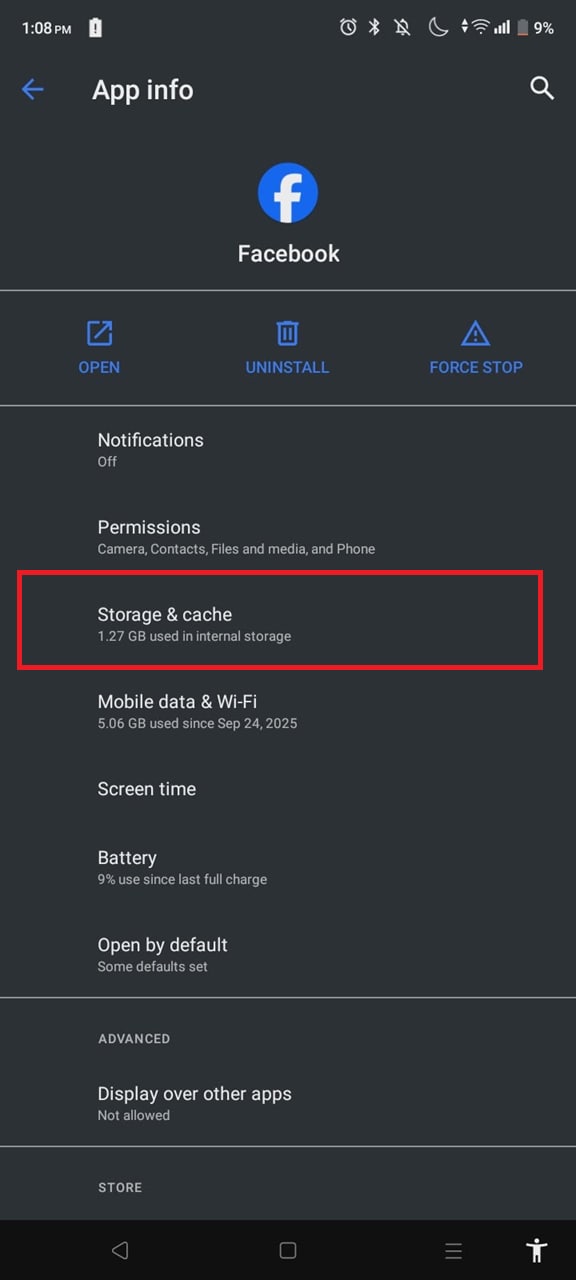
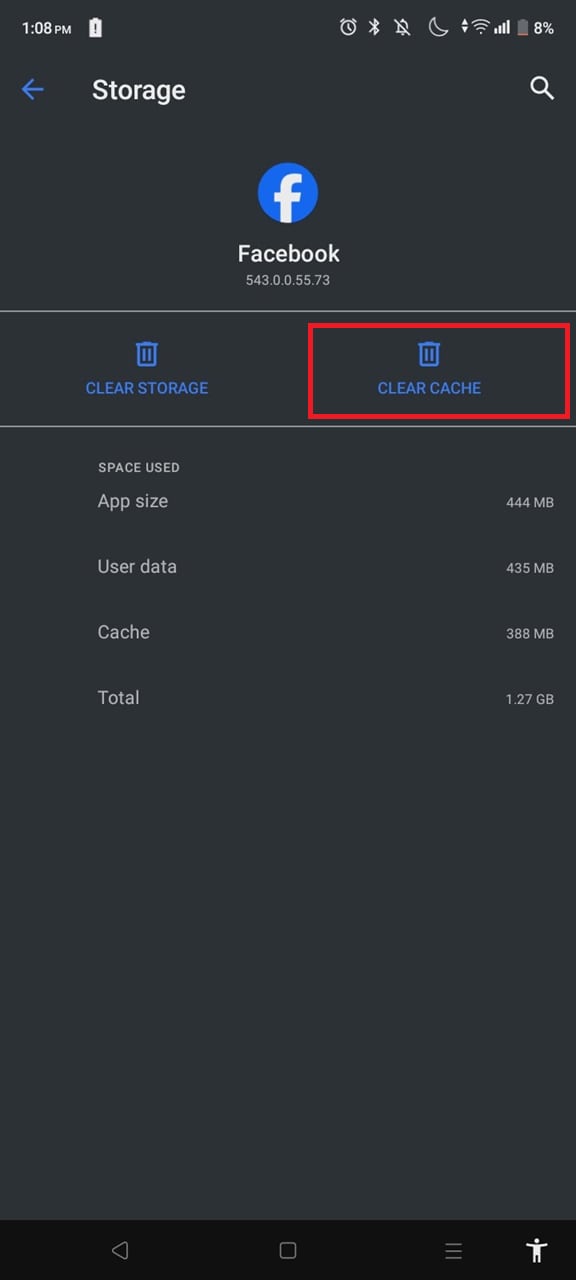
Step 4: Select Clear Cache. Reopen Facebook and log back into your account.
Update the Facebook App
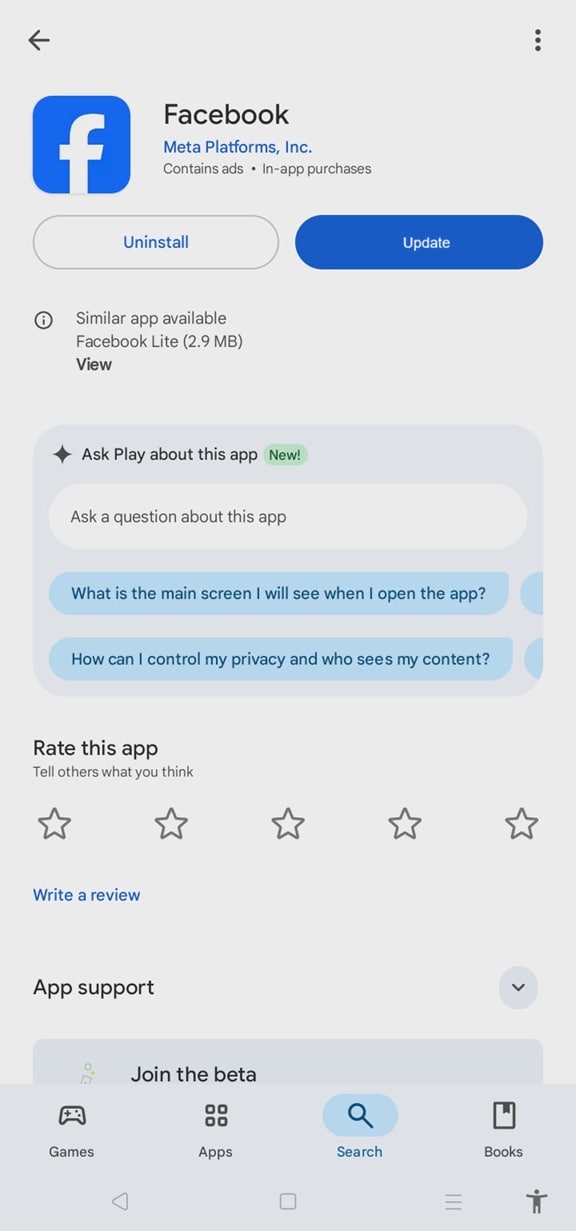
Using an outdated app can lead to bugs and slow performance. Check the Google Play Store for updates and install the latest version. New updates often include fixes for video playback issues.
Step 1: Open the Google Play Store.
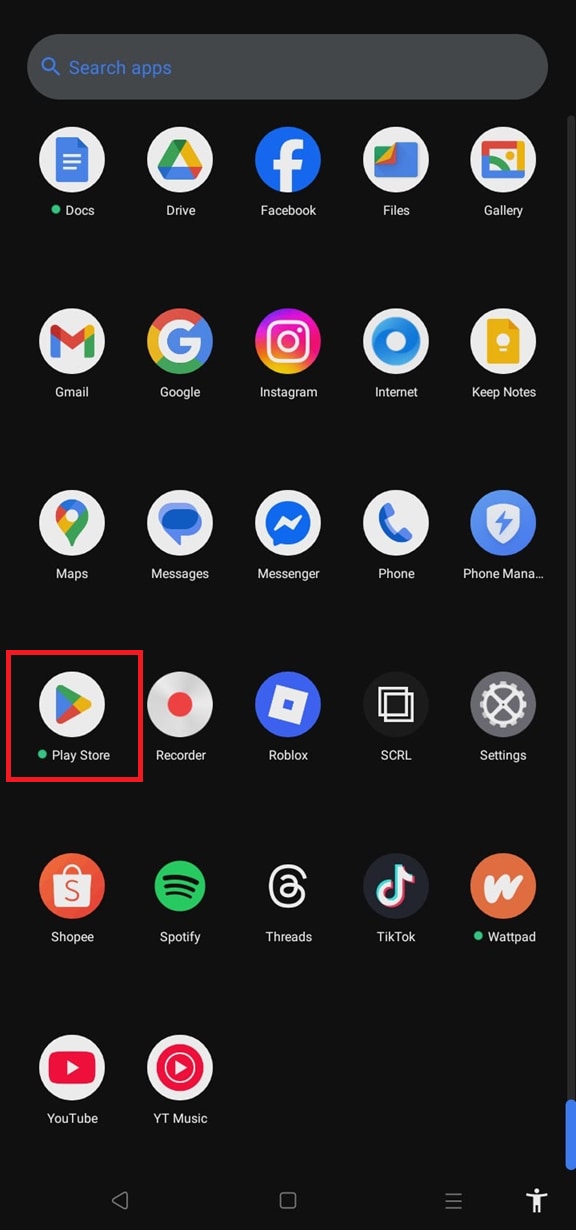
Step 2: Search for Facebook.
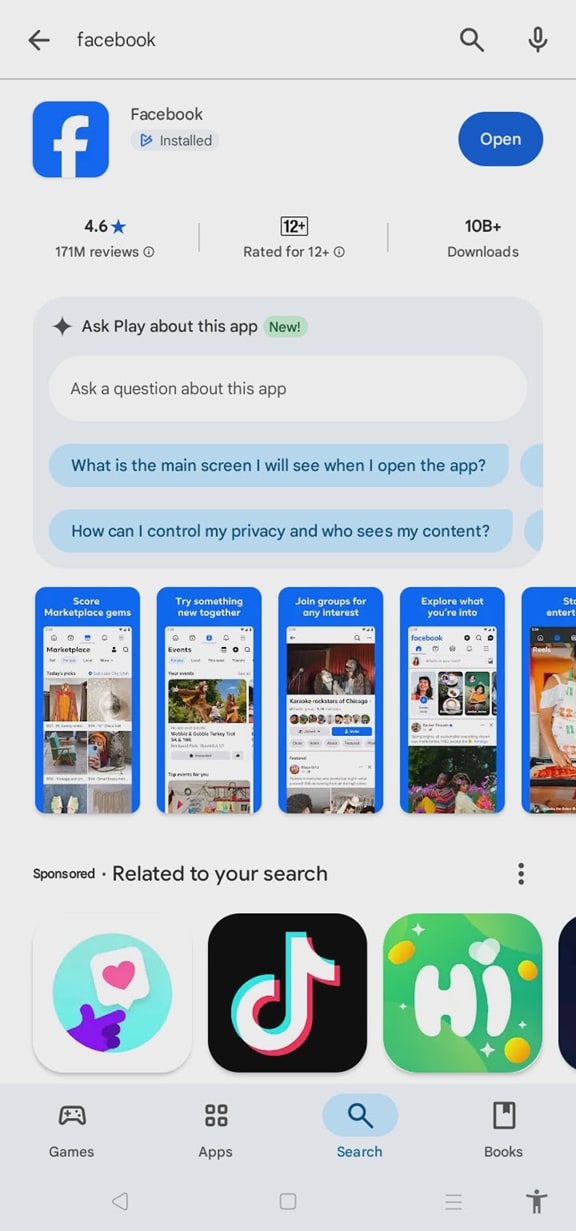
Step 3: If an update is available, tap Update. Wait for the installation to finish. Launch Facebook and test video playback.
Lower Video Playback Quality
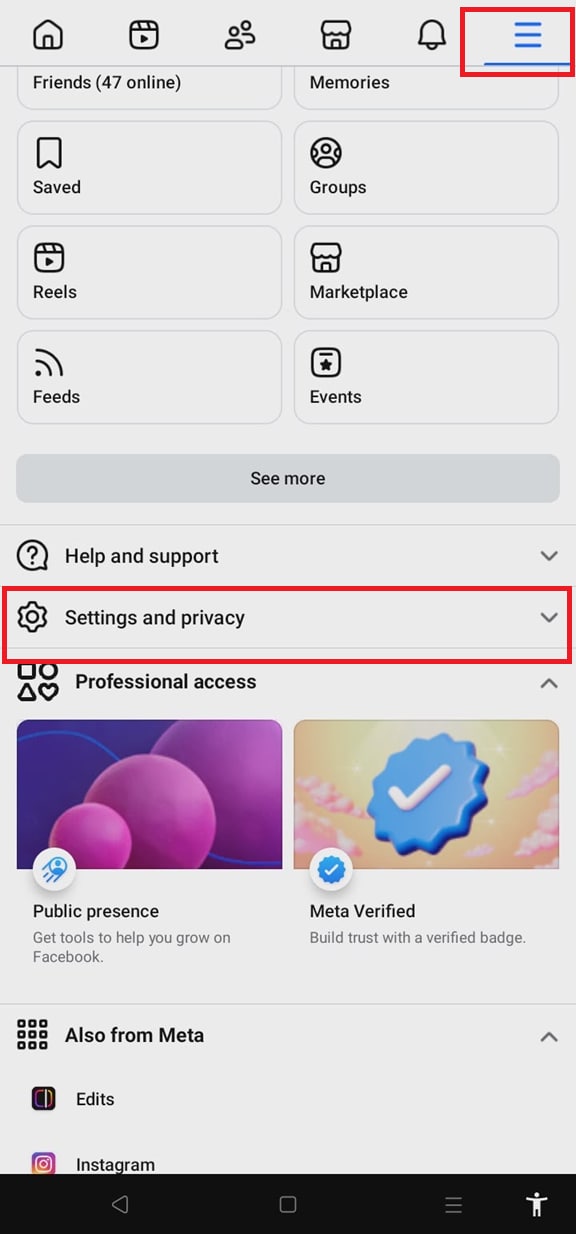
High-quality videos can put a lot of strain on your phone or internet connection, causing buffering. Switching to standard definition or lower quality can make videos load faster and play without interruptions.
Step 1: Open the Facebook app. Tap the Menu icon (three lines). Select Settings and Privacy.
Step 2: Under settings, tap Media.
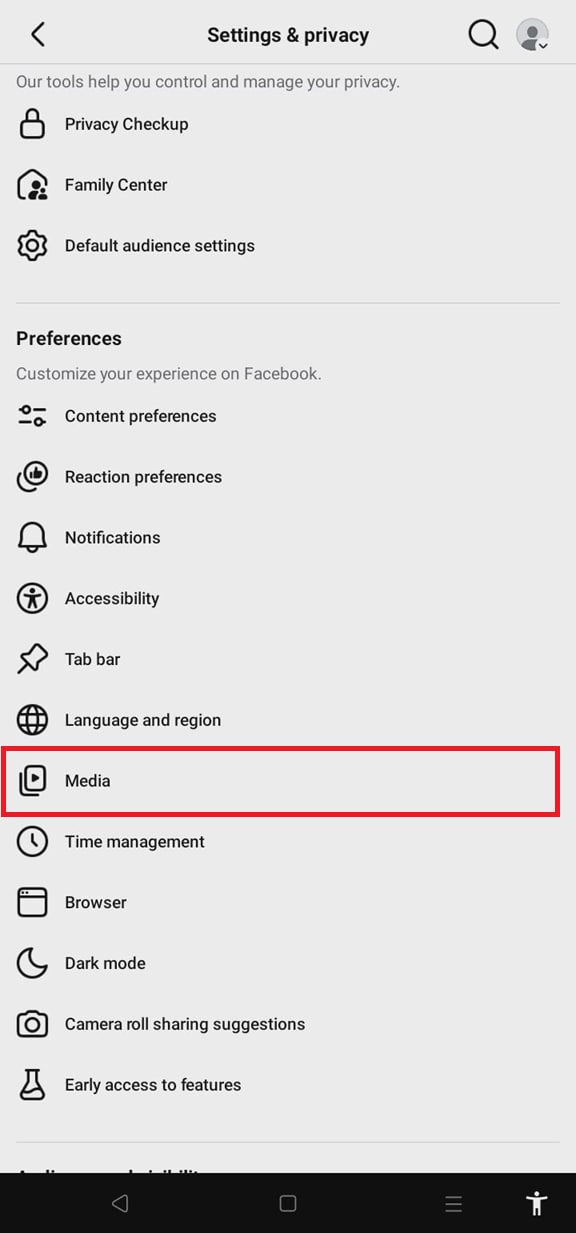
Step 4: Under Video Quality, select Standard Definition (SD) or Data Saver. Return to your feed and try playing a video again.
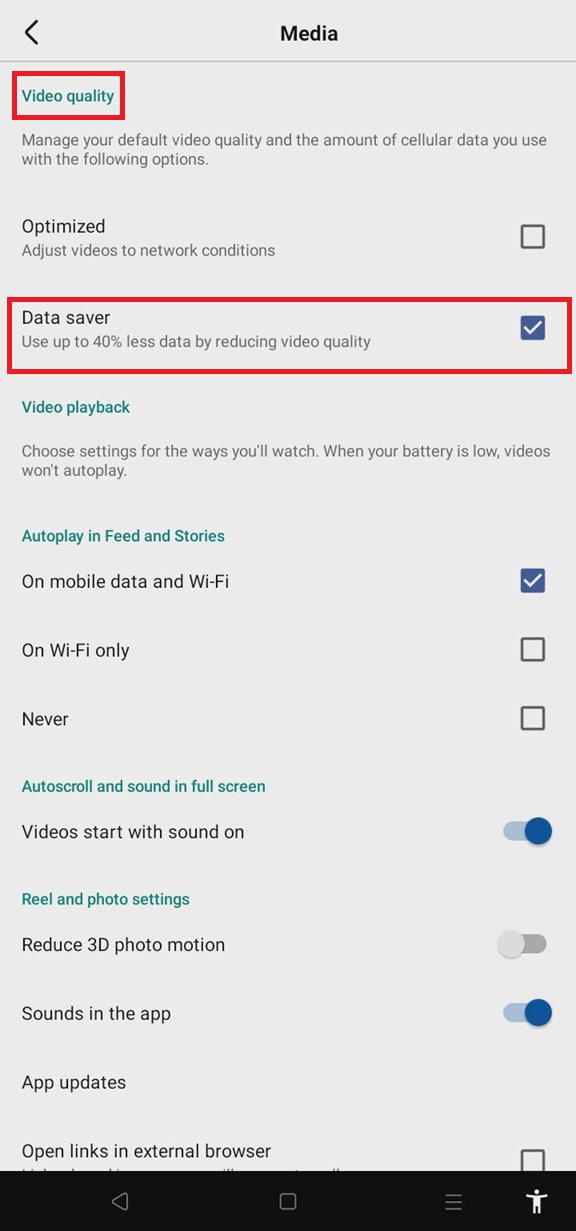
If these quick fixes resolve the issue, you should now be able to watch Facebook videos on Android without lag or buffering. If videos still stutter, the problem may be deeper—such as system resource limits, persistent app conflicts, or (in rarer cases) a corrupted video file you saved/downloaded. The next section explains how to identify corruption and repair it properly.
Part 3: How to Repair Corrupted Facebook Videos on Android Using Wondershare Repairit
Sometimes, Facebook video lagging on Android isn’t caused by your internet or device settings. In some cases, the video file itself may be damaged or corrupted, which can lead to freezing, stuttering, or videos that won’t play at all.
How to Tell If a Facebook Video Is Corrupted
A video is more likely corrupted if:
- It freezes at the same timestamp every time
- It plays without audio, or audio/video is out of sync
- It won’t play in multiple players (Gallery, VLC, PC player)
- The file shows odd behavior after interrupted download/transfer
Repair Facebook Videos Using Wondershare Repairit
Repairit Video Repair is designed to repair corrupted video files and make them playable again. It supports common formats such as MP4, MOV, M4V, MKV, AVI, which are typical for videos saved from social platforms. The desktop application can fix issues like playback errors, header damage, freezing, and audio-video sync problems.

-
Repair damaged videos with all levels of corruption, such as video not playing, video no sound, out-of-sync video or audio, playback errors, header corruption, flickering video, missing video codec, etc.
-
Repair full HD, 4K, and 8K videos and support 20+ popular formats, including MOV, MP4, M2TS, MDT, RSV, WMV, MPEG, DAT, etc.
-
Repair damaged or corrupted videos caused by video compression, system crash, video format change, etc.
-
Repair critically damaged or corrupted RAW/Log/HDR videos from professional cameras such as Blackmagic Design, RED Digital, and ARRI, etc.
-
Repairit has a quick and advanced scanning mode. You can use either depending on the level of corruption the video file has undergone.
-
No limit to the number and size of the repairable videos.
-
Repaired videos are more compatible with professional editing software such as DaVinci, Composer, Final Cut Pro, and Premiere Pro.
-
Support Windows 11/10/8/7/Vista, Windows Server 2003/2008/2012/2016/2019/2022, and macOS 10.12~macOS 15.
Step 1: Open Wondershare Repairit on your computer. From the main screen, click the Start button.

Step 2: After the video is uploaded, click the Repair button to begin the process. Wondershare Repairit will automatically scan the file and fix common issues such as playback errors, freezing, or missing audio. You can monitor the progress directly on the screen.

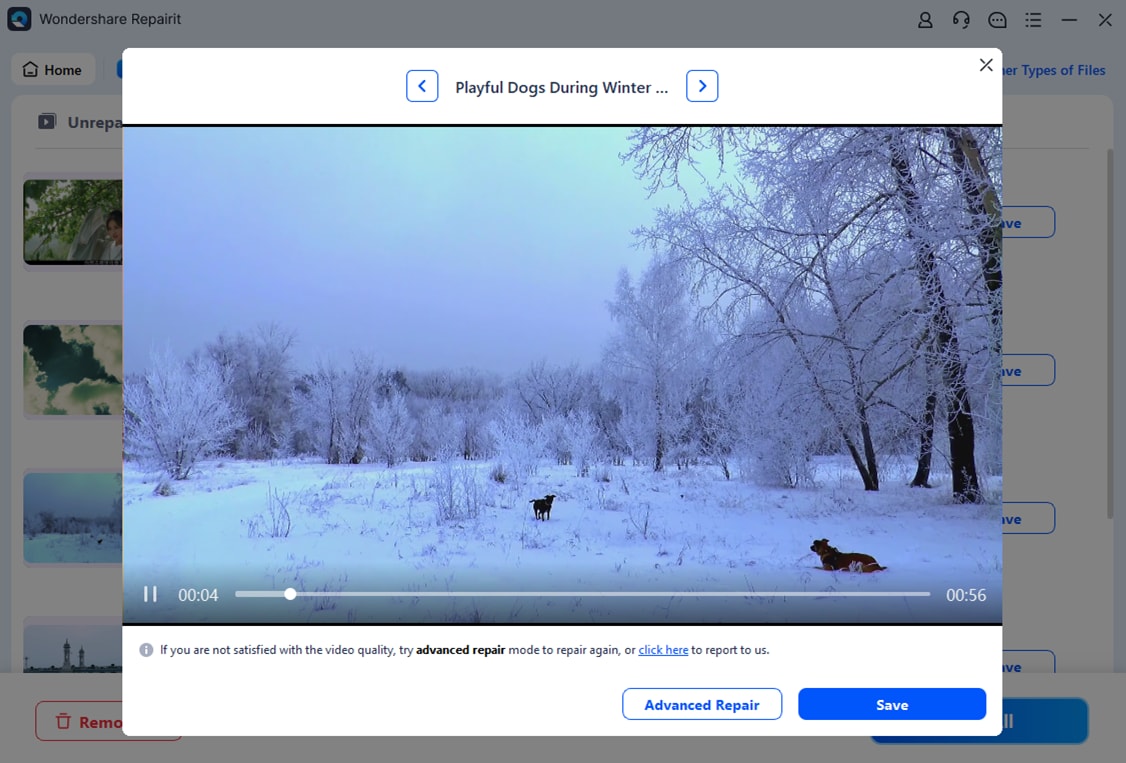
Step 3: Once the repair is complete, preview the video to ensure it plays smoothly without lag. If the result looks good, save the repaired Facebook video to your preferred location on your computer.
Repair Corrupted Facebook Videos on Android
 Security Verified. Over 7,302,189 people have downloaded it.
Part 4: Tips to Prevent Facebook Video Lagging on Android
After fixing Facebook video lagging on Android, a few simple habits can help prevent the issue from coming back. These small changes make a noticeable difference in how smoothly videos play.
- Keep Facebook and Android Updated: App and system updates often fix bugs that cause video problems. Using the latest versions helps Facebook run more smoothly and reduces playback issues.
- Clear Storage and Close Unused Apps: When your phone is low on storage or running too many apps, videos may stutter or freeze. Deleting unused apps, clearing files you no longer need, and closing background apps can improve performance.
- Avoid Heavy Multitasking While Watching Videos: Using demanding apps like games or editors while streaming videos can slow your phone down. Closing these apps before watching Facebook videos helps prevent lag.
- Back Up Important Videos: Videos can become corrupted if the app crashes or a download is interrupted. Saving important videos to Google Drive or your computer ensures you always have a safe copy.
- Use a Reliable Internet Connection: A stable connection is key to smooth video playback. Whenever possible, use strong Wi-Fi or reliable mobile data and avoid switching networks while watching videos.
Following these tips can help keep Facebook videos playing smoothly on Android without constant buffering or freezing.
Conclusion
Facebook video lagging on Android can be frustrating, especially when videos freeze, buffer, or fail to play properly. In many cases, the issue can be resolved by adjusting app settings, updating your device, freeing up storage, or checking your internet connection.
When those steps don’t work, the video file itself may be the problem. Corrupted Facebook videos often won’t play smoothly, no matter what settings you change, and that’s where a tool like Repairit Video Repair becomes useful. Knowing when the issue is file-related can save time and help you get the video working again without unnecessary troubleshooting.
FAQs
-
Why are my Facebook videos lagging on Android?
Most of the time, lag is caused by a weak internet connection, limited storage, or an outdated Facebook app. In some cases, the video itself may be damaged, which can cause freezing or playback errors. -
Can Wondershare Repairit fix any video format from Facebook?
Yes. Wondershare Repairit supports common video formats used by Facebook, including MP4 and MOV. To repair a damaged video, you’ll need to transfer it to a computer and run the repair process using the software. -
How can I prevent Facebook videos from lagging in the future?
Try keeping your app and phone updated, freeing up storage, and closing apps you’re not using. Watching videos on a stable Wi-Fi or strong mobile data connection can also help avoid lag. -
Does clearing Facebook cache delete my data?
No. Clearing the cache only removes temporary files and won’t affect your account or personal content. If you clear app data instead, you may be logged out, so it’s usually best to start with the cache. -
Why do Facebook videos lag on Wi-Fi but not on mobile data?
This often happens when the Wi-Fi network is unstable or congested. Restarting your router, moving closer to it, or switching to a different network usually helps.




