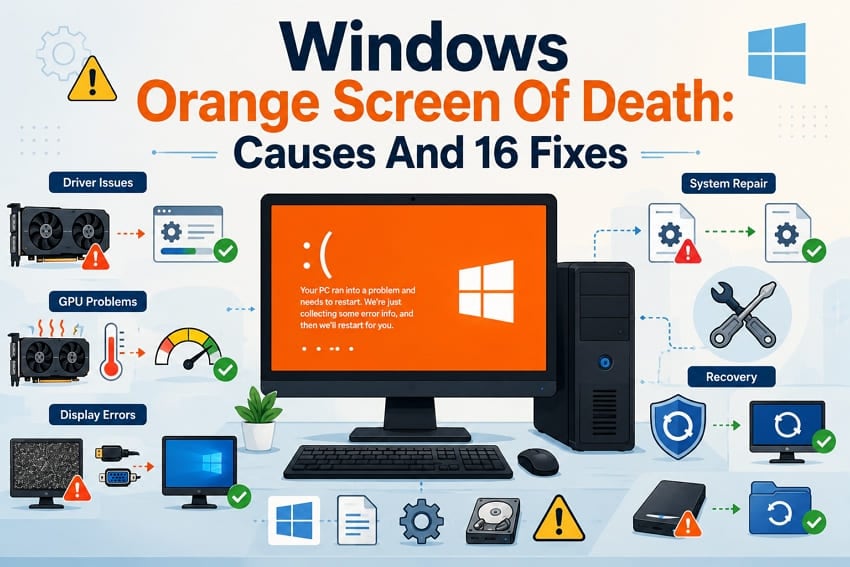
An orange screen can suddenly interrupt work and leave your computer completely unusable without warning. Many users mistake this problem for a Windows error, creating unnecessary confusion during troubleshooting efforts.
The Windows Orange Screen of Death is a symptom with several possible underlying causes. Display settings, graphics drivers, damaged hardware, and system faults can all trigger this issue. This guide explains every common cause, shares proven fixes in the correct order, and shows how Repairit can restore videos damaged by an unexpected orange screen crash.
In this article
Part 1. What Is the Windows Orange Screen of Death?
Understanding Windows 10 Orange Screen of Death helps identify the actual problem. This section explains three important differences before trying any troubleshooting method safely:
Is the Orange Screen of Death an Official Windows Error?
No, Microsoft never recognizes the Orange Screen of Death as an official Windows error. Microsoft describes bug checks as blue or green screens, never official orange screens.
Orange Screen Error vs Orange Display Tint
An orange display tint keeps everything readable while Windows runs normally, unaffected otherwise. However, a genuine crash freezes the computer or forces a restart instead.
When an Orange Screen Indicates Hardware Failure
Vertical lines or flickering inside BIOS usually point to graphics hardware instead of Windows. Problems appearing before Windows loads cannot result from Windows settings or software alone. Orange screens during gaming with high temperatures often indicate graphics hardware problems instead.
Part 2. Which Orange Screen Problem Are You Experiencing?
Matching your Windows Orange Screen of Death symptom helps identify the problem. Below are the 6 most common situations causing this problem before troubleshooting begins:
- Orange Screen During Startup or Automatic Restart: Windows fails during the boot sequence, often looping into recovery.
- Orange Screen After Signing In or Updating Windows: After the desktop appears, the display changes shortly afterward without warning.
- Orange Screen While Gaming with Lines or a Frozen Cursor: The fault arrives under load and brings artifacts with it.
- Orange Screen on an External Monitor Only: The primary panel stays correct while the second display does not.
- Entire Display Has an Orange Tint: Everything stays usable, and only the color balance is wrong.
- Orange Screen Appears Before Windows Loads: Even the manufacturer logo or BIOS screen appears already affected before Windows loads.
Now, let us compare common situations in the table below before troubleshooting begins:
| Situation | Likely Problem | First Check |
| During Startup or Restart | Corrupted driver or system files | Boot into Safe Mode |
| After Signing In or Updating | Windows update or graphics driver conflict | Uninstall the latest update or driver |
| While Gaming with Lines | GPU overheating or unstable hardware | Check GPU temperature |
| External Monitor Only | Faulty cable, port, or display output | Try another cable or port |
| Whole Display Tinted | Night Light, Color Filters, or color profile | Turn off Night Light |
| Before Windows Loads | GPU, display panel, or firmware fault | Test another monitor or display |
Part 3. What Causes a Windows Orange Screen?
Understanding why my screen is orange starts with identifying the real cause. The 6 reasons below explain each common cause and its typical symptoms:
- Corrupted Graphics Drivers or Windows Update Conflicts: A failed installation and an update that replaced a working driver with an incompatible build.
- Night Light, Color Filters, HDR, or Incorrect Color Profiles: Display settings stay enabled, leaving the screen with a warm orange color permanently.
- Loose Display Cables, Faulty Ports, or Monitor Problems: Damaged cables prevent proper signals, causing incorrect colors across the display screen.
- GPU Overheating, Hardware Failure, or Unstable Overclocking: High temperatures create display artifacts that become worse during demanding computer tasks.
- Corrupted System Files or Conflicting Software: Damaged files prevent Windows from displaying the desktop correctly during normal operation.
- RAM, Drive, BIOS, or Power Problems: Hardware problems can cause display issues before the computer completely stops working.
Part 4. How to Fix the Windows Orange Screen of Death
Fixing the Windows Orange Screen of Death starts with the safest solutions first. Follow each fix carefully until the display works normally again without errors.
Fix 1. Restart the Computer and Disconnect External Devices
Restarting often fixes temporary display problems without making any permanent system changes first. Here is how to restart and fix the Windows Orange Screen of Death:
Instructions. Restart your PC using Start > Restart. Disconnect the extra hardware like USB and adapters, and check whether the orange screen disappears.
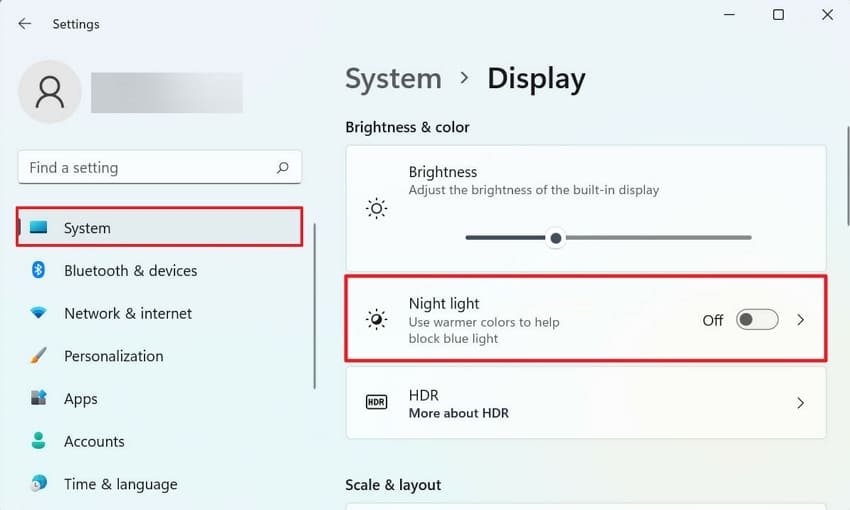
Fix 2. Disable Night Light and Color Filters
Warm display colors often come from Windows display settings instead of hardware problems. Microsoft notes that Night Light and Color Filters are separate features that can both affect display color. Use the steps below to disable these settings.
Step 1. Open Settings > System > Display > Night light > turn it off.
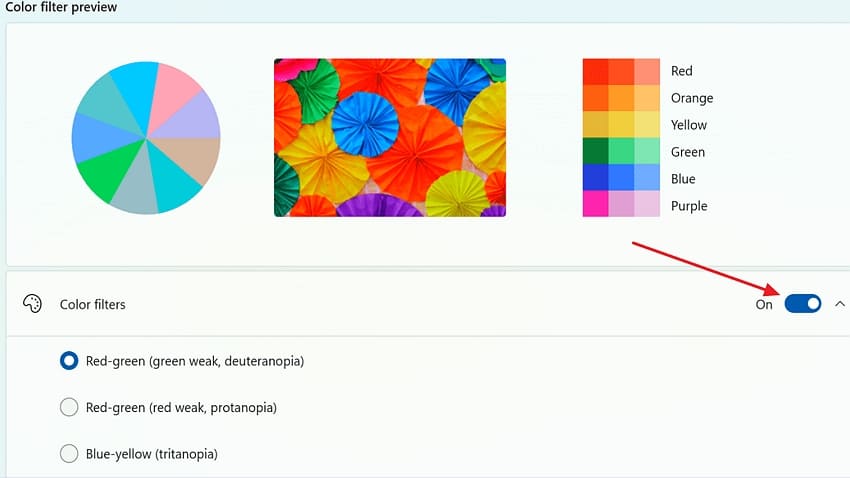
Step 2. In Settings, open Accessibility > Color filters > disable this option.
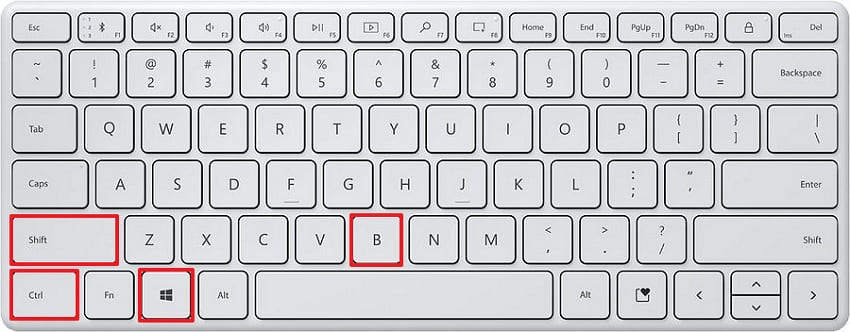
Fix 3. Reset the Graphics Driver
Windows can restart the graphics driver without restarting the entire computer or closing applications automatically. Press Win + Ctrl + Shift + B to reload the graphics driver. If the Windows 10 Orange Screen of Death remains afterward, the problem likely has another underlying cause instead.
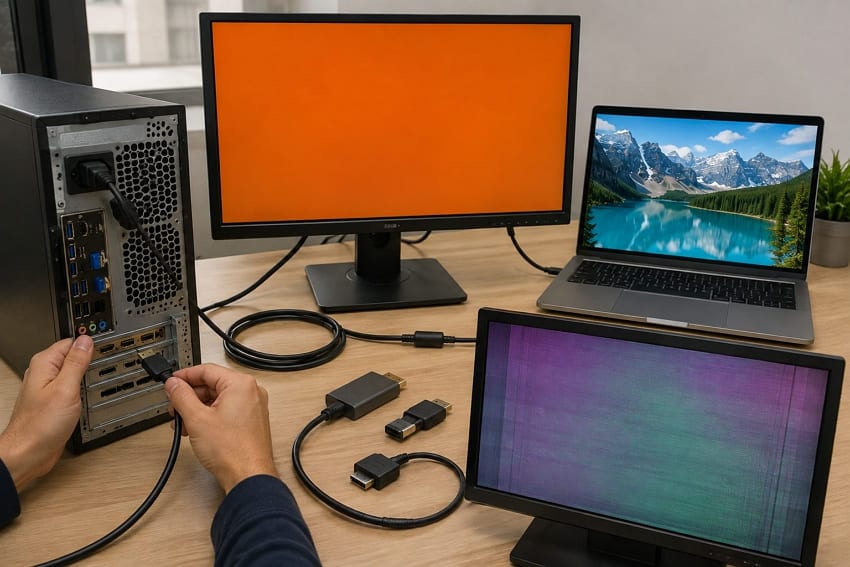
Fix 4. Check the Monitor, Cable, Port, and Display Adapter
Loose cables or damaged ports often cause incorrect colors by interrupting display signals between devices. Try another cable, display port, or monitor to identify the faulty hardware component easily. A normal external display usually means the laptop screen itself is causing the problem instead.
Fix 5. Check HDR, Color Profile, Resolution, and Refresh Rate Settings
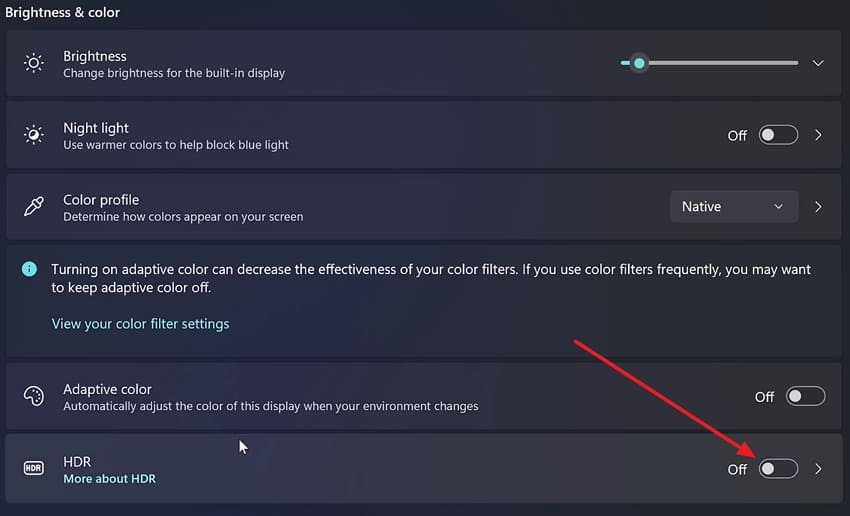
Incorrect display settings are often the answer to why my screen is orange instead of hardware problems. Microsoft says a grayed Night Light toggle usually means the display driver needs updating. Follow the settings below:
Step 1. Open Settings > System > Display > HDR > turn it off.
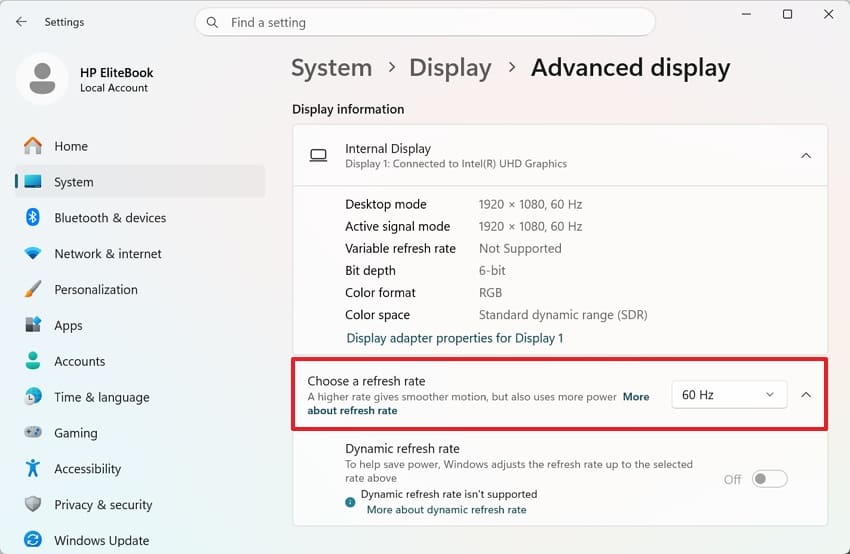
Step 2. In Display Settings, press Advanced Display > Choose a Refresh Rate. If you recently changed your monitor's color profile, open Color Management > restore the default profile.
Fix 6. Boot Windows into Safe Mode
Safe Mode starts Windows using only essential drivers and basic system services for testing. Normal colors usually indicate software issues instead of failing display hardware components during startup. Try the method below for diagnosis.
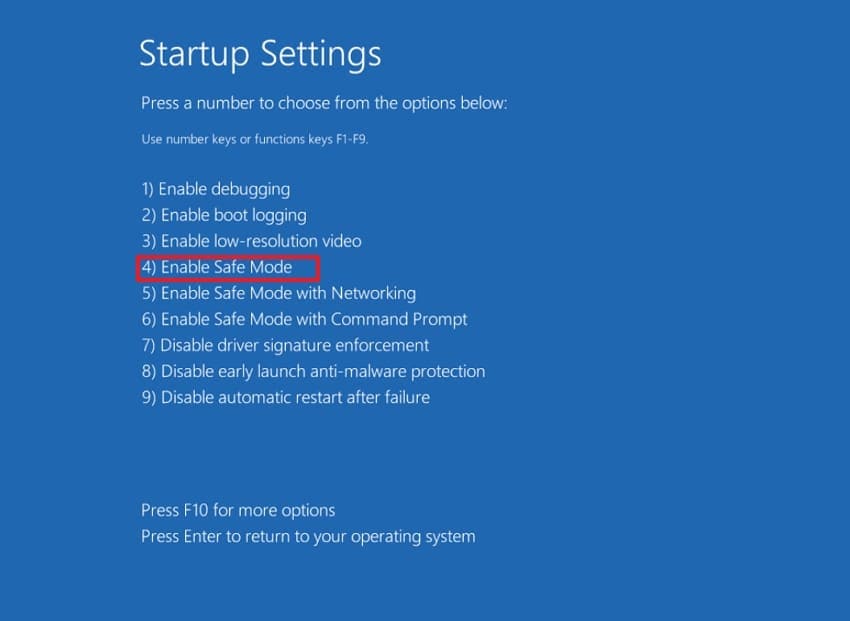
Step 1. Hold Shift while selecting Restart. Select Troubleshoot > Advanced Options > Startup Settings > Restart.
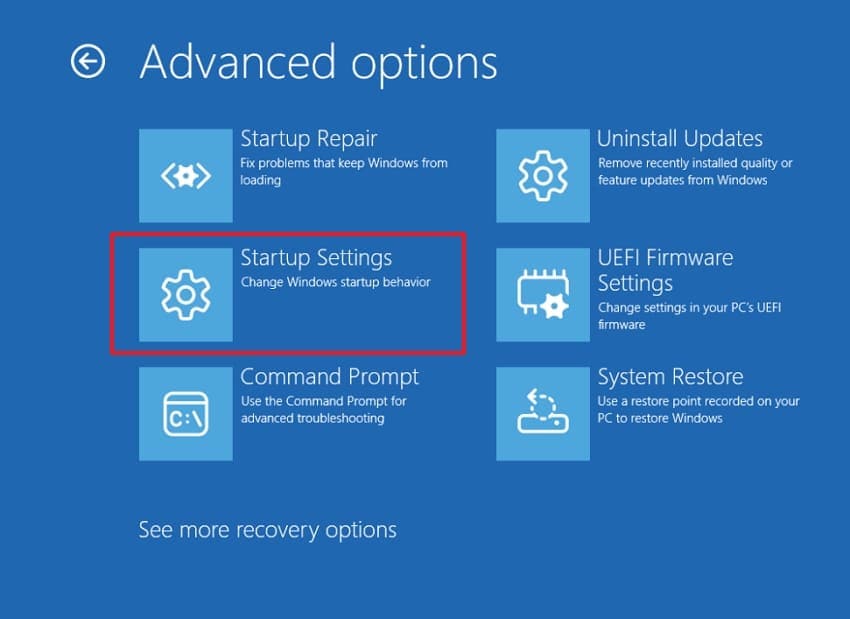
Step 2. Press 4 or F4 and choose Enable Safe Mode.
Fix 7. Update, Roll Back, or Reinstall the Graphics Driver
Graphics driver problems commonly appear after updates, causing display errors and system instability. Choosing the correct driver action depends on when the orange screen first appeared recently. Follow the method below after accessing your computer in Safe Mode:
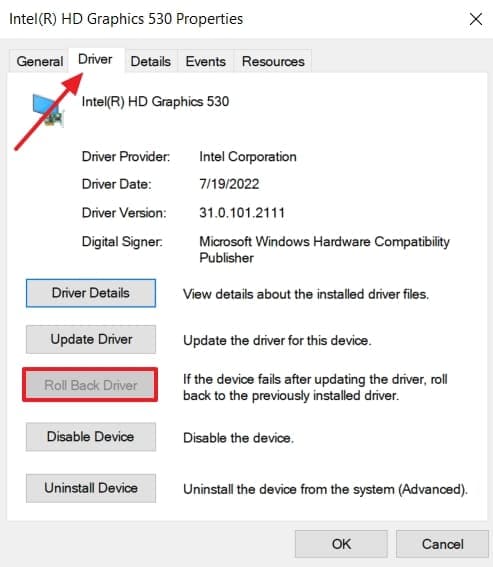
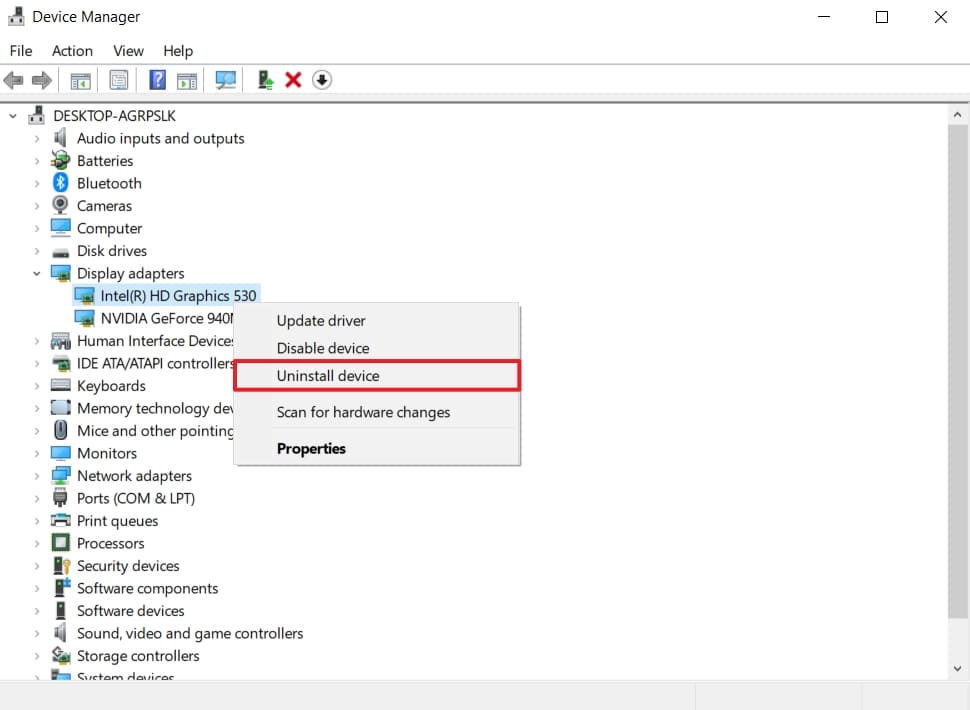
Step 1. In Device Manager, expand Display Adapters > right-click your GPU > choose Update Driver. If the problem started after a recent update, press Properties > Driver > Roll Back Driver instead.
Step 2. Otherwise, choose Uninstall Device and restart Windows to automatically reinstall the driver.
Fix 8. Disable Game Overlays and Reset GPU Overclocking
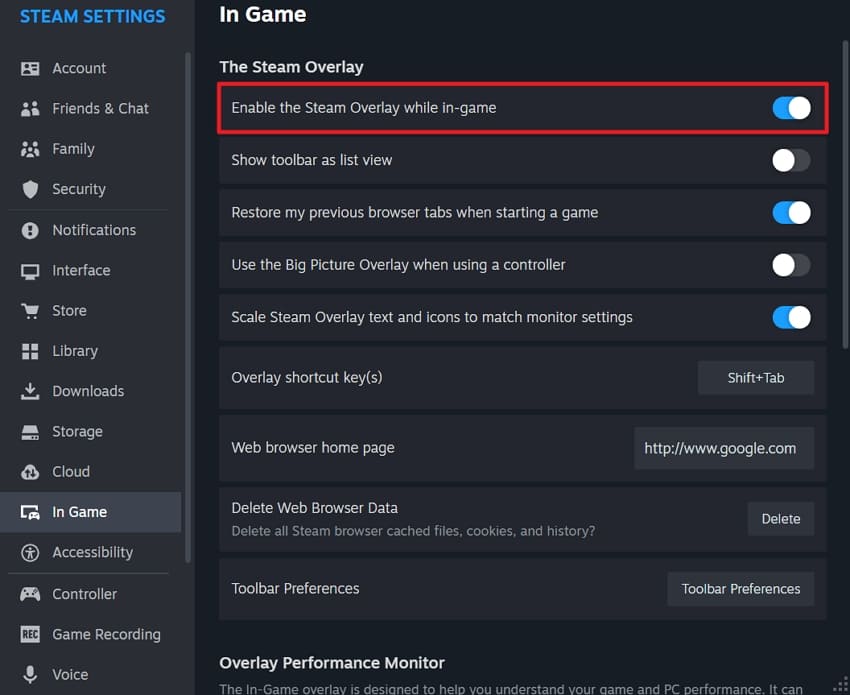
Game overlays from apps like Steam can sometimes cause display problems during gameplay unexpectedly. Disable Steam overlays through Settings > In Game > turn off Enable Steam Overlay. Reset any GPU overclock using your graphics tuning software before testing the game again. Check whether the orange screen appears again after restarting the affected game completely.
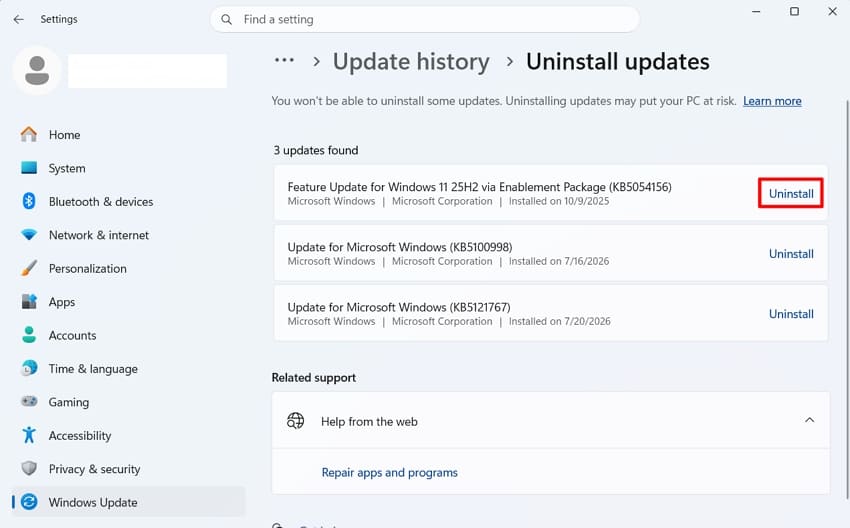
Fix 9. Uninstall a Recent Windows Update or Conflicting Software
Recent Windows updates sometimes introduce display problems that trigger unexpected orange screen issues afterward. To remove recent updates, follow the simple instructions below:
Instructions. In Windows Update, press Update History > Uninstall Updates. Select the update installed around the time the problem began > press Uninstall. Pause updates for a week so the same build does not reinstall immediately.
Fix 10. Perform a Clean Boot
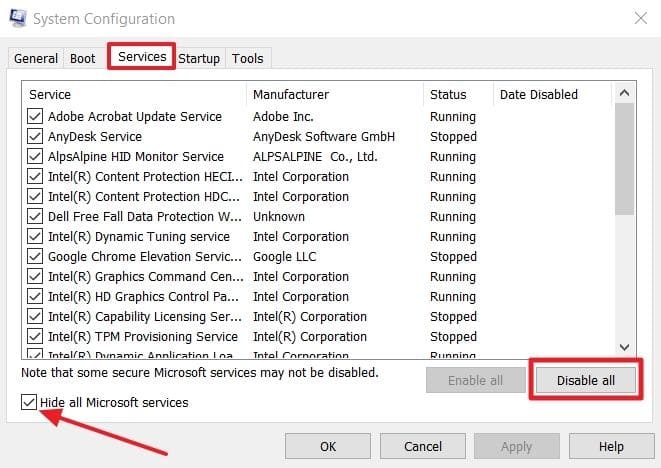
A clean boot helps identify software causing Windows Orange Screen of Death during startup problems. Windows starts with essential Microsoft services while disabling other startup programs for testing purposes. Complete the process using the steps below:
Step 1. First, run msconfig > choose Services > check Hide all Microsoft Services. Next, press Disable All.
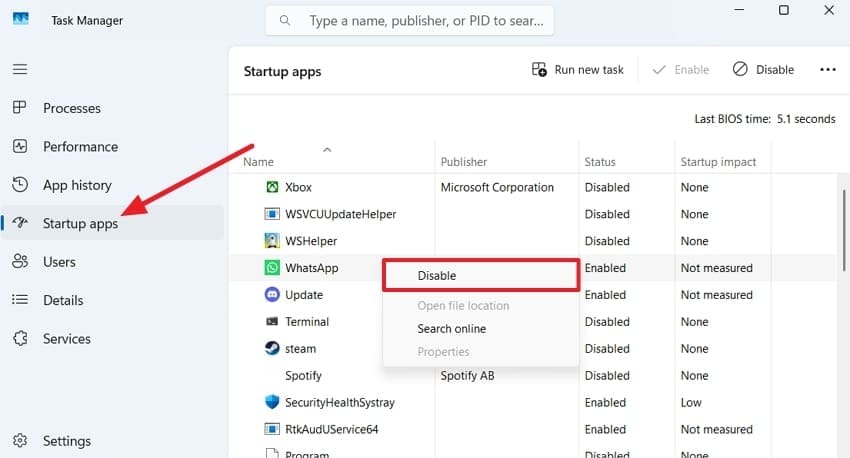
Step 2. Open the Startup tab > select Open Task Manager > disable unnecessary startup apps one by one > restart your computer to identify the problematic app or service.
Fix 11. Run DISM and System File Checker
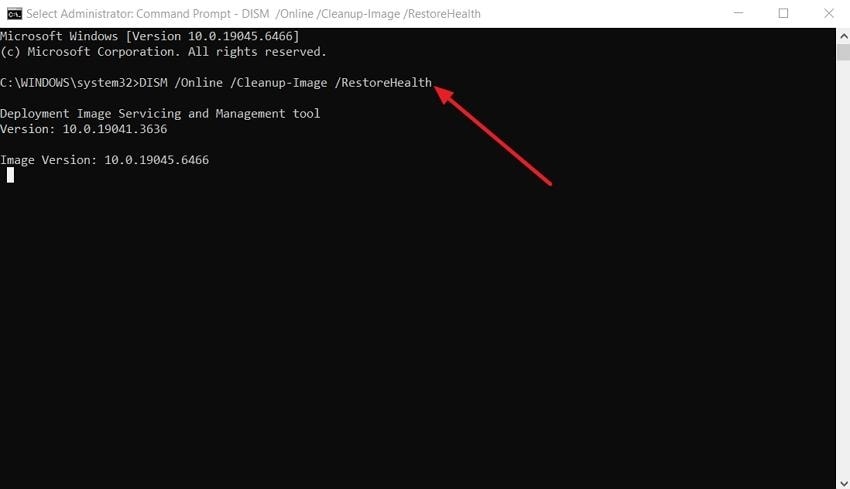
Corrupted Windows files can cause display problems even when graphics drivers work correctly normally. Microsoft also recommends running DISM before System File Checker to repair corrupted Windows files properly. Run both tools in sequence using the instructions below:
For DISM
Instructions. Run CMD as Administrator > type DISM /Online /Cleanup-Image /RestoreHealth > press Enter.
For SFC
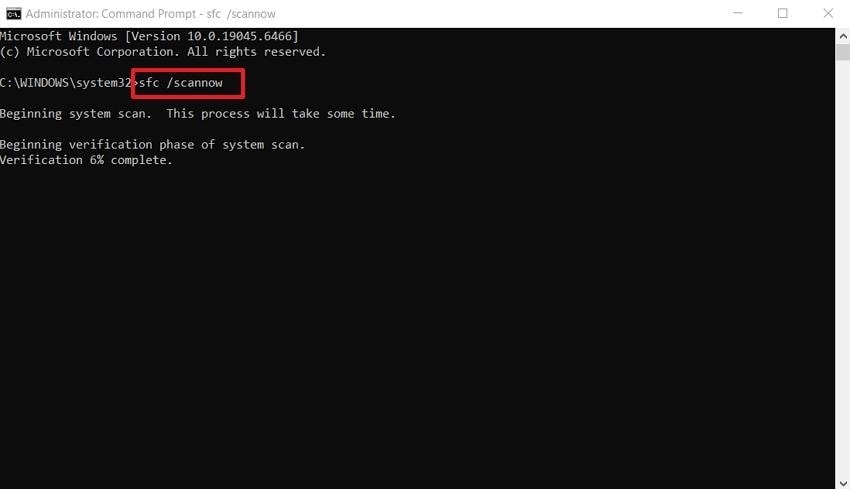
Instructions. Enter the sfc /scannow command in the same window > restart PC when it completes.
Fix 12. Check the System Drive and Test the RAM
Storage and memory problems can sometimes cause Windows 10 Orange Screen of Death issues without obvious warning signs appearing first. Follow the instructions below to test both components.
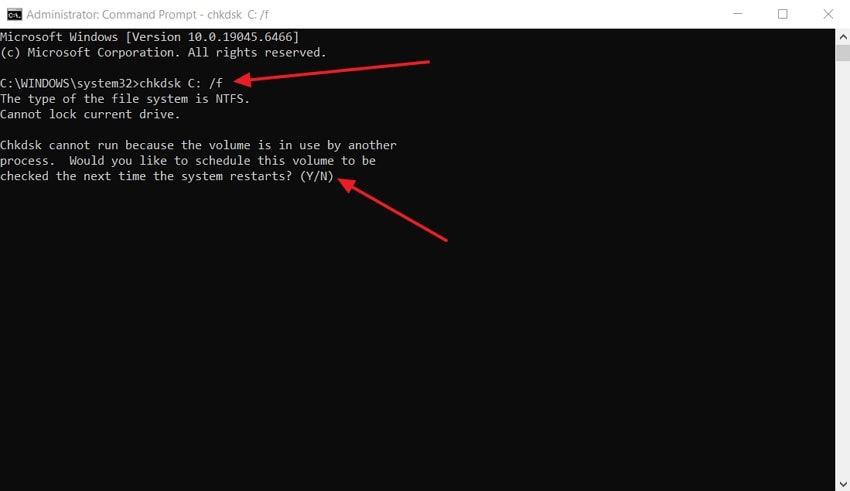
Step 1. In CMD, run chkdsk C: /f > type Y if Windows asks > restart your PC.
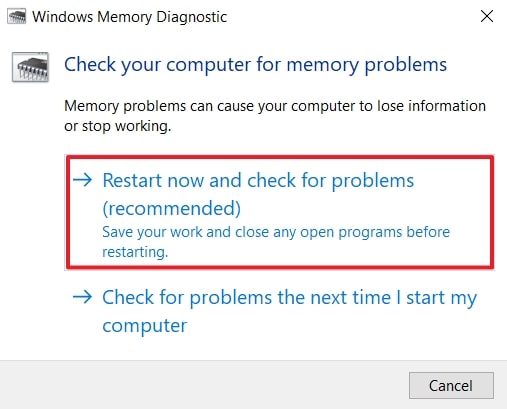
Step 2. Then, press Windows + R > enter mdsched.exe > Enter > click Restart now and check for problems (recommended).
Fix 13. Check GPU Temperatures and Hardware Health
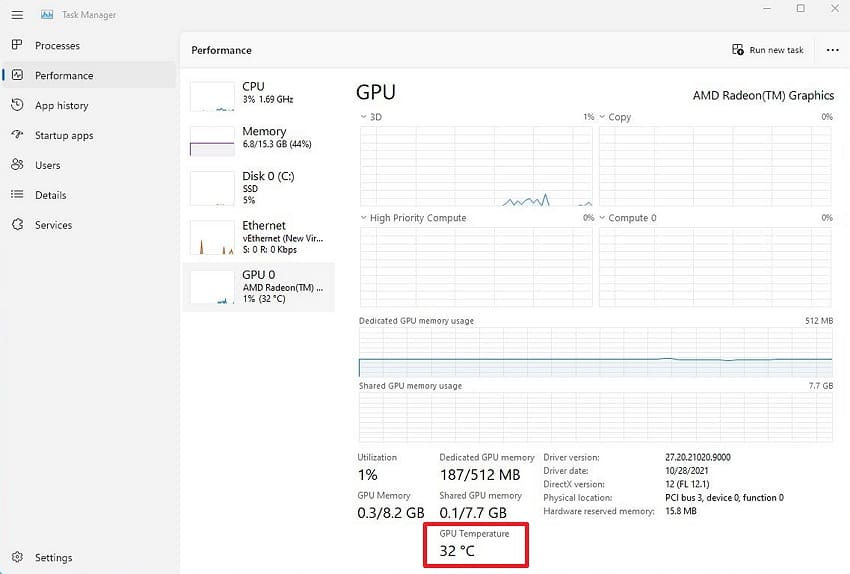
High GPU temperatures can cause display problems during demanding tasks like gaming or editing frequently. Checking GPU temperatures helps identify overheating before assuming permanent graphics hardware damage exists. Monitor temperatures using the instructions below carefully:
Fix 14. Update BIOS, Firmware, and Chipset Drivers
BIOS updates can fix graphics initialization problems appearing before Windows starts loading properly. Follow the official update steps below and fix Orange Screen of Death:
Step 1. In Run, type msinfo32 > press Enter. Note your System Model and BIOS Version/Date.
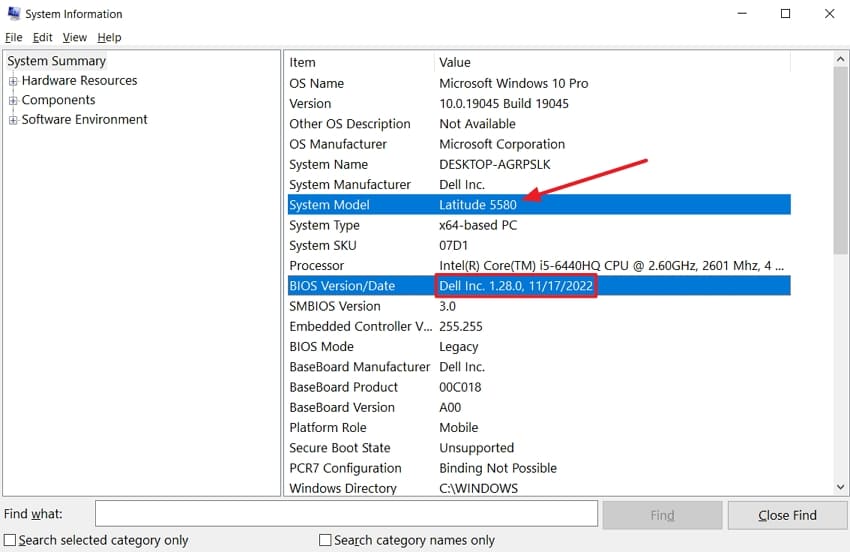
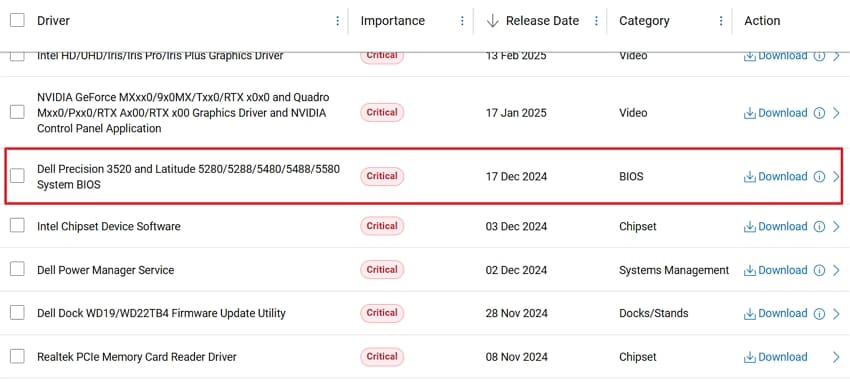
Step 2. Visit your computer manufacturer's support website > download the latest BIOS update > install and restart the PC. After updating the BIOS, download and install the latest chipset drivers from the same manufacturer support page, then restart the computer.
Fix 15. Run Startup Repair or Perform System Restore
Startup Repair and System Restore help when Windows cannot start normally after display problems. Use the recovery options from Windows Recovery Environment below to let Windows operate normally:
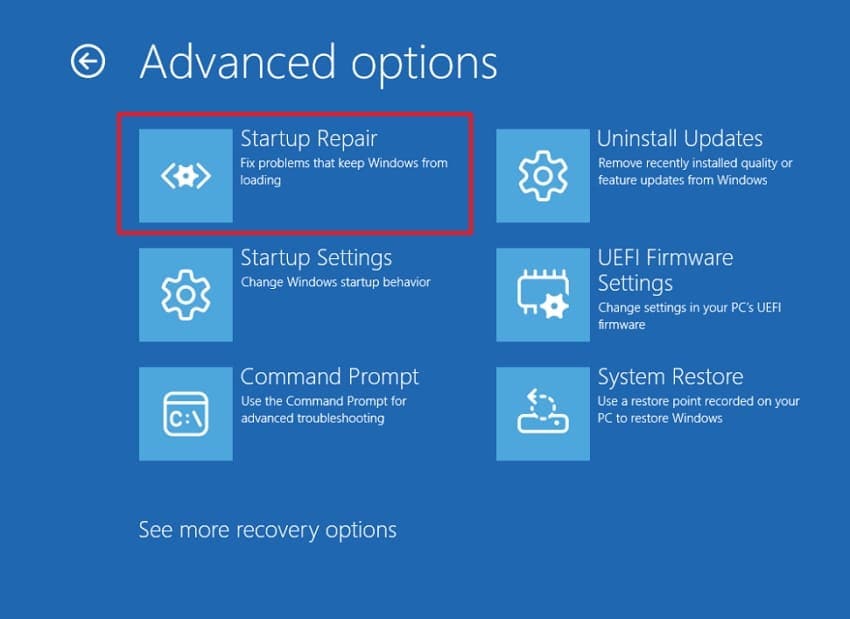
For Startup Repair
Instructions. In WinRE, choose Troubleshoot > Advanced Options > Startup Repair. Let the repair finish, then restart and check the screen.
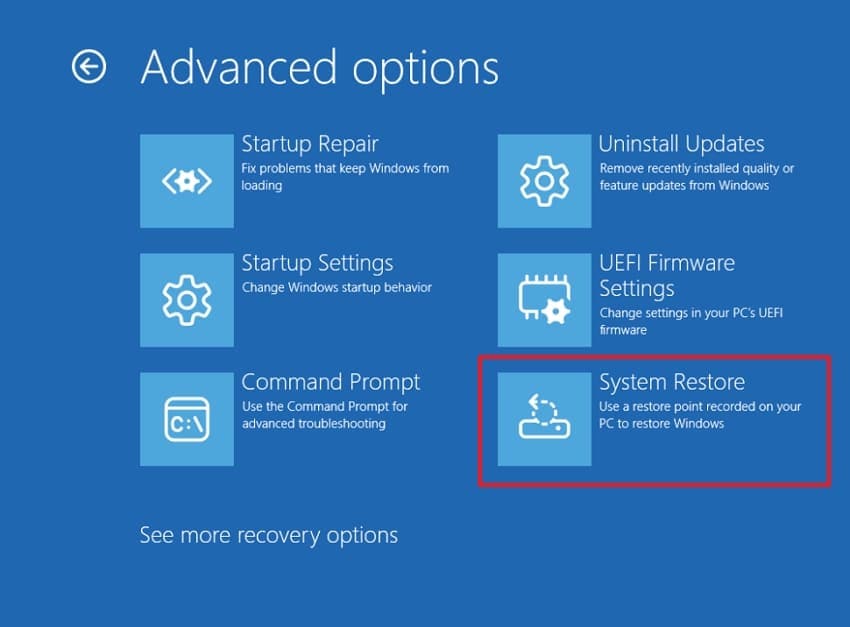
For System Restore
Instructions. In WinRE, choose Troubleshoot > Advanced Options > System Restore > select a restore point and follow the on-screen instructions to complete the restoration.
Fix 16. Reset or Reinstall Windows
Use this final option only after every Windows 10 Orange Screen of Death fix has failed. If you want to reinstall Windows, see the simple instructions below.
Instructions. In WinRE, choose Troubleshoot > Reset this PC > select Keep My Files to keep files safe while resetting.

Part 5. Repair Videos Corrupted by an Orange Screen Crash
Fixing the display cannot automatically recover videos damaged during an unexpected system crash afterward. Corrupted recordings, exports, and downloads often need separate repair before working properly again.
Symptoms That a Video File Is Corrupted
- Video Won't Open: The file no longer opens even though it worked correctly before the crash.
- Video Freezes: Playback starts normally but freezes where the recording stopped during the crash.
- Missing Audio: The video plays normally, but no sound is heard during playback at all.
- Wrong Video Length: The file shows an incorrect duration after the recording stopped unexpectedly during the crash.
- Import Failure: Video editing software refuses the file even though media players partially open it.
Repair Corrupted Videos with Repairit

Repairit Video Repair Tool
Repair videos corrupted by orange screen crashes, interrupted recordings, exports, or downloads.
-
Interrupted recording recovery. Rebuild clips cut short when a crash stopped the write mid-file.
-
Screen and game capture support. Repair recordings from capture software and in-game recorders.
-
Preview before saving. Check repaired videos before exporting copies.
A system crash can damage videos even after fixing the orange screen problem completely later. Repairit's Video Repair recovers corrupted videos and restores them to a playable, editable, and shareable state. It supports MP4, MOV, AVI, MTS, M2TS, 3GP, and many widely used video formats from a broad range of recording devices. Advanced Repair rebuilds severely damaged videos by using a healthy sample file recorded with the same device and settings.
The software supports videos from cameras, drones, dashcams, smartphones, memory cards, and many other recording devices. Professional Mode repairs RAW, HDR, LOG, advanced codecs, damaged camera footage, and high-resolution videos. Preview repaired videos before saving to confirm the results and recover your footage with greater confidence.
Key Features
- Interrupted Recording Recovery: Rebuilds clips cut short when a system crash or power loss stopped the write mid-file.
- Screen and Game Capture Support: Handles recordings produced by capture software and in-game recorders, not only camera files.
- AI Video Enhancement: Improves blurry videos, restores details, and enhances colors using advanced AI technology.
Guide to Repair Videos After an Orange Screen Crash
Now, follow the simple steps below to repair videos after a Windows Orange Screen of Death:
Step 1. Import the Corrupted Videos to Repairit
Once you open Repairit, press Video Repair > Add to import the corrupted videos.

Step 2. Begin the Video Repair Process
Repairit shows the name, file path, equipment, and other information. Press the Repair button to start the process.

Step 3. Export the Repaired Videos
Once the videos are repaired, preview them, and press Save to export them.

Part 6. How to Prevent Windows Orange Screen Problems
Many users ask, "Why is my screen orange?" and face repeated problems without proper computer maintenance. The practical tips below help prevent future orange screen problems before they happen again:
- Keep Windows and Graphics Drivers Updated: Install vendor driver releases deliberately rather than letting Windows Update decide.
- Avoid Unstable GPU Overclocking or Undervolting: Test any offset for hours under load before treating it as a permanent profile.
- Monitor GPU Temperatures and Hardware Health: Check load temperatures monthly, since a rising baseline precedes visible artifacts.
- Use Reliable Display Cables, Ports, and Monitors: Certified cables rated for your resolution prevent signal faults that mimic GPU failure.
- Create Restore Points Before Major System Changes: A restore point costs seconds and turns a driver disaster into a quick rollback.
- Back Up Important Files and Videos Regularly: Copies on a second drive survive the crashes that damage the system disk.
Conclusion
To conclude, the Windows Orange Screen of Death becomes easier to solve after finding the actual cause. Using the correct fix first saves time and prevents unnecessary changes to your computer. Regular system maintenance helps reduce future display problems and improves overall computer stability consistently. If your videos become corrupted after crashes, Repairit repairs them with reliable recovery results.
Frequently Asked Questions
-
Is the Orange Screen of Death an official Windows stop error?
Orange Screen of Death is an unofficial name created by users for orange display problems. Windows never officially identifies orange screens as a separate error or crash type. -
Why does my Windows screen have an orange tint?
Night light is the usual culprit, followed by color filters, a wrong color profile, or an HDR setting left on. Check those before suspecting hardware, since all four are free to rule out. -
Can a faulty GPU cause an orange screen with vertical lines?
Yes, and that combination is one of the stronger hardware indicators. Artifacts appearing in the BIOS screen confirm it, since Windows is not running at that point. -
Can Repairit fix videos damaged during a Windows crash?
Yes, if the video file was partially written before the crash. Repairit can restore corrupted files, but videos never saved to storage cannot be recovered.