
Moving video files between Mac and Windows usually works without problems, but sometimes errors can happen because both systems use different ways of handling files. If your video won't open after transferring, it may be damaged due to interrupted transfer, missing metadata, or corrupted file headers. This is a common issue for editors, content creators, and anyone working with large video files, and it can be frustrating when important footage becomes unplayable. However, this doesn't always mean the video is permanently lost.
In many cases, the file can still be repaired using recovery tools or by reprocessing the damaged data. With the right methods and proper transfer practices, you can fix corrupted videos and restore them so they play normally again.
In this article
Part 1. Why Video Files Corrupt During Transfer
When transferring files between macOS and Windows, video corruption can occur due to differences in how both systems store and read data. If the transfer is interrupted or incompatible, the file structure may break and become unplayable.
Common Causes of Video Corruption
- Interrupted transfer - Removing the drive or stopping the process early can leave incomplete files.
- Damaged file header - Missing or corrupted metadata prevents the video from opening.
- Drive format issues - APFS or NTFS drives may cause errors when used across systems.
- Hidden Mac files - macOS may add system files that don't transfer correctly to Windows.
- Unsupported formats/codecs - Some Mac-created videos may need special software to play on Windows.
Part 2. How to Tell If a Video Is Damaged After Transfer
Video corruption usually doesn't make the file disappear. Instead, it shows clear signs when you try to play it. Knowing these early can help you figure out if the problem is with the file itself or just how it was transferred.
Common Playback Problems
- Freezing or stuttering - The video may start playing normally but suddenly freeze, while the sound keeps going or everything stops. This usually means some parts of the video are missing or not properly synced.
- Distorted visuals (pixelation) - You might see blocky images, strange colors, or glitchy frames. This happens when parts of the video data are damaged or lost during transfer.
- Audio and video not matching - The sound may not match what's happening on screen, with audio playing too early or too late. This is often caused by broken timing information in the file.
System-Level Warning Signs
- The file won't open. Even if the file has the correct format like MP4 or MOV, your media player may say it can't play it. This usually means the file structure is damaged.
- The file shows 0 KB size. In serious cases, the file may appear in your folder but show a size of 0 KB, meaning no actual video data was successfully saved during transfer.
Part 3. How to Fix Damaged Video Files
Before trying advanced recovery methods, you can first use simple and safe fixes to solve issues that only look like corruption but are actually caused by software problems or small errors during the transfer to Windows.
Fix 1. Verify and Update Codec Support
Oftentimes, a file appears damaged simply because the Windows environment lacks the specific instructions to decode a Mac-native container.
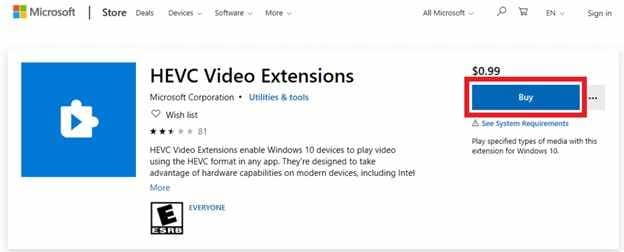
Step 1. Download and install the HEVC Video Extensions from the Microsoft Store to ensure your system can read high-efficiency Mac encodes.
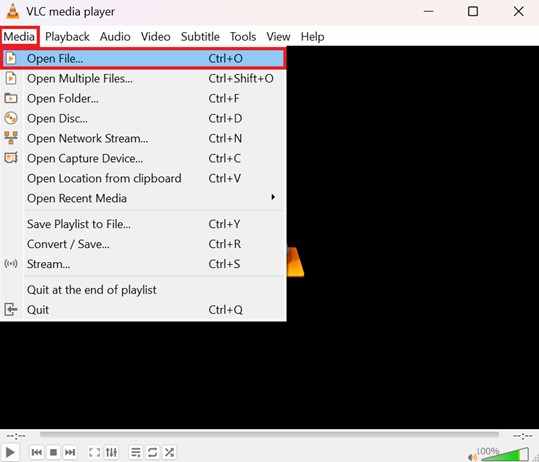
Step 2. Attempt to open the file in a versatile player like VLC Media Player, which bypasses standard Windows registry codecs to decode the file stream internally.
Fix 2. Perform a File Extension Audit
During a cross-platform transfer, the file extension might become truncated or mislabeled, preventing Windows from identifying the correct execution path.
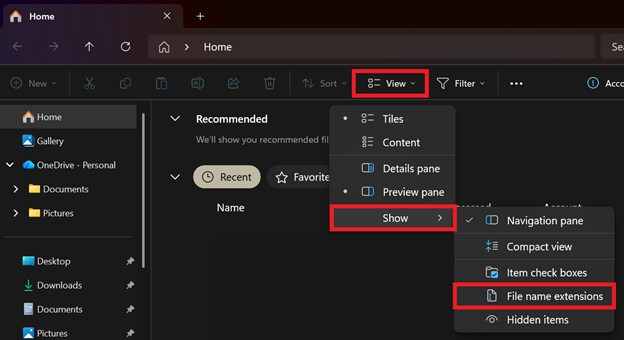
Step 1. In Windows File Explorer, ensure File name extensions is checked in the View tab so you can see the full suffix (e.g., .mov or .mp4).
Step 2. Right-click the file and manually re-type the extension to match the original Mac source; sometimes simply toggling between .mov and .mp4 can force the system to re-index the header.
Fix 3. Execute a VLC Index Repair
VLC contains a built-in utility designed to temporarily fix broken or missing index blocks, a common casualty of interrupted transfers.
Step 1. Open VLC and navigate to Tools and Preferences, then select the Input / Codecs tab.
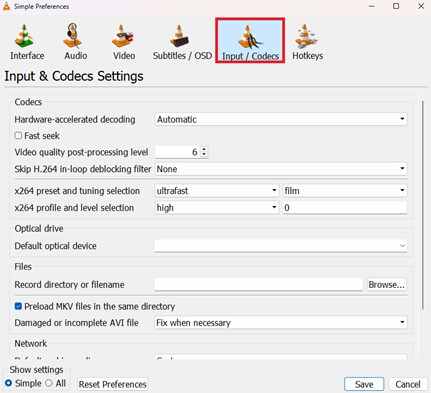
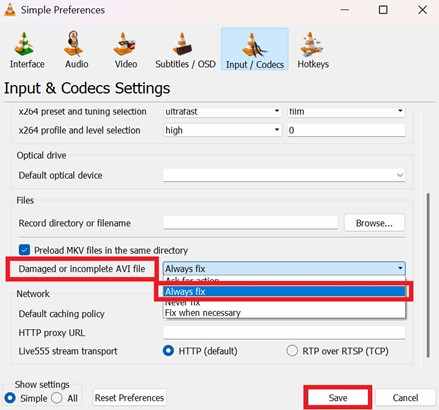
Step 2. Locate the Damaged or incomplete AVI file setting and change the dropdown to Always fix, then try opening your corrupted file again.
Fix 4. Utilize the Command Prompt (CHKDSK)
If the damage occurred due to a drive-level error during the move, Windows can attempt to repair the directory metadata holding the file.
Step 1. Connect the transfer drive, open the Command Prompt as an Administrator, and type chkdsk X: /f (replacing X with your drive letter).
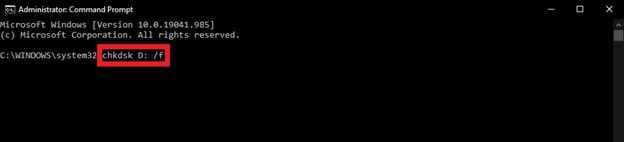
Step 2. Allow the utility to scan for "lost chains" and repair the file system integrity, which can often relink a fragmented video file.
Part 4. Advanced Fixes for Corrupted Video Files
If your video is confirmed to be corrupted, you can use a repair tool to restore it. Tools like Repairit Video Repair Tool support common formats such as MP4, MOV, MKV, and AVI. Some tools also let you upload a healthy sample video, which helps improve the accuracy of the repair process and makes the recovered video more playable.
Step-by-Step (Optional)
Step 1. Upload the corrupted video file.

Step 2. Start the Repair process.

Step 3. Preview and save the restored file to a new location.

Part 5. How to Fix Damaged Video During File Transfer
When transferring videos from Mac to Windows, problems often happen because the two systems handle files differently. Sometimes the issue isn't that the video is bad, but that the transfer process didn't handle the file correctly.
Why This Happens
Mac and Windows use different file systems, and this can cause confusion during transfer. Mac also creates small hidden files (called "resource files") to store extra information. When these don't transfer properly or get separated, the video may not work correctly.
Another common cause is removing the storage device too early. If the transfer isn't fully complete in the background, parts of the video file may be missing or broken.
How to Fix Transfer-Related Corruption
- Use a storage drive formatted as exFAT, since it works well on both Mac and Windows and reduces errors when transferring large video files.
- Before deleting the original file from your Mac, compare the file on both devices using a checksum tool. If they don't match, the transfer was incomplete and should be done again.
- If you're moving a video project (like from editing software), make sure all files are properly grouped in one folder. This helps keep everything connected and prevents missing data.
- On Windows, make sure the transfer is fully finished before removing the drive. If you unplug it too soon, the file may end up incomplete or corrupted.
Part 6. How to Prevent Video Corruption in Future Transfers
The best way to deal with video corruption is to avoid it from happening in the first place. By following simple and consistent steps when moving files between Mac and Windows, you can keep your videos safe and working properly.
Best Practices for Safe File Transfers
- Use exFAT format - Format external drives as exFAT for better compatibility between Mac and Windows.
- Prefer wired transfer - Use USB, Thunderbolt, or Ethernet instead of Wi-Fi for stability.
- Compress files - Zip videos before transferring to reduce risk of file damage.
- Eject safely - Always use Eject or Safely Remove Hardware before unplugging drives.
- Use cloud storage - Services like Google Drive or Dropbox help avoid transfer errors.
Conclusion
Moving videos between Mac and Windows works best when you follow the right transfer steps and know how to fix problems if they happen. Most video issues come from differences in file systems or when a transfer is interrupted. The good news is that many damaged videos can still be fixed by updating codecs, using media player repair features, or trying video repair tools. By spotting problems early and following simple tips, like using exFAT and safely removing your drive, you can keep your videos safe and playable on both systems.
FAQs
-
Why does my video work on Mac but not on Windows?
This usually happens because Windows may not have the right codec to read the video, or some file information was lost during transfer. -
Can I fix a video that shows 0 KB file size?
No, in most cases you can't. This means the video data wasn't actually saved. You'll need to transfer the file again from your Mac. -
Is exFAT the best format for transferring videos?
Yes, exFAT works on both Mac and Windows, making it the safest option for moving large video files. -
Does zipping videos help prevent corruption?
Yes, putting videos in a ZIP file keeps everything together and reduces the chance of errors during transfer. -
Will repairing a video lower its quality?
No, most repair tools only fix the file so it can play again. They don't reduce the original video quality.




