
Losing access to your data after suddenly pulling out your SD card can be very frustrating, but you can still repair files damaged by unsafe SD card ejection. When a file transfer is interrupted, the file system may leave your data broken or unreadable, which is known as unsafe eject file corruption.
This guide will show simple and clear steps to help you fix these errors and recover your files so you don't lose your important work.
In this article
What are the Causes and Signs of Unsafe SD Card Ejection
Removing an SD card without properly ejecting it can interrupt ongoing read/write operations, leading to incomplete or damaged files.
Common causes of file damage
- Write caching: Files may still be saved in the background even if the transfer appears finished.
- Power interruption: Sudden removal can briefly disrupt the card's controller.
- File system updates: Changes to directory data may be interrupted, causing broken file access.
- Background activity: Tasks like scanning or thumbnail generation may still be running during removal.
- Buffer delays: Large files are saved in parts, which can be cut off mid-process.
Signs of file corruption
- Files won't open: Errors when trying to access them.
- Strange names: Random or unreadable characters appear.
- 0 KB files: File exists but contains no data.
What Are The Signs That File Corruption Has Occurred
Before trying to recover your files, it's important to understand how the system shows damage. File problems caused by removing an SD card too early can appear in different ways, from small errors in the file system to files completely disappearing, depending on what was being written at the time.
Common signs of a corrupted SD card
- Format request message - You may see a message saying you need to format the disk before using it. This usually means the system can't read the file structure anymore.
- Input/output (I/O) errors - These errors appear when the device has trouble reading or accessing damaged parts of the SD card.
- Read-only mode - The card may suddenly become "read-only," meaning you can view files but cannot edit or save anything. This is a protection feature when the system detects an issue.
Other visual and functional signs
- Broken or partially loaded files - Photos may show missing parts or videos may freeze because some data was not fully saved.
- Missing folders - Some files or folders may disappear even though the storage still shows used space.
- File access errors - You may get messages saying a file is still in use, even if all programs are closed, which can happen when the system didn't properly finish handling the file before removal.
How To Start Basic Troubleshooting for SD Card File Recovery
Before using advanced recovery software, you can often fix file issues caused by unsafe removal using built-in tools on your computer. These basic methods can help repair the file system and restore access to your SD card after connection errors.
Fix 1: Windows Check Disk (chkdsk)
This is a built-in tool that scans your SD card for errors and repairs damaged parts of the file system. It helps fix logical issues that can happen after the repair files are damaged by unsafe SD card ejection.
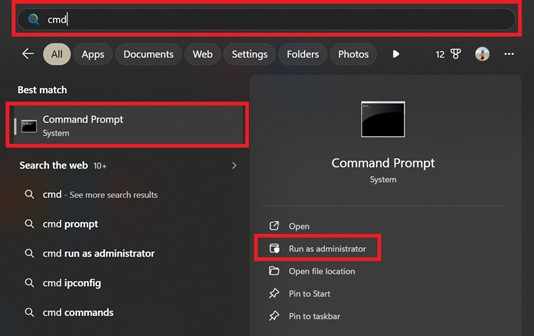
Step 1. Connect your SD card to your PC, press the Windows Key, type cmd, and select Run as Administrator.
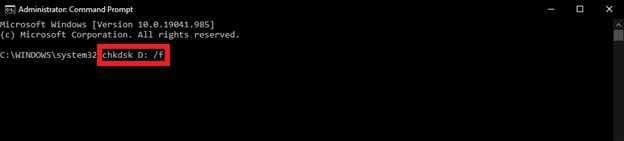
Step 2. In the command prompt, type chkdsk X: /f (replace X with your SD card's actual drive letter) and press Enter to initiate the repair process.
Fix 2: Error Checking Tool
Windows also has a simple graphical tool called Error Checking. It works like chkdsk but is easier to use since you don't need to type commands.
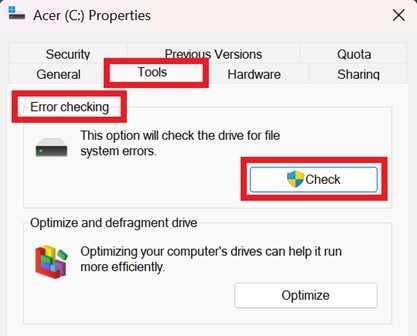
Step 1. Open File Explorer, right-click on your SD card drive, and select Properties from the context menu.
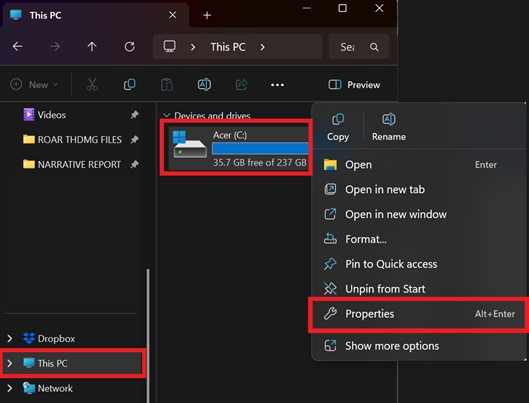
Step 2. Navigate to the Tools tab and click the Check button under the Error Checking section to allow the system to scan and recover corrupted sectors.
Fix 3: Assign a new drive letter
Sometimes, your computer may not properly recognize the SD card after it is removed. Changing or reassigning the drive letter can help the system detect it correctly again.
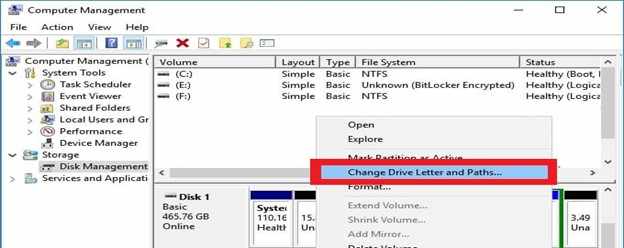
Step 1. Right-click the Start button and select Disk Management.
Step 2. Locate your SD card, right-click its partition, select Change Drive Letter and Paths, and click Change to assign a new, unused letter (e.g., changing 'E' to 'M').
Fix 4: Reinstall SD card drivers
If the system still cannot read the card properly, reinstalling the SD card drivers can refresh the connection between your computer and the device, fixing issues caused by unsafe eject file corruption.
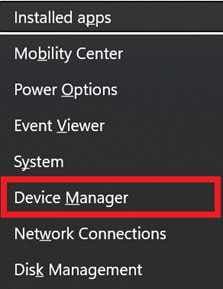
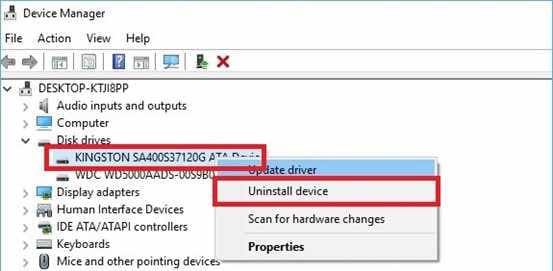
Step 1. Press Win + X and select Device Manager, then expand the Disk drives section.
Step 2. Right-click your SD card reader, select Uninstall device, then unplug the card and restart your computer to force a clean driver reinstallation.
Part 4. Advance Fix to Restore Severely Corrupted Files
If you confirm the files are corrupted, using a professional repair tool is the most reliable solution. Repairit is designed to fix severely damaged files, supporting videos (MP4, MOV, MKV), photos (JPEG, PNG, RAW), and documents (PDF, DOCX) with a high success rate.
Step-by-Step (Optional)
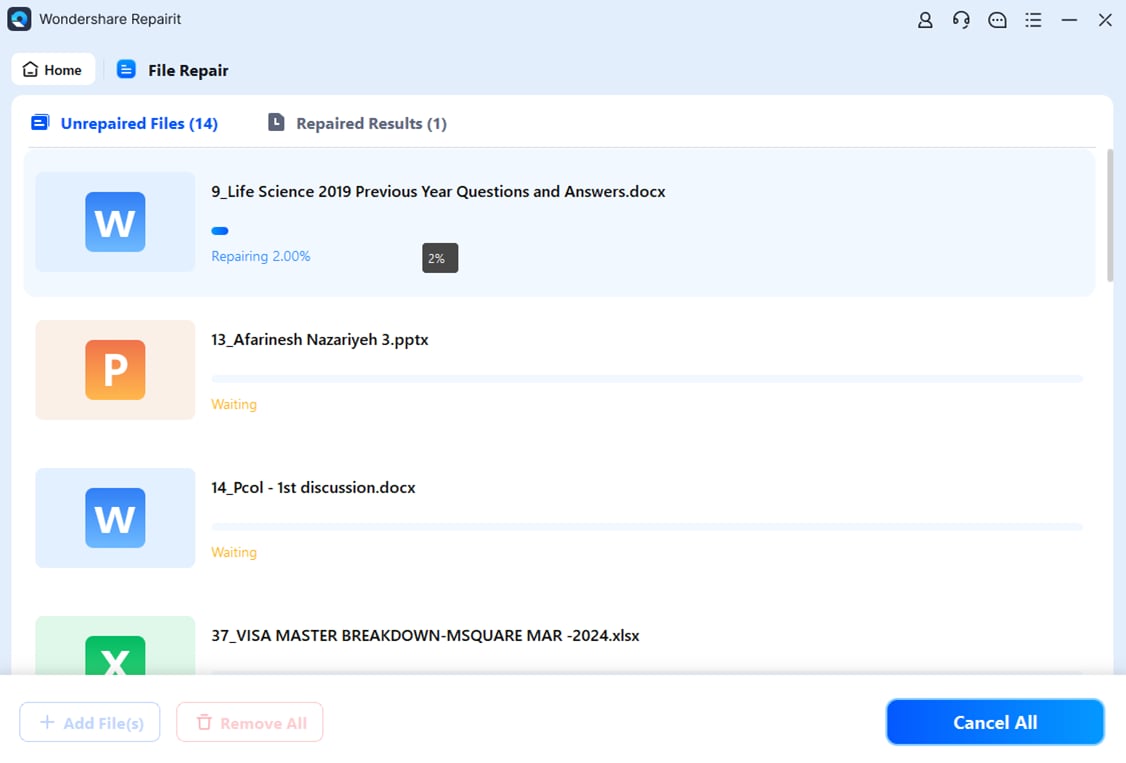
Step 1. Import the damaged files you want to fix into Repairit to begin the repair process smoothly.

Step 2. Click the repair button to let Repairit automatically analyze and fix the corrupted files efficiently.
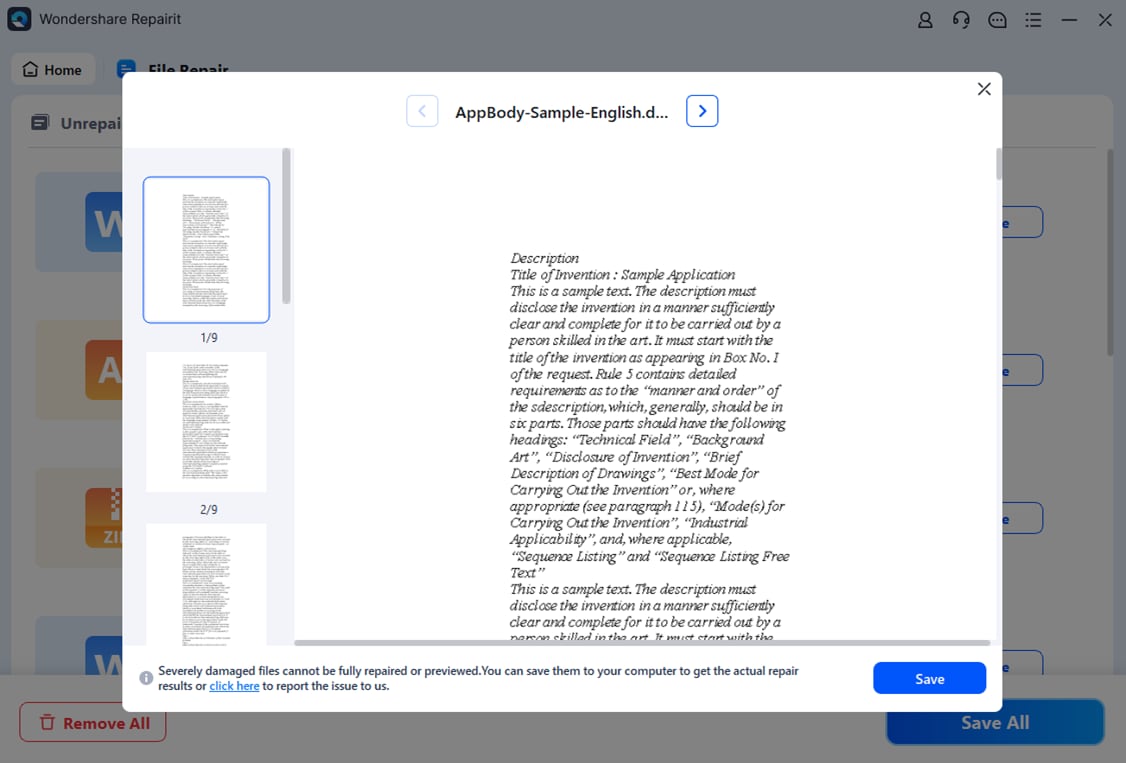
Step 3. Preview the repaired results to ensure quality, then save the successfully restored files to your device.
How to Fix File Issues Caused by Interrupted Data Transfer
The highest risk of data loss occurs during an active file transfer. If an SD card is removed while copying or moving files, the connection is cut before the system finishes writing data, leaving files incomplete or corrupted.
Why file transfers can cause corruption
- Delayed writing: Data may still be saving in the background even if progress shows complete.
- Incomplete file structure: Final "end" data may not be written, making files unreadable.
- Interrupted file system updates: Can lead to corrupted or missing file information.
Simple ways to fix transfer-related file issues
- Try another device/port: A different system may repair minor file errors.
- Copy files locally: Move data to computer storage before opening or editing.
- Reconnect the SD card: Reinserting can refresh detection and fix glitches.
- Restart system: Clears temporary read/write errors.
- Advanced option: Reset file attributes if files become hidden or locked.
How to Keep Your SD Card Data Safe and Prevent Corruption
While it's important to know how to repair files damaged by unsafe SD card ejection, the best approach is to prevent the problem in the first place. Most file corruption happens because of small repeated mistakes over time, so building safe habits can help protect your files and extend the life of your SD card.
- Always use the "Eject" option - Before removing your SD card, click "Eject" or "Safely Remove Hardware" on your device. This tells the system to finish saving all data properly.
- Wait for the activity to stop - If your card reader has a light, make sure it stops blinking before removing the card. This means all data processes are complete.
- Avoid quick removal for large transfers - For frequent or large file transfers, make sure your system is set for better performance and always safely eject the card afterward to reduce risks of unsafe eject file corruption.
- Don't fill the card completely - Leave some free space (around 10--20%) so the card can manage data properly. A full card is more likely to experience errors.
- Format the card regularly - Instead of only deleting files, formatting the SD card occasionally (on the device you use it with, like a camera) helps keep the file system clean and stable.
Conclusion
Protecting your digital files starts with understanding that even a quick mistake can lead to serious data loss. In many cases, you can still repair files damaged by unsafe SD card ejection using built-in tools or professional recovery software, especially if some of the data was still properly saved.
The key is to notice unsafe eject file corruption early and follow safe habits like always using the eject option before removing your SD card. This helps keep your files safe and your storage reliable for a long time.
FAQs
-
Can I repair a file that shows 0 KB after an unsafe ejection?
Usually no. A 0 KB file means no actual data was saved before the card was removed. Without stored data, repair tools cannot rebuild the file. -
Does "Safely Remove Hardware" matter if the transfer looks finished?
Yes. Even if the progress bar shows 100%, your device may still be saving data in the background. Using the eject option ensures everything is fully completed before removal. -
Will formatting my SD card fix file corruption?
Formatting can fix the SD card's file system, but it will erase all existing files. It should only be done after you try to recover important data. -
Why does my computer show the SD card as "Read-Only" after a crash?
This happens as a protective measure. When the system detects damage, it may block writing to prevent further loss or corruption. -
Can mobile phones also cause unsafe corruption?
Yes. Removing a microSD card while data is still being used (like during file transfers or gallery updates) can cause the same type of corruption. Always unmount the card in your phone's settings before removing it.




