
SD card errors often appear without warning; one moment, your videos are accessible, and the next, the card becomes unreadable or shows error messages. When this happens, your video files may suddenly disappear, fail to open, or become corrupted.
If you need to recover and repair video files after an SD card error, it's important to understand that the issue usually involves both data loss and file corruption. In many cases, the files are still physically present on the card but are no longer accessible due to file system damage or incomplete data.
The key is to act carefully and follow the right steps, because improper handling can make recovery more difficult.
In this article
Why SD Card Errors Corrupt Video Files?
An SD card stores data in structured blocks managed by a file system. When an error occurs, this structure can break, making files unreadable even if the data still exists.
Video files are especially vulnerable because they:
- Are large and written over longer periods
- Depend on complete metadata for playback
- Require continuous data integrity
Common Causes of SD Card Errors:
- Sudden removal during recording or transfer
- File system corruption
- Bad sectors or physical wear
- Power interruption
- Virus or malware infection
- Improper formatting
How This Affects Videos:
- File headers may be missing
- Video streams may be incomplete
- Metadata may be corrupted
- Entire files may become inaccessible
Even a small disruption in the file structure can prevent the video from playing.
Common Signs Your Videos Are Affected by an SD Card Error
When an SD card error impacts your videos, the symptoms can vary depending on the severity of the issue. A few signs:
- Videos won't open or play
- Files are missing or not visible
- "SD card error" or "card not recognized" message
- Black screen during playback
- Video freezes or stops midway
- File size appears incorrect or zero
These signs indicate either:
- File corruption, or
- File system damage is preventing access
How to Confirm the Issue Before Recovery
Before attempting recovery or repair, it's important to identify what type of problem you're dealing with.
Check These First:
- Insert the SD card into another device or reader
- Try accessing files on a different computer
- Check if the card is detected, but the files are missing
- Compare file behavior across multiple apps
What the Results Mean:
- Card not detected: possible hardware issue
- Files missing: likely file system corruption
- Files present but won't open: likely file corruption
Understanding this helps you choose the right approach: recovery, repair, or both.
Basic Fixes to Try First
Before moving to recovery or repair tools, try these simple but important steps.
Fix 1: Reinsert the SD Card Properly
Sometimes the issue is caused by an improper connection rather than file damage.
A connection issue may cause the card to appear unreadable.
Step 1: Remove the SD card and insert it securely into the device or reader.

Step 2: Check if the files become accessible again.
Why this works: A loose connection can prevent files from being read correctly.
Fix 2: Use a Different Card Reader or Device
The problem may be with the reader rather than the card itself.
Step 1: Insert the SD card into another card reader or device.
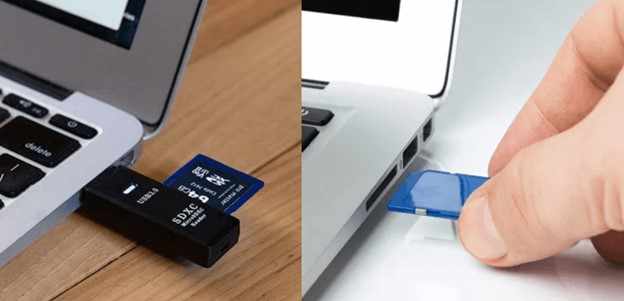
Step 2: Try accessing the files again.
Why this works: This helps isolate hardware-related issues.
Fix 3: Copy Accessible Files Immediately
If some videos are still visible, saving them early prevents further loss.
Step 1: Open File Explorer. Go to your SD card folder.
Step 2: Select a file or files. Press Ctrl + C → paste (Ctrl + V) to your computer drive.
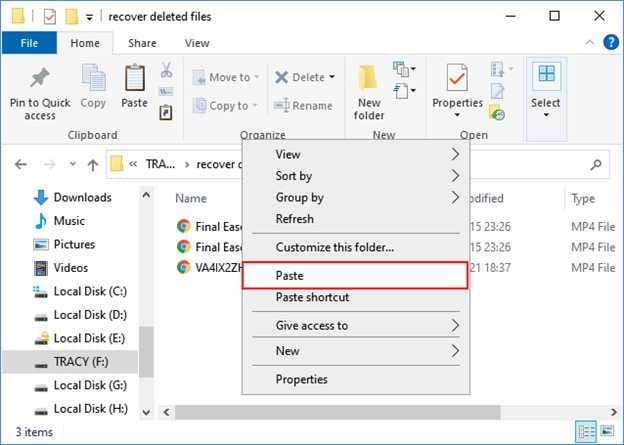
Why this works: Secures readable data before the situation worsens.
Fix 4: Check the SD Card for Errors
File system errors can block access to video files after an SD card issue.
Step 1: Insert the SD card and open File Explorer. Go to This PC.
Step 2: Right-click the SD card. Under Properties, check on Tools, then Error Checking. Click on Check.
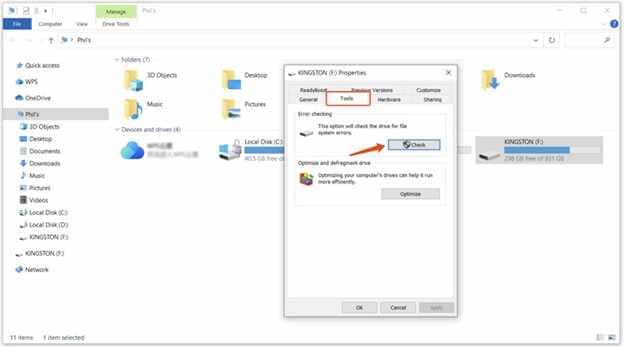
Why this works: Repairs logical file system errors that may prevent access to videos.
Recover Lost or Inaccessible Video Files
If your videos are missing or inaccessible, recovery is the first step.
What Recovery Does:
- Scans the SD card for deleted or hidden files
- Rebuilds file entries from raw data
- Restores accessible versions of lost videos
General Recovery Process:
- Connect the SD card to your computer
- Scan the card for recoverable files
- Preview available videos
- Save recovered files to a different location
Important Notes:
- Always save recovered files to another drive
- Avoid interrupting the recovery process
- Results depend on how much data is still intact
Recovery focuses on getting the file back, not fixing it yet.
Advanced Fix: Repair Corrupted Video Files
After recovery, some videos may still be unplayable due to structural damage.
When Repair Is Needed:
- The video won't open after recovery
- Playback shows errors or freezes
- Audio and video are out of sync
What Repair Can Do:
- Rebuild file headers and metadata
- Fix playback issues
- Restore usable portions of the video
Step 1. Add the corrupted video file.

Step 2. Run the repair process.

Step 3. Preview the repaired result, then save the fixed media file.

How to Prevent SD Card Errors in the Future
SD cards are reliable when handled correctly, but small mistakes can easily lead to corruption or data loss. The following safe practices can greatly reduce the risk of errors and protect your files:
- Always safely eject the SD card -- This ensures all background processes finish writing before the card is disconnected.
- Avoid removing the card during recording or transfer -- Interrupting active processes leaves files incomplete and unusable.
- Use reliable and high‑quality SD cards -- Cheap or low‑quality cards are more prone to failure and corruption.
- Format the card regularly in the device -- Proper formatting keeps the file system stable and reduces compatibility issues.
- Avoid using the same card across incompatible devices -- Switching between cameras, phones, and computers without reformatting can confuse file structures.
- Keep backups of important videos -- Storing duplicates on external drives or cloud services ensures you won't lose valuable footage.
Conclusion
If you need to repair media files from a suddenly disconnected SD card, the issue is usually caused by interrupted data writing during disconnection.
Start with basic fixes like reconnecting the card and copying files safely. If the issue persists, repair methods can help restore your media files and make them usable again.
FAQs
-
Can I recover videos after an SD card error?
Yes, recovery is often possible as long as the data has not been overwritten. -
Why are recovered videos sometimes unplayable?
Recovered videos may remain unplayable because recovery restores data but does not repair structural corruption. -
Should I format my SD card immediately after an error?
No, you should attempt recovery first because formatting erases all existing data. -
Can SD card errors permanently damage videos?
Yes, if critical parts of the file are lost or overwritten, the damage can be permanent. -
Is repair always successful?
Not always, but many corrupted videos can be partially or fully restored with repair tools.




