
![How to Fix a Corrupted SD Card [Complete Guide]](https://images.wondershare.com/repairit/article/how-to-fix-corrupted-sd-card-1.jpg)
SD cards are extra storage placed in devices like cameras, phones, and computers. They're helpful for saving and transferring files easily. But even so, they can still get corrupted at any time. Sometimes, the damage isn't visible. Your SD card may appear OK on the outside, but it could still be damaged inside. This can result in missing files or even total data loss.
Now, how to fix a corrupted SD card? It can be stressful at first. But don't worry, there are ways to fix it. This ultimate guide will share quick methods to repair a corrupted SD card and fix common errors.
In this article
Part 1. Signs of SD Card Corruption
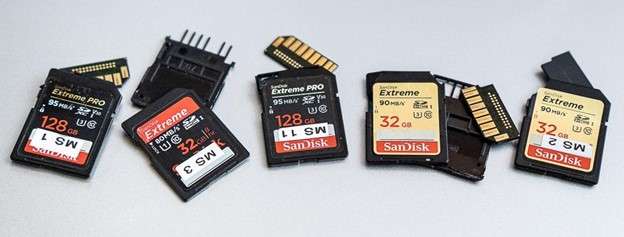
SD cards are often plugged in and out. If you don't eject them properly, they can get damaged. This can cause errors or make your files hard to access. Don't worry. This is common and fixable.
Here are the main signs to watch for:
- Files suddenly disappear or show 0 bytes. Some folders also won't open. This can happen due to unsafe removal, file errors, or viruses.
- Your SD card is not detected by your phone, camera, or computer. This may be caused by connection issues or a damaged file system.
- File transfers are very slow, and your device lags or freezes when using the card. This could mean the card is wearing out or has bad sectors.
- Your device repeatedly asks you to format the SD card. This usually means there's a file system problem.
- File names look weird or unreadable, which occurs when the card is removed while saving files.
- You can't save, delete, or change files. Also, the formatting fails due to a lock setting or memory issue.
- The card is cracked, bent, or burned. This is now a hardware problem that can't be fixed.
Part 2. Quick Checks Before You Fix a Corrupted SD Card
Before trying advanced fixes, start with a few quick checks. Learn if the main issue is with your SD card or in your device. This will lead you to a better fix.
- Try another device or card reader. If the problem isn't the SD card, it's the device or reader. To check, remove the SD card from your current device. Then, insert it into another phone, camera, or computer. You can also use a different card reader. If it works on another device, your original device or reader may be the issue.
- Change the USB port. A faulty USB port can stop your SD card from being detected. So, unplug the card reader. Plug it into a different USB port and wait for your computer to detect it. If it opens in another port, the original port may be damaged or not work properly.
- Restart your device. A quick restart can fix small system glitches. First, remove your SD card. Next, restart your phone or computer and insert the SD card again after reboot. This helps refresh the system and may fix detection issues.
- Check your SD card lock switch. SD cards have a tiny lock switch visible on their side. If it's turned on, you won't be able to edit or save files. To check, take out the SD card. Look for the tiny switch on the side. Then, slide it upward (unlock position) and reinsert the card. If the card was locked, this simple step can fix the problem.
Part 3. 6 Methods to Fix a Corrupted SD Card
Here are 6 simple ways to fix a corrupted SD card. Use these options as soon as you notice damage or corruption.
Method 1: Inspect the SD Card for Physical Damage
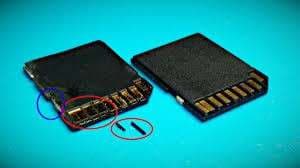
First, check for physical damage on the SD card. These small, delicate cards can break or wear out from drops, heat, water, or rough handling. Here's what to look for:
- Check the SD card's plastic body. Cracks or missing pieces can mean inside damage, causing it to become unreadable.
- Check the gold metal part. Scratches disrupt connections. Rust or green marks show water damage. Bent parts stop the card from working.
- Inspect for water or heat damage. Identify discoloration, warping, or unusual odors.
If you see these problems, stop DIY fixes. The card may need professional help. Data recovery experts might still save your files, even on damaged cards.
Method 2: Run CHKDSK Command (Windows)
Windows already has a built-in repair tool called CHKDSK that can help fix SD card errors. It checks your card for problems and tries to repair them. It may sound technical, but it's actually simple to use.
⚠️ Important note: If your SD card has important files, back up your data first. CHKDSK can sometimes make recovery harder if you run it before saving your files.
Step 1. Open your Command tool.
Step 2. Run the CHKDSK command. Type chkdsk X: /x /r and hit Enter. It may take a few minutes to several hours. Don't remove the SD card while it's running.
- Replace X with your SD card drive letter.
- /x = safely disconnects the card before fixing it
- /r = searches for bad sectors and tries to recover data
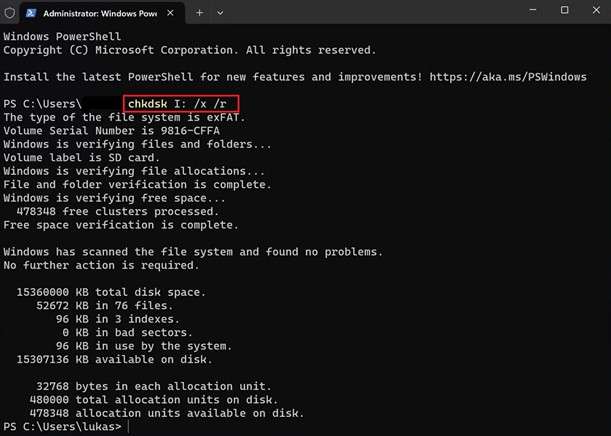
If your SD card doesn't show a drive letter, CHKDSK won't work yet. You have to assign a drive letter first, then execute the command again.
Method 3: Use Windows Built-in Repair Tools
Windows has a built-in tool to check and fix SD card errors. This tool starts automatically if your SD card has problems when you insert it. You can also run the tool yourself if you suspect errors. To use it:
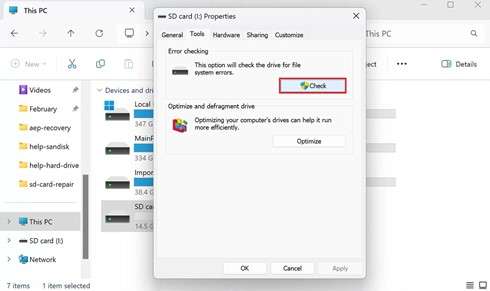
Step 1. Open File Explorer from the taskbar search. Click on This PC. Right-click your SD card and choose Properties.
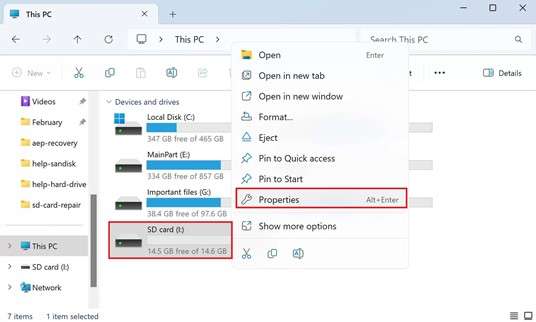
Step 2. Go to the Tools tab, then click Check.
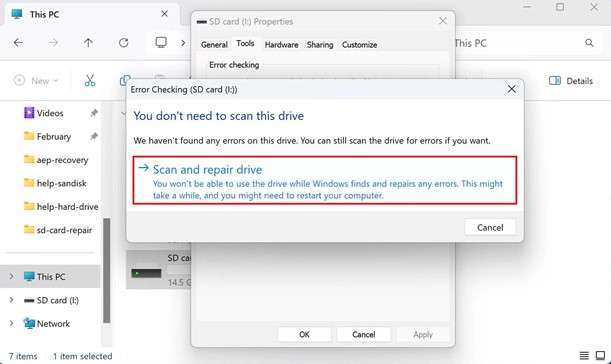
Step 3. Select Scan and repair drive. If you see a warning that the drive is in use, save your files first. Then choose to repair it right away or on the next restart.
Method 4: Assign a New Drive Letter
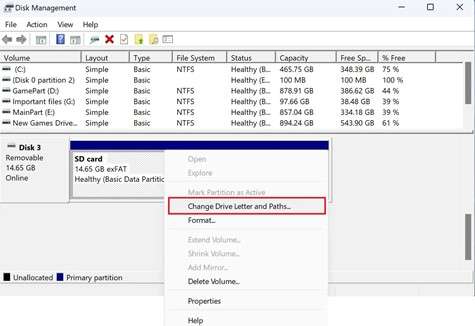
Sometimes your SD card is connected, but it doesn't show up in File Explorer. This occurs because Windows didn't assign it a drive letter, or the letter is already used by another device. You can fix this by giving your SD card a new drive letter.
Step 1: Access your Disk Management. Right-click your SD card and choose Change Drive Letter and Paths...
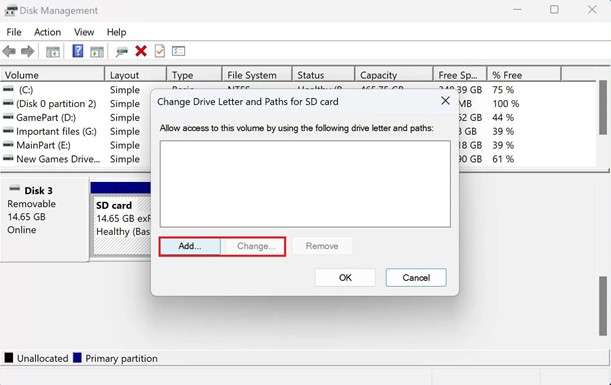
Step 2. Click Add / Change. Pick a new drive letter and hit OK. Click OK again to confirm. After this, check your File Explorer. Your SD card should now appear.
Method 5: Reinstall SD Card Drivers
In some cases, your SD card has problems because of a faulty driver. Even if Windows updates drivers automatically, things can still go wrong. Reinstalling your driver can troubleshoot the issue.
Step 1. Launch your Device Manager. Look for your SD card under Portable Devices. Right-click your SD card and choose Update driver.
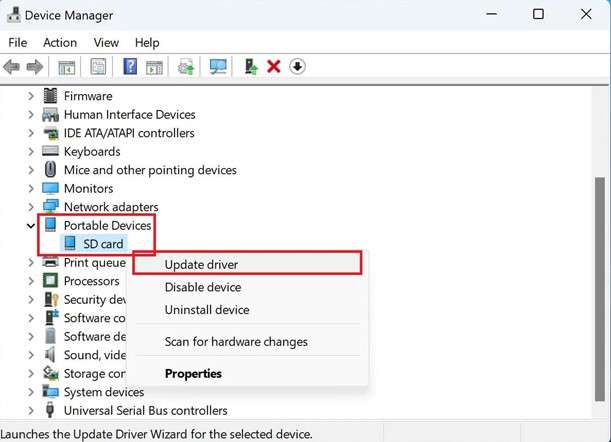
Step 2. Pick Search automatically for drivers. Hit Update Driver to finish.
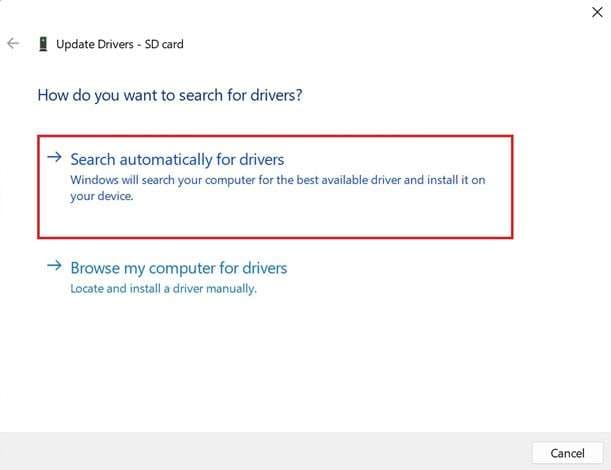
Note: If Windows can't find a driver, you can download it from the manufacturer's website.
Method 6: Format the SD Card (Last Resort)
Formatting is the LAST option, but it can fix many SD card problems. It helps by:
- Repairing broken file systems
- Fixing damaged partition tables
- Restoring the correct storage size
- Finding and marking bad sectors
- Fixing read and write errors
But formatting will erase everything on your SD card. So, back up everything first.
Step 1. Open File Explorer and go to This PC. Right-click your SD card and tick Format...
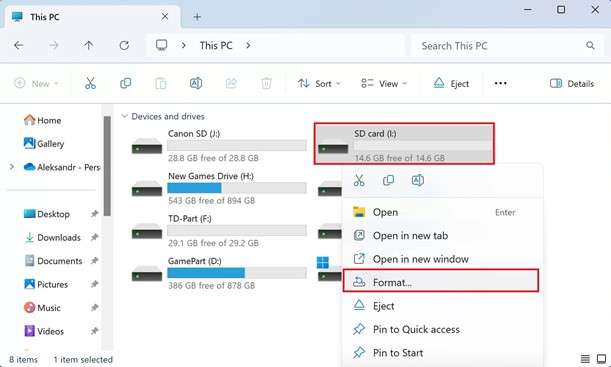
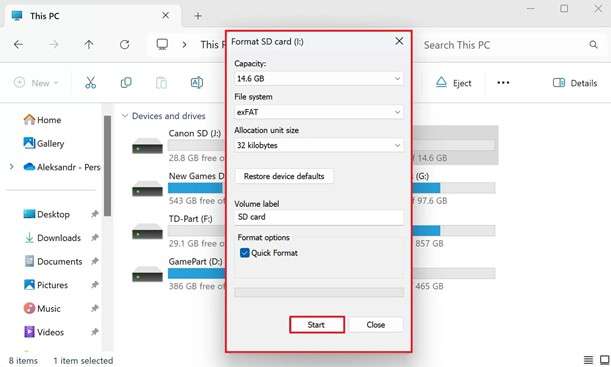
Step 2: Select a file system (leave other settings as default). Hit Start to begin formatting.
Part 4. Recover Data from a Corrupted SD Card
When an SD card gets corrupted, your files, especially videos, can stop working or disappear. But don't panic and don't format right away.
Always try to recover your files before formatting the SD card. Formatting can erase everything and make recovery harder. You can use a professional tool like Repairit Video Repair. This tool helps fix broken or unreadable video files from SD cards so you don't lose them permanently.
What it can do:
- It repairs videos that become unreadable or broken due to SD card corruption. This recovers important footage from cameras, drones, and other devices.
- The tool uses AI to analyze damaged SD card video files and rebuild missing or broken data.
- It supports many formats like MP4, MOV, AVI, MKV, and more from your SD card.
- It also works well with cameras, drones, GoPros, and other SD card recording devices.
- It restores SD card videos while keeping original quality, including HD, 4K, and 8K resolution.
- You can repair multiple corrupted SD card videos at the same time.
- You can preview repaired SD card videos before saving them to make sure the recovery worked.
- It fixes SD card video issues like videos not opening, black screens, missing sound, lagging, or codec errors.
Step-by-Step Guide:
Step 1: Open Repairit and add your corrupted SD card video files. This supports MP4, MOV, AVI, MTS, and more.

Step 2: Click Repair to start the SD card video file fixing process. Preview the repaired video to check playback quality.

Step 3: If the preview looks good, click Save and choose a new location. Avoid saving the repaired SD card video files to the original corrupted folder.

Part 5. When You Can't Fix a Corrupted SD Card
Tried all fixes above and still can't open your SD card? Unfortunately, your SD card is too damaged to repair. No matter what you try, it just won't work anymore. Here are the signs when you can't fix it:
- The card is not detected on any device. If your phone, camera, or computer cannot read the SD card at all, it usually means the card is seriously damaged.
- The SD card shows visible heavy physical damage. If the SD card has cracks, burn marks, or visible damage, it can't be fixed with software anymore.
- It keeps getting corrupted again. If you manage to fix it, but the problem keeps coming back, the card is already failing inside.
In these cases, the best solution is to replace the SD card. It's no longer safe or reliable to use, and replacing it helps you avoid losing more files.
Part 6. Tips to Prevent SD Card Corruption
Even if you know how to fix a corrupted SD card, not all files can be recovered. That's why it's best to avoid problems before they occur.
- Always safely eject your SD card. Don't just pull it out while it's still in use. Always use "Eject" on your device to avoid file damage.
- Avoid extreme conditions. Heat, cold, water, and shock can damage your SD card over time. Even strong cards have limits, so keep them protected.
- Prevent sudden power loss. Don't remove the card while files are being saved. Sudden shutdowns can corrupt data and damage the card.
- Use trusted brands. Choose reliable brands like SanDisk, Kingston, or Lexar. Cheap, no-name cards often fail faster and may cause data loss.
- Don't ignore error messages. If your device shows errors or the card becomes "write-protected," back up your files immediately. It may be a sign of failure.
- Be careful of static electricity. Static shock can damage your SD card without warning. Before touching it, lightly touch a metal object to discharge static.
- Use a good card reader. A faulty SD card reader can ruin your files. If it feels tight or hard to insert, stop using it right away.
- Know that SD cards have limits. SD cards wear out over time after many uses. Heavy use can shorten their lifespan, so replacing them after a while is normal.
Conclusion
SD cards can be corrupted or damaged for many reasons. Luckily, there are also many ways to fix them. This guide shares proven methods on how to fix a corrupted SD card. One of them is using a data repair tool, which helps recover lost files and fix card issues.
Remember, prevention is always better than a cure. By handling your SD card carefully, safely ejecting it, and avoiding extreme conditions, you can greatly reduce the risk of corruption and extend its lifespan.
FAQs
-
Can I fix a corrupted SD card using my phone?
Sometimes yes. You can restart your phone, reinsert the card, or format it through storage settings if it is detected. -
Why is my SD card not showing files, but still has space used?
This usually means files are hidden, or the file system is corrupted. A virus or system error may also be the cause. -
Can a corrupted SD card damage my phone or camera?
No, it usually won't damage your device, but it can cause slow performance or errors while the card is inserted. -
Why does my SD card keep getting corrupted repeatedly?
Frequent corruption usually means the card is failing internally. It's best to back up your data and replace it. -
How long does an SD card usually last before it gets corrupted?
SD cards have a limited lifespan. With heavy use, they may start failing after a few years. Using trusted brands and handling them carefully can extend their life.




