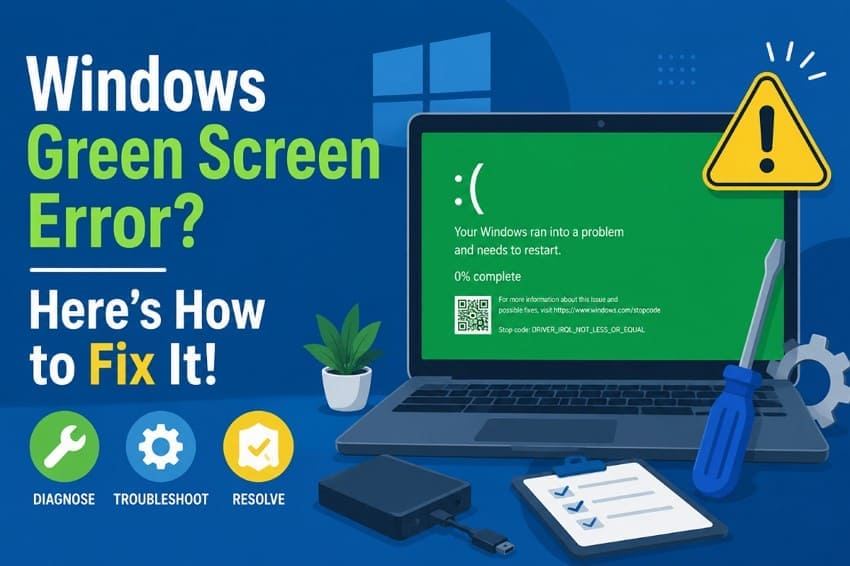
The Windows green screen of death depends on your Insider Preview build, not color. That single detail determines the correct troubleshooting path for each case. Microsoft intentionally uses green crash screens on preview releases to distinguish pre-release issues.
This guide first covers stop codes and system repairs before display problems. It finishes with methods for repairing damaged video files successfully afterward.
In this article
Part 1. What Is the Windows Green Screen of Death?
Unlike some colored screens people report, this one is documented. Microsoft's stop code guidance states that preview releases show the crash screen green rather than blue. These 4 key distinctions help identify the exact Windows green screen of death problem:
Green Screen of Death vs Blue Screen of Death
Mechanically, they are the same event. Both are bug checks, both halt the kernel to prevent corruption, and both carry a stop code. Only the background differs, and by build channel rather than severity.
Green Screen of Death vs Green Display Problem
A crash forces the computer to restart immediately. In contrast, a display problem keeps Windows running while the screen appears green or shows colored bands. The presence of a stop code tells you which issue you are dealing with.
Windows 11, Windows 10, and Windows 7 Green Screen Differences
Windows 11 and Windows 10 Insider Preview builds display a Green Screen of Death instead of a Blue Screen to distinguish pre-release crashes. Standard Windows 10 releases continue to use the Blue Screen of Death.
By contrast, a Windows 7 green screen of death is not a documented stop error. Since Windows 7 predates the Insider program and lost support in January 2020, a green screen usually indicates a display or hardware fault rather than a bug check.
Common Windows Green Screen Stop Codes
Microsoft publishes the full bug check code reference. However, only a handful appear in most green screen reports.
| Stop Code | Possible Cause | Related Component |
| VIDEO_TDR_FAILURE (0x116) | Display driver failed to recover from a timeout | Graphics driver |
| VIDEO_ENGINE_TIMEOUT_DETECTED (0x141) | GPU engine timeout detected (live dump; graphics engine stopped responding) | Graphics subsystem |
| DPC_WATCHDOG_VIOLATION (0x133) | A DPC or ISR exceeded the allowed execution time | Driver or hardware |
| MEMORY_MANAGEMENT (0x1A) | Invalid memory access or failing memory modules | RAM |
Microsoft's reference for 0x116 adds a useful detail. Windows attempts Timeout Detection and Recovery whenever a graphics operation hangs, and bug checks only once that recovery fails.
Part 2. What Causes a Windows Green Screen Error?
After identifying the stop code, the next step is finding its cause. The following 6 common causes explain most cases behind Windows 11 green screen of death:
| Cause | Common Sign | Diagnostic Check |
| Corrupted or Incompatible Drivers | Crash names a .sys file | Roll back in Device Manager |
| Problematic Updates or Insider Builds | Began within days of an update | Compare crash date to update history |
| Damaged System Files or Software Conflicts | Random codes, no pattern | Run DISM, then System File Checker |
| Faulty RAM, GPU, SSD, or Power Supply | Codes change each crash | Memory Diagnostic and drive health |
| Overheating or Unstable Overclocking | Fails only under load | Watch temperatures during a stress test |
| Outdated BIOS, Firmware, or Chipset Drivers | Compatibility issues after firmware or driver changes | Compare installed BIOS, firmware, and chipset driver versions with the latest vendor releases |
Part 3. What to Check Before Troubleshooting?
A few quick checks before troubleshooting can eliminate guesswork and guide you toward the right fix for the Windows green screen of death:
- Record the Stop Code: Photograph the stop code and any failing file name, as both provide valuable troubleshooting clues.
- Identify When It Started: Note when the problem first appeared, since recent changes often point to the cause.
- Review Recent Changes: Check Windows Update history and Device Manager for recent driver or hardware changes.
- Disconnect External Hardware: Remove docks, capture cards, eGPUs, and other peripherals to rule out external hardware conflicts.
- Test Safe Mode: If the system is stable in Safe Mode, the issue is more likely related to software or drivers, though some hardware faults can still persist.
- Back Up Important Files: Back up important data before making system changes, especially if crashes continue or repairs become more invasive.
Part 4. How to Fix the Windows Green Screen of Death
These 13 fixes address crashes producing a stop code. They run from safest to most invasive, so work down rather than skipping ahead. Stop once the machine survives a session.
Fix 1. Restart the Computer and Disconnect External Devices
A green screen of death Windows 11 error can result from faulty external hardware or drivers. Let the PC restart automatically or press the power button if it remains unresponsive. Then shut it down, disconnect external devices, restart Windows with only the keyboard and mouse, and reconnect each device one at a time.
Fix 2. Boot Windows into Safe Mode
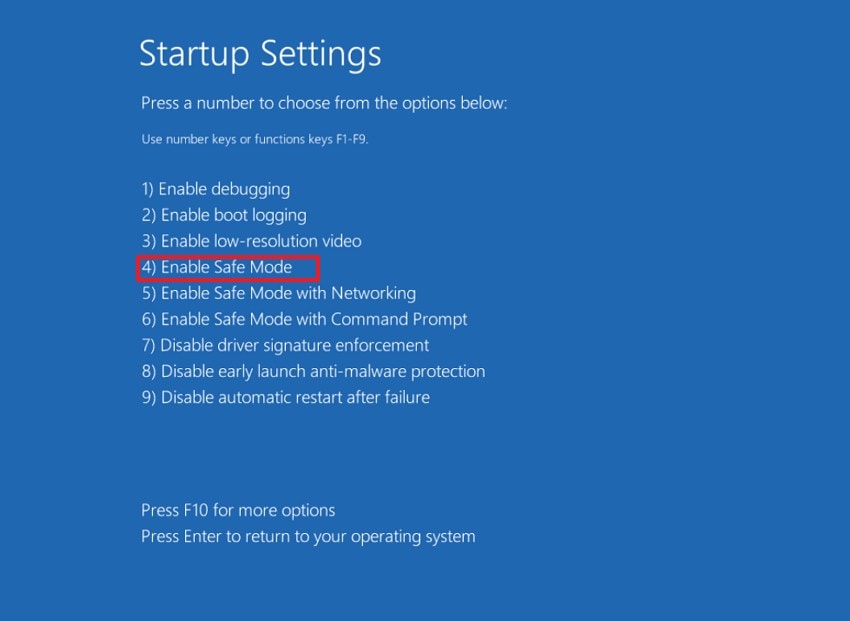
Safe Mode loads only essential drivers, helping determine whether the problem is software-related or hardware-related. Follow these steps to start Windows in Safe Mode:
Instructions. Interrupt Windows startup twice using the power button. On the third startup, choose Troubleshoot > Advanced options > Startup Settings > Restart, then press 4 to enable Safe Mode.
Fix 3. Update, Roll Back, or Reinstall the Graphics Driver
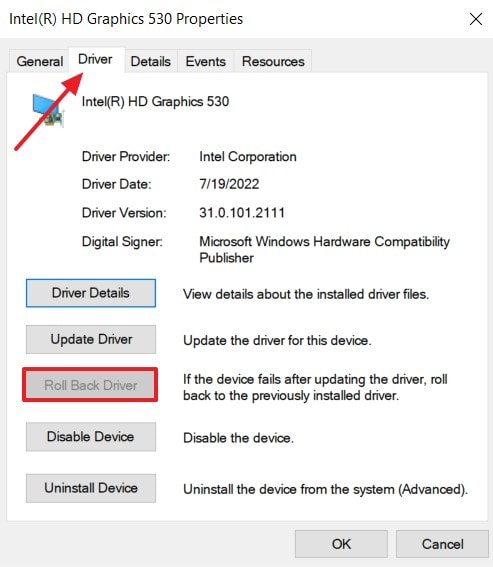
Display drivers are among the most common causes of Windows bug checks. Roll back if crashes began after a driver changed, or reinstall cleanly if that version runs elsewhere with the steps below:
Step 1. Restart in Safe Mode, expand Display Adapters, right-click the GPU, and use Properties > Driver > Roll Back Driver.
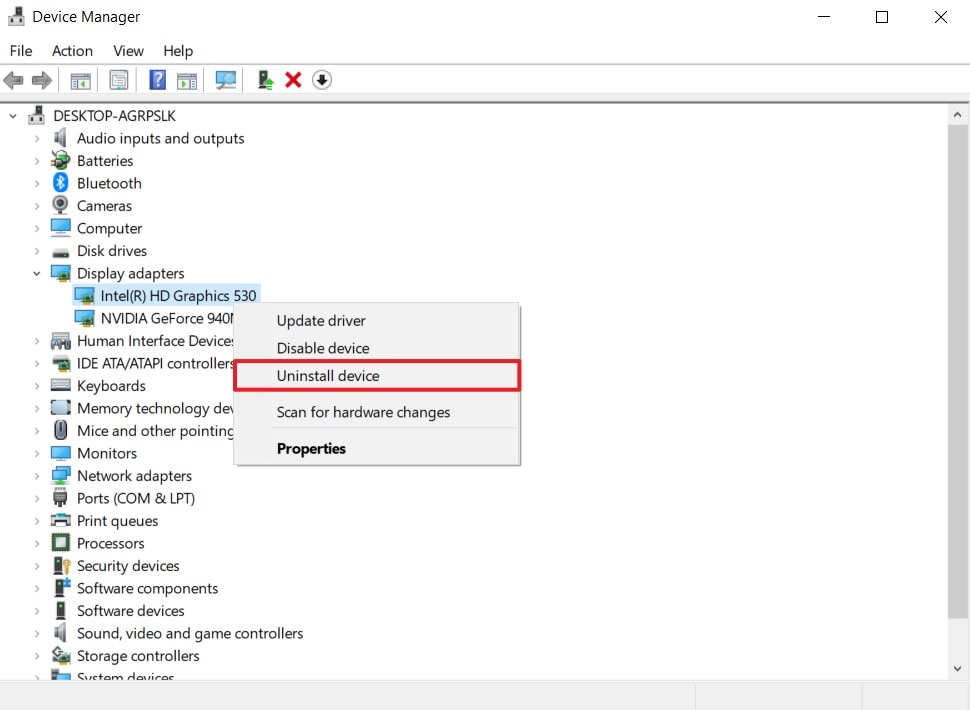
Step 2. For a clean install, choose Uninstall Device, tick the removal box, then install the vendor package.
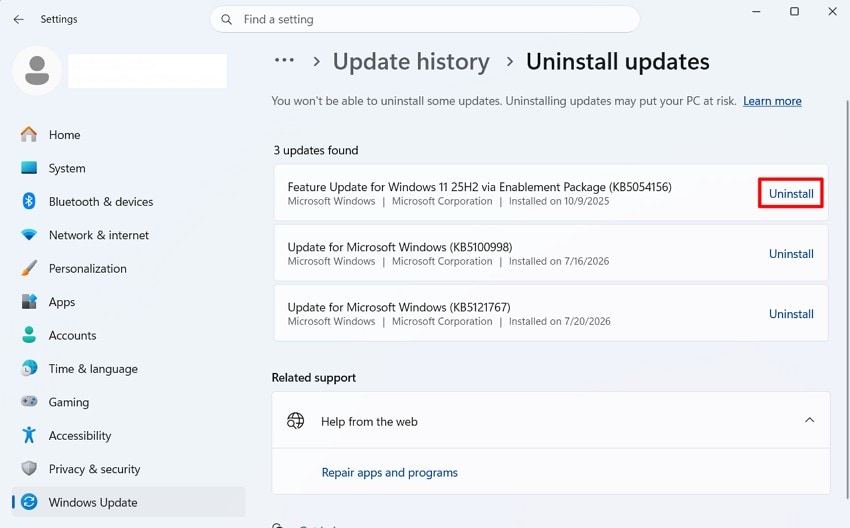
Fix 4. Uninstall a Recent Windows Update or Roll Back an Insider Build
Recent Windows updates or Insider Preview builds can trigger the Windows green screen of death. Rolling back the latest update or switching to a more stable build often resolves the issue. Follow these instructions to try this fix:
Instructions. If Windows still starts, open Settings > Windows Update > Update History > Uninstall Updates, then remove the most recent update. If Windows will not start, boot into Windows Recovery > Troubleshoot > Advanced Options > Uninstall Updates, then remove the latest quality or feature update.
Fix 5. Remove Recently Installed Drivers or Software
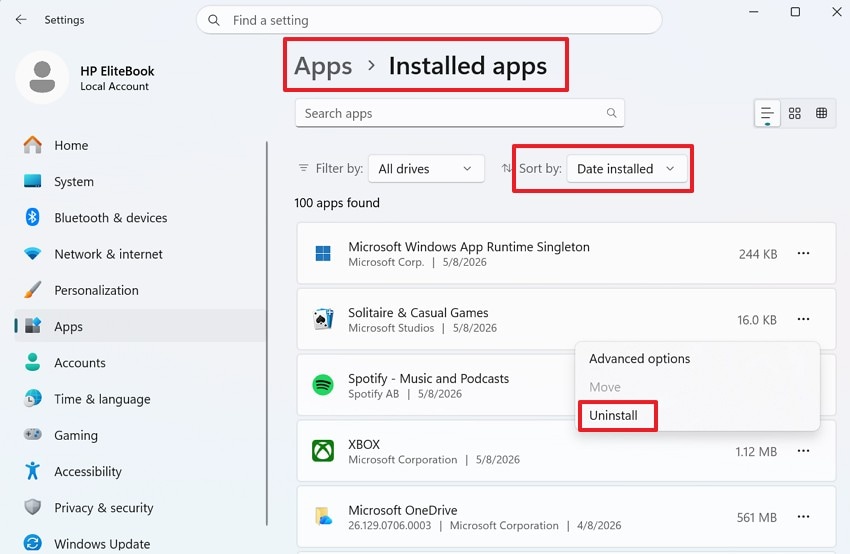
Recently installed drivers or software can trigger a bug check, especially if they add kernel-mode components. Antivirus programs, virtualization tools, and hardware utilities are common examples. Follow the instructions below to remove recently installed drivers or software.
Instructions. Boot into Safe Mode. If Settings opens, go to Settings > Apps > Installed Apps, sort by Install date, and uninstall the most recent app. Otherwise, use Control Panel > Programs and Features or Device Manager.
Fix 6. Perform a Clean Boot
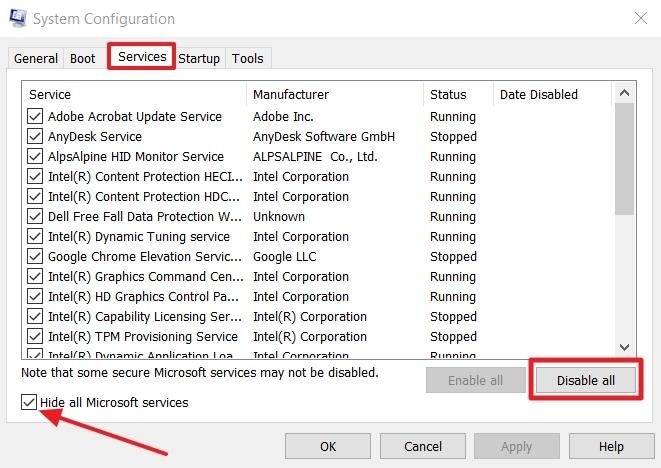
A green screen of death Windows 11 issue may be caused by conflicting startup services or programs. In this case, a clean boot can help isolate the culprit while keeping normal drivers loaded. Follow these steps to perform one:
Step 1. In Safe Mode, press Win + R > msconfig > Services > check Hide all Microsoft Services > Disable All.
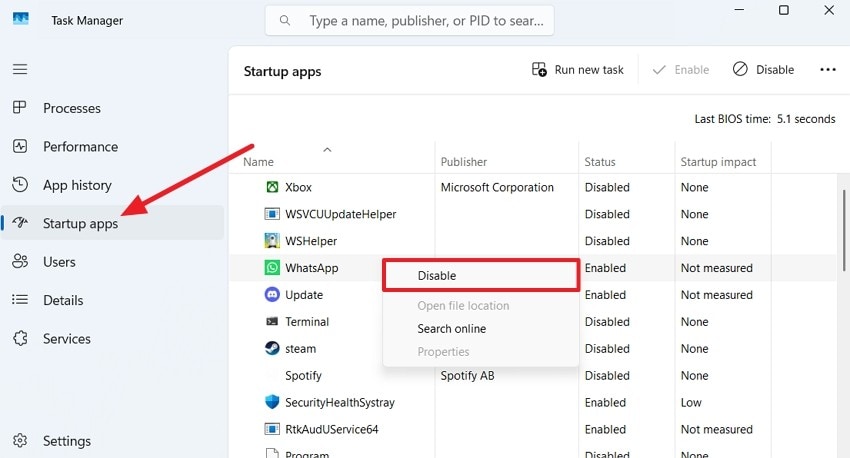
Step 2. Open Task Manager, disable all startup items, then restart the computer to perform a clean boot.
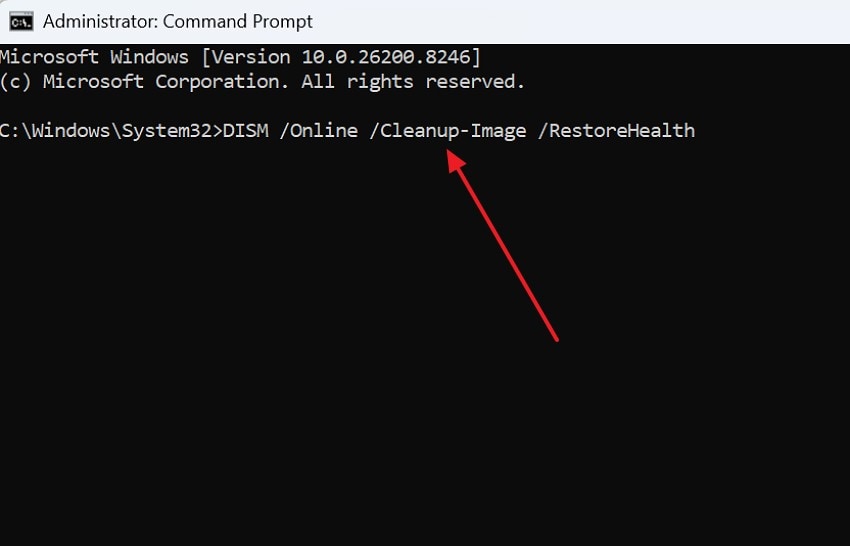
Fix 7. Run DISM and System File Checker
Corrupted Windows components can cause recurring crashes and inconsistent stop codes. Repair the Windows image with DISM first, then restore protected files using System File Checker through the steps below:
Step 1. Boot into Safe Mode, open Command Prompt (Admin), run DISM /Online /Cleanup-Image /RestoreHealth, then press Enter.
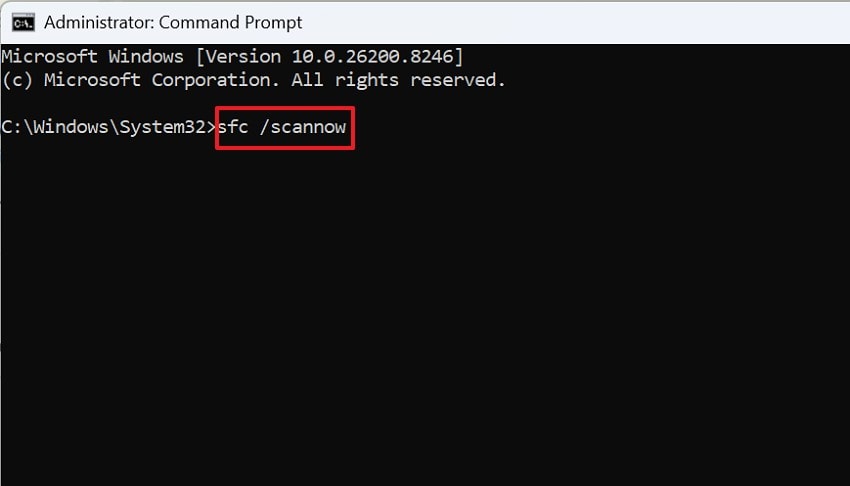
Step 2. After that, execute sfc /scannow > restart PC when it completes.
Fix 8. Check the System Drive Using CHKDSK
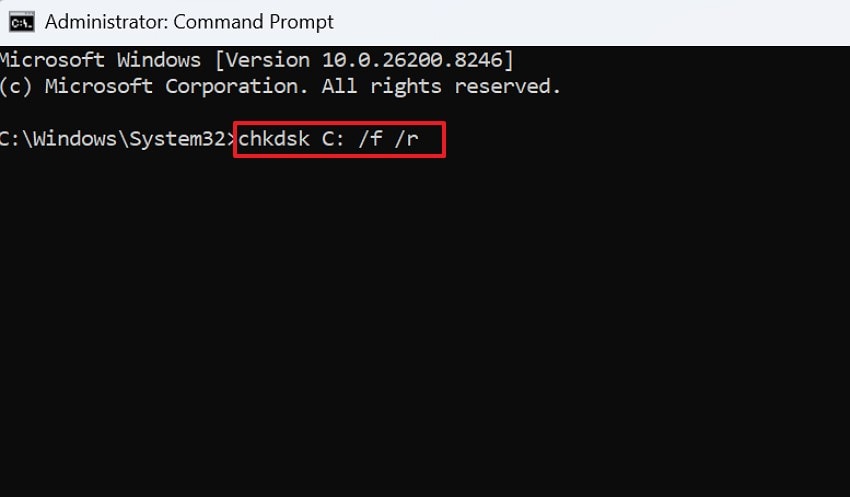
Bad sectors under the system partition corrupt driver files repeatedly, so the crash returns however often you reinstall. Follow the steps below to run CHKDSK and fix Windows 7 green screen of death:
Instructions. In Safe Mode, open Command Prompt (Admin), run chkdsk C: /f /r, press Enter, accept the prompt to schedule the scan, then restart the computer.
Fix 9. Test the RAM With Windows Memory Diagnostic
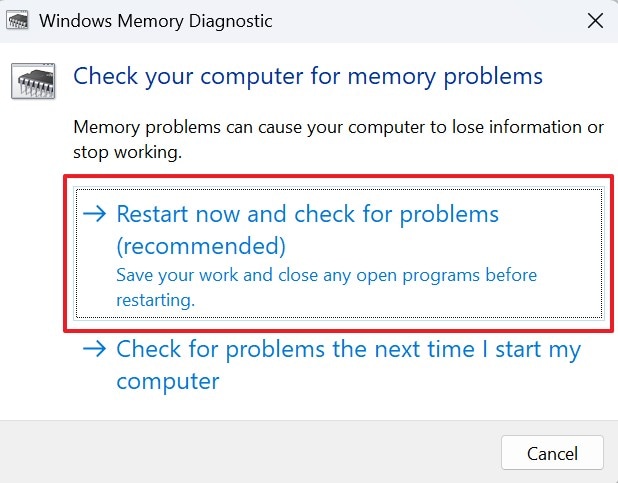
Failing memory produces the least consistent symptoms here, with stop codes differing each time. Windows includes a test running before the operating system loads, so nothing interferes. The instructions mentioned below guide you on how to test the RAM:
Instructions. If Windows starts normally, press Win + R, type mdsched.exe, then choose Restart now and check for problems. If you are already in Safe Mode, you can run the same command before restarting.
Fix 10. Disable Overclocking and Check CPU or GPU Temperatures
Unstable overclocks and excessive temperatures can trigger system crashes. Restore all clock settings to their default values first, then check CPU or GPU temperatures using the steps below:
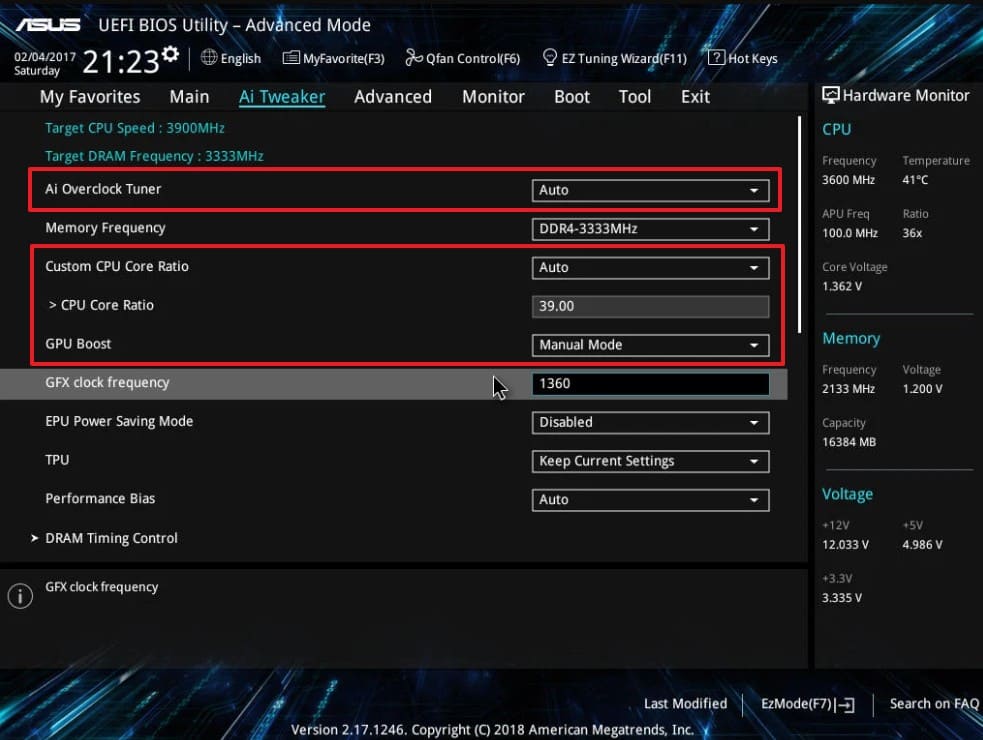
Step 1. Restart and enter BIOS/UEFI. Set CPU and RAM overclock settings to Auto or Default, save the changes, and restart Windows. Reset any GPU overclock in its tuning software before testing again.
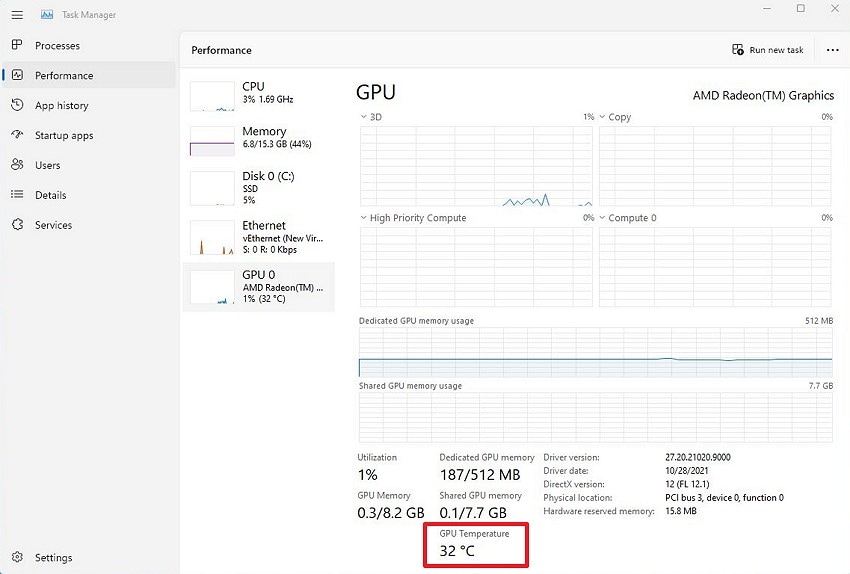
Step 2. Open Task Manager (Ctrl + Shift + Esc) and select Performance > GPU to check the GPU temperature if supported. Use a hardware monitoring tool to check CPU temperature.
Fix 11. Update BIOS, Firmware, and Chipset Drivers
Outdated firmware can trigger Windows green screen of death stop codes even when hardware is healthy. Updating the BIOS and chipset drivers often resolves compatibility issues. Follow these steps to update them:
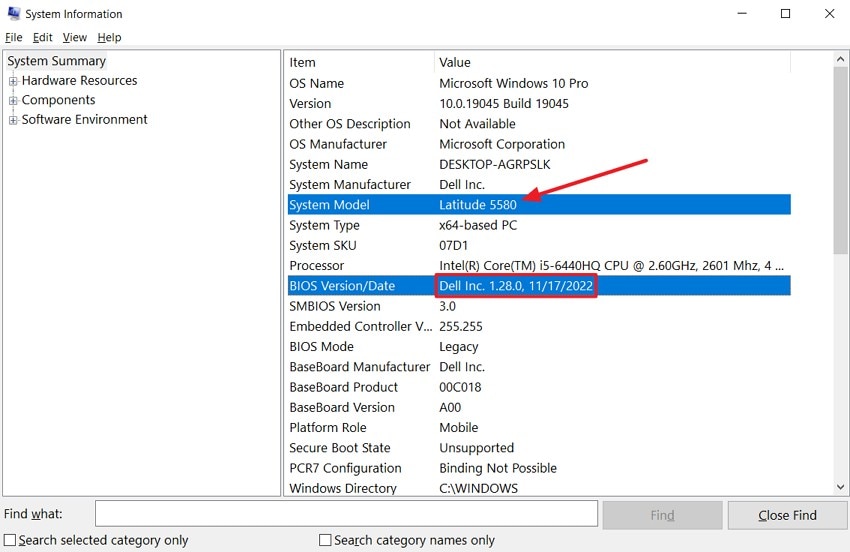
Step 1. In Safe Mode, press Win + R > msinfo32 > Enter. Review your System Model and BIOS Version/Date.
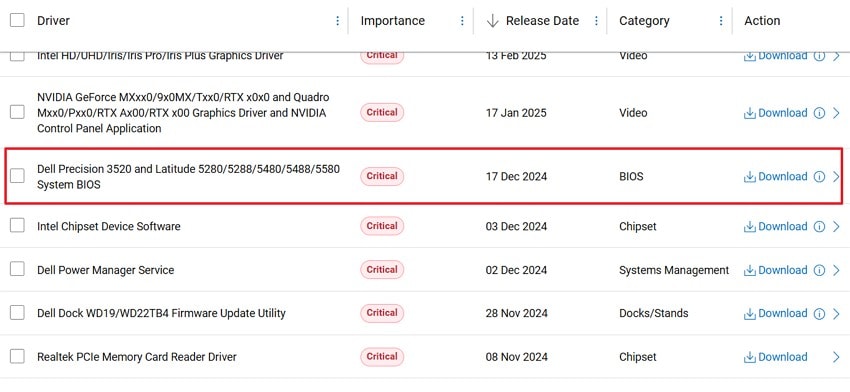
Step 2. Visit your computer manufacturer's support website > download and install the latest BIOS update > restart the PC > install the latest chipset drivers from the same page > restart again.
Fix 12. Run Startup Repair or Perform System Restore
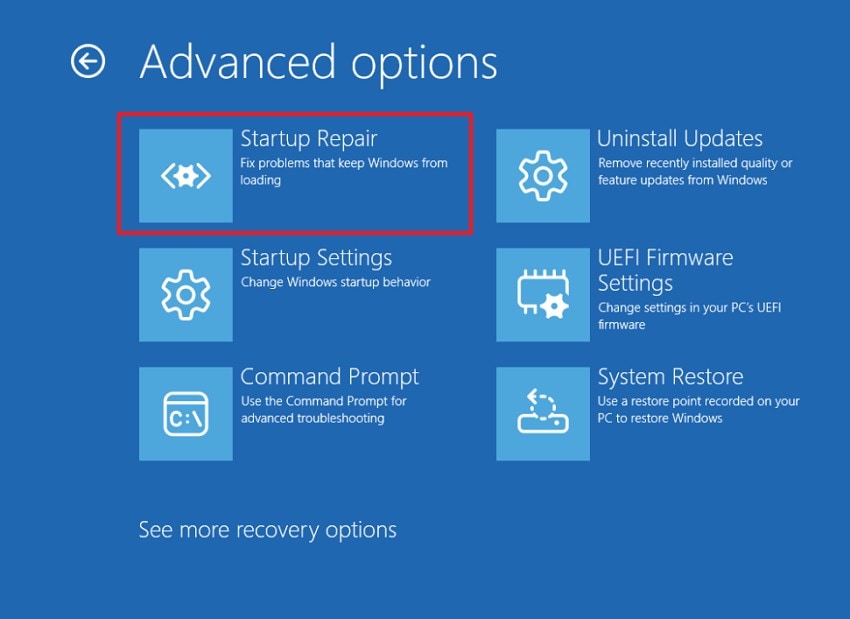
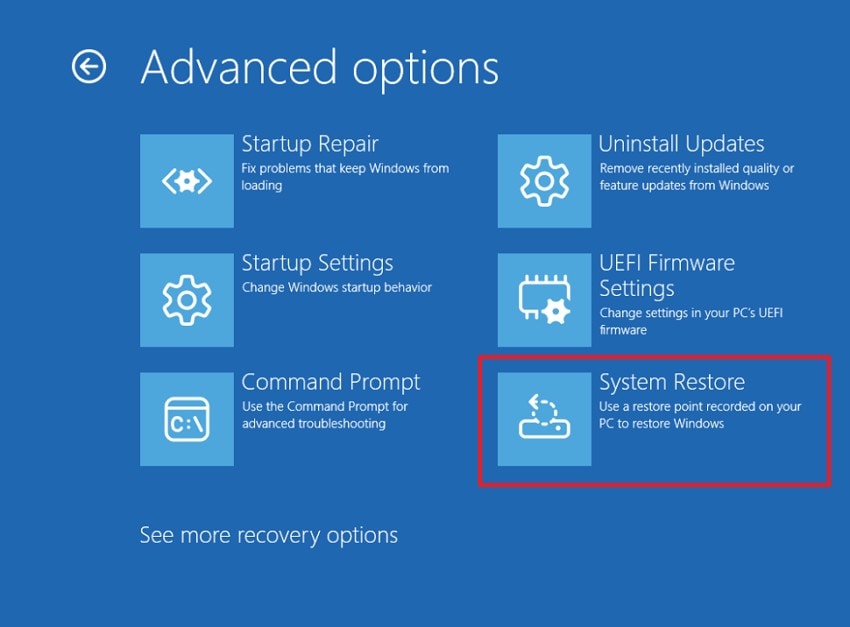
If a green screen of death in Windows 11 prevents normal startup, use Startup Repair or System Restore from Windows Recovery. The steps below explain both methods:
For Startup Repair
Instructions. Force two to three failed boots to reach WinRE, then choose Troubleshoot > Advanced Options > Startup Repair.
For System Restore
Instructions. Choose Troubleshoot > Advanced Options > System Restore, select a restore point, follow the prompts, then restart Windows.
Fix 13. Reset or Reinstall Windows
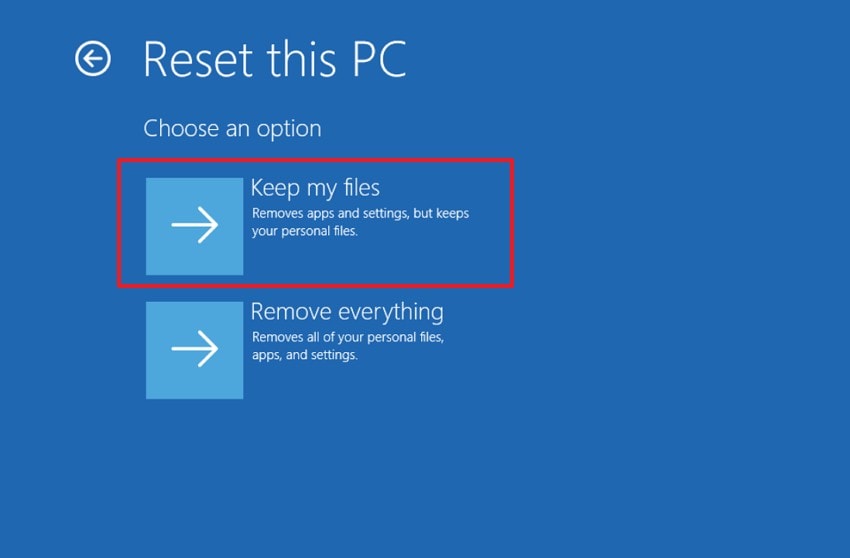
If the Windows 11 green screen of death keeps returning, reset or reinstall Windows. Back up important files first, then proceed with the Instructions below:
Instructions. Boot into Windows Recovery > Troubleshoot > Reset this PC > Keep My Files, then complete the reset.
Part 5. How to Fix a Green Screen Without a Stop Code
A Windows green screen of death still responding is a display fault, not a crash, so none of the fixes above apply. These 6 methods work through the display chain, from software fixes to hardware troubleshooting.
Fix 1. Reset the Graphics Driver
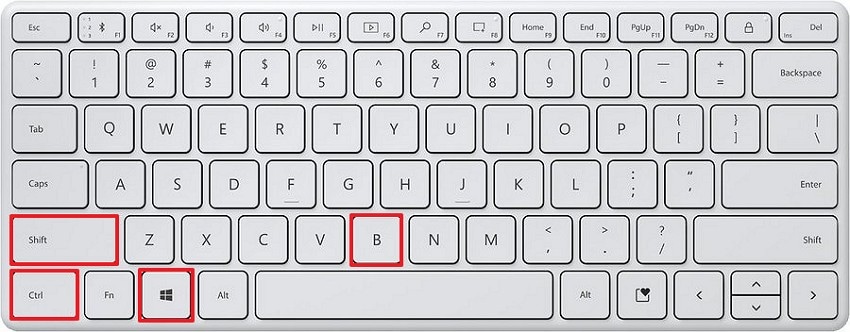
A temporary display issue can sometimes be resolved by restarting the graphics driver without rebooting Windows. Press Win + Ctrl + Shift + B to reset the graphics driver. The screen may blink briefly or go black for a moment as Windows reloads the display driver. If the green screen returns, continue with the remaining display troubleshooting steps to identify the underlying cause.
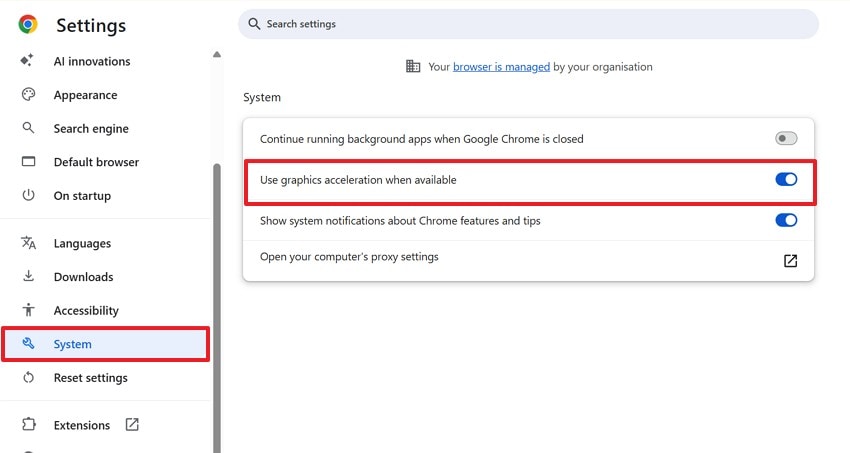
Fix 2. Disable Browser or Video Hardware Acceleration
Green frames during playback nearly always mean the decoder and display path disagree, and acceleration is where that happens. Turning it off moves decoding to the processor:
Instructions. Open your browser Settings > System > Turn off Use Graphics Acceleration When Available, then restart the browser.
Fix 3. Disable Game Overlays and Lower Graphics Settings
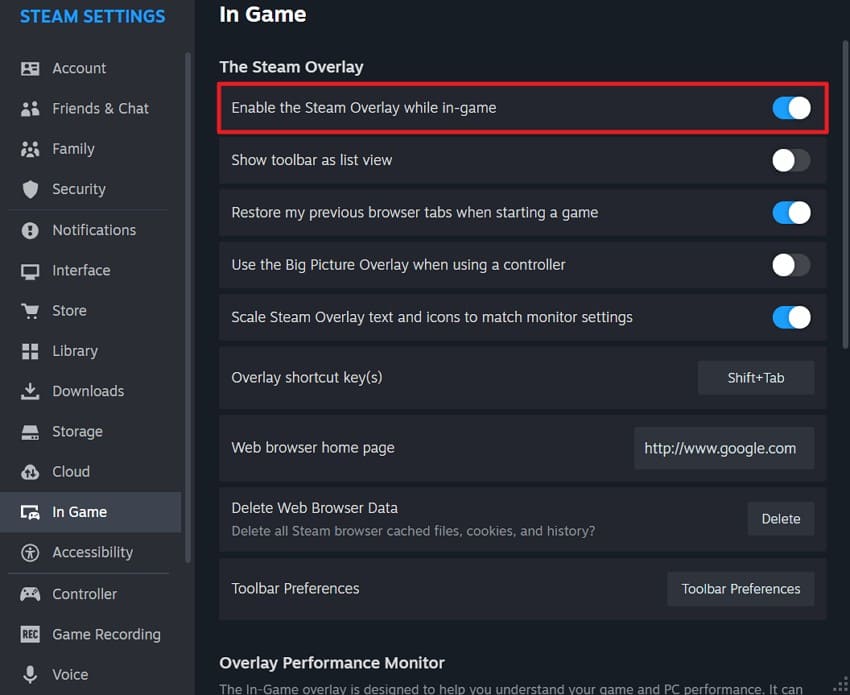
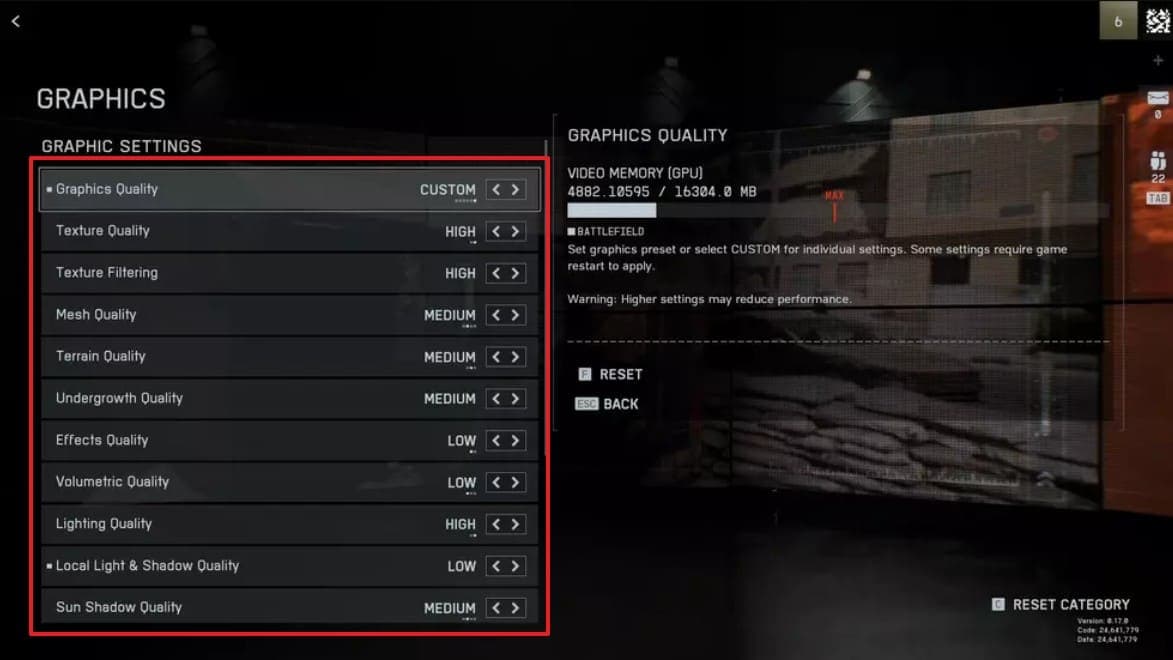
A Windows 11 green screen of death during gameplay can result from overlay conflicts or excessive GPU load. Disable game overlays first, then lower graphics settings using the steps below:
Step 1. Open Steam > Settings > In Game > turn off Enable the Steam Overlay While In-Game > restart Steam.
Step 2. In the game's graphics settings > reduce the Graphics Quality, Texture, Effects, and Shadow quality > apply the changes and restart the game.
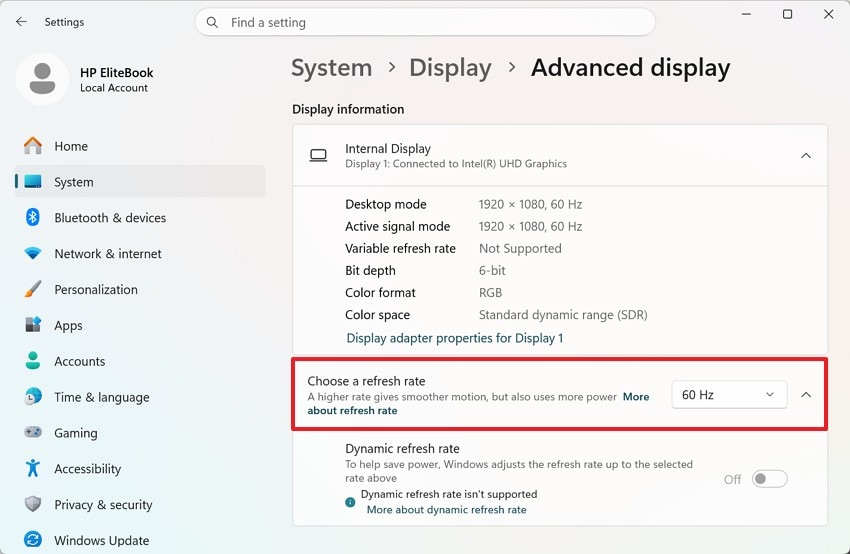
Fix 4. Check HDR, Color, Resolution, and Refresh Rate Settings
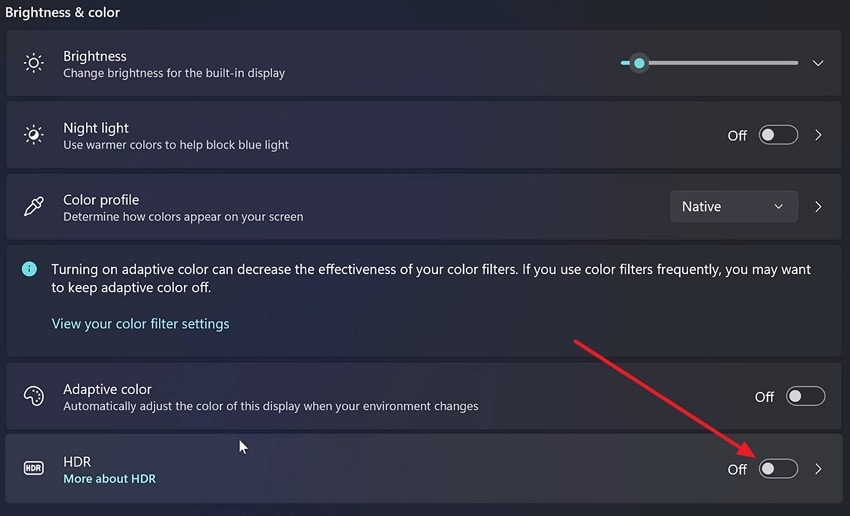
Incorrect HDR, color, resolution, or refresh rate settings can trigger green display issues. To rule out display configuration problems, follow these steps:
Step 1. In Settings > System > Display > HDR, turn it off.
Step 2. In Settings > Display > Advanced Display > Choose a Refresh Rate. If needed, open Color Management > restore the default color profile.
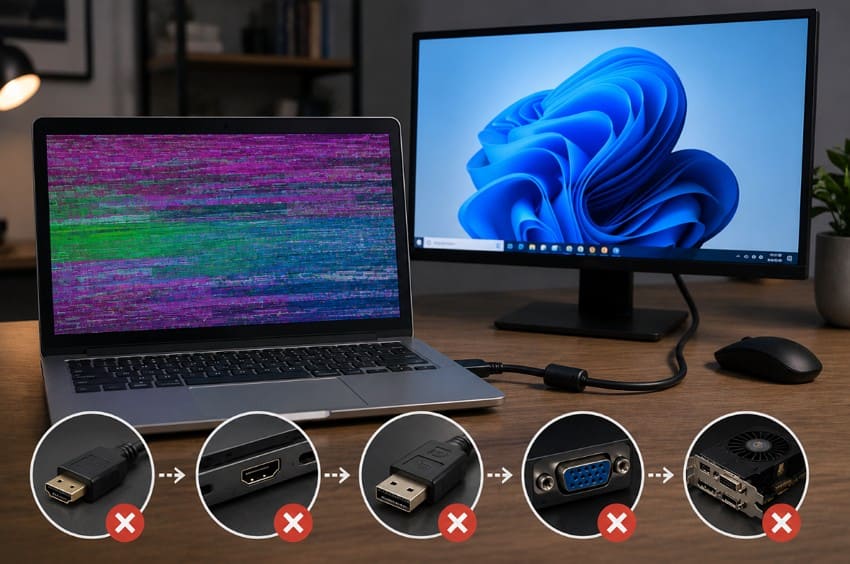
Fix 5. Check the Monitor, Cable, Port, and Display Adapter
Windows 7 green screen of death issues often stem from a faulty signal path, not the computer itself. Test a certified cable, another port, and a different monitor or PC to identify whether the display, cable, or laptop panel is faulty.
Fix 6. Test the GPU and Monitor for Hardware Failure
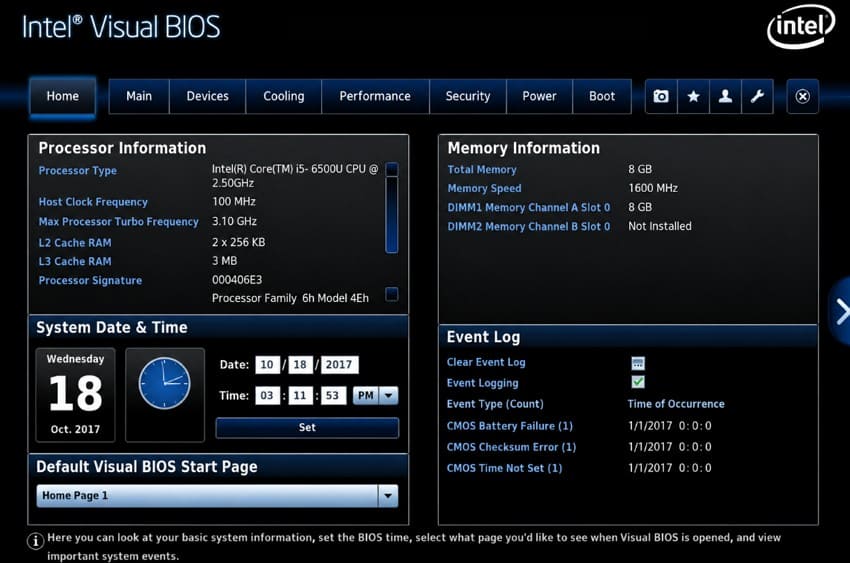
Artifacts appearing before Windows loads, including in the BIOS or UEFI, usually indicate a hardware issue with the GPU, display cable, monitor, or motherboard. Next, run a GPU stress test if the BIOS display appears normal. Finally, test the graphics card in another compatible system to help isolate a faulty GPU or other hardware component.
Part 6. Repair Videos Corrupted by a Windows Green Screen Crash
A bug check halts the kernel immediately rather than shutting down in order. Anything still in a write buffer never reaches disk, which is why the file you were recording or exporting breaks.
Microsoft also explains that Windows intentionally stops the system during a bug check to prevent further operating system or data corruption. As a result, incomplete file writes can occur if a crash interrupts an active save or export process.
Signs That a Video File Is Corrupted
After a green screen of death Windows 11 crash, these symptoms indicate possible video corruption.
| Sign | What It Indicates |
| No Player Will Open It | The video file structure or index may be corrupted, preventing media players from opening it. |
| Playback Halts at a Fixed Point | Part of the video data may be missing or corrupted beyond that playback point. |
| Picture Runs, Audio Silent | The audio track may be missing, damaged, or out of sync with the video stream. |
| Duration Reads Zero or Is Incorrect | The video container metadata or header information may be incomplete or corrupted. |
Repair Corrupted Videos with Wondershare Repairit
Repairit - Video Repair Tool
Repair videos corrupted by Windows crashes, interrupted exports, or incomplete file writes.
-
Truncated video handling. Rebuild partially written video files when the closing index was not saved.
-
Batch video repair. Add several damaged clips and repair supported formats together.
-
Preview before saving. Verify repaired videos before exporting copies.
A green screen of death Windows 11 crash can interrupt video writing, leaving a file with a valid beginning but no usable ending. Media players read the file index first, so a damaged index often prevents the recording from opening. Repairit attempts to rebuild the missing file structure from video data already written to disk.
Recovery depends on how much valid video data reached storage before the crash, since data never written to disk cannot be reconstructed. The preview feature lets you verify each repair before saving, while the original file remains unchanged for another recovery attempt.
Key Features
- Truncated File Handling: Rebuilds recordings ending mid-write, where the closing index was never committed.
- Independent Stream Repair: Treats video and audio separately, recovering one when the other is unsalvageable.
- Import Failure Recovery: Restores files a media player opens partially but editing software rejects outright.
Guide to Fix Corrupt or Damaged Videos Caused by Green Screen of Death
A bug check can interrupt file writing before completion. These 3 steps help rebuild partially saved video files:
Step 1. Load the Corrupted Videos
Open the Video Repair tool and click Add to import the damaged video files.

Step 2. Repair All Imported Video Files
After adding every clip, select Repair to process the complete batch in one run.

Step 3. Review and Save the Repaired Videos
Use Preview to verify each repaired clip, then press Save to export the repaired files.

Conclusion
Although the Windows green screen of death has multiple causes, a systematic approach usually identifies the problem quickly. Addressing the root cause first helps prevent repeated crashes and further system instability. After restoring system stability, Repairit is a practical way to repair videos damaged by unexpected crashes.
Frequently Asked Questions
-
1. Is the Green Screen of Death limited to Windows 11?
No. Windows 11 and Windows 10 Insider Preview builds can display the Green Screen of Death. Standard public Windows releases typically use the Blue Screen of Death instead. -
2. Why is my computer screen green without an error code?
A green screen without a stop code usually indicates a display problem, such as a faulty cable, incorrect HDR settings, a graphics driver issue, or failing display hardware. -
3. Can Repairit fix videos damaged during a Windows crash?
Usually, yes. Repairit can often repair videos if enough data was written to storage before the crash interrupted the recording or export.