
It can be really annoying to transfer a good MP4 video to your computer, only to find that it won't play. You might see a black screen, an error saying the format isn't supported, or a video that freezes halfway. A corrupted MP4 file after transfer is a common problem for both content creators and everyday users.
The good news is that the video is usually not completely lost. In many cases, only the file's "map" (its structure) gets damaged during the transfer. With the right steps, you can repair an MP4 after transfer and make your video work again.
In this article
Why Your MP4 Files Get Corrupted During Transfer
When an MP4 file gets corrupted after transfer, it usually means something went wrong while moving the file, so your media player can't read it properly.
Here are some common signs that the transfer didn't go well:
- "Can't Play" Error. Your media player shows errors like "file not supported" or 0xc00d36c4
- Laggy or Broken Video. The video plays but has glitches, freezes, pixelation, or no sound
- Wrong File Info. The file size looks normal, but the duration shows 0:00
Common Causes of MP4 Corruption
Most of the time, corruption happens because something interrupts the transfer:
- Unstable Connection - A loose USB cable or weak Wi-Fi can interrupt the transfer, even for a second
- Removing Storage Too Early - Taking out a USB or SD card before the transfer fully finishes can damage the file
- Faulty Storage Device - Problems like bad sectors on a hard drive or USB can cause incomplete transfers
- Power Interruption - If your computer shuts down or loses power during transfer, the file can break
Signs Your MP4 File Is Damaged
When your MP4 file gets corrupted after transfer, the problem can show up in different ways, from not playing at all to having annoying glitches. Knowing these signs can help you decide if you just need to transfer the file again or use a repair tool.
- The File Won't Open at All - In some cases, the video won't play no matter what you do. This usually means the file's header (important file info) is damaged or missing
- Audio and Video Don't Match - Sometimes the video plays, but something feels off. This happens when the timing data of the video gets damaged.
- The Video Stops in the Middle - The video starts fine, but crashes or freezes halfway through. This usually means part of the file is missing or corrupted.
Basic Fixes to Repair a Corrupted MP4 File After Transfer
Before using advanced repair software, try these quick and easy fixes first. Sometimes, an MP4 file that got corrupted after transfer only has a small issue, like a software conflict or a minor error that can be fixed in just a few seconds.
Fix 1. The Re-transfer (The "Clean Slate" Method)
If the original source is still available, deleting the corrupted copy and moving it again is the most reliable fix. This rules out random "glitches" that occurred during the first attempt.
Step 1. Delete the corrupted MP4 from the destination drive. Ensure your connection (USB cable or Wi-Fi) is stable.
Step 2. Copy the file from the source and paste it into the destination folder. Wait for the progress bar to disappear completely before interacting with the file.
Fix 2. Force Repair via VLC Media Player
VLC is famous for its ability to "live-repair" files that other players reject. It can temporarily fix the file's index while you watch it.
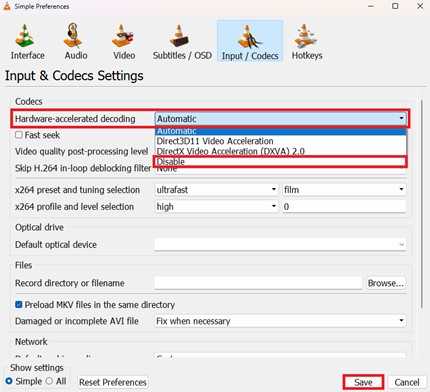
Step 1. Open VLC and go to Tools, then Preferences. Click the Input / Codecs tab.
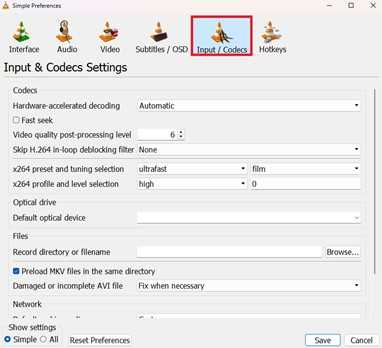
Step 2. Locate the "Damaged or incomplete AVI file" dropdown (this logic also applies to MP4 containers). Select Always fix and click Save. Try opening your MP4 again.
Fix 3. Extension Swapping
Sometimes the operating system misinterprets the file "wrapper." Changing the extension can force the OS to use a different (and more compatible) codec to read the data.
Step 1. Right-click your file and select Rename. Delete the .mp4 at the end and type .m4v or .avi.
Step 2. When the warning box appears ("The file might become unusable"), click Yes. Attempt to play the file with your preferred media player.
Fix 4. Transcoding with Handbrake
If the file opens but exhibits glitches, a transcoder can "strip" the raw video data and rebuild it into a healthy new file structure.
Step 1. Download and open Handbrake. Click Open Source and select your corrupted MP4.
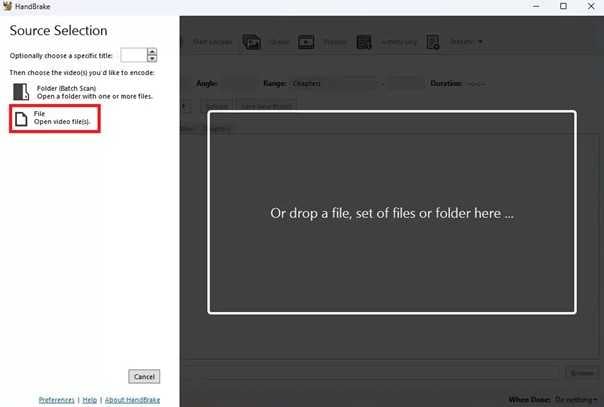
Step 2. Choose a destination folder and a standard preset (like "Fast 1080p30"). Click Start Encode at the top. The software will attempt to "re-write" the video from scratch.
Fix 5. Disk Error Checking
If the transfer fails because of the drive itself, your computer can scan for "bad sectors" and attempt to repair the file system paths.
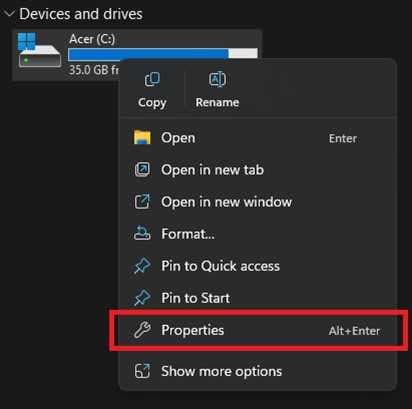
Step 1. Plug in the drive where the MP4 is stored. Right-click the drive icon in File Explorer (Windows) and choose Properties.
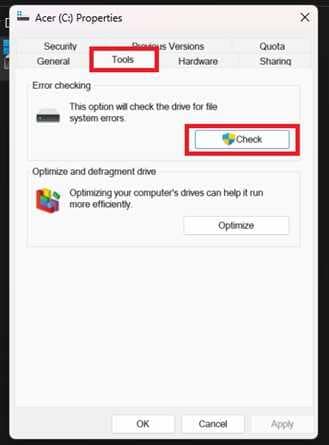
Step 2. Step 2. Open the Tools tab, then click Check under the Error checking section. Select Scan and repair drive. Once finished, try the transfer one more time.
Advanced Fixed for Severely Corrupted Videos
Standard fixes (like renaming or using VLC) usually only work for "container" issues. You can tell your MP4 is severely damaged if:
- The "Same Result" Loop - You've tried 3 different media players and 2 different computers, but the error message remains exactly the same.
- Partial Playback Failure - The video plays for 5 seconds, and then the entire media player application crashes or disappears.
- Raw Data Mismatch - The file size shows as 500MB (so the data exists), but the "Properties" window shows the bit rate as "0kbps."
- Audio-only or Video-only - You can hear the sound perfectly, but the screen is completely black, or vice versa.
If you confirm the video is corrupted, a repair tool can safely restore its functionality. One example is the Repairit Video Repair, which works with common file types like MP4, MOV, and MKV. It is particularly helpful because it uses a "Sample Video" mode to learn the correct structure of your specific camera or phone.
Step-by-Step (Optional)
Step 1. Upload the corrupted video file.

Step 2. Start the Repair process.

Step 3. Preview and save the restored file to a new location.

Best Practices for File Safety
Fixing corrupted videos is helpful, but preventing the problem in the first place is even better. With a few simple habits, you can greatly reduce the chance of getting an MP4 file corrupted after transfer.
- Always copy, don't move
- Watch your battery during transfers
- Use good-quality storage devices
- Keep file names and folders simple
- Regularly maintain your storage drive
Conclusion
Dealing with a corrupted MP4 file after transfer is very common, and in most cases, it doesn't mean your video is permanently lost. The issue is often caused by small problems like unplugging a USB drive too early or minor errors in the file during transfer. Luckily, many of these issues can be fixed.
To avoid this problem in the future, always use safe habits like copying instead of moving files and properly ejecting your storage devices before unplugging them. These small steps can help ensure your videos transfer safely every time.
FAQs
-
Why does my MP4 play sound but show a black screen?
This usually happens when the video part of the file is damaged, but the audio part is still working. The video information may have been corrupted during transfer. Repair tools or VLC can often fix this. -
Can a corrupted MP4 file be fixed for free?
Yes, in many cases. You can try re-transferring the file, or use free tools like VLC Media Player or HandBrake to repair or re-encode the video. -
Will changing the file extension fix a corrupted MP4?
Sometimes changing the file extension can help if the problem is only with how the file is recognized. However, it won't fix serious damage inside the video itself. -
What does a 0-byte MP4 file mean?
It means no video data was actually saved, even though the file appears on your device. Unfortunately, this kind of file cannot be repaired and needs to be transferred again. -
How do I know if my USB drive is causing the problem?
If multiple files get corrupted or your USB keeps disconnecting, the drive may be faulty. You can check it using built-in tools like Disk Check (Windows) or First Aid (Mac).




