
Apple ProRes is a high-quality, intermediate video codec created by Apple for professional post-production. It compresses footage enough to keep file sizes manageable while preserving detail for color grading, VFX, and final delivery. Because it plays back smoothly on most editing systems, ProRes codec is widely used in filmmaking, broadcast, and content creation for editing, reviewing, and archiving high-resolution projects.
Repair Corrupted Files To Save Your Data
 Security Verified. Over 7,302,189 people have downloaded it.
In this article
How Apple ProRes Works
The ProRes codec uses lossy compression to significantly reduce file size while keeping the video visually close to the original source. Instead of compressing every frame as heavily as delivery formats like H.264, Apple ProRes stores more information per frame and often uses intra-frame compression, meaning each frame is encoded more independently. This makes decoding easier for your CPU or GPU, so timelines play back smoothly even at 4K or higher resolutions. In practice, you get a balance of high image quality, moderate file sizes, and efficient editing performance.
Key Features, Pros, and Cons
Main features of Apple ProRes
- Family of variants such as ProRes 422, ProRes 4444, Proxy, LT, and HQ tailored for different quality and bitrate needs.
- High color fidelity and support for up to 12-bit color and 4:4:4 chroma sampling in ProRes 4444.
- Optimized for smooth playback and editing, especially in apps like Final Cut Pro, Adobe Premiere Pro, and DaVinci Resolve.
- Designed as an intermediate, high-quality video codec rather than a final delivery or streaming format.
- Supports high resolutions, including 2K, 4K, 6K, and higher, as well as HDR workflows.
Pros, cons, and real-world performance
Pros
Visually lossless quality suitable for grading, compositing, and effects-heavy work.
Less CPU-intensive than long-GOP codecs, improving timeline responsiveness.
Predictable performance and bitrates across different cameras and systems.
Widely supported by professional cameras, recorders, and NLEs.
Cons
Larger file sizes compared to H.264, H.265, or AV1, which increases storage and backup costs.
Best performance and native encoding options are usually on macOS.
Typical real-world performance
In real projects, Apple ProRes offers stable playback with multiple streams of 4K footage on modern systems. Editors can scrub, trim, and apply basic color corrections in real time without heavy caching. The trade-off is that you must plan enough disk space and fast storage (such as SSDs or RAID) to comfortably handle the higher data rates of a high-quality video codec like ProRes HQ or 4444.
Apple ProRes vs Other Codecs
| Codec | Key Differences Compared to Apple ProRes |
|---|---|
| H.264 | ProRes vs H. 264: H.264 delivers much smaller files for streaming and distribution but is more compressed and harder to edit natively. ProRes is larger yet offers smoother editing and better color fidelity. |
| H.265 / HEVC | HEVC can be even more efficient than H.264, producing very small files at similar or better quality. However, it is computationally heavier, and some workflows still prefer ProRes for reliable performance and easier decoding. |
| AV1 / VP9 | Modern web-oriented codecs such as AV1 and VP9 focus on ultra-efficient streaming. They reduce bandwidth but are not widely used as intermediate codecs. ProRes remains a standard in professional post-production environments. |
In short, Apple ProRes is not about minimal file size; it is about edit-friendly performance and high-quality images. Delivery codecs like H.264, HEVC, AV1, or VP9 are better at shrinking files for online platforms, while the ProRes codec is often chosen inside the post-production pipeline before exporting final masters for distribution.
Compatibility and Practical Use
Apple ProRes is supported across a wide range of professional tools and devices. Popular NLEs such as Final Cut Pro, Adobe Premiere Pro, DaVinci Resolve, and Avid Media Composer can read and export various ProRes codec flavors. Many cinema cameras and external recorders (from brands like ARRI, Blackmagic Design, Canon, and Atomos) can record directly to ProRes, simplifying the post workflow.
ProRes video files typically appear inside containers such as MOV and sometimes MXF. On macOS, ProRes playback is built into the system frameworks, while on Windows, support relies on NLEs and third-party tools that can decode Apple ProRes. In practice, editors often transcode camera originals to ProRes 422 or ProRes 4444 to standardize media, reduce processing load, and keep color work consistent across the entire project.
How to Use Repairit to Fix a Corrupted Apple ProRes File
Why use Repairit for ProRes repair
Even though Apple ProRes is robust, files can still become corrupted due to faulty memory cards, sudden power loss, or interrupted transfers. When your editor refuses to open a critical clip or playback stops unexpectedly, a dedicated repair tool is essential. Wondershare Repairit is designed to handle this kind of damage and can restore unplayable ProRes file repair cases without requiring deep technical knowledge. You can learn more or download the tool from the Repairit official website.
Repairit key features
- Repairs multiple damaged Apple ProRes and other video files at once, saving time on large projects.
- Supports a wide range of resolutions, camera brands, and formats beyond ProRes, covering most typical production workflows.
- Offers a guided, user-friendly interface that works for beginners and professionals who need fast, reliable ProRes file repair.
Step-by-step: repair corrupted Apple ProRes
- Add corrupted video
Install and open Wondershare Repairit on your computer, then go to the Video Repair module. Click the add button and browse to your corrupted Apple ProRes clips, whether they are stored locally, on an external drive, or on a memory card backup. The damaged files will appear in a list with basic details like size and format.

- Repair video codecs
After importing the clips, start the repair process so Repairit can scan each file structure, identify broken headers or frames, and rebuild the underlying video editing codec data. Once the analysis finishes, use the preview function to play the repaired ProRes 422 or ProRes 4444 files and confirm that video and audio are synchronized and stable from start to finish.

- Save the repaired videos
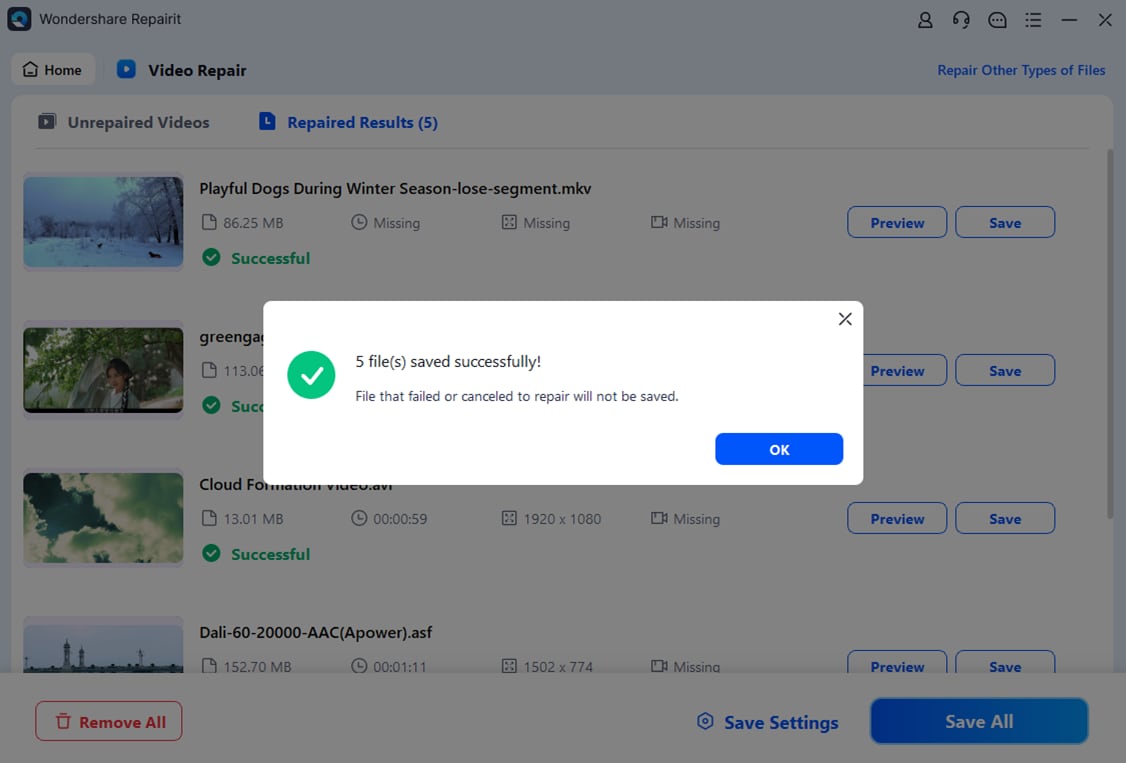
If the preview looks good, choose a safe destination folder on a different drive than your original media to avoid overwriting. Click Save to export the fixed clips. The repaired Apple ProRes files can then be imported back into your NLE or played in compatible software as part of your normal workflow, allowing you to continue the project without reshooting.
Conclusion
Apple ProRes has become a cornerstone high-quality video codec in professional post-production because it balances image fidelity, manageable file sizes, and smooth editing performance. Understanding the different flavors, how ProRes compares to delivery formats like H.264, and when to use options such as ProRes 422 or ProRes 4444 helps you design efficient, reliable workflows.
However, no codec is immune to corruption. When critical ProRes media fails, Wondershare Repairit provides a practical way to perform ProRes file repair and recover damaged clips. By integrating a repair step into your backup and ingest routine, you can safeguard your footage and keep complex productions on schedule.
Next: What is ProRes Raw Codec?
FAQ
-
1. What is Apple ProRes used for in video production?
Apple ProRes is mainly used as an intermediate codec for editing, color grading, and finishing. It offers high image quality with relatively efficient compression, making it ideal for 4K and HDR projects in film, television, and online content creation where smooth timeline performance is essential.
-
2. Is Apple ProRes better than H.264 for editing?
For editing workflows, ProRes vs H264 usually favors ProRes. H.264 is optimized for delivery with heavy compression, which can strain CPUs and reduce image flexibility in post. Apple ProRes keeps more data per frame and is easier to decode, so scrubbing and applying effects in the NLE feels much more responsive.
-
3. Do I need a Mac to work with Apple ProRes files?
You do not strictly need a Mac. Many Windows NLEs can import and work with Apple ProRes media. However, macOS offers deeper native integration and more straightforward encoding options, especially in Apple software like Final Cut Pro and tools built around Apple media frameworks.
-
4. Why are Apple ProRes files so large compared to other formats?
Because Apple ProRes uses lower compression than delivery codecs, each frame stores more information. This increases file size but delivers smoother playback, more accurate color grading, and cleaner exports compared to highly compressed formats such as H.264 or HEVC.
-
5. Can corrupted Apple ProRes videos be repaired?
Yes, many corrupted ProRes clips can be recovered as long as the damage is not too severe. Tools like Wondershare Repairit analyze the file structure and rebuild broken data segments, allowing ProRes file repair so your videos become playable again and can be reintroduced into your editing timeline.




