Quick Answer: To convert WebM to MP4 without installing software, upload a file to CloudConvert, FreeConvert, or Convertio and select MP4. For offline conversion, use HandBrake or VLC. For repeatable command-line conversion, FFmpeg with H.264 video and AAC audio is a broadly compatible starting point. If a converted MP4 is broken, identify codec errors before treating it as file corruption.
A browser recording or downloaded clip may arrive as a .webm file, but your editing tool, TV, phone, or project workflow expects MP4. The good news: converting WebM is usually straightforward. The important part is choosing whether you need a quick online converter, adjustable export settings, or a repeatable batch workflow.
This guide covers CloudConvert WebM to MP4, FFmpeg commands, HandBrake WebM to MP4, VLC, and troubleshooting. It also explains when a playback problem has nothing to do with conversion.
In this article
Part 1. Why Convert WebM to MP4? WebM vs. MP4 Explained
WebM is a media container commonly associated with VP8 or VP9 video and Opus or Vorbis audio. MP4 is another container, widely used for sharing, editing, and playback, often with H.264 video and AAC audio. Both can hold compressed video, but compatibility depends on the streams inside the container, not just its filename. A WebM file may use different codecs depending on how it was recorded or exported.
| Feature | WebM | MP4 |
|---|---|---|
| Typical use | Web playback and recording | General playback, editing and sharing |
| Common video codecs | VP8, VP9, AV1 | H.264, H.265, AV1 (support varies) |
| Common audio codecs | Opus, Vorbis | AAC, ALAC and others |
| Playback compatibility | Strong in modern browsers | Broad across devices when encoded with H.264/AAC |
Can You Convert WebM Video to MP4 Without Losing Quality?
Sometimes, but not always. Remuxing copies compatible audio/video streams into a different container without re-encoding. It is fast and does not introduce a new lossy encode, but the original codecs may not suit the new container or target player. Most WebM files use codecs that make re-encoding to H.264/AAC the safer option for wide MP4 compatibility. Re-encoding can introduce some quality loss, so keep the original and choose sensible quality settings. Renaming .webm to .mp4 does not convert anything. The same compatibility considerations apply when you convert other video formats to MP4.
Part 2. How to Convert WebM to MP4 Online Free
A browser converter is convenient for a one-off clip because you do not need to install an editor. Do not upload confidential recordings or sensitive workplace videos unless you have checked the service's current privacy, retention, file-size, and plan terms. Availability and free allowances can change.
Method 1. CloudConvert WebM to MP4
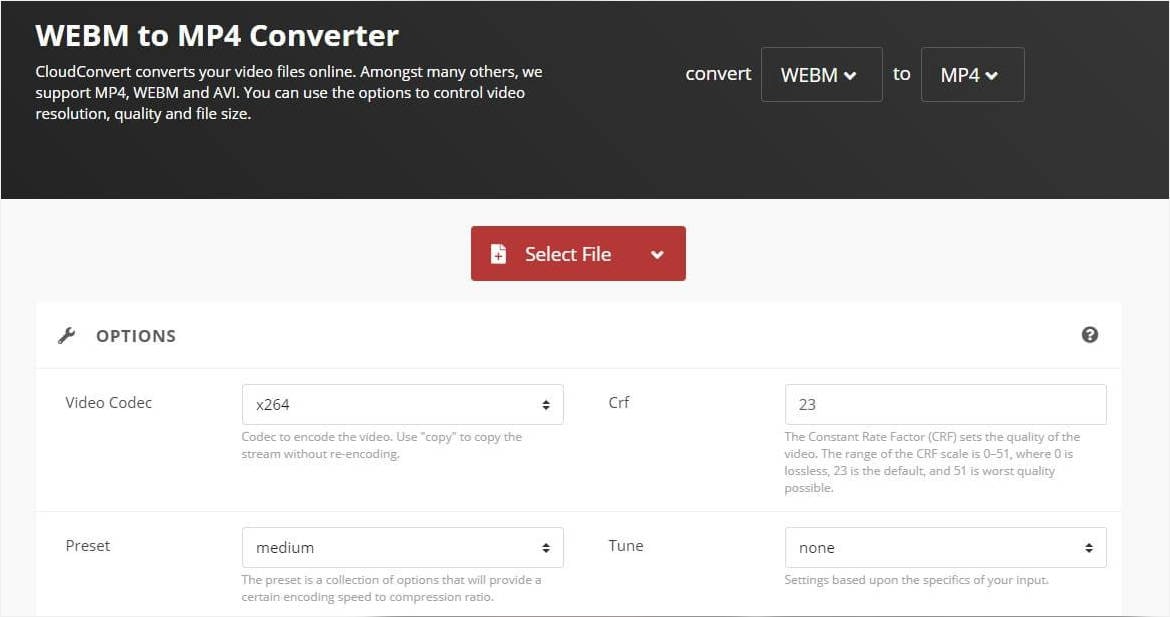
CloudConvert provides a dedicated WebM-to-MP4 converter with configurable video options, making it a practical first choice for short files.
- Upload: Open the WebM to MP4 page, choose Select File, and import the source video.
- Configure: Confirm MP4 output. If offered, choose H.264/x264 for broad playback support; keep the original aspect ratio unless a platform requires otherwise.
- Convert: Start conversion, download the MP4, and test it in a second player before deleting the WebM original.
Method 2. FreeConvert WebM to MP4
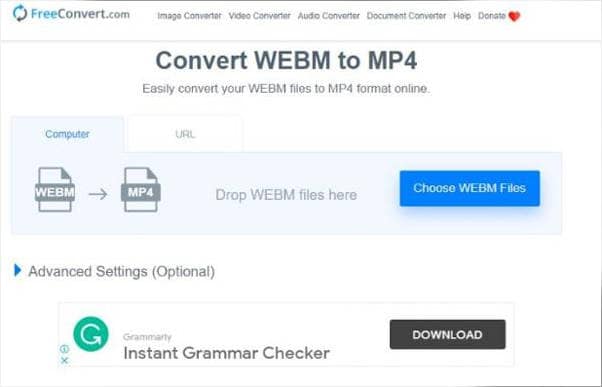
FreeConvert is a straightforward alternative when you want an online workflow with optional output settings.
- Select your WebM video on the FreeConvert converter page.
- Confirm MP4, open advanced settings if needed, and select an appropriate video codec.
- Convert, download, and play the output to confirm sound and duration.
Method 3. Convertio WebM to MP4
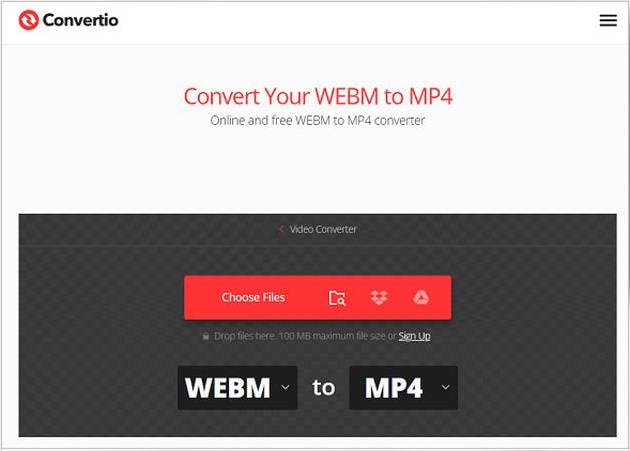
Convertio offers another simple upload-and-convert flow. Account requirements, maximum file sizes, and daily limits may depend on the current plan.
- Choose the WebM source file.
- Set the destination format to MP4 and review any available encoding options.
- Press Convert and save the completed MP4 file.
Which Free Online WebM to MP4 Converter Should You Choose?
| Tool | Best for | Practical consideration |
|---|---|---|
| CloudConvert | Conversion with codec/resolution controls | Check current conversion-credit and file limits |
| FreeConvert | Simple upload plus settings | Check current upload-size and daily restrictions |
| Convertio | Quick browser-based conversion | Check file-size and account requirements |
Part 3. How to Use FFmpeg to Convert WebM to MP4
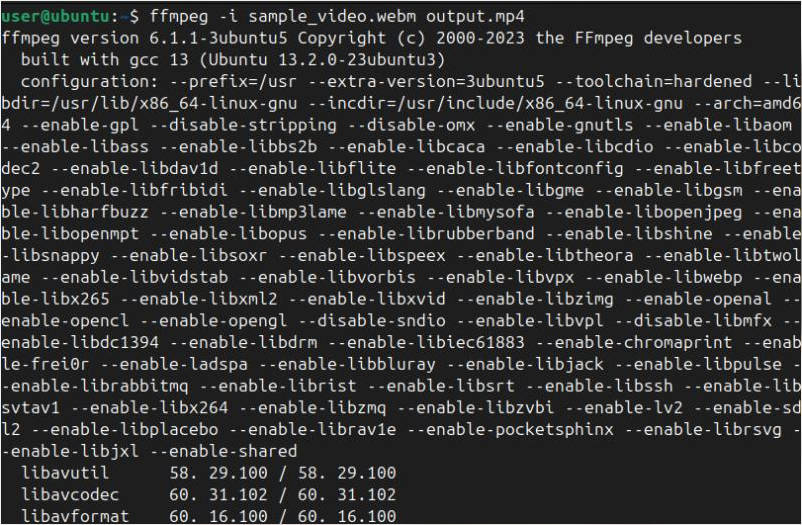
If you want repeatable exports, automation, or control over audio and video streams, FFmpeg is a strong free option. Install FFmpeg from the official project or a trusted package manager, then open Terminal, Command Prompt, or PowerShell in the file's directory.
FFmpeg Convert WebM to MP4 With H.264 and AAC
ffmpeg -i input.webm -c:v libx264 -crf 23 -preset medium -pix_fmt yuv420p -c:a aac -b:a 192k output.mp4This command decodes the input and produces an MP4 with H.264 video and AAC audio. -crf 23 is a practical starting point for quality and size; lower CRF values generally give higher quality and larger files. -pix_fmt yuv420p improves compatibility with many older players. FFmpeg must have an encoder build that includes libx264. If the source has no audio, FFmpeg can generate video-only output.
FFmpeg WebM to MP4 Without Re-encoding
ffmpeg -i input.webm -c copy output.mp4Use this only when the source streams are compatible with the MP4 container and your playback target. Many VP8/VP9 + Opus WebM files are not suitable for universally playable copy-only MP4 output. A failed remux does not prove corruption. Inspect the actual codecs with ffprobe -hide_banner input.webm and use H.264/AAC transcoding if compatibility is the priority.
How to Batch Convert WebM Files to MP4
Windows PowerShell:
Get-ChildItem -Filter *.webm | ForEach-Object { ffmpeg -i $_.FullName -c:v libx264 -crf 23 -c:a aac (Join-Path $_.DirectoryName ($_.BaseName + '.mp4')) }macOS / Linux shell:
for f in ./*.webm; do ffmpeg -i "$f" -c:v libx264 -crf 23 -c:a aac "${f%.webm}.mp4"; doneTest the commands on copies first and confirm enough storage space for intermediate and output files.
Part 4. How to Convert WebM to MP4 With HandBrake and VLC
Method 1. HandBrake WebM to MP4 Conversion
HandBrake is a free desktop transcoder with a graphical interface. It is a good choice for someone who prefers presets and does not want to type commands.
- Open HandBrake, select Open Source, and import a WebM file supported by your installed version.
- Under Summary, choose MP4. Under Video, select H.264 (x264) and an appropriate quality setting. Review audio codec settings if your target requires AAC.
- Set the destination filename and click Start Encode. Play the resulting MP4 to check audio synchronization.
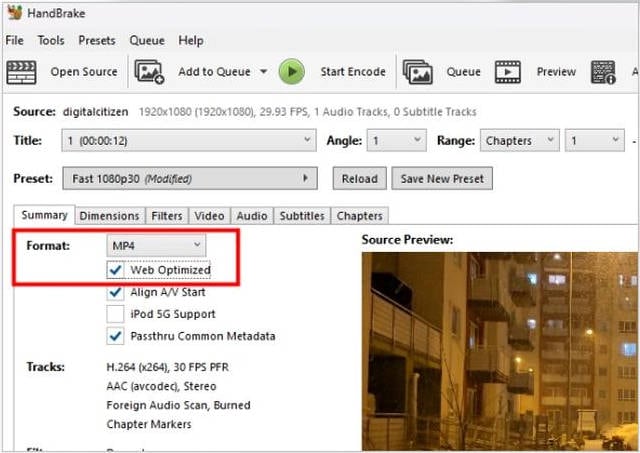
HandBrake generally transcodes video; it is not a general-purpose stream-copy remuxer. To preserve an existing compatible stream without re-encoding, FFmpeg is a better fit.
Method 2. Convert WebM to MP4 With VLC Media Player
Already have VLC Media Player? Its conversion interface can work for simple one-file tasks, although profiles and menu labels vary by operating system and version.
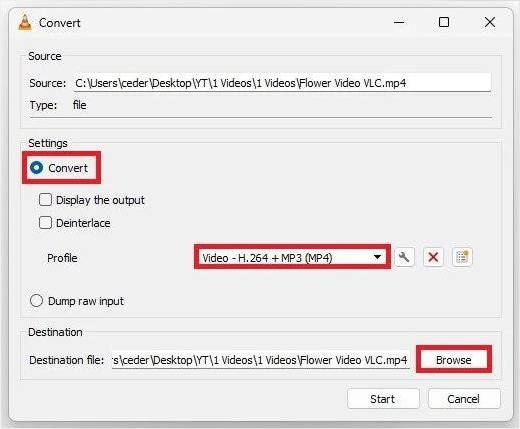
- On Windows, open Media > Convert / Save, add the WebM source, then click Convert/Save. On macOS use the corresponding Convert/Stream workflow.
- Select an MP4-compatible video profile, preferably one with H.264 video and an audio format supported by your playback target.
- Choose a destination ending in
.mp4, start the conversion, and verify the result. If audio is missing or the file will not play, try FFmpeg or HandBrake with explicit codecs.
FFmpeg vs. HandBrake vs. Online Converters
| Method | Install required? | Best use |
|---|---|---|
| CloudConvert / FreeConvert / Convertio | No | Occasional conversion without local setup |
| FFmpeg | Yes | Codec control and batch automation |
| HandBrake | Yes | Guided GUI-based transcoding |
| VLC | Yes | Basic conversion with an existing media player |
Part 5. WebM to MP4 Conversion Failed? How to Fix Unplayable or Corrupted Videos
Not every conversion error means the video is damaged. First play the original WebM in a compatible media player, then inspect whether the MP4 file was created correctly. If the source plays but the output does not, try H.264/AAC transcoding and a different player before attempting repair.
Why Does WebM to MP4 Conversion Fail?
| Symptom | Likely cause | First action |
|---|---|---|
| MP4 fails to play on a device | Unsupported output codec/profile | Transcode to H.264/AAC in a compatible profile |
| No sound in converted MP4 | Audio codec, missing audio track or mapping | Inspect streams and explicitly encode AAC audio |
| FFmpeg says invalid data | Incomplete download, wrong input or damaged file | Verify the original and download it again if possible |
| Video freezes partway through | Damaged source segment or encoding issue | Compare source playback and conversion logs |
| Conversion unexpectedly stops | Insufficient storage, tool limits or processing error | Check disk space, file size and logs |
When Should You Repair a Damaged WebM or MP4 File?
If the original WebM is corrupted, preserve a copy and redownload it if possible. Trying to repair corrupted WebM video files requires checking the cause of the damage and whether the chosen repair method supports the file. The current Repairit technical specifications list WEBM for AI Video Enhance but not under the standard Video Repair supported-format list. Accordingly, do not assume that standard Video Repair can accept a damaged WebM source. Enhancement is also not a substitute for repairing invalid or unreadable file structure.
If the converted MP4 file itself is damaged or unplayable after checking codec compatibility, Wondershare Repairit Video Repair supports MP4 repair and may be appropriate. It cannot fix a streaming-service restriction, a missing download, or a conversion command configured with the wrong codec.
How to Repair a Corrupted MP4 With Wondershare Repairit
Step 1. Add the damaged MP4. Launch Repairit, choose Video Repair, and add the corrupted MP4 output file.

Step 2. Start Video Repair. Click Repair to process the file. If repair does not succeed, check the software's available advanced-repair options for your supported file type.

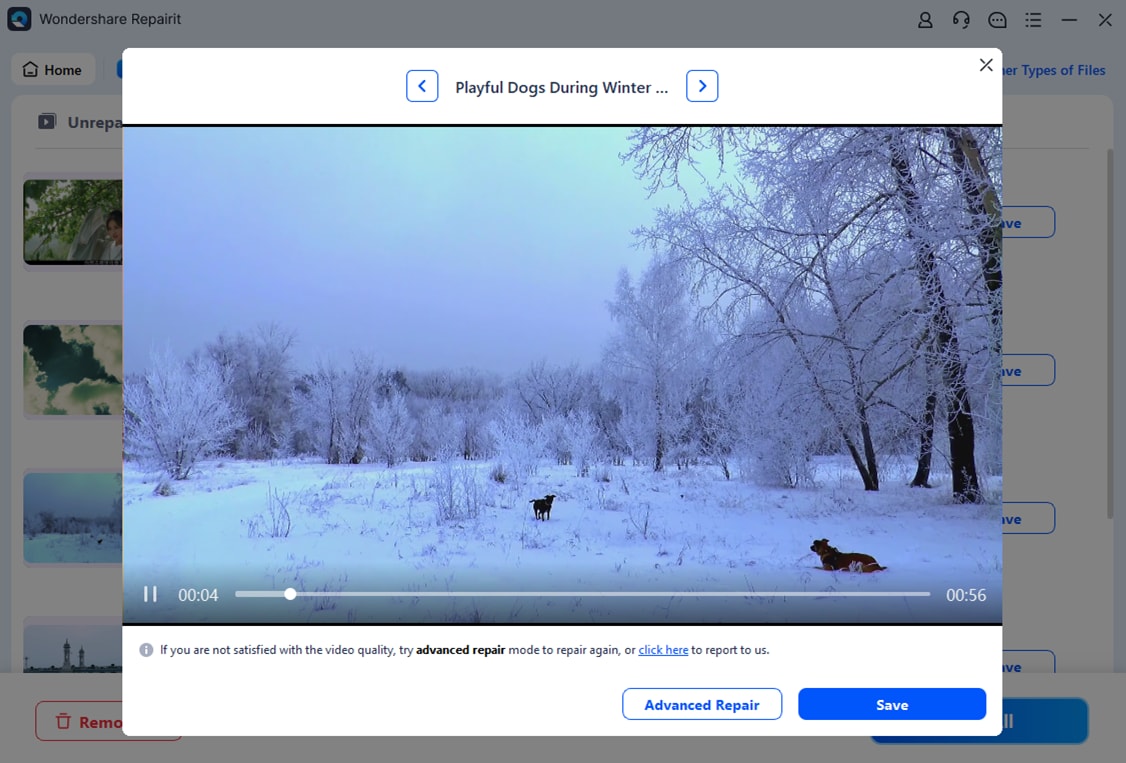
Step 3. Preview and save. Check the repaired video's playback, audio, and duration before saving it separately from the original.
Conclusion: Choose the Best Way to Convert WebM to MP4
For a quick, occasional WebM to MP4 task, online converters are convenient. FFmpeg is the most flexible choice for repeatable H.264/AAC exports and batch jobs, while HandBrake offers an approachable desktop interface. VLC is useful when you already have it installed. Always check playback and audio in the finished MP4, and keep the WebM original. Reserve file repair for genuine damage after ruling out ordinary conversion and codec problems.
Frequently Asked Questions
-
1. How can I convert WebM to MP4 for free?
Use an online converter within its current free-use limits, or download free offline tools such as FFmpeg, HandBrake, or VLC. For private recordings, an offline workflow can avoid uploading source media to third-party sites. -
2. Can FFmpeg convert WebM to MP4 without losing quality?
If the input streams are supported by the MP4 container and playback target, stream copying avoids a new lossy encode. Most WebM-to-universally-playable-MP4 workflows need H.264/AAC transcoding, which can introduce some quality loss. -
3. Does HandBrake support WebM to MP4 conversion?
HandBrake can open supported WebM sources and encode them to MP4 using compatible output codecs. Actual source support can vary by build and codec, so verify the file in the installed version. -
4. Why is there no sound after converting WebM to MP4?
The source may lack an audio stream or the conversion may have used an incompatible audio codec or omitted audio mapping. Inspect the input and export with AAC audio when appropriate. -
5. Can I convert WebM to MP4 without installing software?
Yes. CloudConvert, FreeConvert and Convertio offer browser-based workflows. Review each service's current upload, privacy and pricing terms before submitting videos.