
A What is WebM File topic usually refers to the modern WebM video format used for fast, efficient online streaming. If you have downloaded a WebM clip from the web, you may wonder how it compares to MP4, how to play it on different devices, or what to do when the file is corrupted. This guide walks you through opening, converting, and repairing WebM videos in a simple, practical way.
Repair Corrupted Files To Save Your Data
 Security Verified. Over 7,302,189 people have downloaded it.
In this article
What Is WebM File
A webm format file is an open, royalty-free multimedia container designed primarily for the web. It typically stores video encoded with VP8 or VP9 (or newer AV1 in some cases) and audio encoded with Vorbis or Opus. Because it is lightweight and optimized for streaming, webm video is widely used for HTML5 video playback, embedded clips on websites, and short animations or memes shared across social platforms.
Key characteristics of WebM
WebM was created by Google to provide an efficient alternative to proprietary formats. Its main characteristics include:
- Open and royalty-free: Anyone can implement WebM support without paying licensing fees, which makes it highly attractive for web developers and platforms.
- Optimized for streaming: The compression used helps deliver smooth playback at relatively low bitrates, especially important for online video and users on slower connections.
- Good quality-to-size ratio: WebM often provides comparable visual quality to MP4 at smaller file sizes, making it ideal for hosting and bandwidth savings.
- Native browser support: Most modern browsers can play WebM directly without extra plugins or extensions.
| Property | WebM File |
|---|---|
| File extension | .webm |
| Typical codecs | VP8 / VP9 / AV1 (video), Vorbis / Opus (audio) |
| Main usage | HTML5 streaming, embedded website video, short clips |
WebM vs. MP4
Although WebM and MP4 are both container formats, they are used slightly differently in practice. MP4 remains the most universal option for playback on TVs, consoles, and older devices. WebM, on the other hand, is heavily optimized for the open web and modern browsers.
- Compatibility: MP4 usually wins for hardware players and older systems, while WebM is widely supported in up-to-date browsers and many Android apps.
- Licensing: WebM is open and royalty-free, whereas some MP4 codecs can involve patent licensing in certain scenarios.
- Use cases: Use WebM for web-first distribution and MP4 when you need maximum device compatibility or plan to edit the video in older software.
How to Open WebM Files
If you download or receive a WebM clip, you can open webm files easily on most modern systems. However, some default players still lack built-in WebM support, which is why users sometimes see errors or blank screens.
Open WebM on Windows and Mac
On desktop computers, you have several reliable ways to open a webm player compatible file:
- Use VLC Media Player: VLC is a free, cross-platform player that supports WebM out of the box. Simply install it, right-click your WebM file, and choose "Open with" > "VLC".
- Use MPC-HC or other advanced players: Tools like MPC-HC on Windows or IINA on macOS can handle WebM without extra configuration.
- Install WebM codecs: On older systems, you might need a webm codec pack so that your default player, such as Windows Media Player, can decode WebM streams.
- Use a browser as a player: Drag your WebM file directly into Chrome, Edge, or Firefox to play it in a new tab.
Open WebM on browsers and mobile devices
Because WebM is designed for HTML5, playback in browsers and mobile apps is usually straightforward:
- Modern web browsers: Chrome, Firefox, Edge, and many Chromium-based browsers have native WebM support. Just click a WebM link or drop the file into a tab.
- Android devices: Many Android phones can play WebM in the default gallery or browser. If not, apps like VLC for Android offer strong support.
- iOS devices: iPhone and iPad may not play WebM in the default Photos or Safari in all cases. You can install a third-party player like VLC or convert the WebM file to MP4 for easier playback.
- Smart TVs and consoles: Some smart TVs or gaming consoles do not recognize WebM directly. In those cases, converting WebM to MP4 is usually the most practical solution.
How to Convert WebM to MP4
Because MP4 is more universally supported, many users choose to convert webm to mp4 for sharing, editing, or long-term storage. You can do this either with desktop software or online converters, depending on your needs.
Convert WebM to MP4 on desktop
Desktop tools offer more control over quality, bitrate, and output size. A typical workflow looks like this:
- Use VLC Media Player: In VLC, go to "Media" > "Convert/Save", add your WebM file, then choose MP4 (usually H.264 + AAC) as the output profile. Set a destination and start the conversion.
- Use FFmpeg for advanced control: If you are comfortable with command-line tools, FFmpeg lets you fine-tune quality, resolution, and bitrate. For example, you can re-encode WebM to H.264 MP4 for broader compatibility.
- Use dedicated converters: Some full-featured video converters provide batch conversion, presets for different devices, and basic editing options such as trimming or cropping.
Convert WebM to MP4 online
Online converters are convenient when you only need to process a few small files and prefer not to install extra software.
- Upload and convert: Visit a reputable online converter, upload your WebM file, select MP4 as the output format, and start the process. After conversion, download the resulting MP4.
- Check limits and privacy: Many online tools restrict file size, daily conversions, or speed, and you must upload your clips to third-party servers. For sensitive or large videos, a desktop tool is usually safer.
- Verify output quality: After conversion, test the MP4 in a few different players or devices to ensure audio and video stay in sync and the resolution meets your needs.
How to Use Repairit to Fix a Corrupted WebM File
Why choose Repairit for WebM repair
Sometimes a WebM video refuses to play, freezes halfway, or shows glitches, even if the download appeared to finish normally. In such cases, a specialized repair tool makes a big difference. Wondershare Repairit is designed to handle corrupted, unplayable, or partially damaged media files, including WebM videos. You can learn more and get the latest version from the Repairit official website.
Repairit focuses on simplicity: you point it at the problem location, let it scan for damaged items, then preview and recover what matters most. This approach is ideal when general players like VLC or simple remuxing commands fail to fix your repair webm file needs.
Key features of Repairit
- Repairs corrupted or unplayable WebM, MP4, and many other media formats from computers, memory cards, and external drives.
- Handles multiple damage scenarios, such as crashes during recording, interrupted downloads, and playback errors.
- Offers an intuitive interface that lets you preview repaired videos before saving them to a safe location.
Step-by-step: repair a WebM file with Repairit
The repair process in Repairit follows three clear stages. You do not need technical knowledge; just follow the prompts on screen.
- Choose a Location to Repair Data
Launch Repairit and look at the main interface, where available drives, folders, and connected devices are listed.

- Deep Scan the Location
Click the scan button to start a deep analysis of the chosen path. Repairit will automatically locate damaged, unplayable, or incomplete WebM clips and other media.

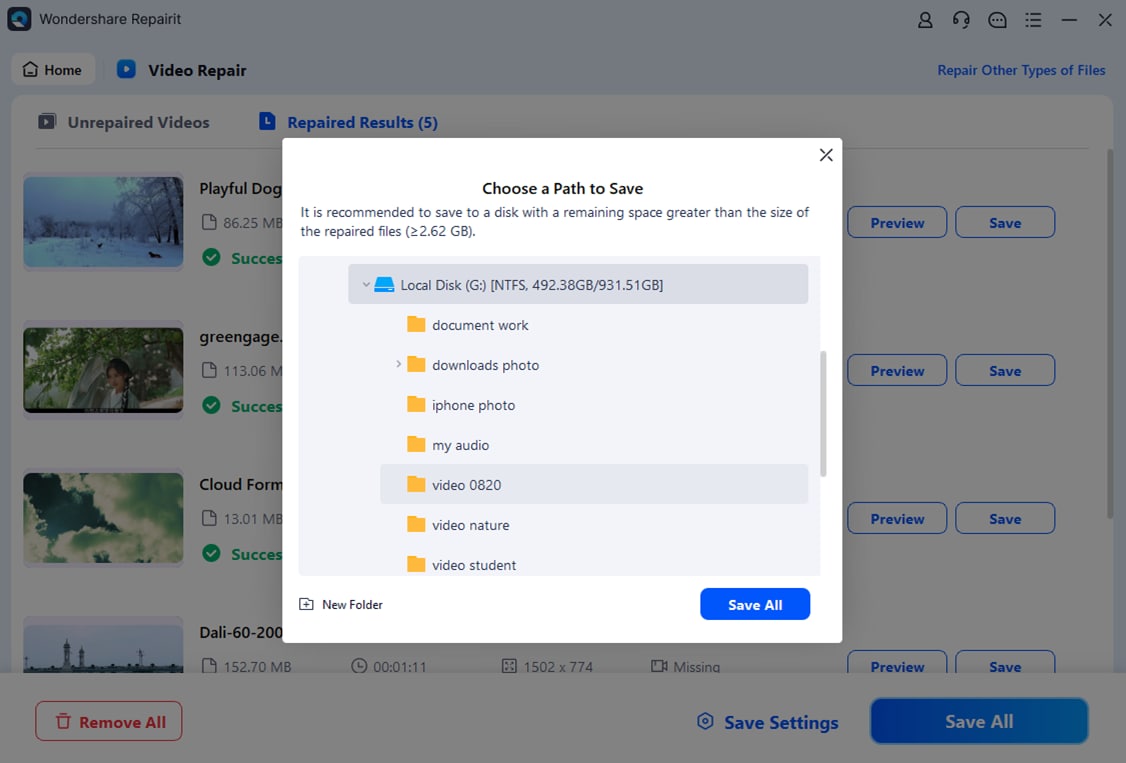
- Preview and Repair Your Desired Data
When the scan finishes, Repairit shows a list of recoverable items. Select your WebM video and use the built-in preview to confirm that playback looks correct and the glitches are gone.
Conclusion
WebM is a modern, web-oriented container that delivers efficient streaming and high-quality playback in browsers and on many mobile devices. Understanding what a webm file is, how to open WebM clips on different platforms, and when to open webm files with alternative players or codecs helps you avoid frustrating playback issues.
When you run into a damaged or unplayable WebM video, simple tricks like trying another player may not be enough. In those situations, a dedicated repair tool like Repairit gives you a practical, user-friendly way to scan, repair, and recover valuable videos so you can watch, share, or archive them with confidence.
Next: What Is Mts File
FAQ
-
1. What is a WebM file used for?
A WebM file is a container format mainly used for web video and audio. It is optimized for HTML5 streaming, so many websites and platforms rely on WebM to deliver smooth, bandwidth-efficient playback without requiring proprietary plugins. -
2. How do I open WebM files on Windows or Mac?
You can open WebM files with modern browsers like Chrome, Firefox, or Edge, or with media players such as VLC and MPC-HC. On macOS, QuickTime may need additional codecs, so many users prefer third-party players like VLC or IINA for seamless WebM playback. -
3. Can I play WebM files on my phone?
Many Android phones support WebM natively through the system video player or browser. On iOS, support is more limited, so you may need a third-party app such as VLC for Mobile or convert the WebM file to MP4 for broader compatibility. -
4. How can I convert a WebM file to MP4?
You can convert WebM to MP4 using desktop tools like VLC or FFmpeg, or with online converters. Choose MP4 as the target format, adjust settings like resolution or bitrate if needed, and export the new file, which will generally play on more devices and TVs. -
5. How do I repair a corrupted WebM video?
First, try playing the WebM in a robust player like VLC or re-downloading the file if it came from the web. If the issue persists, use a dedicated repair solution such as Wondershare Repairit to scan, repair, and recover the corrupted WebM so it becomes playable again.




