
An exported video may look perfectly fine on the original device, but after transferring it somewhere else, it suddenly won't play or becomes corrupted. This mismatch between expectation and reality is a common issue when moving files between devices.
If your exported video is corrupted after transfer, the problem usually isn't the export itself, but what happened during or after the transfer process.
In this article
Why Exported Videos Get Corrupted After Transfer
Exported videos are considered "final" files, but they still depend on a complete and properly written file structure to work. Even though editing software finishes rendering the video, the file still needs to be copied accurately when transferred to another device. A typical exported video contains:
- Encoded video and audio streams
- A file container (e.g., MP4, MOV)
- Metadata such as duration, bitrate, and playback index
During transfer, all of this data must be rewritten on the destination device. If the process is interrupted or mishandled, even a small missing portion, especially the file header or index, can make the entire video unplayable.
Common Causes:
- Interrupted file transfer before completion
- Unsafe removal of USB drives or external storage
- File system errors on the destination device
- Corrupted sectors on the storage drive
- Large file transfers failing midway without notice
Transfer Between Devices Issues:
- Different operating systems handling file systems differently (e.g., Windows vs macOS)
- External drives not properly mounted or recognized
- Background processes interrupting file copying
- Hidden transfer errors that don't show visible warnings
Export-Specific Risks:
- High-resolution exports (4K/8K) are more sensitive due to large file size
- Compressed formats rely heavily on intact metadata for playback
- Long export durations increase the chance of unnoticed transfer issues
Even if the file looks complete, missing structural data can prevent media players from reading it correctly.
Signs Your Exported Video Is Corrupted
- Video won't open on the destination device
- Playback shows a black screen or frozen frame
- "Unsupported format" or decoding error appears
- Video plays partially, then stops unexpectedly
- Audio plays but video is missing (or vice versa)
- File size appears correct but playback fails
These symptoms usually indicate that the file structure was damaged during transfer rather than during export.
How to Confirm if it's a Transfer-Related Corruption
Before attempting fixes, it's important to identify whether the issue happened during export or during transfer.
You can confirm this by checking how the file behaves across different environments:
- The video plays normally on the original device but fails after transfer
- Re-copying the same file produces different results
- The file fails consistently across multiple players on the new device
- The file size matches, but playback behavior is inconsistent
- The file cannot be imported into editing software after transfer
Quick Validation Tip:
If the video works perfectly before transfer but breaks afterward, the issue is almost always related to the transfer process,not the export itself. Understanding this distinction helps you avoid unnecessary re-exporting and focus on fixing the actual problem.
Basic Fixes to Try First
If your files fail to open, start with these quick checks:
Fix 1: Try Opening the File with Another Program
Some applications can handle partially damaged files better than others.
Step 1. Open the recovered file using a different viewer or media player.
Step 2. Check if the file loads or partially displays.
Why: Different programs use different decoding methods and may recover usable data.
Fix 2: Transfer the File to Another Device
Testing the file on another system can rule out device-specific issues.
Step 1. Copy the recovered file to another computer or device.
Step 2. Try opening it using available apps on that device.
Why: This helps determine whether the issue is with the file or your system.
Fix 3: Check the File Extension
Recovered files may sometimes lose their correct file type.
Step 1. Right-click the file and select "Rename."
Step 2. Ensure the file extension matches its format (e.g., .JPG, .MP4).
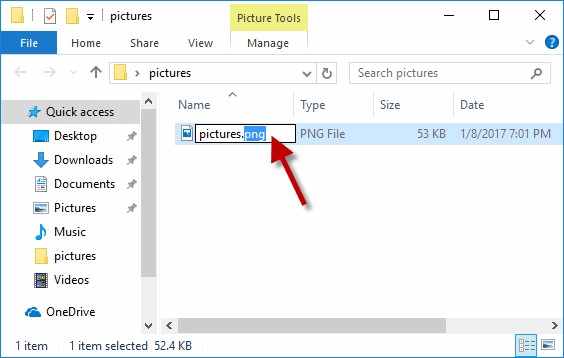
Why: Incorrect file extensions can prevent proper opening.
Fix 4: Re-run the Recovery Process
A second recovery attempt may produce better results.
Step 1. Run the recovery process again using the original SD card.
Step 2. Save the recovered files to a different location.
Why: Different recovery passes may retrieve more complete data.
Fix 5: Check the SD Card for Errors
Storage issues can affect recovery quality.
Step 1. Connect the SD card to your computer.
Step 2. Run an error-check scan on the device.
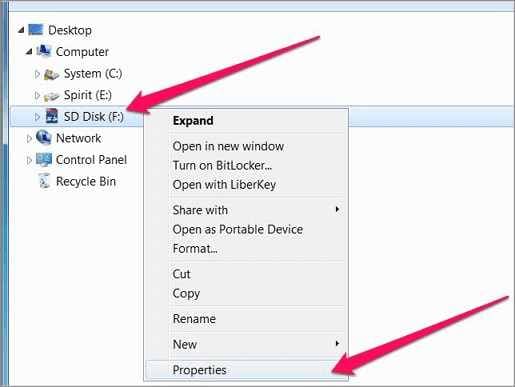
Why: Fixing underlying errors can improve file accessibility.
Advanced Fix: Repair Corrupted Media Files
If the files still won't open, they likely have structural damage caused by the sudden disconnection.
How to Confirm:
- Files fail on multiple devices
- Files won't open in any app
- Playback or viewing errors persist
What Repairit Video Repair Can Do:
- Rebuild damaged file structure
- Restore playback or viewing
- Fix missing data or broken metadata
Step 1. Add the corrupted video file.

Step 2. Run the repair process.

Step 3. Preview the repaired result, then save the fixed media file.

Prevent SD Card Disconnection Issues in the Future
Follow these best practices to reduce the risk of permanent data loss and improve recovery success:
- Stop using the SD card immediately after data loss to prevent overwriting recoverable files.
- Avoid saving recovered files to the same SD card to reduce the risk of further data loss.
- Use stable recovery conditions, including a reliable connection and uninterrupted power supply.
- Back up important files regularly to minimize the impact of unexpected data loss.
- Safely eject SD cards before removal to prevent file system corruption.
Conclusion
If you need to repair media files from a suddenly disconnected SD card, the issue is usually caused by interrupted data writing during disconnection.
Start with basic fixes like reconnecting the card and copying files safely. If the issue persists, repair methods can help restore your media files and make them usable again.
FAQs
-
Can files from a disconnected SD card be repaired?
Yes, files can often be repaired if the corruption only affected part of the data. -
Why does sudden disconnection cause corruption?
Sudden disconnection causes corruption because it interrupts the file writing process. -
Is my SD card damaged?
Not necessarily, though repeated disconnections may eventually indicate physical wear or failure. -
Should I format the SD card?
You should only format the SD card after attempting repair or recovery methods.




