
An SD card can disconnect without warning, during transfer, recording, or even while simply plugged into a device. When that happens, your photos or videos may suddenly become unreadable or corrupted.
Even though the files are still there, they may no longer open properly because the data wasn't fully written or saved before the disconnection.
The good news is that in many cases, you can still repair media files from a disconnected SD card with the right steps.
In this article
Why Recovered Files May Still Be Corrupted
File recovery doesn't always restore files perfectly; it simply retrieves whatever data is still accessible on the storage device. If parts of the file were overwritten, missing, or damaged, the recovered version may still be incomplete or unusable.
Common Reasons:
- The original file was already corrupted: Recovery can't fix damage that existed before the process began.
- File was partially overwritten before recovery: Once new data replaces old sectors, the missing portions cannot be restored.
- The recovery process was interrupted: Stopping midway can leave files only partially rebuilt.
- Incorrect file reconstruction: Some recovery tools may misassemble fragments, resulting in broken or unreadable files.
- Missing file structure or metadata: Without proper headers or indexing, the file may appear intact but fail to open.
SD Card--Specific Issues:
- Fragmented file storage: Data scattered across the card may not be pieced back together correctly.
- Wear and tear of memory cells: Aging cards lose reliability, making recovered files more prone to corruption.
- Sudden removal or interruption before recovery: Pulling out the card too early can damage both the original and recovered versions.
Signs Your Recovered Files Are Corrupted
Even after recovery, files may still show clear signs of corruption if the damage was too severe:
- Files won't open at all: Attempts to access them may result in nothing happening or repeated error prompts.
- Photos appear blank or distorted: Images may load as empty screens, show heavy pixelation, or display unnatural colors and shapes.
- Videos show a black screen or freeze: Playback may start but quickly stalls, leaving only a frozen frame or a completely black display.
- Error messages when opening files: You might see warnings like "file cannot be read" or "unsupported format", even if the file type is normally compatible.
- File size looks unusual: The recovered file may appear far smaller or larger than expected, signaling missing or corrupted data inside.
How to Confirm It's a Recovery Issue
To determine if the problem is due to recovery, check how the files behave across different devices and apps. This helps you rule out compatibility issues and identify whether the corruption occurred during or before recovery:
- Try opening the file on different devices: Testing on another computer, phone, or tablet helps confirm if the issue is device‑specific or truly file‑related.
- Use multiple apps or media players: Some players handle damaged data better than others, so trying several can reveal whether the problem lies in playback or the file itself.
- Check if all recovered files are affected: If every recovered file shows similar errors, the corruption likely happened during the recovery process rather than being isolated.
- Compare recovered file size with expected size: A file that's significantly smaller or larger than usual often indicates missing or overwritten data.
If the file consistently fails to open or play correctly, it's likely corrupted either during recovery or before the process began.
Basic Fixes to Try First
If your files fail to open, start with these quick checks:
Fix 1: Try Opening the File with Another Program
Some applications can handle partially damaged files better than others.
Step 1. Open the recovered file using a different viewer or media player.
Step 2. Check if the file loads or partially displays.
Why: Different programs use different decoding methods and may recover usable data.
Fix 2: Transfer the File to Another Device
Testing the file on another system can rule out device-specific issues.
Step 1. Copy the recovered file to another computer or device.
Step 2. Try opening it using available apps on that device.
Why: This helps determine whether the issue is with the file or your system.
Fix 3: Check the File Extension
Recovered files may sometimes lose their correct file type.
Step 1. Right-click the file and select "Rename."
Step 2. Ensure the file extension matches its format (e.g., .JPG, .MP4).
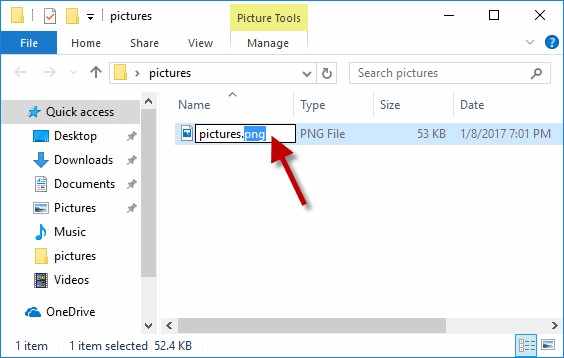
Why: Incorrect file extensions can prevent proper opening.
Fix 4: Re-run the Recovery Process
A second recovery attempt may produce better results.
Step 1. Run the recovery process again using the original SD card.
Step 2. Save the recovered files to a different location.
Why: Different recovery passes may retrieve more complete data.
Fix 5: Check the SD Card for Errors
Storage issues can affect recovery quality.
Step 1. Connect the SD card to your computer.
Step 2. Run an error-check scan on the device.
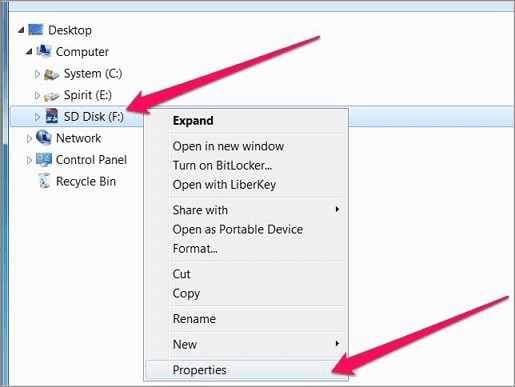
Why: Fixing underlying errors can improve file accessibility.
Advanced Fix: Repair Corrupted Media Files
If the files still won't open, they likely have structural damage caused by the sudden disconnection.
How to Confirm:
- Files fail on multiple devices
- Files won't open in any app
- Playback or viewing errors persist
What Repairit Video Repair Can Do:
- Rebuild damaged file structure
- Restore playback or viewing
- Fix missing data or broken metadata
Step 1. Add the corrupted video file.

Step 2. Run the repair process.

Step 3. Preview the repaired result, then save the fixed media file.

Prevent SD Card Disconnection Issues in the Future
Follow these best practices to reduce the risk of permanent data loss and improve recovery success:
- Stop using the SD card immediately after data loss to prevent overwriting recoverable files.
- Avoid saving recovered files to the same SD card to reduce the risk of further data loss.
- Use stable recovery conditions, including a reliable connection and uninterrupted power supply.
- Back up important files regularly to minimize the impact of unexpected data loss.
- Safely eject SD cards before removal to prevent file system corruption.
Conclusion
If you need to repair media files from a suddenly disconnected SD card, the issue is usually caused by interrupted data writing during disconnection.
Start with basic fixes like reconnecting the card and copying files safely. If the issue persists, repair methods can help restore your media files and make them usable again.
FAQs
-
Can files from a disconnected SD card be repaired?
Yes, files can often be repaired if the corruption only affected part of the data. -
Why does sudden disconnection cause corruption?
Sudden disconnection causes corruption because it interrupts the file writing process. -
Is my SD card damaged?
Not necessarily, though repeated disconnections may eventually indicate physical wear or failure. -
Should I format the SD card?
You should only format the SD card after attempting repair or recovery methods.




