
MPEG-2, often written as MPEG2 format, is a digital video and audio compression standard widely used for DVDs, digital TV broadcasts, and early set-top boxes. It compresses video enough to fit long programs on discs or transmit over broadcast networks while keeping watchable quality. This makes the MPEG-2 codec important for playback, basic editing, and archiving older video libraries that still rely on standard-definition and early HD content.
Repair Corrupted Files To Save Your Data
 Security Verified. Over 7,302,189 people have downloaded it.
In this article
How MPEG-2 Works
The MPEG-2 video compression process removes visual data the human eye is less likely to notice so files are smaller while keeping the picture clear enough for normal viewing. It analyzes differences between frames, encoding only changes instead of every pixel each time. It also divides images into blocks and uses mathematical transforms to represent them more efficiently. By combining motion prediction, block-based compression, and adjustable bitrates, MPEG-2 files achieve a balance between file size, video quality, and encoding speed that suited DVDs and broadcast TV.
Key Features, Pros, and Cons
MPEG-2 Main Features
- Supports both standard-definition and early high-definition resolutions for TV and disc distribution.
- Uses inter-frame compression (predicting changes between frames) to reduce bitrate requirements.
- Widely standardized, so MPEG-2 file playback is supported in many set-top boxes, TVs, and DVD players.
- Works with common containers like VOB (DVD), TS/PS (broadcast transport/program streams), and some MPG files.
- Designed to be decoded in real time on relatively low-power hardware, which helped drive its adoption.
Pros and Cons of MPEG-2
| Aspect | Details |
|---|---|
| Advantages | Very broad compatibility across legacy devices; predictable quality at higher bitrates; simple to decode; ideal for DVDs and traditional broadcast workflows. |
| Limitations | Less efficient than modern codecs, so it needs higher bitrates for the same quality; not ideal for bandwidth-limited streaming; larger storage requirements. |
| Real-world performance | Performs reliably for SD and basic HD video; files remain easy to edit and play but are noticeably larger compared with H.264 or H.265 encodes of the same content. |
MPEG-2 vs Other Codecs
Compared with H.264 (an MPEG-4-based codec), MPEG-2 vs MPEG-4 comes down to efficiency: H.264 typically delivers similar or better visual quality at 40–60% lower bitrates, making it superior for web streaming, mobile, and cloud storage. H.265/HEVC and newer formats like AV1 or VP9 improve efficiency even further, achieving high-quality 4K and HDR video at relatively modest file sizes but often require more CPU/GPU power to encode and decode. MPEG-2 codec wins on compatibility and simplicity, while modern codecs win on compression, smaller files, and flexible streaming features.
Compatibility and Practical Use
MPEG-2 video compression remains common in DVD-Video discs, digital cable and satellite TV, and older camcorders or capture cards. Many hardware players, smart TVs, and computer media players (such as VLC and other desktop apps) still support MPEG-2 files out of the box. Typical containers include VOB for DVDs, TS or M2TS for broadcasts and some recorders, and MPG or PS for general program streams. In practice, MPEG-2 is now mainly used for legacy playback, archiving past broadcasts, and converting old discs or recordings to newer formats.
How to Use Repairit to Fix a Corrupted MPEG-2 File
Why Use Repairit for MPEG-2 Repair
When an MPEG-2 recording refuses to play, freezes, or loses audio, a specialized repair tool is far more effective than simply trying different players. Wondershare Repairit is designed to fix damaged media files, including repairing MPEG-2 video issues from DVDs, TV captures, and camcorders. It guides you through the repair process with a clean interface and lets you preview results before saving. You can learn more and download it from the Repairit official website.
Repairit Key Features for MPEG-2
- Repairs corrupted or unplayable MPEG-2 videos and many other formats in a few guided steps.
- Handles playback errors, frozen frames, and audio-video sync issues caused by structural damage.
- Let you preview the repaired MPEG-2 file before exporting so you can verify the fix.
Step-by-step Guide: Fix Corrupted MPEG-2 Files with Repairit
- Add corrupted video
Install and open Wondershare Repairit, then choose the Video Repair module from the main screen. Click the button to add files and browse to your broken mpeg-2 file or a batch of MPEG-2 clips from DVDs, TV captures, or camcorders. Confirm to load them into the repair list so Repairit can analyze their structure.

- Repair video codecs
Press the Repair button to start fixing your mpeg-2 video compression problems. Repairit will scan the damaged streams, rebuild headers, and correct issues that prevent normal decoding. Once the process completes, select a repaired item and use the built-in player to preview it, checking for smooth playback, proper duration, and in-sync audio.

- Save the repaired videos
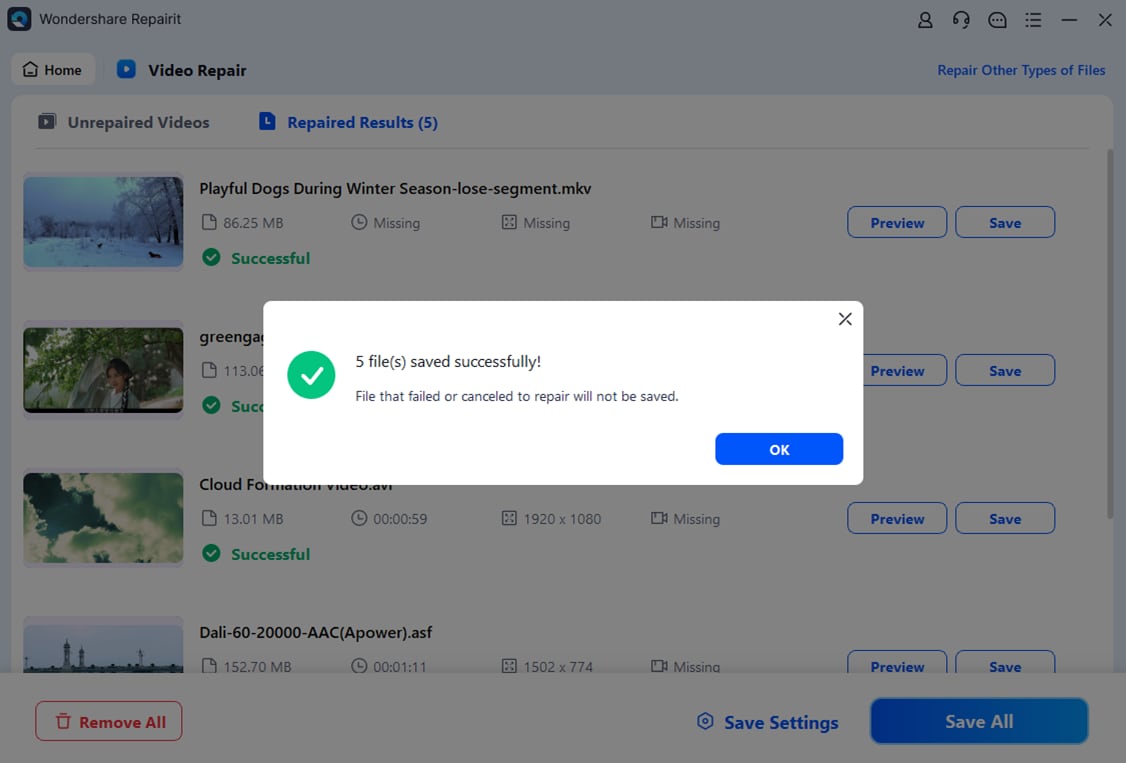
If the preview looks good, click Save to export your fixed clips. Choose a secure destination folder that is different from where the original mpeg-2 files are stored, helping to avoid further corruption and making it easier to keep backups. After saving, you can play the repaired videos in your usual media player or convert them to a more modern format if needed.
Conclusion
The MPEG-2 video compression standard shaped how DVDs and digital TV were delivered for many years. While it has largely been replaced by more efficient codecs for streaming and modern production, the huge volume of discs, TV recordings, and archival content means MPEG2 format is still highly relevant.
If your legacy videos become corrupted or fail to play, combining a basic understanding of how mpeg-2 codec works with a dedicated repair tool such as Wondershare Repairit makes it far easier to recover your footage. You can then keep it in its original state or convert it to newer formats for long-term storage and smooth playback on current devices.
Next: What is Mpeg-4 Codec?
FAQ
-
1. What is MPEG-2 used for today?
MPEG-2 is still widely used for standard-definition digital TV channels, many cable and satellite broadcasts, DVDs, and recordings made by older camcorders or capture cards. A lot of archival and corporate video libraries are also stored in MPEG2 format, so it remains important for playback and conversion workflows.
-
2. Is MPEG-2 better than MPEG-4?
In a direct mpeg-2 vs mpeg-4 comparison, MPEG-4-based codecs like H.264 are more efficient: they provide equal or better quality at much lower bitrates, resulting in smaller files and smoother streaming. However, MPEG-2 codec often offers broader compatibility with legacy hardware players and older broadcast systems.
-
3. Can I play MPEG-2 files on modern devices?
Yes. Most desktop media players, many smart TVs, and some Blu-ray players can open mpeg-2 file containers like MPG, VOB, or TS. On phones and tablets, you might need an app such as VLC or an extra codec pack if native support is limited.
-
4. Why will my MPEG-2 video not play?
Your mpeg-2 video may not play because the file is corrupted, the container headers are damaged, or the player lacks the correct mpeg-2 codec. Trying another media player can help, but if the file itself is damaged, a repair solution like Wondershare Repairit is usually required.
-
5. How do I fix a corrupted MPEG-2 file?
To fix corrupted mpeg-2 content, use a dedicated video repair tool such as Wondershare Repairit. Import the damaged file, run the repair process so the program can rebuild broken structures, preview the repaired result, and then save the restored video to a new location for safe playback and backup.




