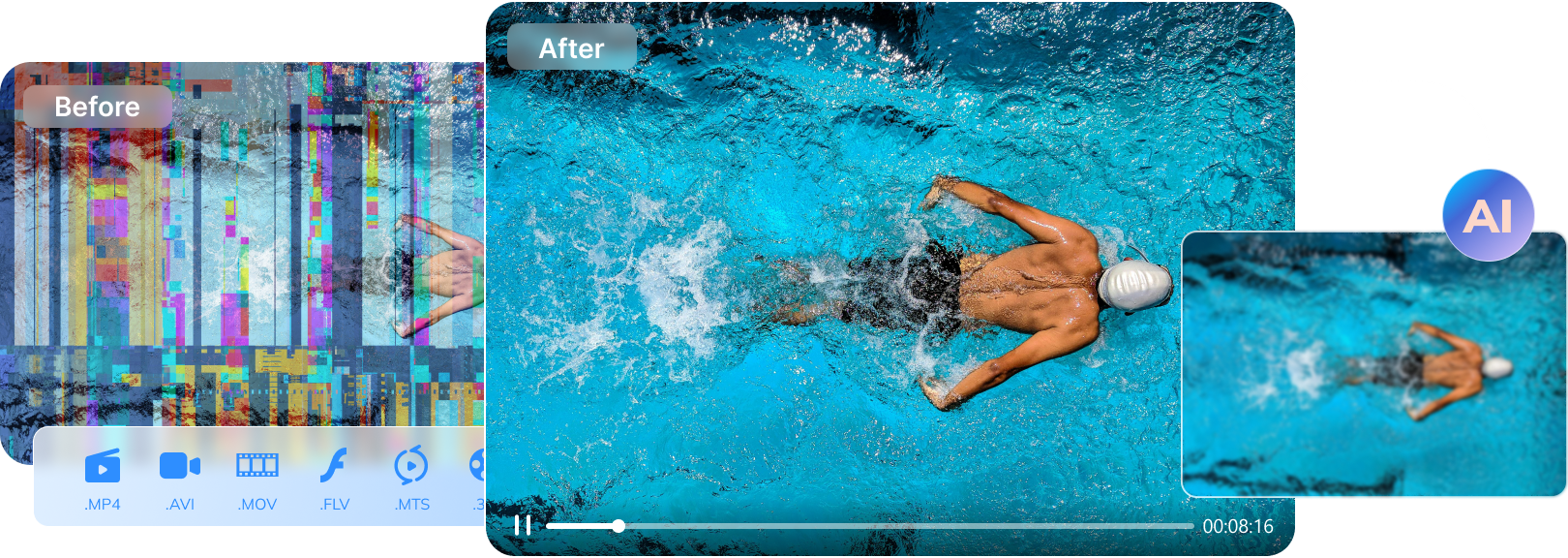

MKV files are popular because they can store high-quality video, audio, and subtitles in a single container. However, even reliable formats can sometimes fail. Common signs your MKV file is corrupted include:
- The video does not play at all or stops suddenly.
- Audio plays but the screen stays black.
- The file opens but crashes your media player.
- The video shows heavy glitches, frozen frames, or missing subtitles.
When this happens, MKV repair becomes necessary. This article will help you understand the main causes of MKV file damage. Most importantly, you will discover the most reliable repair tools to restore your MKV files safely without losing quality.
Table of Contents
-
- Tool 1. Repairit Video Repair – The Most Reliable MKV Repair Tool
- Tool 2. CHKDSK – File System MKV Repair for Storage Errors
- Tool 3. VLC Media Player – Free Method to Fix MKV File Errors
- Tool 4. Clever Online Video Repair – Quick Online MKV Repair Option
- Tool 5. Stellar Online Video Repair – Another Free Online MKV Repair Choice
Part 1: What Causes MKV File Damage?
MKV files can break in different ways. Sometimes the damage is real, caused by interruptions or storage issues. Other times, the file is fine, but your system cannot read it correctly. Understanding the cause is the first step to knowing how to repair MKV file problems effectively.
Why MKV Files Become Corrupted During Transfer or Download
One of the most common reasons MKV files get damaged is during transfer or download. These files are large, and even a small interruption can leave the data incomplete. For example:
- Interrupted Downloads Due to Weak Internet Connections: Slow or unstable networks can stop MKV files from downloading fully, leaving missing frames or broken headers. Even if the download resumes, the file may not automatically repair itself, making it unusable.
- Sudden Removal of USB Drives or External Hard Disks: Pulling a drive while the file is still copying can corrupt the MKV container and prevent proper playback. This is especially common with large video files, where the transfer takes time.
- Network Dropouts During File Sharing: Sharing over LAN, cloud, or torrents can introduce partial file transfers if the connection drops unexpectedly. A small missing piece can make the entire video unplayable. Many people don’t realize that a minor network hiccup can affect both video and audio streams, causing glitches or freezes when trying to watch the file.
- Incomplete Torrent Downloads: MKV files downloaded via torrents are often incomplete if some pieces fail to download, resulting in playback errors or glitches. Missing chunks can also cause audio and video to go out of sync.
File System Errors That Require MKV File Repair
Sometimes, the file itself is not the main issue; the storage system is. MKV files rely on stable storage to remain readable, and system errors can corrupt them:
- Bad sectors on hard drives or memory cards. Physical damage or worn-out storage areas can make parts of the MKV unreadable. Even a small damaged sector may prevent the file from opening entirely.
- Improper system shutdowns. Turning off your PC or laptop while a file is being written can leave the MKV incomplete. This can also affect multiple files at once if it happens during batch transfers or edits.
- Corrupted file allocation tables. When the system can’t properly track file locations, the MKV may appear broken even if the data is mostly intact. This often results in “file not found” errors or media players refusing to open the file.
Codec or Media Player Issues That Make Users Think the MKV Is Broken
Sometimes, what looks like file corruption is actually a compatibility problem. The MKV file might be fine, but your system struggles to play it:
- Missing or outdated codecs. Without the correct codecs, the video or audio may fail to play. Installing the proper codec pack can often resolve the issue instantly.
- Media players that do not fully support MKV. Some players may show a black screen or crash when opening MKV files. Using a modern, MKV-compatible player often solves the problem without touching the file itself.
- Conflicts between system codecs. Multiple media frameworks on the same computer can interfere, causing playback errors. These conflicts may make a fully intact MKV appear corrupted when it’s actually just a decoding problem.
-
Can a partially downloaded MKV file be fixed?
Yes, certain repair tools can restore missing parts or rebuild indexes to make the file playable. These tools work best if most of the video data is intact. However, severely incomplete downloads may still have missing frames or audio gaps. -
Do I need technical skills to repair MKV files?
Not always. Many tools offer simple, user-friendly interfaces that let you repair videos with just a few clicks. Advanced options like FFmpeg or command-line methods require more technical knowledge, but they provide extra control for users comfortable with video processing. -
Can repaired MKV files be edited afterward?
Yes, once the file is restored and playable, it can be edited or converted like any normal MKV video. Repaired files can be trimmed, merged, or converted to other formats without losing the repaired data. This allows you to continue working with your videos as if they were never corrupted.
Software Crashes, Power Loss, and Unexpected Shutdowns
MKV files are especially vulnerable when being recorded, edited, or converted. Power failures during saving can break headers, making the file unplayable. Software crashes while exporting may leave partial files with frozen frames or missing audio. Even forced system restarts can corrupt the MKV container and sometimes affect nearby files. These issues show why careful handling and reliable mkv repair tools are essential for restoring interrupted videos.
Part 2: Best MKV Repair Tools to Fix MKV Files Safely
Choosing the right repair method becomes easier after you learn the cause. Here are the best MKV repair tools that you can try:
Tool 1. Repairit Video Repair – The Most Reliable MKV Repair Tool
Repairit Video Repair is specifically built to handle seriously corrupted MKV files while preserving their original quality. It goes beyond simple playback fixes by analyzing and reconstructing the internal structure, including headers, audio-video sync, and subtitle streams. This makes it ideal for your videos that are damaged during recording, editing crashes, or interrupted transfers.
It also works across different MKV sources, from drone footage to screen captures, and maintains the file’s original resolution and format. Users can rely on it as it consistently restores both playable content and professional-grade quality.
Pros
✅Repairs severely corrupted MKV files reliably.
✅Preserves original video and audio quality.
✅Supports MKV files from cameras, drones, and screen recorders.
✅Handles large files without reducing resolution.
✅Stable results even with badly damaged headers.
Cons
❌Desktop installation is required. However, Repairit has an online video tool if you prefer not to install software.
Step 1. Launch the software and start the Video Repair feature. You can download it from Repairit’s official website. Then, +Add the corrupted MKV file to the program.

Step 2. Click Repair and let the tool analyze and fix your MKV file.

Step 3. Preview the repaired MKV file and save it to a safe location.

Repairit Video Repair – The Most Reliable MKV Repair Tool
 Security Verified. Over 7,302,189 people have downloaded it.
Tool 2. CHKDSK – File System MKV Repair for Storage Errors
CHKDSK is a built-in Windows utility that fixes file system problems. It does not repair video content directly, but it can restore MKV files affected by disk errors. By scanning drives for bad sectors, recovering lost file references, and repairing corrupted file allocation tables, it can make unreadable MKV files accessible again.
CHKDSK is particularly useful for videos stored on old hard drives, USB sticks, or memory cards that have experienced interruptions, improper ejections, or system crashes. While it doesn’t touch the video itself, it ensures that the MKV file can be recognized by your media player, forming a foundation before attempting deeper repair.
Pros
✅Built into Windows systems.
✅Effective for disk-related MKV issues.
✅No third-party software required.
✅Useful for USB drives and memory cards.
✅Can recover unreadable file references.
Cons
❌Cannot fix internal video corruption.
❌Incorrect use may affect other files.
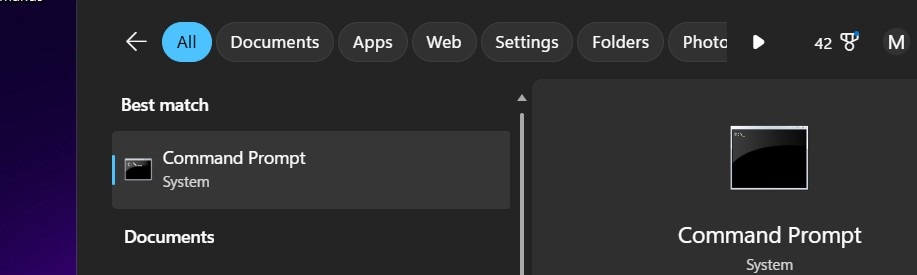
Step 1. Open the Command Prompt on Windows.
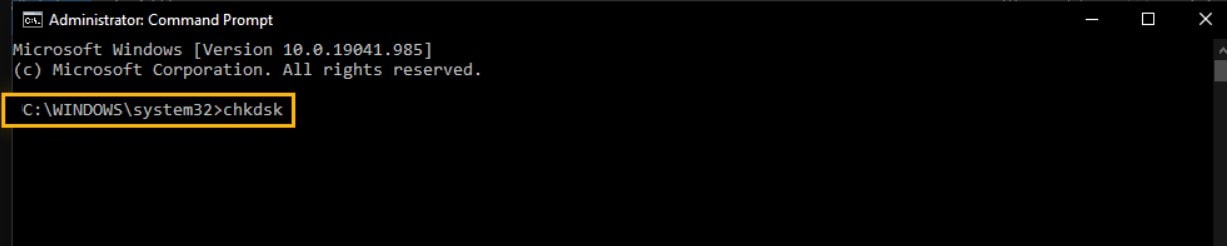
Step 2. Type the CHKDSK command for the drive where your MKV file is stored.
Step 3. Allow Windows to scan and fix any file system issues.
Step 4. Check if the MKV file is accessible once the process is done.
Tool 3. VLC Media Player – Free Method to Fix MKV File Errors
VLC Media Player is widely known for its ability to play nearly any video format, but it also includes basic repair features for minor MKV issues. It can rebuild damaged indexes, fix broken timestamps, and correct small playback glitches. This makes it perfect for videos that open but freeze, skip frames, or lose audio temporarily.
VLC’s lightweight interface and universal compatibility mean you can quickly check multiple MKV files without installing specialized software. While it cannot repair severe corruption, it’s often the first step in identifying whether the problem is the file itself or just the playback environment.
Pros
✅Completely free and widely trusted.
✅Supports most MKV codecs.
✅Can rebuild damaged indexes.
✅Lightweight and easy to use.
✅Helpful for minor playback errors.
Cons
❌Limited success with heavily damaged MKV files.
❌Does not truly repair video structure.
Step 1. Open VLC Media Player.
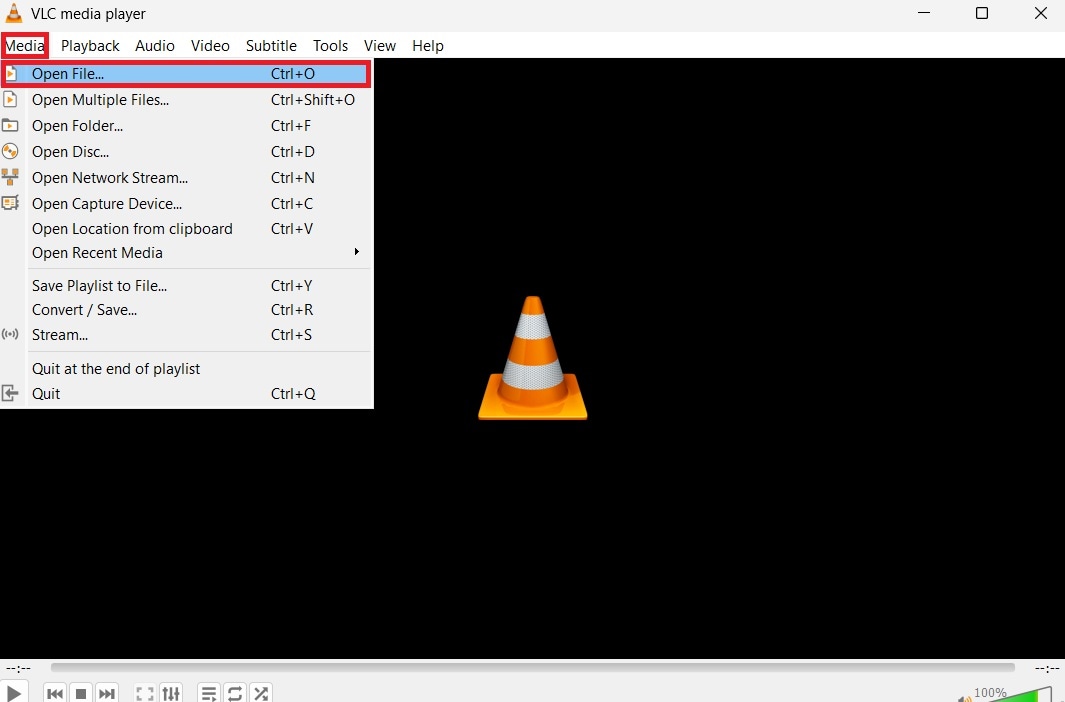
Step 2. Try to play the corrupted MKV file. What you’ll need to do is hit on the Media tab and click Open File. Then, select your file.
Step 3. If VLC detects an error, it may prompt you to repair the index automatically.
Step 4. Watch the repaired video to see if playback issues are resolved.
Tool 4. Clever Online Video Repair – Quick Online MKV Repair Option
Clever Online Video Repair offers a fast, browser-based solution for MKV files affected by minor corruption, like incomplete recordings or sudden interruptions during capture. Its interface is straightforward, allowing even beginners to upload, repair, and download videos in just a few clicks.
The tool works across devices, so you don’t need a desktop program, and it’s particularly useful for quick checks to see if a file can be recovered before investing in more advanced solutions. While it has file size limits, it’s a convenient way to restore videos that otherwise play partially or freeze.
Pros
✅No installation needed.
✅Simple interface for beginners.
✅Works well for lightly corrupted MKV files.
✅Useful for quick checks.
✅Accessible on multiple devices.
Cons
❌You’re free to repair MKV files, but you need to pay to download it.
❌Not suitable for severe damage.
Step 1. Visit the Clever Online Video Repair website.
Step 2. Click Choose file and upload the MKV file directly from your computer.
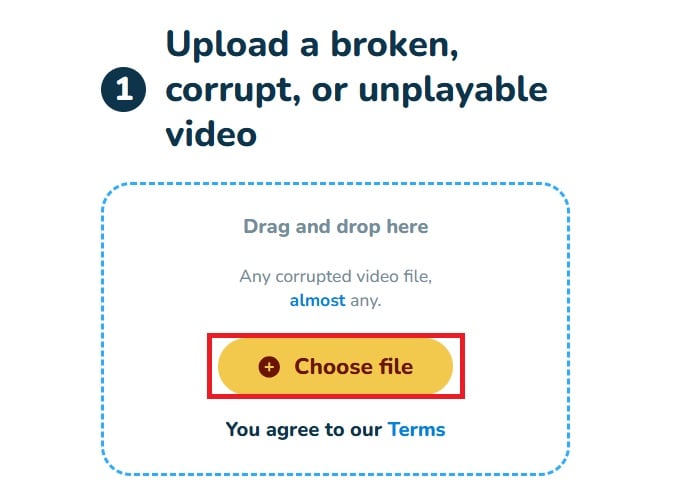
Step 3. Wait while the tool analyzes the file and applies the repair. Then, download the repaired video once the process is complete.
Tool 5. Stellar Online Video Repair – Another Free Online MKV Repair Choice
Stellar Online Video Repair is another option you can try. When your MKV file opens but has playback issues, such as lagging video, skipped frames, or missing audio, this tool will help you. It focuses on rebuilding the video’s index and ensuring smooth compatibility with standard media players.
Its web-based design allows access from any operating system. This makes it a practical choice for testing file recoverability without installing software. Though it doesn’t handle deeply corrupted MKVs, it’s perfect for assessing whether a lightly damaged file can be quickly made watchable.
Pros
✅Easy web-based access.
✅No technical skills required.
✅Supports common MKV errors.
✅Good for testing file recoverability.
✅Works across operating systems.
Cons
❌Has upload and file size limits.
❌It requires you to sign in first before uploading your MKV file.
Step 1. Go to the Stellar Online Video Repair website.
Step 2. Press the Upload Video button and choose the MKV file you want to fix.
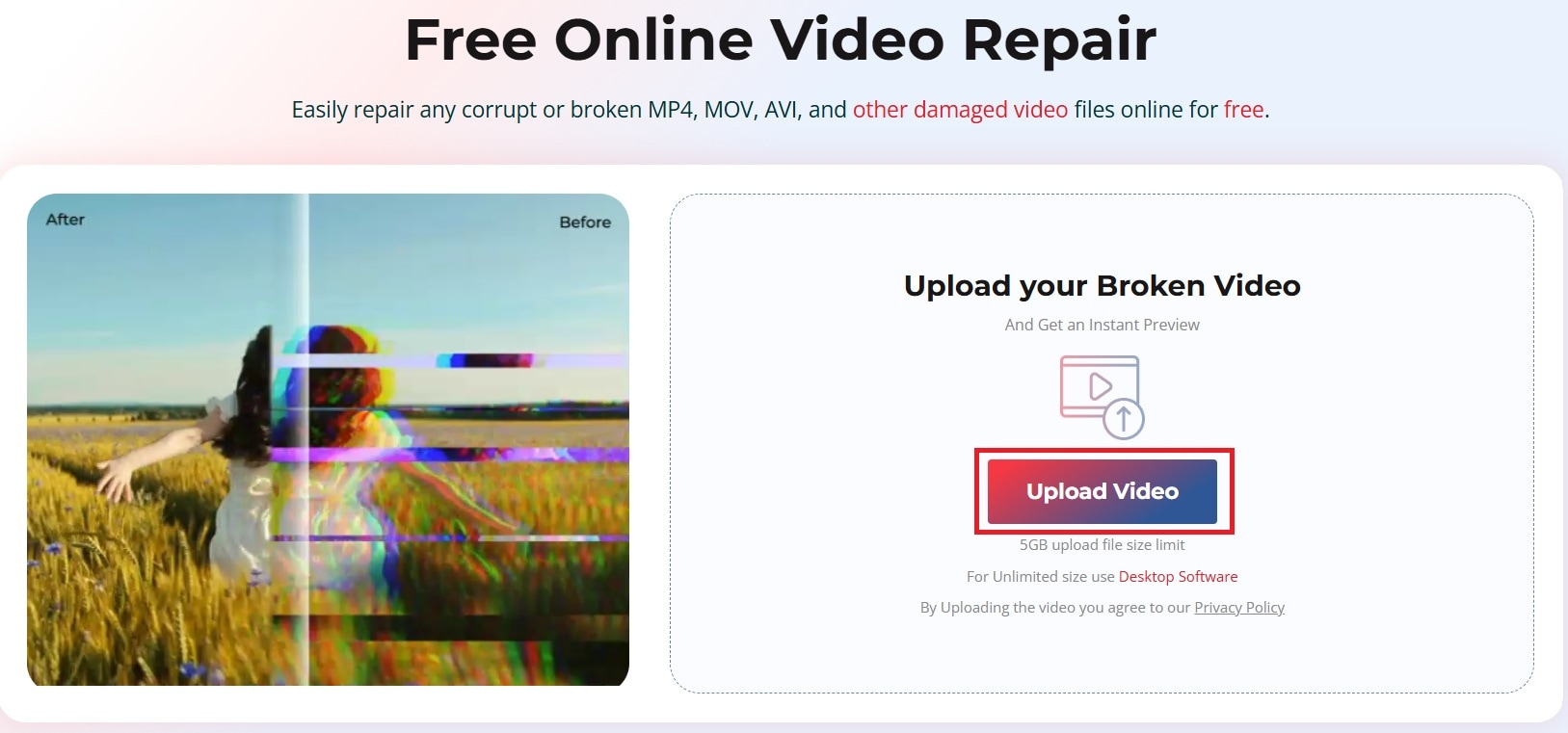
Step 3. Let the tool process the file and rebuild playback structures.
Step 4. Download the repaired MKV once it’s ready.
Part 3: Other Methods to Fix MKV Files Without Using Dedicated Tools
Sometimes, using a full-fledged MKV repair tool is not necessary. If the file structure is mostly intact, alternative methods can help. These approaches focus on rebuilding or reinterpreting the video data so you can watch your videos without losing quality.
Method 1. Fix MKV File by Re-encoding with HandBrake
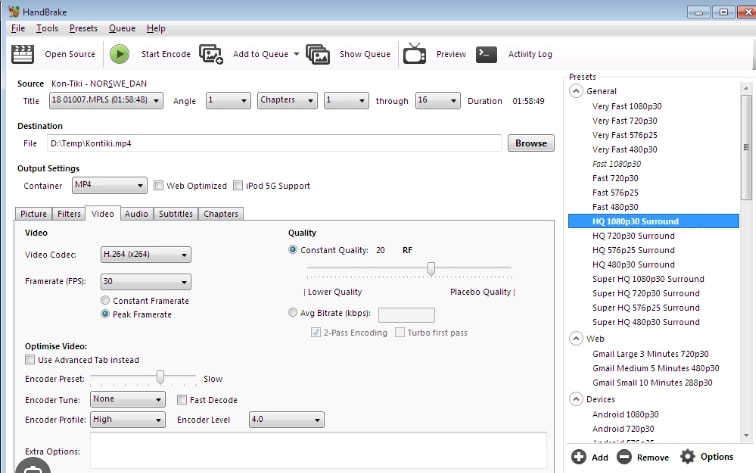
Re-encoding your MKV creates a new video stream from the readable data. This can bypass small errors or corrupted frames that prevent smooth playback. It’s especially useful when the file opens but has glitches, freezes, or minor sync issues. While the video is technically processed again, HandBrake keeps the visible quality intact. This makes it a safe option if you want a fresh, playable MKV without relying on repair software.
Method 2. Fix MKV Playback Problems by Updating Codecs
Many playback issues are caused not by the file itself but by missing or outdated codecs. Codecs allow your media player to read video and audio correctly. Updating or installing the right codecs can instantly resolve problems that look like corruption, such as black screens, frozen frames, or missing sound. This method is simple, safe, and often overlooked, yet it can save you the trouble of unnecessary repairs.
Method 3. Repair MKV Files Using FFmpeg Commands

FFmpeg is a powerful tool for handling video files at a technical level. It can rebuild MKV containers, remap audio and video streams, and fix header or index errors. This method is ideal for users who are comfortable with command-line tools and need a reliable way to restore MKV files that have structural issues. Even though it doesn’t “magically” repair all corruption, it often restores playback and compatibility with most media players.
Method 4. Use Media Player Index Rebuild Options
Some media players can rebuild or refresh a damaged index inside the MKV file. This is helpful when videos play only partially, skip frames, or freeze during playback. By updating the index, the player can correctly navigate the video’s content, often restoring smooth viewing. This method is particularly useful for files that were interrupted during recording or transferring and haven’t suffered severe internal damage.
Part 4: How to Prevent MKV File Damage in the Future
After repairing your MKV files, prevention is just as important as repair. Developing a few careful habits can greatly reduce the need for future mkv repair efforts and keep your videos safe.
📥Always complete downloads before opening files: Opening a file before the download finishes can cause corruption or incomplete playback. Waiting until the download is fully done ensures the MKV structure remains intact and reduces errors.
💾Safely eject external drives: Removing USB drives or external hard disks without safely ejecting them can interrupt file writing and damage MKV files. Taking a moment to eject drives properly protects your videos and other important files from sudden corruption.
⚡Avoid forced shutdowns during video processing: Whether recording, editing, or converting, unexpected power loss or shutting down your computer mid-process can corrupt MKV headers. Planning your work and allowing processes to finish protects the file from becoming unusable.
🖥Keep media players and codecs updated: Outdated players or missing codecs can make MKV files appear broken, even when they are fine. Regular updates help ensure smooth playback and reduce the chance of playback-related “corruption” issues.
☁Store important MKV files on reliable storage: Using high-quality drives or cloud storage reduces the risk of file system errors, bad sectors, and other physical damage. Keeping backups of important videos ensures that even if one copy is corrupted, you still have a safe version to restore.
Conclusion
MKV file corruption can be frustrating, but it is rarely permanent. By understanding the causes, you can choose the right way to repair MKV file issues without sacrificing quality. Do you rely on a professional mkv repair tool? Or do you prefer lighter but powerful methods, like using Repairit Video Repair tool? Still, the key is matching the solution to the problem. Once your MKV file is repaired, you should follow a few smart habits to keep your MKV files safe for the long run.




