 TL;DR:
Video playback issues occurring after a Windows update are usually caused by incompatible drivers, codec resets, or minor system errors rather than permanent file corruption, meaning you can often restore normal playback through built-in Windows troubleshooting steps.
● To fix system-level conflicts causing black screens or audio sync issues, update or roll back your display adapter via Device Manager, and run sfc /scannow alongside the DISM RestoreHealth command as an administrator to repair corrupted components.
● When encountering error codes like 0xc10100be or 0xc00d36c4, test the video in an alternative app like VLC Media Player to determine if you only need to repair or reset your default media player through Windows Settings.
● For actual structural damage caused by an interrupted file transfer during the update process, utilize software like Repairit Video Repair to rebuild broken headers and indexes for MP4, MOV, MKV, AVI, and M4V files.
Ask AI for a summary
 ChatGPT
 Perplexity
 Gemini
 Claude
 Grok
Grok
It can be very frustrating when a normal Windows update broke video files on your system, but you don’t need to delete them right away. If a recent update broke your video files, the problem is usually caused by system errors, media player issues, or outdated drivers, not permanent file damage. The good news is that you can often fix and repair video files after an update with simple troubleshooting steps.
In this article
Part 1. Why Windows Updates Can Break Video Files
When Windows installs a major update, it changes important system files, drivers, and background processes. If something goes wrong during the update, your video files may stop playing properly or appear corrupted.
Common Causes
- Outdated or broken graphics/audio drivers - Updates may replace or damage drivers, affecting video playback
- Codec problems - Some updates can break or reset codecs needed to play formats like MP4, MKV, or MOV
- System file conflicts - If Windows updates while a file is being accessed, it can cause small system errors that affect playback
Other Possible Causes (During File Transfers)
- Interrupted file transfer - If a video was moving during the update or restart, the file may be incomplete or damaged
- External drive issues - Updates can change how Windows reads USB or external drives, which may lead to corrupted data during transfer
Part 2. How Broken Video Files Behave
When a Windows update affects your media files, videos often show common signs that something is wrong. Recognizing these issues can help you figure out whether the problem is caused by a playback error or actual file corruption.
Signs Your Videos Are Broken
- You see error codes like 0xc10100be or 0xc00d36c4 in Media Player
- The video opens but only shows a black screen or frozen frame, while audio may still play
- Audio and video are out of sync, or playback is choppy and pixelated
- The media player crashes or stops responding when opening the file
- The file may lose its thumbnail, show a generic icon, or display a duration of 00:00
- The video may freeze, lag, or stop playing at a certain point
- You only hear audio with no video, or the video plays without sound
Part 3. Basic Fixes to Restore Playback
Before using advanced repair tools, try these simple fixes first. Many cases where a Windows update broke video files are caused by system or software issues that can be fixed without recovering the file itself.
Fix 1. Update or Roll Back Graphics Drivers
Windows updates can sometimes install incompatible or outdated graphics drivers, which may cause videos to lag, freeze, or show a black screen. Updating or rolling back your graphics driver can help restore normal video playback.
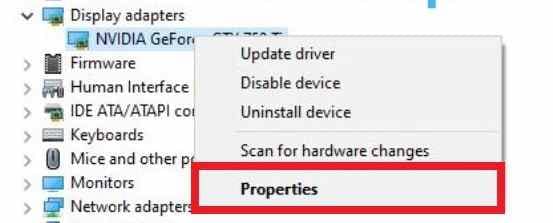
Step 1. Right-click the Start button and open Device Manager. Expand Display adapters, right-click your graphics card, then select Properties.
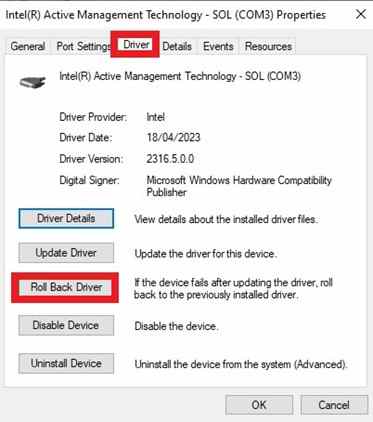
Step 2. Open the Driver tab. Click Roll Back Driver to return to the previous version if the option is available. If not, click Update Driver and choose Search automatically for drivers to install the latest version.
Fix 2. Run SFC and DISM Scans
If the Windows update damaged important system files, video playback features may stop working properly. Running SFC and DISM scans allows Windows to check for corrupted system files and repair them automatically.
Step 1. Type Command Prompt in the Windows, and select Run as administrator. Type sfc /scannow and press Enter.
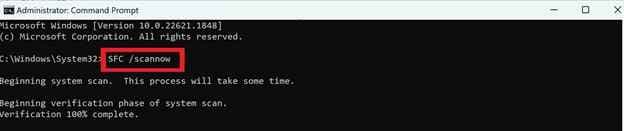
Step 2. After the scan is complete, type DISM /Online /Cleanup-Image /RestoreHealth and press Enter. This will check and repair damaged Windows system components.
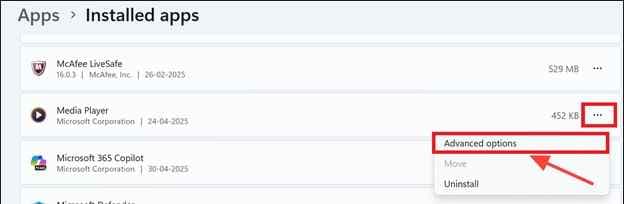
Fix 3. Reset or Reinstall Your Media Player
Resetting or reinstalling your media player can fix playback errors caused by broken app settings.
Step 1. Open Settings by pressing Windows + I, then go to Apps, and Installed apps. Find your media player, click the three dots, and select Advanced options.
Step 2. Scroll down and click Repair to fix small issues without changing your settings. If it still doesn’t work, click Reset to clear and restore the app to its default state.
Part 4. Advanced Fixes for Corrupted Video Files
If basic troubleshooting does not fix the issue, the problem may be inside the video file itself. In some cases, when a Windows update broke video files, the file structure can become damaged, making the video unreadable or unplayable.
It CAN
- Repair corrupted file headers that store important video information like format, resolution, and duration
- Fix audio and video sync issues caused by damaged timestamps
- Rebuild broken indexes so videos no longer freeze when skipping or fast-forwarding
- Repair file damage caused by interrupted transfers or sudden restarts
If you confirm the file is corrupted, using a tool to repair video file after update issues can help restore playback. Software like Repairit Video Repair supports common formats such as MP4, MOV, MKV, AVI, and M4V.
Step-by-Step (Optional)
Step 1. Upload the corrupted video file.

Step 2. Start the Repair process.

Step 3. Preview and save the restored file to a new location.

Part 5. How to Prevent Video File Issues After Future Windows Update
Windows updates are important for security and performance, but they can sometimes cause unexpected file issues. Taking a few precautions can help protect your videos from corruption or playback problems after future updates.
Best Practices to Protect Your Video Files
- Pause updates during important tasks - Avoid installing updates while editing, transferring, or organizing video files to prevent interruptions or forced restarts.
- Copy files instead of moving them - When transferring videos, use copy and paste first, then check if the copied file works before deleting the original.
- Store important files separately - Keep valuable videos on an external drive or secondary storage instead of your main system drive when possible.
- Back up your files regularly - Save copies of important videos to an external drive or cloud storage so you can recover them if something goes wrong.
Conclusion
It can be frustrating when a Windows update broke video files, but in many cases, the problem is caused by driver issues, media player errors, or minor file corruption, not permanent damage. By following simple troubleshooting steps like updating drivers, scanning system files, checking media players, and using tools to repair video file after update problems, you can often restore your videos and make them playable again.
FAQs
-
Why did my videos stop working after a Windows update?
Windows updates can affect drivers, codecs, or media player settings, which may cause videos to stop playing or show errors. -
Can corrupted video files be repaired?
Yes. Video repair software can often fix damaged file headers, sync issues, and playback errors. -
How do I know if the problem is the player or the file?
Try opening the video in another player like VLC Media Player. If it works there, the issue is likely your media player or codecs. -
What error codes are common for broken videos?
Common errors include 0xc10100be and 0xc00d36c4, which usually point to codec issues or file corruption. -
How can I prevent this from happening again?
Back up your files regularly, avoid updates during file transfers, and keep your drivers and media players updated.