
The March 2026 Windows update is causing unexpected errors for many computer users. You might see a stuck loading screen or an annoying error code. System updates should make your PC better, but sometimes they cause major trouble. This specific version often fails to install because of small hidden software glitches.
That is why it is essential to find solutions to these issues to protect your files. The majority of these technical problems have easy solutions, which anyone can follow. Thus, this guide provides simple steps to learn how to fix 2026-03 KB5086672 (26200.8117).
Table of Contents
-
- Fix 1. Run the Built-In Windows Update Troubleshooter
- Fix 2. Temporarily Disable Antivirus/Firewall & Retry
- Fix 3. Clear the Windows Update Cache (SoftwareDistribution, Catroot2)
- Fix 4. Install KB5086672 Manually from the Microsoft Update Catalog
- Fix 5. Run System File Checker and DISM (Scan and Repair System Files)
- Fix 6. Update Or Roll Back Critical Drivers (GPU, Chipset, Network)
- Fix 7. Use System Restore to Revert to a Stable Point
- Fix 8. Perform an In-Place Repair Upgrade of Windows
Part 1. Reasons KB5086672 (26200.8117) Fails or Breaks Things
Before applying fixes, understanding causes helps you avoid repeated installation failures. Below, you will explore a few common reasons behind this specific update failure:
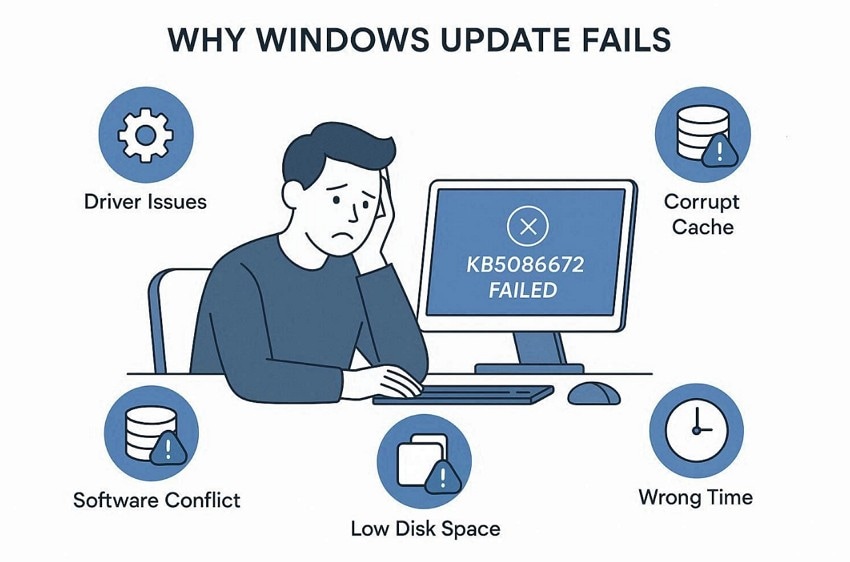
- Driver Issues: Old hardware drivers clash with the latest Windows system architecture changes. These compatibility problems lead to frozen screens or a blue screen error.
- Corrupt Cache: Broken files from previous download attempts often clutter the update folder. Such damaged records prevent the system from recognizing the new March update files.
- Conflict Software: Active security programs might flag the new update as a threat. These background tools often block the system from writing new files to disk.
- Wrong Time: Incorrect system dates often cause serious communication failures with the servers. Your computer cannot verify the security certificate when the clock is wrong.
- Low Space: The system drive often lacks enough empty room to store large update files. This storage shortage stops the installation process before it can even begin.
Part 2. 2026‑03 KB5086672 (26200.8117) Update Issues: Basic Fixes (Try These First)
You should start with simple methods when learning how to fix 2026-03 KB5086672 (26200.8117). So, follow these basic troubleshooting steps to resolve your Windows update errors:
Fix 1. Check The Internet Connection & System Date/Time
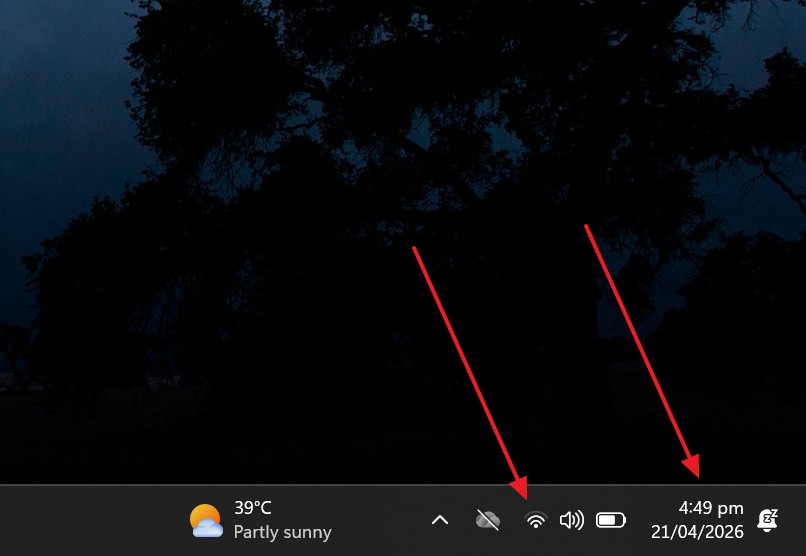
Ensuring your internet is active and the clock is correct helps everything work. This fix helps ensure a stable internet for a smooth update and installation process. It also verifies system time so Windows can properly communicate with Microsoft servers. Correcting these simple settings will often solve the annoying update loop issues. Hence, follow these easy steps to verify your connection and current system time:
Instructions. Look at the bottom right corner of the "Taskbar" to check the internet and date/time.
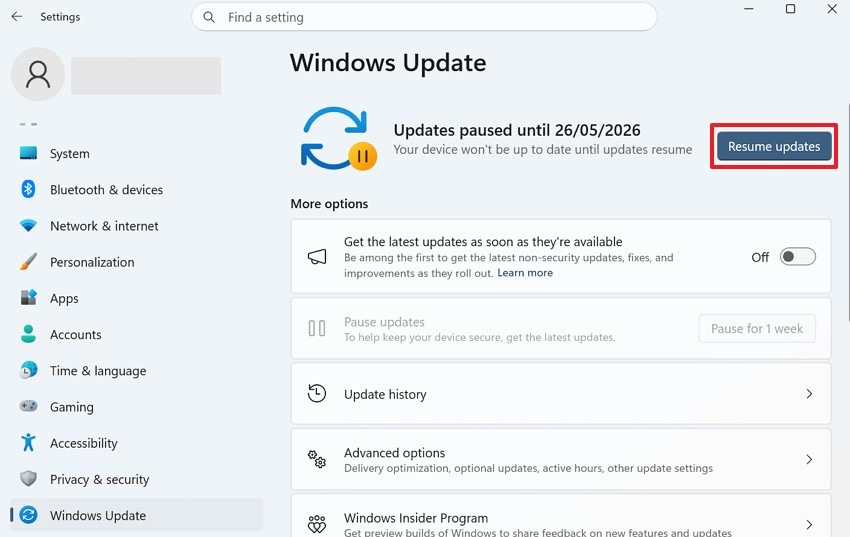
Fix 2. Pause, Then Resume Windows Update
Another helpful method to fix this issue is to reset the update process. Pausing and resuming Windows Update refreshes the connection between the system and servers. This simple action clears temporary glitches that often block or freeze download progress. It also helps Windows recheck missing files and restart stalled installation tasks. Go through the given guide to learn how to fix 2026-03 KB5086672 (26200.8117):
Step 1. Navigate to the "Windows Update" section from "Settings." Click the "Pause Updates" available option, like "Pause for 1 Week."
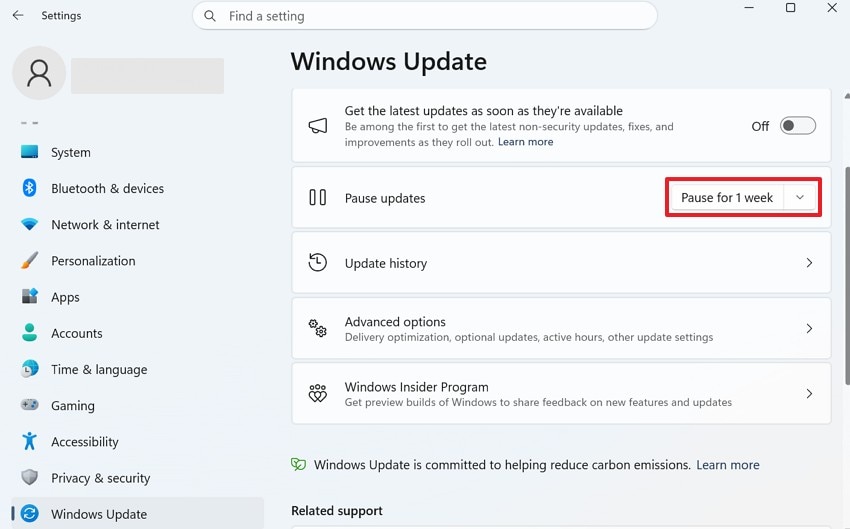
Step 2. Subsequently, wait a moment and press the "Resume Updates" button.
Fix 3. Restart Your PC and Retry the Update
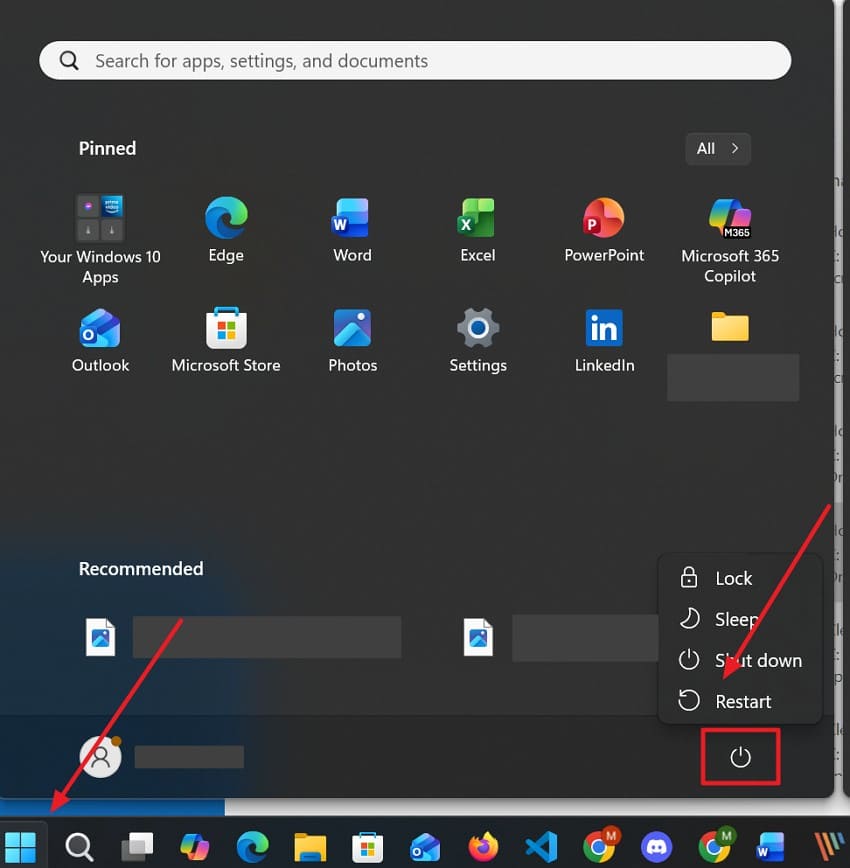
One more simple but effective way of troubleshooting is to restart your computer. This simple action closes all active background apps that might block the update. It clears out your system memory and resets all critical Windows update services. A fresh start helps your PC recognize new files and finish pending tasks. Hence, adhere to these easy steps to restart your system and resume the update process:
Instructions. Press the "Power" icon upon heading to the "Start" menu and choose "Restart." After a while, you can update your system again.
Fix 4. Free Up Disk Space of the C: Drive
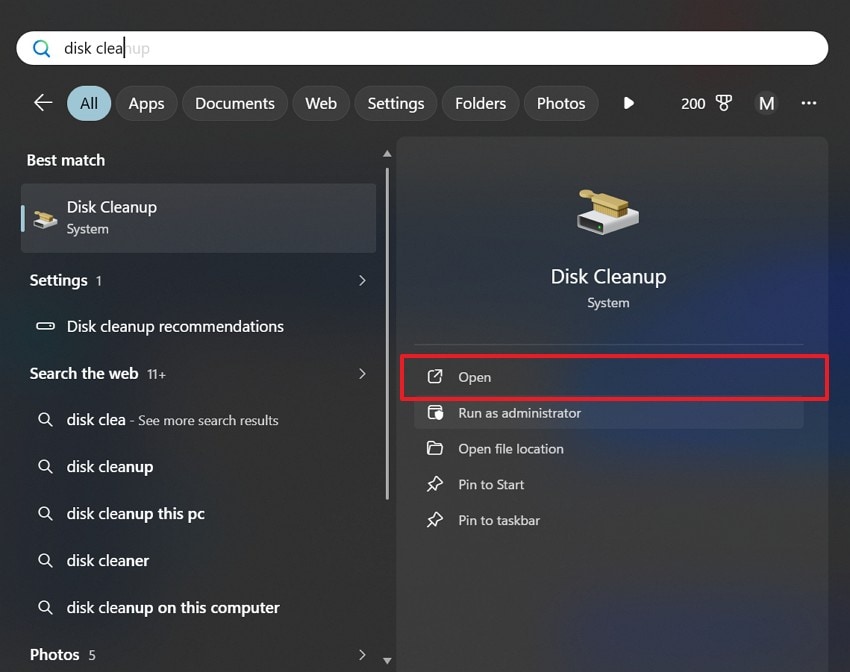
Your computer needs plenty of open space to download and unpack system files. Insufficient storage on your main drive often stops the entire installation process. In such cases, cleaning your disk ensures that every new file has a safe place to live. Removing old files or temporary data helps Windows run much more smoothly than before. Thus, review the following guide to learn how to fix 2026-03 KB5086672 (26200.8117):
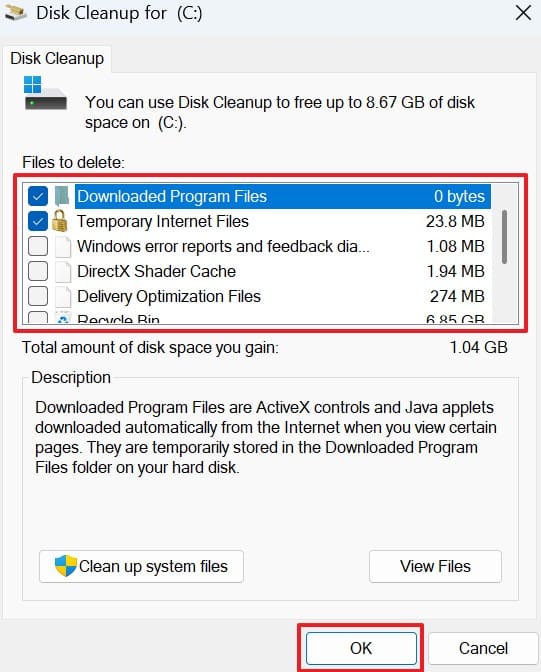
Step 1. Once you search for "Disk Cleanup," click the "Open" option.
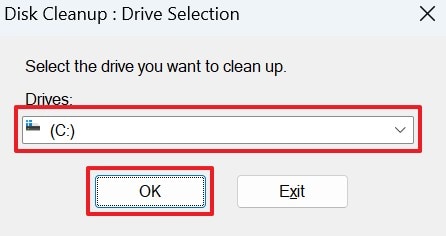
Step 2. After that, you need to choose the "(C:)" drive and press the "OK" button.
Step 3. Here, select the unnecessary files or folders to delete and click "OK."
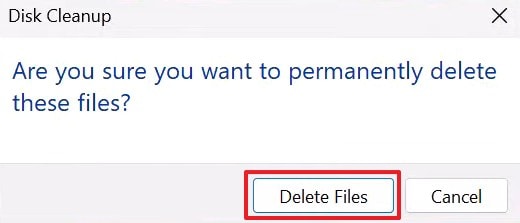
Step 4. Upon seeing a small prompt, press the "Delete Files" button.
Part 3. Intermediate and Advanced Fixes for KB5086672 Download/Install Errors
After basic fixes, some update issues still require deeper troubleshooting steps. These 8 advanced methods will help you learn how to fix 2026-03 KB5086672 (26200.8117):
Fix 1. Run the Built-In Windows Update Troubleshooter
Windows includes a helpful internal tool that finds and repairs many common bugs. This native feature scans your system to detect why the update process has failed. It can reset your update services and clear temporary file errors without manual work. The particular tool gives a fast report of any concealed issues uncovered in the scan. Thus, to start this tool on your computer, do the following easy steps:
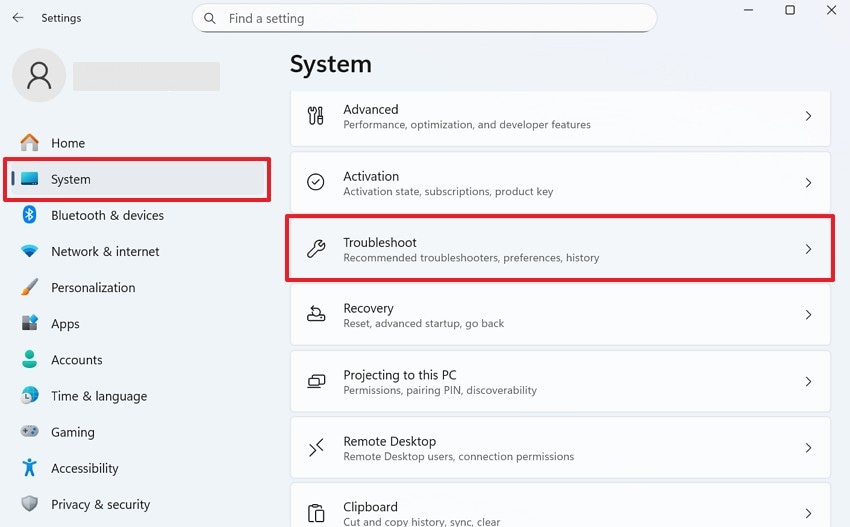
Step 1. Go to the "System" category from "Settings" and select "Troubleshoot" from the options.
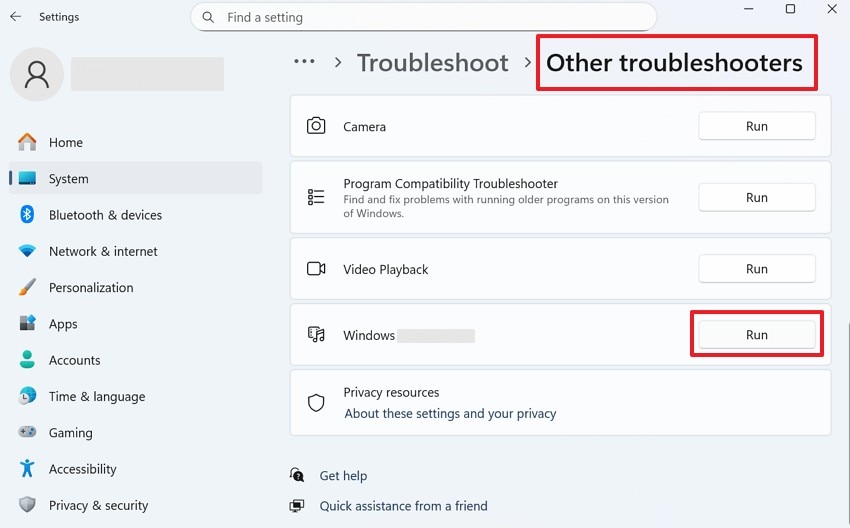
Step 2. Next, click "Other troubleshooters and find the "Windows Update" part. After that, you need to press the "Run" button next to it to start the process.
Fix 2. Temporarily Disable Antivirus/Firewall & Retry
Security programs sometimes block new update files because they look like a dangerous threat. This common issue prevents your system from installing the latest software patches. Therefore, turning off your firewall can often clear the path for a smooth download. Once you turn off these tools, Windows can finish the installation without any interruptions. Go through the steps to learn how to fix 2026-03 KB5086672 (26200.8117):
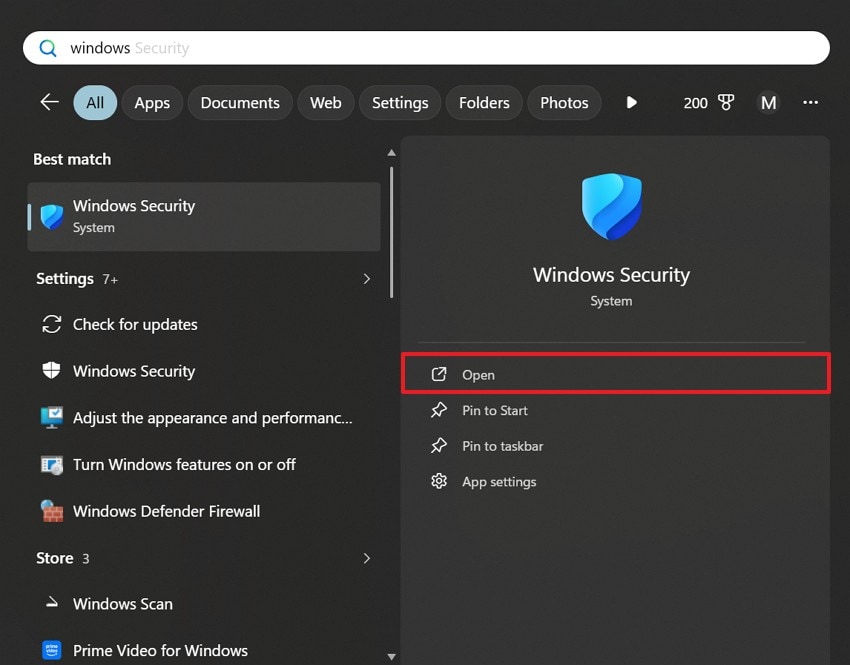
Step 1. Look up "Windows Security" in the search bar and click "Open" from the results.
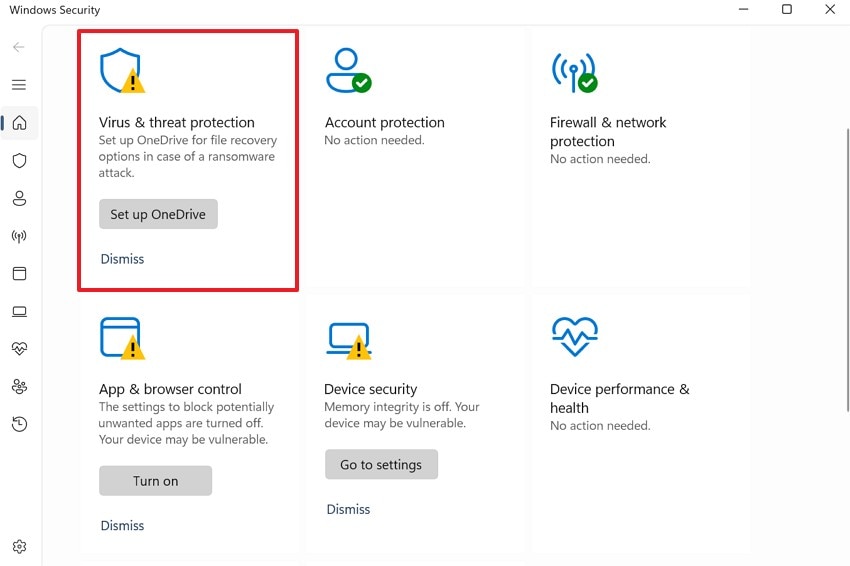
Step 2. Inside the upcoming dashboard, navigate to the "Virus & Threat Protection" section.
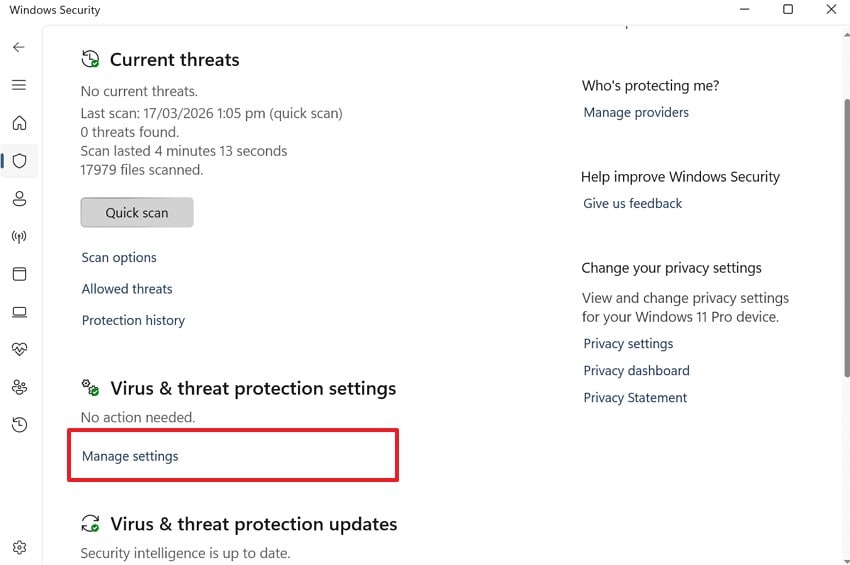
Step 3. Here, you need to select "Manage Settings" under the protection settings area.
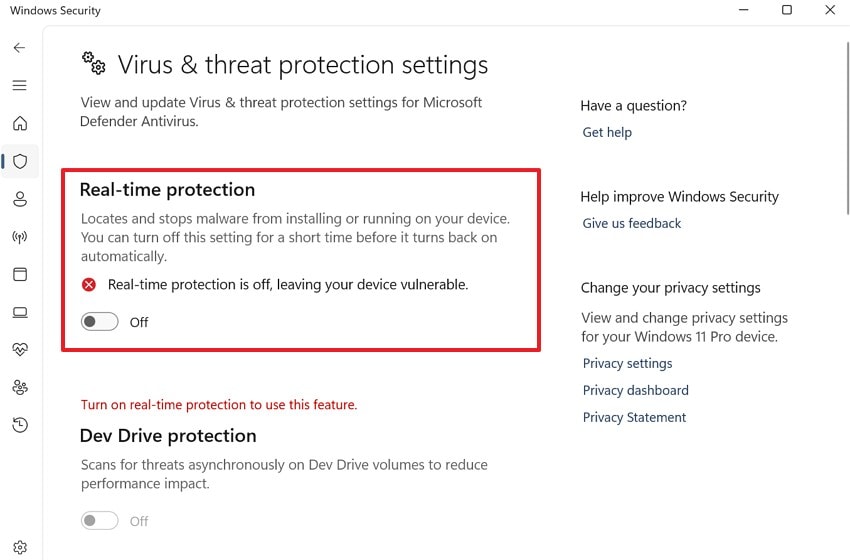
Step 4. Upon accessing the following screen, turn off the "Real-time Protection" switch.
Fix 3. Clear the Windows Update Cache (SoftwareDistribution, Catroot2)
Old update files can sometimes get stuck in your system, causing many errors. This solution clears the special folders where Windows stores these temporary download records. It forces your computer to download a fresh and clean copy of the patch. Furthermore, this method is very powerful for resolving stuck downloads or repeated update failure codes. You can explore the given steps to empty your update cache and fix your system:
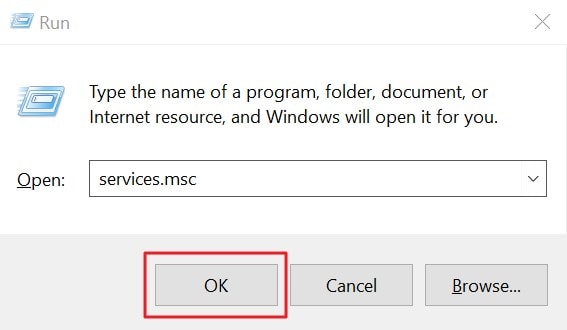
Step 1. You need to type "services.msc" upon pressing "Windows + R" and click "OK."
Step 2. In the "Services" list, locate "Windows Update" to right-click it and select "Stop."
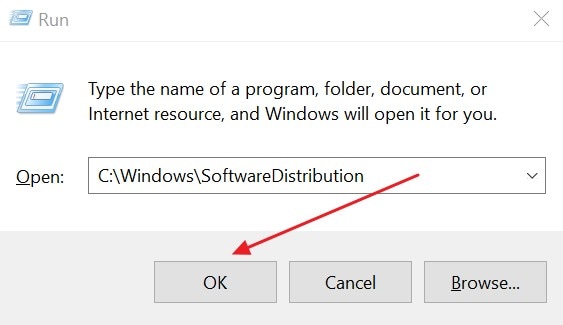
Step 3. Enter "C:\Windows\SoftwareDistribution" in the "Run" dialog and press "OK."
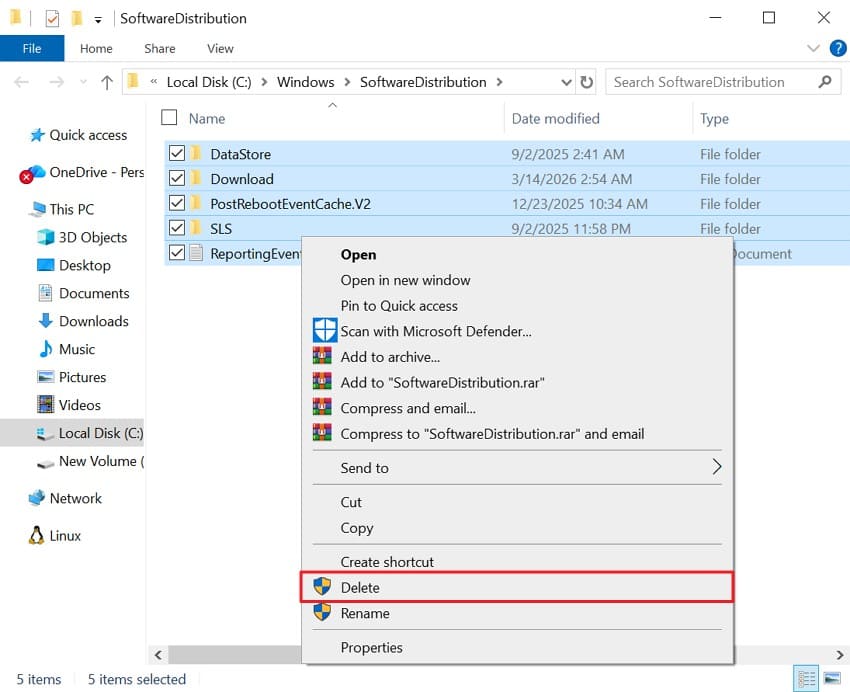
Step 4. Inside the upcoming folder, select all files and right-click on them to choose "Delete."
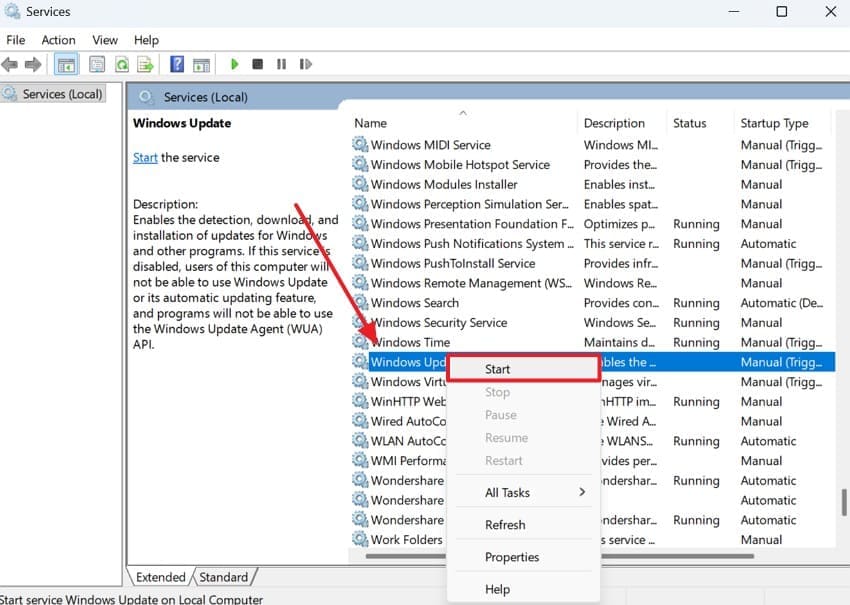
Step 5. Next, access the "Services" section again to right-click "Windows Update" and select "Start."
Fix 4. Install KB5086672 Manually from the Microsoft Update Catalog
The Microsoft Update Catalog contains official files that are safe for your Windows system. You can bypass the automatic update system by downloading the specific file. This method allows you to install the patch without using the standard update menu. Moreover, it is very useful when your system fails to download the new files. Thus, use these simple steps to understand how to fix 2026-03 KB5086672 26200.8117:
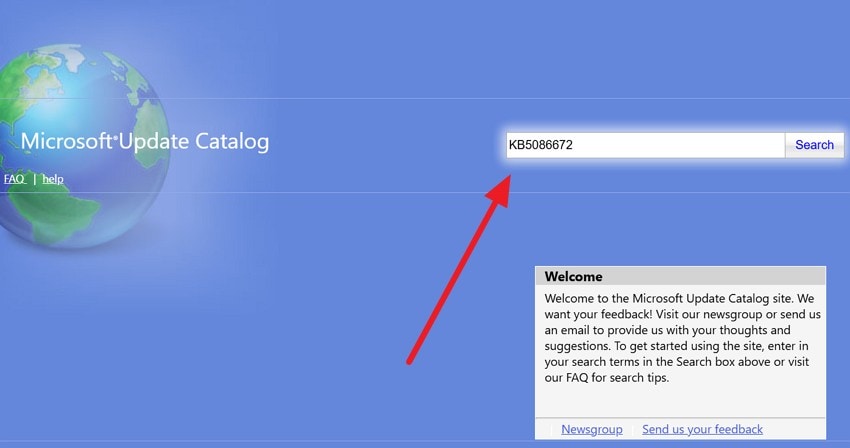
Step 1. To initiate, search for "Microsoft Update Catalog" and open the official website. After that, you need to type "KB5086672" in the provided field and press "Search."
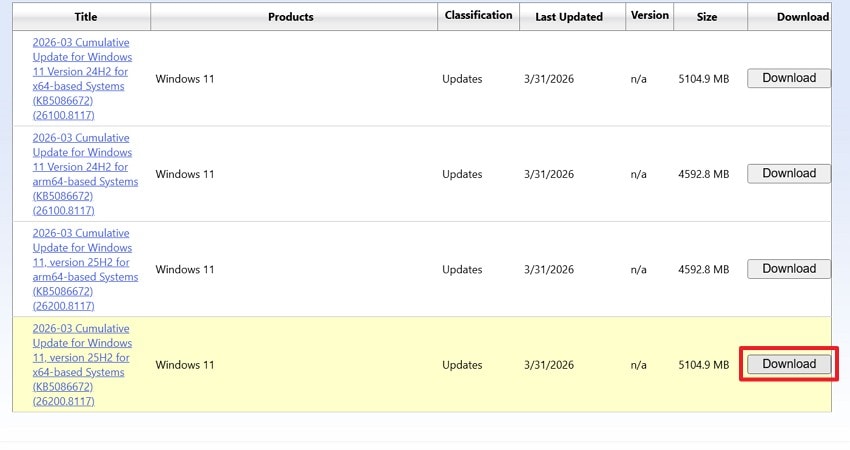
Step 2. Here, click the "Download" button next to the compatible KB5086672 file.
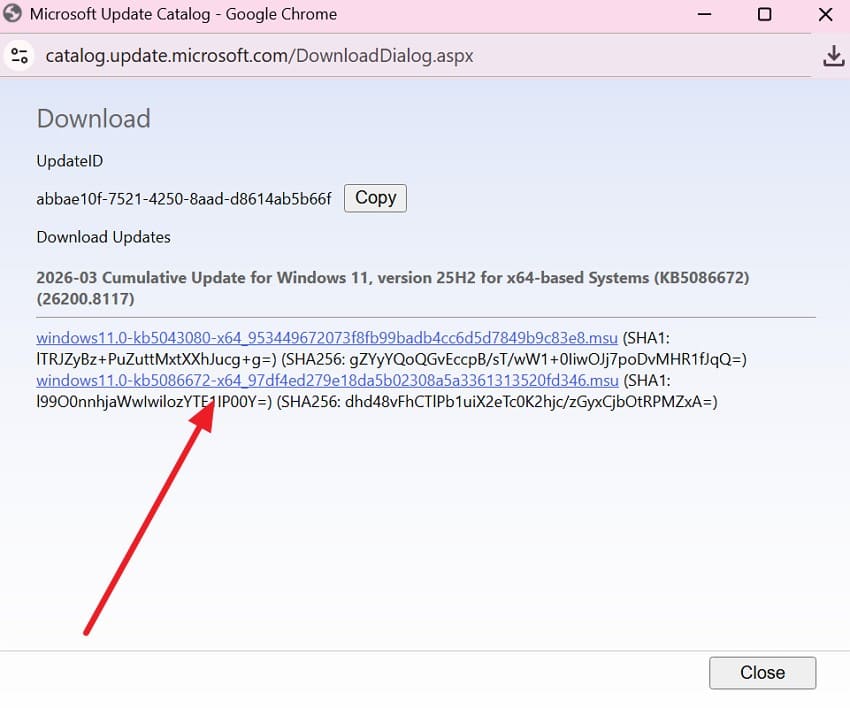
Step 3. As you see a new window, click the ".msu" link to download this file. When downloaded, open it and adhere to the prompts shown in order to install it.
Fix 5. Run System File Checker and DISM (Scan and Repair System Files)
These two powerful command tools scan and repair damaged files within your Windows system. SFC scans protected system files and replaces any corrupted or missing components found. DISM repairs deeper Windows image issues that may block updates from installing. Together, they fix hidden system problems that normal troubleshooting methods cannot detect. Anyhow, adhere to these easy steps to run these repair commands on your PC:
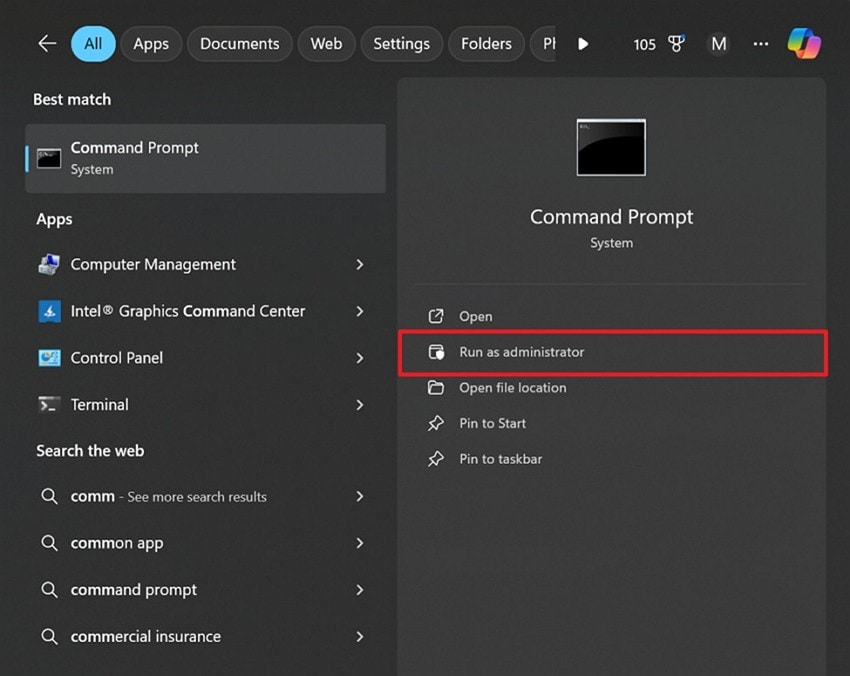
Step 1. When you search for "Command Prompt," choose "Run As Administrator."
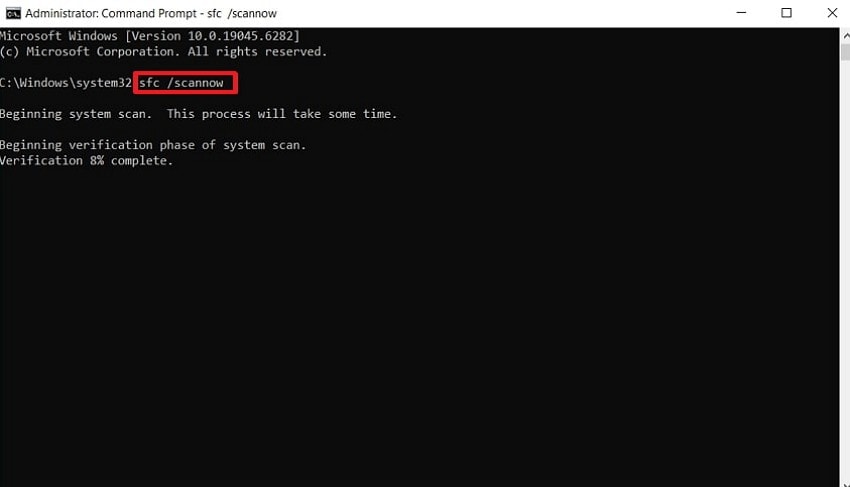
Step 2. Upon seeing the "CMD" screen, enter "sfc /scannow" and press "Enter" to start the scan.
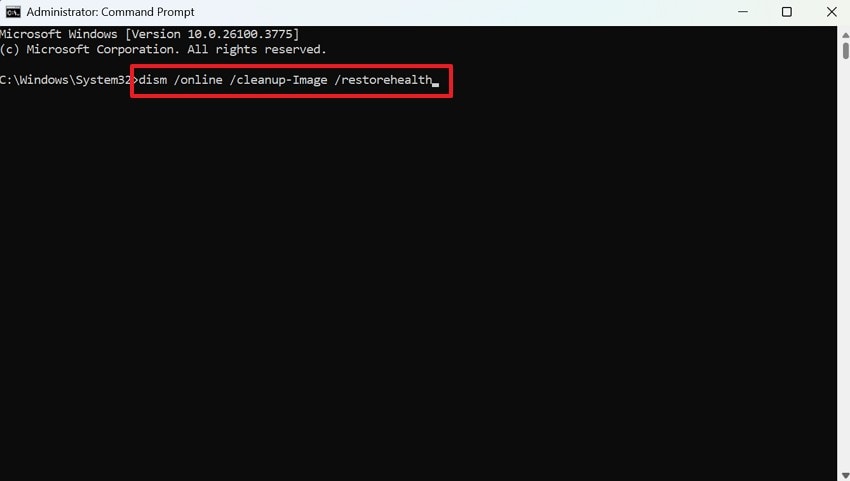
Step 3. Later on, type "dism /online /cleanup-image /restorehealth" and hit "Enter" to fix the system image.
Fix 6. Update Or Roll Back Critical Drivers (GPU, Chipset, Network)
Hardware drivers are the key to software and physical components. Sometimes, outdated drivers create serious conflicts during a major new Windows system update. Therefore, rolling back or updating these drivers can resolve many frozen screen errors. This process ensures that your GPU and network cards are working with the system. While learning how to fix 2026-03 KB5086672 26200.8117, go through the given guide:
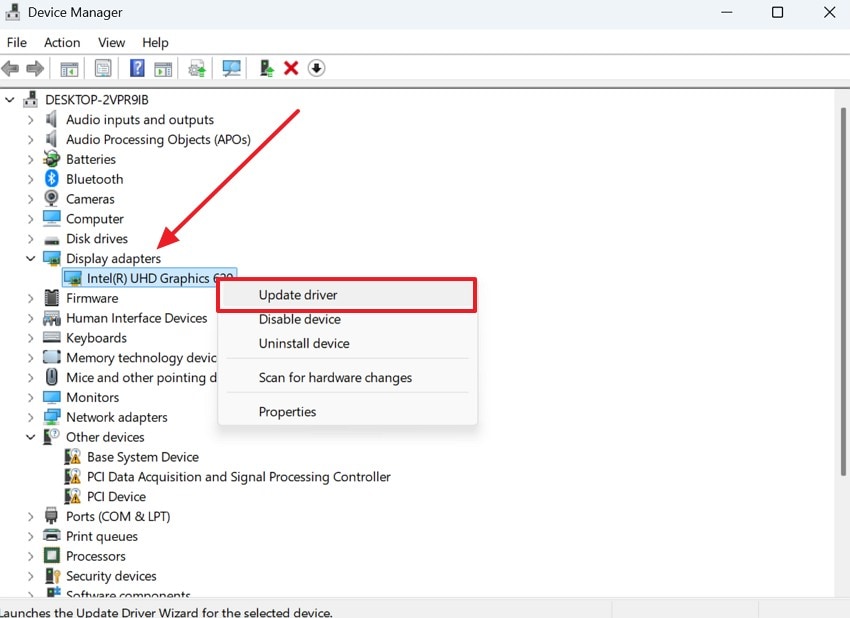
Step 1. Expand the "Display Adapters" section as you go to the "Device Manager." Subsequently, right-click your driver and opt for "Update Driver" from the menu.
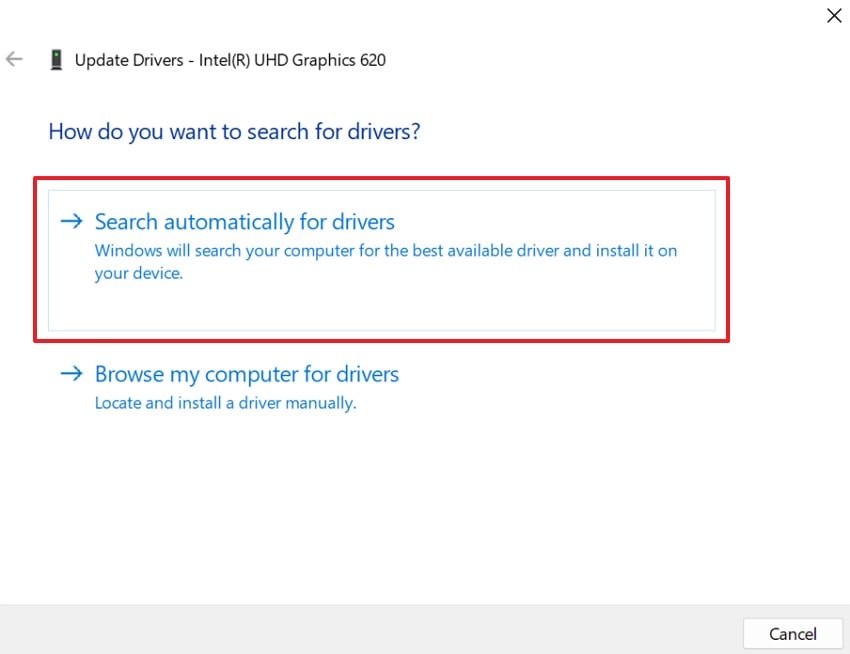
Step 2. As you access the new window, click "Search Automatically for Drivers." Once done, you need to reboot your system to resolve the issue.
Fix 7. Use System Restore to Revert to a Stable Point
System Restore enables you to go back in time to a much more secure position. This feature undoes system changes made by updates or software without harming your personal files. It is useful when KB5086672 causes major problems after it installs. Along with that, using a restore point can remove recent conflicts and errors. Hence, take guidance from the following steps to revert your system to a stable point:
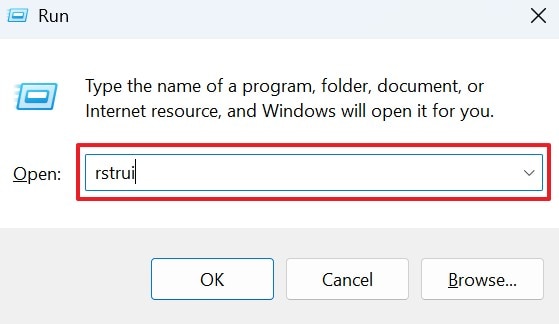
Step 1. Press "Windows + R" to type "rstrui" and hit the "Enter" key.
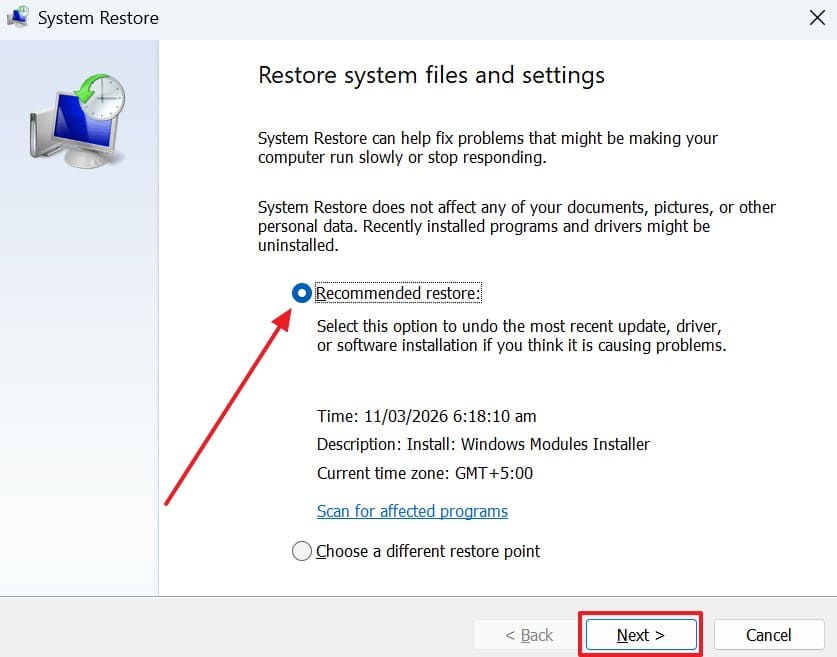
Step 2. When the "System Restore" window appears, select "Recommended Restore" and click "Next."
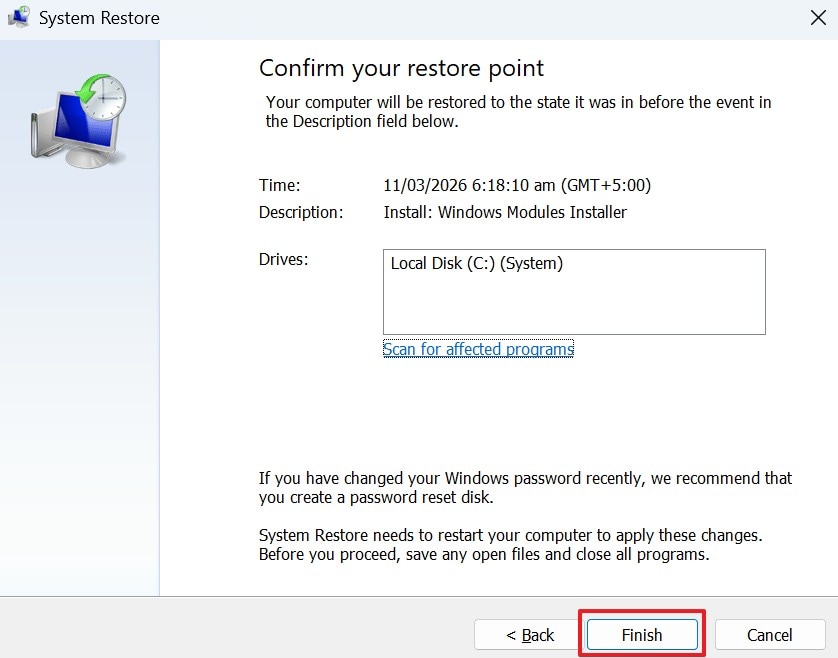
Step 3. Click "Finish" to begin the restoration process. The computer will then restart and revert system files and registry settings.
Fix 8. Perform an In-Place Repair Upgrade of Windows
An in-place upgrade refreshes your entire operating system while keeping your files safe. This method fixes deep system errors while keeping your apps and data safe. Furthermore, it can resolve problems caused by damaged or conflicting update files. The process ensures that every core file is healthy and ready for the update. Thus, follow this quick guide to understand how to fix 2026-03 KB5086672 26200.8117:
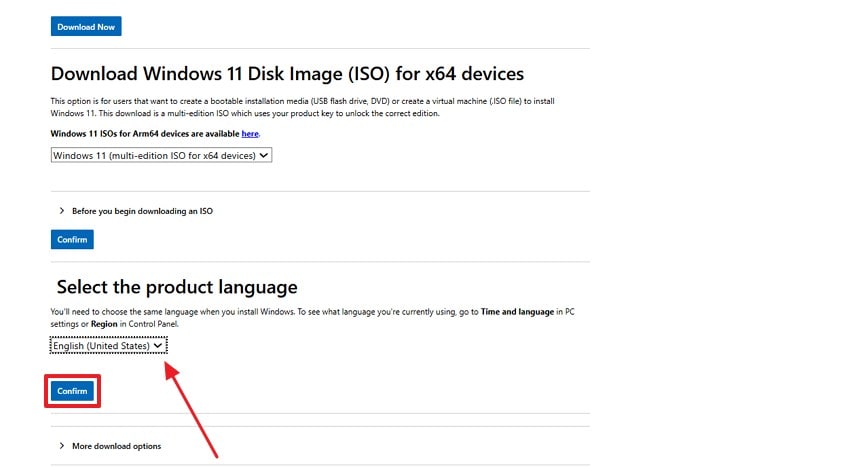
Step 1. You need to search for "Download Windows 11" and open the official website. Scroll down to choose "Windows 11" under "IOS" and press "Confirm."
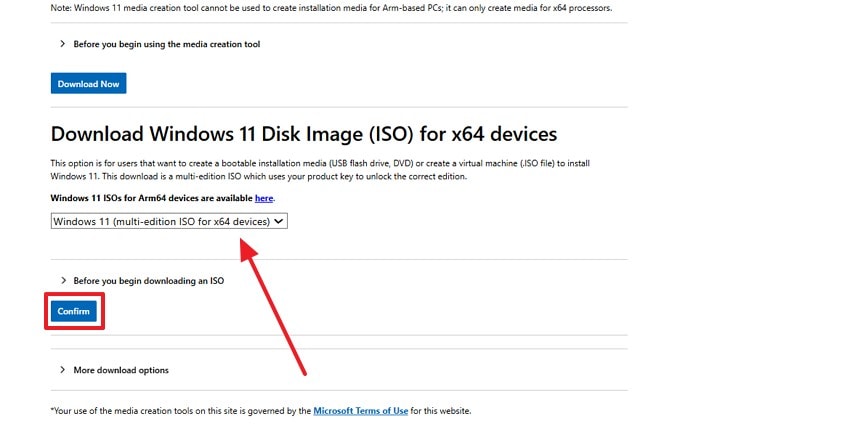
Step 2. Upon seeing the new option, select your desired language and click the "Confirm" button.
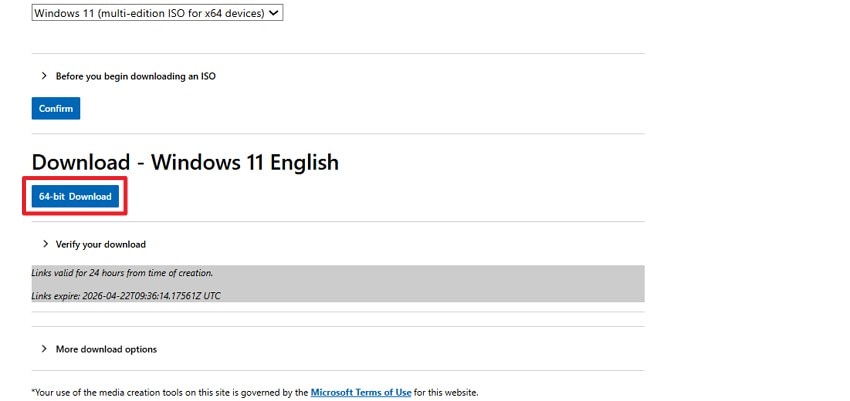
Step 3. Following this, you need to press the "64-bit Download" button to get the "ISO" file.
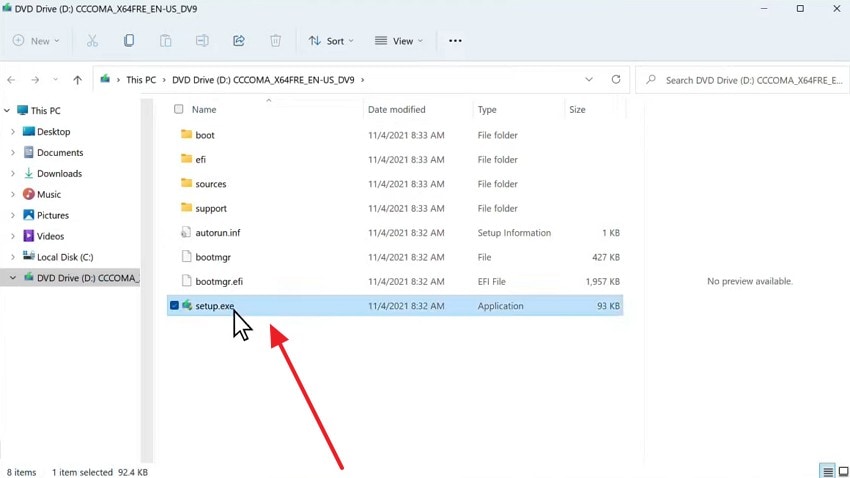
Step 4. As your ISO file is downloaded, right-click on it and select "Mount." When you view the "User Account Control" prompt, press "Yes."
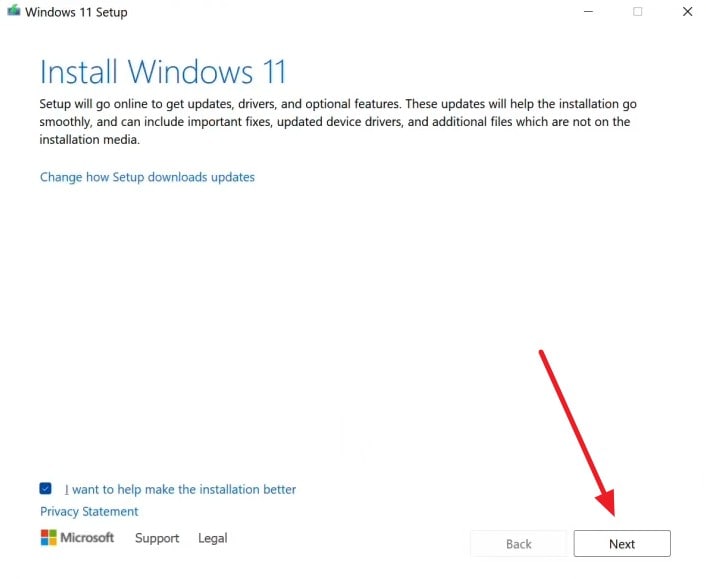
Step 5. After that, click the "Next" button to initiate the Windows installation setup.
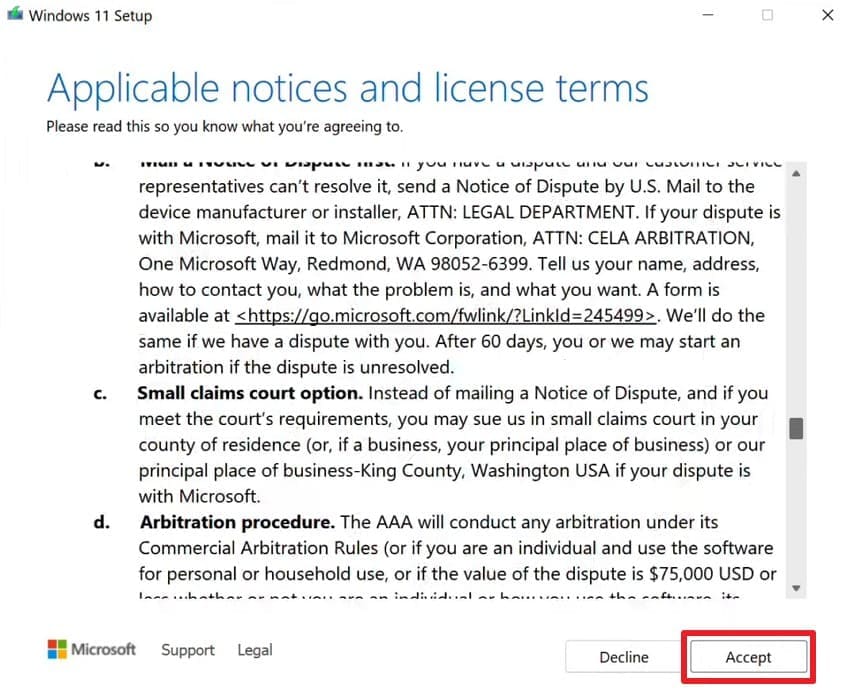
Step 6. Once see the "Applicable Notices and License Terms," click the "Accept" button.
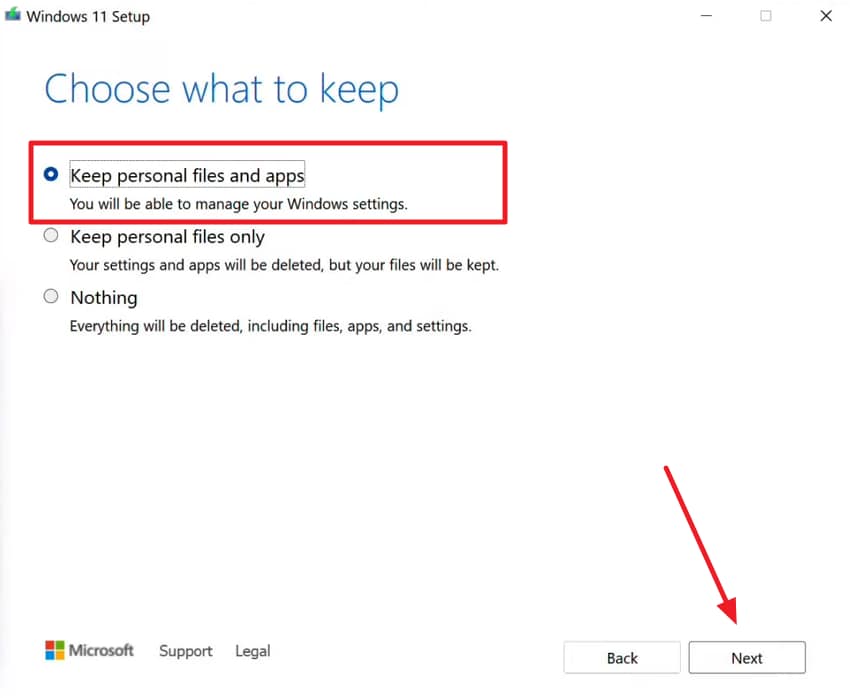
Step 7. Upon moving forward, check "Keeps Personal Files and Apps" and press "Next."
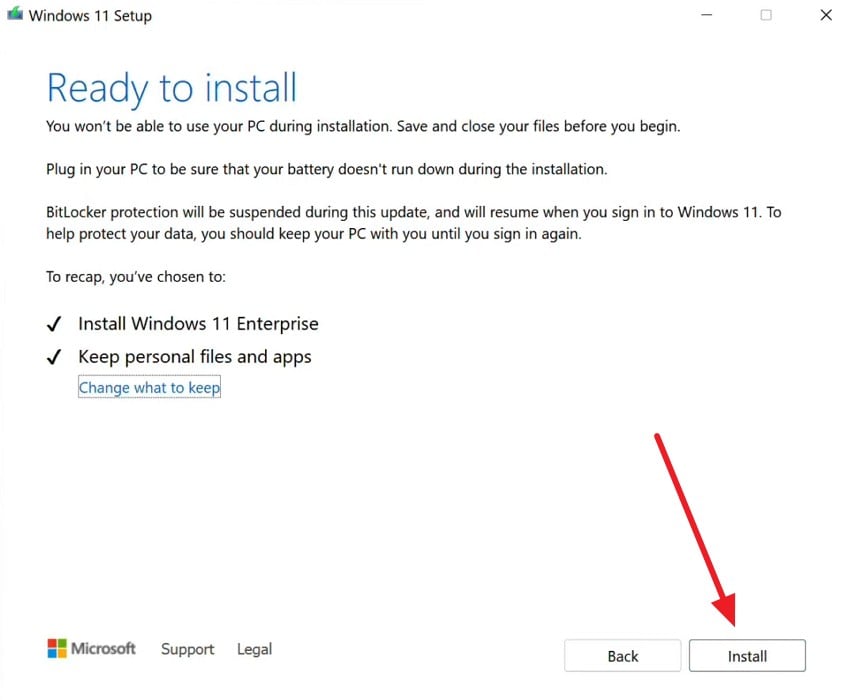
Step 8. Subsequently, click the "Install" button to start the in-place upgrade process.
Pro Fix. Repair Corrupted Files After KB5086672 With Repairit
Even after repairing your system, some personal files may still be severely damaged. Explore these common reasons why your important files often become corrupted:
- Power Loss: Sudden power cuts during the update often leave your files partially written. This interruption breaks the internal structure of your most important documents.
- System Crashes: Frequent blue screen errors often stop your computer from saving data. Such crashes prevent the system from closing your open files.
- Failed Writes: Interrupted installation processes can scramble the data stored on your disk. This results in files that your favorite apps can no longer open.
- Disk Errors: Hard drive glitches during the update can cause file corruption. These physical errors prevent Windows from reading your data.
- Interrupted Downloads: Partially downloaded updates might contain broken code that damages your local files. This creates a very unstable environment for all your saved work files.
To handle these issues, using a reliable repair tool becomes very important. When the update breaks your documents, Repairit’s File Repair provides a technical solution. This tool repairs 30+ corrupted files damaged by update system crashes. Moreover, it preserves your file’s data and embedded content while repairing it.
In addition, Repairit can handle large files over 1GB and multi‑volume archives in a single batch. You can also preview repaired files before saving them back to disk. It's a simple three‑step workflow that suits non‑technical users very well. This way, Repairit completes your path to learn how to fix 2026‑03 KB5086672 (26200.8117).
Key Features

-
Advanced Structure Repair Engine: Rebuilds damaged internal file structures without altering original content, ensuring accurate recovery after Windows update-related corruption issues.
-
AI-Powered Repair Technology: Uses intelligent algorithms to detect and fix complex corruption issues caused by system crashes or failed KB5086672 update.
-
Crash‑Induced Error Fix: Handles files corrupted when Blue Screens or system crashes interrupt KB5086672 installation or reboots.
Guide to Repair Corrupted Files After KB5086672 With Repairit
You now need to adhere to the following guide to repair your damaged files using this tool:
Step 1. Import the Affected Files After KB5086672
Open the "More Types Repair" section to choose "Document Repair" and click "Start." Then, use the "+Add" option to upload the corrupted files after KB5086672.

Step 2. Repair Your Corrupted Files After KB5086672
Once the files are listed, click the "Repair" button to begin scanning. The tool will analyze the files and fix any damaged or missing data.

Step 3. Export Fixed Files on Your System
After the process finishes, use "Preview" to check the results. If everything looks fine, click "Save All" to store the repaired files on your device.

Repair Corrupted Files
 Security Verified. Over 7,302,189 people have downloaded it.
Conclusion
To summarize, fixing update problems becomes easier when you follow the right steps. Most issues come from small errors, such as driver or system file problems. This guide explained how to fix 2026-03 KB5086672 (26200.8117) using simple methods. You can start with basic solutions, then move to advanced fixes if problems continue. Yet, if the update process ruins your documents, Repairit offers a professional recovery solution.
Frequently Asked Questions
-
1. Can I skip the KB5086672 update safely on my system?
You can delay updates, but skipping important patches is not recommended. Security updates protect your system from threats and improve overall performance stability. Therefore, you should install the update once the issues are fixed to keep your system secure. -
2. How long should the KB5086672 installation normally take on Windows?
The update process usually takes between 10 and 30 minutes on most systems. Still, time depends on system speed, storage, and internet connection stability during downloading. If it takes too long, you can check for errors or restart update services immediately. -
3. Can corrupted files be recovered after the KB5086672 update failure?
Yes, damaged files can often be repaired using reliable file recovery solutions. Repairit helps restore corrupted documents affected by update crashes or unexpected shutdown issues. It even ensures your important files become usable again without losing the original content structure.




