
- KB5083769 and KB5082417 .NET updates can fail due to broken cache, inactive services, corrupted system files, pending restarts, or framework conflicts.
- Start with basic fixes such as restarting the PC, freeing storage space, temporarily disabling the antivirus, and running the Windows Update troubleshooter.
- If the issue continues, apply advanced solutions like enabling .NET features, using clean boot mode, and running SFC and DISM to repair system files.
- Ensure Windows Update services are running properly and remove any policy restrictions blocking updates.
- When file corruption affects the process, repair damaged files first, then retry the update or install it manually from the Microsoft Update Catalog.
Windows Update can feel frustrating when the same .NET Framework patch fails after every restart. This issue may appear when update files break, services stop, or Windows blocks the security install. However, users can fix the security update KB5083769/KB5082417 .NET Framework not installing on Windows issue without risky system changes.
Moreover, this guide shows safe checks for cache issues, damaged files, and framework conflicts. These steps help Windows complete the patch while keeping the device stable. It also keeps the process clear for users who want a careful fix before trying stronger repair tools later.
Table of Contents
Part 1. What are KB5083769 and KB5082417 .NET Framework Updates?
KB5083769 is a Windows security update released for Windows 11 24H2 and 25H2. On the other hand, KB5082417 updates .NET Framework 3.5 and 4.8.1 on supported Windows devices. Furthermore, these updates help improve security, stability, and framework performance. They may fail when files are busy, services stop, or Windows needs a restart to finish the installation safely.
Why .NET Framework Updates Fail to Install - 5 Reasons
Before users repair the failed patch, they should first identify what blocks the installation. These causes show why Windows Update may stop, repeat, or fail:
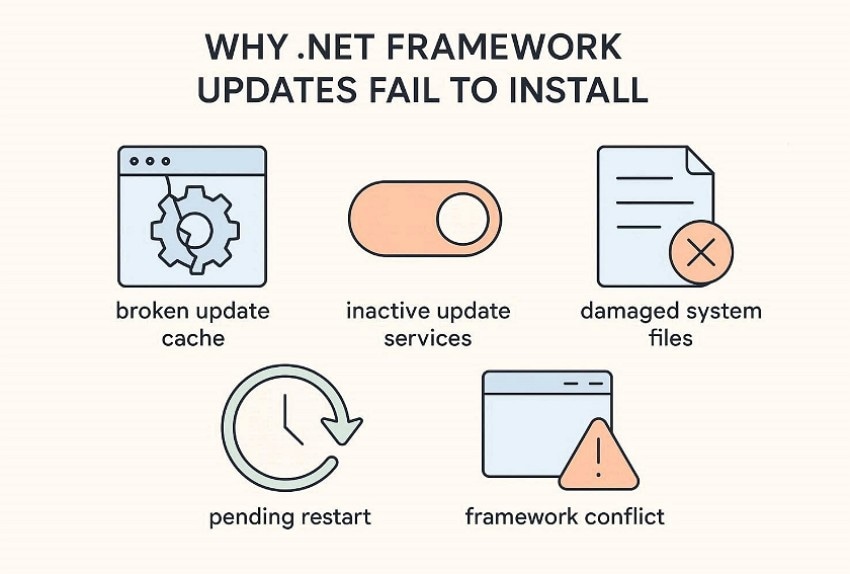
- Broken Update Cache: Old setup files sometimes remain half-downloaded after a failed update attempt. Windows may then read the damaged package and stop the installation.
- Inactive Update Services: The patch depends on services that run checks in the background. When one service stops, the installer may not complete its task.
- Damaged System Files: Core Windows files help verify and apply security patches correctly. If those files are corrupted, the update process can break midway.
- Pending Restart: Some .NET Framework files stay locked while apps or services remain open. Windows may keep delaying the patch until the next restart.
- Framework Conflict: An older or damaged .NET component can disturb the new update. The same patch may then return repeatedly in Windows Update.
Part 2. Basic Fixes for KB5083769/KB5082417 Installation Error
For many users, the KB5083769/KB5082417 error starts with small Windows Update issues rather than a serious system fault. This section explains how to fix the security update KB5083769/KB5082417 .NET Framework not installing on Windows through safe basic checks.
Fix 1. Restart PC and Retry Update
A fresh restart often gives Windows Update the clean session it needs. Failed .NET Framework patches can remain tied to locked files, unfinished background tasks, or pending restart signals. Those temporary blocks usually clear when the system reloads, therefore allowing the update service to attempt installation under cleaner conditions. Thus, follow these steps to retry the failed patch in a clean session:
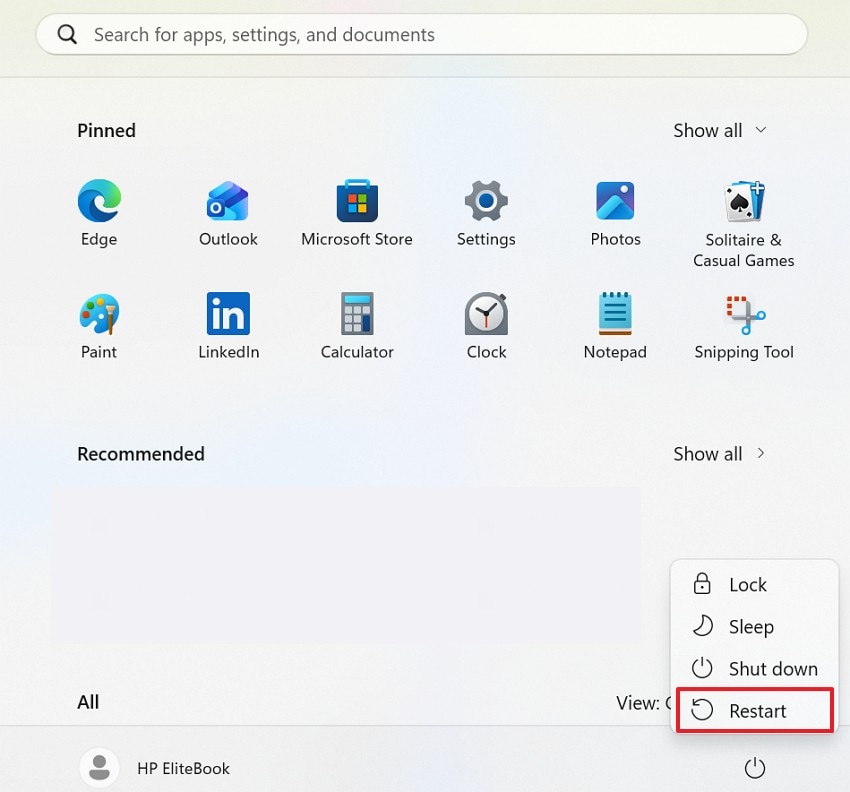
Step 1. Navigate to the "Start" menu, select the "Power" icon, and choose "Restart." Wait until Windows fully loads again before opening any heavy apps.
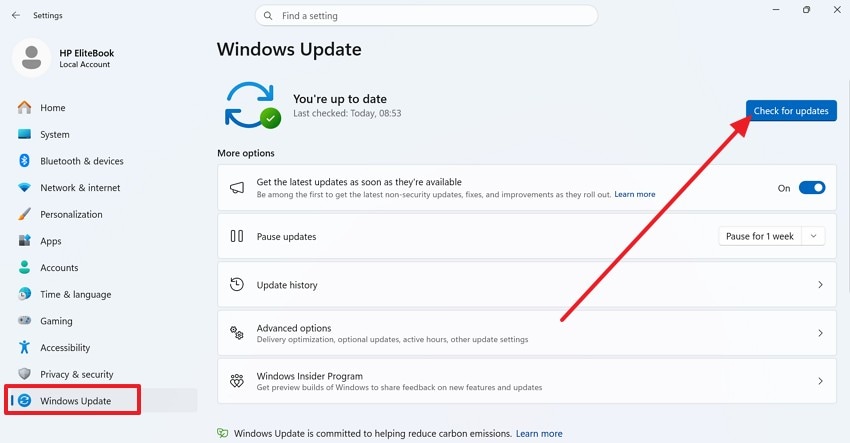
Step 2. Afterward, open "Settings > Windows Update," then choose "Check for Updates." Let Windows search again and attempt the installation of KB5083769/KB5082417 .NET Framework.
Fix 2. Free Up Storage Space
Storage pressure can quietly break the update process before users notice anything unusual. Windows needs extra room to download packages, unpack setup files, and store rollback data during patch installation. To fix the security update KB5083769/KB5082417 .NET Framework not installing on Windows, the system drive should have enough working space because update files require temporary space. Furthermore, try the following steps to create enough space for the update files:
Step 1. Here, navigate to "Settings > System > Storage" and check available space on the Windows drive. Pay special attention to temporary files, downloads, and unused apps.
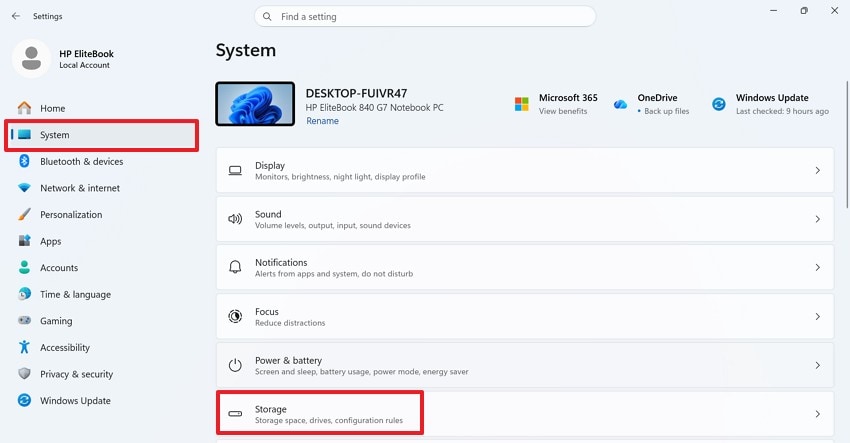
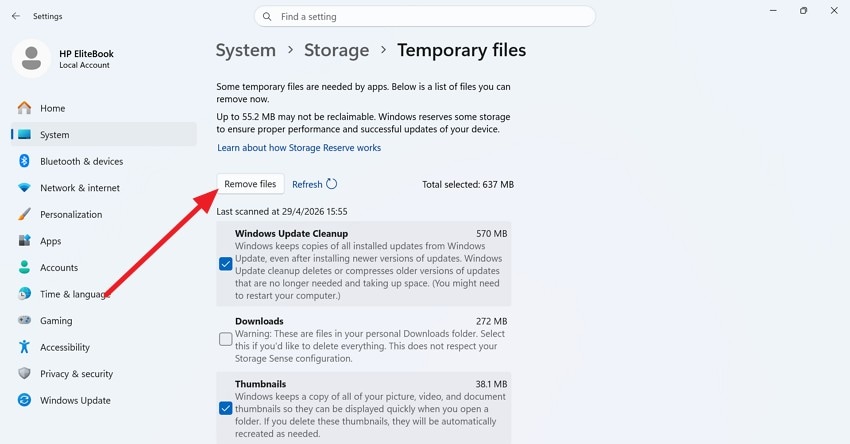
Step 2. Next, click "Temporary files," select safe cleanup items, and remove unnecessary files. Avoid deleting personal folders unless you already have a backup. After freeing storage, return to "Settings > Windows Update" and retry the failed update.
Fix 3. Temporarily Disable Antivirus
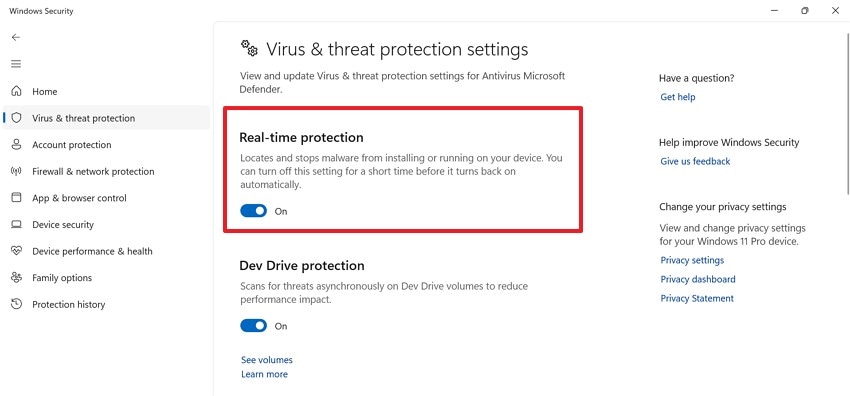
Antivirus protection sometimes becomes too strict during framework-level update activity. A .NET Framework patch changes protected system areas, so some security tools may inspect or delay the process. When real-time scanning interferes with those changes, Windows Update can freeze, fail, or return the same installation error again. Let's walk through the steps below to temporarily disable the antivirus:
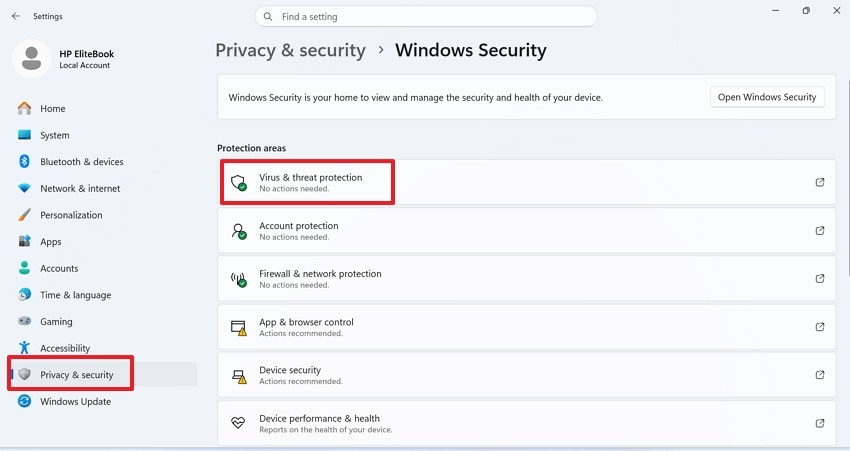
Step 1. Start by navigating to "Settings" to further select "Privacy & Security." Next, choose "Windows Security" to select the "Virus & threat protection" to continue.
Step 2. Next, press the "Manage settings" under "Virus & threat protection settings" and toggle off "Real-Time Protection."
Fix 4. Run Windows Update Troubleshooter
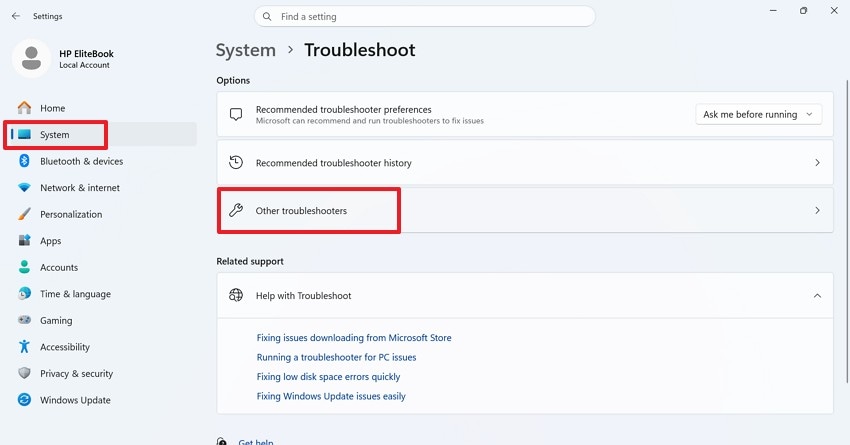
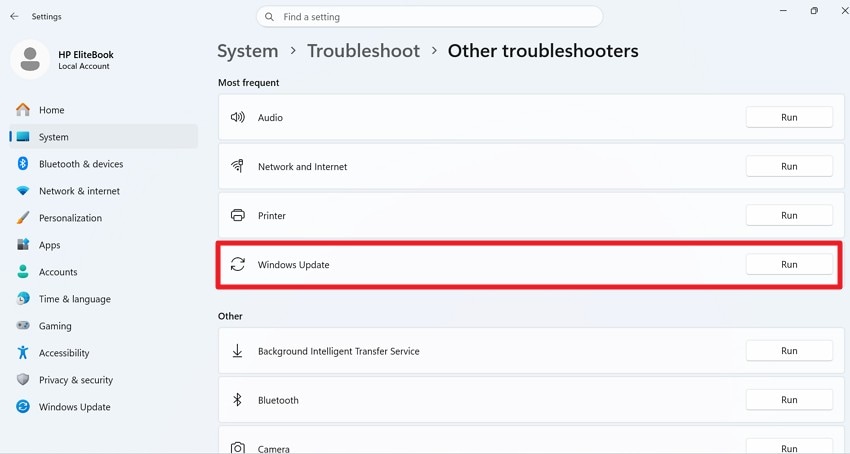
The troubleshooter is useful when the failure does not point to one clear cause. Instead, it reviews update services, related settings, and common Windows Update conditions in one guided check. For users trying to fix security update KB5083769/KB5082417 .NET Framework not installing on Windows, it offers a safer starting point before deeper repairs. Adhere to the stepwise guide below to run the Windows update troubleshooter:
Step 1. To begin, access "Settings > System > Troubleshoot > Other troubleshooters" on the Windows PC.
Step 2. Then, find "Windows Update" in the available troubleshooter list. After that, click "Run" beside Windows Update and let the tool complete its scan.
Part 3. Advanced Fixes for .NET Framework Update Failure
When basic checks do not clear the installation error, deeper Windows components may need attention. These advanced fixes target system files, update services, and .NET Framework repair areas that can keep the patch from installing correctly:
Fix 1. Enable .NET Framework Features in Windows Features
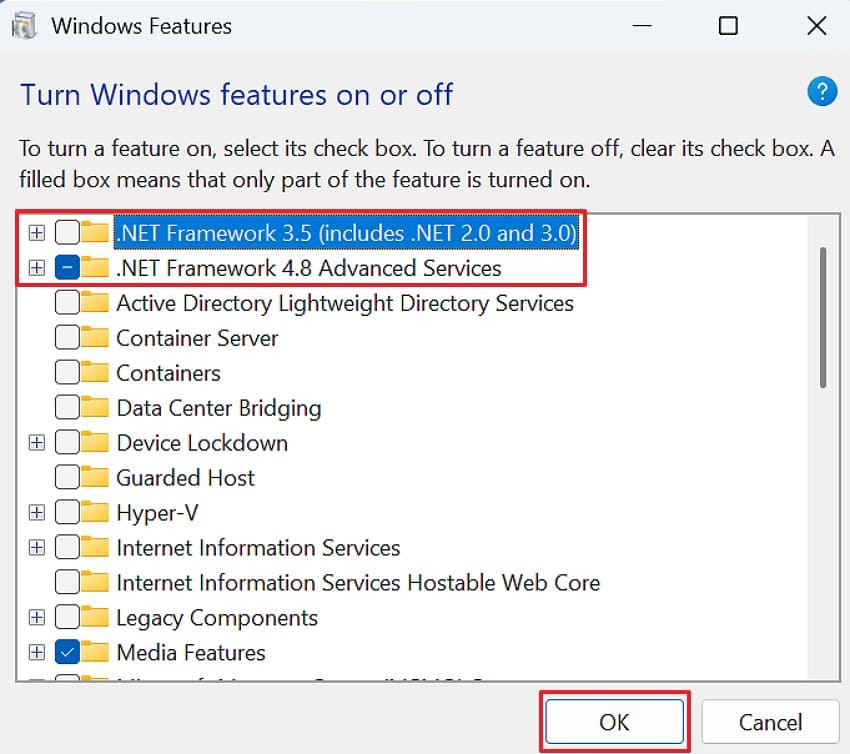
Missing .NET options often confuse Windows during security patch checks. However, enabled features give the system the correct framework path. This helps fix security update KB5083769/KB5082417 .NET Framework not installing on Windows. It is useful when framework entries appear disabled or incomplete. Therefore, try the following steps to check and enable them:
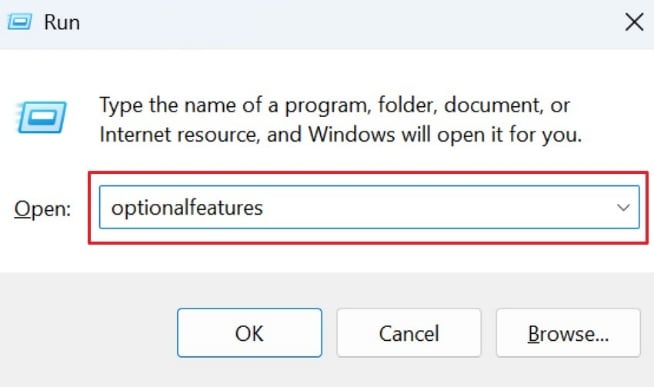
Step 1. Press "Windows + R", type "optionalfeatures," and press "Enter." Then, the "Windows Features" window will open on the screen.
Step 2. Next, find ".NET Framework 3.5" and ".NET Framework 4.8 Advanced Services." After that, check the boxes if they are not already enabled and click "OK," let Windows apply the changes, and restart the PC. Finally, retry the failed KB5083769/KB5082417 update.
Fix 2. Install Updates in Clean Boot Mode
Some update failures begin outside Windows Update itself during startup. Drivers, launchers, and third-party services may silently interrupt the patch. In Clean Boot Mode, Windows starts with fewer outside processes. As a result, the update gets a calmer setup environment. Follow the steps mentioned below to apply this fix with ease:
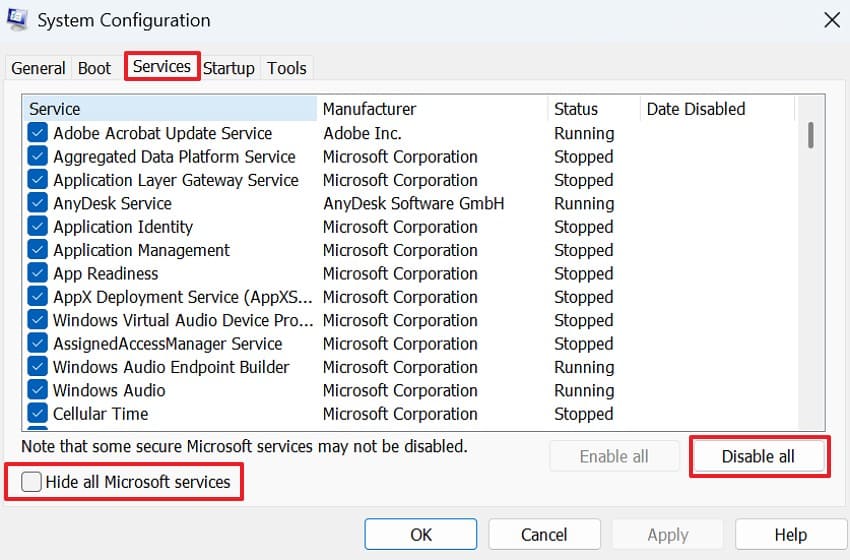
Step 1. Select "Windows + R" keys, type "msconfig," and press "Enter." Afterward, in "System Configuration," access the "Services" tab. Following that, tick "Hide all Microsoft services," then click "Disable all."
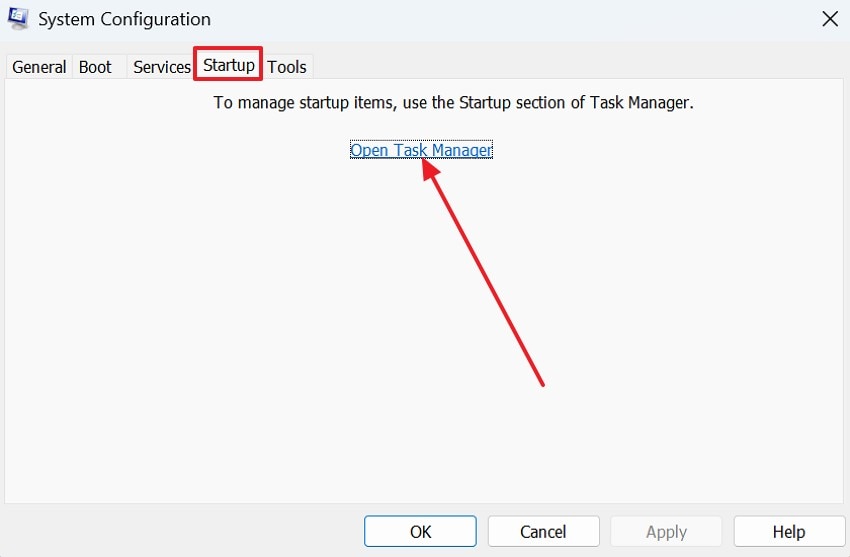
Step 2. Next, locate the "Startup" tab and launch "Task Manager" to proceed.
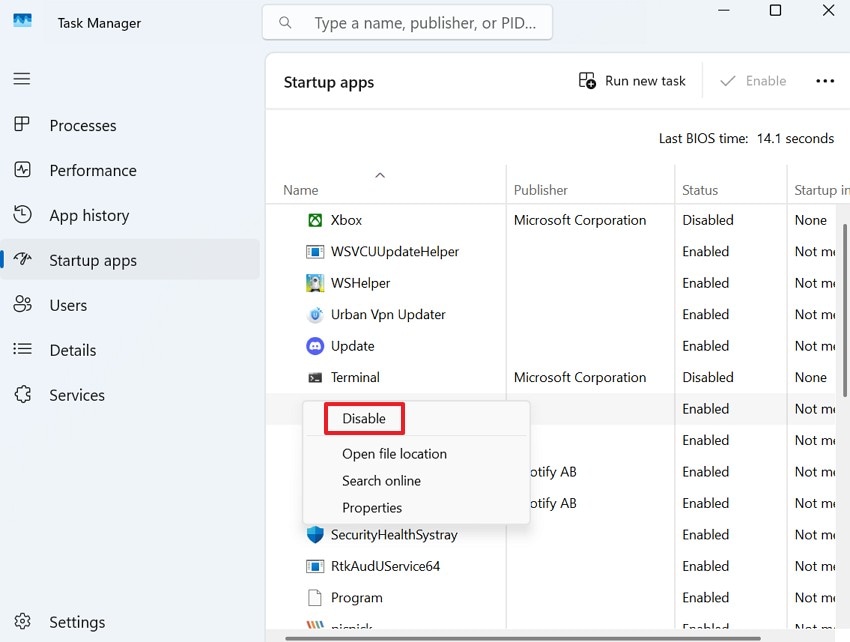
Step 3. Tap "Disable" to turn off nonessential startup apps, restart the PC, and run Windows Update again. After testing, restore the system to normal startup settings.
Fix 3. Run SFC and DISM System Repair Commands
System corruption can make Windows reject a valid .NET patch. SFC checks protected files, while DISM repairs deeper image damage. These commands are stronger than basic checks because they target Windows health. Thus, they help fix security update KB5083769/KB5082417 .NET Framework not installing on Windows when damaged components block installation. Now move towards the steps below to scan and repair system health:
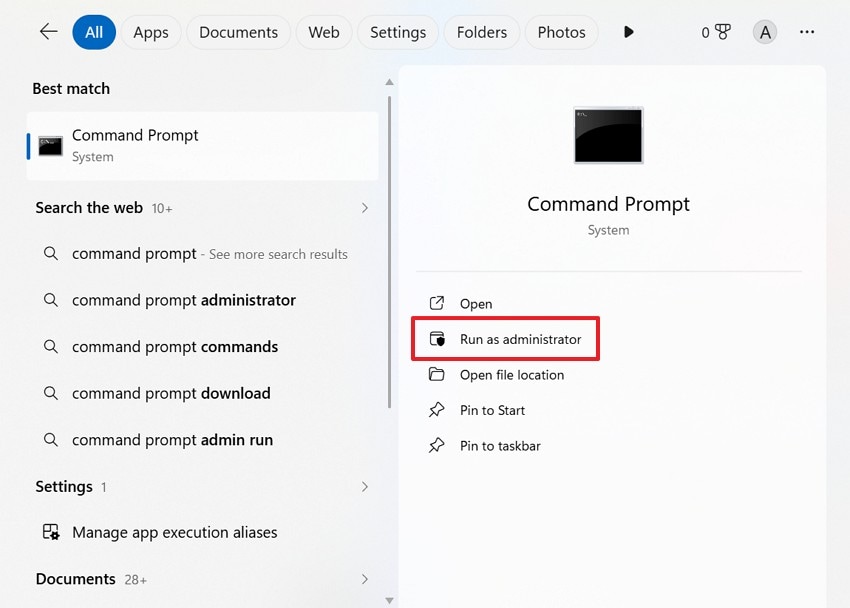
Step 1. Search "Command Prompt" in the Start menu and choose "Run as administrator."
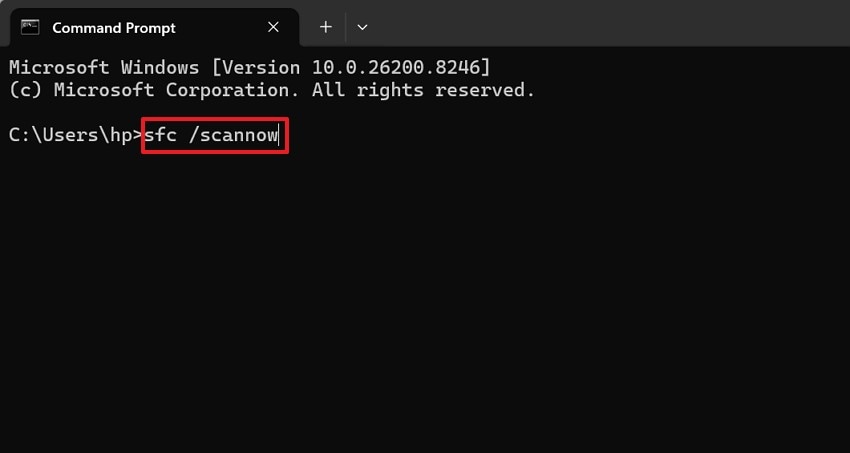
Step 2. After that, type "sfc /scannow" and press the "Enter" key. Then, wait until the scan reaches 100% before closing the window.
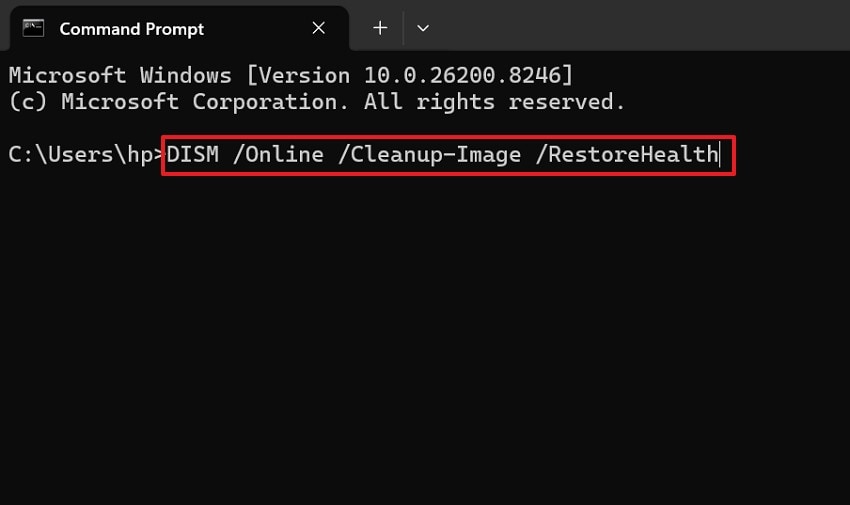
Step 3. Next, run "DISM /Online /Cleanup-Image /RestoreHealth" in the same window. Restart Windows after completion, then retry the .NET Framework update.
Part 4. Fix System Issues Causing KB5083769/KB5082417 Errors
If the update still fails after repair checks, the problem may lie deeper within Windows. This part covers system-level issues that can disrupt the installation of KB5083769/KB5082417 and prevent the .NET Framework patch from completing.
Fix 1. Check Windows Update Service Status
Windows Update depends on core services that must run correctly during installation. If Windows Update, BITS, or Cryptographic Services stop, the KB5083769/KB5082417 patch may fail before completion. Therefore, checking service status helps confirm whether Windows can download, verify, and apply the .NET Framework update without service-level blockage. Below are the steps to check the Windows update service status:
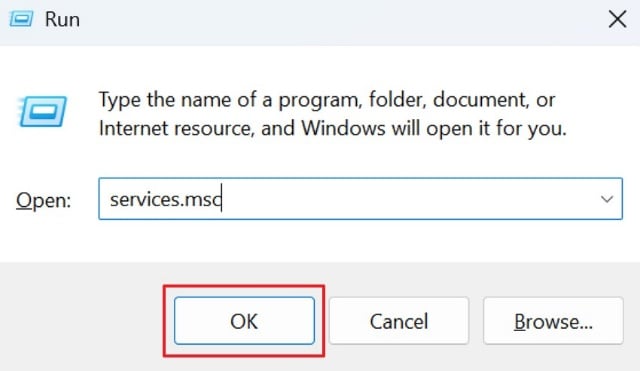
Step 1. Firstly, press "Windows + R," type "services.msc," and press "Enter."
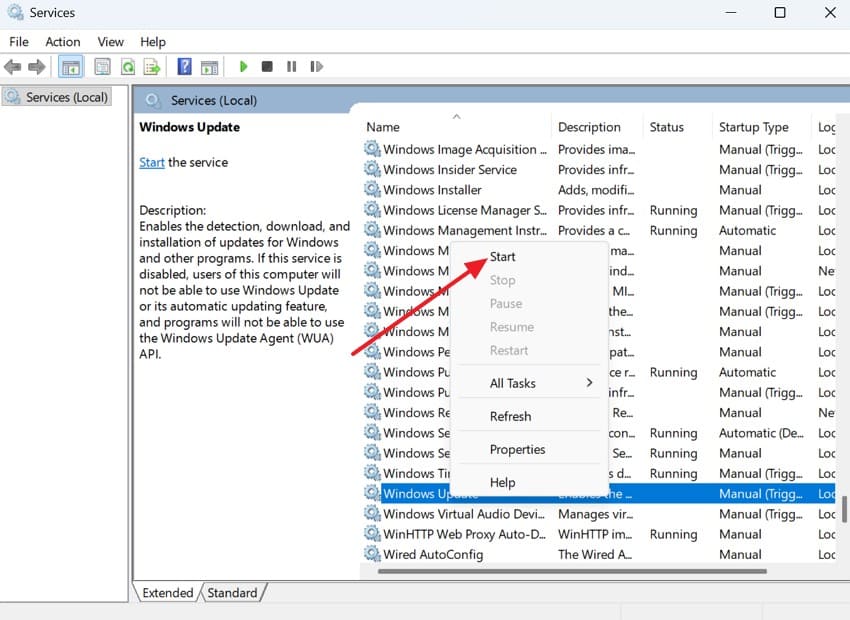
Step 2. Next, find Windows Update, Background Intelligent Transfer Service, and Cryptographic Services. Check whether each service is running, and then right-click any stopped service and choose "Start" or "Restart."
Fix 2. Repair Corrupted System Files Causing Update Failure with Repairit
Repeated KB5083769/KB5082417 failures can leave important system files damaged, unreadable, or unstable. These issues may affect how Windows processes updates, especially after crashes, interrupted restarts, or failed repair attempts. In such cases, corrupted system-related files can become a direct cause of update installation failure. Repairit can help repair these affected files before users continue deeper troubleshooting.
Repairit is useful for users trying to fix the security update KB5083769/KB5082417 .NET Framework not installing on Windows when file corruption contributes to the issue. It does not replace Windows repair commands, but it helps repair damaged system-related files through a guided process. As a result, system stability improves while users proceed with resolving the main update problem.
Key Features

-
Unreadable File Repair: Retrieve files that stop opening after crashes, failed tasks, or interrupted Windows repair attempts.
-
Office Document Recovery: Repairs damaged Word, Excel, PowerPoint, and PDF files needed during troubleshooting work.
-
Media File Repair: Restores corrupted images or videos affected by crashes, storage issues, or failed restarts.
Guide to Repair Corrupted System Files with Repairit
If important system files were damaged during failed updates, Repairit can help recover them. Now, follow the steps mentioned below to repair affected files safely:
Step 1. Import the Damaged Files to Repairit
Enter the "File Repair" tool from the main workspace. Then click "+Add" to upload corrupted files that were affected after repeated update failures.

Step 2. Review the Repair List Before Processing
After files appear, check their names, sizes, and saved locations carefully. Once everything looks correct, press "Repair" to start file restoration.
Step 3. Preview and Save the Repaired Files
Lastly, use "Preview" to check the repaired version, then, after confirming the result, select "Save" or "Save All" to export the files to a safe folder.

Repair Corrupted Files
 Security Verified. Over 7,302,189 people have downloaded it.
Fix 3. Fix Registry or Policy Restrictions (If Any)
Some Windows devices use registry rules or local policies that limit update access. At times, these restrictions come from workplace settings, third-party tweaking tools, or earlier troubleshooting changes. Once update policies block downloads, restarts, or Microsoft update access, KB5083769/KB5082417 may keep failing until those restrictions are reviewed. Now, use the steps below only to review update-related restrictions:
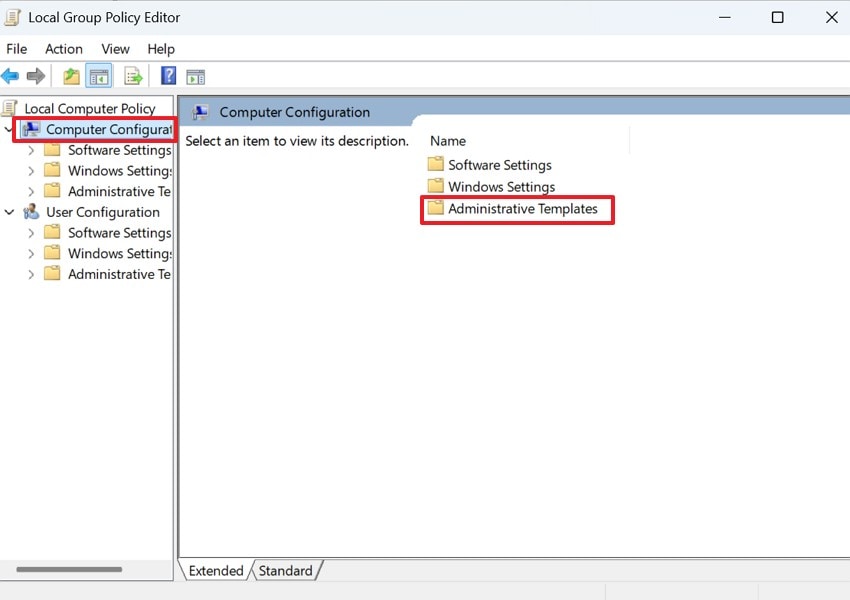
Step 1. Start by running the command "gpedit.msc," and press "Enter" to open "Local Group Policy Editor" and expand "Computer Configuration" from the left panel. Then, choose "Administrative Templates" to view system policy folders.
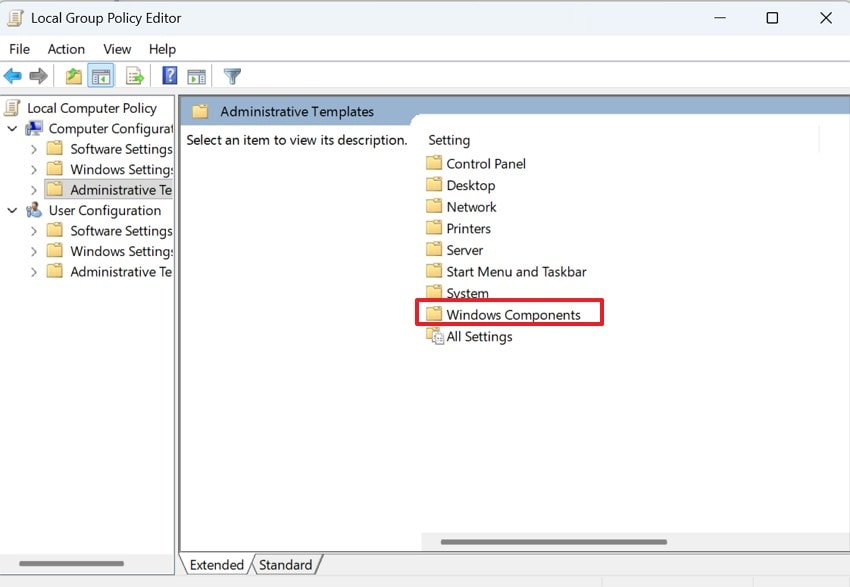
Step 2. Next, access "Windows Components" inside the "Administrative Templates" section. This area contains Windows features, security, and update-related policy settings.
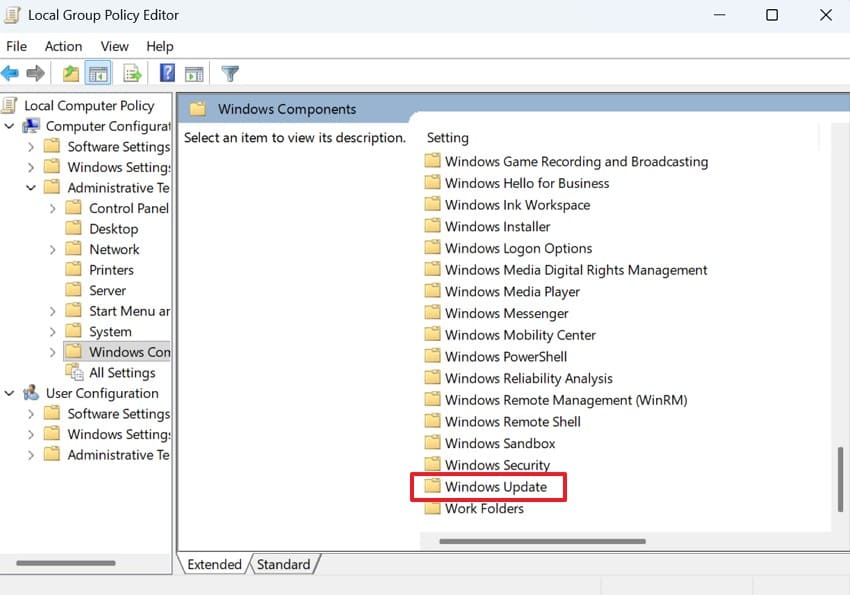
Step 3. Afterward, scroll through the list and select "Windows Update." Here, users can review policies that may affect update installation or restart behavior.
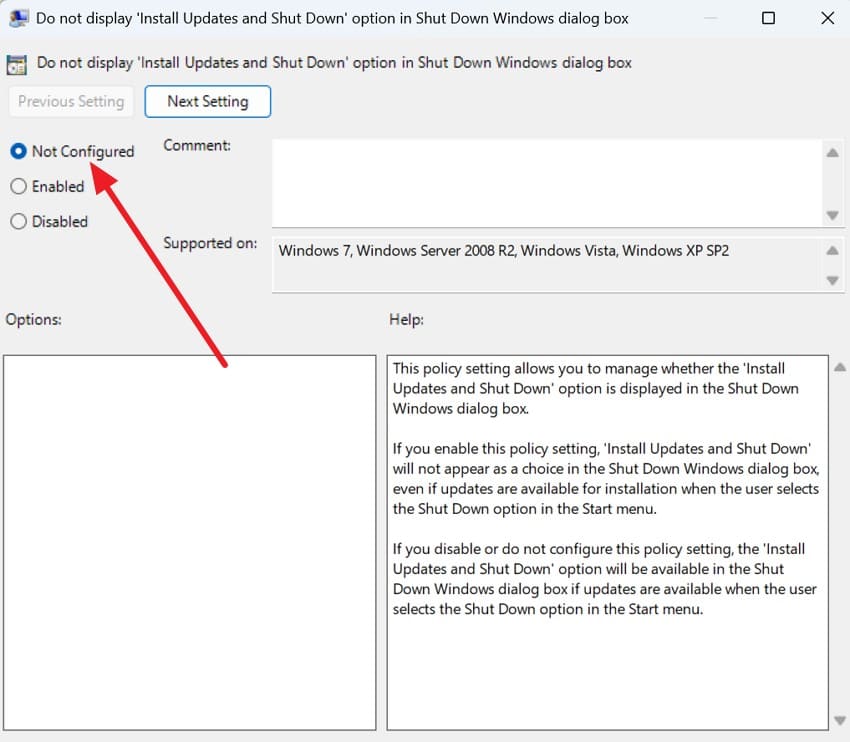
Step 4. Finally, open any suspicious Windows Update restriction and set it to "Not Configured." Then, apply the change and restart Windows only if a policy was changed.
Fix 4. Update Windows Manually Via Microsoft Update Catalog
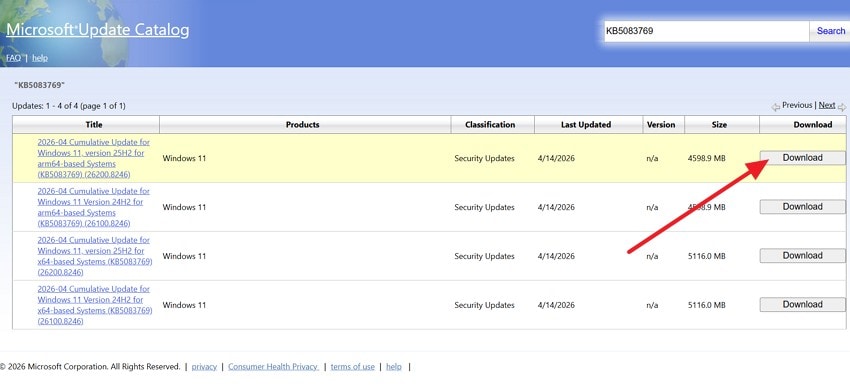
Manual installation is useful when the normal Windows Update keeps failing repeatedly. Microsoft Update Catalog provides official standalone packages for supported Windows versions. At this point, manual installation can help fix the security update KB5083769/KB5082417 .NET Framework not installing on Windows. It uses trusted Microsoft packages when automatic delivery keeps failing repeatedly. Next, follow these instructions to install the correct package from Microsoft Update Catalog:
Instructions. Start by visiting "Microsoft Update Catalog" through any trusted browser on the Windows PC. Next, search "KB5083769" or "KB5082417," then match the correct Windows version. After that, run the downloaded update package and follow the installer instructions carefully. Restart the PC, then confirm installation status through "Windows Update."
Part 5. How to Prevent .NET Framework Update Failures in the Future
After users fix the security update KB5083769/KB5082417 .NET Framework not installing on Windows issue, prevention becomes easier. The following habits can reduce repeated .NET Framework update failures later:
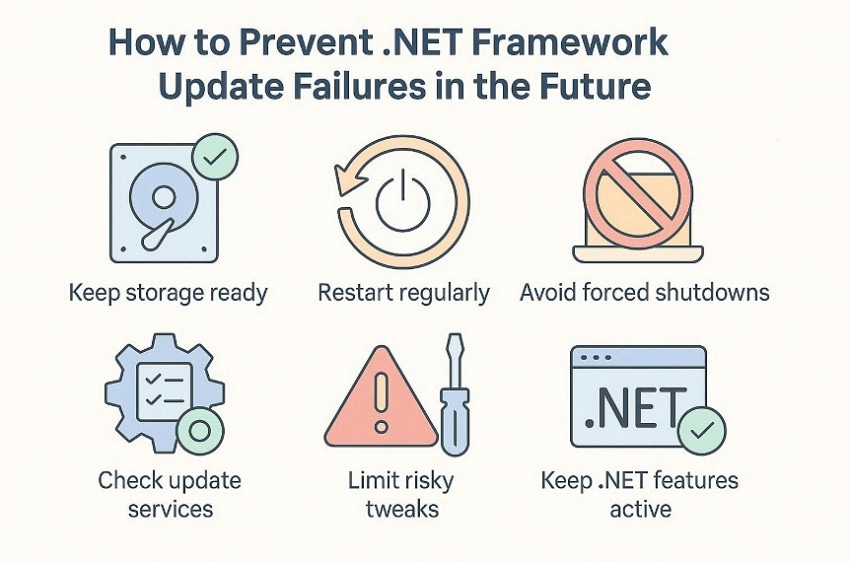
- Keep Storage Ready: Maintain enough free space before major Windows security updates begin installing. Low storage often interrupts downloads, extraction, and rollback preparation quietly.
- Restart Regularly: Restart Windows weekly so pending services and locked files can clear. This habit also helps update tasks to finish without hidden conflicts.
- Avoid Forced Shutdowns: Sudden shutdowns during updates can damage files or leave patches incomplete. Instead, let Windows finish installing before turning the device off.
- Check Update Services: Windows Update depends on background services that should remain active. Occasionally, service failures create repeated errors before installation even starts.
- Limit Risky Tweaks: Third-party tuning tools may change policies, services, or registry settings. As a result, Windows Update access can become blocked or unstable.
- Keep .NET Features Active: Disabled .NET Framework features can confuse future security patch checks. Active framework components give Windows a cleaner update path later.
Conclusion
To conclude, you can fix the security update KB5083769/KB5082417 .NET Framework not installing on Windows through safe checks and repair methods. Overall, these workable fixes reduce repeated update failures without risky system changes. If failed updates leave important files damaged, Repairit can help fix affected documents, images, or videos separately.
Frequently Asked Questions
-
1. Why does KB5083769/KB5082417 fail during .NET Framework installation?
It often fails when files, services, or framework components break during updates. Pending restarts, low storage, and policy restrictions may also interfere. -
2. Can Windows Update Troubleshooter fix this .NET Framework update error?
Yes, it can detect common update service and configuration issues. However, deeper corruption may still need SFC, DISM, or manual installation. -
3. Is Microsoft Update Catalog safe for installing KB5083769/KB5082417 manually?
Yes, Microsoft Update Catalog provides official standalone update packages directly. Users should still choose the correct Windows version and architecture. -
4. Can Repairit directly repair Windows Update failures for KB5083769/KB5082417?
No, Repairit does not repair Windows Update components directly. It helps repair corrupted system-related files, along with damaged documents, images, or videos after failed updates.




