
 TL;DR:
To resolve Roblox crashing silently immediately after a Windows update, you must eliminate software conflicts by clearing corrupted local app data, disabling intrusive background overlays, and refreshing essential system dependencies.
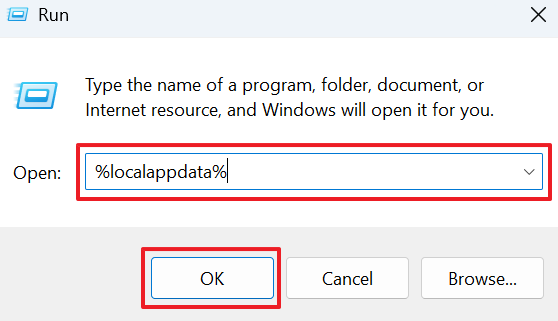
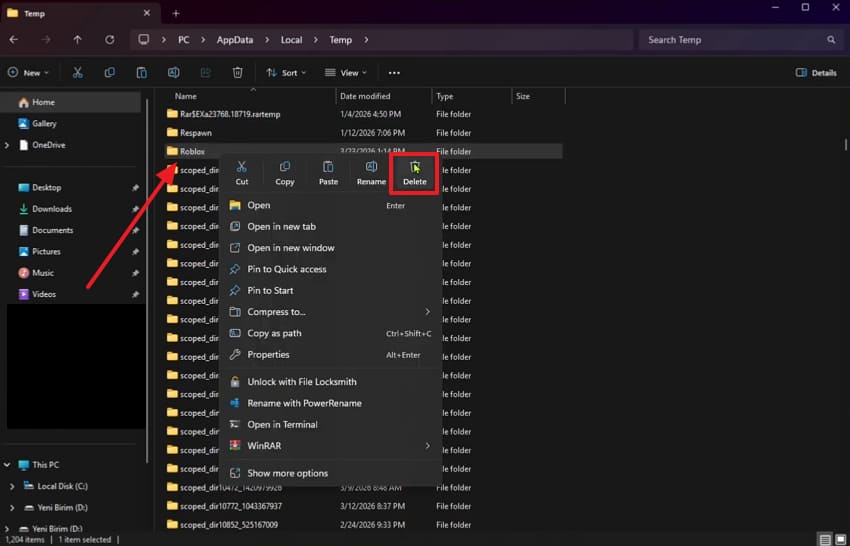
● Deleting the temporary game storage folders located within the %localappdata% directory removes corrupted configuration profiles that directly clash with new patch data during startup.
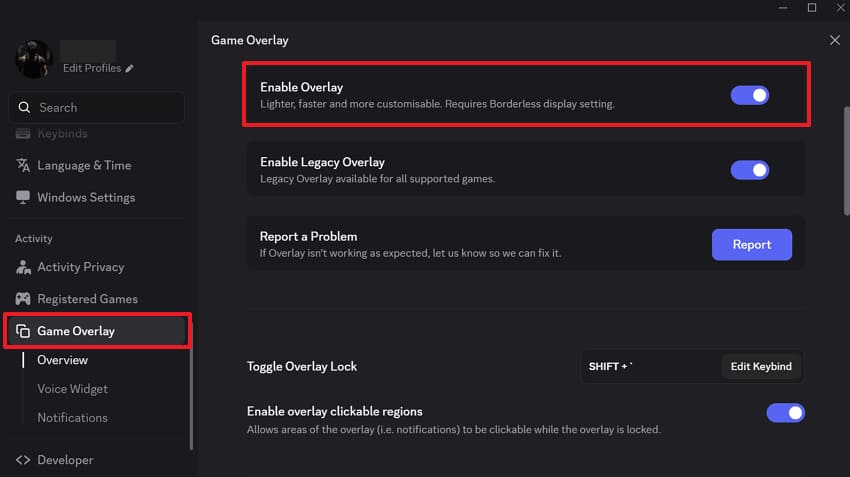
● Third-party interface tools like the Discord or GeForce Experience overlays inject code that interferes with updated Roblox processes, making it necessary to disable them to prevent immediate game shutdowns.
● Severe launch failures require manually installing missing Microsoft Visual C++ runtime packages or utilizing Display Driver Uninstaller (DDU) in Windows Safe Mode to cleanly wipe and reinstall incompatible GPU drivers.
Ask AI for a summary
 ChatGPT
 Perplexity
 Gemini
 Claude
 Grok
Grok
Every major Roblox update brings exciting features, but it can also trigger sudden crashes. Many Windows players find their game shuts down right after a patch. A user of Roblox’s DevForum reports that update conflicts can trigger silent crashes after launches. This frustrating issue leaves you staring at your desktop instead of playing games.
You might try to launch it multiple times, only to face continuous failures. Sudden crashes interrupt gameplay sessions and prevent access to favorite experiences. Nonetheless, such a problem is completely fixable with the right steps. Therefore, this guide covers every proven solution to fix Roblox closing automatically with no error.
In this article
Part 1. 5 Reasons Roblox Crashes Immediately After Updating
Roblox updates sometimes introduce conflicts that trigger unexpected crashes. Before attempting solutions, knowing these causes helps fix Roblox crashing without error message:
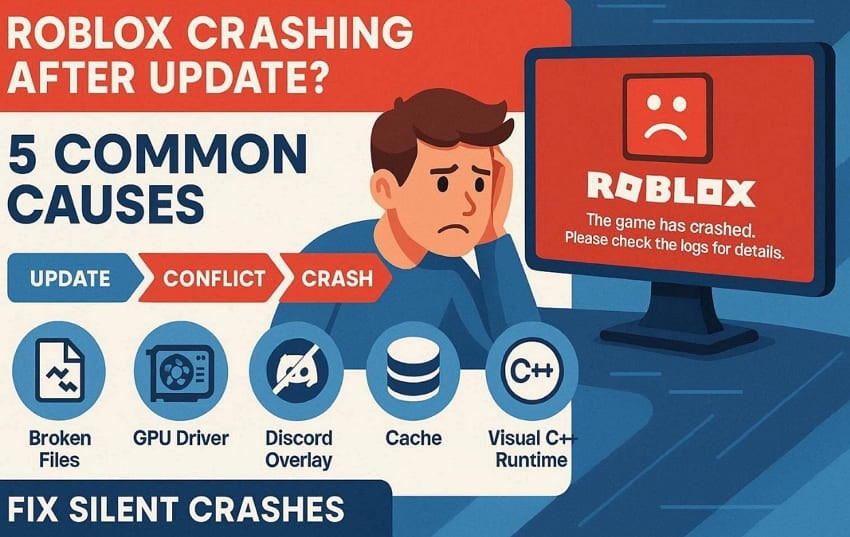
- Corrupt Files: The update may leave behind damaged or incomplete game installation files. These broken files stop Roblox from launching and trigger an instant silent crash.
- Outdated Drivers: Your GPU drivers may not support the latest Roblox update changes. This incompatibility creates a system conflict that shuts the game down.
- Overlay Interference: Apps like Discord inject active overlays into Roblox processes. Such overlays often conflict with fresh updates and crash the game.
- Cache Conflict: Leftover cached data from older versions clashes with updated files. This internal conflict confuses Roblox during startup and causes it to close.
- Missing Runtime: Updated Roblox versions require the latest Visual C++ packages to function. If those packages are outdated or absent, the game exits without showing errors.
Despite ongoing updates from Roblox Corporation, technical issues persist due to software conflicts, according to insight from Alibaba.
Part 2. Fix Roblox Crashing After Update with No Error on PC - 8 Ways
The best way to fix Roblox crashing after updating the PC is to follow the proven steps. So, this part covers 8 effective ways to stop the crashes and restore smooth gameplay:
Way 1. Update Roblox
An outdated Roblox version is often the simplest reason behind sudden crashes. Players trying to fix Roblox randomly close with no error 2026 overlook this basic step. This game regularly releases patches that fix bugs introduced by previous updates on Windows. When updated, it resolves compatibility issues that trigger crashes without any error. Thus, you need to follow these simple instructions below to update your game client:
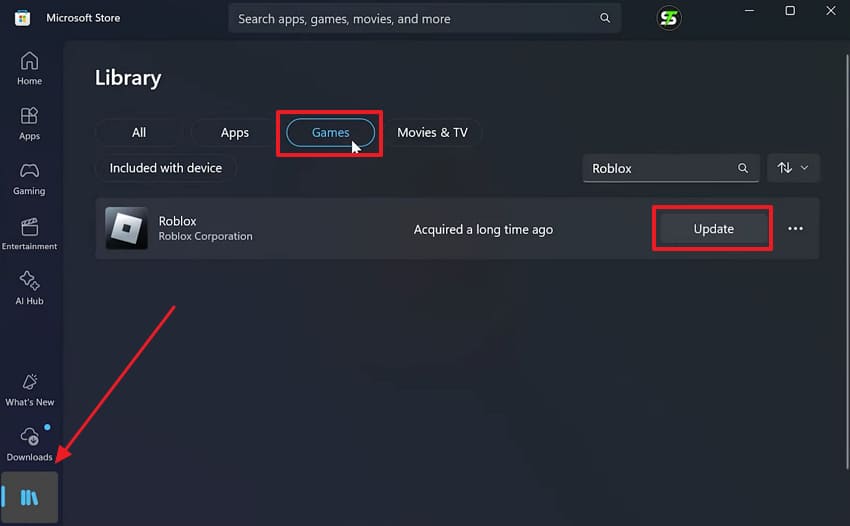
Instructions. You need to run the "Microsoft Store" on your system and access the "Library" tab. From that section, go to the "Games" category and press "Update" next to your game.
Way 2. Run Roblox as Administrator
Your device may block this game from accessing the system resources it needs to run. Without administrator privileges, the game fails to load certain files after a new update. This permission issue often causes Roblox to crash without displaying any error message. You should grant admin rights and give Roblox full access to everything it requires on Windows. For that, review these steps and fix Roblox closing automatically with no error:
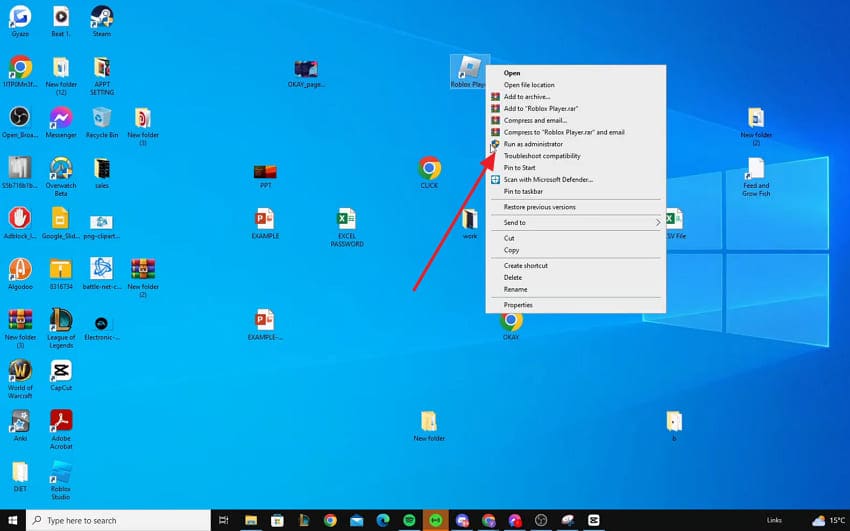
Instructions. Upon right-clicking this game’s icon, choose "Run as Administrator" to launch it.
Way 3. Clear Roblox Cache Files
These cache files can also clash with the new patch data during the launch process. Therefore, deleting the corrupted cache directory removes broken configuration profiles. This safe cleanup method forces the application to build fresh local files. Thus, your launcher will load much faster without dealing with mixed software instructions. Go through these simple steps below to empty your temporary game storage folder:
Step 1. When you press both "Windows + R" together, enter "%localappdata%" and hit "OK."
Step 2. In the opened location, locate the "Temp" folder to find the "Roblox" directory. Finally, right-click it and select "Delete" to remove the temporary Roblox files.
Way 4. Turn Off Overlays (Discord/GeForce)
Third-party overlays from Discord and GeForce Experience run alongside your Roblox session. These overlays inject extra code into the game and cause unexpected conflicts. This is a very common trigger when you need to fix Roblox crashing without error message. Yet, disabling these overlays removes that interference and allows Roblox to run stably. So, adhere to the steps below to disable your active app overlays on your system:
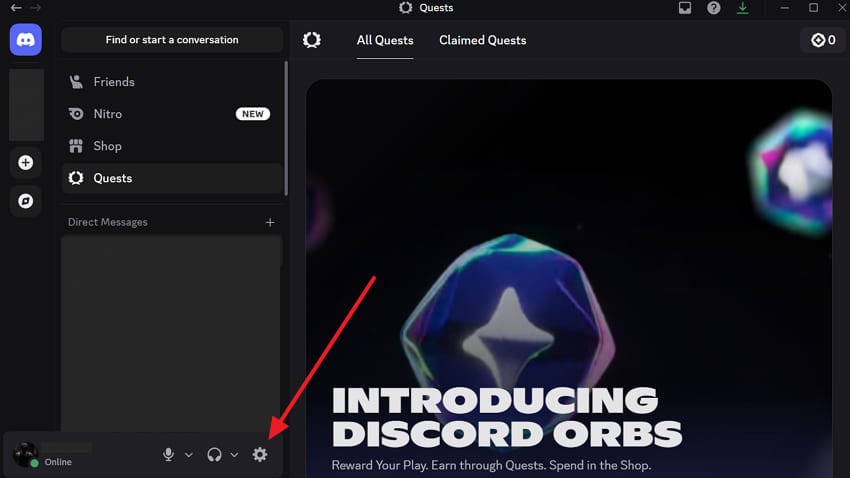
Step 1. Gamers need to click the "Gear" icon after launching a program such as "Discord."
Step 2. Following this, navigate to the "Game Overlay" tab and disable the "Enable Overlay" toggle.
Way 5. Reset Roblox Settings
Bad graphics configurations inside your player profile may also break the game launcher. Corrupted display options force the client to close down during startup. That’s why reversing these broken options will fix Roblox crashing after updating the PC. You can wipe out faulty configuration files without losing your account history. Thus, take guidance from these simple steps to clear out your corrupted profile settings:
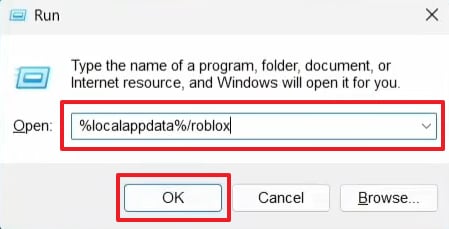
Step 1. Input "%localappdata%/roblox" in the "Run" prompt and press "OK."
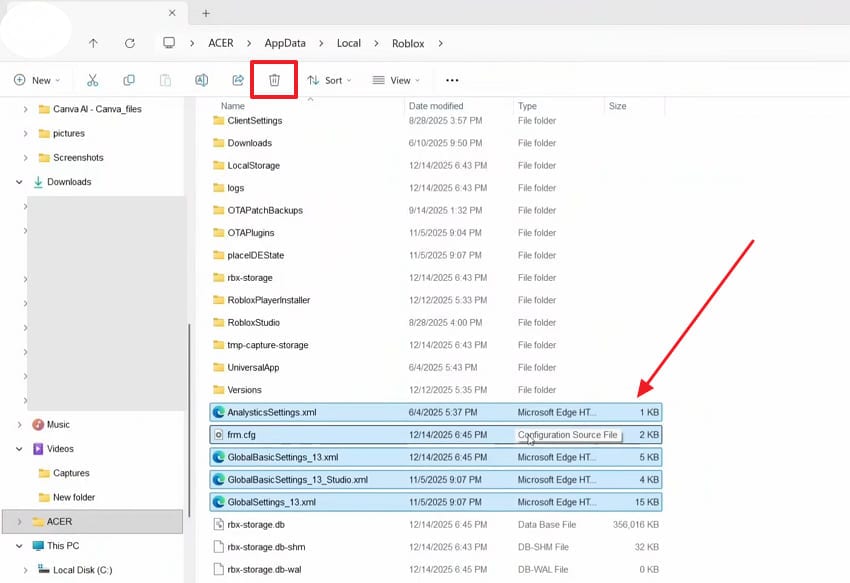
Step 2. On the upcoming screen, scroll down to select configuration files and click the "Delete" icon.
Way 6. Reinstall Roblox
Severe update glitches can corrupt deep files within your local game directory. Even if you apply other fixes, you can't get your launcher to function if the installation package is broken. Therefore, removing the entire client deletes every corrupted file from your hard drive.
According to wikiHow, reinstalling Roblox is still recommended when other fixes fail. While learning how to fix Roblox randomly closing with no error 2026, follow these steps to reinstall the game:
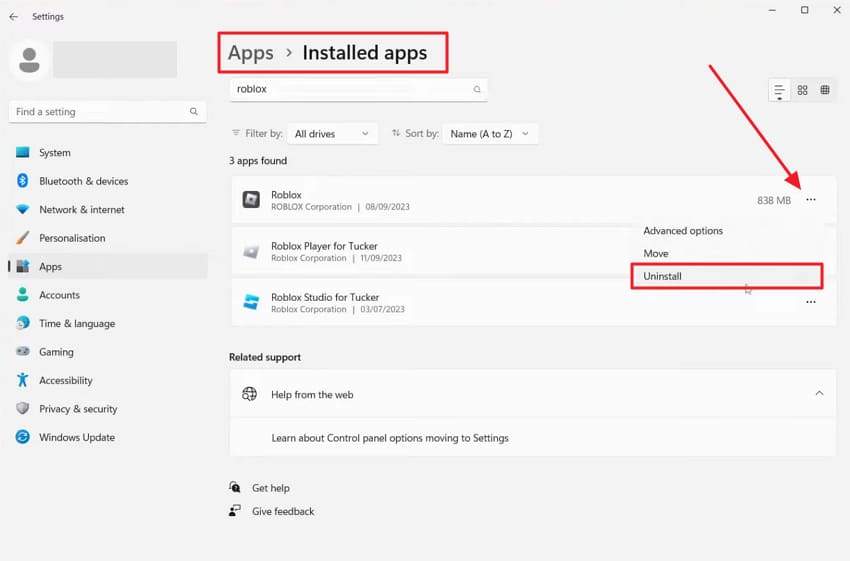
Step 1. Access the "Apps" tab upon pressing the "Windows + I" keys together. After that, go to "Installed Apps" and click "Three Dots" next to your game to opt for "Uninstall."
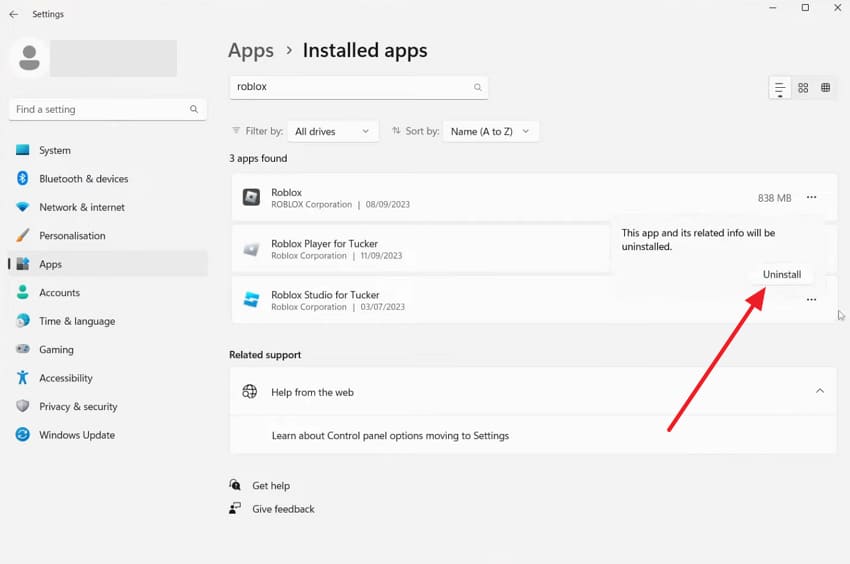
Step 2. You need to again select the "Uninstall" option to confirm your selection.
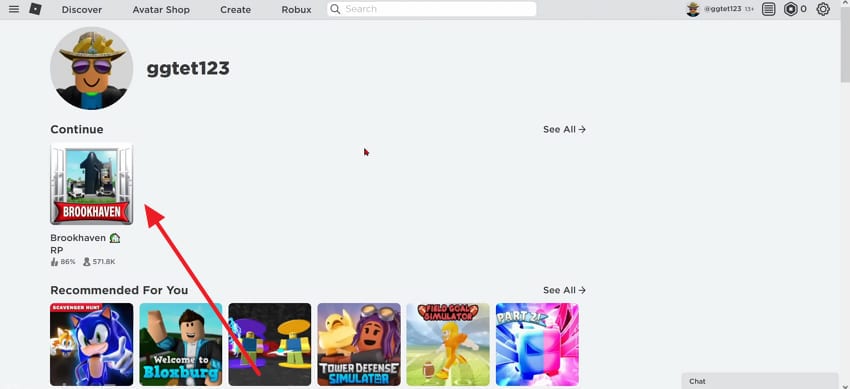
Step 3. Moving forward, open your profile from the official "Roblox" website and click on any game.
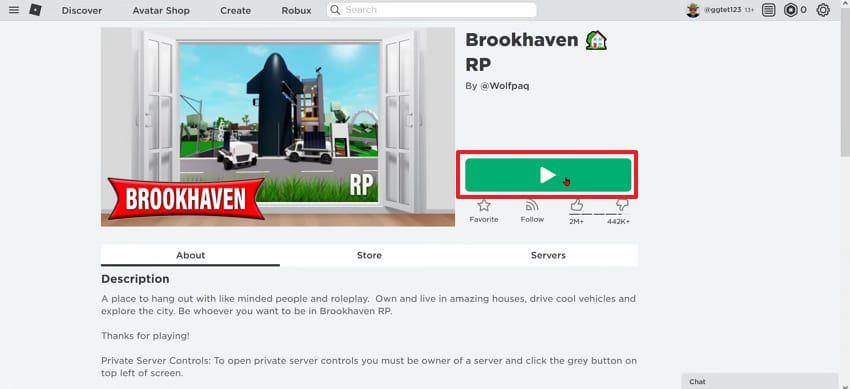
Step 4. When you see the selected game’s display, press the "Play" button.
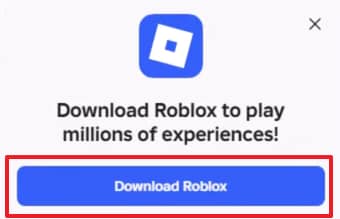
Step 5. As you see a new small prompt, click the "Download Roblox" button.
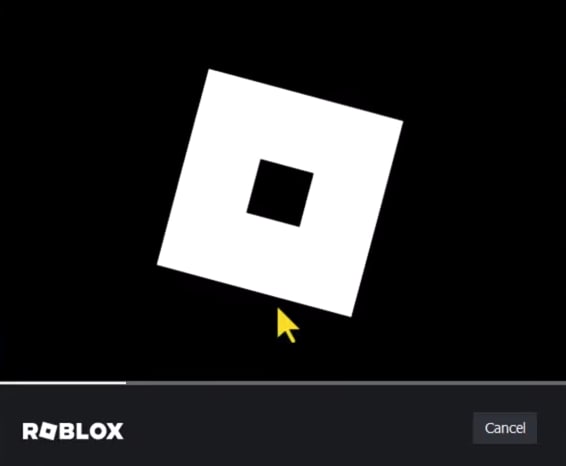
Step 6. After a while, run the ".exe" file and your game will initiate reinstalling.
Way 7. Reinstall Microsoft Visual C++
Your system requires special system libraries to run complex video game engines. Many times, missing runtime packages cause the client to close down. Yet, replacing these essential software components fixes deep launch errors on your PC. A fresh copy of these files ensures smooth communication with your processor. Follow these steps to reinstall the system's visual libraries and fix Roblox closing automatically with no error:
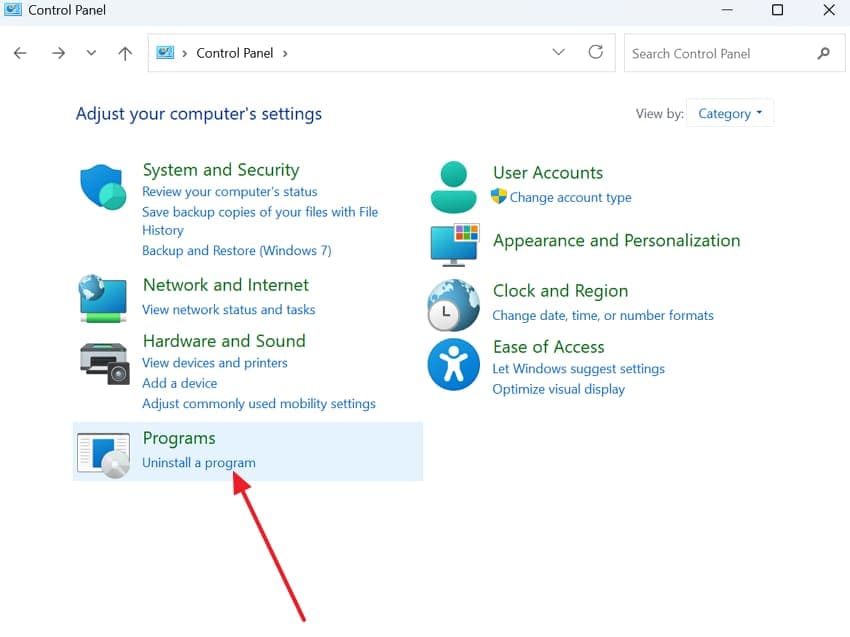
Step 1. Players have to click the "Uninstall a Program" option in the "Control Panel."
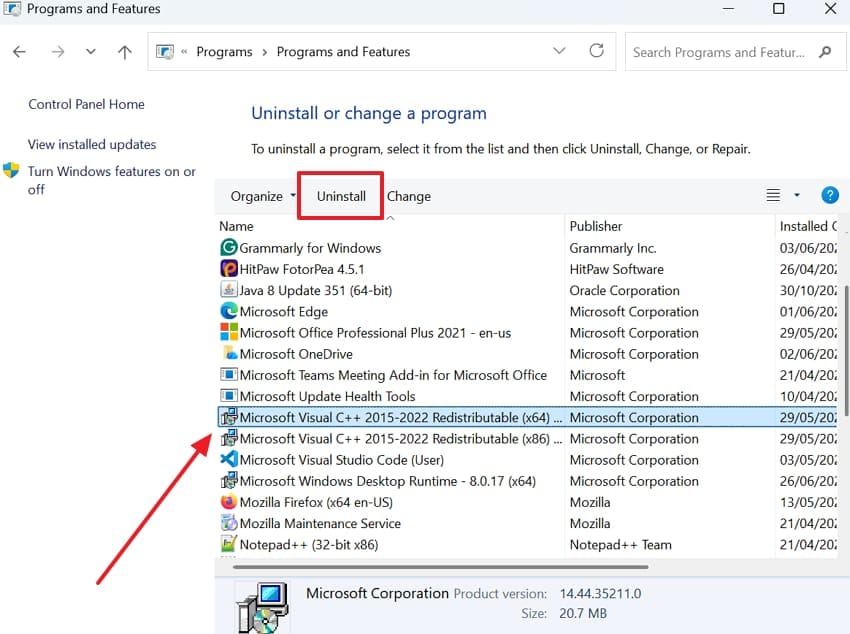
Step 2. Upon seeing the upcoming screen, select "Microsoft Visual C++ Redistributables" and click "Uninstall."
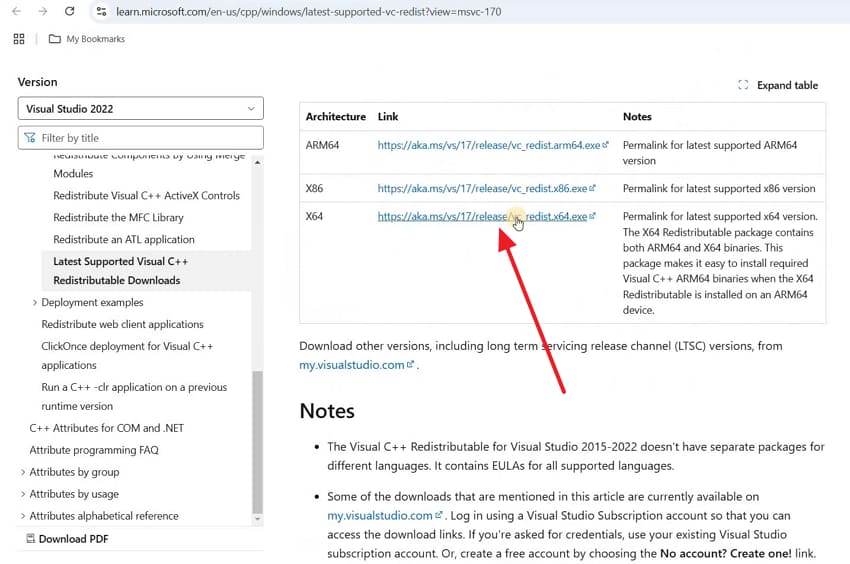
Step 3. To initiate, open the official "Visual C++ Redistributable" webpage using your preferred browser. After that, click the "X64 or X86" download option to save the installer locally.
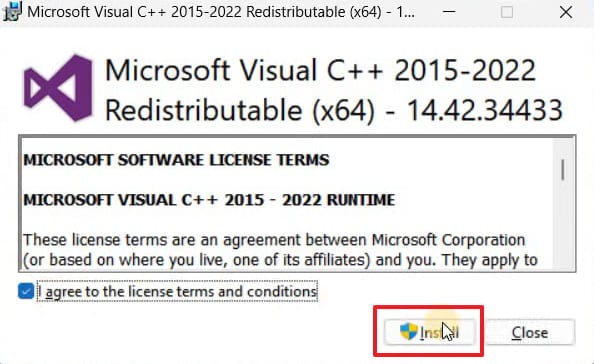
Step 4. Next, locate the downloaded setup file and run it with the required permissions. Then, accept the license agreement checkbox before pressing the "Install" button.
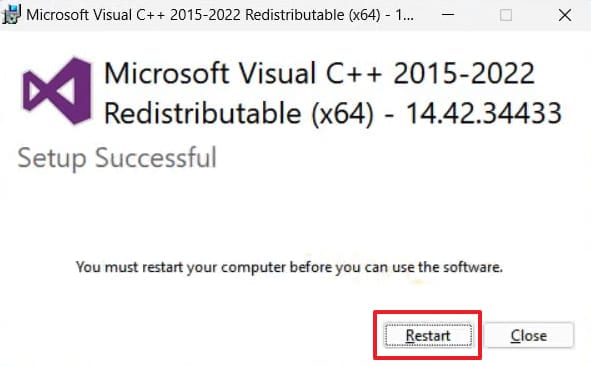
Step 5. Next, adhere to each visual prompt displayed throughout the installation. Upon accessing the last dialog box, press "Restart" to apply these changes.
Way 8. Perform a Clean GPU Driver Install
Many times, corrupted GPU drivers are a major hidden cause of Roblox crashes. Standard driver updates leave behind old conflicting files that damage your graphics performance. These leftover files prevent Roblox from communicating with your graphics card on Windows. Plus, a clean GPU driver install wipes all old files before installing fresh new drivers. Anyways, explore the steps to perform this method and refresh your graphics drivers:
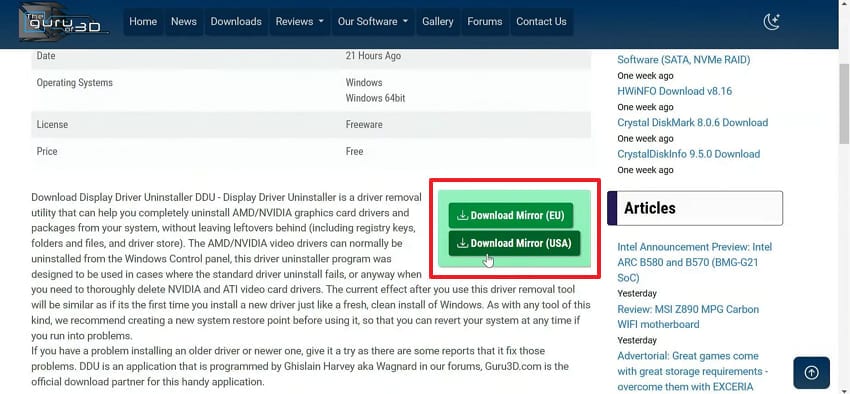
Step 1. Initially, access the website like "Guru3D" and press "Download" to get the "DDU" file.
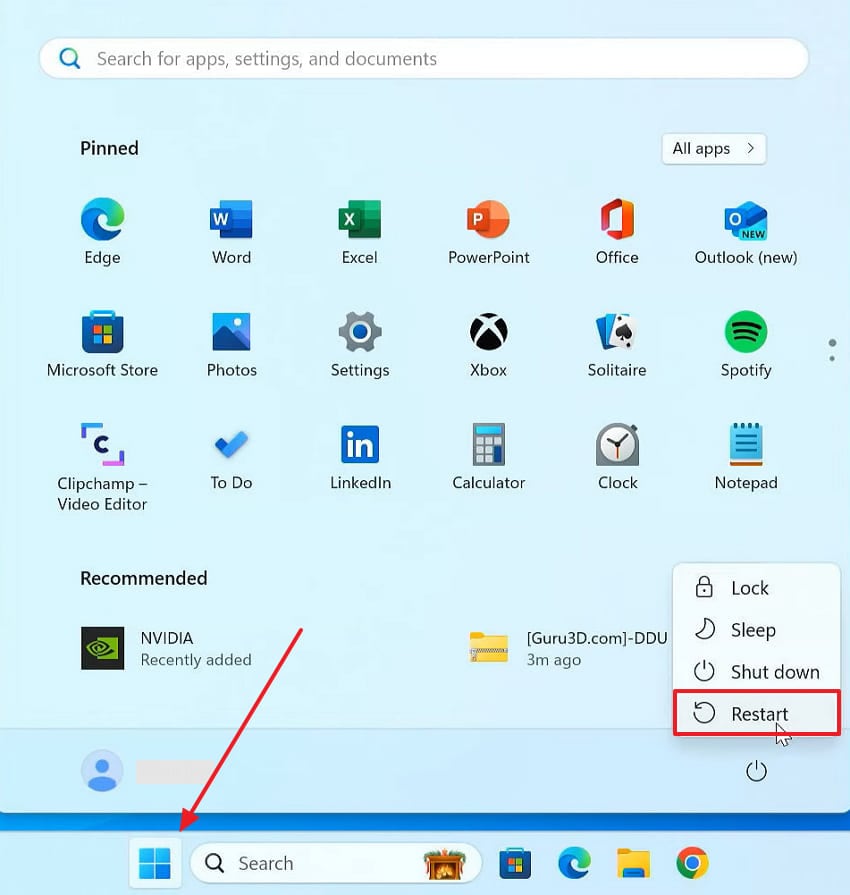
Step 2. When downloaded and extracted, press the "Start" menu and click the "Power" icon. After that, click "Restart" while holding down the "Shift" key.
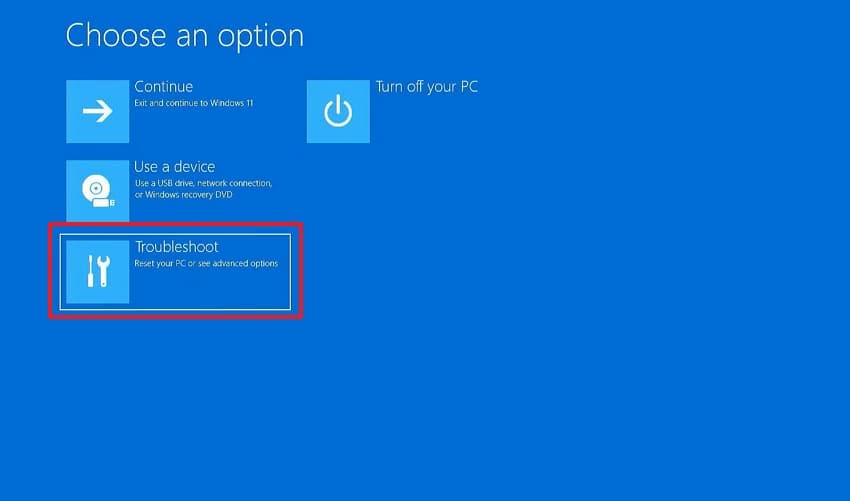
Step 3. When the "Choose an Option" screen appears, head to the "Troubleshoot" settings.
Step 4. From the following screen, opt for "Advanced Options" and go to "Startup Settings."
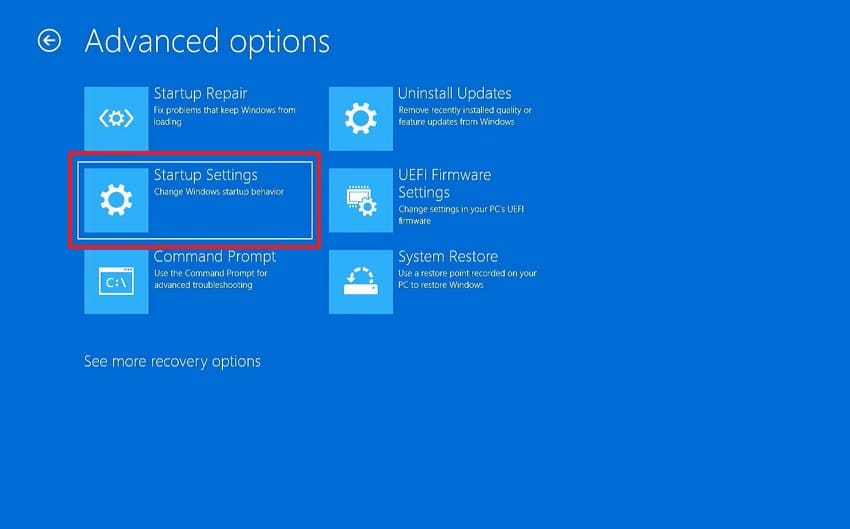
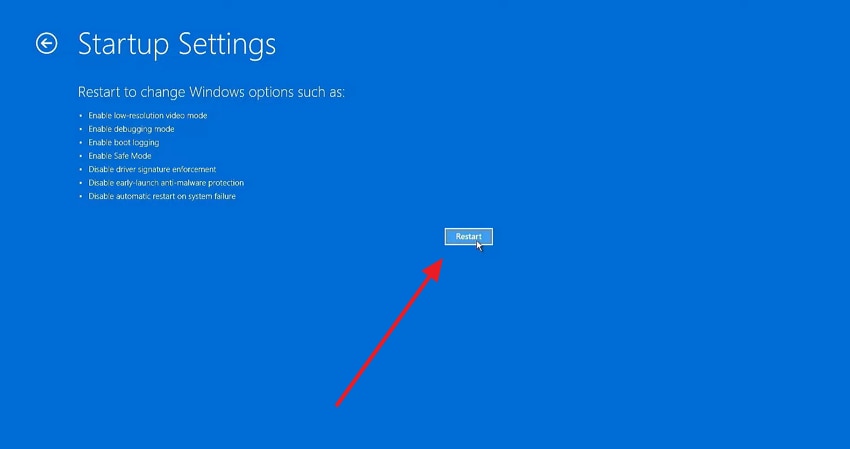
Step 5. Upon seeing the next display, you need to press the "Restart" button.
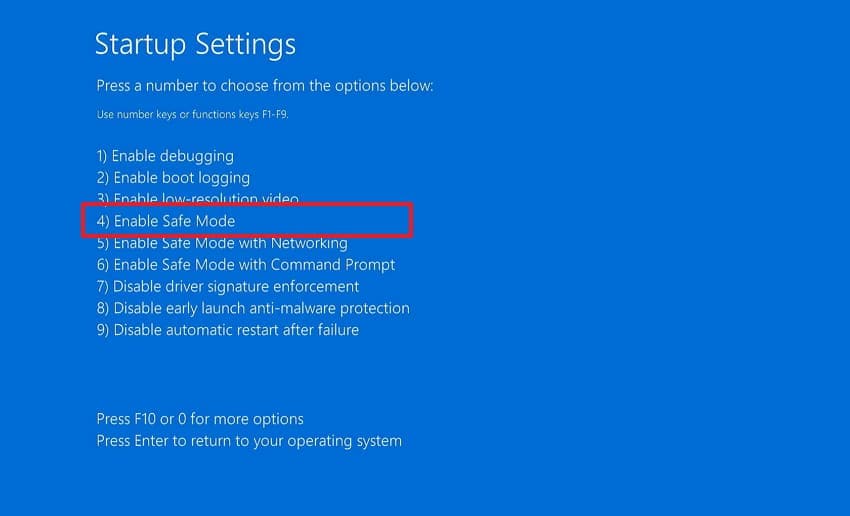
Step 6. As further options appear on your screen, hit the "4" key to enter the safe mode.
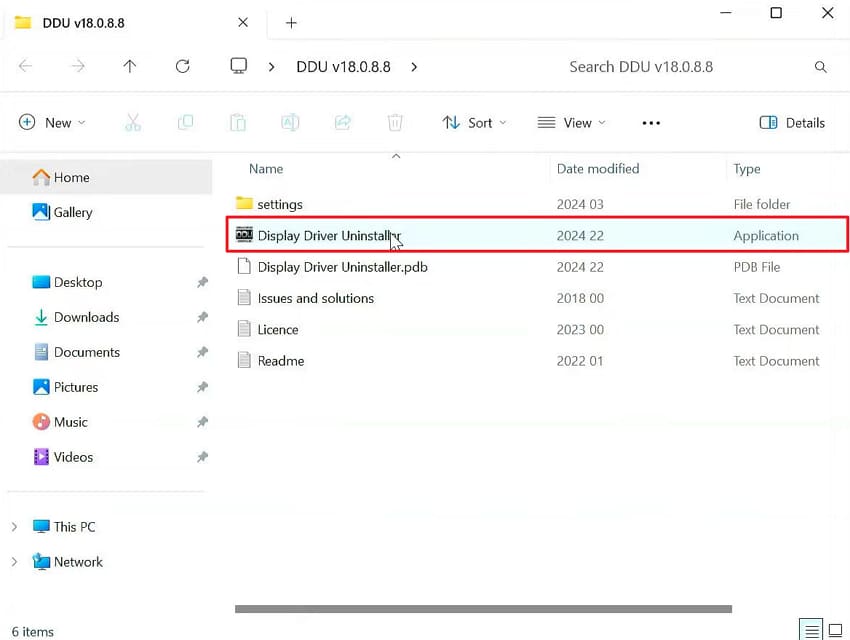
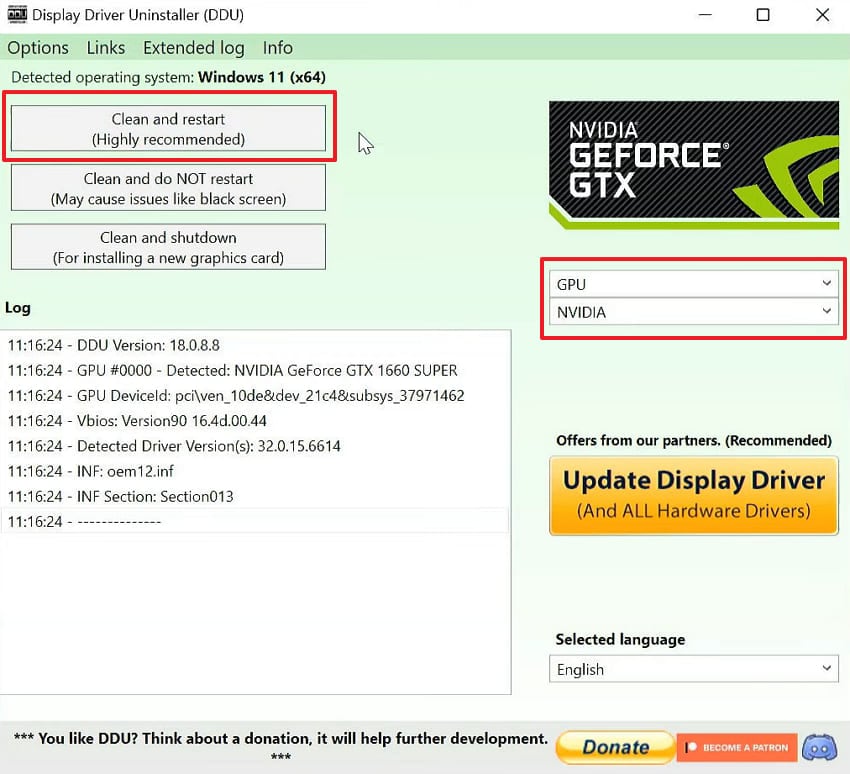
Step 7. Moving forward, access and run the "Display Driver Uninstaller" app.
Step 8. Upon launching, choose your specific GPU from the drop-down menus, then click "Clean and Restart."
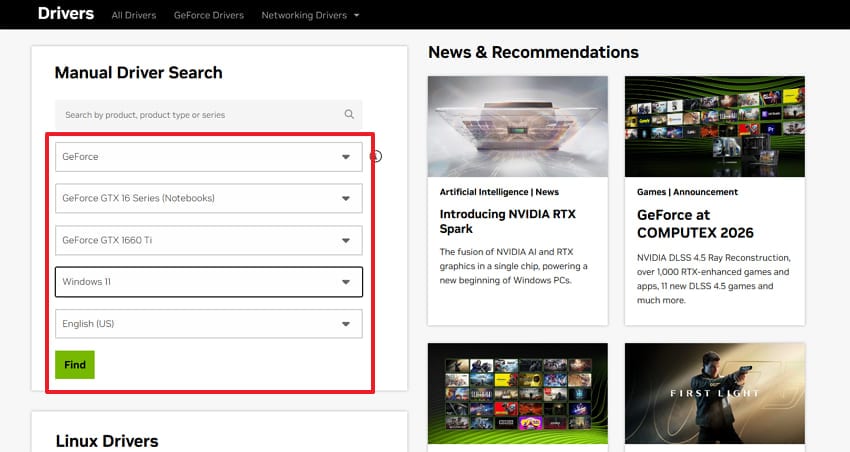
Step 9. If your system reboots without problems, proceed to the GPU site, like "Official NVIDIA Drivers." In "Manual Driver Search," select your preferred choices and press "Find."
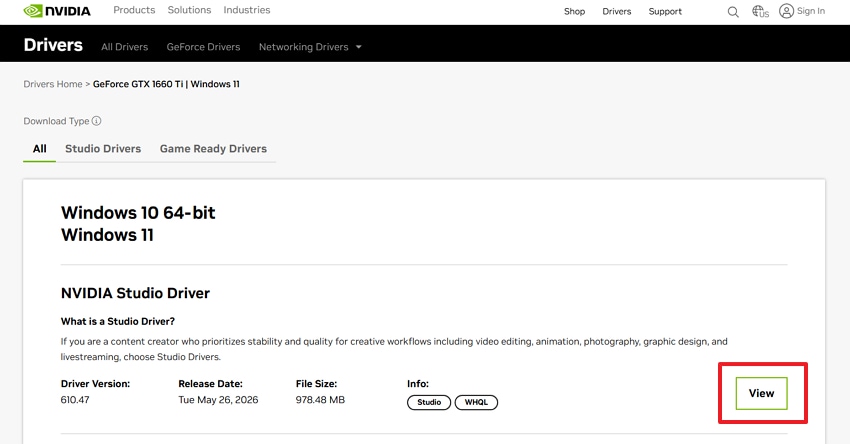
Step 10. After selecting your driver options, click the "View" button.
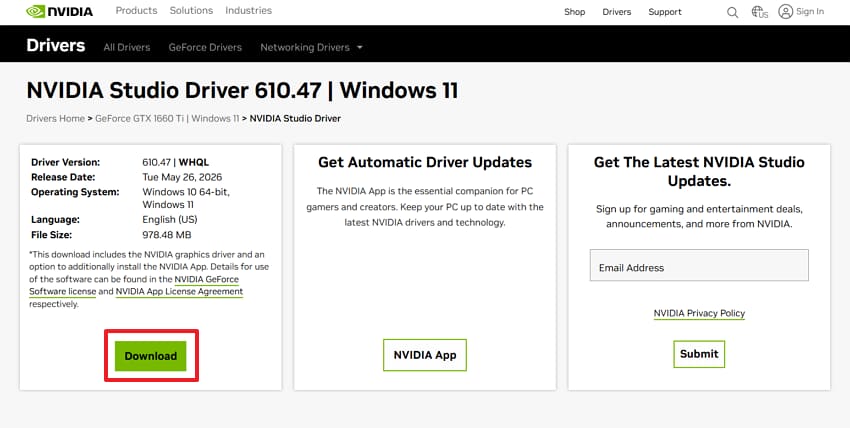
Step 11. Then, double-check the most recent release information and hit the "Download" button.
Step 12. After waiting for a few moments, access the installed file location and run the app.
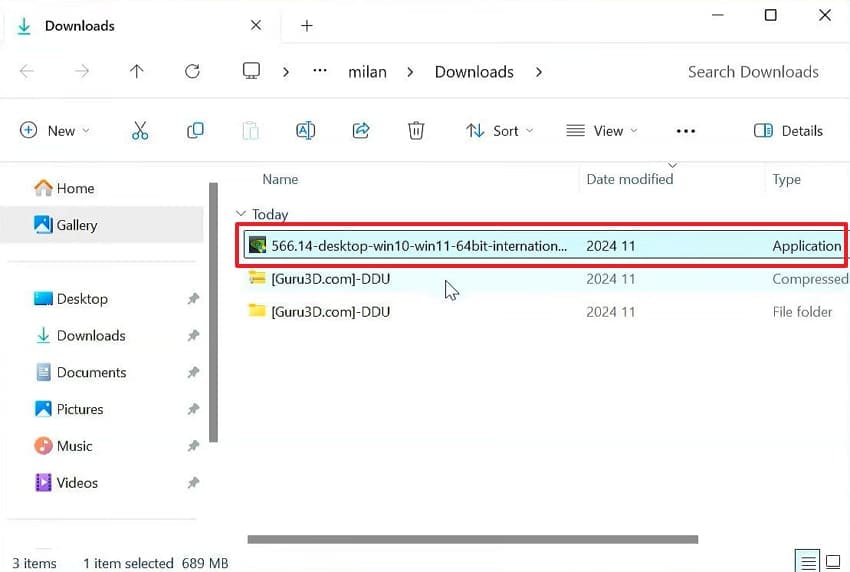
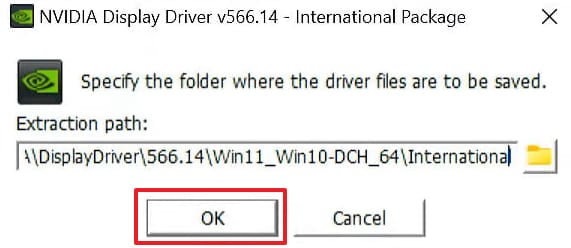
Step 13. From the appearing prompt, you need to press the "OK" button.
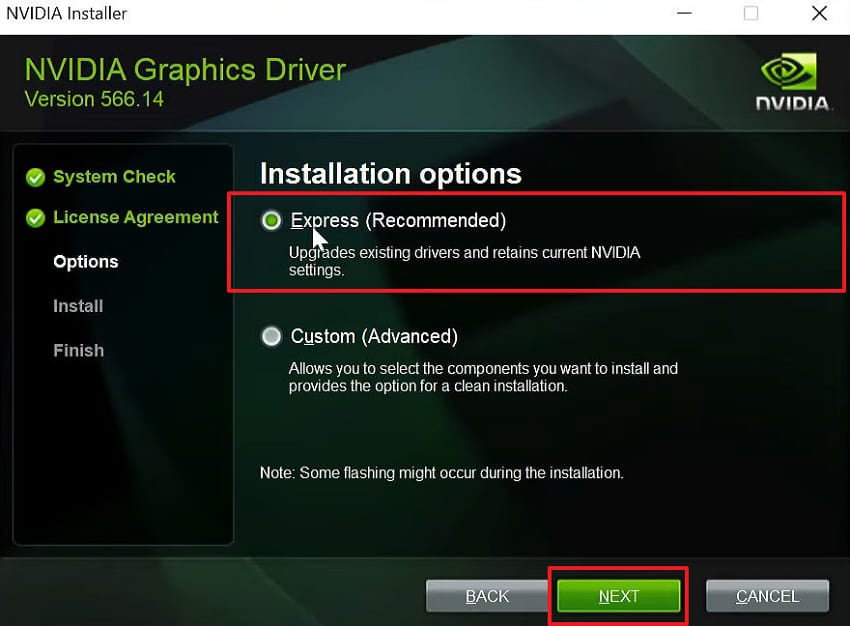
Step 14. After that, make sure to check "Express (Recommended)" and click the "Next" button.
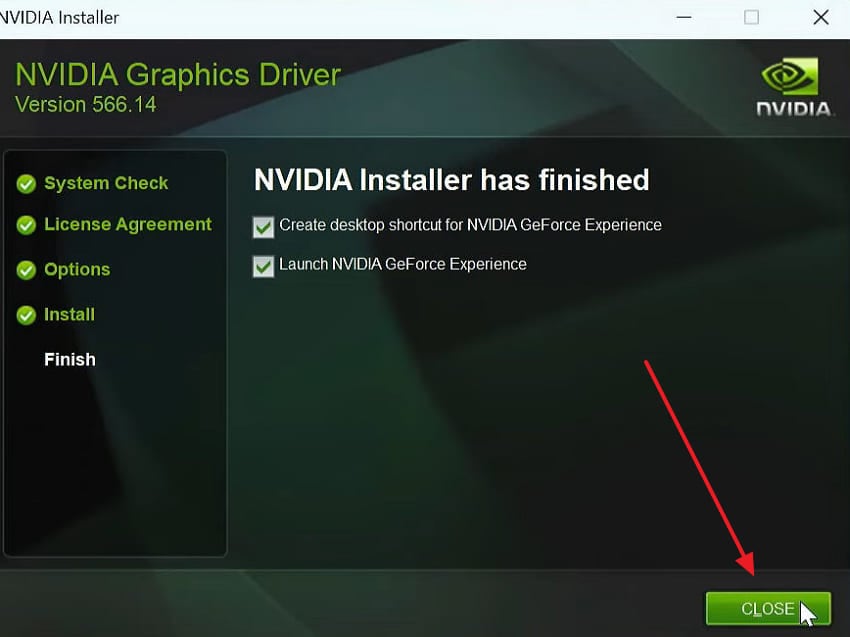
Step 15. It will then start installing the latest driver on your system. When you can see the confirmation screen, press the "Close" button.
Pro Tip. Repair Corrupted Roblox Videos with Repairit
Roblox crashes can sometimes corrupt gameplay recordings. While trying to fix Roblox crashing without error message, you may still lose important clips. Corrupted recordings often refuse to play or show distorted visuals and black screens. In such cases, tools like Repairit offer a feature to restore damaged game video files.
Its advanced format analysis scans deep into corrupted files to identify and fix errors. The intelligent algorithm applies targeted repairs without affecting your original video quality. With batch repair capability, you can restore multiple corrupted Roblox recordings at once. During repair, it effectively resolves bad audio sync issues to align your sound. Players can also use this tool to fix black screen errors completely.
Key Features

-
Advanced Repair Mode: Uses a sample video file to repair severely corrupted recordings that standard repair methods cannot fully fix.
-
Repair Artifacting and Pixelation: Eliminates blocky and distorted visuals from corrupted recordings to restore sharp and clear game footage quality.
-
Fix ShadowPlay Videos: Repairs corrupted Nvidia ShadowPlay recordings that fail to open or display format errors after power interruptions.
Guide to Fix Corrupted Roblox Videos Using Repairit
When Roblox crashes, leave your recorded gameplay videos corrupted; you need to repair them. This tool makes the entire video repairing process very simple for every user. Follow these easy steps to repair your corrupted Roblox videos:
Step 1. Import Damaged Roblox Video Recordings
From the tool’s "Video Repair" tab, you need to press the "Start" button. In the next display, add the corrupted Roblox recording files that need restoration.

Step 2. Initiate Repairing the Roblox Video Repair
After importing all affected recordings, select the "Repair" option to continue. The software will automatically analyze and fix issues within the videos.

Step 3. Review and Export Repaired Roblox Clips
As Repairit completes the task, press "Preview" to check the results of your game recordings. Upon prevising them, click "Save All" to export the restored clips to your system.


Conclusion
In summary, Roblox crashes after an update are frustrating but never impossible to fix. This guide walked you through every proven method to fix Roblox closing automatically with no error. Each method in this guide targets a specific root cause behind your crash. Thus, working through them will get your game running smoothly again. If crashes also corrupted your Roblox recordings, tools like Repairit can restore every damaged video file.
FAQ
-
Q1. Why does Roblox only crash after a specific update and not before?
A specific update may have introduced new files that conflict with your current system. These conflicts only appear when the updated code interacts with your Windows configuration. Hence, rolling back or repairing those specific files usually resolves the issue. -
Q2. Can antivirus software cause Roblox to crash silently after a Windows update?
Yes, antivirus programs sometimes flag new Roblox update files as suspicious or threats. This causes the antivirus to block or quarantine files that Roblox needs to run. You should add Roblox as an exception in your antivirus settings, which fixes this problem. -
Q3. Will reinstalling Roblox delete my friends list or in-game purchases permanently?
No, reinstalling will never affect your friends list or any purchased in-game items. All your account data, including Robux and purchases, is stored on Roblox servers. For that, you can log back into your account after reinstalling to access everything as before. -
Q4. What should I do if Roblox crashes and corrupts my gameplay recording files?
Roblox crashes can sometimes leave your recorded gameplay files unplayable or distorted. In that case, a professional tool like Repairit can restore all your corrupted video files. It repairs black screens, audio sync issues, and pixelation caused by unexpected game crashes.




