When separate CSV exports need to become one report, copying rows into Excel can be slow and risky. A CSV merger can combine the files in minutes, but the right choice depends on whether the columns match, how large the files are, and whether you need to keep the data on your device. This comparison covers six real CSV merger tools and explains how to avoid duplicate headers, shifted columns, and lost records.
In this article
Part 1: What Makes a Good CSV Merger?
A CSV file stores rows of values separated by delimiters. Combining several files correctly means more than putting one set of lines after another. The best tool should keep the columns aligned, preserve characters and quoted fields, and create a single usable output.
- Append rows: Stack records from files that describe the same fields, such as daily transactions from different stores.
- Union columns: Build a header list across files when some exports include extra or missing fields.
- Join by key: Match records by an ID and add columns from another table. This is a different task from basic CSV merging.
- Deduplicate: Detect or remove repeated records. Not every merger includes this feature.
- Data privacy: Check whether processing happens in your browser or on an external server before using sensitive files.
If you only want to stitch monthly reports together, a simple row-append merger is enough. If headers differ, choose a tool that maps columns explicitly instead of relying on position.
Part 2: 6 Best CSV Merger Tools Compared
These options cover distinct use cases rather than implying that one tool is universally better for every file. Features and limits are based on the tools’ published descriptions, not laboratory speed tests.
| CSV Merger | Best For | Notable Feature | Processing |
| merge-csv.com | Simple CSV Appending | Reorder input files before merging | Browser-based |
| Aspose.Cells Merger | Spreadsheet Format Conversion | Combine spreadsheet documents and export to CSV or other supported formats | Server-based |
| FillTools CSV Merger | Delimiter and Header Controls | Auto-detect or select comma, semicolon, or tab separators | Browser-based |
| CSVFile.tools Merge CSV | Matching Different Headers | Strict header match prevents accidental column shifts | Browser-based |
| Filemazing CSV Merger | Private Browser-Based Merging | Combine CSV or TSV data in the browser | Browser-based |
| RowSlice CSV Merger | Very Large CSV Files | Chunk-based processing for very large CSV files | Browser-based |
1. merge-csv.com — Best for Simple CSV Appending
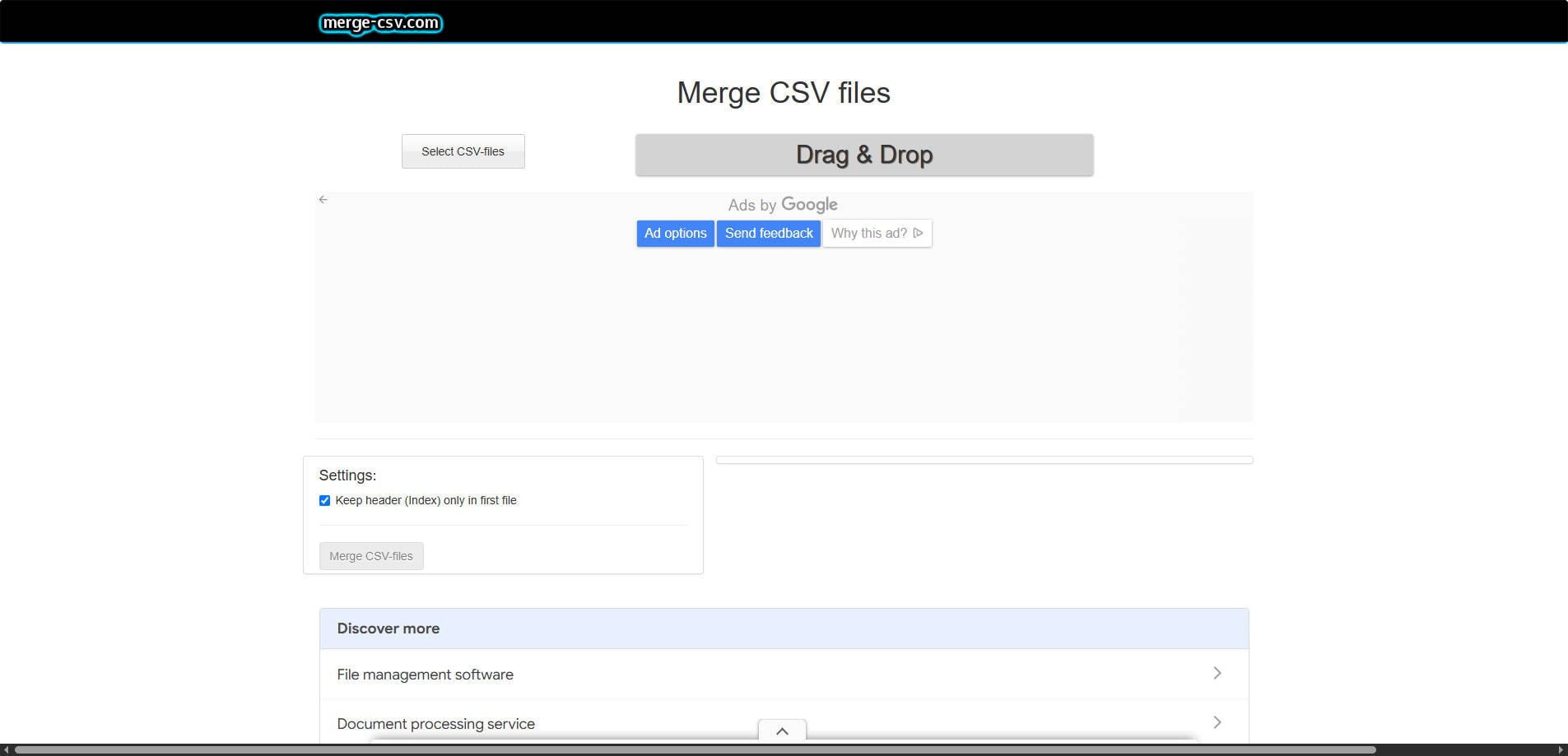
Overview: If you have monthly exports with matching columns, merge-csv.com keeps the process straightforward: choose files, arrange their order, decide whether repeated header rows should be removed, and download one result. The workflow is designed for stacking records rather than joining two tables by a shared ID.
Key Features:
- Reorder input files before merging
- Remove repeated headers from files after the first
- Download a combined CSV without spreadsheet formulas
Pricing: A web-based merger is available. Check the website for current usage or commercial restrictions.
Best For: Simple CSV Appending.
Our Take: Choose this for straightforward, same-schema exports. If regional files contain different columns, use a header-aware merger instead.
2. Aspose.Cells Merger — Best for Spreadsheet Format Conversion
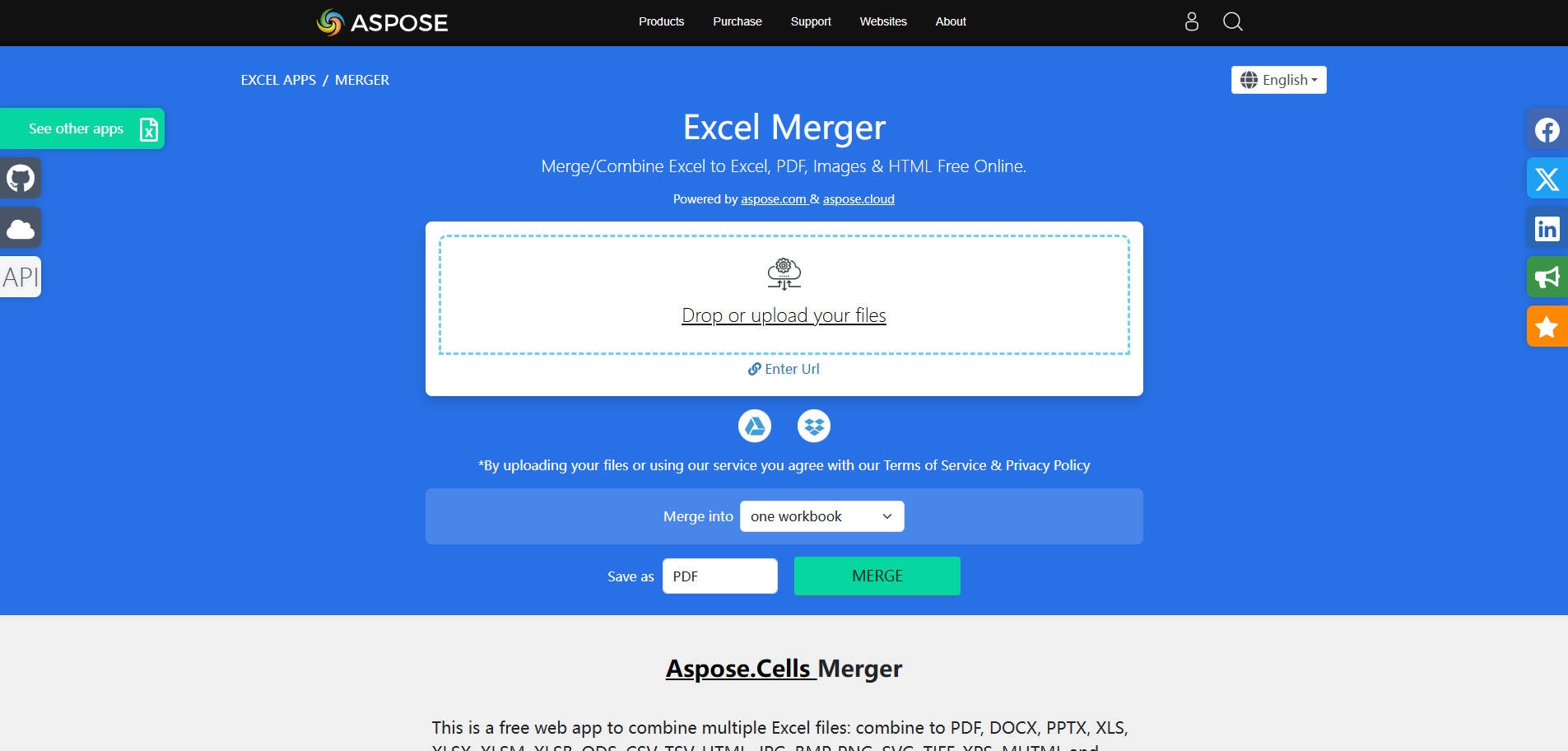
Overview: The Aspose.Cells Merger is useful when your source data comes from spreadsheet files and your final output does not have to remain CSV. It supports a broad range of spreadsheet inputs and output types, including CSV, and lets users combine uploaded files through a browser. Unlike browser-local tools in this list, files are processed on Aspose servers.
Key Features:
- Combine spreadsheet documents and export to CSV or other supported formats
- Choose file order and merge settings
- Runs in a browser across major operating systems
Pricing: The merger is presented as a free online application; verify any current limits before submitting production datasets.
Best For: Spreadsheet Format Conversion.
Our Take: Choose Aspose when merging and converting spreadsheet formats is part of the same job. Avoid uploading confidential exports without reviewing your organization’s data-handling policy.
3. FillTools CSV Merger — Best for Delimiter and Header Controls
Overview: The FillTools CSV Merger is a practical option when imports come from different tools that use commas, semicolons, or tabs. It lets you select or auto-detect a delimiter, decide whether the first row is a header, and export one CSV. The service says processing is local to the browser.

Key Features:
- Auto-detect or select comma, semicolon, or tab separators
- Keep a single header row in combined output
- Escape spreadsheet-formula-like cells
- Supports up to 20 files and 50 MB combined under the stated current limit
Pricing: Free online tool with a stated limit of 20 files and 50 MB combined.
Best For: Delimiter and Header Controls.
Our Take: A strong fit for routine CSV exports with separator variations. Standardize the files first if they have different column schemas.
4. CSVFile.tools Merge CSV — Best for Matching Different Headers
Overview: The CSVFile.tools Merge CSV tool focuses on a problem that basic mergers often miss: columns that are reordered or missing from some exports. Choose strict header matching to block mismatches, or use header union to create an ordered set of columns and leave missing values blank. This is row appending, not a database join.

Key Features:
- Strict header match prevents accidental column shifts
- Header union aligns columns by exact header names
- Preview the merged output before downloading
- Browser-local processing with a stated 50 MB combined limit
Pricing: Free browser-based tool; the page currently states up to 50 MB combined.
Best For: Matching Different Headers.
Our Take: Choose this when each regional or monthly export has a slightly different set of columns. Inspect spelling and capitalization of headers before selecting union mode.
5. Filemazing CSV Merger — Best for Private Browser-Based Merging
Overview: The Filemazing CSV Merger is built around a simple privacy-conscious workflow. It combines similarly structured CSV or TSV files in the browser, lets users confirm delimiter and header behavior, shows a preview, and downloads the combined result. Its description states that files remain on the device.

Key Features:
- Combine CSV or TSV data in the browser
- Set delimiter and header behavior
- Preview before saving the combined file
- Local processing with temporary working data cleared when the page is left
Pricing: Online tool available without a listed license price on the reviewed page; check the live page for any usage limits.
Best For: Private Browser-Based Merging.
Our Take: Consider Filemazing for ordinary internal exports when avoiding a server upload matters. Do not mistake its row append for a relational join.
6. RowSlice CSV Merger — Best for Very Large CSV Files
Overview: The RowSlice CSV Merger targets CSV files too large to process comfortably in a conventional spreadsheet. The vendor describes reading data from disk in chunks and aligning columns by name without uploading the files. The practical limit depends on available local disk space and browser storage, not Excel’s worksheet row limit.

Key Features:
- Chunk-based processing for very large CSV files
- Align columns by header name even if order changes
- Keep data on the local device according to the vendor
- Append rows without depending on Excel worksheet limits
Pricing: The website describes the tool as free and without signup; confirm available storage and browser support before large jobs.
Best For: Very Large CSV Files.
Our Take: A good shortlist option for multi-gigabyte exports. Run a small representative merge first, then validate the complete row count before replacing an existing dataset.
Part 3: How to Merge Multiple CSV Files into One
Before starting, duplicate the original files and inspect a small sample. The following workflow applies to most online CSV merger tools, although exact controls differ by vendor.
- Step 1: Review the headers. Open the first few rows in a text viewer or CSV preview. Make sure similarly named columns use the same meaning and consistent units.
- Step 2: Select two or more CSV files. Choose a merger appropriate for your file size and privacy requirements. Avoid uploading confidential exports unless your policies permit it.
- Step 3: Select the merge method. Use row append for identical datasets; choose strict header matching or header union when relevant. Do not use row append if you really need to match records by customer ID.
- Step 4: Set file order and headers. Keep a single output header row and choose the correct CSV separator. Do not remove the first row if the source file has no header.
- Step 5: Export and validate. Save the CSV to a new filename. For append-only merges, the total data rows should equal the sum of each input’s data rows, excluding repeated headers and any intentional filtering.
Example: Three exports contain 200, 350, and 450 data rows. A straightforward append should produce 1,000 data rows plus one header row, assuming no records are removed. Use a CSV-aware parser rather than counting raw newline characters when fields can contain embedded line breaks.
Part 4: Common CSV Merge Problems and How to Avoid Them
| Problem | Likely Cause | Safer Action |
| Header rows appear in the middle | Each input header was appended as data | Enable repeated-header removal and inspect the output |
| Values appear under the wrong columns | Column names or order differ | Use strict header validation or a header-union merger |
| Commas break a text field | Quoted CSV fields were parsed incorrectly | Use a CSV-aware tool that respects quoting and escaped quotes |
| Accented or non-Latin text looks broken | Encoding mismatch | Verify UTF-8, BOM and the target application’s import settings |
| Duplicate orders or customers | Overlapping export periods | Audit duplicates using a stable identifier before removing records |
| Records are missing after export | Tool limit, bad parsing, or an incorrect filter | Check the output row count and run a smaller test batch |
Also check spreadsheet formula injection when the final CSV will be opened in Excel. Values beginning with formula characters may be interpreted as formulas. Review the tool’s output-safety behavior instead of assuming all CSV mergers escape these values.
When You Need a Join Instead of a Merger
Suppose one CSV contains customer IDs and names, while another contains customer IDs and purchases. Stacking the files would produce incomplete rows. Use a key-based join, such as a database join or a dedicated CSV join tool, to match records by customer ID. A row-append utility cannot substitute for this.
Part 5: What If the Source Excel Workbook Will Not Open?
Some teams export CSV files from Excel workbooks. If the original XLSX workbook is corrupted and Excel cannot open it, fix that problem before attempting to export or merge the data. First try Excel's built-in File > Open > Browse > Open and Repair option on a copy of the workbook.
If the workbook still cannot be opened and the file is actually damaged, Wondershare Repairit offers a file repair workflow for damaged Excel documents. It is designed to repair supported Excel files, not to merge CSV files or reconstruct data that was never saved.
To use the desktop repair workflow, keep the original workbook untouched, work from a copy, and review the repaired result before exporting CSV.
- Step 1: Add the damaged Excel workbook. Open Repairit, choose More Types Repair > File Repair, and import the XLSX file.
- Step 2: Start the repair. Select Repair and allow the tool to process the damaged document.
- Step 3: Preview and save. Inspect the recovered workbook, save it to a different location, and check formulas, sheets, and row counts in Excel before exporting a CSV.
These steps follow the desktop official Repairit File Repair guide. A CSV with mismatched delimiters or columns is a data-format problem, not evidence that an Excel repair tool is needed.
Part 6: Conclusion
For most users, the best CSV merger is the one that matches the shape of their source files. Use merge-csv.com for a quick append, FillTools for explicit delimiter settings, CSVFile.tools when headers differ, and RowSlice when browser storage and large file sizes are the main concern. Filemazing emphasizes local browser handling, while Aspose can help when merging spreadsheet formats and exporting to CSV is part of the job.
Always preserve the originals and verify output headers and data row counts. If an Excel workbook cannot be opened before CSV export, address the source-file problem separately rather than expecting a CSV merger to repair it.
FAQ
-
Can I merge CSV files without Excel?
Yes. Browser-based CSV merger tools can combine the rows and export a single CSV without opening Excel. Check their file limits and data-processing approach first. -
Do all CSV files need the same columns?
No, but the tool must support explicit column alignment when they differ. A strict merger requires matching headers; a union merger can add missing columns and leave empty values. -
How do I combine CSV files without duplicate headers?
Enable the option that keeps only the first file’s header. If files have different header names, select a header-aware merge mode and verify the final column mapping. -
Is merging CSV files the same as joining them?
No. A typical merger appends rows; a join matches records on a shared field, such as customer ID, and combines columns. -
Can I merge CSV files larger than Excel allows?
Yes, certain CSV tools process files without loading them into an Excel worksheet. Their practical limits depend on browser storage, free disk space, device memory, and each product’s own limits. -
Will a CSV merger repair a corrupted XLSX file?
No. Repair or recover the damaged source workbook separately, then export a valid CSV and merge it. File repair is distinct from CSV row merging.