
Downloading a file on Mac and discovering it’s a .rar archive can be frustrating, especially when it won’t open. This is why many users search for how to open a RAR file on a Mac or how to open a RAR file on a Mac after Finder fails to extract it.
The reason is simple: macOS doesn’t support RAR files by default. Some issues are tool-related and easy to fix, while others happen because the archive is incomplete, password-protected, split into parts, or corrupted. This guide explains how to open RAR files on Mac, what to do when extraction fails, and when repair may be worth trying.
Key Takeaways
- macOS does not natively support RAR files, so third-party tools are required
- Most RAR files can be opened using free extraction apps on Mac
- Extraction failures may be caused by missing tools, incomplete downloads, missing archive parts, passwords, or file corruption
Quick Diagnosis: Why Won’t Your RAR File Open?
Before trying tools or repairs, identify which situation applies to you:
- Nothing happens when double-clicking → macOS doesn’t support RAR
- Extraction error appears immediately → incompatible or outdated extractor
- Extraction stops midway → incomplete download or missing parts
- Password prompt appears → encrypted archive
- Fails in every app → possible file-level corruption
Identifying the scenario first prevents unnecessary repairs and reduces the risk of data loss.
Table of Contents
Part 1. Why RAR Files Don’t Open on Mac
If you’re wondering how to open a RAR file on Mac and nothing happens when you double-click it, the issue usually falls into one of a few common categories.
macOS limitation
By default, macOS can extract ZIP files using Finder, but it does not support RAR archives. Without additional software, RAR files will remain unopened no matter how many times you click them.
Missing or incompatible extraction tools
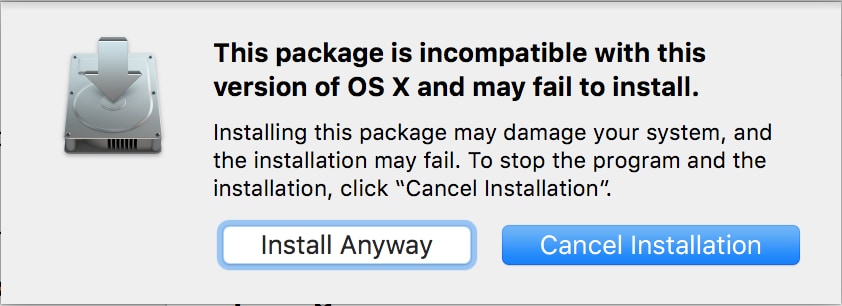
Even if you have an extraction app installed, it may not support RAR files properly or may be outdated. In these cases, the file appears unreadable because the tool simply can’t interpret the archive format.
Incomplete or interrupted downloads
RAR files that didn’t finish downloading—due to network issues or browser interruptions—often fail to open. These partial files may look normal but are missing essential data required for extraction.
Corrupted RAR archives
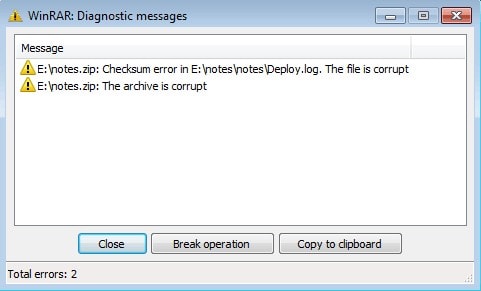
Damage can occur during file transfer, storage, or compression. When this happens, the archive structure breaks, and extraction tools may show errors or refuse to open the file entirely.
Unsupported RAR version or password protection
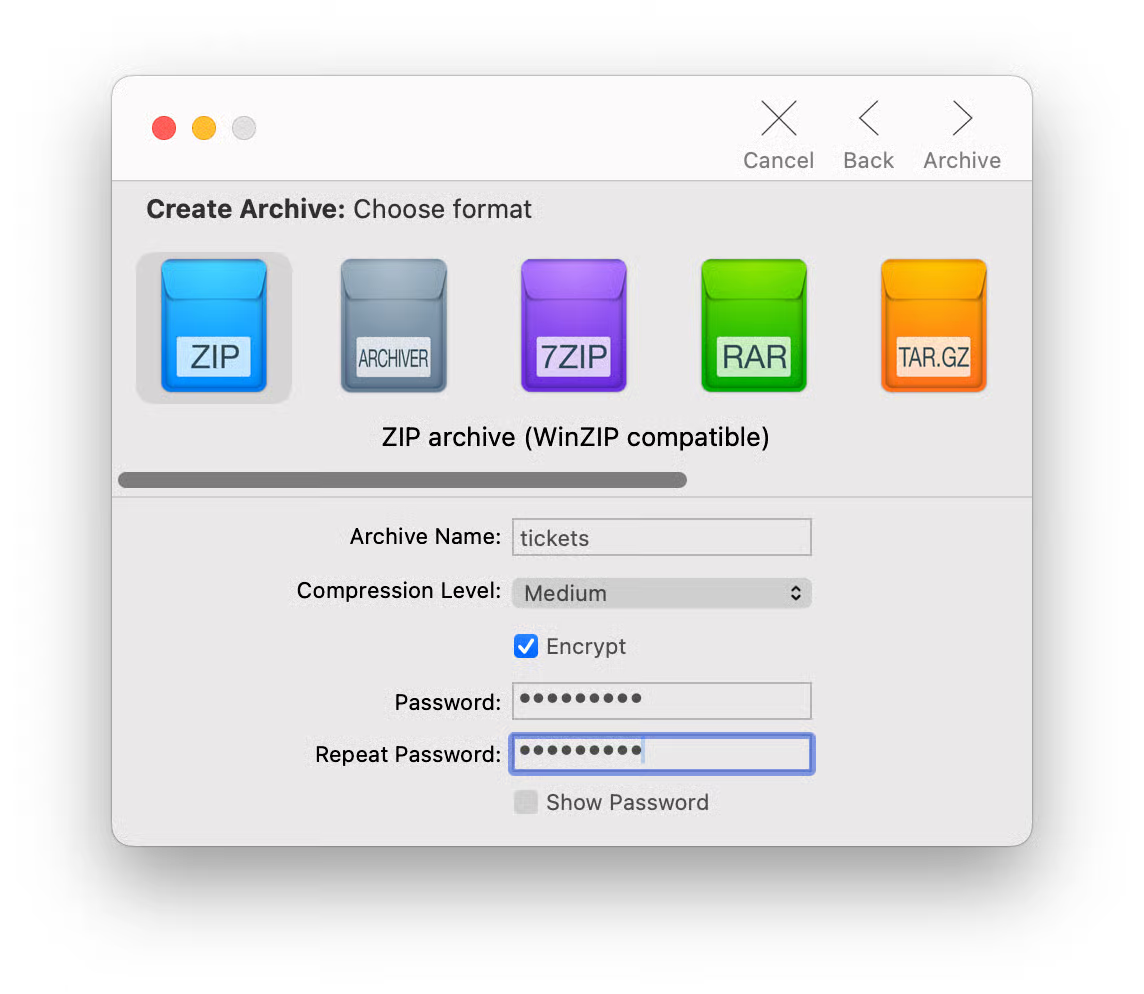
Some RAR files use newer compression methods or are protected with passwords. Older extraction tools may not recognize these formats, while password-protected archives cannot be opened without the correct credentials.
Once you identify which of these issues applies, it becomes much easier to decide whether you simply need the right tool or if the file itself requires further attention.
Part 2. Quick Ways to Open a RAR File on Mac
If you’re asking how can I open a RAR file on Mac, the good news is that most cases can be solved quickly with the right tool. The methods below are beginner-friendly and don’t require any technical skills.
Method 1: Use The Unarchiver
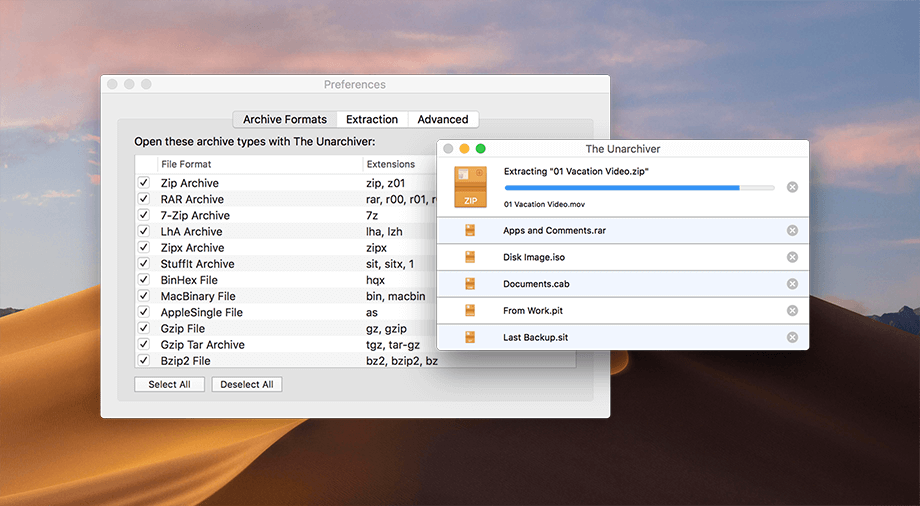
The Unarchiver is one of the easiest and most popular solutions for opening RAR files on macOS.
- Free and lightweight
- Supports RAR, ZIP, 7Z, TAR, and many other formats
- Ideal for first-time users
Best for: Users who want a simple, free way to open RAR files on Mac.
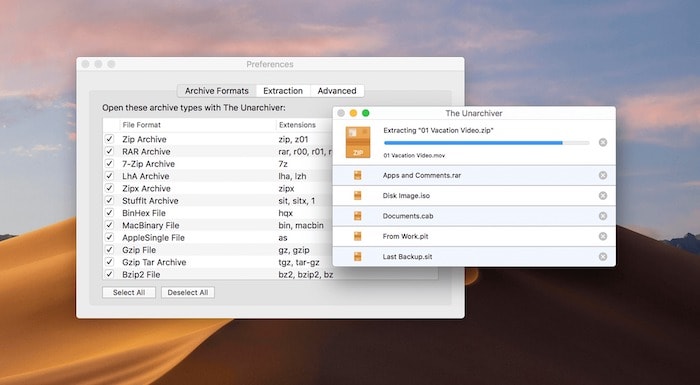
The Unarchiver is one of the easiest tools to open RAR files on Mac. Follow these steps to extract your files safely:
Step 1. Go to the Mac App Store or the official website and download the app and install

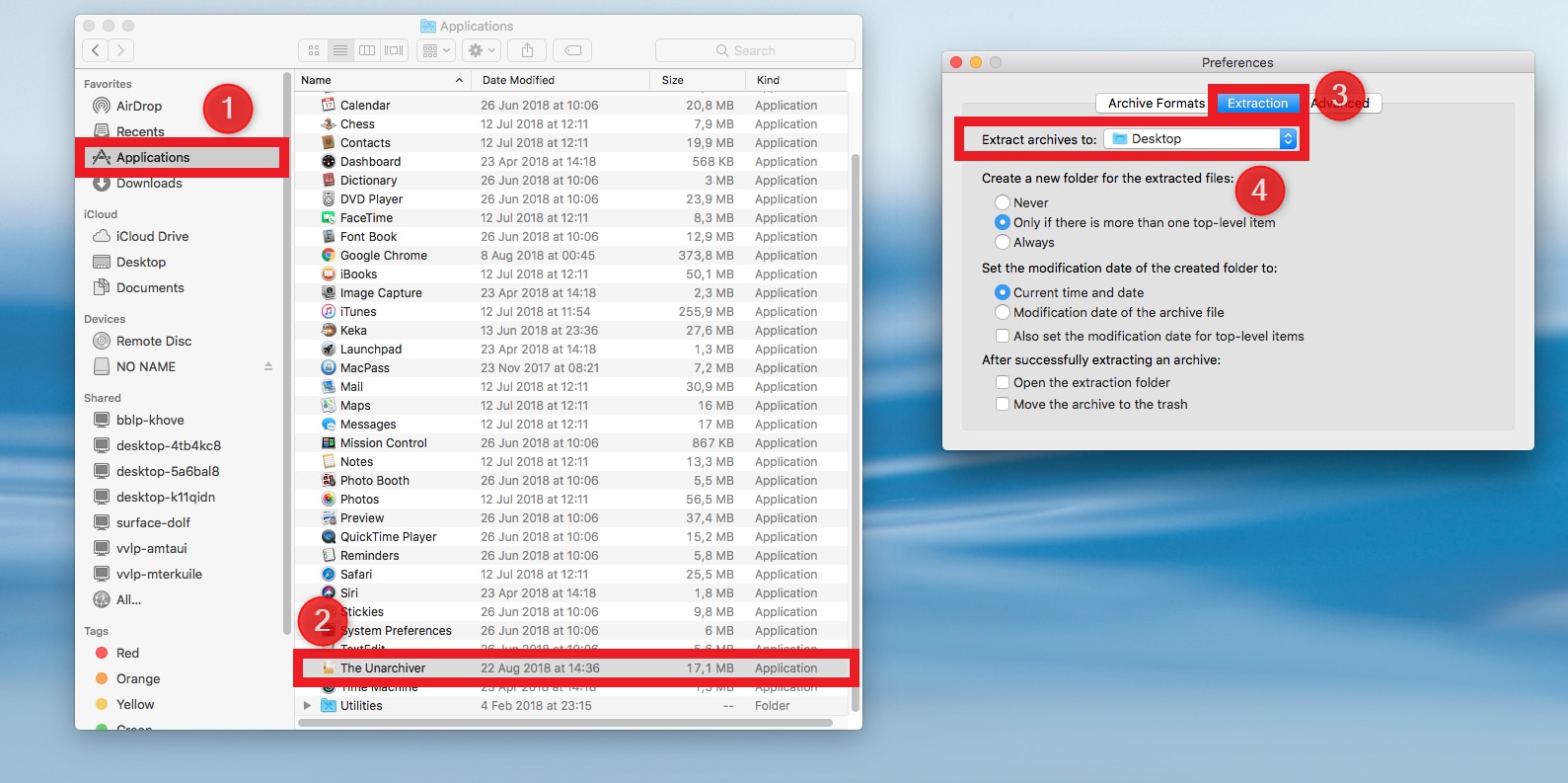
Step 2. Open The Unarchiver → go to Preferences → check the box for RAR files. This ensures all RAR files open automatically with the app.
Step 3. Find the file in Finder that you want to extract.
Step 4. Right-click the file → Open With → select The Unarchiver.
Step 5. The app will prompt you to select a folder where the extracted files will be saved. Pick a location you can easily access.
Step 6. Depending on the file size, extraction may take a few seconds to a few minutes. Once finished, open the folder and verify that all files are present and working correctly.
Method 2: Use WinRAR for Mac
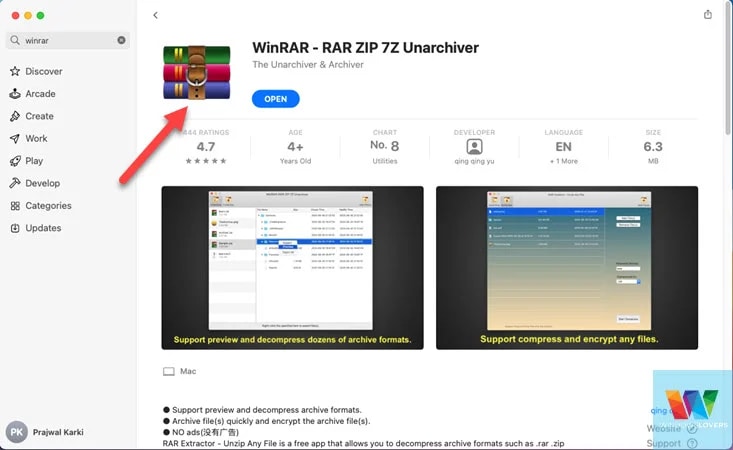
WinRAR is the official tool for working with RAR archives and offers the best format compatibility.
- Official RAR software
- Handles complex and newer RAR versions
- Supports both command-line and graphical use
Best for: Advanced users or anyone dealing with large, password-protected, or newer RAR archives.
WinRAR is the official tool for working with RAR files and supports all RAR versions. Follow these quick steps:
Step 1. Visit the official WinRAR website and download the Mac version. Follow the instructions to install it.
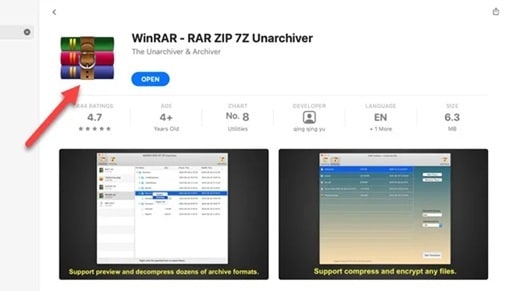
Step 2. Launch the app from your Applications folder.
Step 3. Click Open in WinRAR and select the RAR file you want to extract.
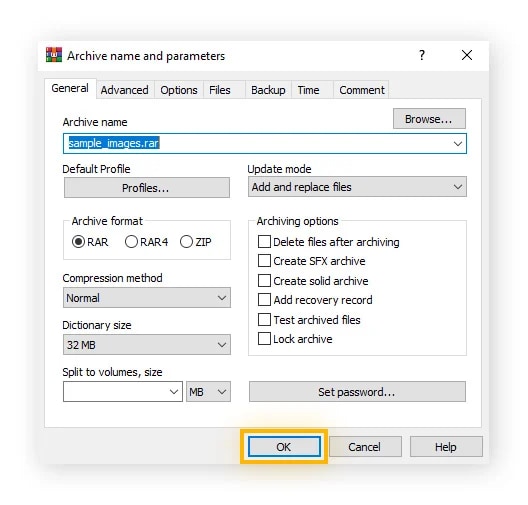
Step 4. Choose a destination folder and click Extract. Wait for the process to finish, then check that all files are accessible.
Method 3: Use Archive Utility Alternatives
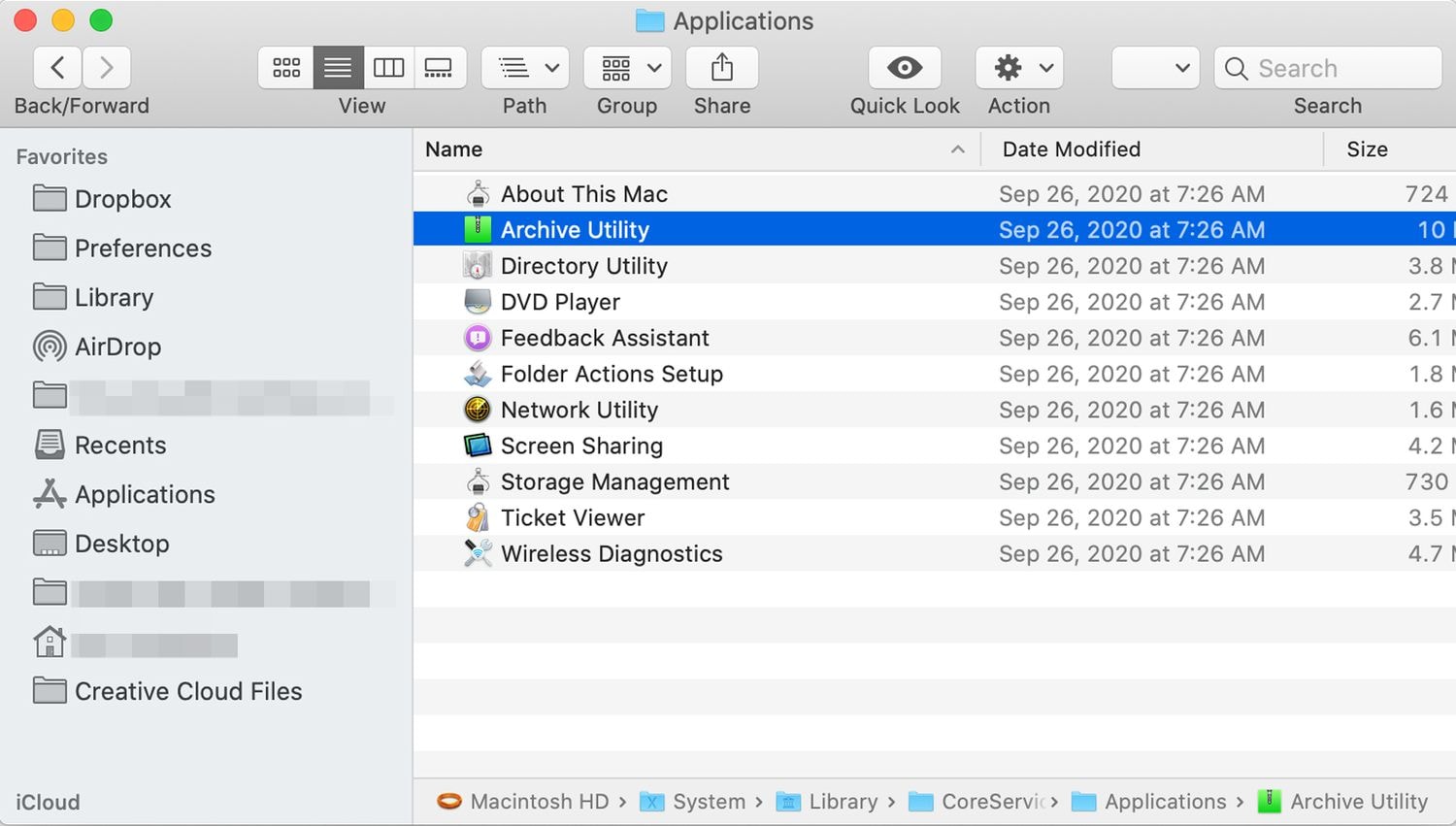
Several third-party apps can also open RAR files effectively, depending on your needs:
- iZip: Beginner-friendly with basic extraction features
- Keka: Lightweight and fast, popular among Mac users
- BetterZip: Advanced control over archives and selective extraction
Best for: Users who want more control, additional formats, or a polished interface.
If you prefer alternatives to The Unarchiver or WinRAR, apps like Keka, iZip, or BetterZip work well for opening RAR files on Mac. Follow these steps:
Step 1. Go to the official website or Mac App Store and install Keka, iZip, or BetterZip.
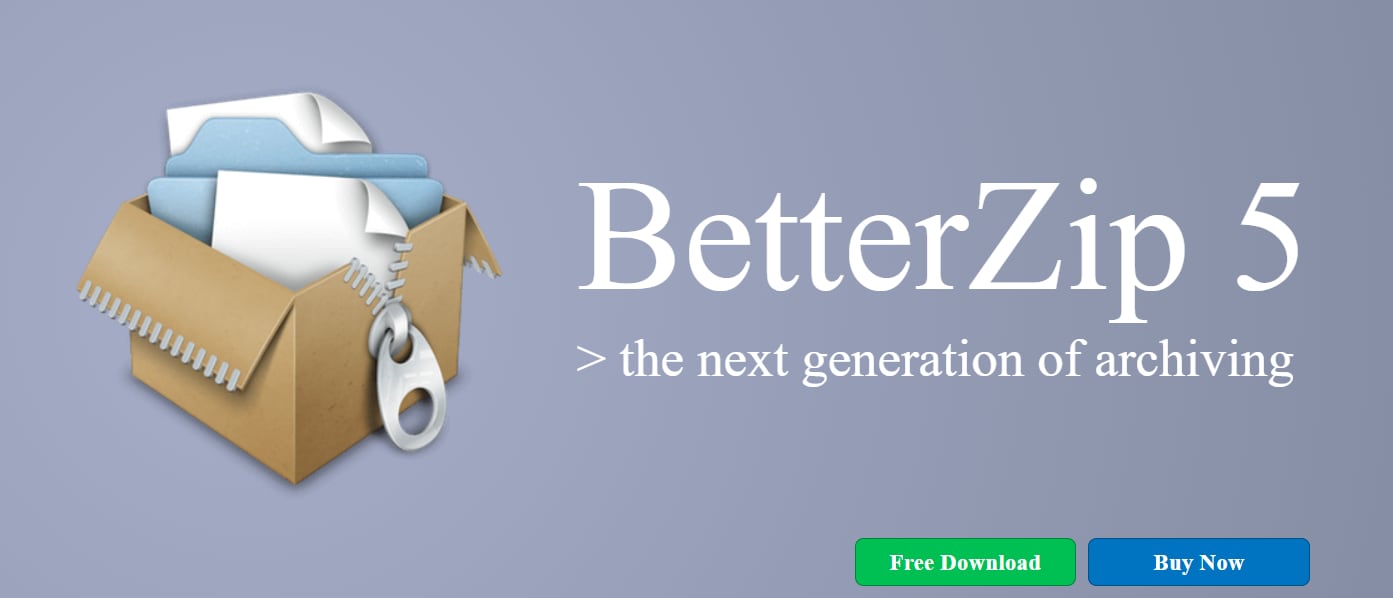
Step 2. Open the application from your Applications folder.
Step 3. Drag and drop the RAR file into the app, or use the Open option to select the file manually.
Step 4. Choose a destination folder for the extracted files and start the extraction. Once finished, verify that all files are present and accessible.
Method 4: Use Online RAR Extractors (With Caution)
Online tools allow you to extract RAR files directly in your browser.
- No installation required
- Useful for one-time or quick extractions
However, these services often have file size limits and may pose privacy risks when uploading sensitive data.
⚠️ Important warning: Avoid uploading any sensitive content (work documents, contracts, IDs, financial files, private photos). Online extractors may also have file size limits.
Best for: Small, non-confidential files when you don’t want to install software.
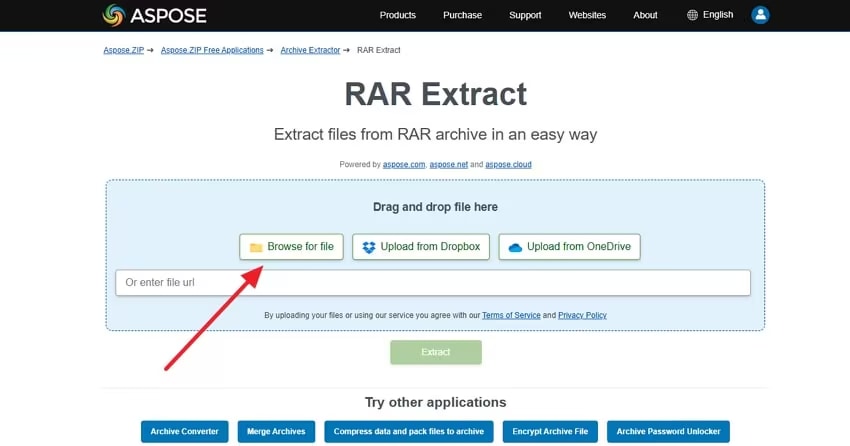
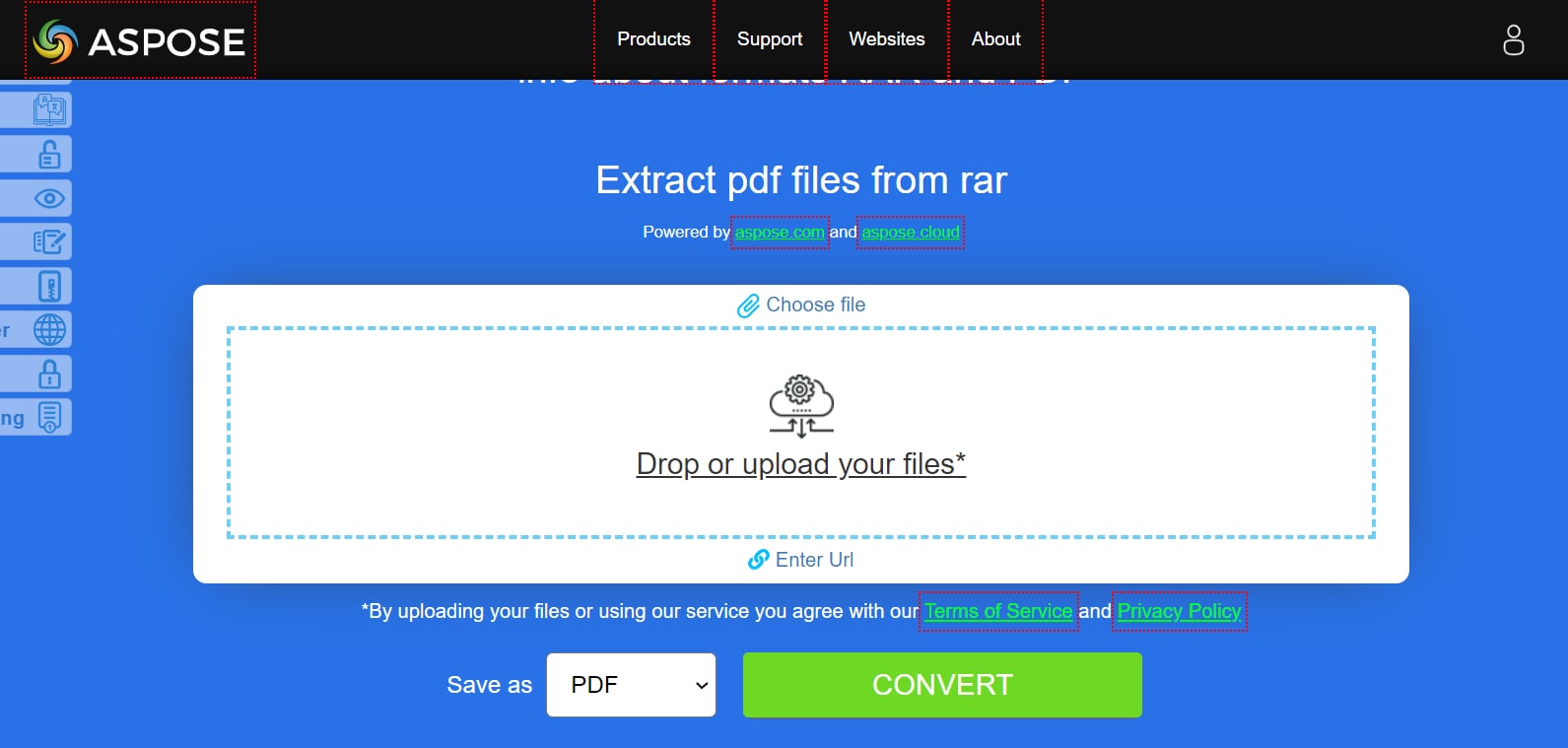
Online RAR extractors let you extract files directly in your browser without installing software. Aspose is one reliable option for this method. Follow these steps:
Step 1. Open your browser and look for an online extractor - in this case Aspose RAR extractor is used
Step 2. Click Upload RAR and select the file from your Mac. Ensure the file doesn’t contain sensitive data, as online extractors may have privacy risks.
Step 3. Click Extract and wait for Aspose to process the file. This usually takes a few seconds for smaller files.
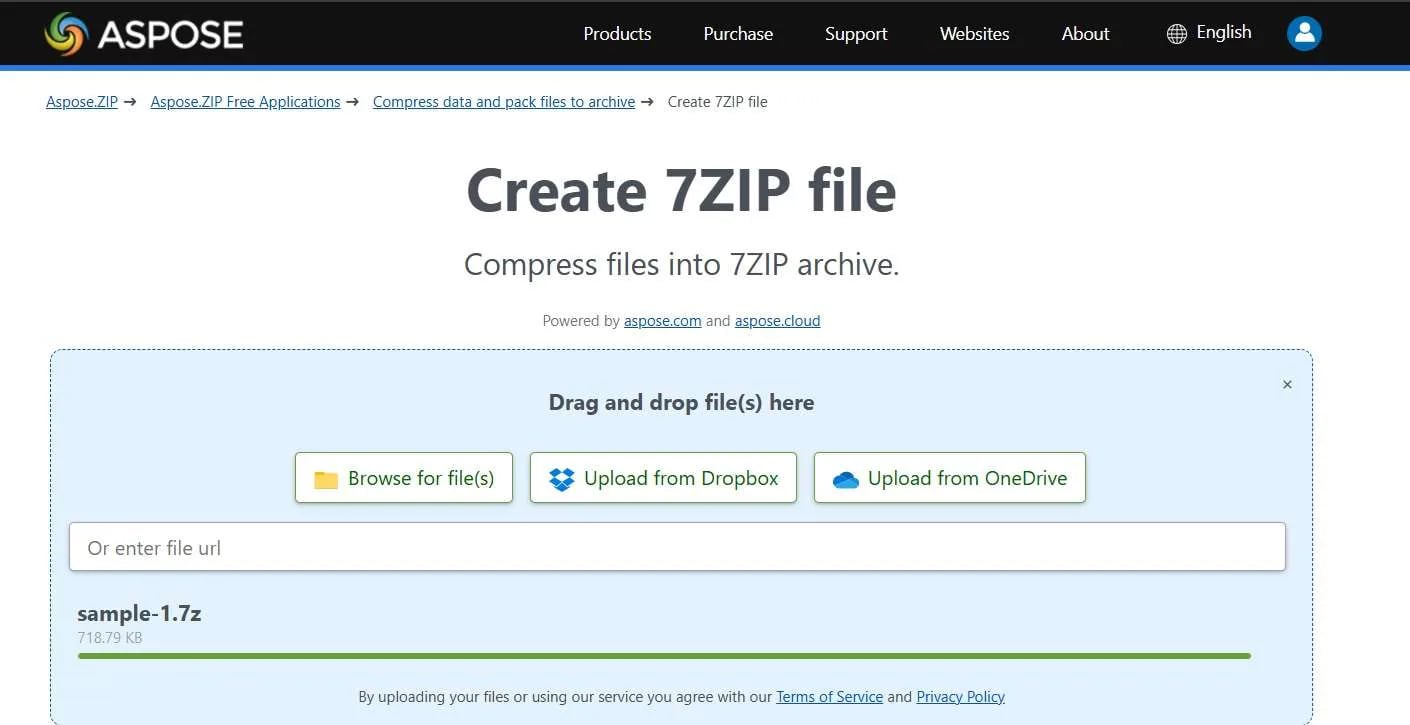
Step 4. Once the extraction is complete, download the extracted folder to your Mac and check that all files are intact and accessible.
Part 3. Understanding and Managing RAR Files on Mac
Working with RAR files on a Mac can be tricky if you’re unfamiliar with the format. Knowing a few best practices can save time and prevent errors:
1. Keep your extraction tools updated: RAR formats can change over time. Using outdated software may cause extraction errors or fail to recognize newer RAR versions.
2. Verify file integrity before opening: Incomplete downloads or interrupted transfers often lead to missing or broken files. Check the file size and source before attempting extraction.
3. Be cautious with password-protected archives: Some RAR files are encrypted. Without the correct password, extraction will fail, even with the right software.
4. Organize extracted files carefully: Large RAR archives can contain dozens or hundreds of files. Create a dedicated folder for each extraction to avoid confusion.
5. Backup important archives: If a RAR file is critical, keep a copy in a safe location. Corruption, accidental deletion, or storage issues can make recovery more difficult.
Part 4. When a RAR File Won’t Open on Mac
If you’ve tried multiple extraction tools and the RAR file still won’t open, the problem is likely no longer tool-related. At this point, the issue usually lies with the file itself rather than the software you’re using.
You’re likely dealing with a file-level problem if:
- The RAR file fails to extract in every app you try
- Error messages appear during extraction
- Extracted files are missing, incomplete, or won’t open properly
These signs indicate that the RAR archive may be damaged, incomplete, or improperly compressed. This can happen due to interrupted downloads, transfer errors, or storage issues.
Before you repair anything, check these first:
Re-download the file (incomplete downloads are the #1 cause)
Confirm it isn’t multi-part (or make sure all parts are present)
Verify password accuracy if the archive is encrypted
Try extracting on another device to rule out local tool issues
If nothing works (recommended next steps)
- Ask the sender to re-upload or re-compress the archive
- Request a ZIP version if possible (macOS supports ZIP natively)
- If it’s a multi-part archive, ask for the missing parts
- If the file came from an unstable mirror, download again from a more reliable source
Important note: RAR repair tools can only work with the archive data you already have. They cannot restore missing parts, recover files that were never fully downloaded, or bypass incorrect passwords.
Repairing Corrupted RAR Files on Mac
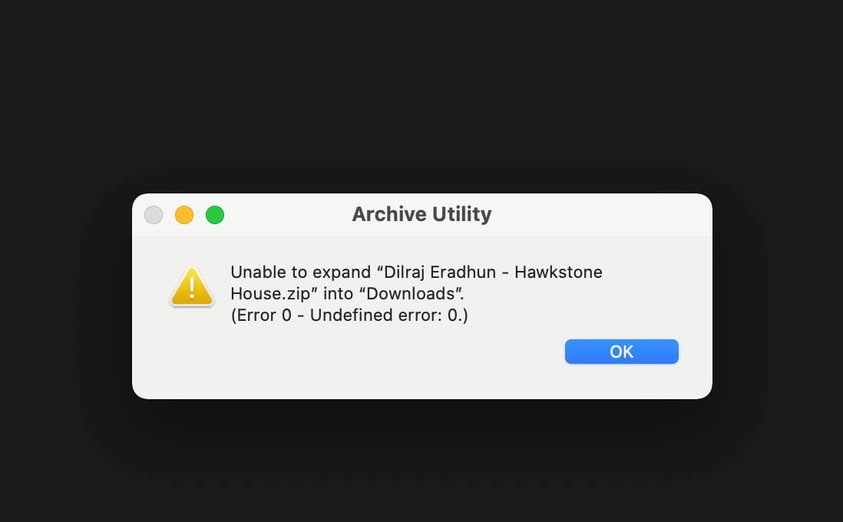
If you’ve confirmed the file is complete and not password/multi-part related, an archive repair tool may help. These tools try to rebuild the RAR structure and extract whatever content is still recoverable. Using Repairit ensures a simple workflow with minimal steps, making it accessible even for beginners while maximizing your chances of recovering corrupted data.
What RAR repair software can do:
- Rebuild broken archive structure
- Recover as many files as possible
- Fix unreadable or partially corrupted RARs
What RAR repair software cannot do:
- Recover missing archive parts that were never downloaded
- Bypass encryption or an unknown password
- Guarantee full recovery (results depend on damage severity)
Note: Recovery success depends on the severity of the damage—some files may only be partially recoverable.
Step-by-Step: Repair a Corrupted RAR File Using Repairit
If you’ve determined that a RAR file is corrupted, a repair tool can be an optional next step. Repairit RAR Repair can attempt to rebuild the archive structure and recover available files.
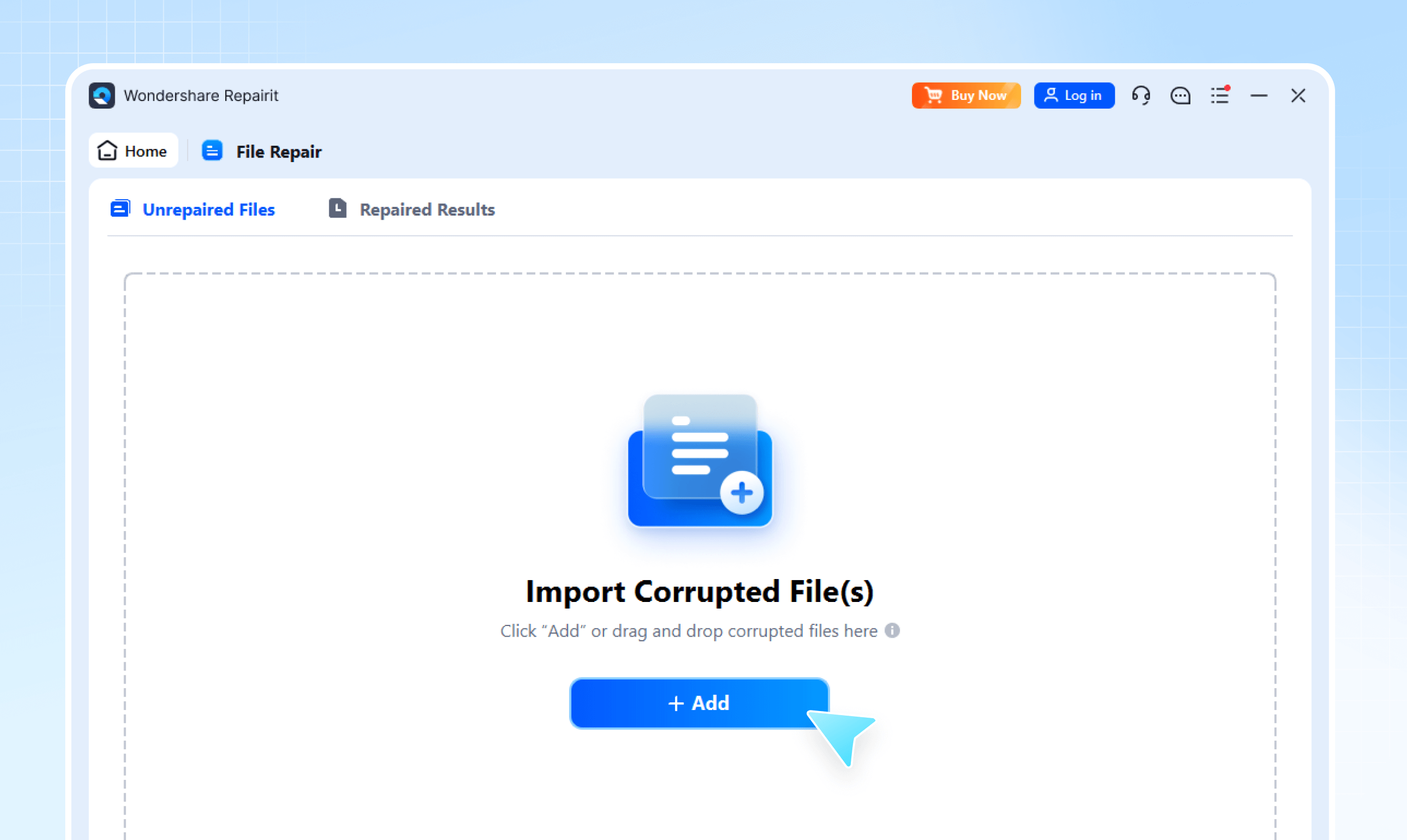
Step 1: Click “Add” or drag your damaged RAR file into Repairit.
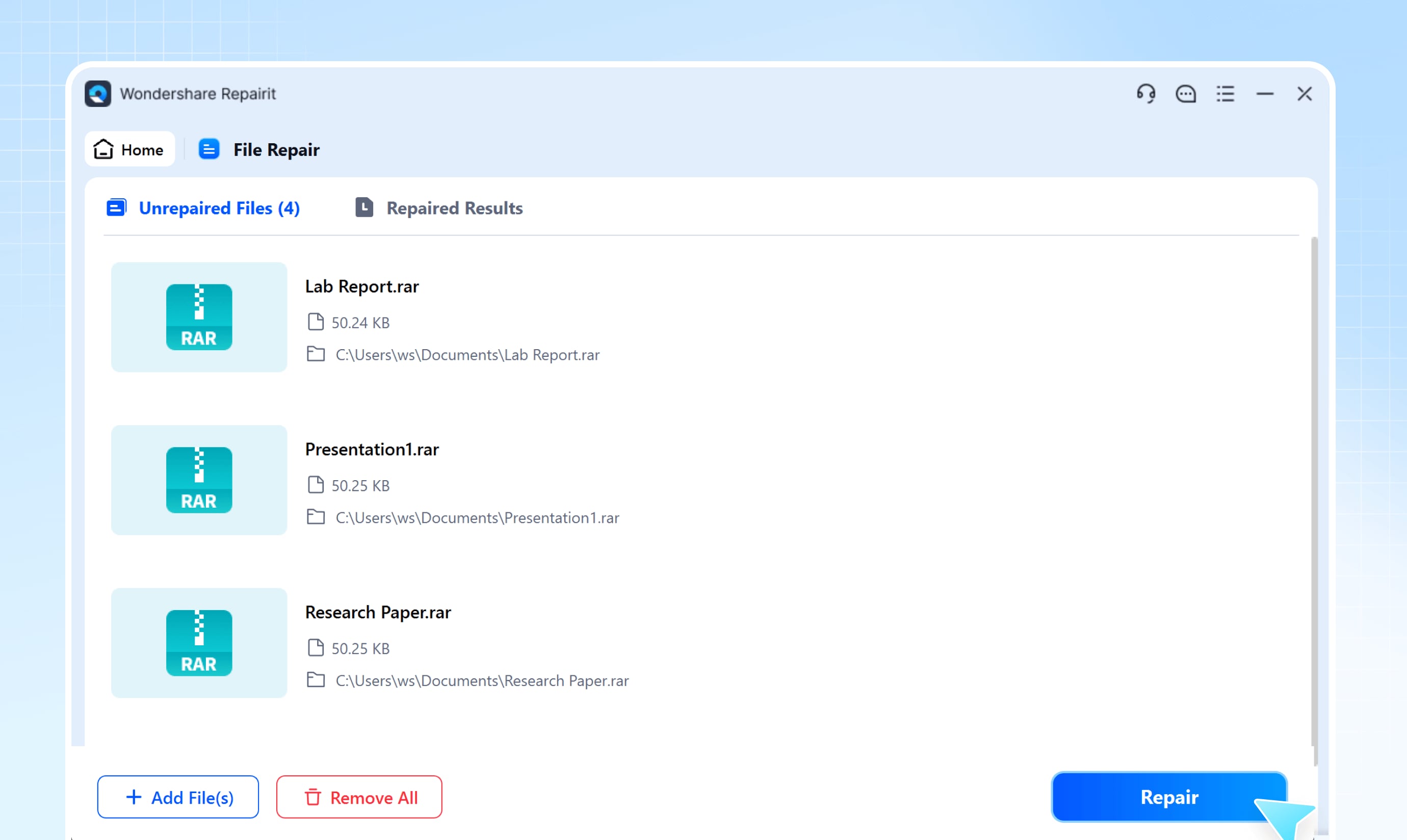
Step 2: Hit “Repair” and let the software analyze and rebuild the archive.
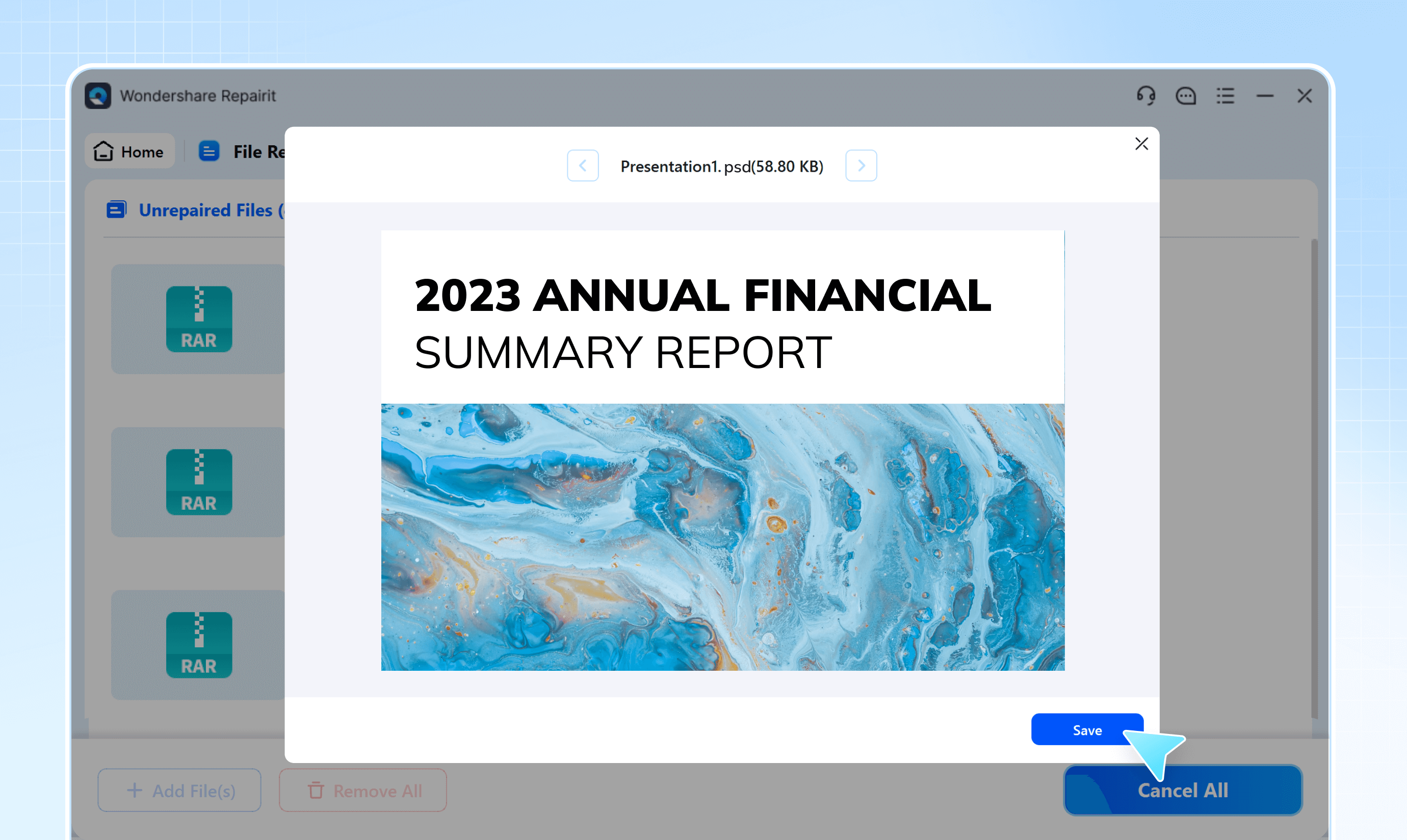
Step 3: Once completed, Repairit allows you to preview the recovered files to check their integrity. Choose a safe location on your Mac to save the fixed RAR file and access its contents normally.
Conclusion
Opening RAR files on a Mac can be confusing since macOS doesn’t support this format by default. For most cases, third-party extraction tools like The Unarchiver, Keka, or WinRAR can quickly solve the problem.
If a RAR file is corrupted, extraction alone won’t work, and repair may be necessary.
The most important step is identifying the root cause first—whether it’s a missing tool, an incomplete download, or file corruption. Taking a safe and logical approach ensures you choose the right solution and avoid further issues.
FAQs
-
1. How do I open a RAR file on Mac without WinRAR?
You can use free extraction tools like The Unarchiver, Keka, or iZip. Right-click the RAR file → Open With → choose your extractor. -
2. Why won’t my RAR file extract on macOS?
This usually happens because macOS doesn’t natively support RAR files, the extraction tool is outdated, or the file is incomplete or corrupted. -
3. Are online RAR extractors safe?
Online extractors can work for small, non-confidential files, but uploading sensitive data may pose privacy risks. Use them cautiously. -
4. What causes RAR files to become corrupted?
Common causes include interrupted downloads, errors during file transfer or storage, and issues during compression. Malware can also damage archives. -
5. Can a damaged RAR file be repaired?
Yes—if the file exists and isn’t severely corrupted, specialized repair tools can rebuild the archive structure and recover as many files as possible.




