
 TL;DR:
You can recover an Excel workbook corrupted by an interrupted AutoSave process using Microsoft Excel's built-in Open and Repair tool or by restoring temporary AutoRecovered versions.
● Access temporary pre-crash copies by navigating to File > Info > Manage Workbook > Recover Unsaved Workbooks, noting that these AutoRecovered files are not permanent and may be automatically deleted.
● Bypass corruption isolated to macros or add-ins by opening the damaged file in Excel Safe Mode, Google Sheets, or LibreOffice Calc to manually extract accessible worksheets into a new file.
● Resolve severe structural damage to XLSX, XLS, XLSM, or CSV files using third-party software like Repairit Excel Repair on Windows Vista/7/8/10/11 or macOS X 10.12 or later to rebuild unreadable formulas and formatting.
Ask AI for a summary
 ChatGPT
 Perplexity
 Gemini
 Claude
 Grok
Grok
An Excel file can become corrupted if AutoSave fails while the spreadsheet is actively updating or saving data. This often happens during application crashes, unstable internet connections, sudden shutdowns, storage issues, or sync interruptions with cloud services.
Since Excel continuously updates formulas, formatting, and workbook structure during AutoSave, interruptions may leave the file incomplete or unreadable.
In many cases, you can still repair a corrupted Excel file after an AutoSave failure using built-in recovery features, backup versions, or spreadsheet repair tools. This guide explains why Excel corruption happens and the steps you can take to restore your workbook.
In this article
Why Excel Files Become Corrupted After AutoSave Fails
Excel AutoSave constantly writes changes to the workbook while you edit. If the process is interrupted before the file finishes updating, critical workbook information may become damaged.
Common Causes of Excel File Corruption
- Application crashes: Excel closes unexpectedly during AutoSave.
- Cloud sync interruptions: OneDrive or cloud storage loses connection while syncing.
- Sudden power loss: The computer shuts down during workbook updates.
- Disk write errors: Storage problems interrupt saving operations.
- Large workbook instability: Complex spreadsheets with formulas or macros are more vulnerable during failed saves.
How to Identify Signs of Excel File Corruption
Save interruptions, AutoSave failures, or hardware issues can leave the workbook incomplete, while storage errors may cause deeper structural corruption. Identifying the symptoms helps determine whether built-in recovery options will be enough or if advanced repair tools are needed.
Signs of a Corrupted Excel File
- Files won’t open – Excel may display errors such as “We found a problem with some content” or refuse to load the workbook entirely.
- Missing worksheets – Tabs or entire sections of the workbook disappear after reopening, leaving only partial data.
- Broken formulas – Calculations return errors, missing references, or incorrect results because formula links were disrupted.
- Blank workbook – The file opens, but no data appears, suggesting the content wasn’t saved properly.
- Freezing or crashing – Excel stops responding or closes unexpectedly when trying to open the file.
- Formatting problems – Charts, tables, or cell formatting appear damaged, distorted, or missing.
These signs point to different levels of corruption, from minor formatting issues to severe structural damage. By recognizing the specific symptoms, you can choose the most effective recovery method, whether that’s Excel’s built-in repair, restoring a backup, or using advanced repair software.
Basic Fixes to Repair a Corrupted Excel File
Fix 1. Use Excel Open and Repair
Microsoft Excel includes a built-in repair feature that can attempt to rebuild damaged workbook structure.
Step 1. Open Microsoft Excel and go to File > Open, then browse for the corrupted workbook.
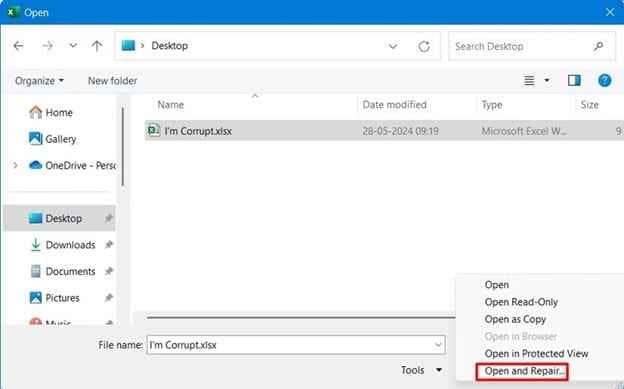
Step 2. Click the arrow beside Open and select Open and Repair to scan and restore the file.
Fix 2. Recover AutoRecovered Versions
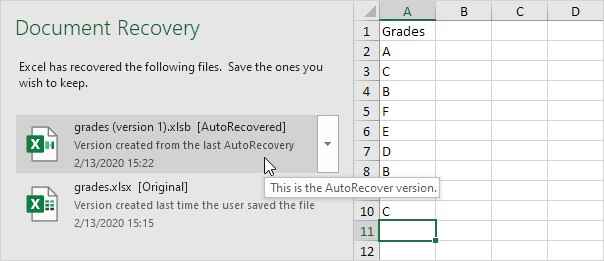
Excel often stores temporary recovery copies during editing sessions.
Step 1. Open Excel and navigate to File > Info > Manage Workbook > Recover Unsaved Workbooks.

Step 2. Select an earlier version created before the interruption and restore or copy the file to another location.
Fix 3. Restore Previous Versions
Windows or cloud storage platforms may contain earlier versions created before corruption occurred.
Step 1. Right-click the Excel file and choose Properties.
Step 2. Open the Previous Versions tab and restore an earlier copy of the workbook.
Fix 4. Open the Workbook in Safe Mode or Another Spreadsheet Program
Sometimes corruption only affects specific workbook components like add-ins, charts, or macros.
Step 1. Start Excel in Safe Mode or try opening the workbook in Google Sheets or LibreOffice Calc.
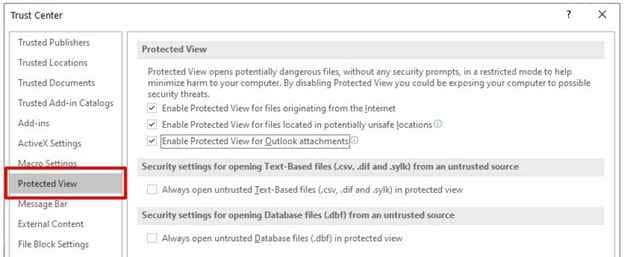
Step 2. Copy accessible worksheets or data into a new workbook and save it separately.
Advanced Fix to Restore Severely Corrupted Excel Files
When built-in recovery methods fail, the workbook may have deeper structural corruption caused by interrupted AutoSave processes or damaged storage sectors. Advanced repair tools can scan and rebuild missing spreadsheet data.
A repair tool can:
- Restore damaged XLSX, XLS, XLSM, and CSV workbook structure.
- Recover formulas, charts, tables, formatting, and macros.
- Repair unreadable or inaccessible Excel files.
- Recover data from partially saved workbooks.
- Repair multiple corrupted spreadsheets at once.
In case the workbook still remains inaccessible, a repair solution like Repairit Excel Repair can help repair corrupted Excel files and restore spreadsheet functionality.
Step-by-Step:
Step 1. Upload the corrupted excel file.

Step 2. Start the repair process to scan and rebuild damaged file components.
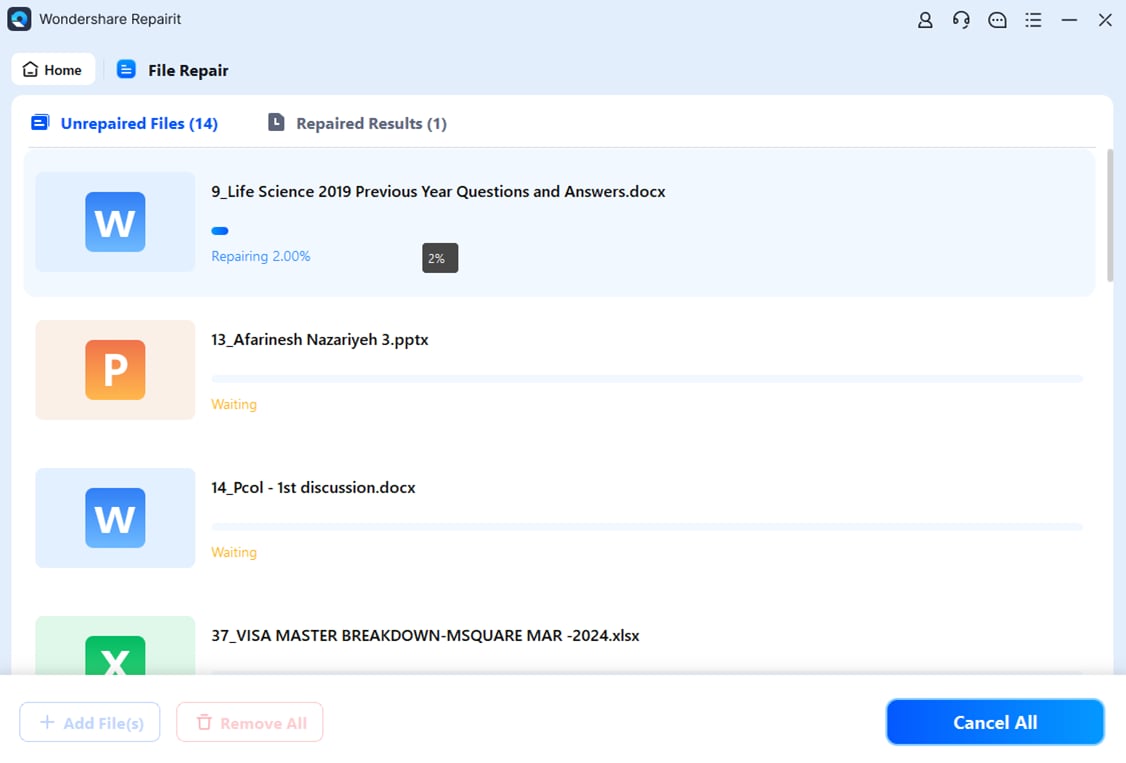
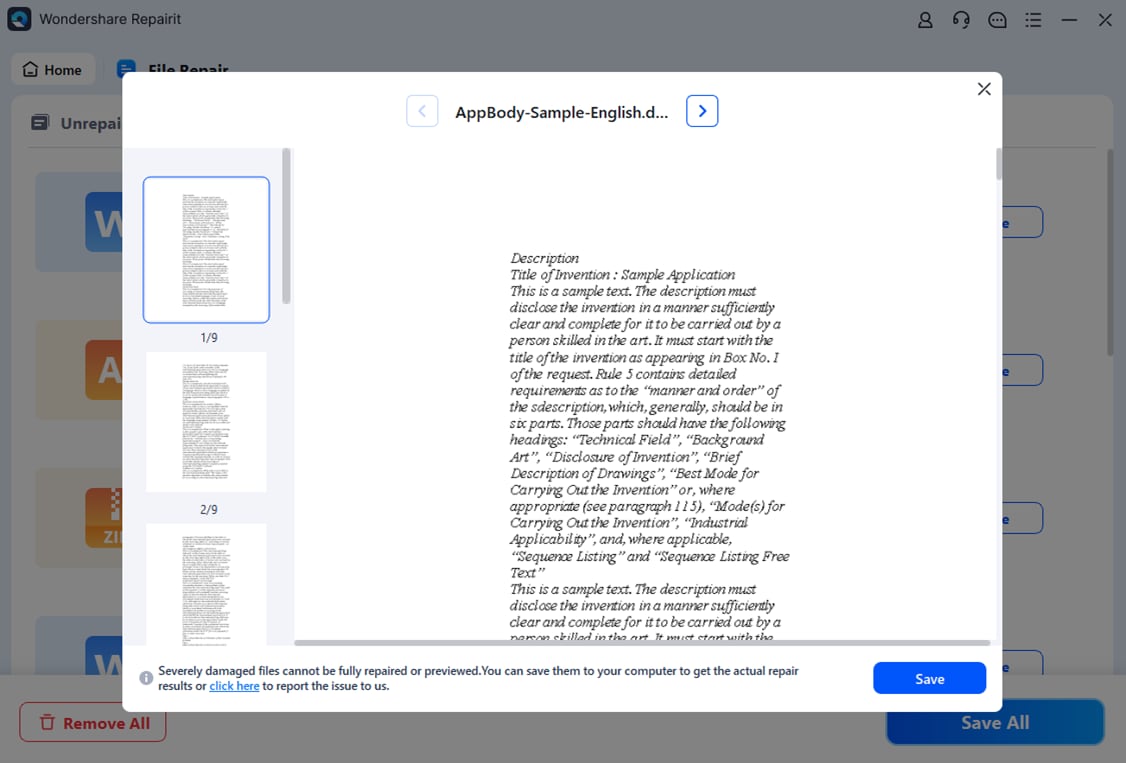
Step 3. Preview the repaired document and save the restored version to a different storage location.
How to Prevent Excel File Corruption in the Future
Excel files rely on continuous data writing and synchronization, so even minor disruptions can leave them incomplete or unreadable. By following safe saving habits and maintaining reliable hardware, you can greatly reduce the risk of future corruption.
1. Keep AutoSave and AutoRecover enabled – These features automatically create backup versions of your work, improving recovery chances if Excel crashes or loses connection.
2. Avoid force-closing Excel – Always let saving operations finish completely before shutting down or restarting your computer. Interrupting the process can leave the workbook partially written.
3. Use stable internet for cloud syncing – When working with OneDrive or SharePoint, a weak or unstable connection can interrupt syncing and damage files stored online.
4. Maintain healthy storage drives – Regularly check your hard drive or SSD for errors. Bad sectors and failing drives can corrupt files during read/write operations.
5. Back up important spreadsheets regularly – Store copies both locally and in the cloud. Backups protect against permanent data loss if corruption occurs unexpectedly.
Conclusion
Fixing an Excel file corrupted after AutoSave failed often involves recovery versions, built-in repair tools, or advanced spreadsheet repair software. AutoSave interruptions can leave workbook structures incomplete or damaged, preventing normal access to spreadsheet data.
In many cases, recovery methods can successfully restore formulas, worksheets, and formatting. For long-term protection, maintaining stable storage systems and regular backups can help prevent future Excel file corruption.
FAQs
-
Can formulas and charts be recovered from corrupted Excel files?
Yes. Depending on the damage level, repair tools may restore formulas, charts, formatting, and worksheet data. -
Can Excel repair corrupted spreadsheets automatically?
Yes. Excel includes an Open and Repair feature that can sometimes restore damaged workbooks. -
Are AutoRecovered Excel files permanent?
No. AutoRecovered files are temporary and may be deleted after certain actions or application closures. -
Why did my Excel file become corrupted after AutoSave failed?
The AutoSave process may have been interrupted by a crash, sync issue, or storage error before the workbook finished saving. -
Is cloud syncing related to Excel corruption?
Yes. Interrupted syncing during AutoSave may sometimes damage workbook structure or create incomplete saves.




