

For many professionals, Excel workbooks aren’t “just spreadsheets”—they’re the source of truth for budgets, reporting, planning, and analysis. When an Excel file becomes corrupted—due to a crash, a transfer interruption, or a disk issue—basic troubleshooting (like Excel’s built-in Open and Repair) may fail, and the file may refuse to open or show unreadable content.
Online Excel repair tools have improved a lot in recent years. In many cases, they can rebuild workbook structure and restore readable sheets, formulas, tables, and formatting—without requiring installation. This guide compares modern online Excel repair options, explains what matters most (privacy, supported formats, and repair depth), and shows what to do next if online repair doesn’t work.
Quick Answer: What’s the fastest way to fix a corrupted Excel file online?
If Excel shows “unreadable content” or your workbook won’t open, an online Excel repair tool can often rebuild the file structure and restore access—especially when corruption is mild to moderate. Start by making a copy of the damaged file, then choose a tool that supports your exact format (XLS/XLSX/XLSM) and clearly explains privacy and deletion. If your file is large, highly sensitive, or severely corrupted (missing sheets, blank workbook, repeated crashes), a desktop repair tool is usually the safer next step.
Table of Contents
Part 1. Why Excel Files Get Corrupted (And How to Recognize It)
Excel files rarely “break for no reason.” In most cases, corruption is triggered by a saving interruption, software conflict, or storage error.
- App crashes while the file is open: Excel or Windows crashes during save can leave the workbook partially written.
- Force shutdown or power cuts: Hard power-offs can interrupt file writing and damage workbook structure.
- Bad imports or format clashes: Converting from older Excel versions or third-party tools can break objects, formulas, or formatting.
- Disk or software problems: Bad sectors, unstable drives, or failing storage can corrupt file blocks.
- Virus or malware activity: Malicious software can modify Office documents or damage internal components.
Common Symptoms of a Corrupted Excel File
These signs usually indicate you’re dealing with real workbook corruption (not just a temporary Excel glitch):
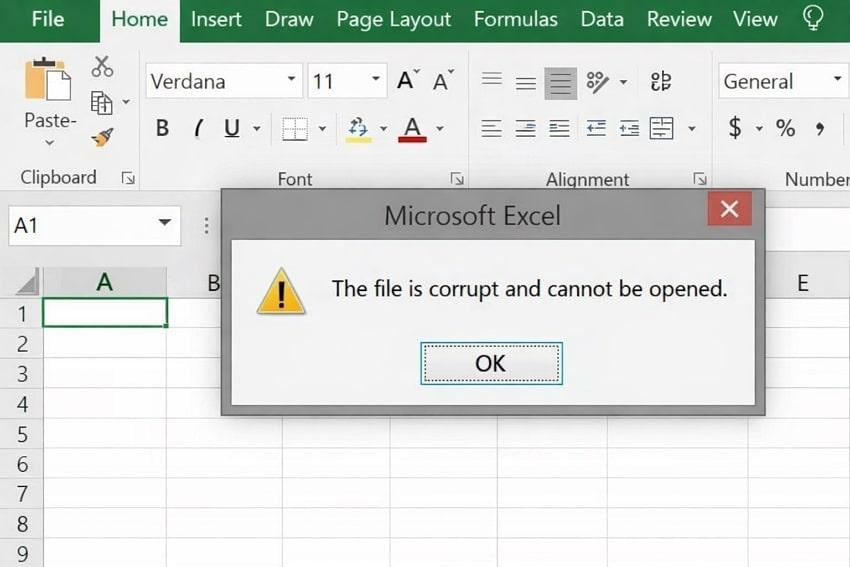
- File won’t open at all: “The file is corrupted and cannot be opened” / “Excel found unreadable content.”
- Cells look scrambled or wrong: Missing, duplicated, shifted data; totals/charts don’t match.
- Unreadable or stripped formatting: Excel removes objects or formatting to force an open.
- File opens but behaves strangely: Excel crashes, auto-closes, or becomes extremely slow.
- Missing/broken sheets: Tabs disappear or show blank sheets when clicked.
Part 2. How to Choose a Reliable Online Excel Repair Tool
Many tools describe themselves as “free,” but often that means free to upload and preview—while full download/export may require payment. That’s not necessarily bad, but you should know what you’re getting before you upload sensitive data.
Decision Rules: Pick the right repair route fast (Online vs Desktop)
- If the file is small and not sensitive
- If the workbook contains financial/personal data
- If you have an XLSM (macros) or complex workbook
- If Excel crashes every time you scroll/open
- If the file is large
What Actually Matters in an Online Excel Repair Tool
- Real repair quality: Restores multiple sheets, values, formatting, and objects—not just plain text.
- Security and privacy: Look for HTTPS, stated deletion timelines, and clear data handling.
- Supported formats: XLSX, XLS, and ideally XLSM/XLTX/XLTM depending on your case.
- Ease of use: Simple steps and clear progress reporting.
- Preview before download: Lets you verify whether key sheets and formulas look intact.
Part 3. Best Online Excel Repair Tools (Tested & Compared)
Below are five popular online options with realistic strengths and limitations.
1. Repairit Online Excel Repair
Repairit Online is a browser-based service designed to repair Excel files that won’t open, show unreadable content, or display garbled data. It aims to restore workbook readability and common elements such as tables, charts, and formatted sheets when those parts are recoverable.
Why It Stands Out
- Simple workflow that works well for non-technical users.
- Focuses on restoring readable structure (not just extracting raw text).
- Preview-first flow helps you confirm key sheets before saving.
- Suitable as a first attempt when Excel’s built-in repair fails.
Simplified Guide to Repair Excel Online Using Repairit
Get your corrupted files repaired, following the tutorial below for this Excel file repair tool online:
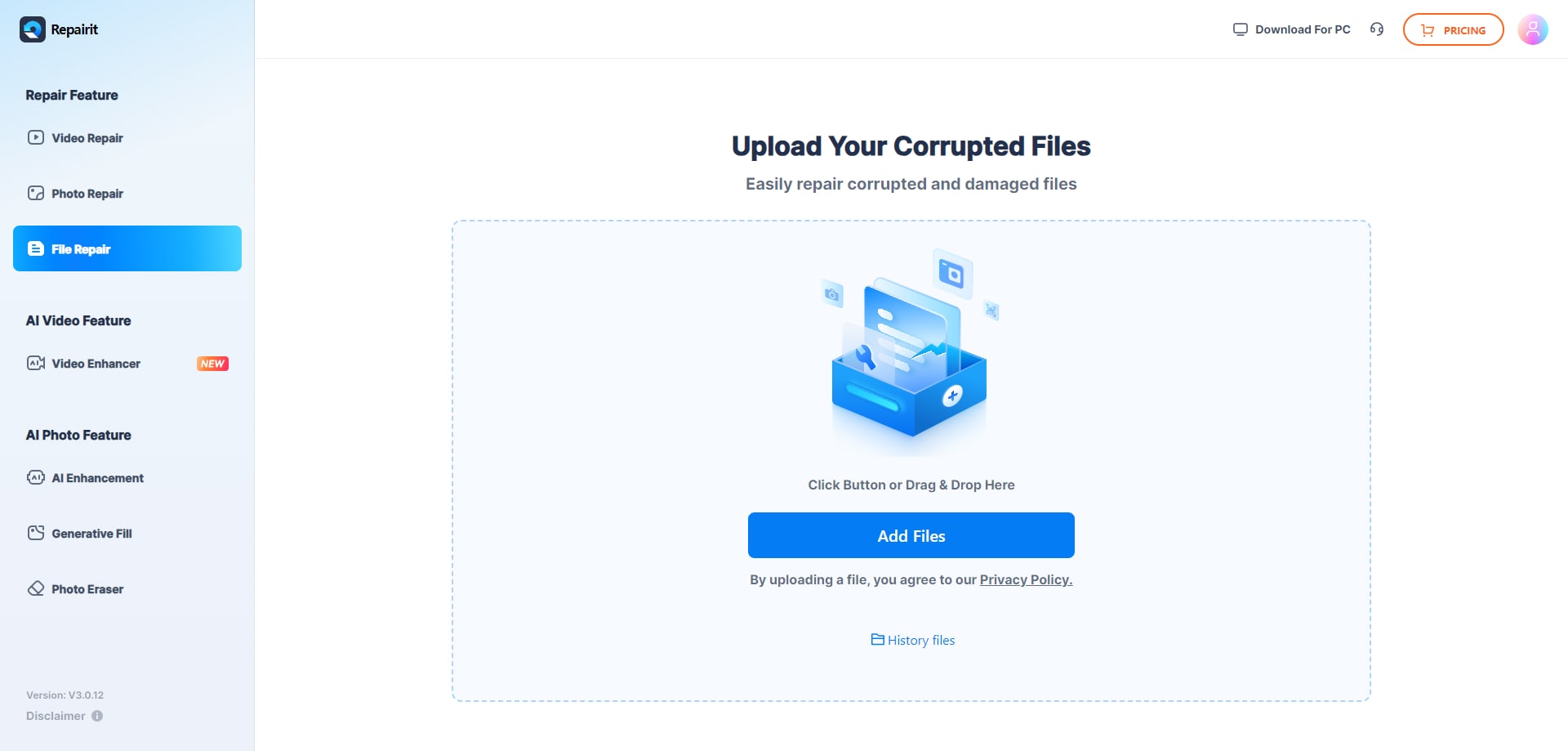
Step 1. Initially, access the “File Repair” section and press the “Add Files” button to insert corrupted Excel sheets.
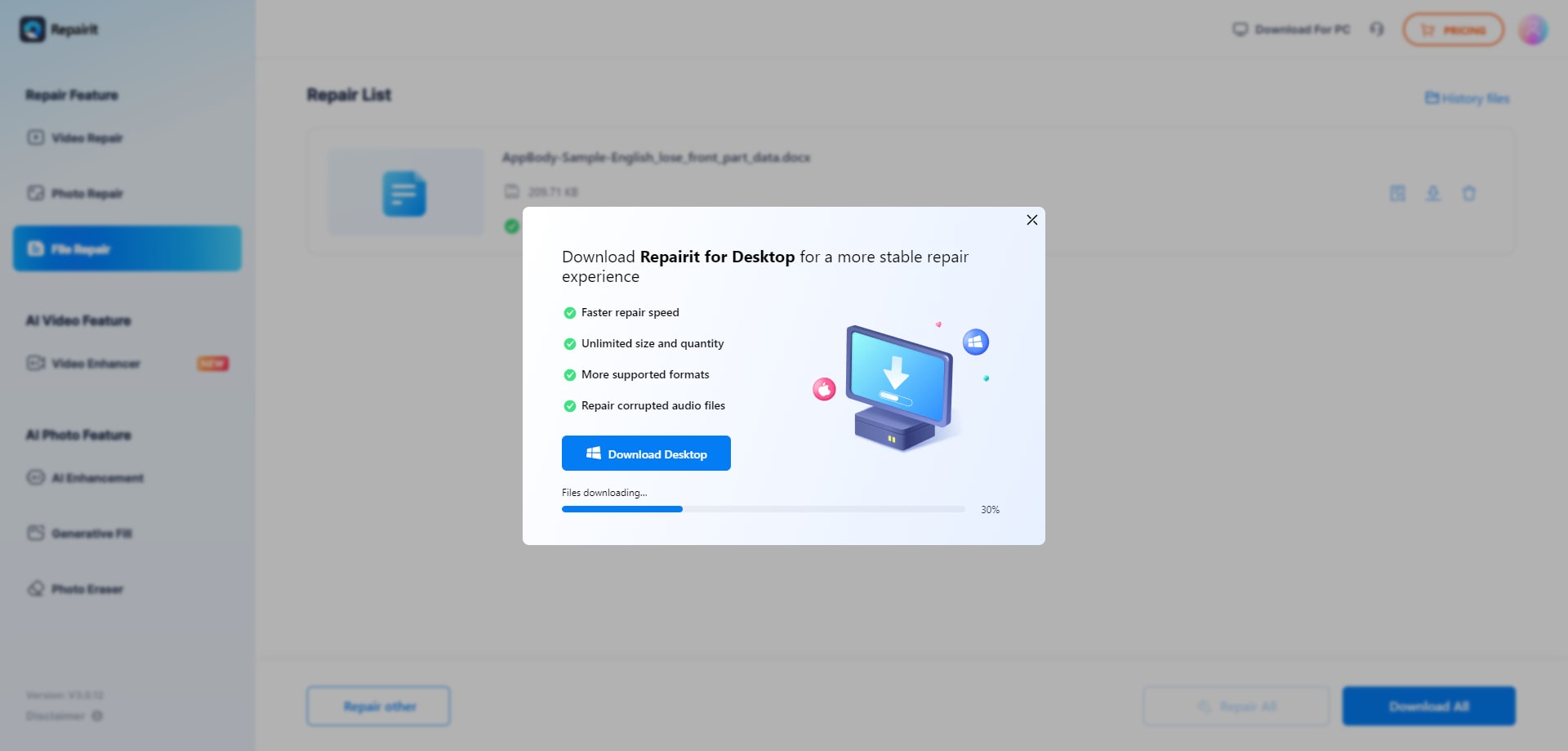
Step 2. After this, click the “Repair” button to fix your broken Excel files online.

Step 3. When the repair action is completed, preview your files and save them to your device for later use.
2. OfficeRecovery Online Excel Repair
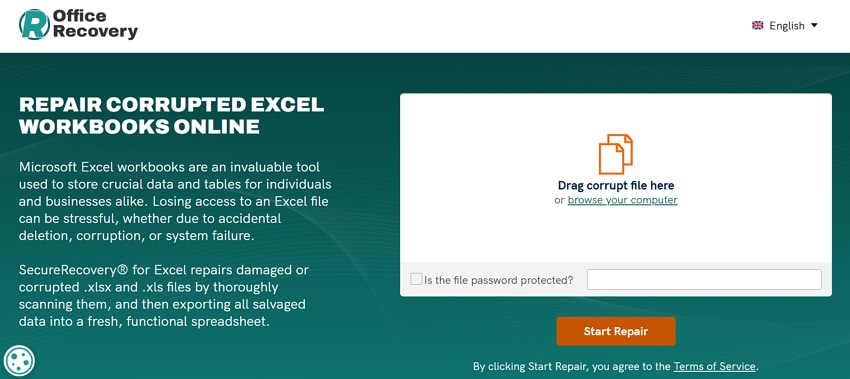
OfficeRecovery supports XLS/XLSX repair with a try-before-buy approach: upload a workbook, run repair, and view a demo before paying to download the full result.
3. EaseUS Online Document Repair
EaseUS provides online repair for multiple document types. It’s convenient for quick tests and smaller files, with limits on size and daily usage depending on plan.
4. Excel.Repair
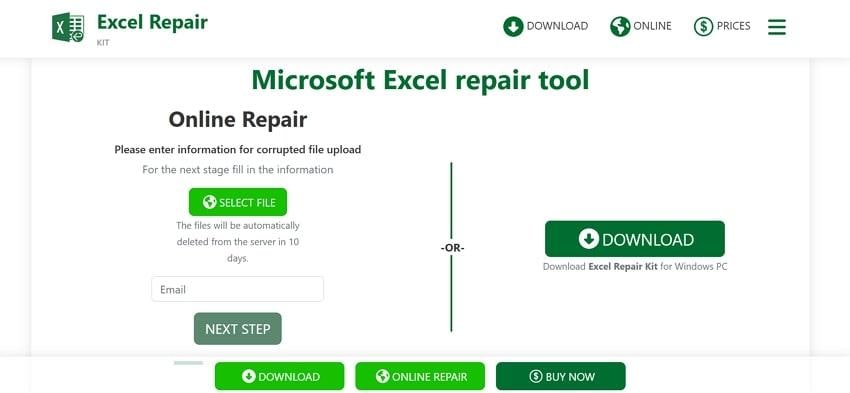
Excel.Repair positions itself as an online tool that attempts to restore readable data from damaged XLS/XLSX/XLSM files. Features and demo availability can vary, so it’s best evaluated via preview.
5. OnlineFile.Repair (Excel)
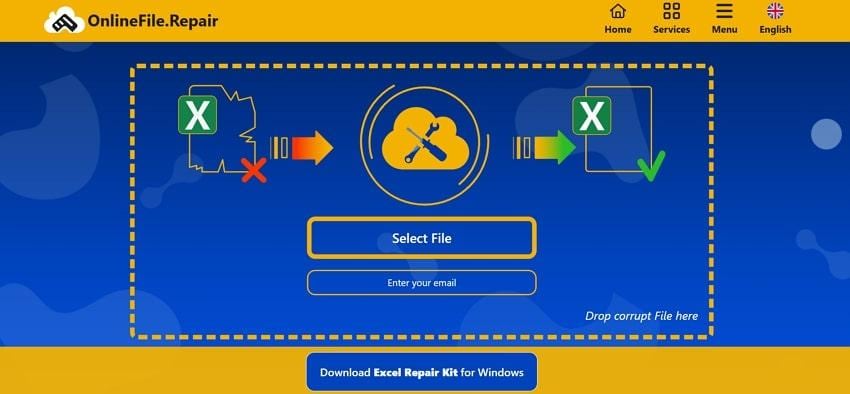
OnlineFile.Repair provides scan-and-repair output into a new workbook and can restore basic layout elements (where recoverable) such as borders and row heights.
Part 4. Online Excel Repair Tools Comparison Table
Not every solution offers the same level of file recovery or data accuracy when handling critical spreadsheets online. For a well-chosen online Excel repair tool, review the provided tabular comparison for all the options discussed above:
| Online Excel Repair Tools | Supported Formats | Free Usage | Typical Speed | Privacy Measures | Best For |
| Repairit Online | XLS/XLSX and additional Excel-related formats | Trial/preview limits apply | Fast, often minutes | Secure transfer + stated deletion policy (review before upload) | Users wanting a simple, preview-first online repair flow |
| OfficeRecovery | XLS/XLSX | Demo preview only | Seconds to about a minute (common cases) | New repaired file output; original unchanged | Try-before-buy repairs |
| EaseUS Online Document Repair | XLSX and other docs | Limited free usage (often 1/day or size caps) | Quick cloud repair | States privacy protection; verify policy | Light users and small files |
| OnlineFile.Repair | Excel formats (varies) | Demo/preview only | Fast for single-file | Mixed trust signals; review policy | Last-resort attempt with preview |
| Excel.Repair | XLS/XLSX/XLSM | Plan-dependent | Depends on file size | Policy should be confirmed | Broader extension coverage needs |
Part 5. Online Repair Didn’t Work? Try a Desktop Excel Repair Tool
Online repair is convenient, but desktop repair is often better when:
- your workbook is large
- the file is confidential
- corruption is severe (blank workbook, missing sheets, repeated crashes)
- macros or complex objects are involved
A desktop tool runs locally, avoiding repeated uploads and giving you more control over repair attempts. Repairit’s desktop workflow supports batch repair and previewing results before saving a repaired copy.

-
Repair damaged Excel files with all levels of corruption, including blank files, files not opening, unrecognizable format, unreadable content, files layout changed, etc.
-
Repairs all kinds of data stored in damaged Excel files such as tables, charts, formulas, comments, images, etc.
-
Support all formats of Excel files: XLSX/XLSM/XLTX/XLTM/XLS
-
Perfectly repair corrupted files with a very high success rate, without modifying the original file.
-
No limit to the number and size of the repairable files.
-
Support Windows 11/10/8/7/Vista, Windows Server 2003/2008/2012/2016/2019/2022, and macOS 10.12~macOS 15.
-
Except Excel, Repairit also supports all formats of PDF, Word, Excel, PowerPoint, ZIP, and Adobe files.
Important note: Results depend on how much of the file structure is still intact. No tool can recreate data that was never saved, overwritten, or physically lost due to disk failure.
Follow the provided steps in a guided manner and restore your corrupted Excel data with minimal effort:
Step 1. Access the Excel File Repair Tool
First, access the “More Types Repair” tab from the left panel and click the “Start” button for Document Repair.

Step 2. Insert and Repair All Corrupted Excel Files
Later, press the “+Add” button to insert all the damaged Excel files for an instant repair.

Step 3. Initiate the Repair Process for Corrupt Excel Files
Click the “Repair” button to begin repairing all the added broken Excel documents. Once done, press the “Preview” button to review and save the files when you’re satisfied with the repair.

Why Desktop Repair Works Better
- Runs locally (better for confidential spreadsheets).
- Handles larger files without upload caps.
- More stable for repeated repair attempts and batch workflows.
- Useful when online tools only provide partial output.
Try Repairit Desktop Excel Repair Tool to Fix Corrupted Excel Documents
 Security Verified. Over 7,302,189 people have downloaded it.
Part 6. How to Prevent Excel File Corruption in the Future
Though Excel file repair tools online are invaluable after corruption occurs, taking the following proactive measures can minimize future risks:
- Use Safe Storage and Backups: Work locally and keep versioned backups (cloud + external).
- Be Careful with Sharing and Add-Ins: Avoid simultaneous edits on unstable connections; only use trusted add-ins/macros.
- Make Use of Excel’s Built‑In Safety Features: Enable AutoRecover/AutoSave and open unknown files in Protected View.
- Protect Against Crashes and Power Cuts: Keep Office/Windows updated; use a battery backup if power is unstable.
- Save and Close Excel Safely: Save frequently and never force shutdown during saving.
Conclusion
Online Excel repair tools can be a fast first step when an Excel workbook won’t open or shows unreadable content—especially for small or moderately damaged files. For sensitive, large, or severely corrupted workbooks, a desktop repair approach is often safer and more reliable. The best path is to start with a preview-first online tool (if privacy and limits allow), then move to desktop repair when online results are incomplete.
Frequently Asked Questions
-
Q1. Is there a free online Excel repair tool?
Yes—many tools offer free upload and preview, but full download/export may require payment. Use previews to confirm whether key sheets and formulas are readable before committing. -
Q2. Are online Excel repair tools safe to use?
It depends on the provider. Only upload sensitive spreadsheets to services that clearly explain encryption/transfer security and deletion timelines. For confidential financial data, desktop repair is often the safer choice. -
Q3. Can online tools recover formulas and charts?
Some can restore formulas, charts, and formatting if those parts of the workbook are still recoverable. Results vary by corruption severity and the tool’s repair depth—always verify via preview before downloading.




