When a workbook contains dozens of tabs or one giant sheet with records for multiple teams, manually copying data into separate files is slow and easy to get wrong. An Excel sheet splitter can automate that work, but the right tool depends on whether you are separating entire worksheets, dividing rows by a rule, or exporting filtered data. This comparison covers seven real tools, their trade-offs, and the checks to run before sharing the results.
In this article
Part 1: Best Excel Sheet Splitter Tools at a Glance
Start with your output requirement. A workbook splitter exports each tab as a separate file, while a data splitter divides rows from a single sheet. The same tool does not always perform both jobs.
| Tool | Best for | Processing | Pricing model |
| Kutools for Excel | Splitting Sheets by Rows or Column Values | Excel add-in | 30-day trial |
| Aspose.Cells Splitter | Best Free Online Worksheet Extraction | Online | Free entry-level usage with registration, size and usage limits |
| SheetTools Split Excel Sheets | Browser-Local Workbook Splitting | Browser-local | Listed as free browser tools |
| Gigasheet | Splitting Large Excel Data by Filters | Cloud data platform | Free entry tier is advertised |
| TransTools Excel File Splitter | Translation Team Workbooks | Windows desktop | 30-day fully functional trial |
| LantechSoft Excel File Splitter | Batch Splitting Existing Excel Sheets | Windows desktop | US$39.95 listed with two-year license validity. |
| GroupDocs XLSX Splitter | Selecting Spreadsheet Pages Online | Online | Free online tool |
If you only need to export all worksheets as separate XLSX files, start with Aspose.Cells Splitter or SheetTools. If you need to split records by department or customer, Kutools offers a more relevant row-based workflow; larger data sets may favor Gigasheet.
Part 2: 7 Best Excel Sheet Splitter Tools Compared
Each tool below supports a different kind of Excel splitting. The categories describe suitable use cases based on published capabilities, not the results of independent speed or repair testing.
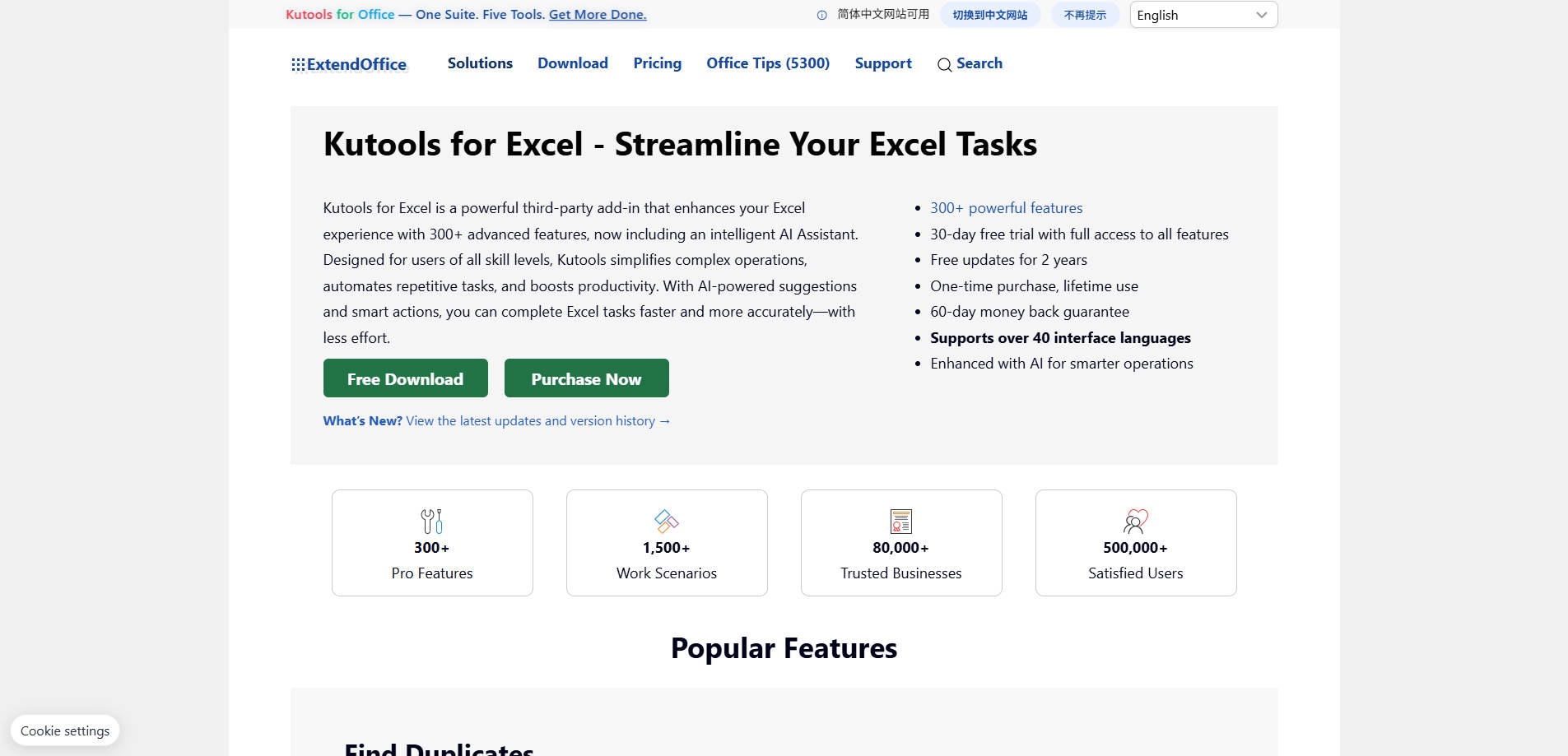
1. Kutools for Excel - Best for Splitting Sheets by Rows or Column Values
Overview: When a sales workbook has thousands of records that must be separated by team, month or client, Kutools for Excel offers purpose-built Split Data and Split Workbook commands inside Excel. The first creates new sheets by a column value or fixed row count; the second exports selected worksheets as independent files.
Key Features:
- Split Data by a selected column value or fixed row count.
- Repeat header rows and choose output names.
- Split Workbook exports selected sheets to XLSX, CSV, TXT or PDF.
Pricing: 30-day trial; paid license for continued use (check current offer).
Best For: Splitting Sheets by Rows or Column Values.
Our Take: The most flexible choice for routine reporting inside Excel, especially when one sheet needs to become many department-specific sheets. Check cross-sheet formulas before distributing output.
2. Aspose.Cells Splitter - Best Free Online Worksheet Extraction
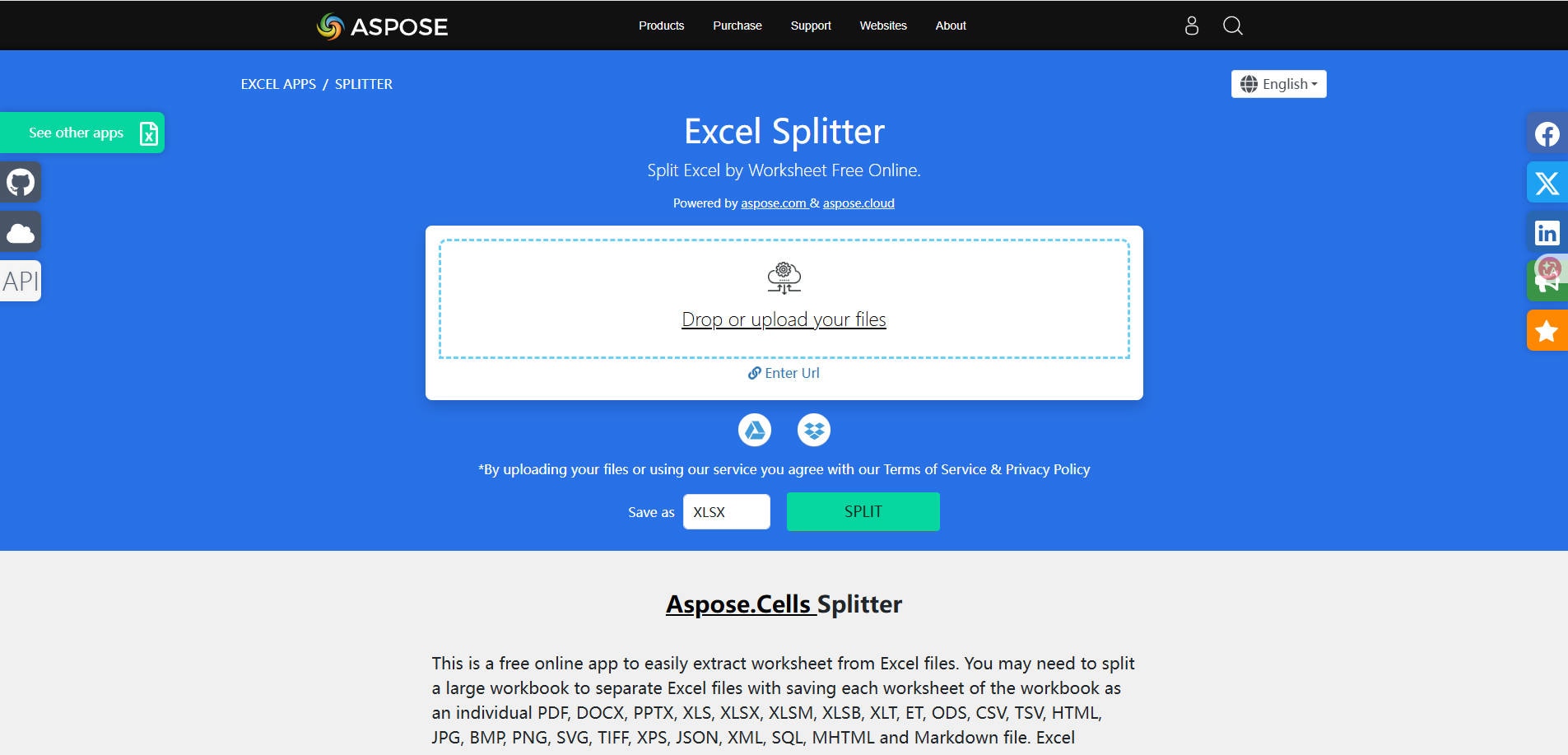
Overview: Aspose.Cells Splitter is a browser-based option for extracting individual worksheets from an existing Excel workbook. Upload a workbook, select an output format and retrieve a ZIP of separated files, without installing an Excel add-in.
Key Features:
- Extract workbook worksheets into separate downloadable files.
- Choose spreadsheet or selected alternative output formats.
- Works through a browser on Windows, macOS and mobile systems.
Pricing: Free entry-level usage with registration, size and usage limits; higher tiers offered.
Best For: Best Free Online Worksheet Extraction.
Our Take: Useful when you simply need one file per worksheet; for confidential spreadsheets, review the upload and retention policy first.
3. SheetTools Split Excel Sheets - Best for Browser-Local Workbook Splitting
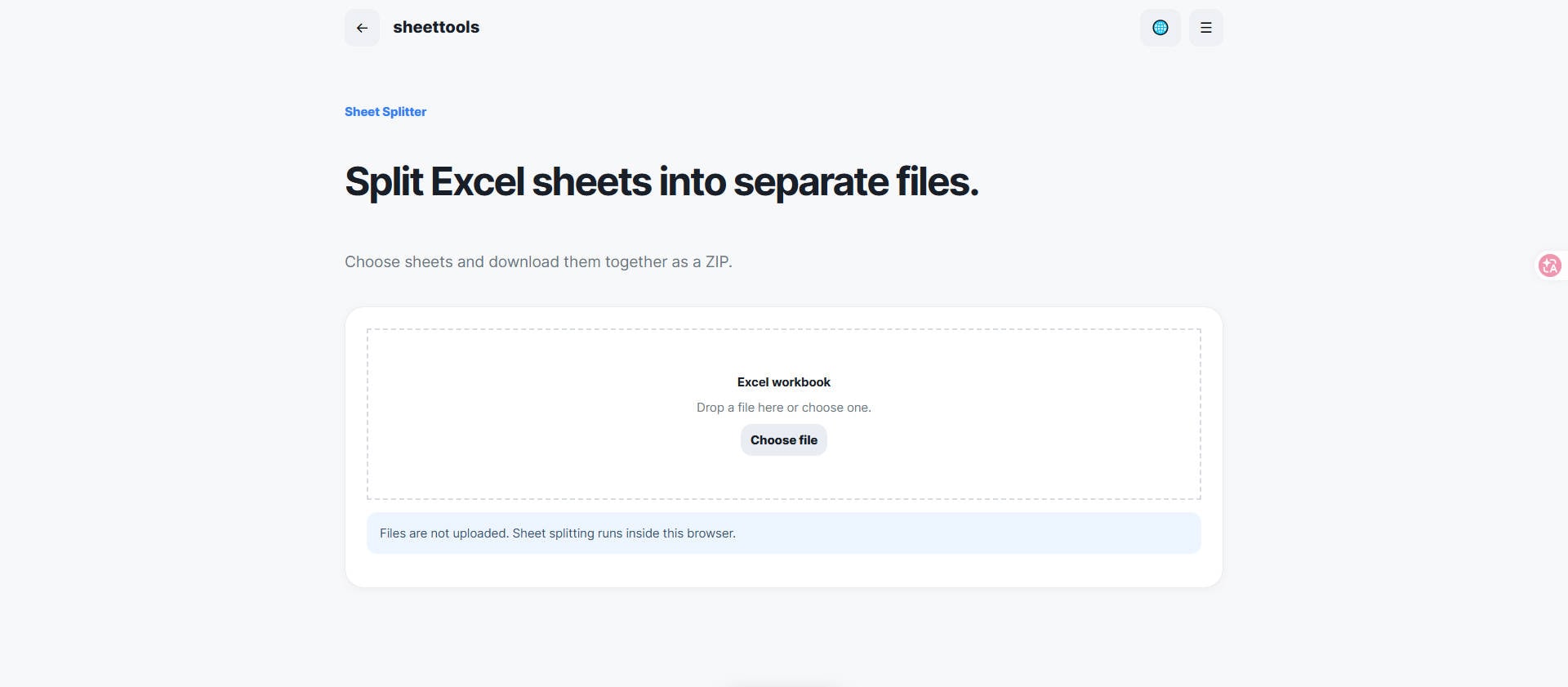
Overview: SheetTools Split Excel Sheets is an option for users who need Excel splitting. SheetTools includes a browser-local utility that separates each worksheet from a workbook into its own XLSX file and packages the results in a ZIP. Unlike upload-driven splitters, its tool directory says selected files are handled in browser memory.
Key Features:
- Split workbook sheets to separate XLSX files.
- Bundle resulting workbooks in one ZIP download.
- Process selected files in the browser without server upload.
Pricing: Listed as free browser tools; check availability when using.
Best For: Browser-Local Workbook Splitting.
Our Take: A sensible choice for quick privacy-conscious worksheet exports, provided you verify formulas, formatting and special workbook features afterward.
4. Gigasheet - Best for Splitting Large Excel Data by Filters
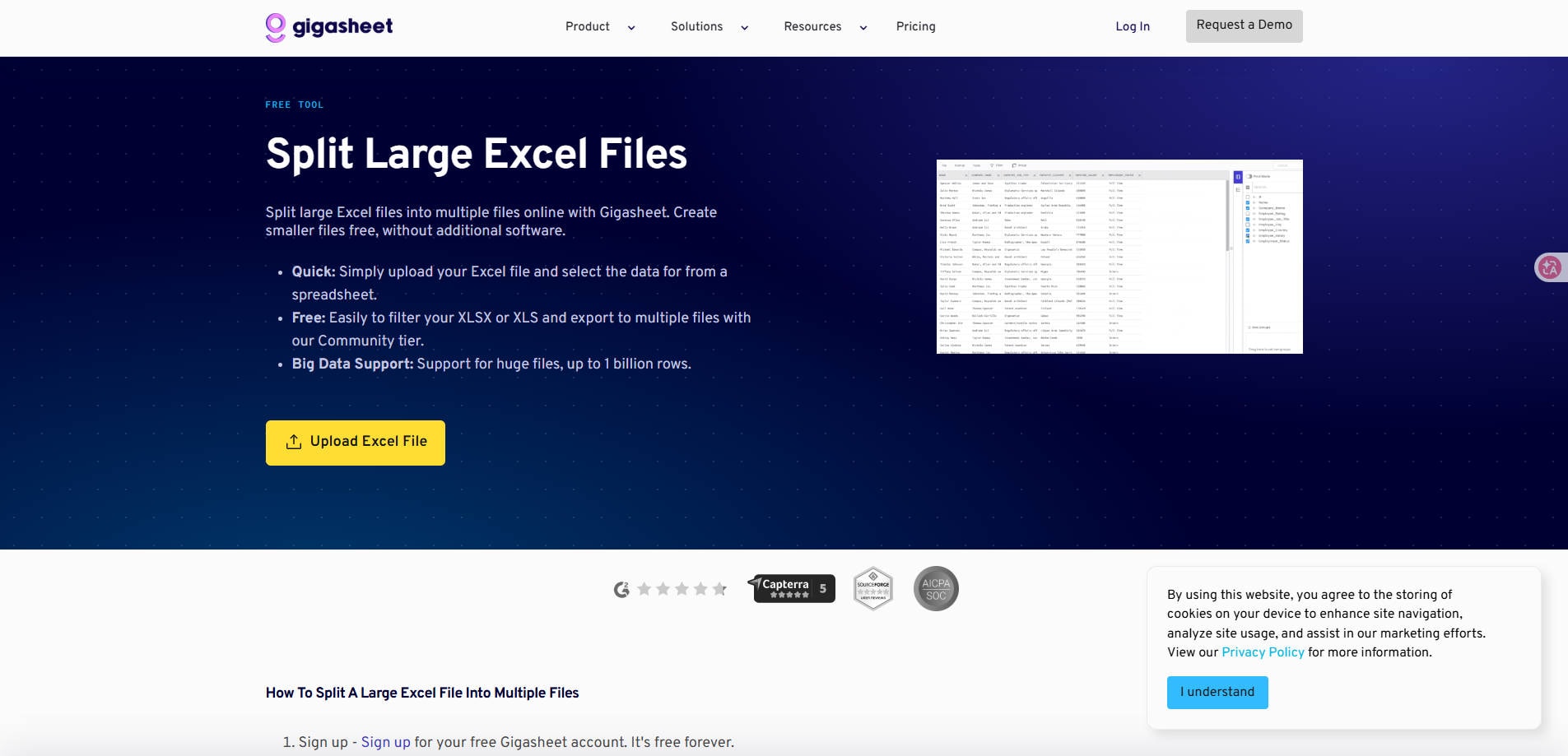
Overview: Gigasheet is different from a typical one-click sheet extractor. It is designed for opening, filtering and reshaping large Excel data sets in a cloud spreadsheet-like interface. You can export selected result sets as smaller files, with advanced filtered exports subject to plan restrictions.
Key Features:
- Import XLS or XLSX data and inspect it online.
- Filter rows to create task-specific data subsets.
- Export selected results as CSV files for downstream use.
Pricing: Free entry tier is advertised; splitting/exporting filtered results may require a paid plan.
Best For: Splitting Large Excel Data by Filters.
Our Take: Consider it for huge tabular exports rather than visually complex workbooks containing charts, formulas or macros.
5. TransTools Excel File Splitter - Best for Translation Team Workbooks
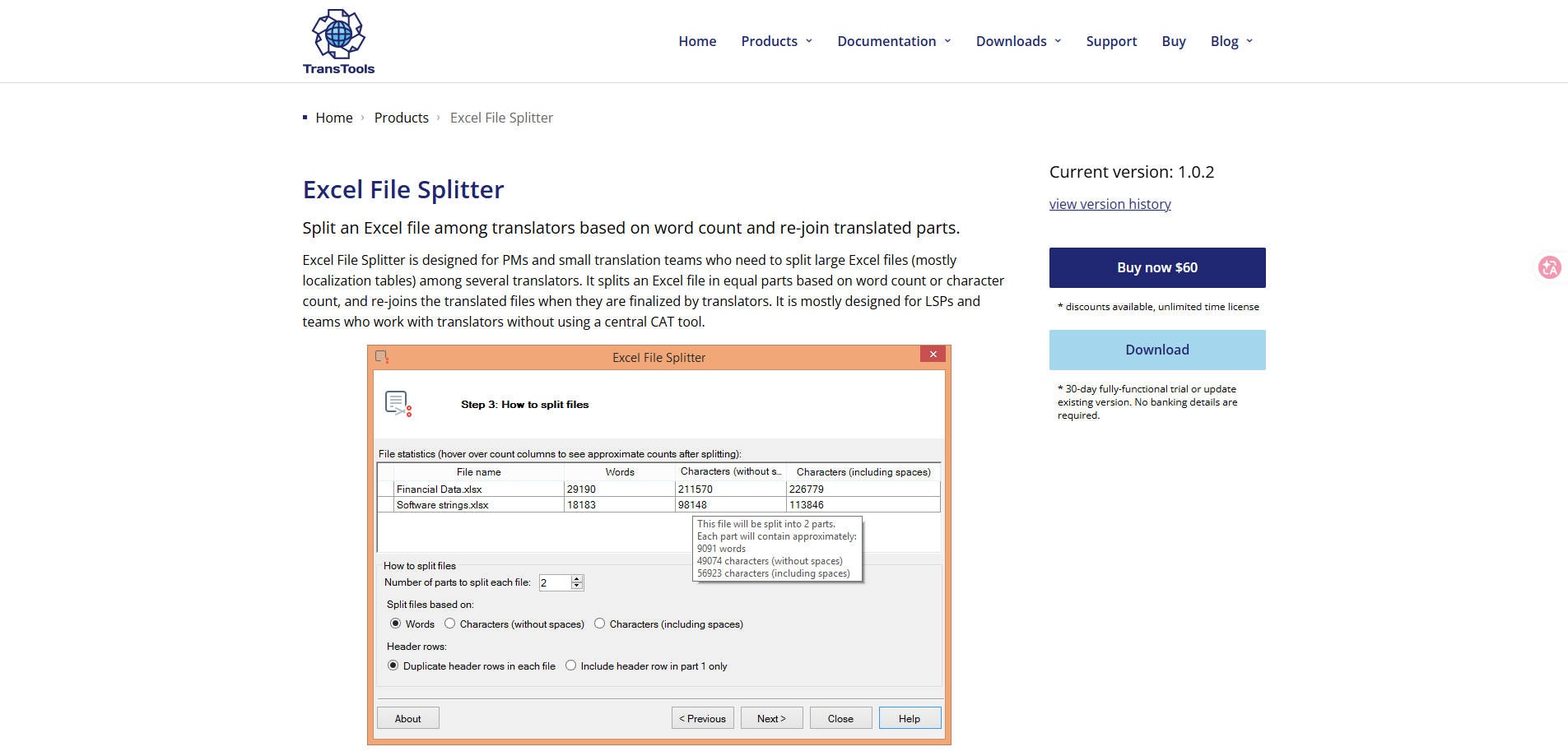
Overview: TransTools Excel File Splitter targets localization managers who need to distribute spreadsheet strings to several translators. Instead of splitting by equal numbers of rows, it aims to balance the number of words or characters and later reunite the tool-generated parts.
Key Features:
- Divide selected rows using word count or character count.
- Retain designated header rows in split parts.
- Rejoin parts generated by its own splitting process.
Pricing: 30-day fully functional trial; US$60 regular single-user license on the vendor site.
Best For: Translation Team Workbooks.
Our Take: Choose it when your goal is assigning translation workloads. For ordinary one-worksheet-per-file jobs, a simpler utility is a better fit.
6. LantechSoft Excel File Splitter - Best for Batch Splitting Existing Excel Sheets
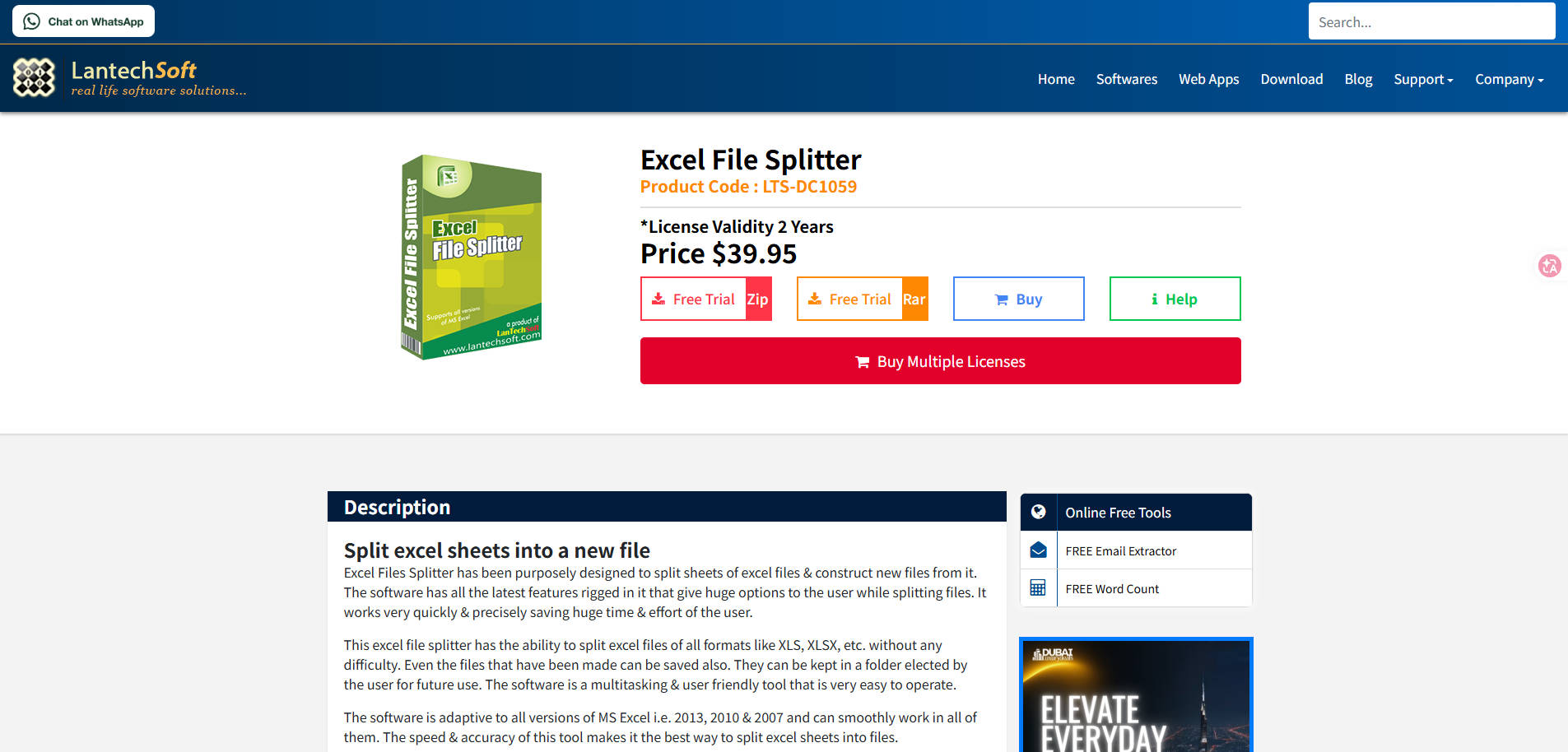
Overview: LantechSoft Excel File Splitter focuses on taking Excel sheets out of workbooks and saving separate files. Its product page describes Add Files and Add Folder inputs followed by a destination-folder selection, making it a candidate for desktop batch handling.
Key Features:
- Add individual Excel files or a folder for processing.
- Split Excel sheets into separate output files.
- Save generated files in a chosen location.
Pricing: US$39.95 listed with two-year license validity.
Best For: Batch Splitting Existing Excel Sheets.
Our Take: Potentially useful for a legacy batch workflow, but validate trial availability and modern Office compatibility before purchasing.
7. GroupDocs XLSX Splitter - Best for Selecting Spreadsheet Pages Online
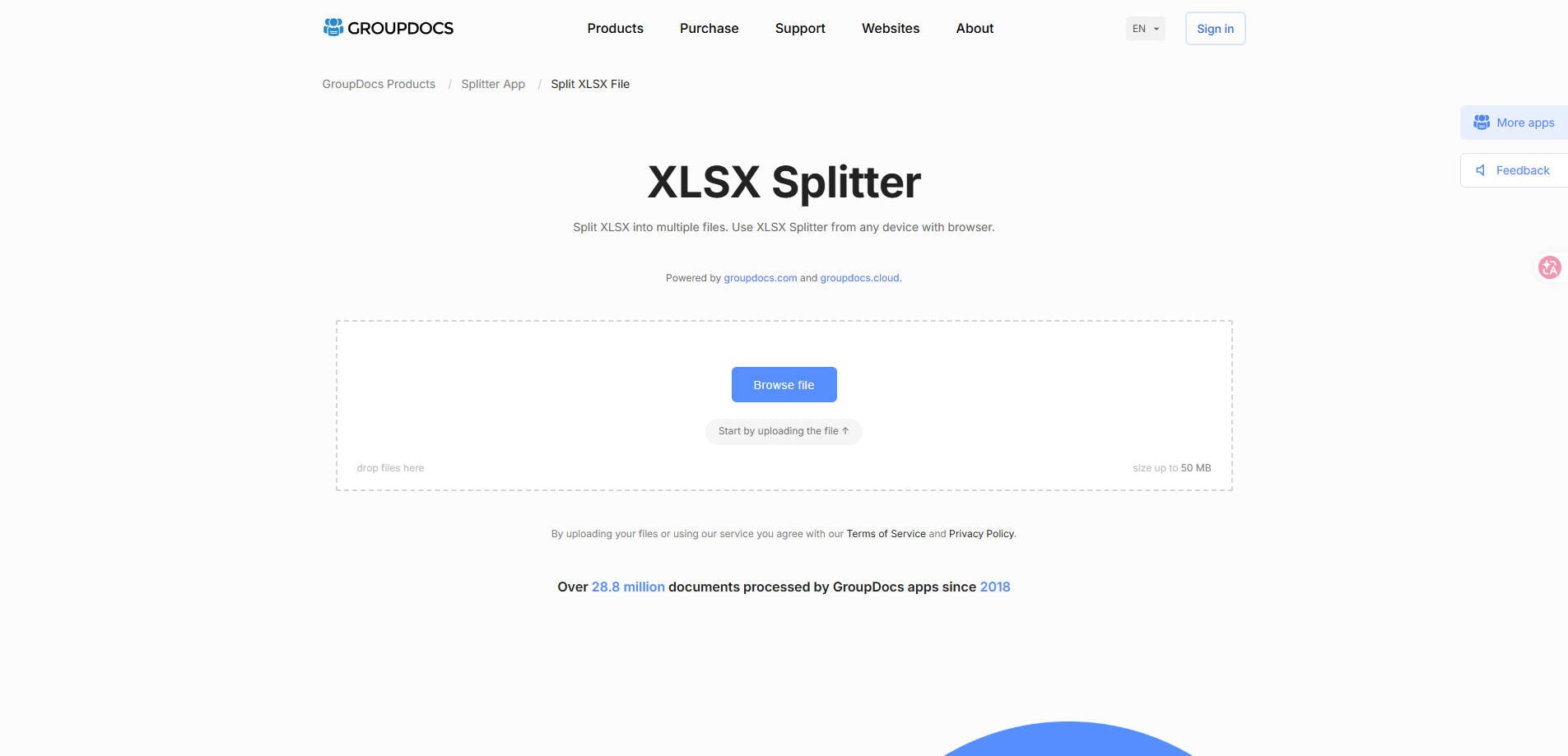
Overview: GroupDocs XLSX Splitter offers a browser-based page-selection workflow with options such as page numbers or every N pages. It may help with page-oriented spreadsheet extraction, but page-based splitting is not the same as splitting Excel rows by customer or exporting each logical worksheet.
Key Features:
- Upload XLSX through a web browser.
- Choose pages or a repeating page interval to split.
- Download the output or send a download link.
Pricing: Free online tool; stated file size limit up to 50 MB.
Best For: Selecting Spreadsheet Pages Online.
Our Take: Use it only if page-based extraction matches your target; choose Kutools, Aspose or SheetTools for conventional worksheet splitting.
Part 3: How to Split an Excel Workbook into Separate Files
Method 1: Export Worksheets as Separate Workbooks
Make a copy of the original workbook. In Excel, right-click a worksheet tab, choose Move or Copy, select (new book), check Create a copy, and save the resulting workbook. Repeat for additional tabs. For many tabs, use a verified worksheet splitter to reduce repetition.
Method 2: Split Rows by Department, Date, or Customer
First confirm that the header row is consistent and remove unintended blank rows. In a tool that supports split by column value, select the relevant field, such as Department, and produce separate outputs for each unique value. Keep a copy of the master sheet and compare the sum of output records with the original row count.
Method 3: Split Large Files into Fixed Row Groups
For a data export with 90,000 records and an upload limit of 20,000 rows, choose a splitter that supports fixed-row groups, set the chunk size to 20,000, and retain column headings in every output. Check whether the tool counts the header row toward each file's row limit.
Part 4: What Happens to Formulas, Formatting, and Hidden Sheets?
Splitting an Excel workbook changes its context. A formula such as =Summary!B2 may no longer work if the source worksheet is excluded from the output; links to other workbooks can become external references. Values-only exports, particularly CSV, discard Excel formatting and formulas entirely.
| Workbook element | What to verify after splitting |
| Formulas | Check cross-sheet references, named ranges, and calculation results. |
| Formatting | Inspect merged cells, number formats, conditional formatting, and print areas. |
| Charts and pivot tables | Confirm the underlying source ranges still exist in the output. |
| Hidden sheets | Check whether the splitter includes or excludes hidden tabs. |
| Macros | Do not assume an XLSX export preserves VBA from an XLSM original. |
| Data completeness | Compare source and output record counts; inspect duplicate or missing header rows. |
Keep your untouched original and verify a sample of the output files before sending them to colleagues. If the workbook contains confidential records, favor a local-processing option over a cloud upload when your organization's policy requires it.
Part 5: How to Choose the Right Excel Splitter
- Many worksheet tabs: choose a sheet-to-workbook exporter, such as Aspose.Cells or SheetTools.
- One large table split by customer or category: look for a split-by-column-value function, such as Kutools Split Data.
- Very large tabular datasets: a filtering-and-export platform may be more practical, but verify subscription restrictions.
- Localization handoffs: use a specialized word- or character-count splitter, such as TransTools.
- Strict confidentiality: check whether the file stays local, where it is processed, and whether uploads are retained.
The safest choice is not necessarily the one with the longest feature list. Pick the tool that produces the output structure you actually need and verify a small sample before processing your full workbook.
Part 6: What If Your Excel Workbook Is Corrupted Before Splitting?
Sometimes an Excel file will not open, displays an unreadable-content warning, or fails to save correctly. That is a different problem from needing to split a working workbook. Make a copy and first try Excel's built-in Open and Repair option: File > Open > Browse, select the workbook, open the arrow beside Open, and choose Open and Repair. If Excel can recover the workbook, check the formulas and sheet data before splitting it.
When the copy remains damaged and cannot be opened, Wondershare Repairit provides a separate Excel file repair workflow for supported corrupted spreadsheet files. It is not an Excel sheet splitter and cannot reconstruct data that is truly absent or overwritten.
Step 1. On a computer, open Repairit File Repair and add a copy of the corrupted Excel workbook.
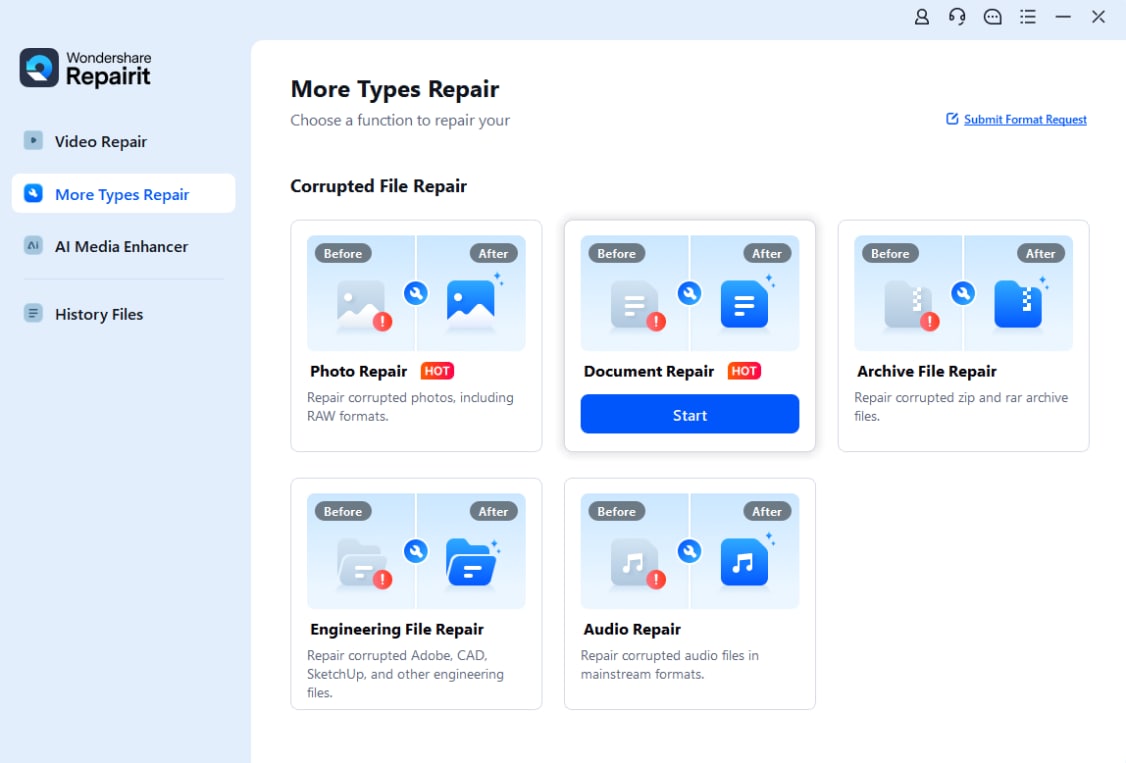
Step 2. Start the available repair process and wait for the software to finish analyzing the file.

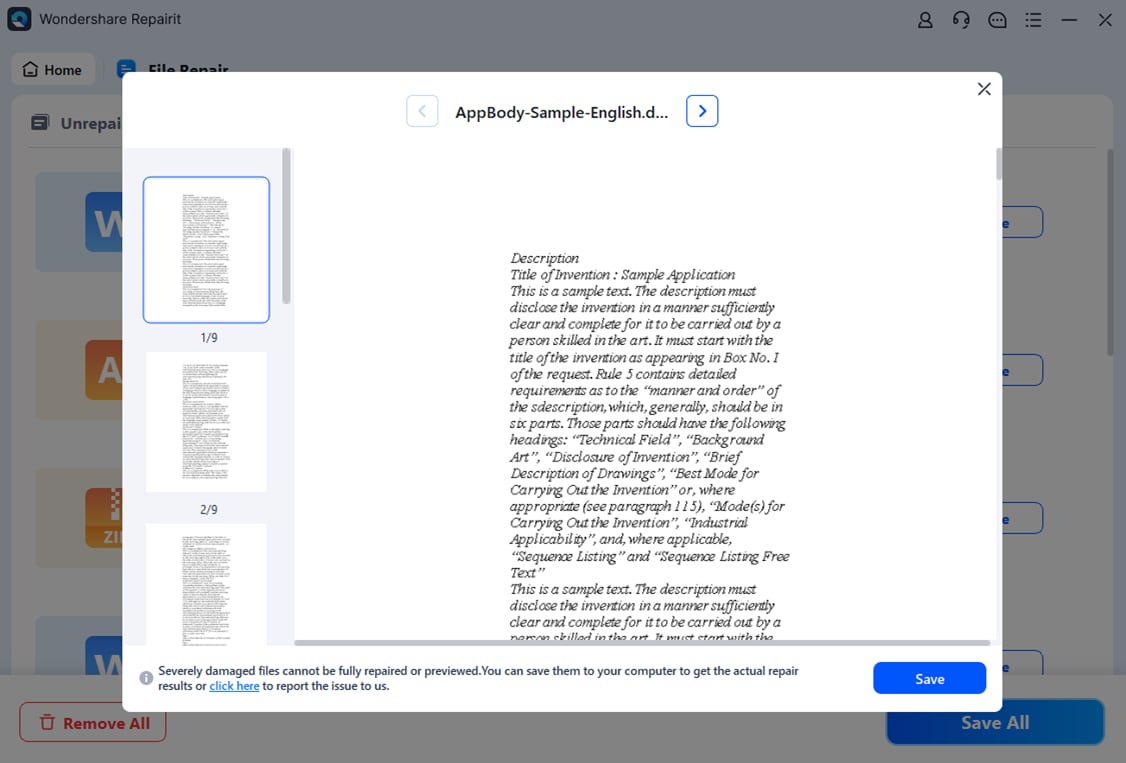
Step 3. Preview the result where supported, save it to a different destination, and reopen the saved workbook in Excel. Verify the values and formulas before using a splitter.
Part 7: Conclusion
The best Excel sheet splitter depends on the kind of split you need: separate workbooks for each tab, smaller row groups, or category-based files. Kutools covers the broadest mix of in-Excel splitting tasks in this selection, while Aspose.Cells and SheetTools suit simpler worksheet exports. For massive data exports, Gigasheet is worth evaluating; translation teams have a more specialized option in TransTools. Always check the results against your source workbook before distributing them, especially when formulas and hidden sheets matter.
FAQ
-
Can I split a protected or password-encrypted Excel workbook?
Most splitters cannot process an encrypted workbook without access to the password. Open an authorized copy in Excel and remove the protection only if you have permission; do not upload sensitive files to an unfamiliar service. -
Will an XLSM workbook keep its macros after splitting?
Not automatically. Exporting to XLSX removes VBA macro capability, and many splitters do not preserve all macros even when using XLSM. Verify the output format and inspect the VBA project before relying on a split copy. -
Why are formulas showing #REF! in the split files?
A formula may point to a worksheet or named range that was not included in the new file. Inspect dependencies in the original workbook and consider keeping dependent sheets together or exporting calculated values when that meets your needs. -
Is it safe to upload payroll or customer data to an online splitter?
Check the vendor's processing location, deletion policy, data-handling terms and your organization's rules first. For sensitive datasets, browser-local or approved desktop processing may be preferable. -
Can I split Excel data into one workbook per unique customer name?
Yes, but only with a data splitter that supports grouping by column values. A basic worksheet extractor will only make one file per existing tab and will not create customer groups automatically.