
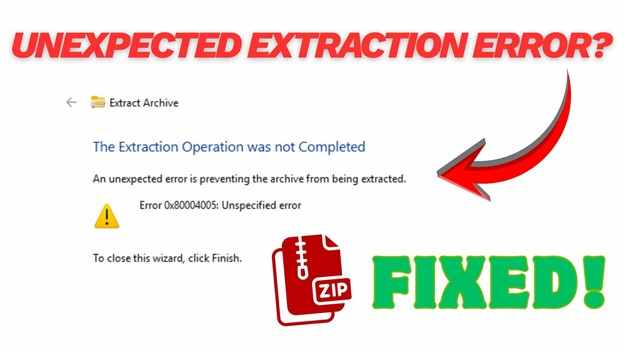
The "unexpected error" usually happens when your computer runs into a problem it can't fix on its own. This can be because the file path is too long like when folders have very long names, or because you don't have permission to open or extract the file. Sometimes, the problem is with the file itself, if the download was incomplete or your storage has issues, the file can become damaged and unreadable.
By checking these possible causes one by one, like moving the file to a simpler location or using a different extraction tool, you can often fix the issue. This guide will walk you through easy steps to figure out whether it's just a simple setting problem or a damaged file, so you can access your data again without hassle.
In this article
Part 1. What Causes Unexpected Error Preventing Archive Extraction
Before fixing the problem, it's important to understand why the "unexpected error" happens. In most cases, it isn't random and is usually caused by a few common issues.
- File Path is too long. If your file is stored inside many folders or has a very long name, the system may fail to extract it. Moving the file to a simple location like your Desktop can often fix this issue.
- File is Damaged (Corrupted). This can happen if the download was interrupted or if there are problems with your storage. Even a small missing part of the file can make it unreadable, which leads to the error.
- Permission or Security Issues. Files downloaded from the internet may be automatically blocked by Windows to protect your computer. Also, trying to extract files into protected folders, like Program Files, without admin access can stop the process.
- Not Enough Storage Space. Compressed files become larger when extracted, so if your drive doesn't have enough free space, the process may fail and show an error.
- Incompatible Software. Some files require newer extraction tools, and the default Windows tool may not support certain formats, causing it to fail.
- Conflicting third-party software. Sometimes your antivirus may mistakenly block a file while it's being extracted, stopping the process. Also, if you have multiple extraction programs installed (like 7-Zip or WinRAR), they can interfere with each other and cause errors.
- System file corruption. If some Windows system files are damaged, possibly a bad update or improper shutdown, the built-in tool for opening ZIP files may stop working properly. In this case, the issue is with your system, not the file.
- Missing parts of a split file. Large files are sometimes divided into several parts (like part1, part2, etc.). If even one part is missing or placed in a different folder, the extraction will fail because the file is incomplete.
- Encryption or file header issues. If a file is protected with a password or its basic information (called a header) is damaged, your computer may not know how to open it. This can lead to a general error message.
Part 2. Step-by-Step Solutions to Resolve Extraction Errors
If you're getting an extraction error, try these steps one by one. Start with the easiest fixes first, then move on to more advanced solutions if the problem still isn't solved.
Fix 1. Move the File to a "Shallow" Folder
If the file path is too long, Windows cannot process the extraction.
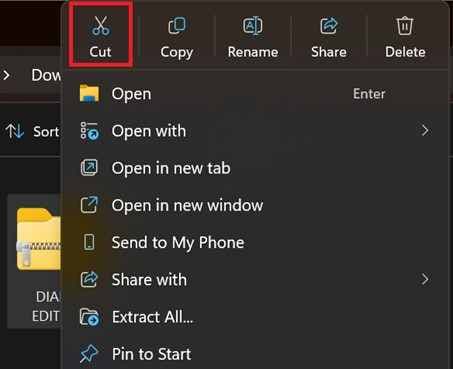
Step 1. Right-click your archive file and select Cut. Then go to your Desktop or open your C: drive (e.g., C:\).
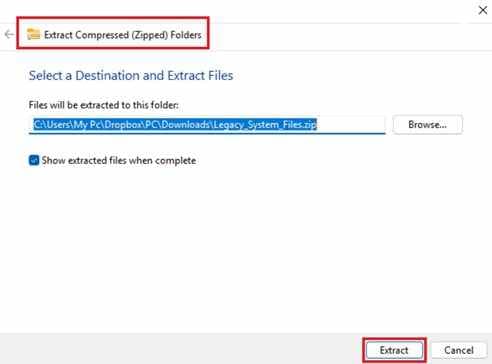
Step 2. Paste the file there then right-click the file in its new location and try extract it again.
Fix 2. Unblock the File Security Settings
Windows often restricts access to files downloaded from the internet as a safety precaution.
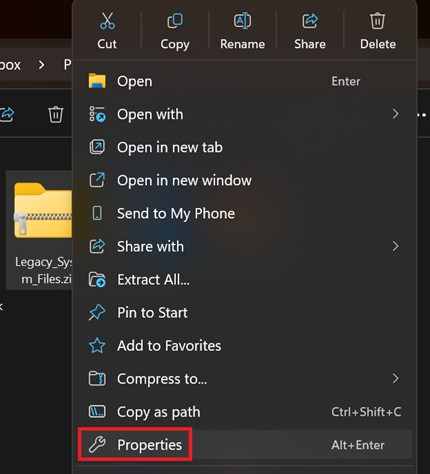
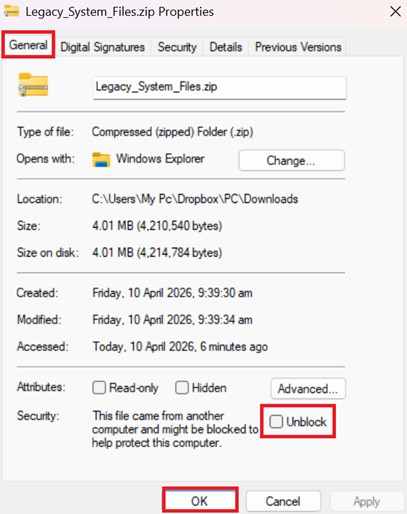
Step 1. Right-click the archive and select Properties. Stay on the General tab and look for the Security section at the bottom.
Step 2. Check the box that says Unblock. Click Apply, then OK, and try extracting the file.
Fix 3. Use Alternative Extraction Software
The default Windows tool is limited. Using a more robust program like 7-Zip or WinRAR can often bypass minor data errors.
Step 1. Download and install a reputable third-party tool like 7-Zip or WinRAR. Right-click your archive file.
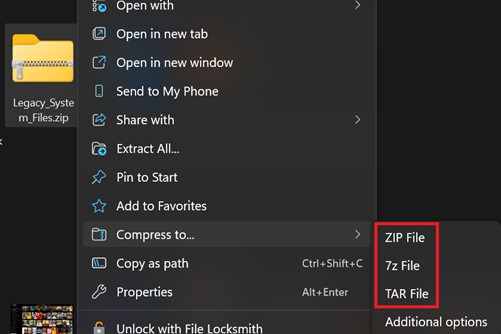
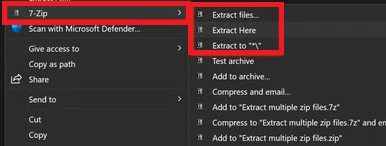
Step 2. Hover over the new software's menu (e.g., "7-Zip") and select Extract Here or Extract to [Folder Name].
Fix 4. Execute the Extraction as an Administrator
Sometimes the error is simply a lack of permission to write files to a specific drive.
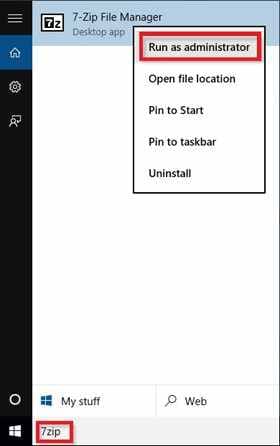
Step 1. Click the Start menu and type the name of your extraction program (e.g., "7-Zip File Manager") then right-click the program icon and choose Run as administrator.
Step 2. Use the program's internal file explorer to find your archive. Select the file and click the Extract button at the top of the window.
Fix 5. Repair the Archive Utility
If the archive is slightly damaged, you can try to rebuild its internal structure.
Step 1. Open your archive using a tool like WinRAR then choose the Tools tab.
Step 2. Select Repair archive then choose a destination for the repaired file and try extracting the newly created "fixed" version.
Fix 6. Perform a Windows System File Check
If the extraction utility itself is broken, you need to repair your operating system's core files.
Step 1. In your Windows search bar, type cmd then right-click Command Prompt and select Run as administrator.
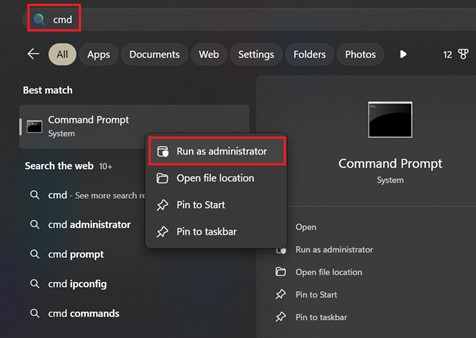
Step 2. After typing the command sfc /scannow and press Enter. Once the verification is 100% complete, restart your computer and try the extraction again.
Fix 7. Verify Destination Disk Space
An archive can fail if there isn't enough room to expand the compressed data.
Step 1. Open This PC or File Explorer. Right-click the drive where you are trying to save the files and select Properties.
Step 2. Ensure the "Free Space" is significantly larger than the size of the original archive. If space is low, delete temporary files or move the extraction destination to a different drive.
Part 3. When File Extracting Are Due to Corruption (Optional)
If your system settings are correct but you still cannot access your data, the archive itself is likely damaged. Here is how to identify corruption and how professional tools can help.
3.1 How to tell if the Problem is Damaged
The user can check whether the file itself is the issue by attempting to open it on a different device or using different software. If the same "unexpected error" persists across multiple platforms, the file structure is likely compromised. Signs that corruption may be the cause include:
- CRC Errors - Receiving a "Cyclic Redundancy Check" message during extraction.
- Incomplete Size - The file size on your disk is significantly smaller than the size listed on the original download source.
- Unexpected End of Archive - The extraction starts successfully but cuts off abruptly before finishing.
- Header Errors - The system claims the file is "not a valid archive" or cannot recognize the format.
- Password Failure - The archive refuses a known correct password or fails to trigger the password prompt entirely.
3.2. What repair tools can and cannot do
It is important to manage expectations when using recovery software. While powerful, these tools have specific limitations.
It CAN:
- Fix the "opening" data of a file so the operating system recognizes it again.
- Recover data from archives that have "bit rot" or small segments of missing code.
- Realign the internal list of files within an archive so they can be extracted individually.
- Extract the uncorrupted files from a partially damaged folder while discarding the broken ones.
It CANNOT:
- Create Data from Nothing. If a 5GB file only downloaded 2GB, a repair tool cannot "guess" the missing 3GB of information.
- Bypass or recover forgotten passwords on protected archives.
- Fix Overwritten Data. If the file was corrupted because new data was written over it on a hard drive, the original information is permanently gone.
3.3 How to use a repair tool
If you confirm the file is corrupted, a repair tool can safely restore its functionality. One example is the Repairit File Repair Tool, which works with common file types like ZIP, RAR, and various document formats to stabilize the data structure.
Step-by-Step (Optional)
Step 1. Add the corrupted file.

Step 2. Start the repair process.
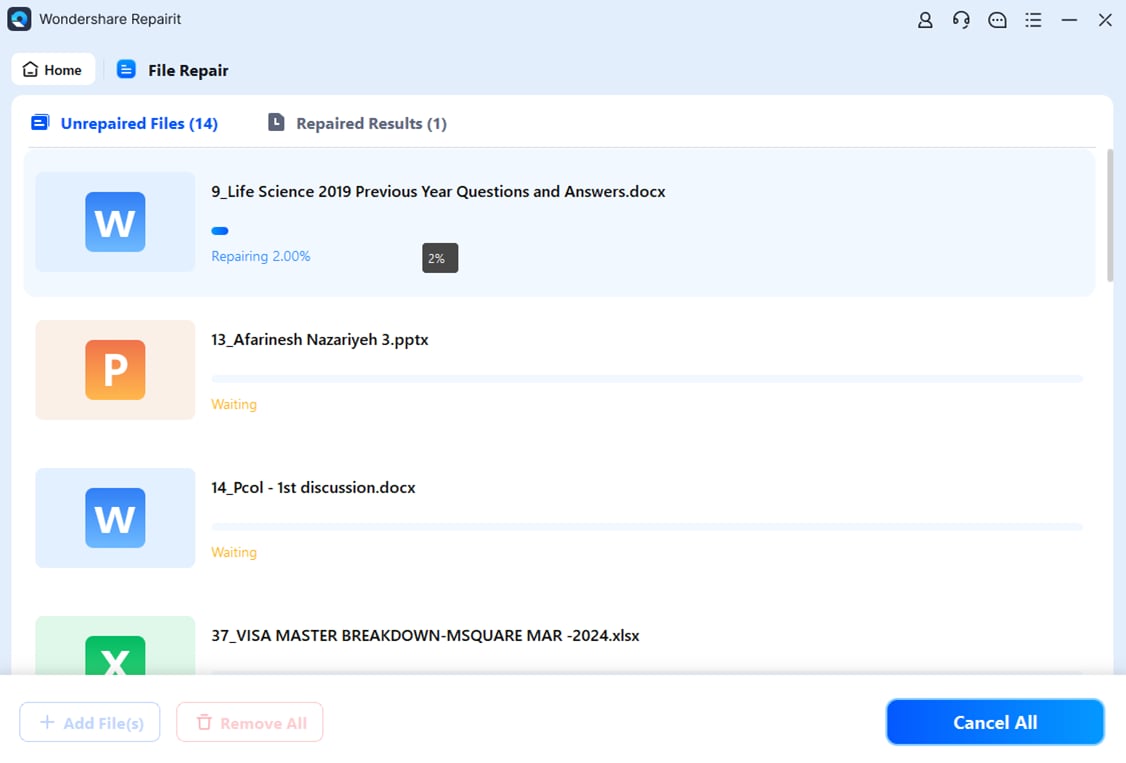
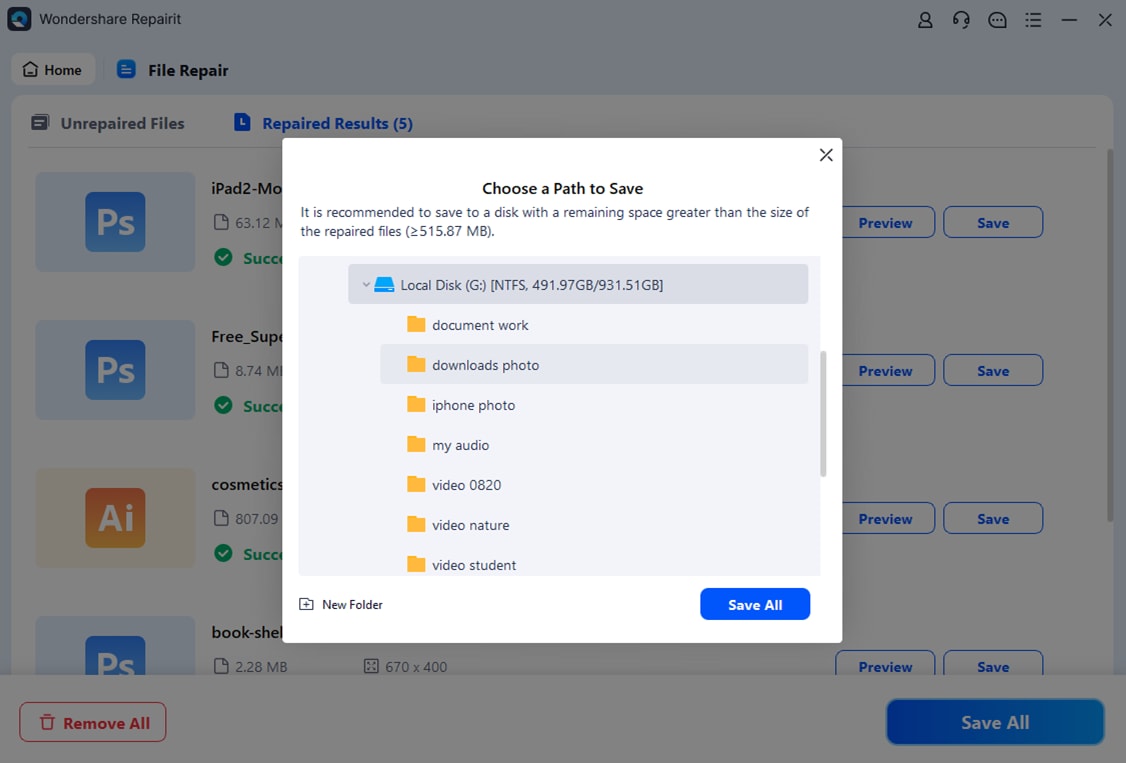
Step 3. Preview the repaired file and save it to a new location.
Part 4. Tips for Managing Archives
To avoid unexpected errors in the future, you can follow a few simple habits when downloading or creating compressed files.
- Use easy-to-open formats - When sharing files, use the .zip format since it works on almost all devices without extra software. You can use .7z or .rar for personal use or large files, but they may need special programs to open.
- Check your files right away - After downloading or creating an important file, test it using your extraction tool. This helps you catch problems early so you can fix or re-download the file while it's still available.
- Keep folders simple - Avoid placing files inside too many folders. Try to keep file paths short and use simple file names so your system won't run into limits.
- Make sure downloads are stable - Large files can get damaged if your internet connection is unstable. Use a download manager for big files so you can resume downloads if they stop. It's also better to avoid downloading on weak or public Wi-Fi.
- Keep your tools updated - Make sure your extraction software is always up to date. Newer versions work better with modern file formats and can handle errors more effectively.
- Add recovery options when possible - If you're using tools like WinRAR, you can add a recovery record when creating an archive. This adds extra data that can help fix the file if it gets slightly damaged later.
Conclusion
Getting an "unexpected error" while extracting files can be frustrating, but it usually isn't permanent. Most of the time, it can be fixed by checking common issues like long file paths, restricted permissions, or small file corruption. You can often solve these problems using Windows tools or trusted extraction software. If the file itself is damaged, repair tools may help recover it. To avoid future issues, keep file paths short, use stable downloads, and follow good file management practices.
FAQs
-
Why does Windows show an error saying the file path is too long?
Windows has a limit on how long a file's full path can be (usually 260 characters). If the file is inside too many folders or has a very long name, it may fail to extract. Moving the file to your Desktop or C: drive usually fixes this. -
Can I recover files from a partially downloaded archive?
It depends. Repair tools can sometimes recover parts of the file, but they cannot replace missing data. If the download was incomplete, the best solution is usually to download the file again. -
Is it safe to use tools like 7-Zip or WinRAR?
Yes. Trusted tools like 7-Zip and WinRAR are safe and widely used. They can even open files that Windows cannot handle properly. -
Is it safe to unblock a file in Properties?
Yes, as long as you trust the source. Windows blocks some downloaded files for security reasons. If you're sure the file is safe, unblocking it allows it to work properly. Always keep your antivirus on for safety. -
How do I know if the problem is my computer or the file?
Try opening the file on another device. If it still doesn't work, the file is likely corrupted. If it works elsewhere, then the issue is probably your computer settings or system.




