
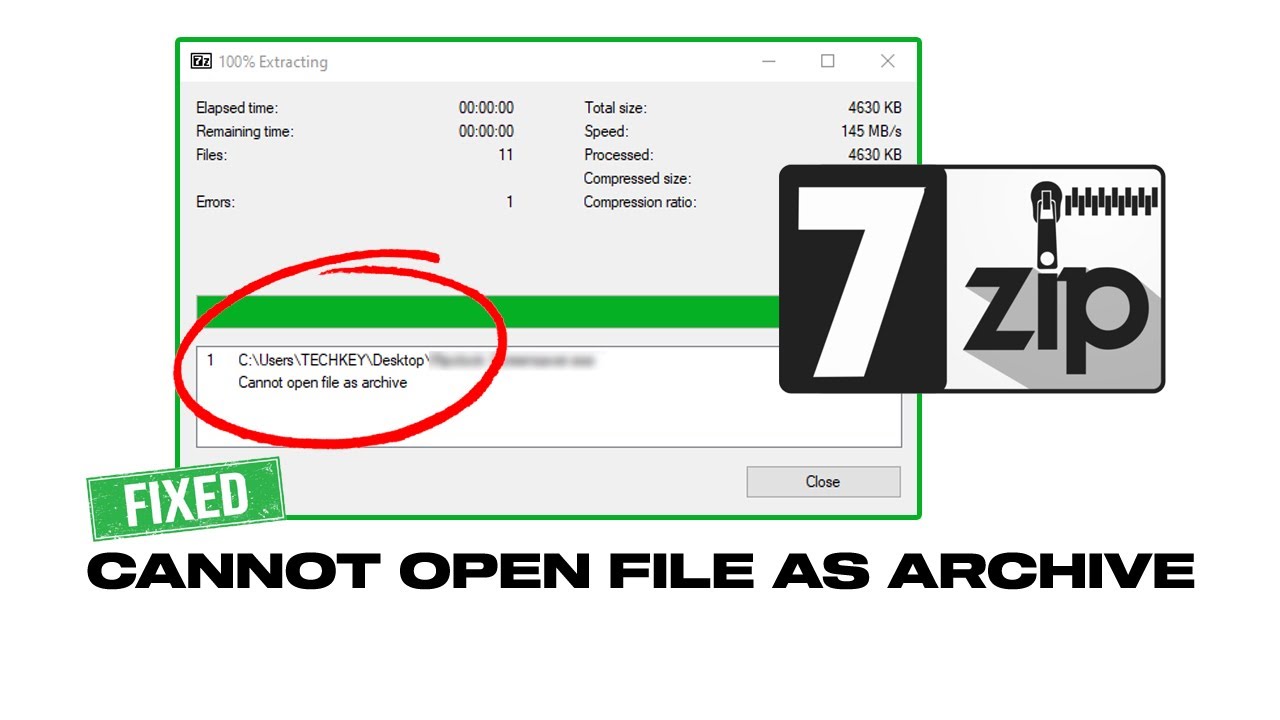
7-Zip is a free, open-source tool used to compress and extract archives. It supports many formats (ZIP, WIM, GZIP, TAR, and more), and its own 7z format is popular for high compression. But like any archive, a 7z file can break—especially after an incomplete download, a transfer interruption, or a storage issue.
In this guide, you’ll learn what the "7z cannot open file as archive" / "cannot open the file as 7z archive" error really means, how to fix it step by step, and what to do when the archive is genuinely corrupted.
Quick Answer (Most cases in 2 minutes)
If you see "7z cannot open file as archive," do this in order:
- Re-download the archive (most common cause: incomplete file).
- Confirm the file is truly .7z (not a renamed ZIP/RAR).
- Use 7-Zip "Test" to confirm corruption.
- Try extracting with another tool (WinRAR/Bandizip) to salvage readable parts.
- If nothing opens, the archive is likely corrupted—use a dedicated repair approach.
How to Choose the Right Fix (If/Then Fix Selector)
- If the file size looks suspicious (too small vs expected) → Re-download.
- If the extension looks right but the file type isn’t 7z → Verify format.
- If 7-Zip "Test" shows errors → Attempt alternate extraction.
- If every tool fails and the archive contains important data → Consider archive repair.
Table of Contents
Part 1. What Does "7-Zip Cannot Open File as Archive" Mean?
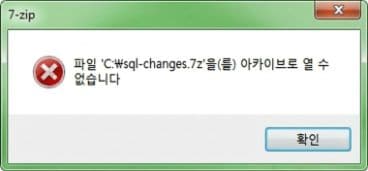
This error appears when 7-Zip can’t read the archive structure. You might see similar messages like "7z cannot open file as archive" or "cannot open the file as 7z archive," but they point to the same issue: the archive format can’t be recognized correctly, or the file is too damaged to extract.
This error usually shows up when:
- Trying to open a corrupted or partially downloaded 7z file.
- Opening a file that isn’t actually a supported archive (even if it ends with .7z).
- Extracting an archive that was interrupted during compression or transfer.
- Working with a file damaged by storage errors, malware, or sudden system shutdowns.
The most common reasons behind this error include:
- File Corruption: Damage in the header, index, or data blocks can make the archive unreadable.
- Wrong File Format: The file may be ZIP/RAR/ISO that was renamed to .7z by mistake.
- Incomplete Download or Transfer: The archive may be missing the final chunks needed to open.
- Software Compatibility Issues: Older versions of 7-Zip may struggle with certain archive methods.
- Virus or Malware Damage: Malicious software can alter the archive’s internal structure.
Part 2. How to Fix "7z Cannot Open File as Archive" (Step-by-Step)
If you notice the "7z cannot open file as archive" error, the archive is usually incomplete, mislabeled, or corrupted. The fixes below start with the safest options first.
Fix 1: Re-Download the Archive File
Before trying anything technical, start to resolve the most common cause: an incomplete or interrupted download. If the archive didn’t download fully, 7-Zip won’t be able to open it. Redownload the file again from a reliable source.
Step 1: Find the original download link.
Step 2: Download the file again and try opening it with 7-Zip.
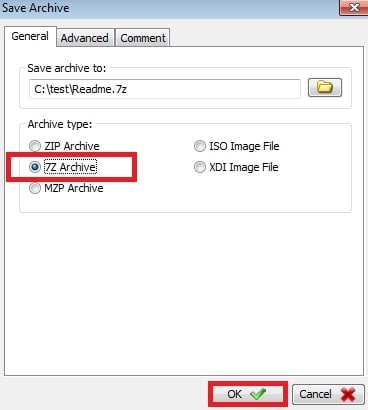
Re-downloading the file is the easiest fix, especially if the archive was damaged during the first download. Getting a fresh copy ensures the file is complete and unbroken. If it still won’t open, the file may be more damaged. Move on to the next fix.
Fix 2: Verify the File Extension & Archive Type
Sometimes the problem isn’t the file itself but its file extension. A file may look like a .7z archive, but it could actually be ZIP, RAR, or another format entirely. Check the real archive type to ensure 7-Zip is trying to open the file correctly and prevent unnecessary errors.
Step 1: Find File Explorer and find the archive.
Step 2: Right-click the archive and see its Properties.
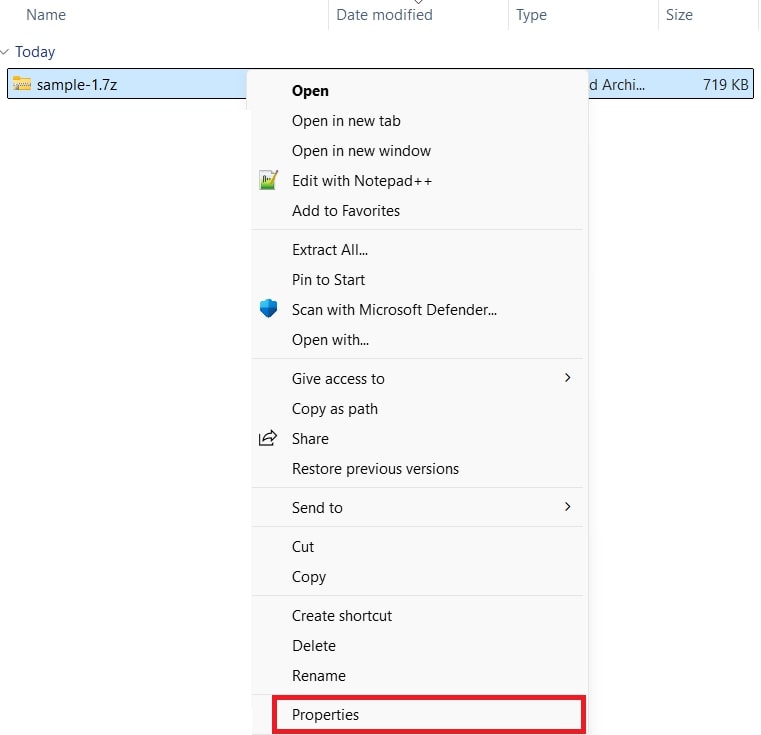
Step 3: The next tab will show you what type of file the archive is. Check if it's 7-Zip.
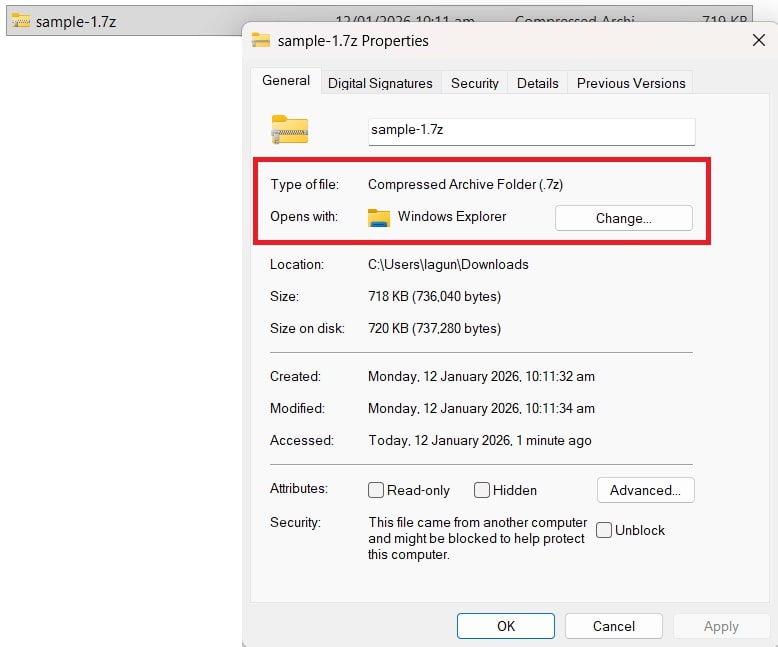
Fix 3: Try Opening the Archive with Another Tool (WinRAR / Built-in ZIP)
If 7-Zip can’t open the archive, try using a different compression tool. Some programs can open files even if 7-Zip fails. Make sure the tool supports the archive format.
Good alternatives include:
- WinRAR: Mainly for RAR files, but it can also open ZIP files.
- WinZip: A popular tool for opening, extracting, and protecting archives.
- Bandizip: Fast extraction and supports encrypted archives.
- Zipware: Supports many formats, including ZIP, RAR, 7Z, ISO, and TAR.
Here’s how to open 7Z Files with WinRAR:
Step 1: Ensure the .7Z file extension is checked in WinRAR’s settings.
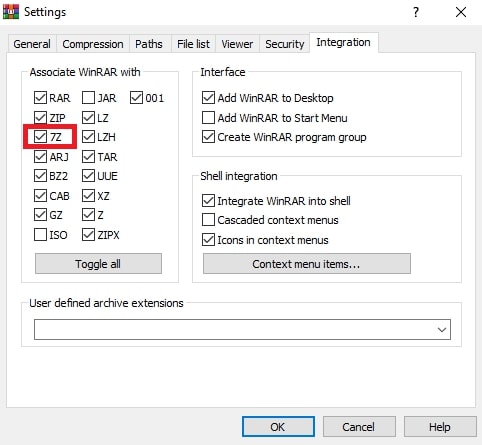
Step 2: Select the files you want, then click Extract To.
Step 3: Choose a folder and hit OK. Your files will be extracted and saved to the selected location.
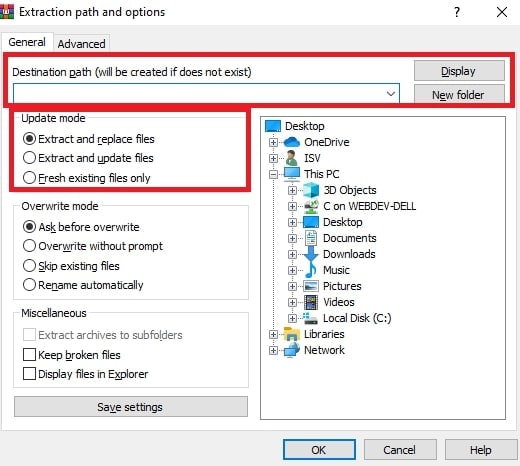
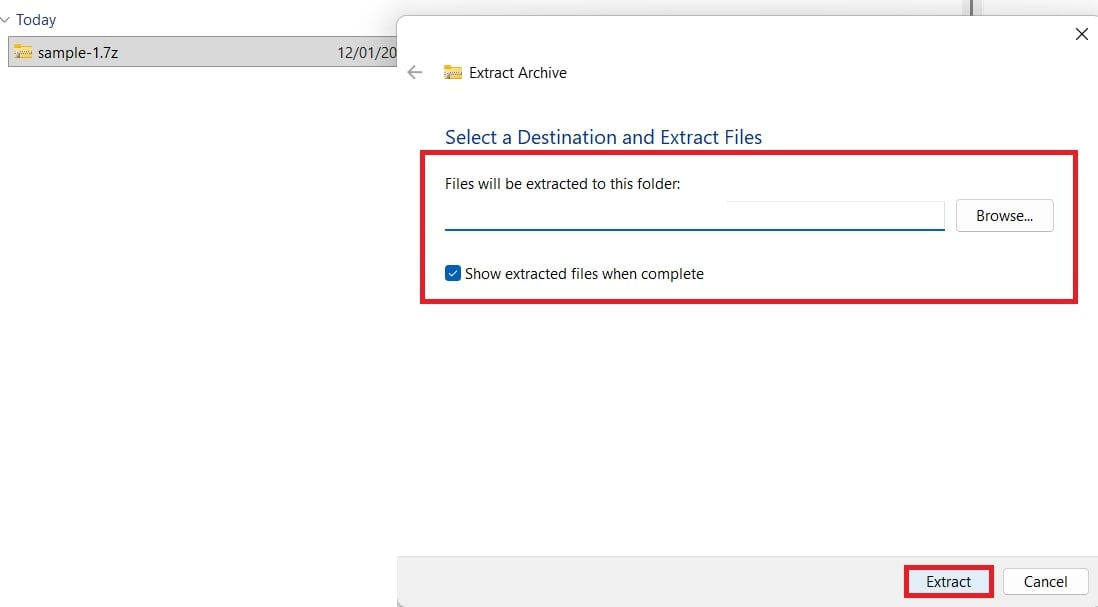
Also, Windows 10 has a built-in tool that can extract files from compressed archives without extra software.
Step 1: Open File Explorer and find your 7Z file.
Step 2: Right-click the file and choose Extract All.
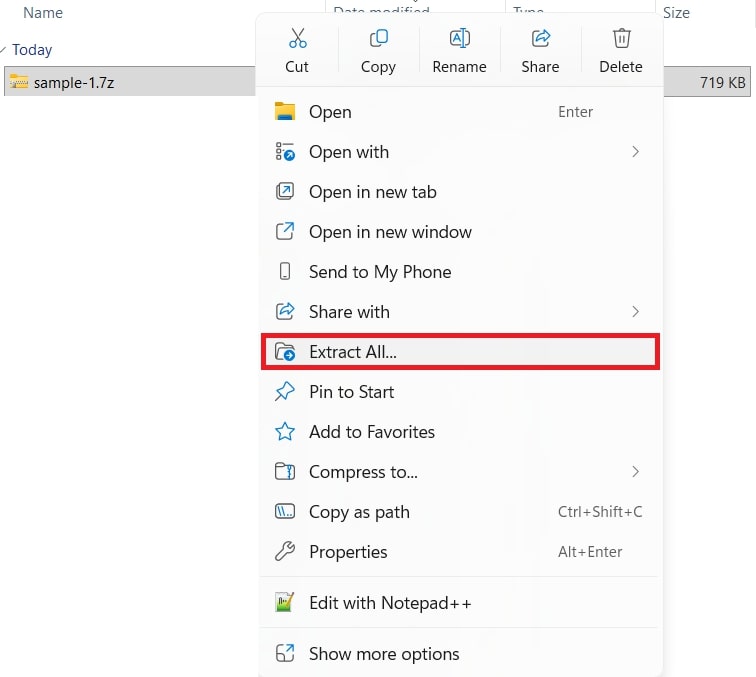
Step 3: Pick a location and click Extract to extract the files to a folder.
Fix 4: Test the Archive with 7-Zip "Test" Feature
7-Zip includes a built-in Test feature that checks the archive for errors. This will help you understand whether the file is damaged and how serious the problem is. Running a test gives clear feedback and can save time before attempting repairs.
Here are the simple steps to test an archive using 7-Zip’s "Test" feature:
Step 1: Open 7-Zip File Manager and find the archive file you wish to check.
Step 2: Select the archive and hit Test.
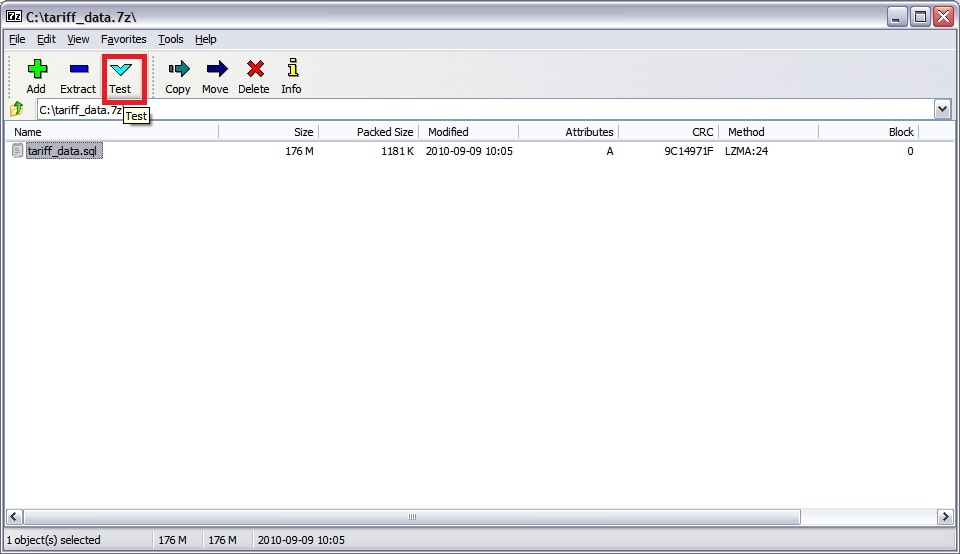
Step 3: Wait until the complete scan finishes and review the result. If it says "No errors," the archive is fine. If errors appear, the archive is likely corrupted.
Fix 5. Try Command-Line Checks and Extraction (7-Zip Command Prompt)
This "7Zip cannot open file as archive" error can happen when the archive has a damaged or incorrect header. You can fix it using the Command Prompt. 7-Zip archives manage command-line operations that can recover damaged archives.
Step 1: Access Command Prompt as an administrator.
Step 2: Enter the following syntax:
"C:\Program Files\WinZip\wzzip" –yf zipfile.zip
Note: Replace zipfile.zip with the name of your archive. Hold the quotation marks because of the space in Program Files.
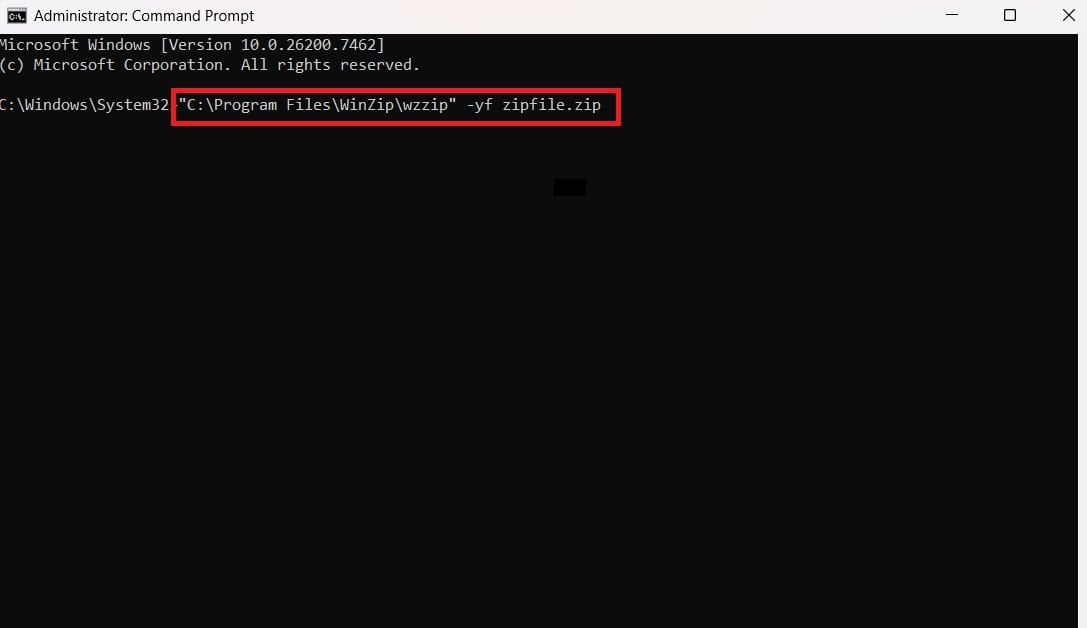
This method requires basic command-line knowledge, takes time and doesn’t guarantee full recovery. Because of these, using a repair tool is a more reliable and best option for fixing corrupted 7Z file errors.
Part 3. Archive Still Won’t Open? The File Is Likely Corrupted
If none of the fixes work, the archive is likely corrupted at a structural level (header/index/data blocks). This can happen due to interrupted downloads, crashes, transfer failures, bad storage sectors, or malware.
In that case, a dedicated archive repair tool can help repair the archive structure so it becomes readable again, or at least maximize the chance of extracting usable contents.
Repairit File Repair is designed to repair corrupted archives (including 7Z and other formats) by fixing broken headers and rebuilding damaged structure where possible. It’s most useful when standard archive tools can’t open or extract the file at all.
Key Features:
- Repairs archives that won’t open due to corruption, damaged headers, or incomplete transfers.
- Supports common archive formats, including 7Z, ZIP, RAR, ISO, and multi-part archives.
- Works in a read-only manner and saves a repaired copy (so your original file isn’t overwritten).
- Supports batch repair for multiple files (helpful when several archives are affected).
- Allows preview (when supported) before you save the repaired result.
Step-by-Step Guide:
Step 1: Install and open Repairit. Go to More Types Repair and File Repair.

Press Add to input your corrupted 7-Zip files.

Step 2: Tick Repair so Repairit will scan and fix the uploaded 7Zip files automatically.

Step 3: Tick Preview to double-check the repaired 7-Zip file before saving. If the result looks great, click Save or Save All to export multiple files at once. Your repaired 7Zip files will be saved and ready to open without errors.

Fix Corrupted 7Z Documents
 Security Verified. Over 7,302,189 people have downloaded it.
Part 4. How to Prevent "Cannot Open the File as 7z Archive" Errors
To avoid the "Cannot open the file as 7z archive" error in the future, follow a few simple habits. These steps help keep your archive files working properly.
- Always let downloads finish before opening an archive. A broken or stopped download is one of the main reasons 7Z files won’t open. Download files from trusted sources and use a stable internet connection.
- Don’t rename archive file extensions by hand. Changing a file from .zip to .7z does not convert it and can cause errors in 7-Zip. Use the correct tool to create or convert archives instead.
- Keep 7-Zip and your system up to date. Updates fix bugs and improve support for newer archive formats, which helps prevent opening problems.
- Save archive files on healthy storage devices. Damaged hard drives, USBs, or external disks can corrupt files. Always eject drives properly and check them for errors if needed.
- After creating an archive, test it before saving or sharing. Using 7-Zip’s Test feature helps confirm the file was created correctly and avoids problems later.
Conclusion
The "7-Zip cannot open file as archive" error is usually caused by damaged, incomplete, or misidentified files, but it can be resolved. You can follow simple fixes like re-downloading, checking file types, using alternative tools, and testing with 7-Zip. For corrupted 7Zip files, you can utilize a repair software like Repairit so you can recover your archive and access your files without losing data.
FAQs
-
Why does 7-Zip say it cannot open the file as an archive?
7-Zip shows this error when it cannot read the archive because the file is corrupted, incomplete, or not in a supported format. It can also occur if the archive header is damaged, the file extension is incorrect, or the 7-Zip version does not support the archive format. -
Can a ZIP or 7Z file be repaired if it’s corrupted?
Yes. A partially corrupted ZIP or 7Z file can sometimes be repaired using built-in repair features in tools like WinRAR or third-party repair software such as Repairit. However, if the corruption is severe, some data may be lost or unrecoverable. -
Why can WinRAR open a file that 7-Zip can’t?
WinRAR can open some archives that 7-Zip cannot because it is more forgiving with minor file corruption and supports certain archive structures or compression methods differently. 7-Zip is stricter about file integrity, so it may reject files that WinRAR can still extract. -
Is it safe to repair archive files with third-party tools?
Yes. Using trusted and reputable third-party repair tools is generally safe. Tools like Repairit are designed to fix corrupted archives without altering or overwriting other files. Avoid unverified software, as it may cause further corruption or security risks.




