Need to save a webpage, export an HTML file, or turn a website-generated invoice into a PDF? The difficult part is rarely clicking Convert. It is getting a PDF with readable text, sensible page breaks, images in place, and no clipped tables. A good HTML to PDF converter should fit the kind of HTML you have: a public URL, a local file, an editable HTML template, or a page generated inside an application.
This guide compares six HTML to PDF converters for different workflows. The recommendations reflect their documented features and limitations, not a laboratory ranking or a claim that every converter reproduces every CSS rule perfectly. If the generated PDF itself is damaged rather than simply poorly formatted, there is also a separate troubleshooting section below.
In this article
Part 1: Best HTML to PDF Converters at a Glance
If you only need to save a public article, start with PDF24. If you have HTML code or need margin and viewport controls, consider Sejda. Developers building recurring document exports will get more value from PDFShift than from a manual upload form.
| Tool | Best For | Input | Pricing Model |
| CloudConvert | Converting Local HTML Files | Online; file upload | Free option / paid plans |
| PDF24 Webpage to PDF | Webpage URLs | Online; webpage URL | Free online |
| Sejda HTML to PDF | Page Size and Margin Controls | Online; URL, HTML file or code | Free option / paid plans |
| PDFCrowd HTML to PDF | Clean Readable PDF Output | Online; URL, HTML file/archive or code | Commercial / limited free use |
| Adobe Acrobat | Multi-Page Website Capture | Desktop; URL or HTML file | Commercial / limited free use |
| PDFShift | Best HTML to PDF API for Developers | Cloud API; source HTML or URL | Free option / paid plans |
The tools serve different needs; a PDF made from a public URL is not the same task as rendering private HTML with application-specific CSS or generating PDFs through an API.
Part 2: 6 Best HTML to PDF Converters Compared
1. CloudConvert - Best for Converting Local HTML Files
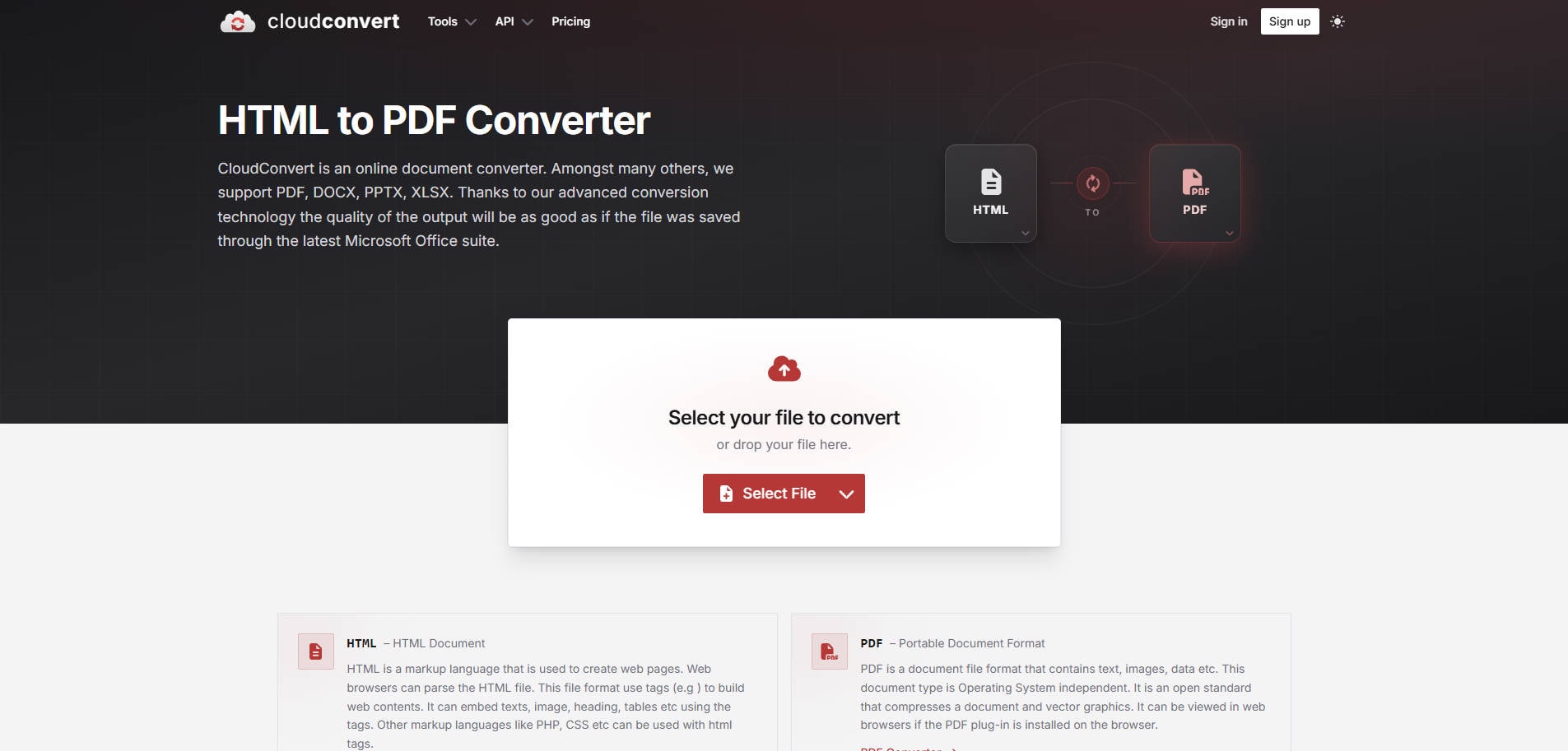
Overview: CloudConvert cloudConvert is a file-oriented converter for people who have an HTML document saved on their computer and need a PDF without setting up a development environment. Its interface concentrates on selecting a file, choosing PDF as the target, and downloading the result. It is better suited to an HTML file conversion than to archiving a chain of website pages.
Key Features:
- HTML file to PDF conversion with a simple upload workflow
- Supports a broad range of other document formats
- Suitable for occasional cross-format document work
Pricing: Free allowance may be available; paid conversion plans vary by credits and usage.
Best For: Converting Local HTML Files.
Our Take: Choose CloudConvert if you already have an HTML file and want an uncomplicated PDF export. For a live webpage URL or a website with multiple pages, consider a URL-based tool instead.
2. PDF24 Webpage to PDF - Best Free Tool for Webpage URLs
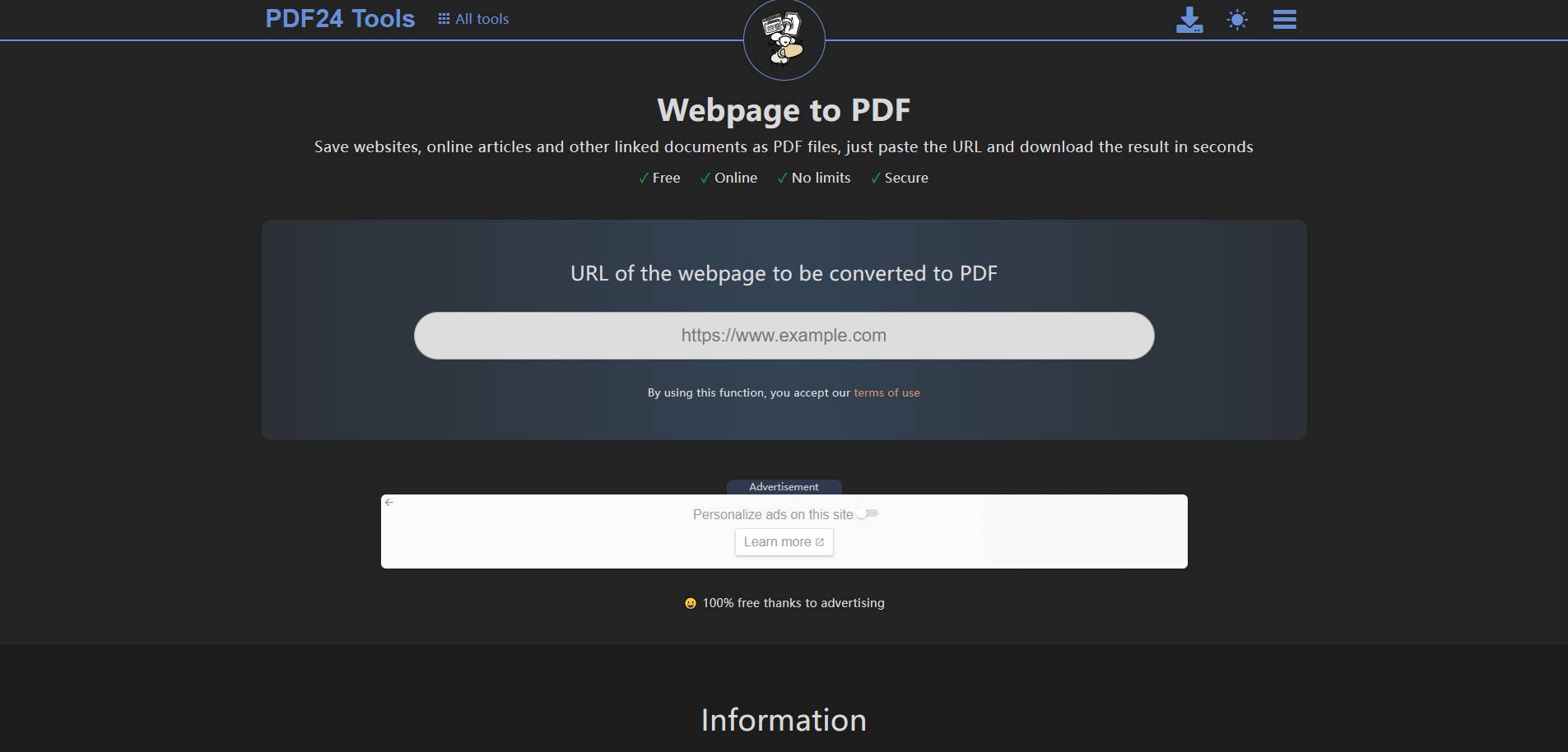
Overview: PDF24 Webpage to PDF pDF24 Webpage to PDF turns a reachable website address into a downloadable PDF. It asks for a URL rather than a local HTML package, which makes it particularly convenient for saving an article, public resource page, or web reference. Because conversion is performed on PDF24 servers, inaccessible intranet pages will not necessarily render.
Key Features:
- Paste a public webpage address and export as PDF
- Works through a browser without installation
- PDF24 states online files are removed from its servers after a short retention period
Pricing: Free online tool; PDF24 states no registration or subscription is required for this webpage converter.
Best For: Webpage URLs.
Our Take: Start with PDF24 when you need a PDF copy of a public URL and do not need to adjust the source HTML. Check the PDF carefully if the page has sticky navigation or dynamic sections.
3. Sejda HTML to PDF - Best for Page Size and Margin Controls
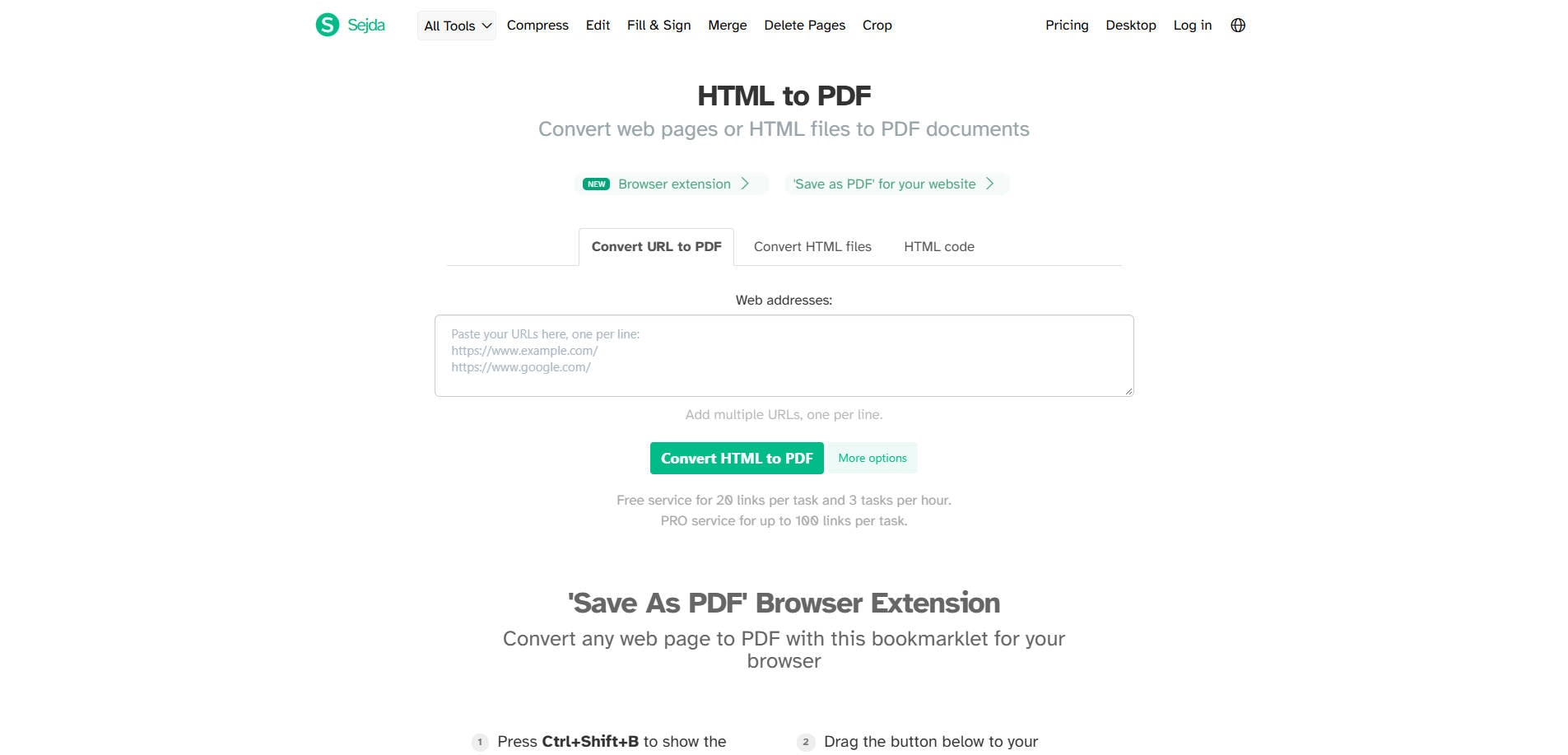
Overview: Sejda HTML to PDF sejda offers more control than a basic URL-to-PDF input. It accepts webpage addresses, uploaded HTML files, or pasted HTML code, and exposes page size, orientation, viewport width, margins, and initial delay in the conversion interface. Those controls are useful when the first exported PDF has clipped edges or awkward page breaks.
Key Features:
- Accepts URLs, uploaded HTML files, and pasted HTML code
- Options for page size, margins, orientation, viewport and initial delay
- Can use print stylesheets and include URL/date details
Pricing: A limited free online allowance is available; the official page currently states three tasks per hour and document-size restrictions, with paid plans for heavier use.
Best For: Page Size and Margin Controls.
Our Take: Sejda is a useful middle ground for users who need layout options but do not want to write code. Choose it when margins, orientation, or viewport width matter more than bulk automation.
4. PDFCrowd HTML to PDF - Best for Clean Readable PDF Output
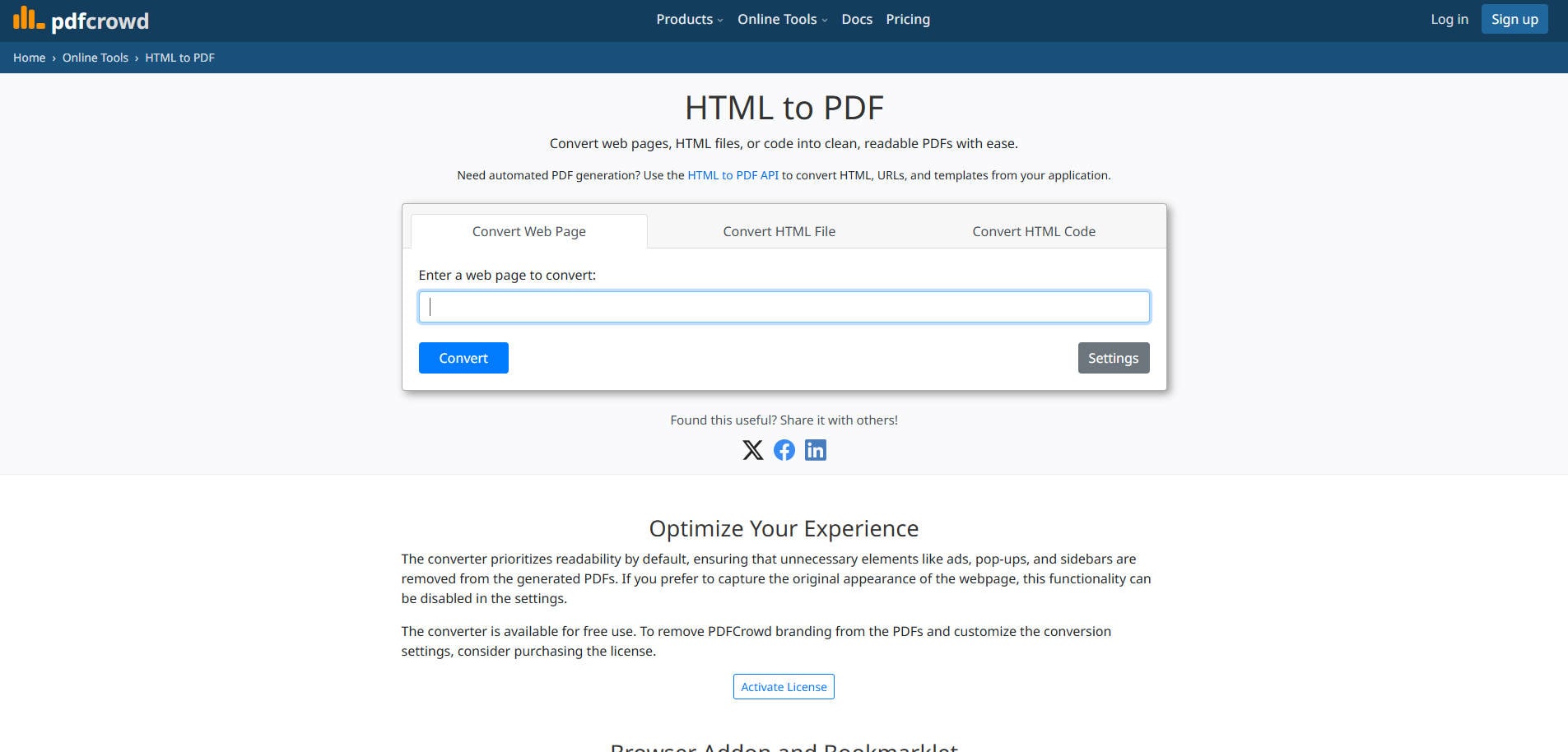
Overview: PDFCrowd HTML to PDF pDFCrowd focuses on rendering web content as a readable PDF and offers input options for a URL, HTML file, compressed HTML archive, or source code. Its settings include choices related to JavaScript, images, backgrounds, print styling, and readability. That makes it a reasonable choice for web pages where the content matters more than preserving every screen-only element.
Key Features:
- Convert a webpage, HTML code, or an HTML file/archive
- Options affecting print styling, backgrounds and scripts
- Readability-related settings and commercial PDF output options
Pricing: A web converter is available; licensing is required to remove PDFCrowd branding and unlock some customization options.
Best For: Clean Readable PDF Output.
Our Take: PDFCrowd makes sense when the original webpage includes distracting navigation or backgrounds. Compare the result against your source when exact branding or visual parity is essential.
5. Adobe Acrobat - Best for Multi-Page Website Capture
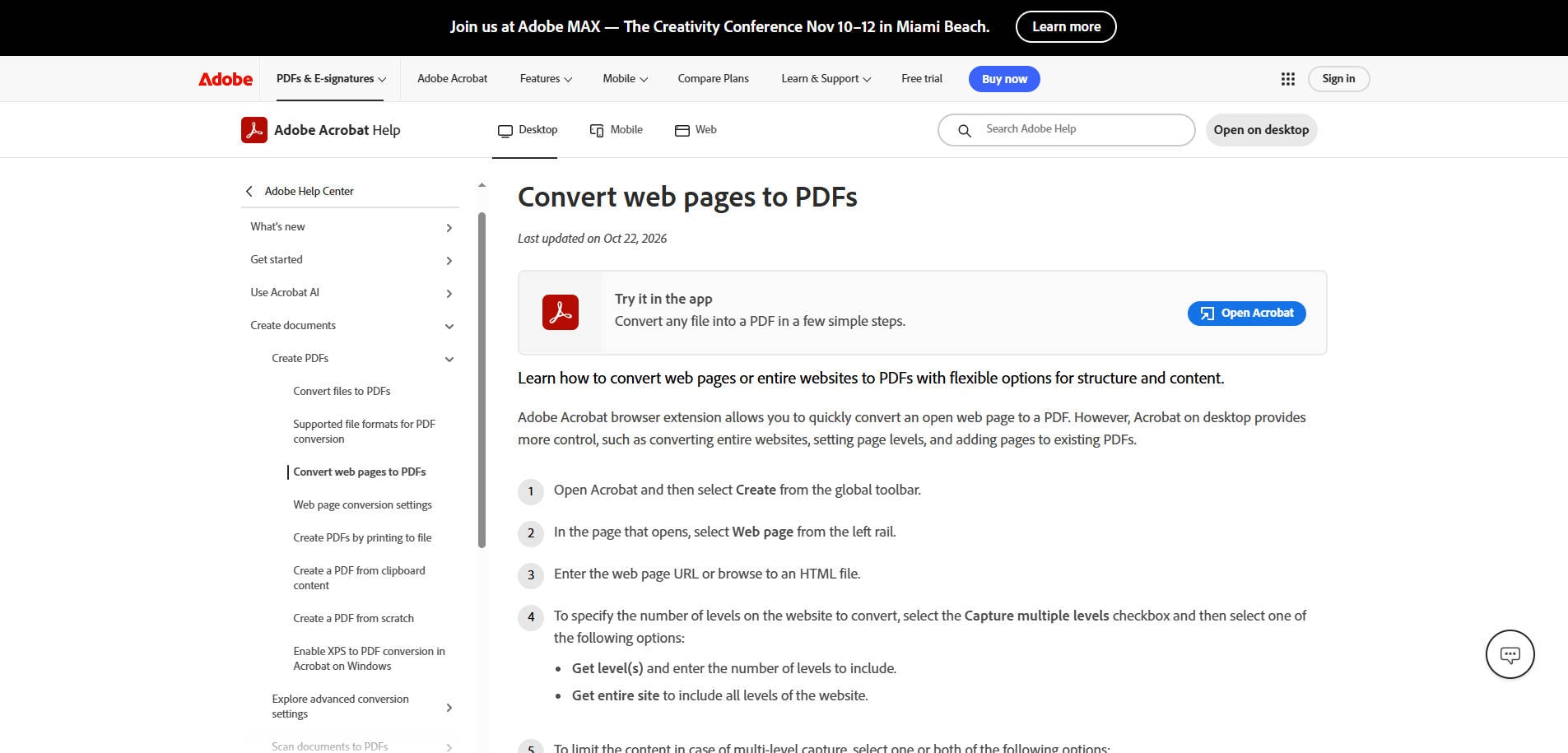
Overview: Adobe Acrobat adobe Acrobat can convert a webpage or a local HTML file into PDF and, on desktop, can follow links to capture several levels of a website. Its desktop workflow includes settings to limit capture to the same path or server. It is designed for people who need structured web-page capture inside an established PDF editing workflow rather than a one-off browser export.
Key Features:
- Capture a URL or browse to an HTML file
- Choose a specified depth or entire-site capture with scope controls
- Append captured webpages to existing PDFs and adjust conversion settings
Pricing: Commercial Acrobat desktop subscription or license required for the documented advanced web-page capture workflow; terms depend on plan and region.
Best For: Multi-Page Website Capture.
Our Take: Choose Acrobat when you need to capture a set of related web pages or continue editing the PDF afterward. For a single public URL, a free converter is usually simpler.
6. PDFShift - Best HTML to PDF API for Developers
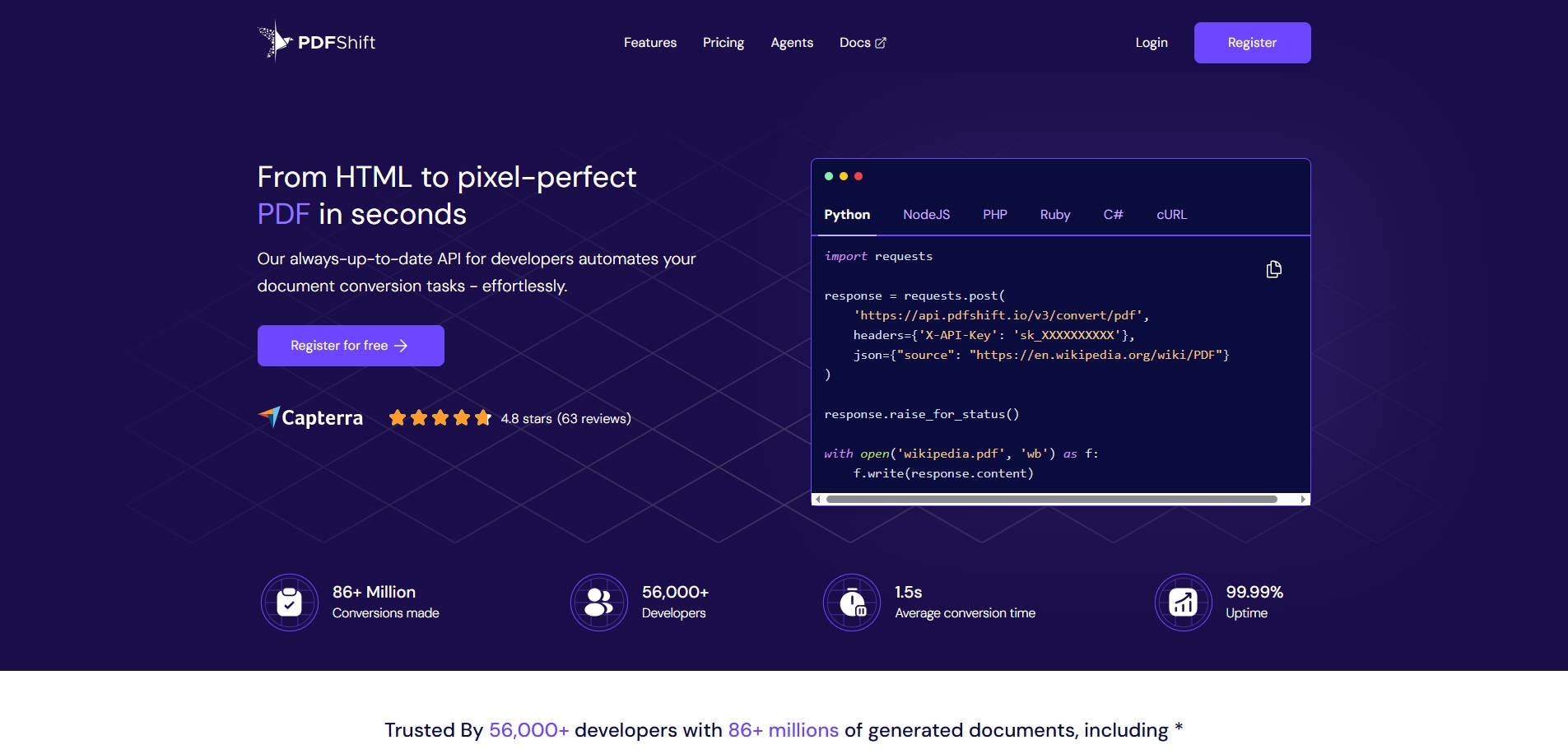
Overview: PDFShift pDFShift is an API-first HTML-to-PDF service for teams generating invoices, reports, receipts, or PDFs directly from an application. Rather than requiring someone to manually upload each file, developers submit a URL or HTML string through an API request and receive the resulting PDF. It is not the easiest option for a nontechnical user who only needs one file.
Key Features:
- API conversion from either a URL or raw HTML
- Options for headers, footers, custom CSS and JavaScript
- Credit-based plans with a free developer allowance
Pricing: Official pricing currently lists a free plan with 50 credits per month; larger usage requires paid credits.
Best For: Best HTML to PDF API for Developers.
Our Take: Use PDFShift when PDFs are a recurring part of your website or application workflow. An ordinary browser converter is a better fit if you do not write or maintain code.
Part 3: How to Convert HTML to PDF Without Losing the Layout
Method 1: Convert a Public Webpage URL
- Open a URL-based converter such as PDF24 or Sejda.
- Paste the full public webpage URL, including https://.
- Choose page size, orientation and margins if those options are offered.
- Convert the page, open the resulting PDF, and check long tables, images, links and the last page.
If the webpage requires a login, a remote converter may not have access to your private session. Use your browser's Print > Save as PDF option or a trusted desktop workflow instead.
Method 2: Convert an HTML File
- Keep the HTML file together with any referenced local images or stylesheets.
- Choose a converter that explicitly accepts local HTML files or an archive containing the assets.
- Upload the file or archive, set the output format to PDF and run the conversion.
- Review the PDF for missing styles, broken image paths, tables, special characters and blank pages.
A single .html file may not contain all its assets. If CSS and images are stored in separate folders, some converters need those files bundled or reachable by URL.
Method 3: Save HTML as PDF in Chrome
- Open the HTML file or webpage in Chrome.
- Press Ctrl+P on Windows or Command+P on Mac.
- Choose Save as PDF, then adjust layout, margins and background graphics.
- Save a copy and compare its content with the browser view.
This built-in method works well for occasional use. It may not capture lazy-loaded sections until they have been loaded on screen.
Part 4: How to Fix Common HTML to PDF Formatting Problems
| Problem | Likely cause | What to try |
| Content cut off on the right | Fixed-width containers or narrow print page | Try landscape mode, wider paper, or a print-specific stylesheet. |
| Images or fonts missing | Relative paths, blocked URLs or unavailable assets | Use reachable asset URLs or include local assets in a supported archive. |
| Unwanted blank pages | Print page breaks, tall elements or hidden content | Review CSS @media print and page-break rules; reduce overly large margins. |
| Charts or dynamic widgets missing | JavaScript rendering finished after PDF capture | Try a tool with rendering delay controls or capture after content loads. |
| Background colors disappear | Background printing disabled | Enable background graphics or printing backgrounds if available. |
| Text appears tiny | Entire desktop layout scaled into a page | Adjust viewport width, paper size or print CSS instead of blindly zooming. |
Important: A PDF with missing styling or clipped layout is not necessarily corrupted. Convert the source again with different layout settings before trying a PDF repair tool.
Part 5: Online Converters vs. Desktop Software vs. APIs
Choose online conversion for occasional public URLs or non-sensitive HTML files when convenience matters most. Check each provider's handling of uploaded data before submitting confidential documents.
Choose desktop conversion when you need to capture authenticated pages, edit the resulting PDF, or control how multiple related web pages are collected. Adobe Acrobat offers a documented multi-level web capture workflow.
Choose an API when your application regularly generates receipts, invoices, reports or statements. PDFShift is designed around repeated automated calls rather than individual file uploads. Securely store API keys on a server, not in public web-page scripts.
Part 6: What If Your Converted PDF Is Corrupted?
Sometimes the HTML to PDF conversion finishes, but the saved PDF returns a file is damaged warning or will not open in multiple PDF viewers. Before assuming the PDF is corrupt, download it again, verify that it has a reasonable file size, and try opening it in a second viewer. If only the font or layout looks wrong, go back to the converter settings in Part 4.
If you have the original HTML, the easiest and safest fix is usually to convert it again. When the original source is unavailable and a local PDF file is genuinely damaged, Repairit PDF Repair is an option to assess. Wondershare Repairit is a file repair product, not an HTML to PDF converter; it cannot correct faulty CSS or recreate content that was never exported into the PDF.
Repair a PDF That Will Not Open
Make a copy of the damaged PDF and keep the original untouched. For a desktop repair attempt, follow these steps adapted from the official Repairit file repair guide:
Step 1. Add the corrupted PDF. Install and launch Repairit, open File Repair, and add your damaged PDF file. Verify that you selected the correct copy before starting.
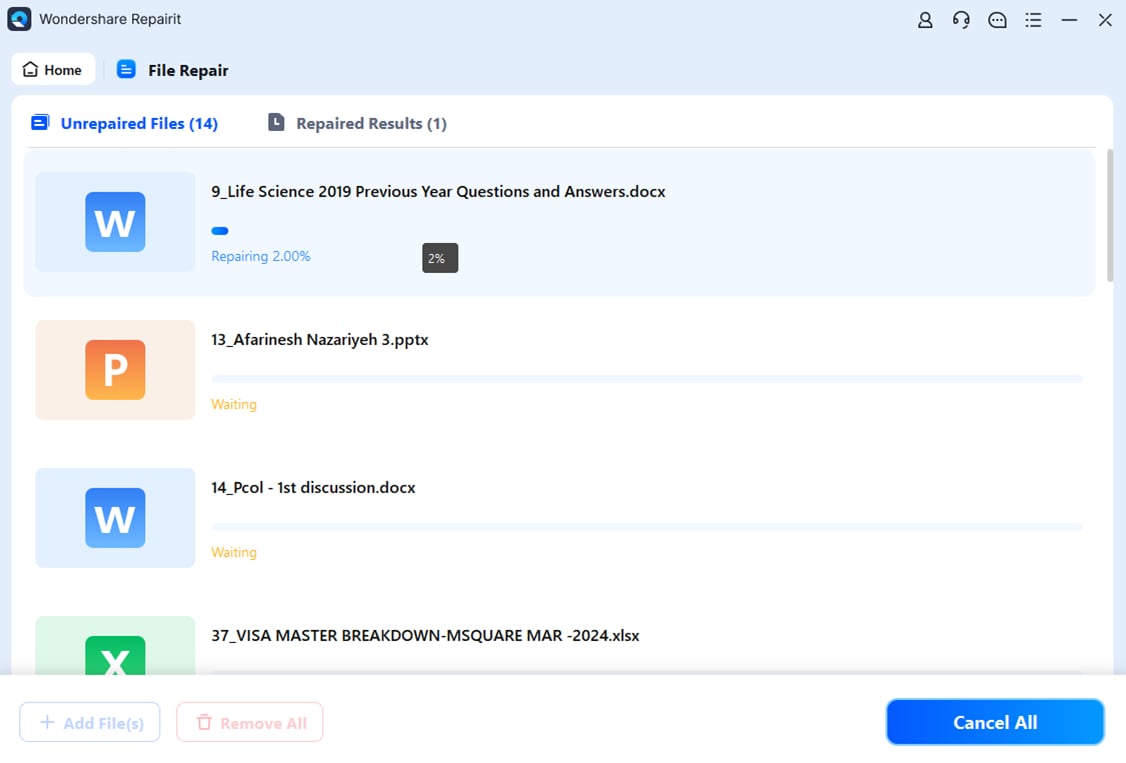
Step 2. Start repairing. Click Repair. The file repair interface displays processing progress. The image below is the original file-repair screenshot from the Repairit Guide; its sample files are mixed document types rather than a PDF-only example.
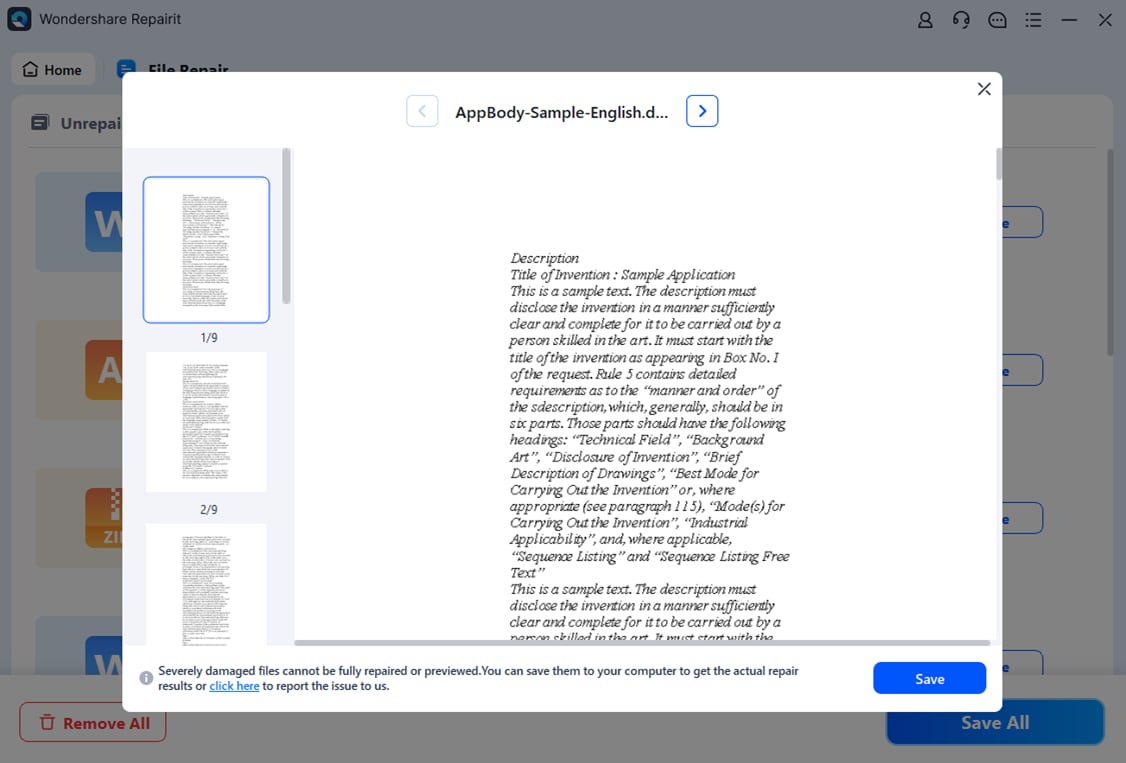
Step 3. Preview and save. Open the preview of the repaired document, check the text and pages, and save the result to a separate location if it is usable. The guide's preview image below illustrates this step with a sample document.
Repair is not guaranteed. A zero-byte file, an incomplete download with missing data, or a document that never contained the desired content may not be recoverable by file repair software. Re-exporting the original HTML is preferable whenever possible.
FAQ
-
Which HTML to PDF converter is best for free webpage conversion?
PDF24 is a convenient free option for public webpage URLs. Sejda offers additional output controls but has stated limits on free use. -
Can an HTML to PDF converter preserve CSS exactly?
Not always. Rendering engines, print stylesheets, fonts, asset accessibility, page dimensions and dynamic scripts can change the result. Test the output with your actual layout. -
Can I convert a private website page to PDF?
A remote service may not access logged-in content. A local browser Print-to-PDF workflow or a desktop converter that uses your authenticated browsing context may work better, subject to site permissions. -
What is the difference between HTML to PDF and webpage to PDF?
HTML-to-PDF tools may accept raw code or a local HTML file, while webpage-to-PDF tools may accept a reachable URL only. Some products support both. -
Why do tables break across pages in the PDF?
Tables may be wider than the PDF page or use CSS that does not print well. Try landscape orientation, suitable margins and print-specific styling; do not assume the file is corrupted. -
Can a PDF repair tool fix a poorly converted PDF layout?
Usually not. Wrong margins, omitted web content or missing CSS are conversion issues. Correct the source or converter settings and generate a new PDF; use file repair only when the PDF data itself is damaged.
Part 8: Conclusion
The best HTML to PDF converter depends on the source and the result you need. PDF24 is a good starting point for a free public-URL export, Sejda provides useful print-layout controls, and PDFCrowd offers options for cleaner web-content output. CloudConvert fits local HTML file conversion, Acrobat suits multi-page capture, and PDFShift is aimed at developers who generate PDFs repeatedly. Check one real sample before committing to a paid workflow, especially if your pages rely on custom fonts, scripts, or complex CSS.