

 TL;DR:
A Word document corrupted by an interrupted save process can typically be restored using Word's built-in Open and Repair tool, AutoRecover backups, or alternative document editors.
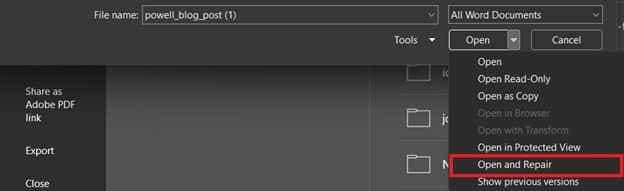
● To fix minor structural damage, launch Word first, navigate to File > Open, select the corrupted document, and click the arrow next to the Open button to choose the Open and Repair option.
● If the file refuses to load entirely due to formatting or embedded object errors, open it in Google Docs, LibreOffice, or WordPad to bypass the damage and extract the readable text into a new document.
● For severe structural corruption that built-in features cannot fix, use software like Repairit File Repair (supported on Windows Vista/7/8/10/11 and macOS X 10.12 or later), ensuring you save the recovered output to a different storage drive to avoid overwriting original data.
Ask AI for a summary
 ChatGPT
 Perplexity
 Gemini
 Claude
 Grok
Grok
Word documents can become corrupted if the saving process is interrupted before the file is fully written and finalized. This may happen during application crashes, sudden shutdowns, storage disconnections, or system freezes. Since Microsoft Word constantly updates formatting, metadata, and content structure while saving, interruptions can leave the file incomplete or unreadable.
In many cases, you can still repair a corrupted Word file after saving issues using built-in recovery tools, backup versions, or document repair software. This guide explains why Word files become damaged and the steps you can take to restore them.
In this article
Common Causes of Word File Corruption
Word files can become corrupted when the saving process is interrupted or the storage medium fails. These are the most frequent triggers:
- Application crashes – Microsoft Word may freeze or close unexpectedly while writing the file, leaving it incomplete.
- Sudden power loss – If the computer shuts down before the save process finishes, the document may be left partially written.
- Storage device removal – Disconnecting USB drives or external storage during saving breaks the data stream and damages the file.
- Disk errors – Bad sectors or failing hard drives can interrupt the writing process, resulting in missing or corrupted data.
- System freezes or forced restarts – When the operating system locks up or reboots mid‑save, the file structure may not be finalized.
How to Identify Signs of a Corrupted Word File
Before attempting repairs, it helps to identify how the file was affected. Save interruptions can cause minor formatting problems or complete document corruption.
Signs of Word File Corruption
- Files won’t open — Word displays errors like “The file is corrupted and cannot be opened.”
- Blank document pages — The file opens with missing or empty content.
- Formatting issues — Fonts, spacing, images, or layout appear damaged.
- Freezing during opening — Word crashes or stops responding when loading the file.
- Missing file details — File previews or document properties appear unavailable.
- Partial document recovery — Only sections of the file remain readable.
Basic Fixes to Repair a Corrupted Word File
Fix 1. Use Microsoft Word Open and Repair
Microsoft Word includes a built-in repair feature that can automatically rebuild damaged document structure.
Step 1. Open Microsoft Word first, then go to File > Open and browse for the damaged document.
Step 2. Click the arrow beside Open and select Open and Repair to allow Word to scan and restore the file.
Fix 2. Recover AutoRecover Files
Word automatically creates temporary recovery files while you work on documents.
Step 1. Open Word and navigate to File > Info > Manage Document > Recover Unsaved Documents.

Step 2. Locate the most recent backup version and save it as a new DOCX file.
Fix 3. Restore a Previous Version
Windows may store earlier copies of the file before corruption occurred.
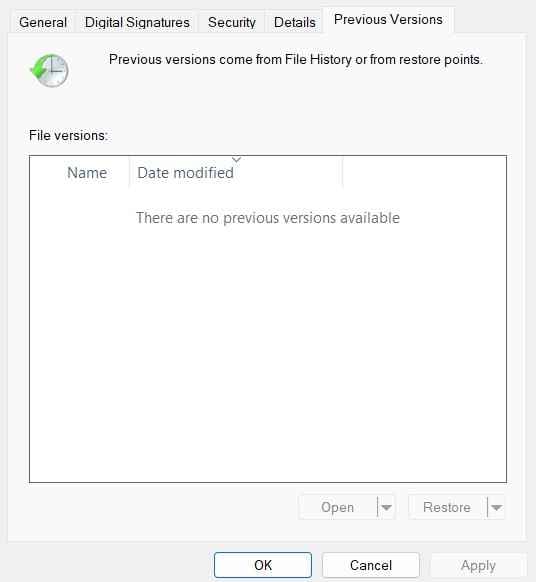
Step 1. Right-click the damaged Word file and choose Properties.
Step 2. Open the Previous Versions tab and restore a version created before the interrupted save.
Fix 4. Open the File in Draft Mode or Another Editor
Sometimes the corruption only affects formatting or embedded objects.
Step 1. Open Word in Draft Mode or try opening the file using Google Docs, LibreOffice, or WordPad.

Step 2. Copy readable text into a new Word document and save it separately.
Advanced Fix to Restore Severely Corrupted Word Files
When standard recovery methods fail, the Word document may have severe structural corruption caused by incomplete save operations or damaged storage sectors. Advanced repair tools can deeply scan the document and rebuild missing data structures.
It CAN:
- Restore damaged DOC and DOCX file structure.
- Recover text, formatting, tables, and embedded objects.
- Repair files that cannot open normally in Microsoft Word.
- Recover partially saved or interrupted documents.
- Repair multiple corrupted Word files at once.
If the document remains inaccessible after trying built‑in recovery options, a professional repair solution like Repairit File Repair can help rebuild the file and restore usability. It’s designed to handle severe corruption and recover essential content that standard tools often miss.
Step-by-Step:
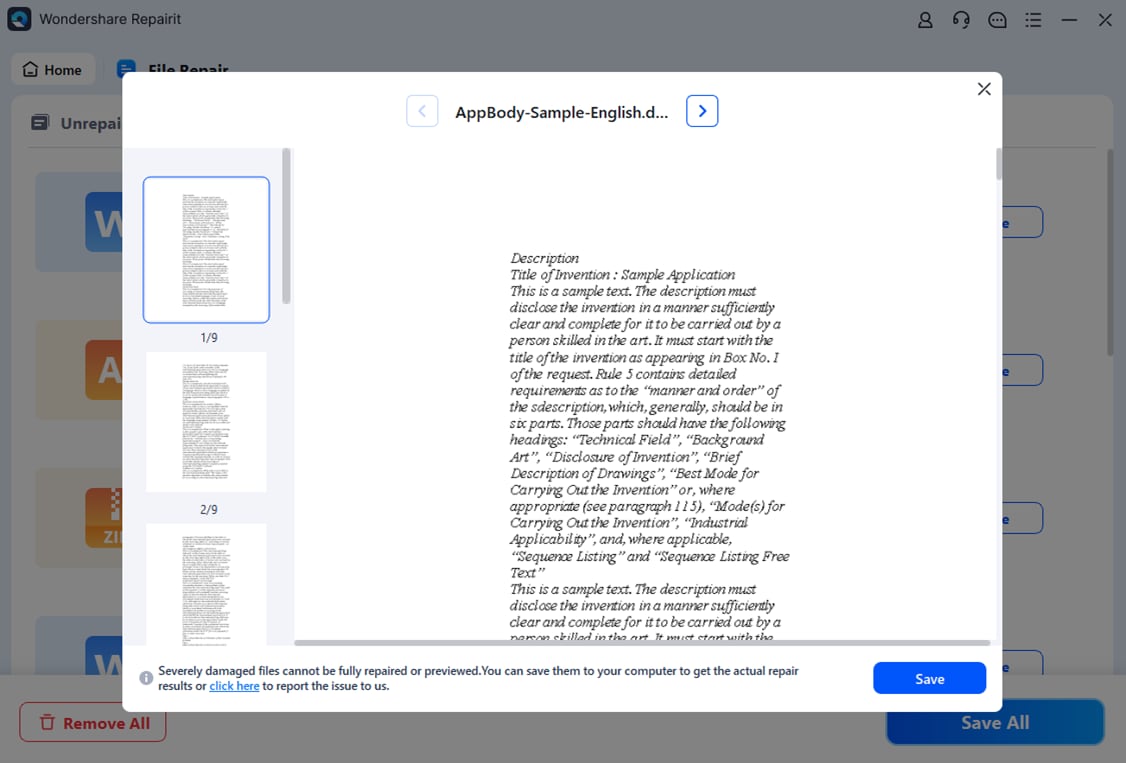
Step 1. Upload the corrupted Word document.

Step 2. Start the repair process.

Step 3. Preview the repaired file and save it.
How to Prevent Document Corruption During Saving
A few simple habits can help keep your files stable and ensure your work is safely preserved.
- Enable AutoSave and AutoRecover – These features automatically create backup versions, improving your chances of recovery if something goes wrong.
- Avoid forced shutdowns – Always let Word finish saving before restarting or turning off your computer. Cutting power mid‑save can leave the file incomplete.
- Use reliable storage devices – Faulty or unstable drives increase the risk of interrupted writes and corrupted files.
- Keep Microsoft Word updated – Regular updates often include fixes for stability and save‑related issues, reducing the chance of errors.
- Back up important documents regularly – Cloud syncing and local backups provide an extra layer of protection against permanent data loss.
Conclusion
When a Word file is damaged during saving, the interruption often leaves the document incomplete or structurally broken. Built‑in repair tools, recovery versions, and advanced repair software can usually restore access and recover important content.
For long‑term protection, enable AutoSave, rely on stable storage devices, and avoid sudden shutdowns or disconnections while saving. These simple habits help keep your Word documents safe and reduce the risk of future corruption.
FAQs
-
Can Microsoft Word repair corrupted files automatically?
Yes. Word includes an Open and Repair feature that can sometimes restore damaged documents. When you use this option, Word automatically scans the file for structural errors, missing data blocks, and formatting inconsistencies. -
Why did my Word file become corrupted while saving?
The process may have been interrupted by a crash, power loss, or storage issue before Word finished writing the file. -
Where are Word AutoRecover files stored?
AutoRecover files are usually stored in Word’s recovery folder and can be accessed through the Recover Unsaved Documents option. -
Can I recover a partially saved Word document?
Yes. Even if parts of a Word document are corrupted, readable sections may still be recoverable using repair tools or alternative editors. Many recovery programs can extract intact text, tables, or formatting from damaged files, even when Word itself cannot open them. -
Should I save repaired files to the same drive?
It’s always safer to save recovered documents to a different storage location rather than overwriting the original file. This prevents damaged data from being replaced and ensures you keep both versions for comparison or further repair.




