Need to turn an HTML page into an editable Word document without rebuilding every heading and table? A good HTML to Word converter can save time, but the result depends on the source page. Simple text and images usually transfer more predictably than complex CSS layouts, scripts, or responsive components. This guide compares seven real HTML-to-DOCX tools, explains what to check after conversion, and shows what to do if the Word file cannot open.
In this article
Part 1: Best HTML to Word Converters at a Glance
The tools below all advertise an HTML-to-DOCX route. This is a feature-based shortlist, not the result of a controlled conversion benchmark. Check current service limits before uploading confidential files or processing documents in bulk.
| Tool | Best for | Input route | Key trade-off |
| CloudConvert | Best for Straightforward Document Conversion | File upload | Cloud upload; formatting requires review |
| Convertio | Best for Converting HTML from a URL or Cloud Storage | File / URL / cloud storage | URL/cloud convenience; output review needed |
| Aspose.Words HTML to DOCX | Best for Text-Focused HTML Documents | File upload | Text-first documents; web-only CSS may change |
| GroupDocs HTML to DOCX | Best for Occasional File Conversion | File upload | One-off jobs; batch is premium |
| FreeConvert | Best for Flexible Input Sources | File / webpage / cloud | Several upload inputs; advanced controls vary |
| Vertopal | Best for Web and Command-Line Workflows | File upload / CLI | Browser and CLI options; setup differs |
| OnlineConvertFree | Best for Quick HTML File Uploads | File / cloud upload | Simple uploads; free limits may apply |
Part 2: 7 Best HTML to Word Converters Compared
Each tool solves a slightly different part of the conversion task. An online converter can generate an editable DOCX, but it cannot guarantee that browser-only effects, custom fonts, navigation, and responsive grids will become identical Word layout objects.
1. CloudConvert - Best for Straightforward Document Conversion
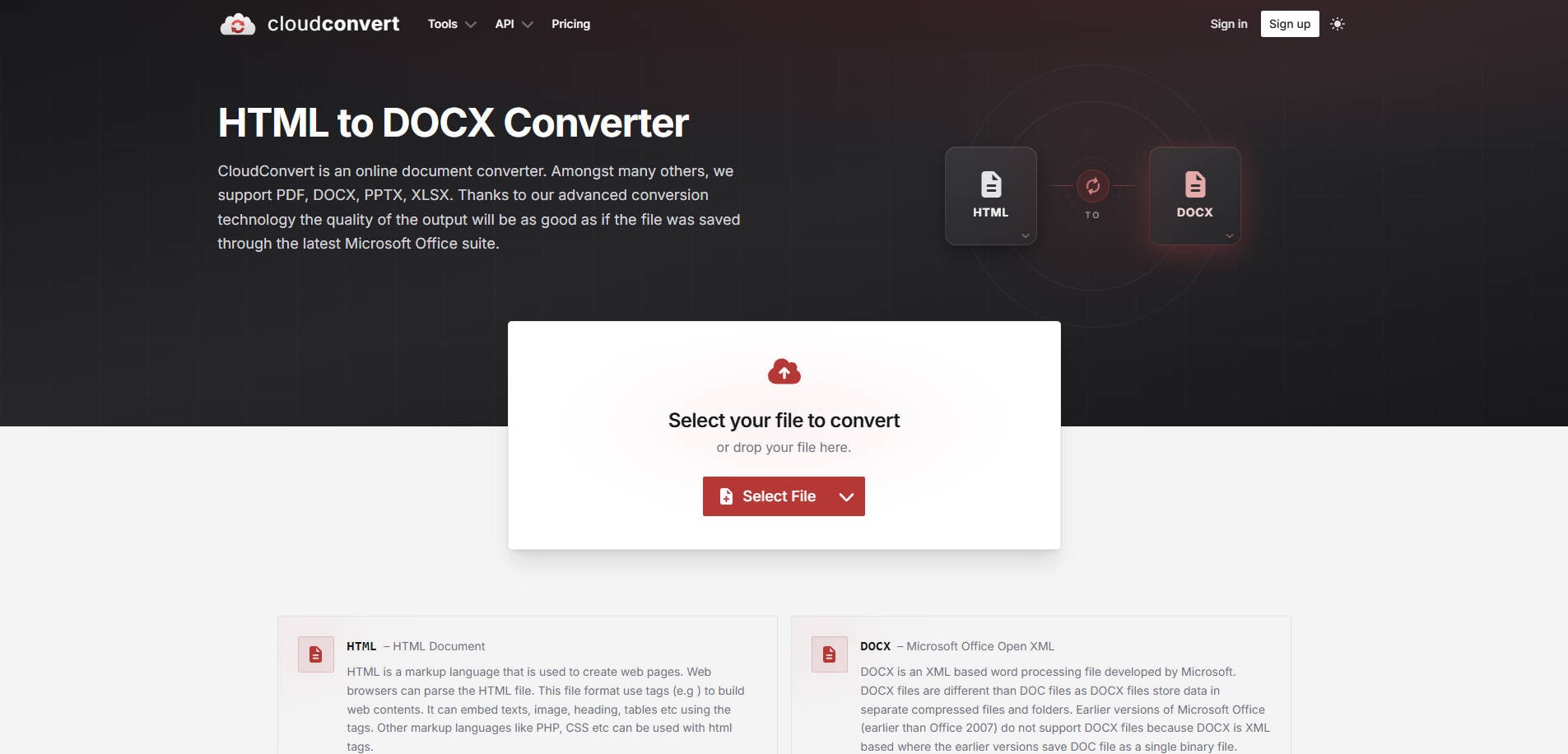
Overview: CloudConvert CloudConvert provides a dedicated HTML-to-DOCX conversion page. Its straightforward upload-and-convert flow is useful when you already have a saved HTML file and want a Word document without installing software. This makes it one of the options worth considering for HTML-to-Word conversion when formatting is the priority.
Key Features:
- Dedicated HTML-to-DOCX conversion workflow
- Browser-based upload and output download
- Supports a broad range of other document conversions
Pricing: A limited free allowance may be available; check current conversion credits and paid plans before large jobs.
Best For: Best for Straightforward Document Conversion.
Our Take: A practical starting point for a saved HTML page with ordinary text, links, and headings. Open the output in Word and inspect any tables or complex styling.
2. Convertio - Best for Converting HTML from a URL or Cloud Storage
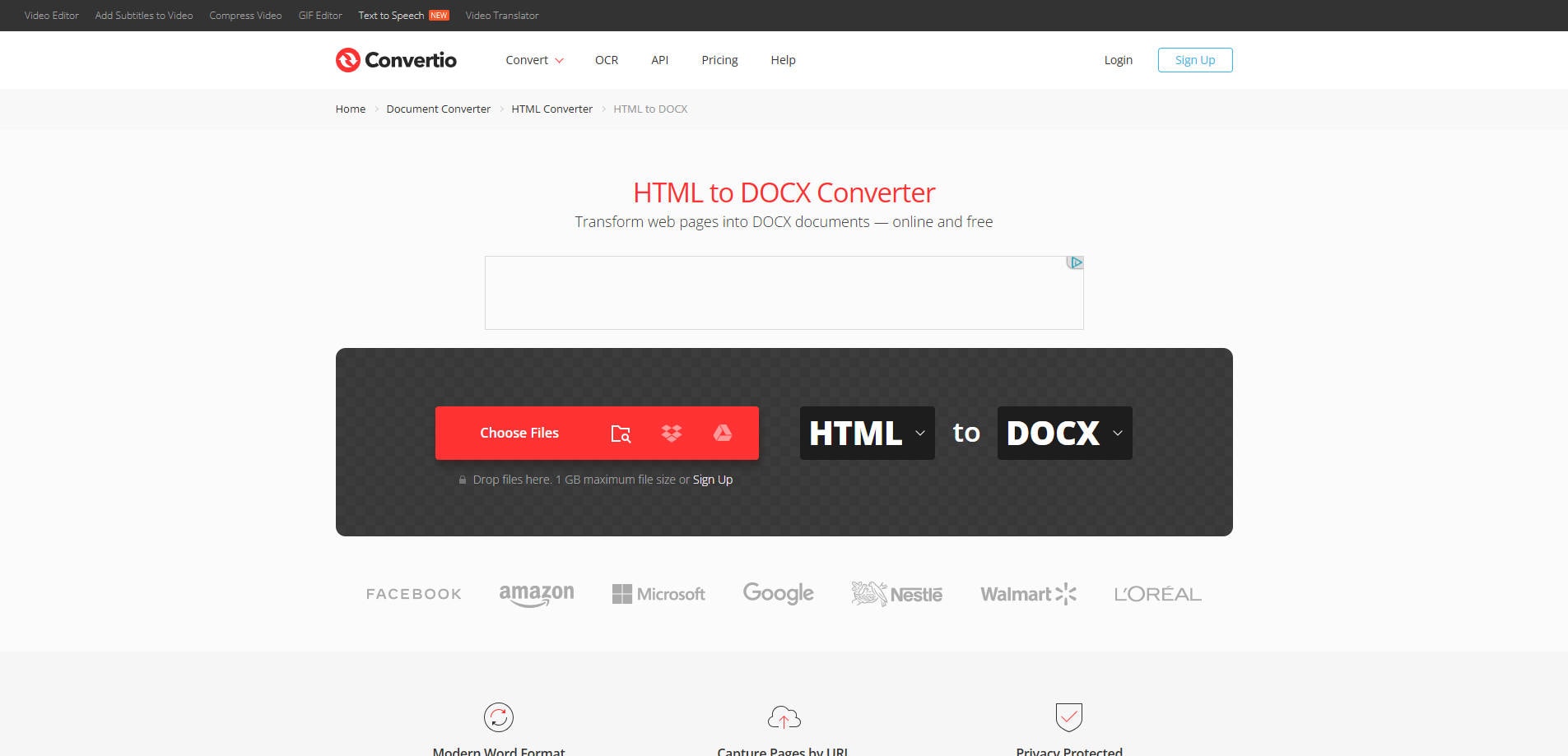
Overview: Convertio Convertio supports uploading an HTML file and selecting a file from a URL, Google Drive, or Dropbox. It is convenient for users who do not keep the source page on their computer. This makes it one of the options worth considering for HTML-to-Word conversion when editing is the priority.
Key Features:
- HTML-to-DOCX converter with cloud file inputs
- URL-based source selection
- Multiple supported input and output formats
Pricing: Free access is subject to the current service limits; paid plans are available for higher-volume use.
Best For: Best for Converting HTML from a URL or Cloud Storage.
Our Take: Choose Convertio when accessing a stored page or file from an online source matters more than advanced DOCX formatting control.
3. Aspose.Words HTML to DOCX - Best for Text-Focused HTML Documents
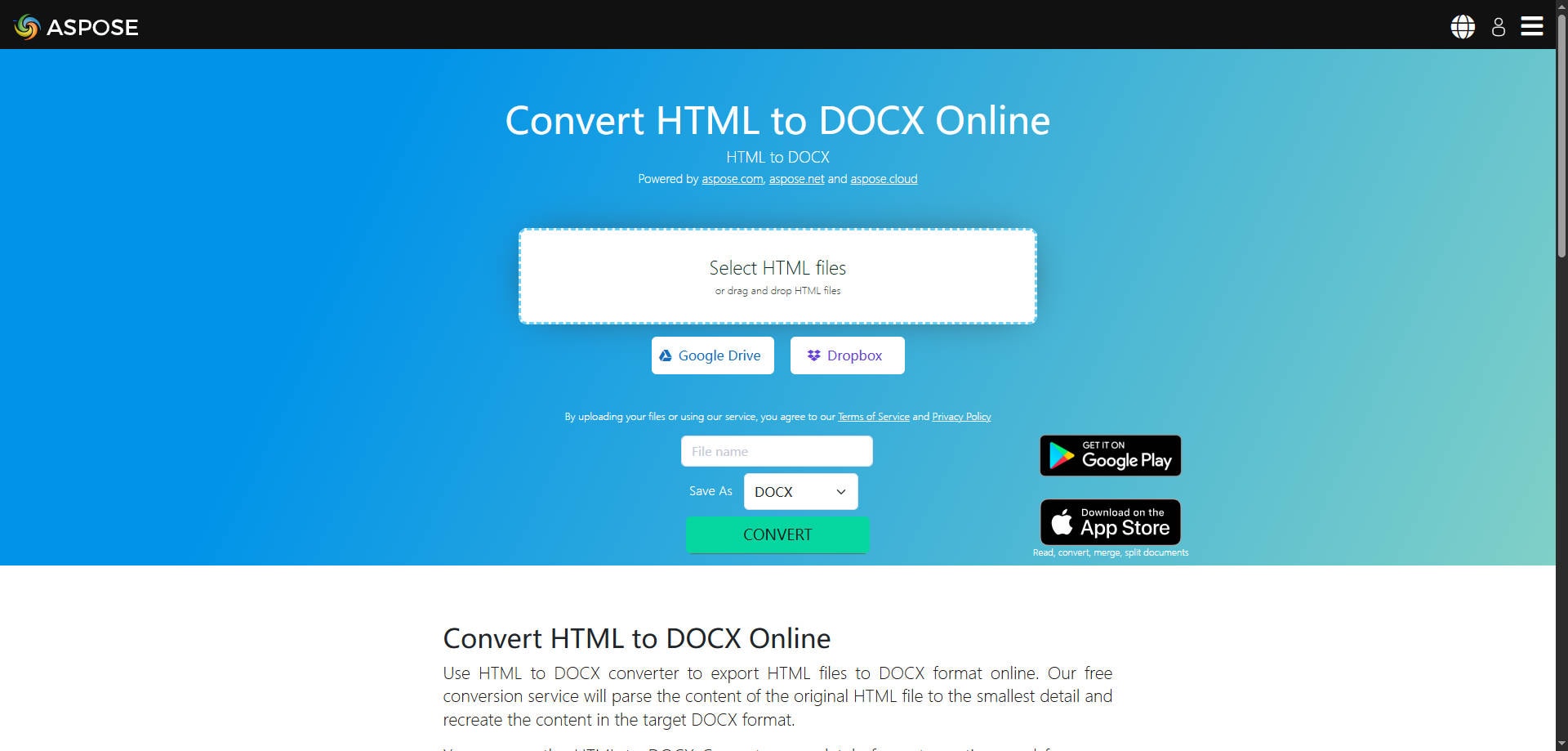
Overview: Aspose.Words HTML to DOCX Aspose.Words offers an HTML-to-DOCX converter designed for document-format conversion. The web application accepts an HTML file, processes it online, and provides a DOCX download. This makes it one of the options worth considering for HTML-to-Word conversion when formatting is the priority.
Key Features:
- Dedicated HTML to Word conversion
- Drag-and-drop or file selection
- DOCX output for editing in a word processor
Pricing: The official converter describes its online conversion feature as free; check current usage rules for repeated or commercial workloads.
Best For: Best for Text-Focused HTML Documents.
Our Take: Consider Aspose.Words for articles, reports, or structured text pages where headings and paragraphs matter more than matching an intricate website layout.
4. GroupDocs HTML to DOCX - Best for Occasional File Conversion
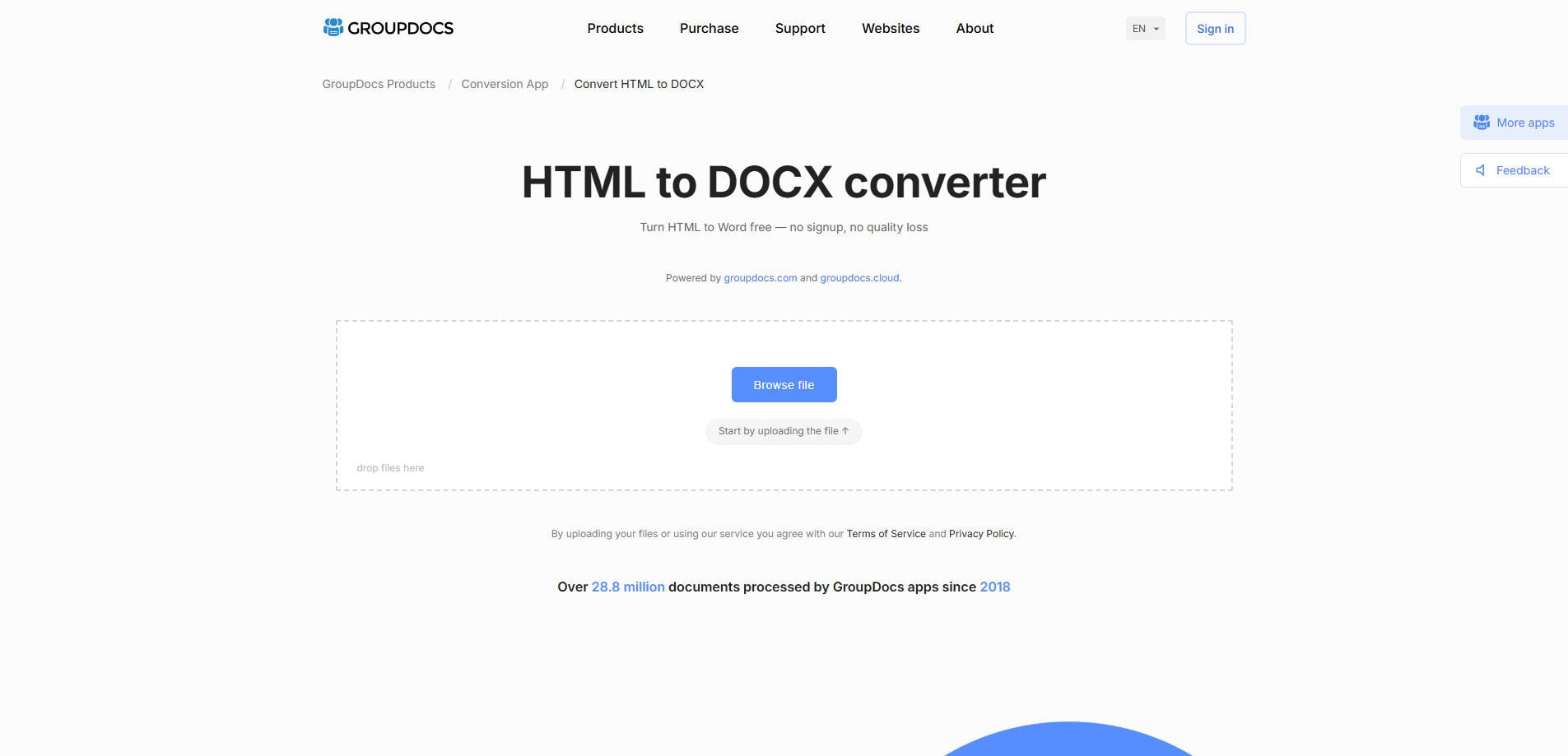
Overview: GroupDocs HTML to DOCX GroupDocs supplies a direct HTML-to-DOCX web tool, with a drag-and-drop upload and a download link when conversion is complete. Its product page explains that batch conversion belongs to the Premium offering. This makes it one of the options worth considering for HTML-to-Word conversion when editing is the priority.
Key Features:
- Browser-based HTML-to-DOCX converter
- Drag-and-drop source upload
- Downloadable Word result
Pricing: Basic browser conversion is presented as free; batch conversion and other premium features may require payment.
Best For: Best for Occasional File Conversion.
Our Take: A reasonable choice for a single HTML file. Confirm whether your use case needs multiple-file support before choosing a paid plan.
5. FreeConvert - Best for Flexible Input Sources
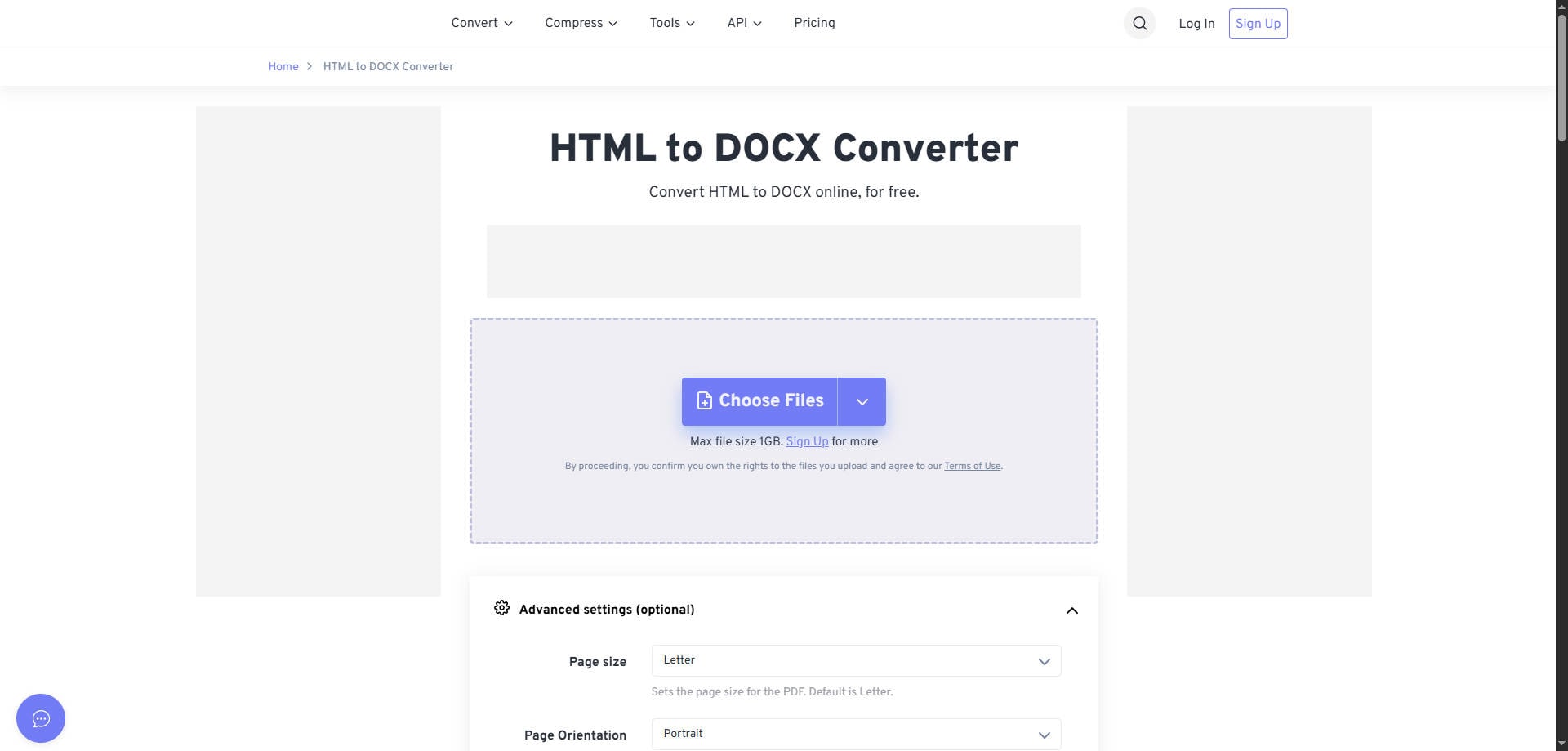
Overview: FreeConvert FreeConvert provides an HTML-to-DOCX page that accepts local uploads, connected cloud sources, and webpage input. This makes it useful when the source content starts as an existing website rather than a locally saved HTML document. This makes it one of the options worth considering for HTML-to-Word conversion when formatting is the priority.
Key Features:
- HTML-to-DOCX conversion from files and webpage sources
- Imports from major cloud storage options
- Browser-based conversion and download
Pricing: Free use is offered with service limits; larger or higher-volume jobs may require an upgrade.
Best For: Best for Flexible Input Sources.
Our Take: Useful for mixed inputs. When formatting is critical, inspect the generated Word file rather than assuming browser layout controls guarantee DOCX fidelity.
6. Vertopal - Best for Web and Command-Line Workflows
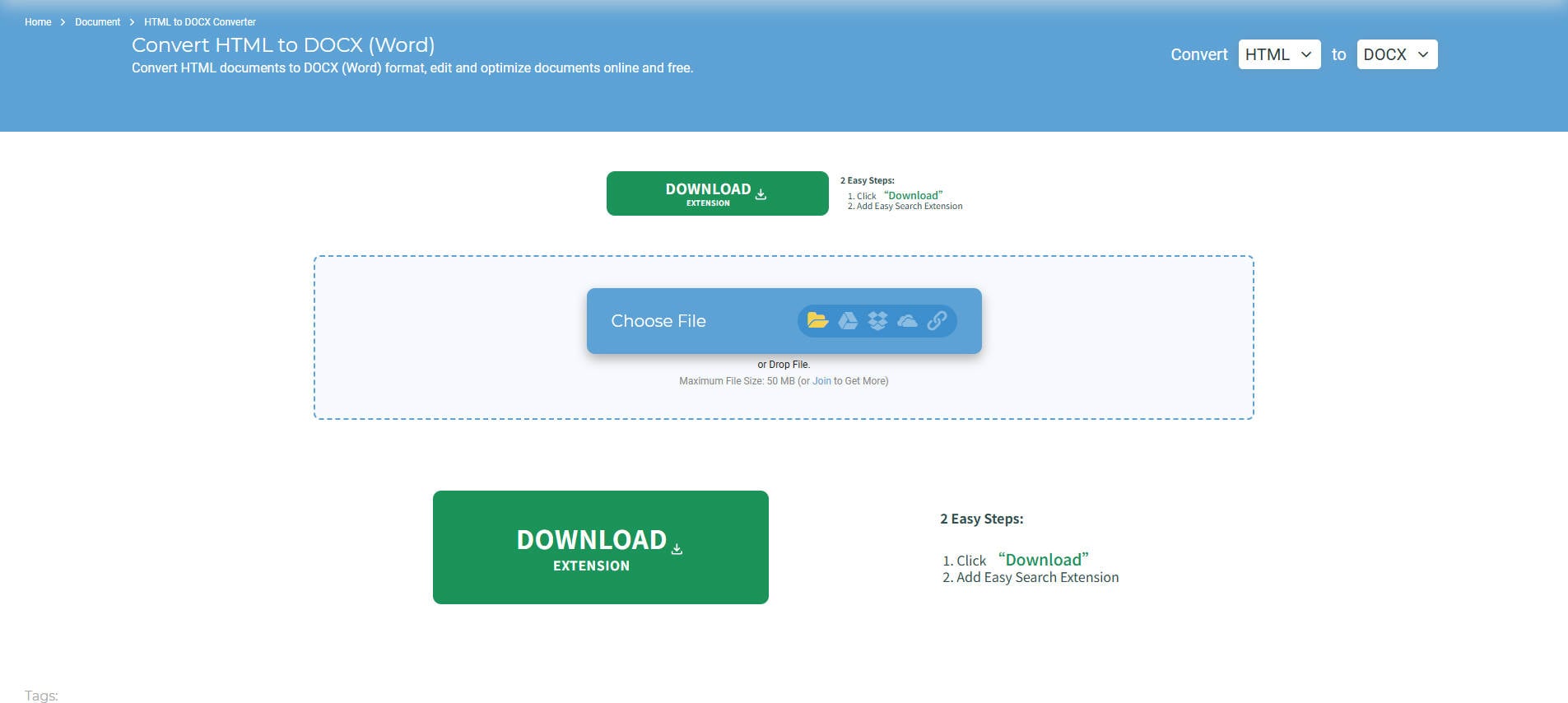
Overview: Vertopal Vertopal supports HTML-to-DOCX conversion through its online interface and also documents a command-line conversion path for Windows, macOS, and Linux. This makes it one of the options worth considering for HTML-to-Word conversion when editing is the priority.
Key Features:
- Online HTML-to-DOCX conversion
- Available command-line conversion workflow
- Cross-platform access
Pricing: The web converter is presented as free; review current command-line and high-volume terms for business use.
Best For: Best for Web and Command-Line Workflows.
Our Take: An interesting alternative for users who occasionally convert online but may also want a repeatable, scriptable workflow.
7. OnlineConvertFree - Best for Quick HTML File Uploads
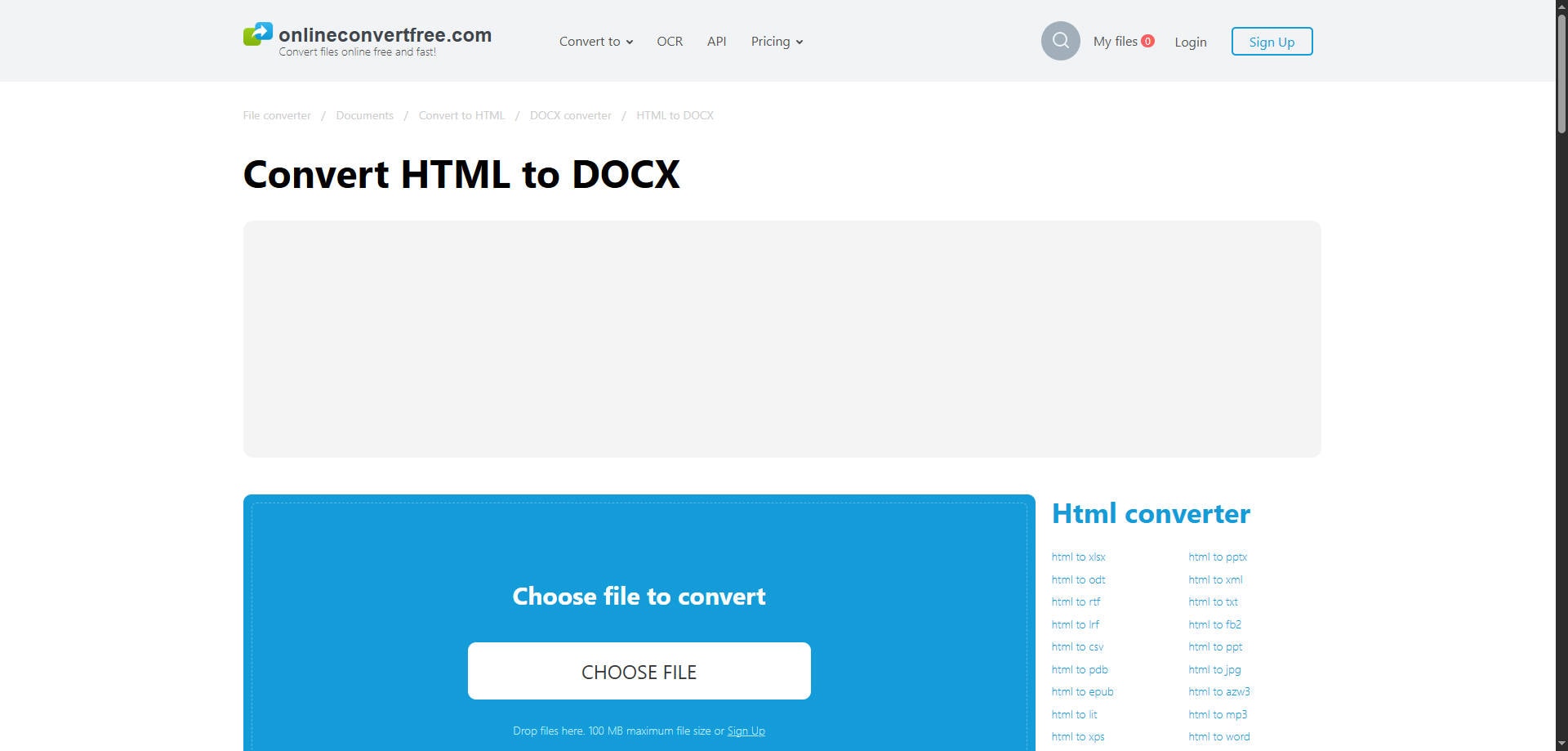
Overview: OnlineConvertFree OnlineConvertFree offers a direct HTML-to-DOCX conversion page with file upload, format selection, and a downloadable output. It is best approached as a simple online utility for non-sensitive files. This makes it one of the options worth considering for HTML-to-Word conversion when formatting is the priority.
Key Features:
- Direct HTML-to-DOCX route
- Local file or supported cloud-file selection
- Straightforward three-step conversion
Pricing: Basic conversion is advertised as free; check live file-size limits and account requirements for your specific workload.
Best For: Best for Quick HTML File Uploads.
Our Take: Choose it for straightforward conversions when ease of access matters more than document-production controls.
Part 3: How to Convert HTML into an Editable Word Document
Step 1: Save the HTML source or copy the public webpage URL. If the site uses local image and stylesheet folders, keep those assets with the HTML where possible.
Step 2: Choose a converter that accepts your input type. For a local file, upload the .html file; for a web URL, choose a converter that explicitly supports URL input.
Step 3: Select DOCX as the output, start the conversion, and download the finished file. Avoid uploading sensitive contracts, personal records, or confidential drafts without reviewing the provider's data-handling terms.
Step 4: Open the DOCX in Microsoft Word or another compatible editor. Check heading hierarchy, tables, inline images, links, lists, page breaks, and whether the text can actually be edited.
Part 4: Why HTML Formatting Changes After Conversion
A browser and Word do not use the same layout engine. HTML can position blocks with flexbox, grid, external stylesheets, and JavaScript. Word uses document sections, paragraphs, tables, styles, and page dimensions. That is why visually perfect one-to-one conversion is not always possible.
| Problem | Likely cause | What to try |
| Images disappear | Remote URLs or missing local asset folders | Use absolute image paths or a converter that can fetch them |
| Tables change width | Responsive CSS does not map directly to Word tables | Resize tables in Word and simplify nested tables |
| Fonts look different | Web fonts not installed or embedded | Use available Word fonts and styles |
| Text is not editable | Output is rendered as a picture or flattened object | Choose native DOCX conversion rather than image capture |
| Page breaks appear unexpectedly | Browser scrolling layout converted to printed pages | Review page size, margins, and section breaks |
Part 5: How to Choose the Right HTML to Word Converter
Start with the source rather than the tool name. If you have a locally saved article, a basic HTML-to-DOCX uploader may be enough. If you have only a webpage URL, choose a service that accepts links. If you convert dozens of documents regularly, assess batch allowances or a documented command-line option.
Before relying on a converted document, test it with a sample that contains a table, a linked image, a numbered list, and special characters. Review the exported file in Word. A tool that produces a clean, editable version of your source matters more than a blanket claim of perfect conversion quality.
Part 6: What to Do If Your Converted Word File Is Corrupted
If Word opens the DOCX but its colors, spacing, or columns look different, that is usually a conversion or formatting issue, not file corruption. Try a different HTML-to-Word converter or edit the document in Word first. If Word reports unreadable content or refuses to open the file, keep a copy of the original HTML and try converting it again.
When an existing Word document is genuinely damaged and cannot be opened, Repairit File Repair can be considered for supported Word documents. Wondershare Repairit is a file repair tool, not an HTML-to-DOCX converter, so it will not reconstruct CSS or make a poorly converted document match the webpage.
How to Repair a Corrupted Word File with Repairit
Follow the official desktop File Repair workflow when you have a damaged Word file. Work from a copy so the original remains available.
Step 1: Add the damaged Word file. Open Repairit, choose More Types Repair > File Repair, and select the Word document that cannot be opened. You can confirm the selected file in the import list.
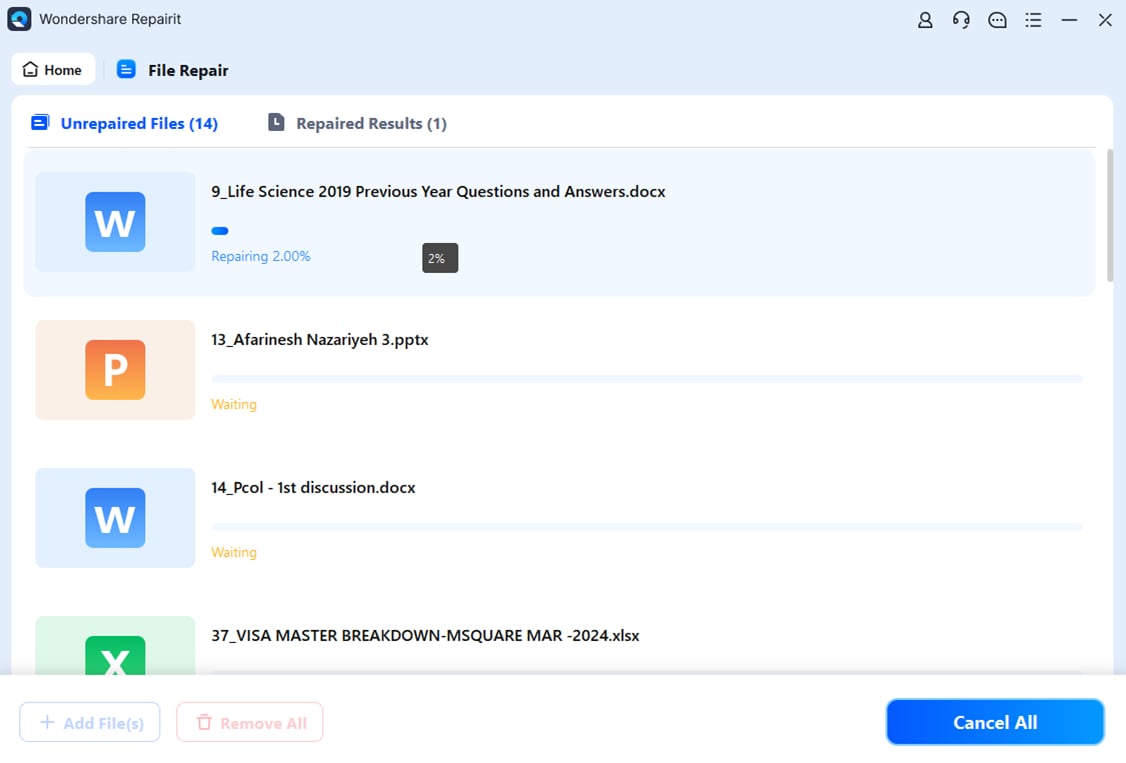
Step 2: Start file repair. Click Repair to process the uploaded document. The program displays the repair progress while it works.
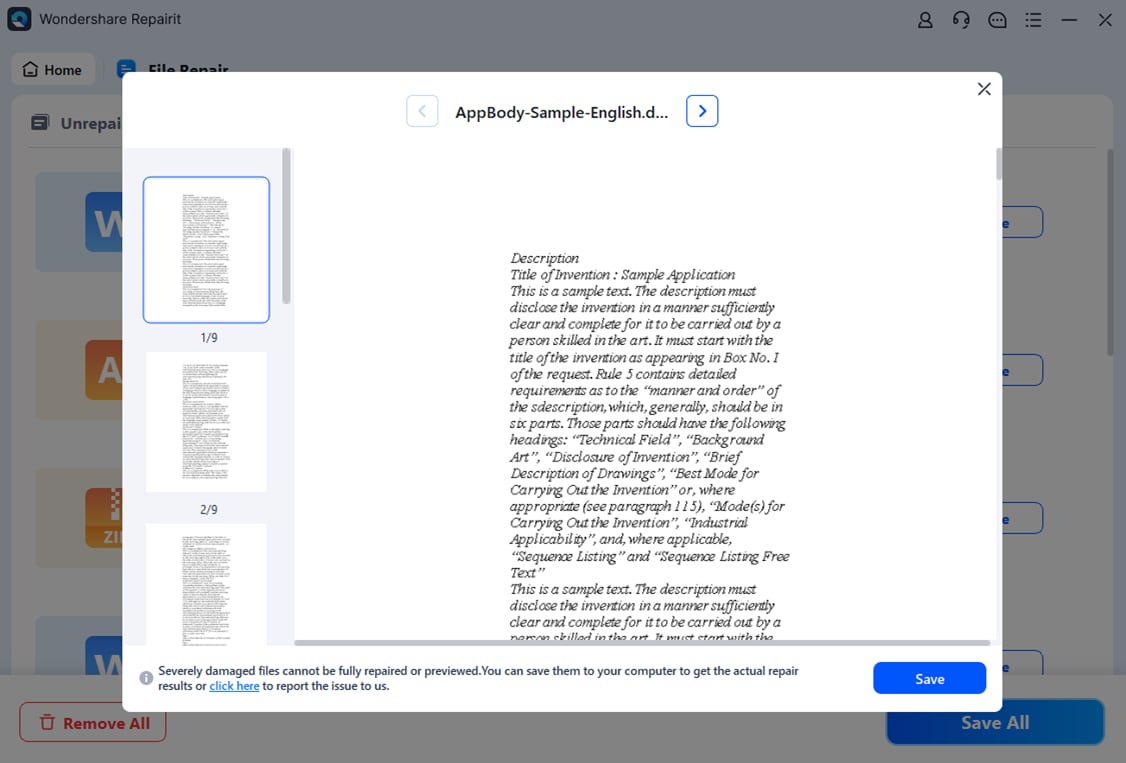
Step 3: Preview and save. Open Preview to inspect the repaired content. If the result is usable, save it to a separate folder and check it in Word.
Not every damaged file can be recovered. If the document is empty or missing essential data, try locating another copy, a prior version, or a fresh conversion of the original HTML.
Part 7: Conclusion
The best HTML to Word converter depends on how you receive the source and what matters in the output. CloudConvert and Aspose.Words suit straightforward file conversion, Convertio and FreeConvert offer more input routes, GroupDocs works for occasional uploads, Vertopal supports browser and CLI workflows, and OnlineConvertFree handles simple file-based tasks. Whichever you choose, open the DOCX in Word and verify the actual text, images, and tables before sharing it.
FAQ
-
Can an HTML to Word converter preserve every CSS style?
No. HTML and Word use different layout systems. Complex animations, scripts, responsive grids, and custom fonts may not translate into equivalent editable Word elements. -
Can I convert an entire webpage into a Word document?
Some services accept a webpage URL. Content behind a login, loaded dynamically, or blocked from automated retrieval may not be included. -
Will the output DOCX be editable?
A dedicated HTML-to-DOCX converter generally aims to create an editable document, but you should check tables, images, and text selections in Word before depending on it. -
Is converting HTML to DOCX the same as repairing a Word file?
No. Conversion changes the file format; repair attempts to fix a damaged document that no longer opens or reads correctly. -
Should I use an online converter for confidential documents?
Review the provider's data policies and your organization's requirements first. For sensitive material, an approved local workflow may be more appropriate.