
If you're wondering how to open a RAR file on Android, you're not alone. RAR files are commonly used to compress large files into a smaller package, but unlike ZIP files, Android devices do not natively support them.
This means that when you download a RAR file, you cannot open it directly unless you use a compatible tool or app. Whether you're dealing with documents, apps, or media files, understanding how to extract RAR files properly is essential.
In this guide, you'll learn how to open RAR files on Android step by step, which apps to use, and what to do if the file won't open.
In this article
Part 1. What is a RAR File?
A RAR file is a compressed archive that stores one or more files in a reduced-size format. It is designed to make file storage and transfer more efficient by reducing the amount of data that needs to be handled.
Key Features of RAR Files
- Efficient Compression - RAR files often achieve better compression rates than ZIP files, which makes them ideal for large downloads and file sharing.
- Multi-Part Archives - Large files can be split into several smaller parts (e.g., .part1.rar, .part2.rar), making them easier to upload or download.
- Error Recovery Records - Some RAR files include recovery data that can help repair minor corruption, improving reliability.
- Password Protection and Encryption - RAR archives can be secured with passwords, making them suitable for sensitive data.
Unlike ZIP files, Android does not support RAR extraction by default, which is why additional tools are needed.
Part 2. Why You Can't Open RAR Files Directly on Android
Android's default file manager is primarily designed for simple tasks like moving, copying, or deleting files. It does not include built-in support for handling RAR archives, which are more complex than standard ZIP files. Several factors explain this limitation:
- No native RAR decoding support - Unlike ZIP, which is widely adopted and supported across platforms, RAR is a proprietary format. Android's stock file manager doesn't ship with the necessary libraries to interpret and unpack RAR files.
- Security restrictions on compressed files - Compressed archives can sometimes contain hidden or malicious content. By limiting support to only the most common formats, Android reduces potential security risks from less widely vetted compression methods.
- Specialized extraction algorithms required - RAR files use unique compression techniques that demand dedicated algorithms to properly decompress. These algorithms aren't part of Android's default toolkit, so third-party apps are needed to handle them.
- Multi-part archive complexity - RAR often supports splitting large files into multiple parts (e.g., file.part1.rar, file.part2.rar). Managing and reassembling these segments requires additional logic that the default file manager doesn't provide.
Because of these constraints, attempting to open a RAR file directly in Android's native file manager usually results in either no response or an "unsupported file" error. To work with RAR archives, users typically need specialized apps like RAR for Android, ZArchiver, or similar tools that are built with the proper decoding libraries and multi-part handling capabilities.
Part 3. Best Apps to Open RAR Files on Android
Choosing the right app makes a big difference in how smoothly you can extract and manage RAR archives. Below are some of the most reliable and user-friendly options available:
1. RAR (Official App)
The official RAR app is one of the most dependable tools for handling RAR files on Android. Developed by the creators of the RAR format, it offers:
- Full support for RAR extraction and compression
- Limited repair functionality for damaged archives
- Compatibility with password-protected and multi-part files
- Lightweight performance with regular updates
This app is ideal if you want a dedicated solution specifically designed for RAR archives.
2. ZArchiver
ZArchiver is a versatile alternative that supports a wide range of archive formats beyond RAR, including ZIP, 7z, and TAR. Key features include:
- A clean, intuitive interface
- Advanced options like custom extraction paths
- Built-in file management tools for organizing archives
- Strong support for multi-part and encrypted files

It's a great choice for users who frequently work with different compressed formats and need more flexibility.
3. WinZip
WinZip is well-known for its simplicity and user-friendly design. On Android, it provides:
- RAR extraction alongside ZIP and other formats
- Cloud storage integration (Google Drive, Dropbox, etc.)
- Easy file sharing across devices
- A straightforward interface suitable for beginners

This app is best for users who prefer convenience and cloud connectivity over advanced customization.
✨ Tip: If you often deal with large or complex archives, RAR or ZArchiver will give you more control. If you just need occasional extraction with minimal setup, WinZip is a solid beginner-friendly option.
Part 4. How to Open a RAR File on Android (Step-by-Step Methods)
There are several reliable ways to extract RAR files on Android, and the following methods walk you through the most effective options.
Method 1. Using RAR App (Recommended)
This is the most direct and reliable method for opening RAR files.
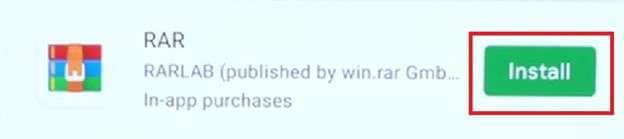
Step 1. Install and open the RAR app, then browse your storage to locate the RAR file.
Step 2. Tap the file and select Extract, then choose a destination folder for the extracted files.
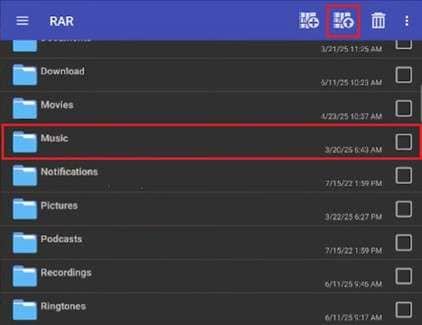
This method ensures compatibility with most RAR archives and supports advanced features like password input and file selection.
Method 2. Using ZArchiver
ZArchiver offers more flexibility for handling different archive types.
Step 1. Open ZArchiver and navigate to the folder containing your RAR file.

Step 2. Tap the file and choose Extract Here or select a custom location.
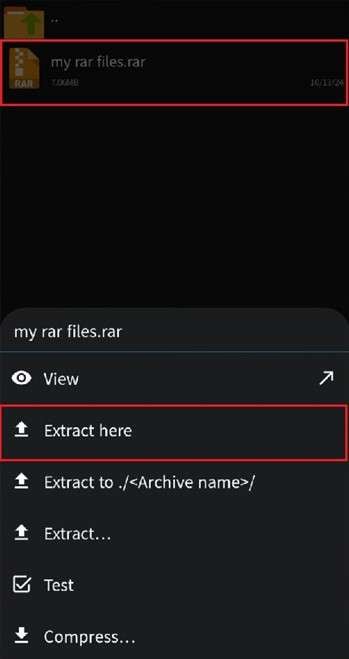
This method is particularly useful for managing large archives or organizing extracted content.
Method 3. Using WinZip
WinZip is known for its simplicity and cloud integration, making it beginner-friendly.
Step 1. Install and open the WinZip app from the Google Play Store.
Step 2. Locate your RAR file within the app or your storage. Tap the file and select Unzip, then choose a destination folder or cloud storage location.
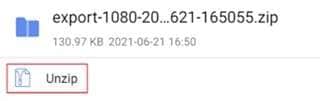
This method is ideal for users who want a straightforward interface and the convenience of cloud storage integration.
Method 4. Using File Manager (Limited Cases)
Some Android devices include basic archive support.
Step 1. Open your file manager and tap the RAR file.
Step 2. Select Extract if the option is available.
However, this method is limited and may not work for complex or encrypted archives.
Part 5. Common Problems When Opening RAR Files
Even with the right app, users may encounter issues that prevent successful extraction of RAR archives. These are some:
- File Does Not Open - This usually indicates that the app cannot read the archive format. Switching to a more compatible app often resolves the issue.
- "Archive is Corrupted" Error - This means the file structure is damaged, often due to incomplete downloads or transfer interruptions.
- Password-Protected Archive - If the correct password is not provided, extraction will fail completely.
- Multi-Part Archive Issues - All archive parts must be present and correctly named. Missing parts will prevent extraction.
Each of these issues requires a different approach, so identifying the exact problem is important.
Part 6. Advanced Troubleshooting for RAR Files
If standard methods fail, deeper troubleshooting is required.
- Verify File Integrity - Compare the downloaded file size with the original source to ensure completeness.
- Re-download the File - Corrupted downloads are a common issue. Downloading the file again often resolves errors.
- Use a Different Extraction App - Some apps handle specific archives better than others. Switching tools can improve compatibility.
- Check Device Storage - Insufficient storage can interrupt extraction, leading to incomplete results.
Part 7. Fix Corrupted RAR Files (Advanced Solution)
When a RAR file is damaged, extraction tools cannot process it correctly. This results in repeated errors or failed extraction attempts.
Common causes of corruption include:
- Interrupted downloads
- Faulty file transfers
- Storage device errors
- Missing archive segments
In such cases, repairing the archive is necessary before extraction. Repairit RAR File Repair can rebuild damaged archive structures and restore usability. By restoring the archive's integrity, it allows you to successfully extract files that would otherwise remain inaccessible.
Step-by-Step Instructions:
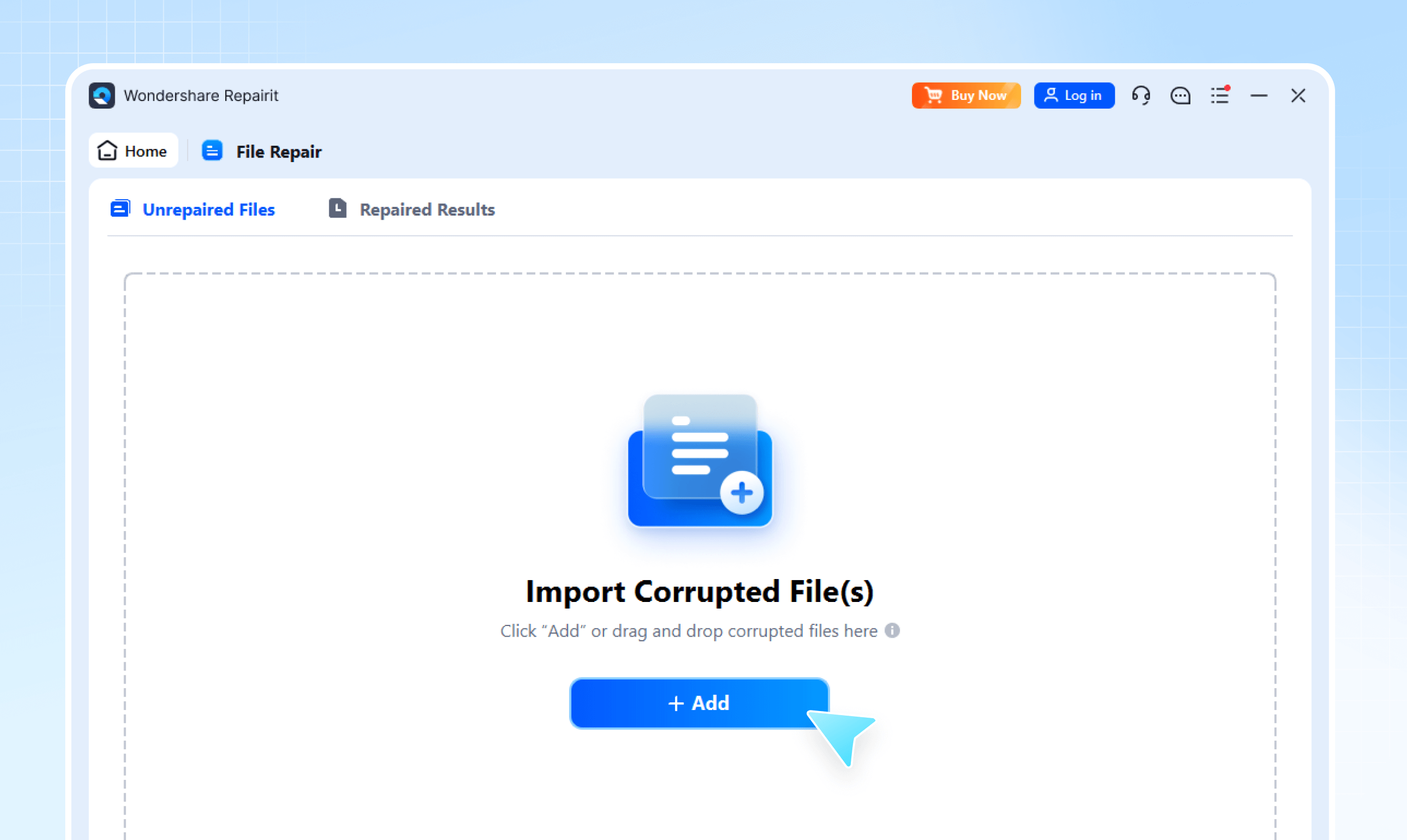
Step 1. Upload the damaged RAR file by clicking Add in the repair tool.
Step 2. Click Repair to start the process.
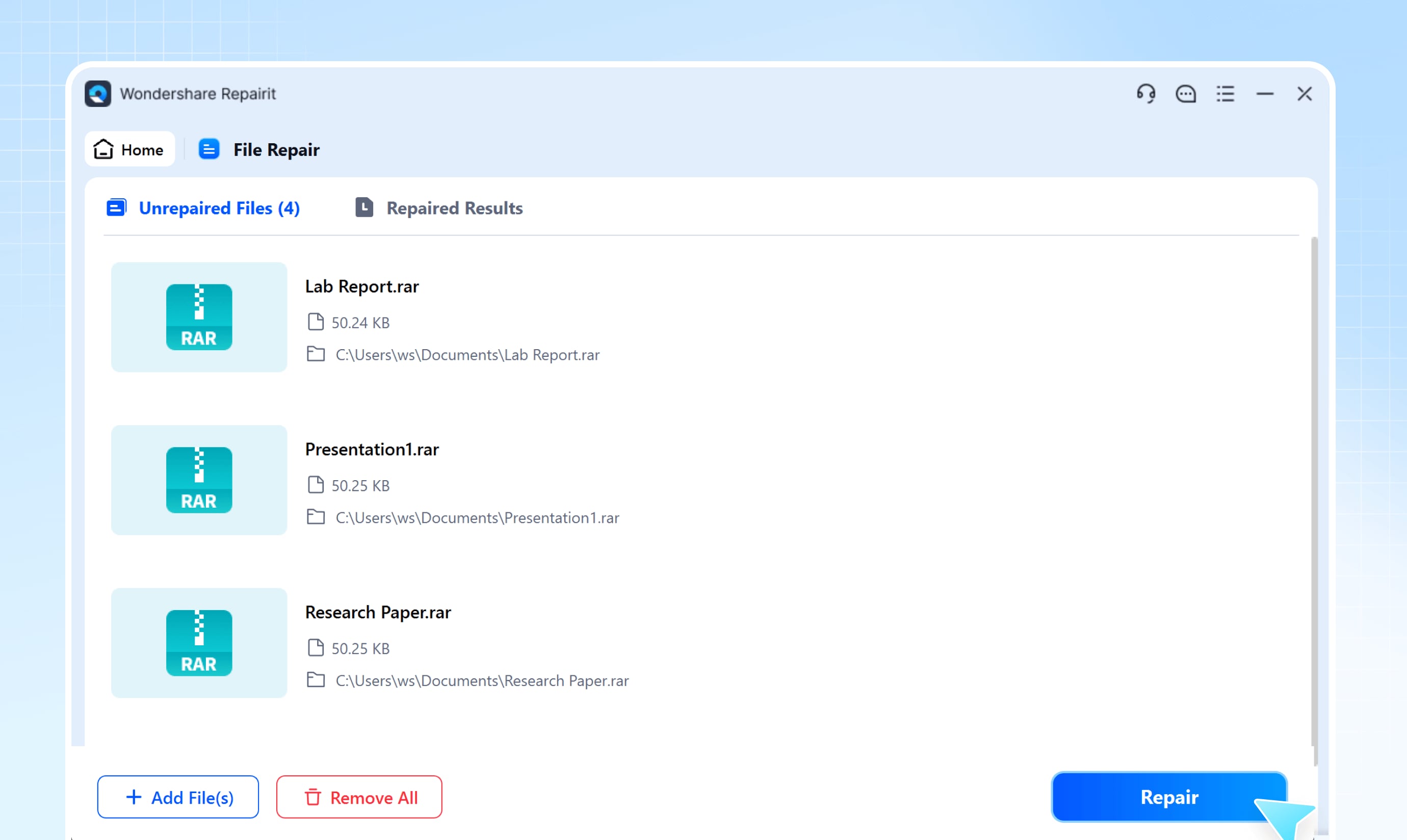
Step 3. Save the restored archive and transfer it back to your Android device.
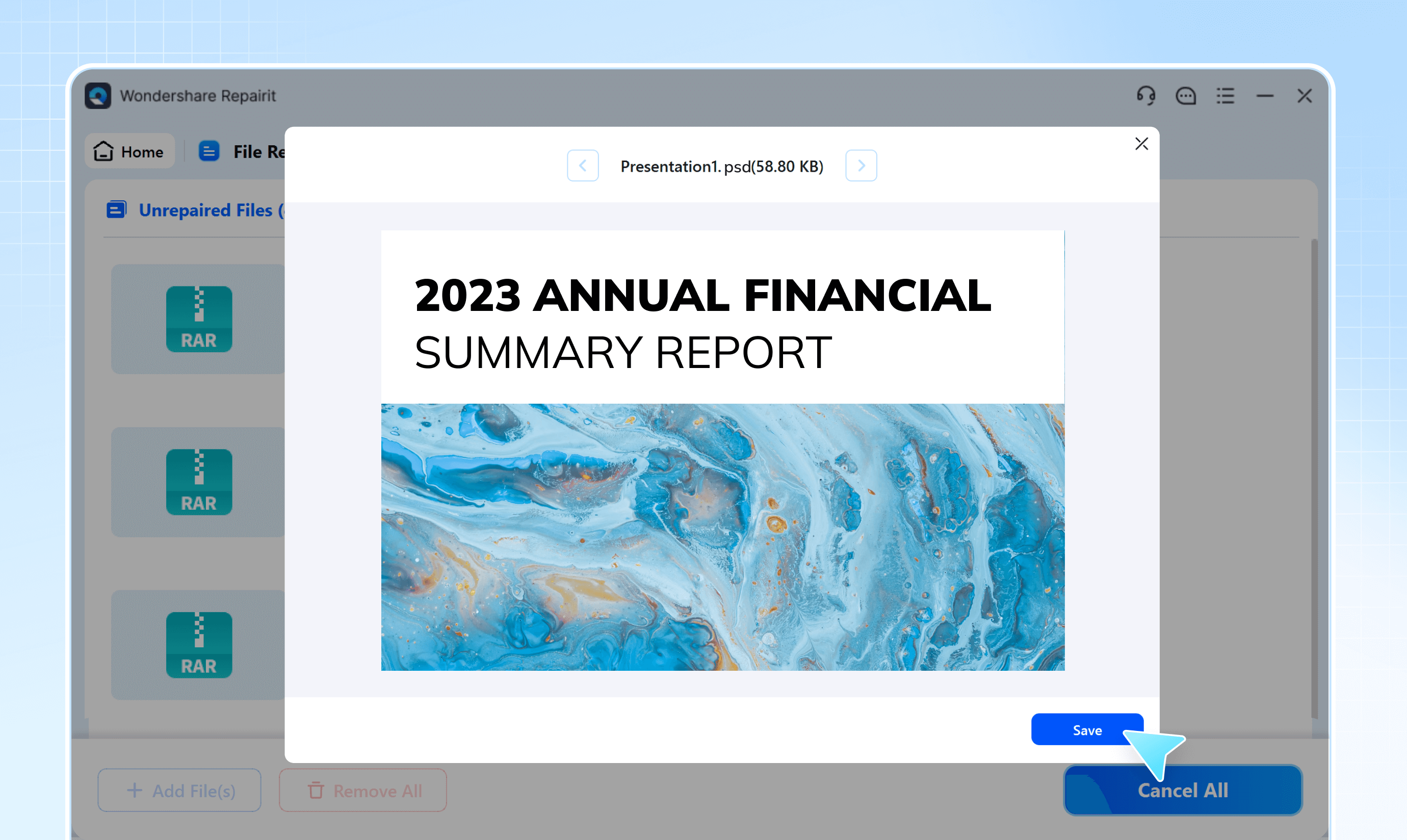
What the Tool CAN Do:
- Repair corrupted or unreadable RAR files
- Restore archive structure and metadata
- Fix extraction errors caused by file damage
- Recover files from partially damaged archives
What the Tool CANNOT Do
- Recover files that were never downloaded
- Fix missing parts of multi-volume archives
- Bypass password protection
- Repair physical storage hardware issues
⚠️ Note: Use this solution only when the archive is damaged. For compatibility issues, using a different app is sufficient.
Part 8. Tips for Opening RAR Files Successfully
- Always download files completely before opening
- Keep all parts of multi-volume RAR files together
- Use trusted extraction apps
- Avoid interrupting extraction processes
- Ensure enough storage space on your device
These practices help prevent errors and ensure smooth extraction.
Conclusion
Learning how to open RAR files on Android is simple once you use the right tools. Since Android does not support RAR files natively, apps like RAR or ZArchiver make extraction easy and efficient.
Most issues can be resolved by using compatible apps or checking file integrity. In cases where the file is corrupted, repair tools can help restore access and allow proper extraction. With the right approach, you can open and manage RAR files on Android without any issues.
FAQs
-
How do I open a RAR file on Android?
You need a third-party app like RAR or ZArchiver. These apps allow you to extract and access files easily. -
Why can't I open RAR files on my phone?
Android does not support RAR files by default. You must install an extraction app. -
What app opens RAR files on Android?
Apps like RAR, ZArchiver, and WinZip can open RAR files. They support extraction and file management. -
Can I open RAR files without an app?
Usually no, unless your file manager supports it. Most Android devices require a dedicated app. -
What if my RAR file is corrupted?
You may need a repair tool to fix the archive. After repair, you can extract it normally.




