
![PowerPoint Cannot Insert Video from Selected File [Causes & Fixes]](https://images.wondershare.com/repairit/article-trans-image/2929/powerpoint-cannot-insert-a-video-from-the-selected-file-1.jpg)
An impactful PowerPoint presentation often relies on the smooth integration of videos to illustrate key aspects. Given that, when you insert a clip, an error like “PowerPoint cannot insert a video from the selected file” appears out of nowhere. Suddenly, the visual element you counted on to impress your audience is missing, and your pitch feels incomplete.
Scenarios like this highlight the real-world consequences of technical hurdles and the emerging need for immediate solutions. Considering this, the following guide is a complete package, from a basic understanding to common culprits and workable, guided fixes.
Table of Contents
-
- Unsupported Codec Causes PowerPoint Cannot Insert Video from the Selected File
- Video File Corruption Triggers PowerPoint Cannot Insert a Video from the Selected File MP4
- File Path and Permission Issues Behind PowerPoint Cannot Insert Video from the Selected File
- Outdated PowerPoint or Windows Media Components Cause Video Insert Failures
-
- Restart PowerPoint and Try Again
- Move Video to a Simple Folder Path
- Ensure Video Format is Supported (e.g., MP4 with H.264)
- Use Windows Media Player Controls in PowerPoint
- Enable the Media Compatibility Feature
- Install an Updated Codec Pack for Windows
- Update the Installed Drivers on Windows
- Reset or Repair the Office Application
Part 1. Understanding “PowerPoint Cannot Insert a Video from the Selected File” Error
“PowerPoint cannot insert video from the selected file” means PowerPoint cannot embed or link the video you selected. In simple terms, it's something about the file or your system that doesn't meet PowerPoint's expectations. Many MP4 files work in players, but PowerPoint can fail if the MP4 encoding is unsupported. Eventually, the program fails to access it and displays a generic “cannot insert a video from the selected file” message.

When the PowerPoint Cannot Insert a Video from the Selected File MP4 Error Appears
Navigating when this error appears might help you overcome your confusion with a clear understanding of the next step:
- When MP4 uses non‑recommended codecs, instead of the H.264 video and AAC audio combination.
- A damaged or partially downloaded video may not pass PowerPoint’s checks, resulting in refusal.
- If the video was moved, renamed, or stored on a disconnected drive, the program might not reach it.
- Old Office versions or media components can prevent MP4 support from working properly in PowerPoint.
- It appears when Windows lacks the correct decoder, or if you use a 64‑bit Office with only 32‑bit codecs installed.
Part 2. Common Causes of “PowerPoint Cannot Insert a Video from the Selected File.”
The error “PowerPoint cannot insert a video from the selected file MP4” indicates a problem with how the program accesses the content. For more clarity, explore the provided causes to apply suitable fixes instead of relying on trial and error:
1. Unsupported Codec Causes PowerPoint Cannot Insert Video from the Selected File
This error often appears when the video container is technically supported, but the codec inside is not. In practice, Microsoft recommends explicitly MP4 files encoded with H.264 video and AAC audio. So, if your file uses other codecs and the desired Windows codec is missing or mismatched, PowerPoint cannot decode it.
2. Video File Corruption Triggers PowerPoint Cannot Insert a Video from the Selected File MP4
Even when the format and codecs are correct, PowerPoint may refuse to insert a video if the MP4 file is corrupted. Damage to the header, missing frames, or a partially downloaded file means the program's media engine cannot read the structure reliably. As a result, it treats the clip as invalid or shows the "cannot insert" instead of inserting a broken video.
3. File Path and Permission Issues Behind PowerPoint Cannot Insert Video from the Selected File
Sometimes the problem is simply that PowerPoint cannot reach the file at all. The error “PowerPoint cannot insert a video from the selected file” might appear if the video sits on a disconnected external drive. All of this can cause a PowerPoint check to fail and return this message, even if the file itself is fine.
4. Outdated PowerPoint or Windows Media Components Cause Video Insert Failures
Older builds of PowerPoint or Windows Media Component may not completely support newer MP4 profiles or codecs. When Office is not up to date, or when the system is missing modern media components, PowerPoint might fail to recognize. The response will be this dreaded message until you install the Media Feature Pack or update Windows to the current versions.
Part 3. PowerPoint Cannot Insert Video from the Selected File? Try These Proven Fixes
Below are well-explained solutions for the “PowerPoint cannot insert video from the selected file” error, with step-by-step instructions. Each fix explains why it works and how it helps your presentation present information with embedded visuals:
1. Restart PowerPoint and Try Again
Restart refreshes the entire application environment, which helps eliminate temporary faults that accumulate during editing. This simple restart resets PowerPoint’s media engine, releases locked resources, and often restores normal functionality instantly. For better learning, follow the instructions to restart PowerPoint and insert the video again:
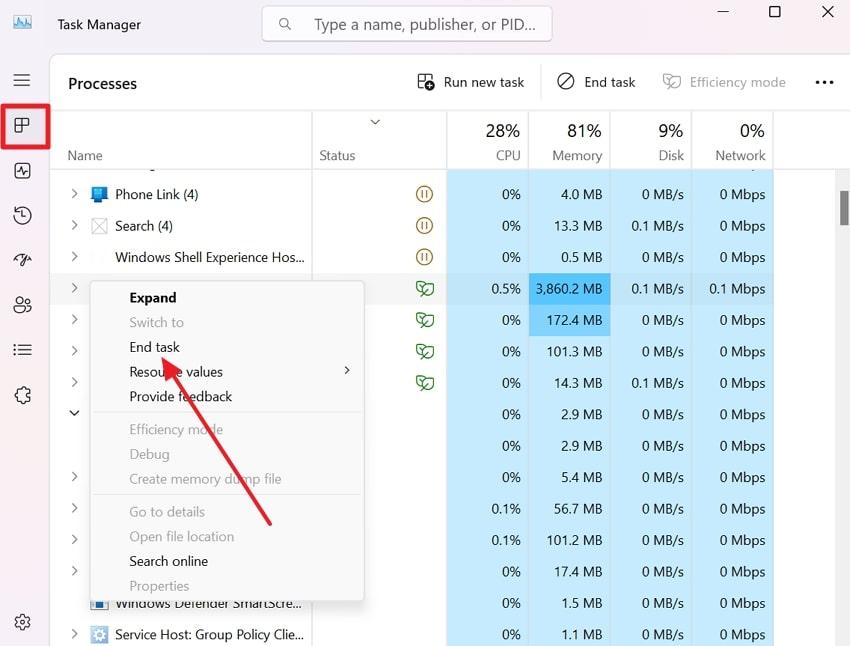
Step 1. Access Task Manager on your Windows, press the “Processes” tab, and locate PowerPoint from the list of active apps. Once found, right-click it and select the “End Task” option to close the program.
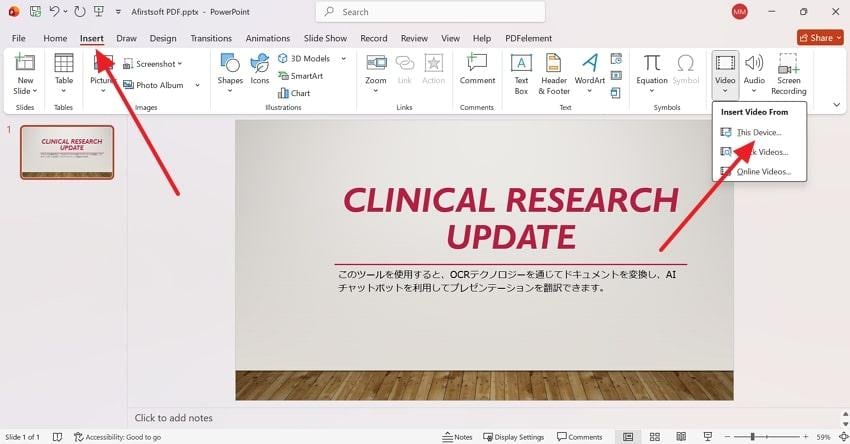
Step 2. Open the PowerPoint again with the same presentation, and press the “Insert” option from the toolbar. Next, expand the Video option and select “This Device” to try reinserting your video.
2. Move Video to a Simple Folder Path
PowerPoint may fail to access videos stored in complex directory structures or folders with restricted permissions. Extensive file paths, special characters, or synced cloud folders can confuse PowerPoint's file-reading process.
To do this, copy the video from its current location and paste it into a simple local folder, such as the Desktop. Besides this, you can rename the file using only letters and numbers, avoiding symbols or long names.
3. Ensure Video Format is Supported (e.g., MP4 with H.264)
The program is optimized for MP4 videos encoded with H.264 video and AAC audio, offering the best balance of compatibility. To reduce the risk of insertion errors, verify the video properties and ensure the codec is H.264.
If the codecs aren’t supported, download UniConverter and change the file to WMV format in no time. To proceed, simply follow the guidelines and convert your video into a PowerPoint-supported format:
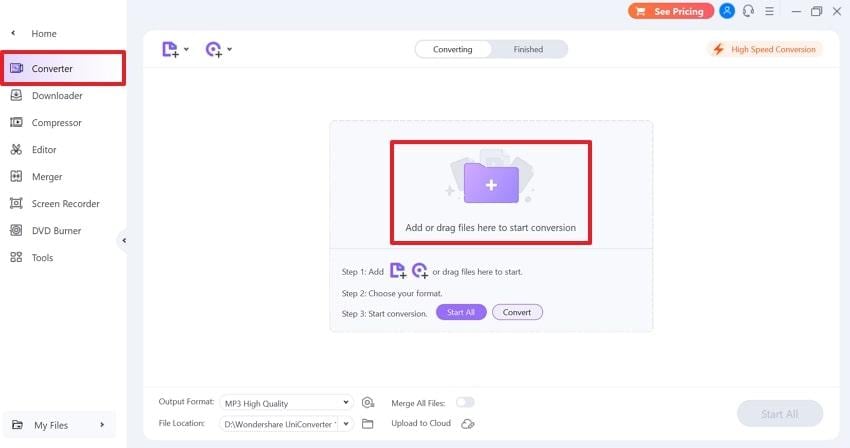
Step 1. Launch the updated version of UniConverter, access the “Converter” option, and press the “Add” option. Next, import your video into the tool from your device and start the conversion.
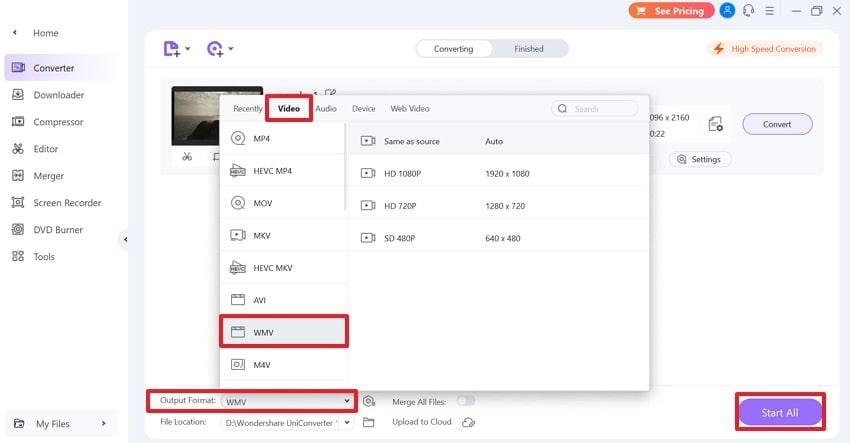
Step 2. Now, extend the menu for “Output Fomat”, select the “Video” section, and choose the “WMV” format. Once done, navigate to the “Start All” button and convert your video into WMV format.
4. Use Windows Media Player Controls in PowerPoint
Integrating Windows Media Player into PowerPoint allows the application to use the Windows native media engine rather than only PowerPoint’s built-in decoder. This improves compatibility with a broader range of video formats and improves stability, especially on old systems with limited multimedia support. To know the actual working, follow the tutorial and use Windows Media Player Controls:
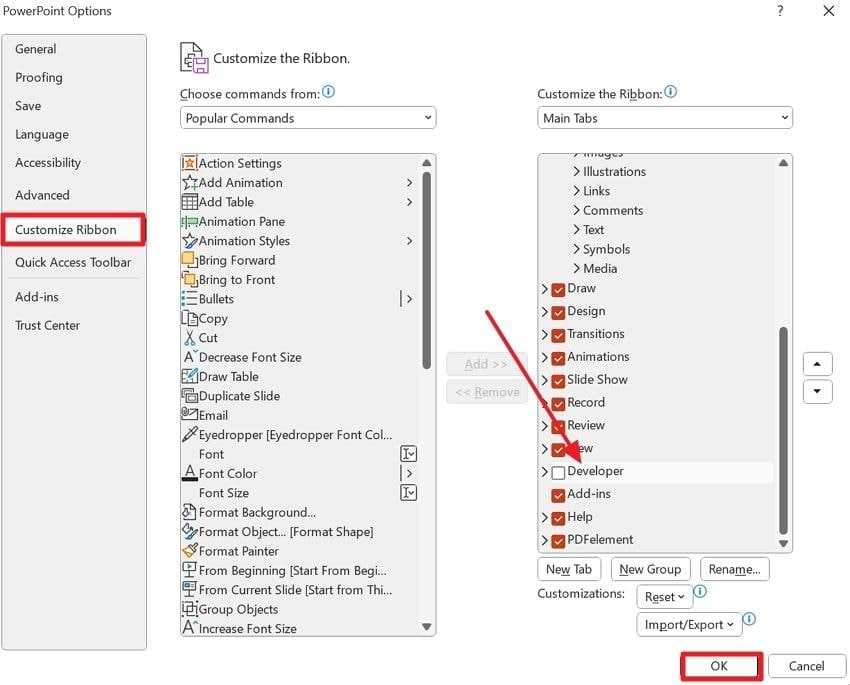
Step 1. In PowerPoint, proceed to the “File” tab and press the “Options” option from the left panel. From the PowerPoint Options window, access the “Customize Ribbon” section, tick the “Developer” option, and press “OK.”
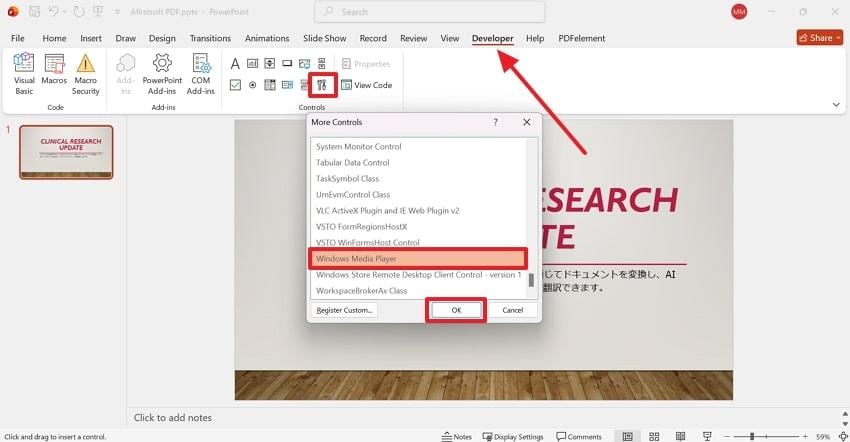
Step 2. After this, open the “Developer” tab, click the “More Control” icon, and choose the “Windows Media Player” option. Once done, press the “OK” button and try to insert the video again with more accessibility of compatibility.
5. Enable the Media Compatibility Feature
The Media Compatibility feature in PowerPoint automatically detects and fixes potential issues with embedded videos. It even scans your presentation for media files that might not be completely compatible with your version of PowerPoint or Windows. Adhere to the tutorial and allow PowerPoint to analyze your presentation for smooth video insertion later:
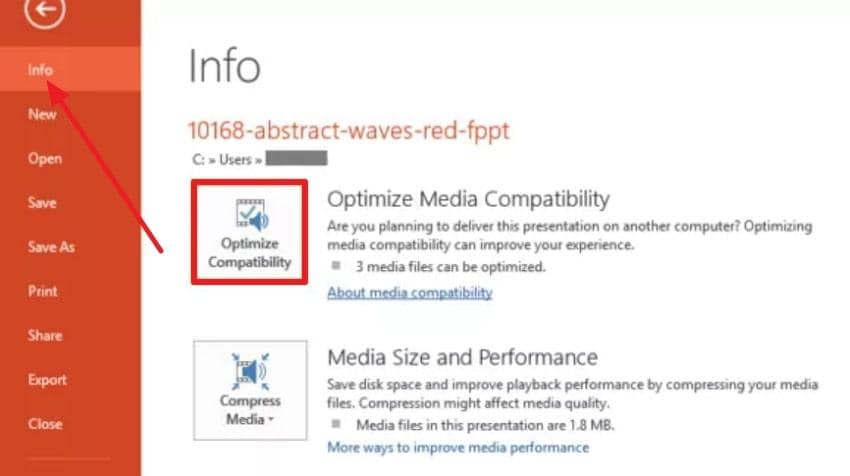
Instructions: Enter PowerPoint, go to the File tab, and access the “Info” section from the left panel. Here, press the “Optimize Media Compatibility” option (appears when there is an embedded compatible media). Now, allow PowerPoint analyze and optimize media, then return to the slide and test the video again.
6. Install an Updated Codec Pack for Windows
Codecs are essential for decoding, because outdated codecs are a common reason for “PowerPoint cannot insert video from the selected file.” An updated codec pack expands Windows' ability to recognize different video encoding and improves playback reliability. To prevent insertion errors, explore the manual and install updated codecs for Windows:
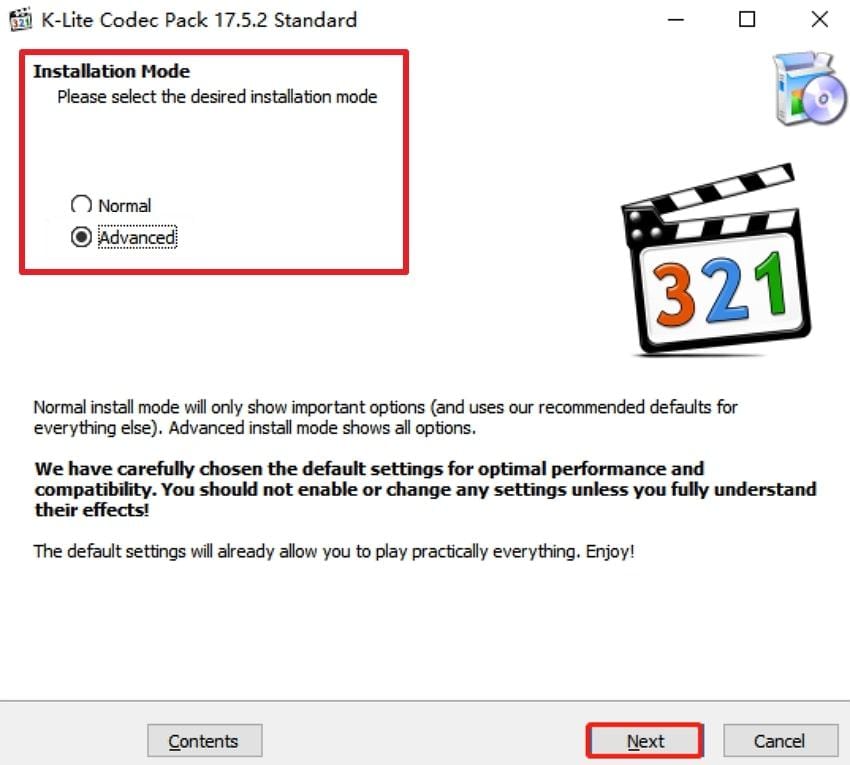
Step 1. Initially, download the standard version of K-Lite Codec Pack, then double-click the “K-Lite_Codec_Pack_1752_Standard.exe” file to run the installation. After this, tick the “Installation Mode” as preferred and press the “Next” button to proceed.
Step 2. For Installation Preferences, choose your required Video and Audio player from the options. Navigate to the “Next” button, follow the on-screen instructions, and keep clicking on the Next button.
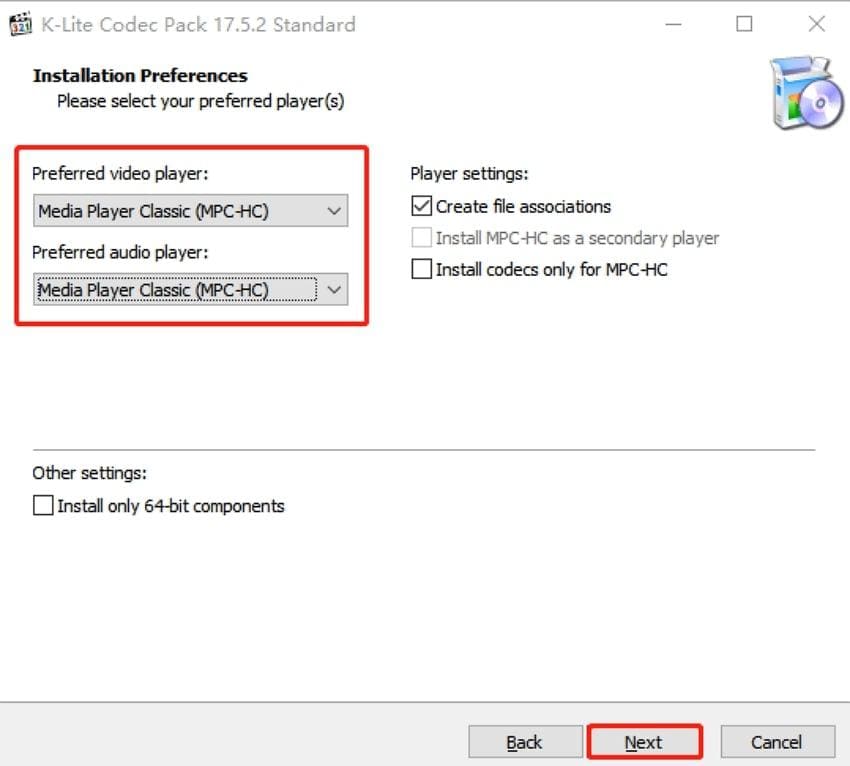
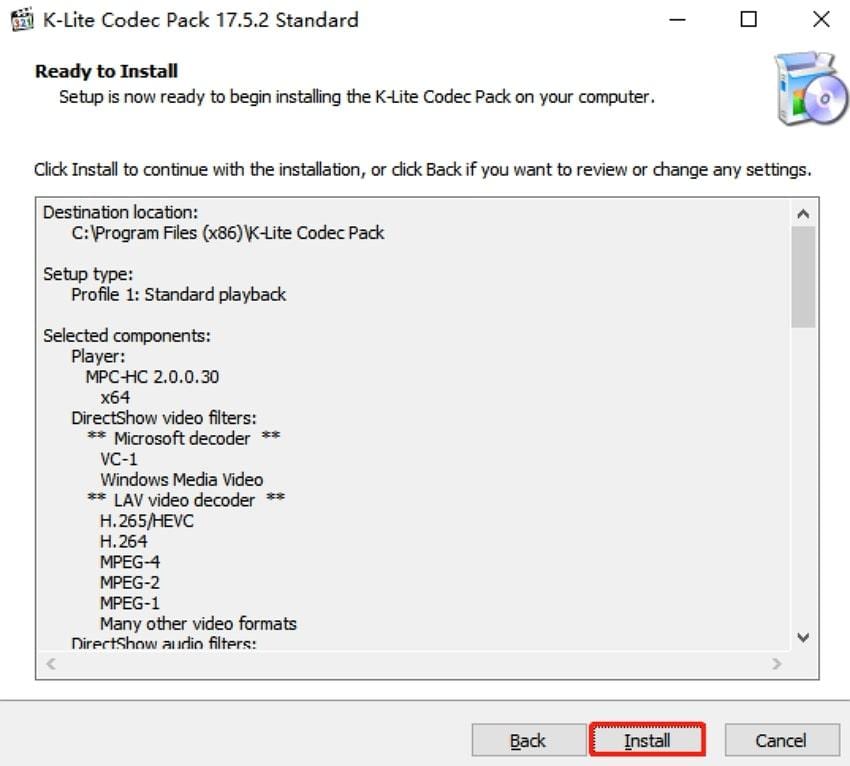
Step 3. Finally, press the “Install" button on the "Ready to Install” window to have the updated codec pack installed. Once done, restart your PC and try to insert the video into your PowerPoint presentation again.
7. Update the Installed Drivers on Windows
While graphics or media drivers govern how videos are processed and displayed, an outdated driver can simply interfere with their decoding. For this, it's important to update your drives not only to improve system stability but also to enhance video rendering performance. Follow the manual and help yourself if videos fail to insert after a Windows update:
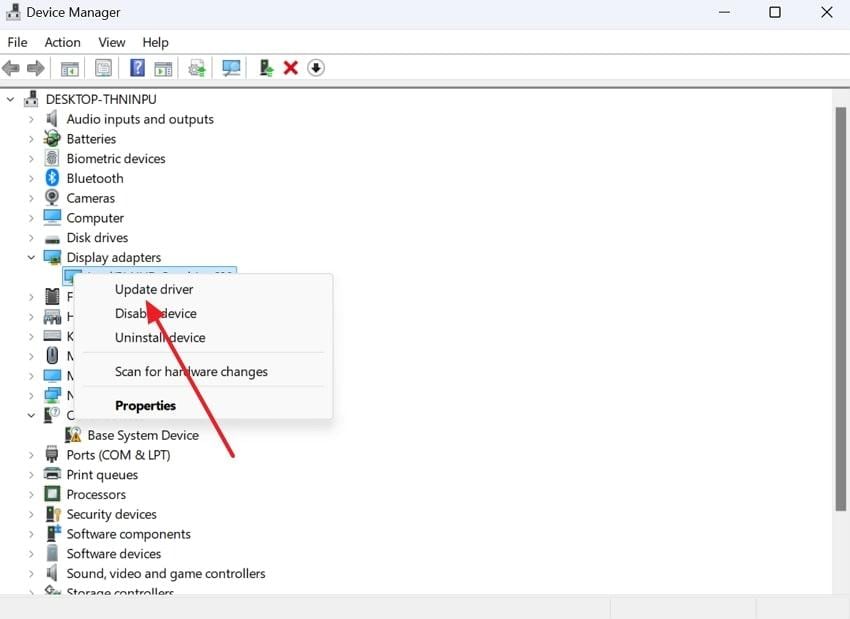
Step 1. Enter Device Manager on your Windows, expand the menu for “Display Adapters,” and right-click the installed driver. Then, choose the “Update Driver” option from the menu to install the latest version.
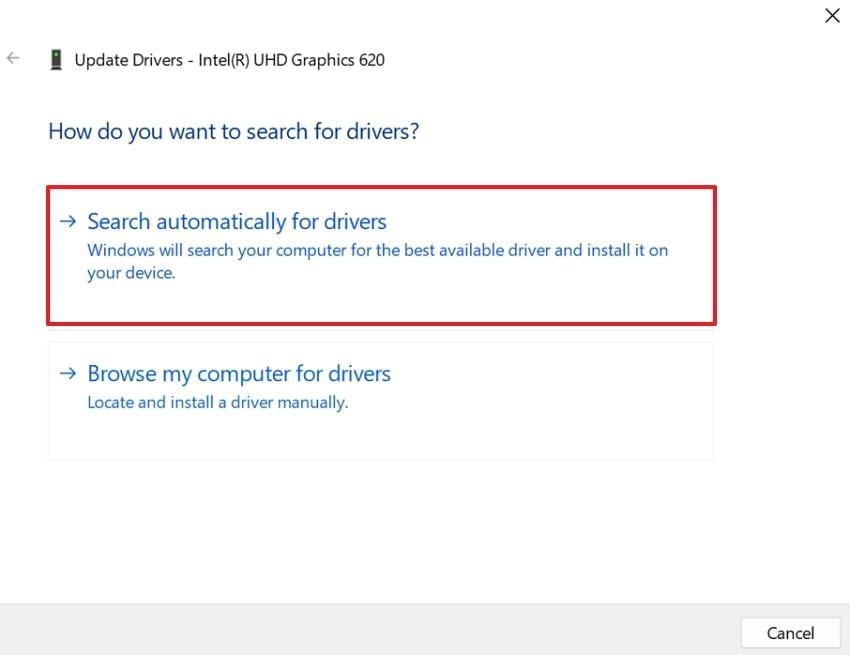
Step 2. Now, press the “Search Automatically for Drivers” option to allow Windows search and install the updated version.
8. Reset or Repair the Office Application
If PowerPoint internal components are damaged or missing, video insertion errors can repeatedly occur, regardless of the file format. Microsoft Office repair restores essential program files, resolves hidden conflicts, and reconfigures media-related features without affecting your documents. Adhere to the stepwise tutorial and repair your Office application as per guidance:
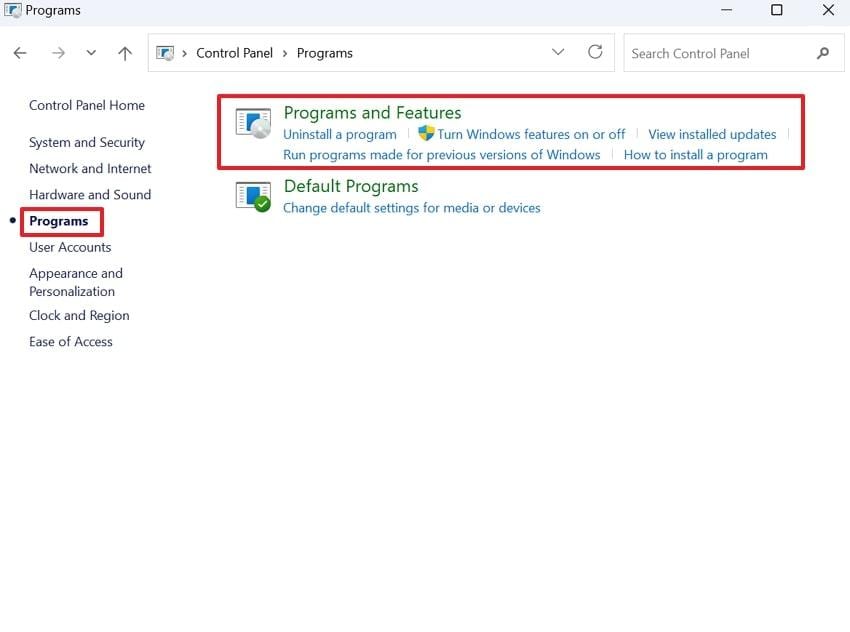
Step 1. To initiate, open the Control Panel, select the “Programs” option, and press the “Programs and Features” option.
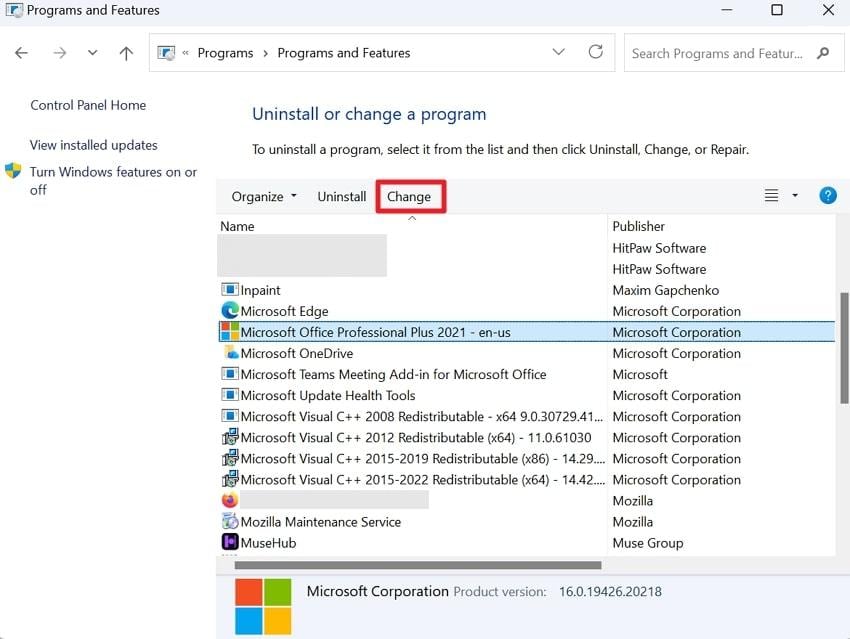
Step 2. Next, find the “Microsoft Office” application and proceed to the “Change” option at the top.
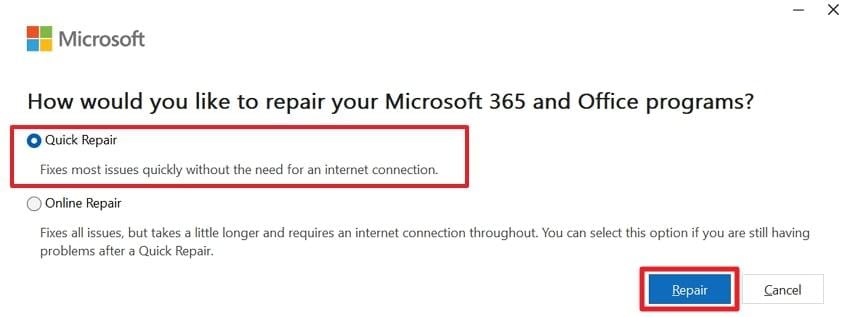
Step 3. Move forward, check the box for “Quick Repair,” and click the “Repair” option to begin instant repair.
Part 4. PowerPoint Cannot Insert a Video from the Selected File? Repair Corrupted Videos First
Many times, when “PowerPoint cannot insert a video from the selected file MP4,” the real problem is hidden corruption. Considering this, understanding how damaged videos affect PowerPoint and knowing how to fix them can help you restore your presentation:
- A corrupted MP4 file may have a broken or missing header, preventing PowerPoint from reading basic metadata.
- If important parts of the video or audio stream are damaged, PowerPoint’s media engine treats the file as invalid.
- When an MP4 is only partially downloaded or copied with errors, the program cannot load it simply.
- The video may have been damaged during transfer; therefore, PowerPoint cannot access it.
- Failed format conversion can create MP4 files with internal errors that PowerPoint cannot understand.
Once it's clear that video corruption is an actual cause for this error, only Repairit Video Repair can help you troubleshoot the issue. This professional repair program supports a wide range of corruption scenarios, including recording issues, storage failures, and more. Besides this, it facilitates numerous formats for videos, such as device-specific and pro-level formats. Most importantly, you can preview files after the repair action to analyze your results and save files.

-
Repair damaged videos with all levels of corruption, such as video not playing, video no sound, out-of-sync video or audio, playback errors, header corruption, flickering video, missing video codec, etc.
-
Repair full HD, 4K, and 8K videos and support 20+ popular formats, including MOV, MP4, M2TS, MDT, RSV, WMV, MPEG, DAT, etc.
-
Repair damaged or corrupted videos caused by video compression, system crash, video format change, etc.
-
Repair critically damaged or corrupted RAW/Log/HDR videos from professional cameras such as Blackmagic Design, RED Digital, and ARRI, etc.
-
Repairit has a quick and advanced scanning mode. You can use either depending on the level of corruption the video file has undergone.
-
No limit to the number and size of the repairable videos.
-
Repaired videos are more compatible with professional editing software such as DaVinci, Composer, Final Cut Pro, and Premiere Pro.
-
Support Windows 11/10/8/7/Vista, Windows Server 2003/2008/2012/2016/2019/2022, and macOS 10.12~macOS 15.
Soon, when you identify video corruption as the underlying issue, simply follow the guidelines and repair corruption:
Step 1. At first, access the “Video Repair” section and click the “Start” button to add corrupted videos to the tool.

Step 2. After adding damaged videos, navigate to the “Repair” button and get all your videos fixed in no time. Later, preview your footage, review it, and save it to your device for PowerPoint presentations.

Fix PowerPoint Cannot Insert a Video from the Selected File Error
 Security Verified. Over 7,302,189 people have downloaded it.
Conclusion
In conclusion, the “PowerPoint cannot insert a video from the selected file” error can be disruptive when it occurs mid-presentation. The article above identifies many reasons for the error, helping you apply the right fix at the right time. However, if a damaged or corrupted video file causes the problem, only Repairit can reliably repair it.
Frequently Asked Questions
-
Q1. Why does PowerPoint say it cannot insert a video from the selected file?
PowerPoint displays this error when it is unable to read or process the video file correctly. This usually happens due to unsupported codecs, incompatible video formats, or internal corruption within the video file. -
Q2. Why can’t PowerPoint insert an MP4 video that plays fine elsewhere?
While media players support a range of codecs, PowerPoint relies on specific encodings, such as H.264 for video and AAC for audio. If an MP4 uses a different codec or has corrupted metadata, PowerPoint might fail to insert it even though it plays fine elsewhere. -
Q3. What is the best video format to avoid PowerPoint cannot insert video errors?
The most reliable format for PowerPoint is MP4 encoded with H.264 video and AAC audio. This format offers the best balance of quality and compatibility, avoiding errors such as “PowerPoint cannot insert video from the selected file.” If issues persist, WMV is another PowerPoint-friendly format, especially on Windows.




